Shopping on Amazon is something most of us do regularly. With so many purchases, your order history can quickly become cluttered. Whether it’s a gift you don’t want someone else to see, a personal item you’d like to hide, or just a bit of digital housekeeping, knowing how to archive Amazon orders can help keep your account organized. This guide will show you how to do it step by step, along with other useful tips about managing your Amazon order history.
What Does It Mean to Archive Amazon Orders?
Archiving Amazon orders doesn’t mean deleting them. In fact, Amazon doesn’t allow you to delete order history completely. Archiving simply moves your selected orders from the default order history list into a separate, less visible section. It’s like placing certain files in a folder rather than having them scattered across your desktop. You can still access the orders if needed, but they won’t be in your main view.
This is helpful if:
- You’ve bought a surprise gift and don’t want it easily found
- You want to keep sensitive purchases private
- Your order history is too long and hard to browse
Why Would Someone Archive an Order?
There are several reasons people choose to archive their orders:
- Privacy: If you share your account or device with others, archiving hides your purchases from the main history.
- Clutter reduction: It helps reduce visual clutter and makes it easier to find more recent or important orders.
- Gift-giving: If you’re planning a surprise, you won’t want the recipient to accidentally see what you bought.
- Personal reasons: Maybe there are items you just don’t want to revisit often or have in plain view.
Even though it doesn’t erase the purchase, archiving offers a small sense of control over what you see daily.
How to Archive Amazon Orders (Step-by-Step)?
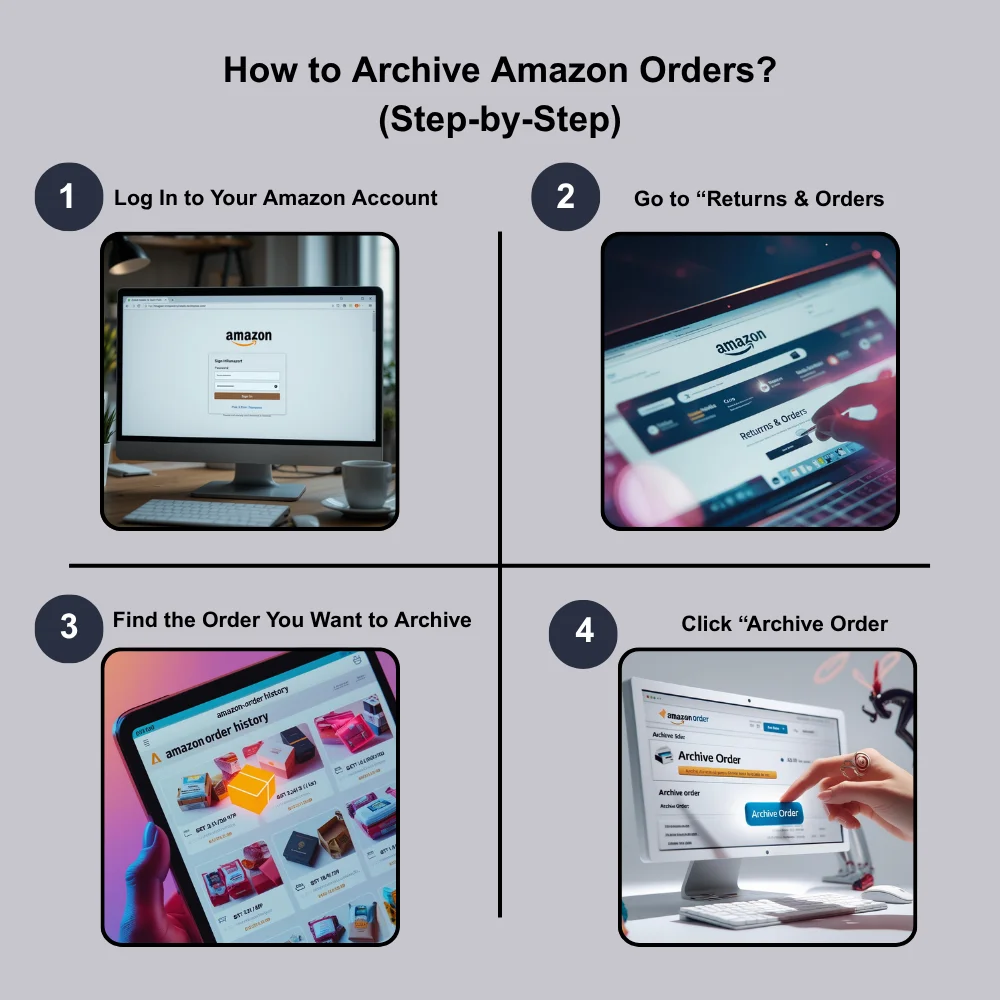
Archiving Amazon orders is simple, but it’s only available on the Amazon website not in the mobile app. Here’s how you can do it:
Step 1: Log In to Your Amazon Account
- Visit www.amazon.com on a web browser
- Sign in using your email and password
Step 2: Go to “Returns & Orders”
- On the top right of the homepage, you’ll see “Returns & Orders.” Click it
- This takes you to a list of all your past orders
Step 3: Find the Order You Want to Archive
- Scroll through the list or use the search bar to find a specific item
- Once you locate it, look for the option that says “Archive order” underneath the item
Step 4: Click “Archive Order”
- Click that link
- A pop-up will ask for confirmation
- Confirm by clicking the “Archive Order” button again
The order is now moved out of your main order list and placed into the archived section.
Where to Find Archived Orders?
You might wonder where your archived orders go and how to retrieve them. Here’s what to do:
- Go back to your “Accounts & Lists” menu
- Click “Your Orders”
- Above the list of your recent orders, click the dropdown that says “Orders” or “Past 6 months”
- Choose “Archived Orders” from the menu
Now, you’ll see everything you’ve previously archived. You can view the details just like any other order.
Can You Unarchive an Amazon Order?
Yes, you can. If you accidentally archived something or want it to reappear in your regular list, follow these steps:
- Go to the “Archived Orders” section
- Find the item you want to move back
- Click “Unarchive Order”
Once done, it will return to your normal order history.
Is It Possible to Archive Orders on the Mobile App?
Unfortunately, no. As of now, Amazon doesn’t allow you to archive orders from its mobile app. You’ll need to use a web browser on a desktop, laptop, or mobile device using the browser version of the site not the app.
What Can’t You Do: Deleting Orders?
It’s important to note that Amazon does not allow you to delete any part of your order history. Archiving is the only method to hide orders from plain view. Even canceled orders will stay listed, although they don’t show up in the same way as completed ones.
Tips for Keeping Your Amazon Account Private
If privacy is your main concern, here are a few additional steps you can take:
- Use incognito mode when browsing or buying gifts
- Sign out after using Amazon on shared devices
- Create separate profiles for each user on your Amazon household account
- Clear your browser history if you’re shopping for something sensitive
- Disable notifications or change delivery names to avoid unwanted alerts
How Many Orders Can You Archive?
Amazon allows you to archive up to 500 orders. For most people, that’s more than enough. However, if you reach the limit, you won’t be able to archive more unless you unarchive some of the older ones first.
Common Issues with Archiving Orders
Some users report they can’t see the archive option. If this happens:
- Make sure you are on the desktop version of the Amazon website
- Ensure you are logged into the correct account
- Try switching browsers or clearing cookies
- Check that the order is eligible some items may not show the archive option due to third-party policies or digital product restrictions
Final Thoughts
Archiving Amazon orders is a useful trick to tidy up your purchase history and maintain a bit of privacy. It’s not the same as deleting orders, but it’s the next best thing. Whether you’re hiding a surprise gift or just organizing your past purchases, knowing how to archive Amazon orders gives you more control over your account. Now that you know the process, give it a try and keep your order list clean and clutter-free.