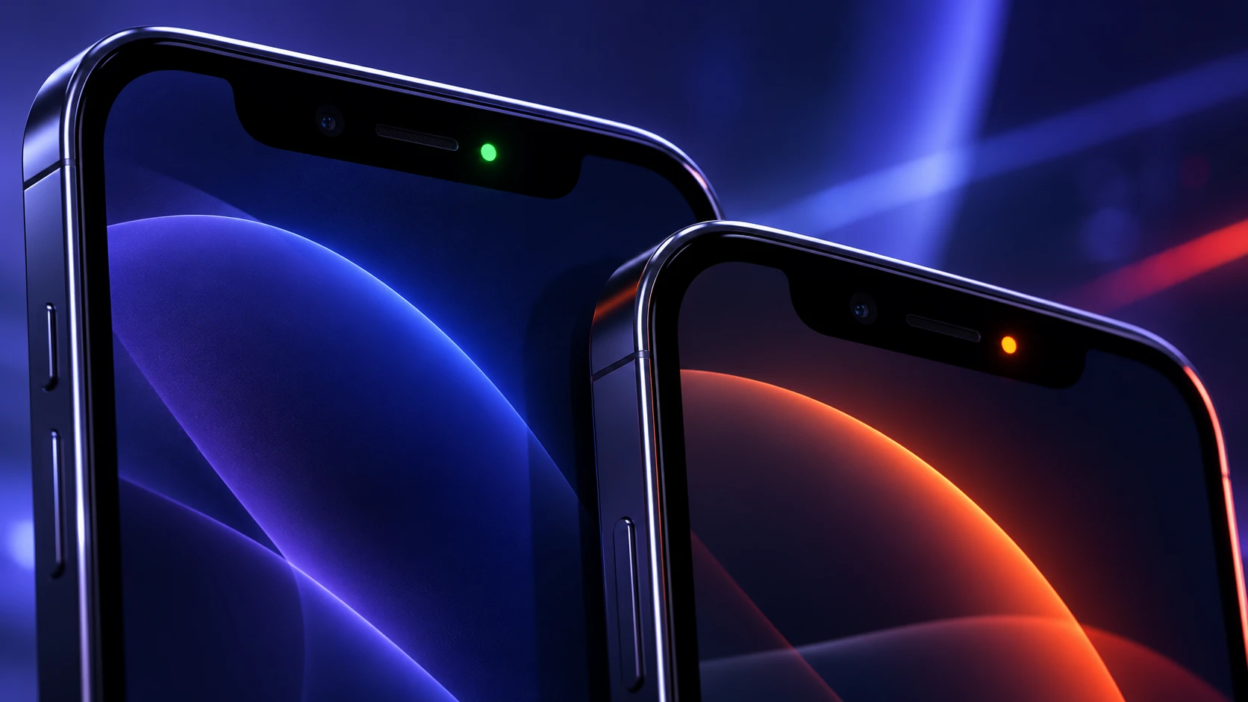
A green or orange dot near the top of your phone is a built-in privacy indicator that signals camera or microphone use. On iPhone, orange indicates microphone access, while green indicates camera access. On supported Android phones, a green privacy indicator can appear when either the camera or microphone is active. These indicators help you notice sensor activity and investigate apps using sensitive permissions.
These dots are meant to reduce silent access and help you spot unusual behavior quickly. Once you know what each color means, you can confirm which app triggered it and tighten permissions without guessing.
What the Green Dot Means?
On an iPhone, the green dot indicates that an app is using the camera, either alone or together with the microphone. On Android 12 and later, the green privacy indicator can appear when an app uses the camera, microphone, or both. Therefore, a green dot does not always mean the camera is active. The exact meaning depends on your phone’s operating system, as explained in Apple’s privacy indicator guidance and Google’s Android camera and microphone indicator instructions.
If you open the camera app, join a video call, scan a QR code, or record a clip, you should expect the green dot. If it appears when you are not using anything that needs the camera, it is a signal to investigate.
What the Orange Dot Means?
On an iPhone, the orange dot means an app is using the microphone without the camera. It may appear during voice calls, voice recordings, dictation, or other audio features. iPhones can also display an orange square instead of a dot when the Differentiate Without Colour accessibility option is enabled. Standard Android privacy indicators work differently, using green to signal camera or microphone access.
On an iPhone, Control Center can identify an app that recently used the microphone, even after its orange indicator disappears. If the orange dot remains visible when you are not using an audio feature, check the responsible app and review its microphone permission before assuming that someone is listening.
Why These Dots Exist?
Camera and microphone access can reveal more than most people realize, including conversations, surroundings, and sensitive information on screens. The dot acts as a simple, always visible alert so you can notice access in real time.
Privacy indicators make unexpected camera or microphone activity easier to notice, but they do not automatically prove that an app is spying or sending recordings elsewhere. If a dot appears unexpectedly, identify the app, check why it needs the sensor, and review its permissions before deciding whether to remove it.
How to Tell Which App Triggered the Dot?
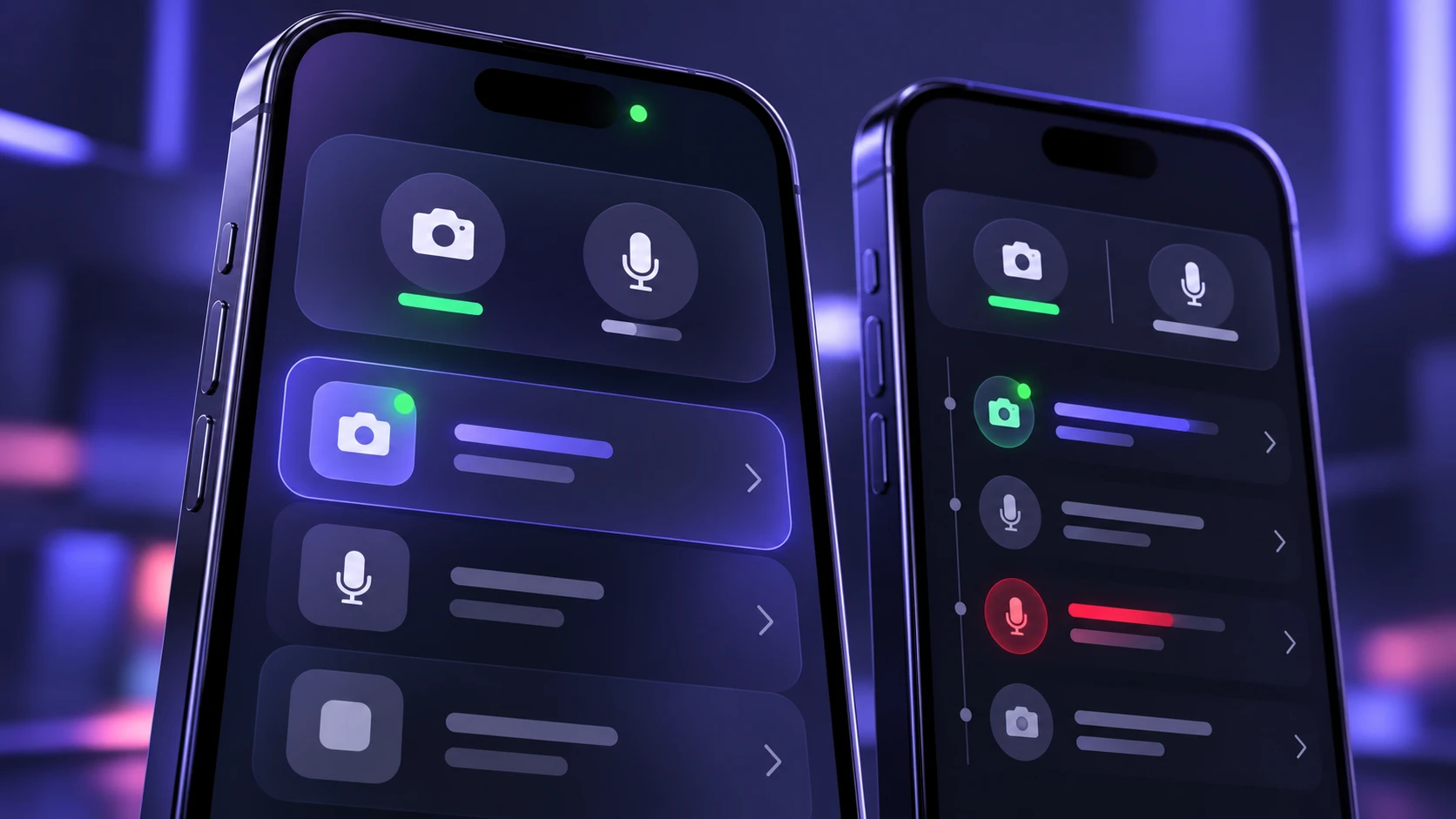
You do not need extra tools to identify the source. Both iPhone and Android provide built-in ways to see recent camera and microphone access.
- Check on iPhone: Open Control Center to identify which app recently used the camera or microphone. For additional history, go to Settings > Privacy & Security > App Privacy Report. Enable the report if necessary and review Data & Sensor Access.
- Check on Android: When the green indicator appears, swipe down and tap it to identify the app or service accessing your camera or microphone. You can also open Settings > Security & Privacy > Privacy > Privacy Dashboard on supported devices to review recent sensor activity.
- Confirm Legitimate Activity: Check whether a phone call, camera preview, voice recorder, video meeting, or accessibility feature is active. If the app’s behavior matches what you are doing, the indicator is usually expected.
After you identify the app, your next decision is whether the access makes sense and whether the permission should stay enabled.
Common Legitimate Reasons You Might See the Dot
Many everyday features rely on the microphone or camera. The dot often appears during normal use, especially if you use voice input or video features frequently.
- Video Calling and Meetings: The camera and microphone are active throughout the session.
- Voice Assistants and Dictation: The microphone may activate briefly when you tap a voice button.
- Camera Scanning Features: QR scanning and document scanning can trigger the camera indicator.
- Social Media Capture Tools: In-app cameras and story recorders can keep the camera ready even before you record.
- Accessibility Features: Some features use audio input to detect commands when enabled.
If the timing matches what you are doing on your phone, the dot is doing its job and there may be nothing to fix.
When the Dot Should Concern You
The dot deserves attention when it appears unexpectedly, repeatedly, or at odd times. A single brief dot can be harmless, but patterns can point to an app that is overreaching.
- It Appears on the Home Screen With No Active App: Background access may be happening.
- It Shows Up Right After Installing A New App: New permissions may be set too broadly.
- It Returns After You Revoke Permission: Another app or system service may be using the sensor. Check the privacy activity panel again to identify the current source rather than assuming the original app bypassed your settings.
- Battery and Data Use Spike At the Same Time: Continuous background activity can drain resources.
When several warning signs appear together, review the affected app’s permissions and check for unfamiliar applications. Android users can also review Google Play Protect, which helps detect potentially harmful apps. To understand this protection, read TechBonafide’s guide to Google Play and its built-in security features. Remember that an unexpected privacy indicator alone does not prove your phone has been hacked.
Quick Fixes to Stop Unexpected Camera or Mic Access
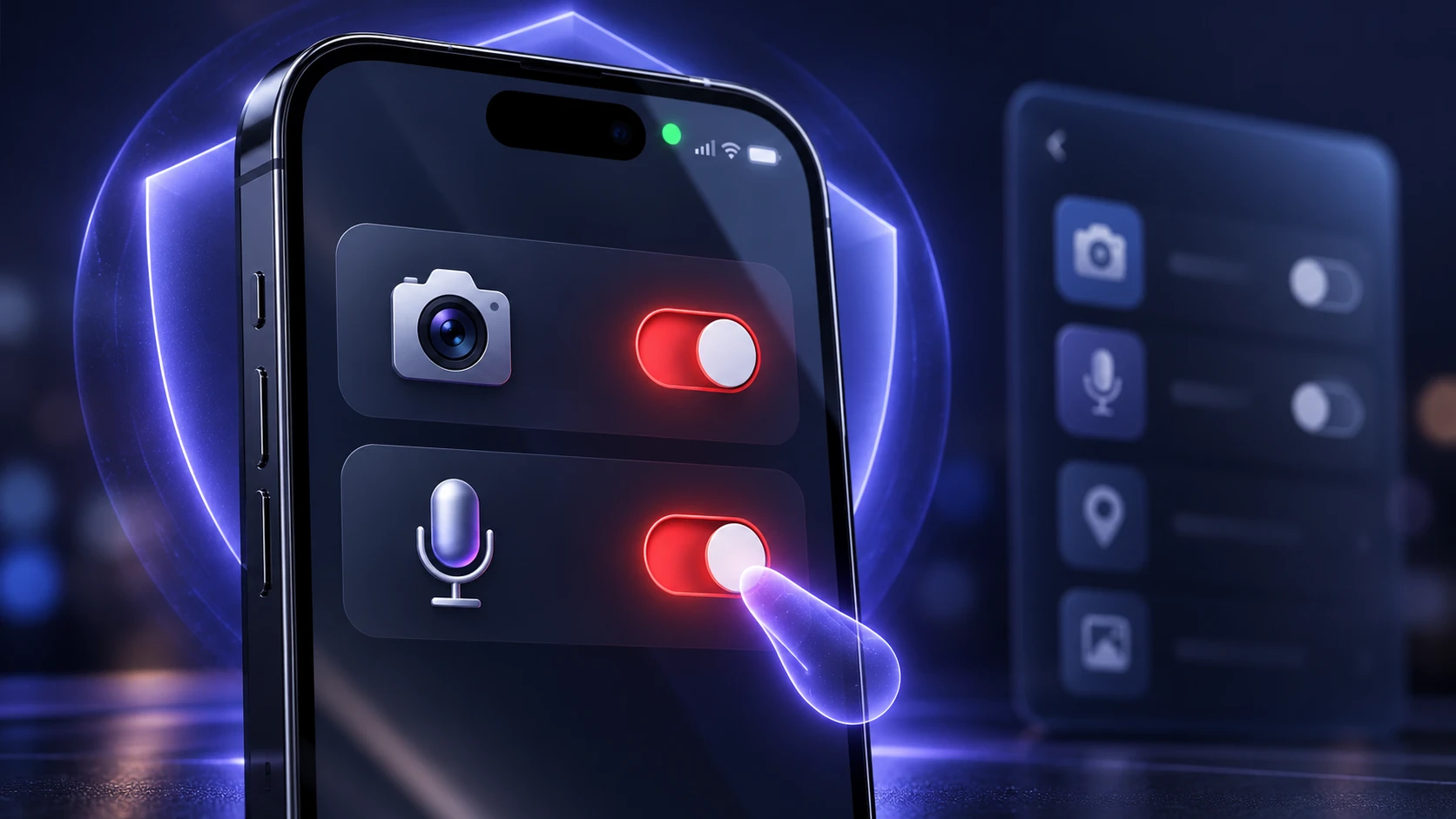
You can usually stop the dot by closing the app, revoking permissions, or disabling background activity. The right approach depends on whether the access is legitimate and how often it happens.
- Identify the App First: Check Control Center on iPhone or the privacy indicator and Privacy Dashboard on Android to find which app or service is accessing the sensor.
- Stop the Active Feature: End any unnecessary calls, recordings, camera previews, or meetings. Close the responsible app if the activity continues unexpectedly.
- Remove Unnecessary Permissions: On iPhone, open Settings > Privacy & Security > Camera or Microphone. On Android, open Settings > Apps, select the application, and tap Permissions to change its camera or microphone access.
- Choose Limited Access: On supported Android devices, select options such as Allow only while using the app or Ask every time when available. On iPhone, disable camera or microphone access for individual apps that do not need it.
- Restart and Recheck: If unexpected activity continues, restart the device, install available updates, and review unfamiliar applications. Background restrictions may help with some app behavior, but sensor permission controls are the primary safeguard.
Once the dot stops appearing unexpectedly, you can re-enable only the permissions you truly need.
iPhone and Android Differences You Should Know
On iPhone running iOS 14 or later, the orange indicator represents microphone-only access, while green represents camera access, with or without the microphone. Control Center identifies recent sensor activity, and App Privacy Report can provide additional history when enabled.
On Android 12 and later, the green privacy indicator can represent either camera or microphone use. Users can tap the indicator to identify the responsible app or service and review permission history through Privacy Dashboard. Exact menu names and available controls can vary by Android version and phone manufacturer.
Dot Colors and What Actions to Take?
This table summarizes what the green and orange dots usually mean and what you should check next. The names may differ slightly by device, but the underlying idea is consistent.
| Phone / Indicator | What It Means | Recommended Action |
|---|---|---|
| iPhone — Green | Camera access, with or without microphone access | Open Control Center and identify the app |
| iPhone — Orange | Microphone access without the camera | Check active calls, recordings, or voice features |
| Android — Green | Camera, microphone, or both may be active | Swipe down and tap the indicator to identify the app or service |
| Any Unexpected Indicator | Sensor activity that may require investigation | Review recent access and revoke unnecessary permissions |
How to Strengthen Phone Privacy Beyond the Dots?

Privacy indicators help you notice camera and microphone use, but they do not reveal every form of data collection. Websites can also gather identifying browser information through methods such as browser fingerprinting. Reviewing sensor permissions is one useful part of a broader phone privacy routine.
- Audit App Permissions Regularly: Remove camera and microphone access from apps that do not clearly need them.
- Use Allow Only While Using Options: Prefer limited access rather than always allow when choices exist.
- Review Recently Installed Apps: Check permissions granted to new apps, especially when unexpected camera or microphone activity begins shortly after installation.
- Keep Your OS Updated: Security updates reduce the risk of exploitation and fix permission bugs.
- Remove Apps You No Longer Use: Fewer apps means fewer potential permission pathways.
For a more detailed permissions check, read TechBonafide’s Android app permissions guide. It explains which camera, microphone, and other app permissions are appropriate, how to review permission requests, and how to adjust access through Android settings.
Conclusion
The green or orange dot on your phone is a built-in privacy signal that your camera or microphone was accessed. Most of the time it appears for valid reasons, such as calls, recordings, or camera tools.
If the dot appears unexpectedly, use your privacy panels to identify the app, then tighten permissions and background access. A quick review of settings and installed apps is often enough to keep your phone more private and under your control.
Frequently Asked Questions
Does the Green Dot Always Mean Someone is Watching Me?
No. On iPhone, a green dot indicates camera use, possibly alongside microphone access. On supported Android phones, green can also indicate microphone-only use. The indicator does not automatically mean someone is watching or recording you. Check the responsible app through your phone’s privacy controls and confirm whether its sensor access is expected.
Why Does the Orange Dot Appear When I Am Not Recording Anything?
The orange dot can appear when an app briefly activates the microphone for voice input, calling features, or audio processing. It may also show up after the mic was used a moment earlier. If it persists, revoke mic permission for the app and see if the behavior stops.
Does Android Have An Orange Privacy Dot?
Standard Android 12 and later privacy indicators are green when an app uses the camera or microphone. Unlike iPhone, Android generally does not use a separate orange microphone indicator. Some manufacturers may customize their interfaces, so check your device’s privacy settings for the exact behavior.
How Can I Prevent Apps From Using the Camera or Mic in the Background?
Set camera and microphone permissions to allow only while using the app when that option is available. Disable background activity for apps that do not need it and uninstall apps you do not trust. Regular permission audits help catch changes after updates.