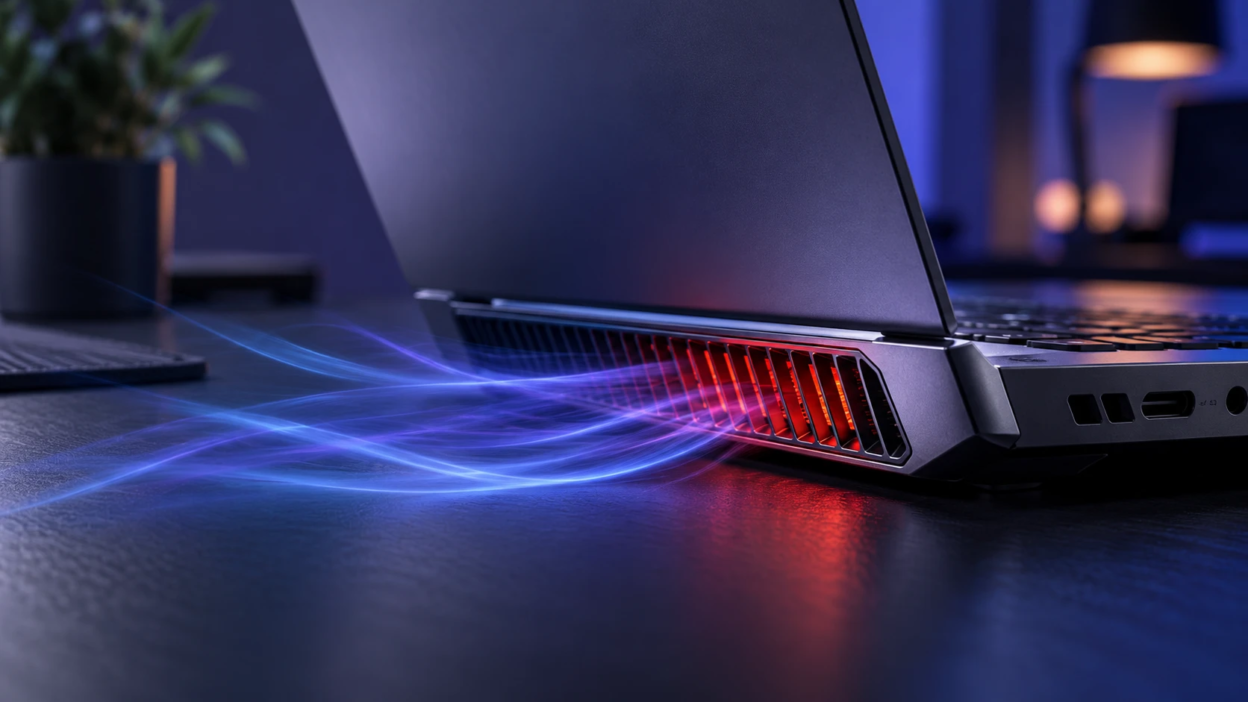
A laptop fan that keeps running can be frustrating, especially when you are only browsing the web or performing simple tasks. Continuous fan activity may result from high CPU or GPU usage, dust buildup, restricted airflow, aggressive power settings, or cooling hardware problems. However, a constantly running fan does not always indicate a fault. This guide explains how to identify the cause, reduce unnecessary fan noise, and recognize when your laptop needs professional repair.
What A Constantly Running Laptop Fan Means?
Your laptop uses one or more fans to move heat away from the CPU and GPU. When sensors detect higher temperatures, the system increases fan speed to protect components and maintain performance.
If the fan runs hard even when you are doing light tasks, it often indicates trapped heat, poor airflow, or software demanding more resources than expected. In some cases, it can also point to aging thermal paste or a failing fan.
A laptop fan may also run continuously during Windows updates, software installations, battery charging, gaming, or demanding applications. Some thin laptops and gaming models use cooling profiles that keep their fans spinning at low speeds even during light use. The warning signs are unusually loud noise during idle periods, repeated overheating, sudden performance drops, or mechanical sounds such as grinding and clicking. These symptoms deserve closer investigation.
Common Causes of A Laptop Fan That Won’t Stop
Several issues can lead to nonstop fan activity, and more than one can be present at the same time. Checking the most likely causes first saves time and avoids unnecessary disassembly.
- High CPU or GPU Load: Background apps, browser tabs, updates, or malware can keep the processor busy and hot.
- Dust and Blocked Vents: Lint buildup restricts airflow, so the fan spins faster to compensate.
- Hot Environment or Poor Placement: Soft surfaces like beds trap heat and block intake vents.
- Power Plan Settings: Performance modes can keep clocks high, which raises baseline temperatures.
- Driver or BIOS Issues: Outdated firmware or drivers can mismanage fan curves and power behavior.
- Thermal Paste Degradation: Old paste reduces heat transfer from the CPU or GPU to the heat sink.
- Failing Fan or Bearing Wear: Mechanical wear can make the fan noisier and less efficient.
Once you identify which category fits your symptoms, you can apply targeted fixes that address the source of heat instead of guessing. Different laptop components generate heat under different workloads, so understanding whether the CPU or GPU is heavily occupied can make troubleshooting more effective. For a clearer explanation of how these processors handle different tasks, read our CPU vs GPU vs NPU guide.
Quick Checks Before You Change Anything
Start with simple observations that require no tools. These checks help you avoid unnecessary changes and highlight urgent risks such as overheating.
- Listen for Grinding or Clicking: Unusual sounds can indicate a failing fan and may require service.
- Feel the Exhaust Air: Very hot air with high fan speed suggests the laptop is shedding heat but may be running too hot internally.
- Check for Sudden Slowdowns: Performance drops can indicate thermal throttling, which means the system is protecting itself.
- Inspect Vents: If vents look clogged or you see dust mats, cleaning is a strong first step.
If your laptop repeatedly shuts down because of overheating, displays thermal warnings, or becomes unusually hot, stop demanding tasks and allow it to cool in a well-ventilated location. If you notice a burning smell, smoke, or signs of battery swelling, shut down and unplug the device if it is safe to do so. Do not continue using it or attempt routine cleaning until the potential hardware or battery problem has been assessed by a qualified technician. Repeated overheating should be investigated before returning to normal use.
How to Find What is Heating Up Your Laptop?
The fastest path to a quieter laptop is identifying the process that is creating heat. Built-in tools can show whether CPU usage, GPU usage, or storage activity is keeping the system busy.
On Windows, press Ctrl + Shift + Esc to open Task Manager, select the Processes tab, and review which applications are consuming the most CPU resources. Check GPU usage where available, especially when graphics-heavy applications are running. Microsoft’s Windows performance troubleshooting guide explains how to examine resource usage and identify processes that may affect system performance. On macOS, open Activity Monitor and review CPU activity and energy usage to identify demanding applications. Apple’s Activity Monitor CPU guide explains how to inspect processor activity and better understand system workload.
- Look for Runaway Browser Tabs: Video playback, heavy web apps, and many open tabs can keep CPU usage elevated.
- Check for Updates and Indexing: System updates, antivirus scans, and search indexing can temporarily raise fan speed.
- Review Startup Apps: Too many background apps create constant small loads that add up.
To test your laptop at idle, close unnecessary applications and place it on a hard, flat surface with clear ventilation. Allow several minutes for temporary background activity to settle, then check CPU and GPU usage using Task Manager or Activity Monitor. Note whether the fan becomes quieter as resource usage decreases. If usage remains unusually high, identify the responsible processes and check whether updates, indexing, or security scans are running. Persistent unexplained activity may require further software troubleshooting or a malware scan, but fan noise alone does not establish that malware is present.
Software Fixes That Often Reduce Fan Noise
Software changes can reduce heat generation without opening the laptop. Aim for a cooler baseline by lowering unnecessary load and using balanced power settings.
- Close and Uninstall Heavy Apps: Remove programs you do not use and close background tools that run continuously.
- Limit Browser Extensions: Disable extensions that inject scripts into pages and keep CPU usage high.
- Switch to Balanced Power Mode: On Windows, open Settings, select System, and then choose Power & battery to review the available power modes. Select a balanced or recommended setting when supported, rather than using a high-performance profile unnecessarily. Microsoft’s Windows power mode guide explains the available options. A more efficient power profile may reduce processor power consumption, heat generation, and fan activity, although the effect varies by laptop.
- Update Operating System and Drivers: Install updates for chipset, graphics, and storage controllers to improve power management.
- Scan for Malware When Needed: If processor usage remains unusually high without an obvious explanation, or you notice other suspicious system behavior, run a malware scan using a trusted security tool. Windows users can follow Microsoft’s Windows Security guidance to review built-in protection and scanning features. Malware can sometimes cause excessive resource usage, but a continuously running laptop fan is not enough to confirm an infection.
After these changes, reboot and recheck CPU usage at idle. A cooler idle usually translates to a fan that cycles down instead of running constantly.
Airflow and Cleaning Fixes That Make A Big Difference
Even a well-optimized system will run hot if airflow is restricted. Dust buildup is one of the most common reasons a laptop fan won’t stop running.
Before cleaning, shut down the laptop completely, disconnect the charger, and allow the device to cool. Inspect the intake and exhaust vents for visible dust or obstructions. If the laptop manufacturer permits compressed-air cleaning, follow its model-specific instructions and use short, controlled bursts without forcing debris deeper into the cooling system or overspinning the fan. Avoid household vacuum cleaners, liquids, and inserting objects into the vents. If heavy dust is trapped inside the cooling assembly, professional internal cleaning may be necessary.
For additional manufacturer-backed advice, Dell’s laptop overheating troubleshooting guide explains how restricted airflow, dust accumulation, and cooling conditions can affect laptop temperatures. These instructions are particularly useful for Dell users. Owners of other laptop brands should consult the support documentation for their exact model before performing maintenance or opening the device.
- Use A Hard Flat Surface: A desk promotes airflow and prevents intake vents from being blocked.
- Clear Intake and Exhaust Vents: Remove dust where air enters and exits to restore normal cooling.
- Raise the Rear Slightly: If your laptop has intake vents underneath, a stable stand or a small amount of additional clearance may improve airflow. Keep the vents unobstructed and avoid unstable supports that could cause the laptop to slip.
- Consider A Cooling Pad: Extra airflow can help for laptops that run warm by design.
If cleaning vents reduces noise immediately but the fan ramps up again quickly, internal dust or thermal paste may be the next issue.
When Thermal Paste and Hardware Become the Problem
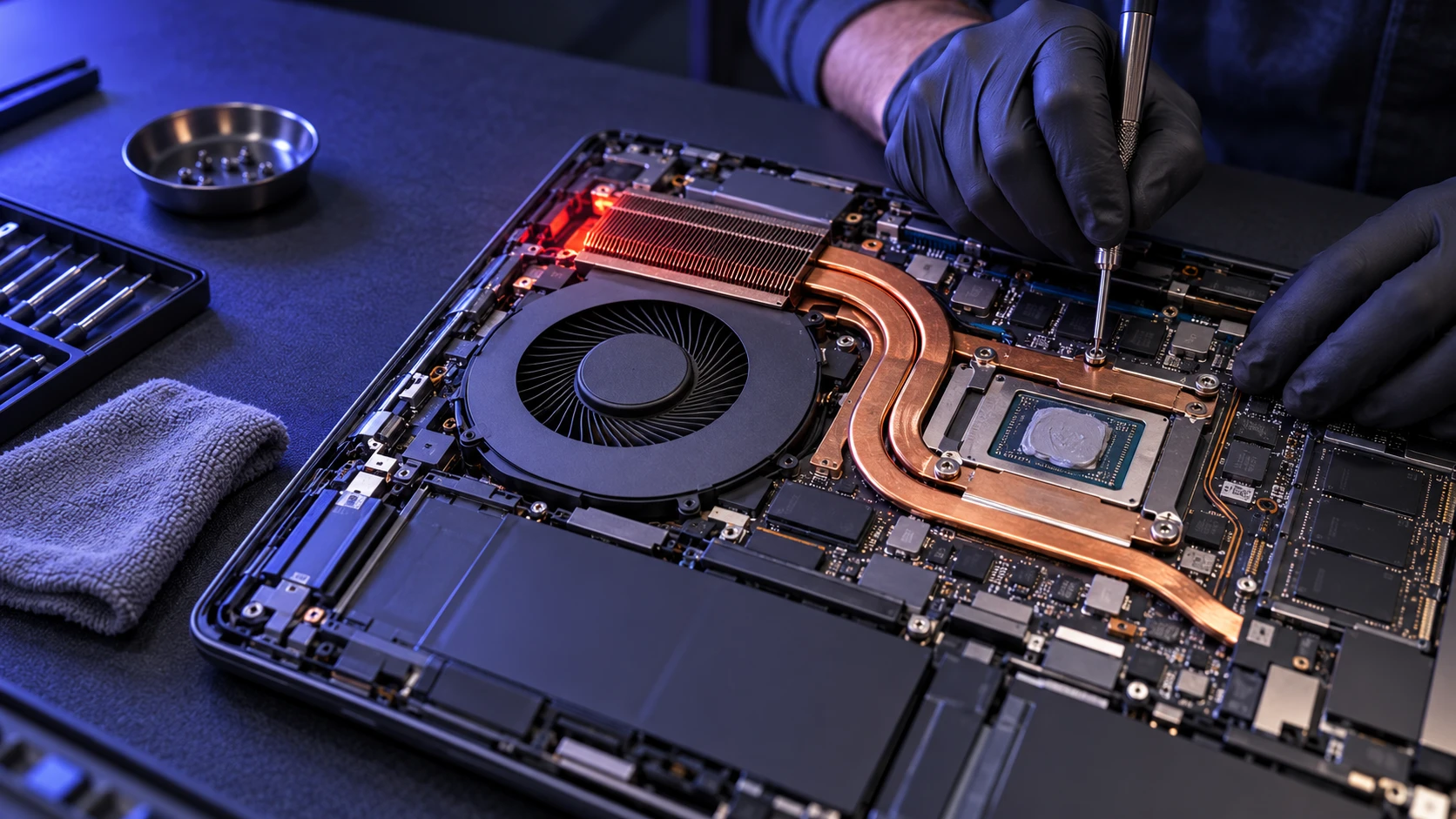
The thermal interface material between a processor and its cooling assembly can lose effectiveness over time or develop poor contact, reducing heat transfer. However, a continuously running fan does not automatically mean that thermal paste needs replacement. Repasting should be considered only when persistent overheating remains after checking software workload, ventilation, fan operation, and other likely causes. Because modern laptops use different thermal materials and cooling designs, internal servicing should follow the manufacturer’s instructions or be performed by a qualified technician.
Fan bearings can also wear out, causing louder operation and weaker airflow. If your fan sounds rough, rattles, or changes pitch erratically, replacement is often the most reliable fix.
- Consider Professional Service: If you are not comfortable opening the chassis, a technician can clean internally, repaste, and verify fan operation.
- Check Warranty Status: Opening some laptops can affect coverage, so confirm terms before disassembly.
When hardware work is done properly, you often get lower peak temperatures, fewer sudden ramps, and a much quieter idle.
Fan Control and BIOS Settings to Check
Some laptops allow fan and thermal tuning through BIOS settings or manufacturer utilities. These tools can offer quiet modes, balanced profiles, or firmware updates that improve fan curves.
Before updating the BIOS or firmware, check the laptop manufacturer’s support page and review the release notes to determine whether an update addresses fan control, thermal management, or a related problem. Download firmware only from the official manufacturer and follow the exact model-specific installation instructions. Maintain a reliable power supply and never interrupt an update in progress. An appropriate firmware update may resolve certain fan-control problems, but updating the BIOS is not a guaranteed solution for high temperatures or constant fan noise.
- Enable Quiet or Balanced Profiles: These reduce aggressive boosting and keep fan behavior smoother.
- Use Manufacturer-Approved Thermal Settings: If your laptop provides Quiet, Balanced, or Performance profiles, test the recommended settings before changing advanced processor controls. Avoid disabling thermal protection, forcing unsupported fan speeds, or applying unfamiliar BIOS modifications.
- Verify Thermal Mode After Updates: Some updates reset profiles, which can change fan behavior overnight.
If settings changes do not help and temperatures remain high, return to cleaning and workload checks, since tuning cannot overcome blocked airflow.
Symptoms and Fixes At A Glance
This quick reference can help you match what you observe with a practical next action. If multiple symptoms match, address the airflow and workload items first.
| Symptom | Most Likely Cause | Best First Fix |
|---|---|---|
| Fan Is Loud At Idle | Background Apps, Updates, or Aggressive Power Settings | Check CPU And GPU Usage, Review Background Tasks, and Test A Balanced Power Mode |
| Fan Ramps Up on Soft Surfaces | Blocked Intake Vents | Move to A Hard Surface And Improve Clearance Under the Laptop |
| Hot Exhaust Air and Slow Performance | Possible Overheating, High Workload, or Restricted Airflow | Check Temperatures and Resource Usage, Clear Obstructed Vents, and Seek Service If Overheating Persists |
| Grinding or Clicking Noise | Fan Bearing Wear | Back Up Data and Schedule Fan Replacement Service |
Use the table as a starting point, then confirm the cause with appropriate temperature checks and system monitoring before attempting more advanced repairs. If overheating is followed by an unexpected shutdown or a blank display, the problem may involve more than fan noise. Our guide to the common causes of black screens on laptops explains how hardware faults, display problems, software issues, and excessive heat can produce similar symptoms.
How to Prevent Your Laptop Fan From Running Constantly?
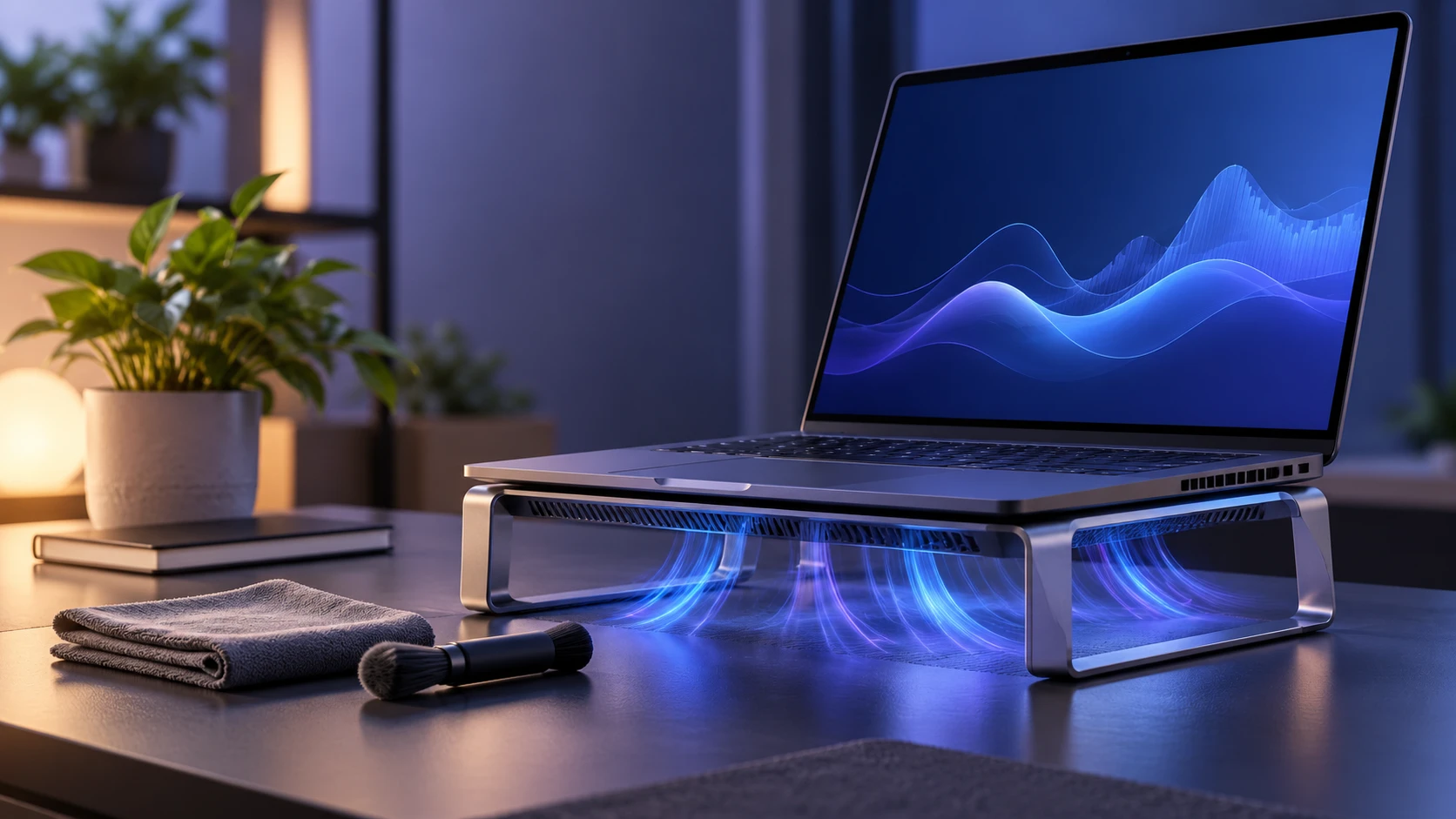
Prevention focuses on keeping airflow open and minimizing unnecessary load. Small habits can keep temperatures stable and extend the life of the fan and battery.
- Keep Vents Clear: Avoid placing the laptop where fabric or dust can block intake vents.
- Manage Startup Programs: Fewer background apps mean lower idle temperatures.
- Update Drivers Periodically: Better power management reduces heat and fan speed swings.
- Clean Lightly on A Schedule: A quick vent cleaning can prevent heavy internal buildup.
If you use demanding software often, combining balanced power settings with good airflow is usually an effective long-term approach to managing heat. Persistent high temperatures can also affect battery health over time, particularly when a laptop frequently operates under demanding workloads. If your device is running hotter than usual and its battery drains noticeably faster, our guide on how to check laptop battery health on Windows and macOS explains how to review battery condition and identify possible signs of wear.
Conclusion
A laptop fan that won’t stop running is a signal that the system is fighting heat or sustained load. Start with workload checks, power settings, and vent cleaning, then move to drivers, BIOS updates, and hardware service if temperatures stay high.
When the fan noise comes with throttling, strange sounds, or repeated overheating, treat it as a maintenance issue rather than an annoyance. A cooler laptop is quieter, faster, and less likely to suffer early component wear.
Frequently Asked Questions
Is It Bad If My Laptop Fan Runs All the Time?
It is not automatically bad, but it means your laptop is frequently managing heat or load. If temperatures are high, performance drops, or the fan is unusually loud, it is worth troubleshooting to prevent long-term wear.
Why Does My Laptop Fan Get Loud When I Open A Browser?
Browsers can trigger CPU and GPU usage through video playback, heavy scripts, and many open tabs. Reducing extensions, limiting tabs, and using balanced power settings often lowers the immediate fan ramp.
When Should I Replace A Laptop Fan?
A laptop fan may need replacement if it produces persistent grinding, clicking, or rattling sounds, fails a manufacturer diagnostic test, stops spinning when cooling is required, or cannot provide adequate airflow. However, overheating can also result from dust buildup, sustained processor activity, blocked vents, or cooling assembly problems. Before replacing the fan, confirm the fault through appropriate diagnostics or professional inspection.