How much VRAM do you really need for gaming in 2026? The answer depends on whether you play at 1080p, 1440p, or 4K, along with your preferred texture quality, ray tracing settings, and game requirements. VRAM (Video Random Access Memory) is the dedicated graphics memory that helps your GPU access textures, rendering buffers, and other visual data. Too little VRAM can contribute to stuttering, delayed texture loading, and inconsistent performance. This guide explains how much graphics memory different gaming setups may need, how to recognize possible VRAM limitations, and how to choose a GPU without spending unnecessarily on extra memory.
What VRAM Does in Games
VRAM stores the data your GPU needs to render each frame, including textures, geometry buffers, shadow maps, and frame buffers. The GPU reads and writes this data at extremely high bandwidth, which is why VRAM type and bus width matter along with capacity. When the working set fits in VRAM, frame pacing is smoother and asset streaming is less stressful.
When a game needs more graphics memory than the GPU can comfortably provide, some resources may move between dedicated VRAM and system memory, potentially introducing latency and stuttering. However, high VRAM allocation does not necessarily mean the game has exhausted its usable graphics memory. NVIDIA’s explanation of VRAM usage and allocation notes that games may reserve more memory than they actively need. The performance impact of memory pressure varies between games, drivers, and graphics settings, so monitoring allocation alone is not enough to diagnose a bottleneck.
Key Factors That Decide How Much VRAM You Need?

VRAM demand depends on what you play and how you configure it. Resolution and textures are the biggest drivers, with ray tracing and high quality shadows adding more pressure. Modding and creator workflows can also raise the baseline in ways preset benchmarks do not capture.
- Resolution: Higher rendering resolutions require larger pixel-based buffers and can increase graphics memory demand. Moving from 1080p to 1440p or 4K does not automatically increase texture file sizes, but higher resolutions are often paired with more demanding graphics settings.
- Texture Quality: Ultra textures and high resolution packs can add multiple gigabytes to the working set even without changing resolution.
- Ray Tracing Settings: Ray traced reflections, global illumination, and denoising buffers increase VRAM use and can raise it sharply in dense scenes.
- Upscaling and Frame Generation: Technologies such as NVIDIA DLSS, AMD FSR, and Intel XeSS can render games at a lower internal resolution before reconstructing the final image. This may reduce the memory required for some rendering buffers, but it does not necessarily reduce high-resolution texture allocations. Frame generation may also require additional processing resources and buffers, depending on the implementation.
- Open World Streaming: Larger worlds with fast traversal need more cached assets to avoid streaming stalls and texture swaps.
- Mods And High Resolution Assets: Texture replacers, reshades, and expansive mod lists tend to inflate VRAM use beyond stock presets.
These factors interact, so it is best to choose capacity based on your highest intended settings rather than a single average number.
VRAM Capacity Recommendations By Resolution
VRAM recommendations should be considered alongside gaming resolution, graphics quality, and the processing power of the GPU itself. A graphics card may handle a particular resolution with less memory when texture quality or ray tracing settings are reduced. AMD’s official VRAM gaming guidance illustrates how different Radeon graphics cards are positioned for 1080p, 1440p, and 4K gaming with varying memory capacities. Use the following ranges as practical buying guidelines rather than guaranteed requirements for every game.
| Gaming Resolution | Suggested VRAM for Buying | Typical Gaming Use | Important Considerations |
|---|---|---|---|
| 1080p Competitive | 6–8 GB | Esports games, performance-focused settings, high refresh rates | Some demanding AAA titles may require reduced texture settings |
| 1080p High and Ultra | 8–12 GB | Modern AAA games, high-quality textures, occasional ray tracing | Heavy texture packs and demanding games may benefit from additional capacity |
| 1440p High | 12 GB | Modern games with high textures and balanced graphics settings | Performance depends on GPU speed, game optimization, and memory demand |
| 1440p Ultra and Ray Tracing | 16 GB or more | Demanding AAA games, high-resolution textures, ray tracing | Some workloads may benefit from additional headroom |
| 4K High and Ultra | 16–24 GB | High-resolution gaming, detailed textures, large open worlds | Strong GPU performance is essential; more VRAM alone does not guarantee high FPS |
These ranges assume modern AAA titles and a preference for consistent frame pacing. If you prioritize esports settings and low latency, you can often tolerate lower texture settings with less VRAM.
How to Tell When You are VRAM Limited?
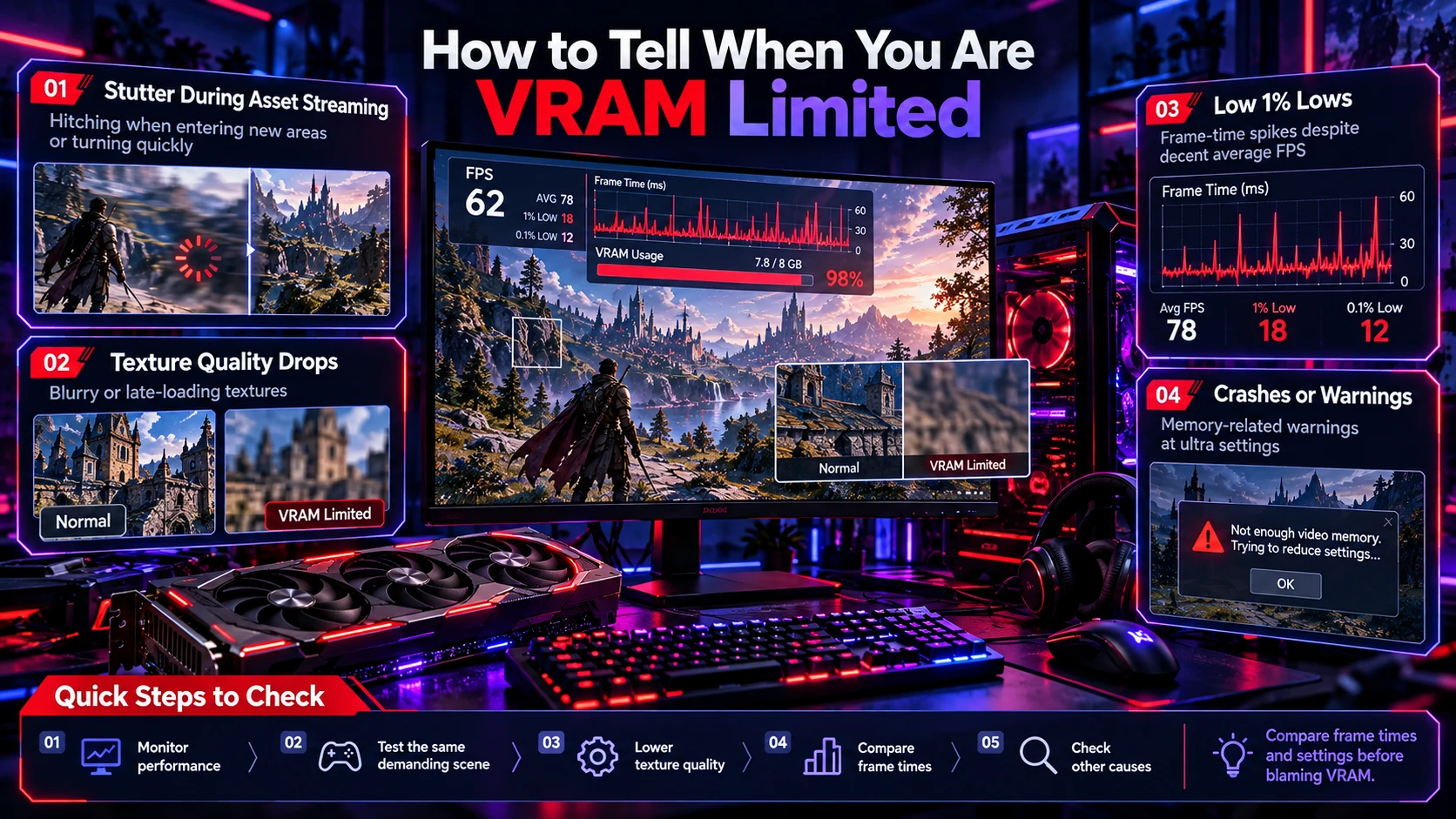
A possible VRAM bottleneck can lead to stuttering, inconsistent frame times, and delayed texture loading, even when average FPS appears acceptable. However, shader compilation, CPU limitations, and game optimization issues can cause similar symptoms. Use a performance monitoring tool to observe frame times, GPU usage, and memory allocation while repeating the same demanding game scene. NVIDIA’s FrameView performance tool can help record frame rates and frame-time behavior, making it easier to compare settings and identify performance changes. Remember that high allocated VRAM alone does not prove that memory capacity is the cause of a slowdown.
- Stutter During Asset Streaming: Hitching appears when entering new areas or rapidly turning the camera.
- Texture Quality Drops: Textures look blurry or swap in late because the game reduces quality to stay within memory.
- Low 1 Percent Lows: Frame time spikes increase even though the GPU utilization is high and CPU is not pegged.
- Crashes Or Warnings: Some games show memory related warnings at ultra texture settings.
If stuttering improves significantly after lowering texture quality, VRAM pressure may be contributing to the problem. However, this is not definitive proof because changing graphics settings can also reduce other GPU workloads. For better results, test the same game location with similar conditions, compare frame-time graphs, and monitor whether memory allocation and performance behavior change together. Lowering resolution may help with some rendering buffers, but high-resolution texture assets can still require substantial memory.
Quick Steps to Check Possible VRAM Bottlenecks
- Monitor Game Performance: Use a trusted performance tool to observe GPU memory allocation, GPU usage, and frame times.
- Test a Demanding Scene: Play through an area where you regularly experience stuttering or texture loading problems.
- Lower Texture Quality: Reduce texture settings by one level while keeping other graphics options unchanged.
- Compare Frame Times: Repeat the same section and check whether stutters or sudden frame-time spikes become less frequent.
- Check Other Causes: If performance remains inconsistent, investigate shader compilation, CPU limitations, drivers, and storage performance.
These checks can help identify whether VRAM pressure is a likely contributor rather than assuming that every frame-rate drop is caused by insufficient graphics memory.
VRAM Vs GPU Power and Memory Bandwidth
More VRAM does not automatically deliver higher gaming performance. A graphics card with more memory can still be slower than another card with less VRAM if its GPU processing capabilities are weaker. Frame rates depend on GPU architecture, clock speeds, memory bandwidth, and the demands of each game. For a clearer understanding of how graphics processors differ from other computing components, our CPU vs GPU vs NPU guide explains the main responsibilities and performance strengths of each processor type.
Bandwidth and memory subsystem design also influence results. Faster memory, a wider bus, and larger caches help the GPU feed itself efficiently, and some architectures rely heavily on cache to reduce external memory traffic. When comparing GPUs, treat VRAM capacity as one piece of the overall pipeline.
Texture Packs Ray Tracing and Upscaling Effects
Ultra textures are the quickest way to consume VRAM, and they often provide diminishing visual returns on smaller screens. Ray tracing adds additional buffers and can increase memory use even when the output resolution is unchanged. Combining ray tracing with ultra textures is the common reason 8 GB cards struggle in demanding titles.
Upscaling can improve gaming performance by reducing internal rendering resolution, but it does not guarantee lower overall VRAM demand. High-resolution textures and ray tracing resources may still require substantial graphics memory. Frame generation is another technology that can increase displayed frame rates, although it does not replace the need for sufficient native GPU performance or stable frame times. For a detailed explanation of these differences, read our guide on frame generation vs native FPS, which explores image smoothness, latency, and performance trade-offs.
Future Proofing Without Overspending
Future proofing is about buying enough VRAM headroom for the settings you will actually use across your upgrade cycle. If you tend to keep a GPU for several years, capacity becomes more important because games rarely reduce texture sizes over time. A sensible approach is targeting a tier that keeps textures high while leaving room for patches, expansions, and heavier maps.
For gamers buying a new graphics card in 2026, 12 GB is a reasonable starting point for many 1440p setups, while 16 GB provides additional flexibility for demanding textures and ray tracing. For 4K gaming, 16 GB can be sufficient in many titles, although 20–24 GB may offer more headroom for particularly demanding games and heavily modified installations. These capacities are recommendations rather than strict requirements. Always compare real game benchmarks, GPU processing performance, memory bandwidth, and the expected lifetime of your system before paying extra for more VRAM.
How to Choose a GPU Based on VRAM and Performance?
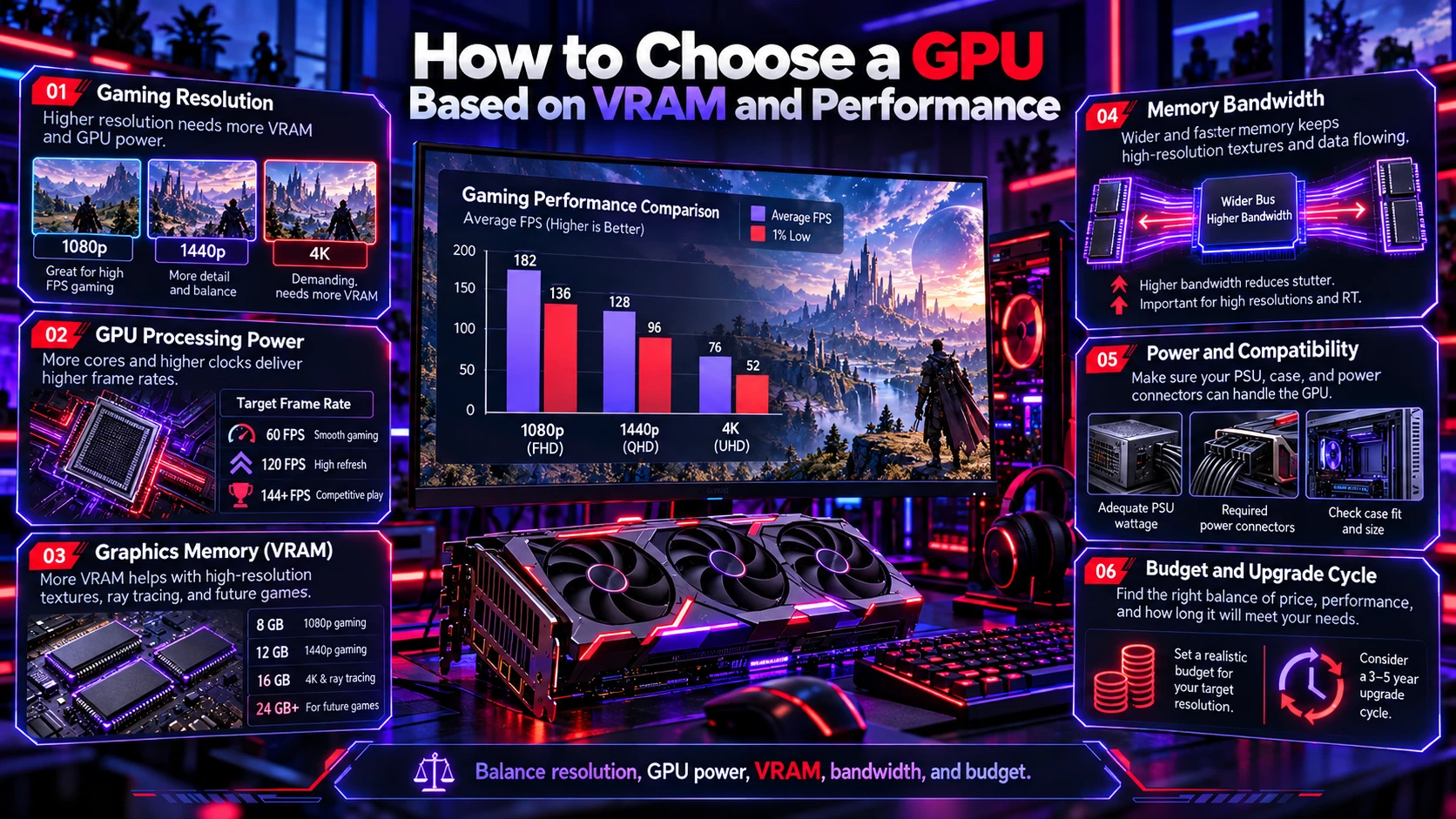
When choosing a graphics card, start with the games you play most often and your monitor’s resolution and refresh rate. Check independent benchmarks using similar settings, and compare average FPS alongside 1% low frame rates to understand how consistently each GPU performs.
Before buying, consider these important factors:
- Gaming Resolution: Decide whether you primarily play at 1080p, 1440p, or 4K.
- GPU Processing Power: Choose a GPU capable of delivering your target frame rate, not just one with a large amount of VRAM.
- Graphics Memory: Select enough capacity for your preferred texture quality, ray tracing settings, and game requirements.
- Memory Bandwidth: Consider the memory subsystem alongside VRAM capacity.
- Power and Compatibility: Check power supply requirements, case clearance, and display connections.
- Budget and Upgrade Cycle: Balance current performance against how long you plan to keep the GPU.
For additional hardware context, TechBonafide’s graphics card coverage and GPU performance guides can help you understand how different GPU architectures approach modern gaming workloads.
Conclusion
VRAM is the GPU memory pool that keeps textures and rendering data close to the graphics chip, and shortages often show up as stutter and unstable frame times. Resolution, texture quality, ray tracing, and open world streaming determine how much VRAM a game really needs. Choosing the right capacity means aiming for smooth 1 percent lows at your preferred settings, not chasing the largest number on the box.
As a baseline, 8 GB suits 1080p competitive settings, 12 to 16 GB fits most 1440p goals, and 16 to 24 GB is the comfortable range for 4K and heavy ray tracing. Pair capacity with a strong GPU and a healthy memory subsystem to get consistent performance. When in doubt, prioritize the settings you refuse to compromise on, then buy the VRAM tier that keeps them stable.
Frequently Asked Questions
Is 8 GB VRAM Enough for Gaming in 2026?
8 GB can still be enough for 1080p with competitive settings and moderate textures. It becomes limiting more often with ultra textures, heavy ray tracing, and newer open world releases. If you want consistent frame pacing at high settings, more headroom helps.
What Setting Reduces VRAM Usage the Most?
Texture quality is usually the biggest VRAM lever, especially ultra textures and high resolution texture packs. Shadow quality and ray tracing settings can also reduce memory use, but the impact varies by game. Dropping textures one notch often improves stutter faster than lowering resolution alone.
Does More VRAM Increase FPS?
More VRAM does not automatically increase FPS. If a game already has enough graphics memory, adding more capacity alone may provide little or no performance improvement. However, when VRAM is insufficient for the selected settings, a card with enough additional memory may reduce stuttering, delayed texture loading, and severe frame-time drops. Overall gaming performance also depends on GPU processing power, memory bandwidth, game optimization, and graphics settings.