

Losing hours of game progress does not always mean the save is gone. The missing progress may be tied to a different gaming account, waiting in cloud storage, stored on another device or preserved in an older local backup. The safest way to recover it is to identify where the last good save exists before downloading, uploading or replacing any data.
Start by closing the affected game and avoiding new saves. Check the account and user profile you originally played with, then look for a cloud copy or a local backup. The steps differ across Steam, Epic Games, Xbox, PlayStation, Nintendo Switch and mobile games, and not every title supports cloud saving.
Important: Downloading a cloud save or choosing a file during a synchronization conflict can overwrite newer progress. Before confirming a replacement, compare available saves and preserve any local copy you can safely back up. Restoring a full PS5 USB backup also erases existing data on the console.
Protect Your Saves Before Trying Recovery
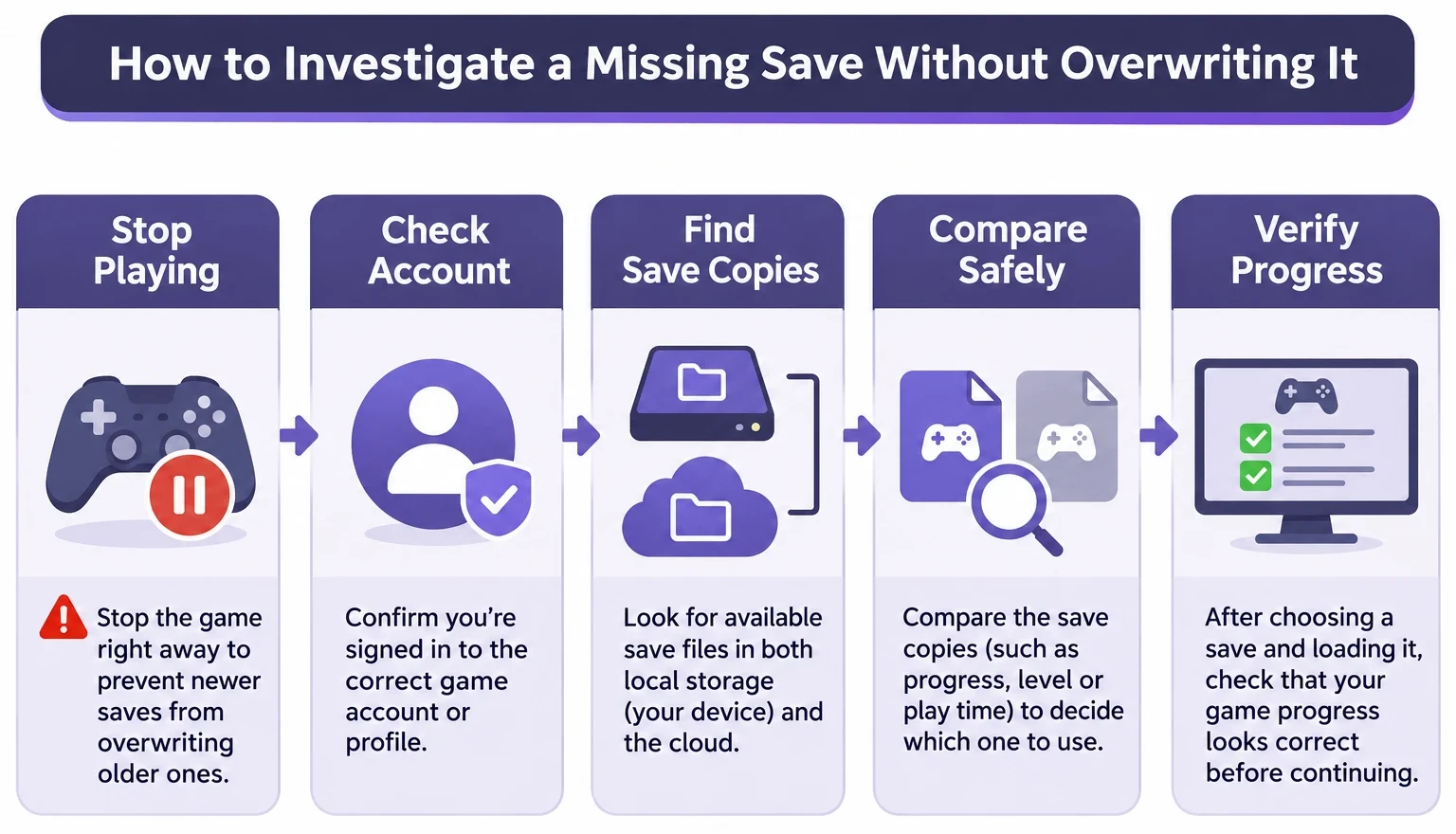
A recovery attempt can make the problem worse if a blank save replaces the last good one. Before changing anything:
- Stop playing on the affected device. Do not create a new character, begin a new campaign or repeatedly launch the game to test it.
- Check the correct identity. Confirm the platform account, game account, console user and, where relevant, the game edition. A different profile can appear to have no progress at all.
- Check other devices without changing their saves. If another PC or console still has the expected progress, keep that copy intact and avoid launching the game online until you understand its sync behavior.
- Record what you can see. Note the game title, device, account, last successful play session, displayed save times and any synchronization error messages.
- Make a separate copy where supported. On a PC, copy the confirmed save folder to a different location before moving or replacing files. Do not assume a console offers the same file-level access.
If the problem followed a Windows reset or repair, our guide to backing up Windows 11 before a reset or major update explains why app data needs separate attention.
Find Out Where the Game Saves Progress
A game’s installed files, account credentials and actual progress are different things. Reinstalling the game may restore its software without bringing back a missing save. Use the game’s documentation and platform storage tools to identify the real source of progress.
| Save location | What to check first | Important limitation |
|---|---|---|
| Platform cloud save | Correct account, supported game and last sync status | A cloud copy may be older than the save on another device |
| Local PC save | Game-specific save folder and existing backups | Folders vary by game and launcher |
| Console system storage | Correct console user and available transfer or cloud options | Console saves are not normally ordinary files you can browse |
| Developer-managed game account | Correct in-game login and game support | Platform cloud saving may not control this progress |
A purchase, download or achievement history is not proof that the missing campaign save still exists. For games with several character slots or manual save slots, inspect the game’s load menu before assuming the progress was deleted.
Recover Game Saves on a Windows PC
On a Windows 10 or Windows 11 PC, first determine whether the game uses its launcher’s cloud service, an in-game account or local files. The following steps apply to supported titles and may differ with launcher updates.
Check Steam Cloud
Steam Cloud can synchronize supported save files between computers. However, a game must use the feature, and an interrupted synchronization can leave the cloud and local copies different.
- Sign in to the Steam account you used to play the game and confirm that the title supports Steam Cloud.
- In Steam, inspect the game’s available cloud-sync information and any warning shown near the Play button. Do not repeatedly launch the game if a conflict is pending.
- If Steam displays a cloud conflict, examine the local and cloud timestamps alongside the progress you remember. A timestamp alone does not prove which file contains the most useful progress.
- If you have a known-good local save, make a separate backup of its game-specific folder before resolving the conflict, when file access is available.
- Choose the version you have the strongest evidence is correct, let synchronization finish, then open the game’s load screen and confirm the expected save or character appears.
Steam’s Steam Cloud troubleshooting guidance explains why conflicting versions require a decision. If neither copy contains the missing progress, cloud synchronization alone cannot create a save that was never uploaded.
Check Epic Games Cloud Saves
Epic Games supports cloud saves for many games, but not every title. Open the game’s Epic Games Store page and look for the Cloud Saves feature tag before relying on this method.
- Sign in to the original Epic Games account and check whether the game supports cloud saves.
- Open the launcher settings and confirm that Cloud Saves is enabled for the launcher version you use. The menu differs between the legacy launcher and the launcher preview.
- If a conflict appears, pause and compare the available versions. Epic warns that choosing the older file can permanently lose more recent progress.
- After making an informed selection, allow synchronization to complete. Verify the recovered save inside the game before continuing to play.
See Epic’s instructions for checking cloud-save support and handling cloud-save conflicts.
Look for Local Save Files and Older Backups
Some Windows games keep saves in folders under your user profile. Common places to investigate include:
%USERPROFILE%\Documents\My Games%USERPROFILE%\Saved Games%LOCALAPPDATA%%APPDATA%%USERPROFILE%\AppData\LocalLow
These are search locations, not a promise that any particular game stores its saves there. Epic’s local save location guidance also notes that game developers can choose different folders.
Close the game and launcher before handling save files. Once you identify the correct save folder, copy the entire relevant folder to another drive or backup directory. Keep original file names and surrounding metadata intact. If the game has several profiles, do not mix files from unrelated players or versions. Only then consider restoring a known-good copy to the game’s documented location.
For an older Windows backup, check File History or another backup service that was enabled before the progress disappeared. Microsoft’s File History instructions explain how to inspect previous versions and use Restore to when available so the existing version is not replaced. File History cannot recover a save folder it never included.
Restore PlayStation Game Progress
PlayStation Plus cloud storage is available to eligible members. Always check whether the missing progress belongs to a PS5 game or a PS4 game because their save management options are not identical.
Restore a PS5 Cloud Save
- Sign in to the same PlayStation account and select the correct console user.
- Open Settings > Saved Data and Game/App Settings.
- Select Saved Data (PS5) or Saved Data (PS4), depending on the game version.
- Select Download or Delete from Cloud Storage, then the Download to Console Storage tab.
- Inspect the available saved data and download the correct copy only after checking whether it will replace newer local progress.
- Start the game and confirm the expected save appears.
Sony’s PS5 cloud storage instructions also describe checking sync status and changing automatic synchronization settings. If you are running the PS4 edition of a game on PS5, do not assume its saved data behaves exactly like the PS5 edition.
Restore a PS4 Cloud Save or USB Copy
On a PS4, go to Settings > Application Data Management > Saved Data in Online Storage > Download to System Storage, select the game and choose the intended file. The console may ask you to overwrite the existing system-storage copy. Check it carefully before agreeing. PlayStation’s PS4 online storage guide documents these steps.
PS4 saves can also be copied through supported USB save-data options, including transfer to a PS5. PS5 game saves cannot be copied individually from a PS5 to a USB drive. Sony offers a separate PS5 console backup and restore process, but restoring that backup erases the console’s current data. Do not use a full-console restore as a casual first troubleshooting step.
Restore Nintendo Switch and Switch 2 Saves
Nintendo Switch and Switch 2 store save data in console system memory, not on a game card or microSD card. For supported games, Nintendo Switch Online offers Save Data Cloud backups. Some titles do not support this service, so check the specific game before attempting recovery.
- Connect the console to the internet and select the original Nintendo Account user.
- On the HOME Menu, highlight the game, press + for Options, and open Save Data Cloud. Alternatively, use System Settings > Data Management > Save Data Cloud.
- Select the user and review the stored backup and local save details where shown.
- If the cloud copy is the one you intend to recover, choose Download Save Data. Only proceed after confirming that replacing the console copy is acceptable.
- Open the game and check the recovered progress.
Nintendo’s cloud-save download guide explicitly warns that downloading a backup overwrites the existing game save and cannot be undone. Its Switch 2 save troubleshooting page explains how to compare the cloud and console timestamps.
If your Nintendo Switch Online membership has expired, Nintendo states that renewing within 180 days can restore access to previous cloud backups. This does not guarantee that a backup exists or that a game supports the service. For unsupported games, investigate Nintendo’s supported console-to-console transfer options while the source console is still available.
Fix Xbox Cloud-Save Synchronization
Xbox game-save synchronization is tied to the signed-in user and the game’s supported save system. Offline play can leave newer progress on one device while another device still has an older cloud copy.
- Stop launching the game on multiple Xbox devices until you identify which session contains the progress you want.
- Confirm that you are signed in with the Xbox profile that originally created the save.
- Reconnect the device holding the expected progress to the Xbox network, close the game normally when possible, and allow any pending synchronization to finish.
- On the intended device, open the game while connected and pay attention to sync or data-conflict messages. Do not choose a version unless you know which progress it represents.
- Check the game’s load screen. If the expected save remains missing, stop before deleting saved data or clearing profiles and contact the game’s support team or Xbox support.
Microsoft’s Xbox game-save synchronization documentation describes how offline sessions and conflicting updates affect synchronization. Its technical workflow does not mean that every game exposes manual file restoration to players.
Recover Android and Apple Game Progress
Mobile game recovery often depends on the exact game account, not just reinstalling the application. Some publishers manage progress on their own servers instead of relying solely on the operating system’s gaming service.
Android and Google Play Games
- Sign in with the Google Account that was originally associated with the game.
- On the Play Store listing, check whether the title indicates that it uses Google Play Games.
- Open the game and inspect its account, achievements or leaderboard area, where supported, to identify the active account.
- Switch to the original account if necessary and reopen the game to see whether the saved progress becomes available.
- If nothing changes, contact the developer with the game account details and any relevant receipts or player ID. Do not clear the game’s storage or uninstall it until you know whether the only remaining save is local.
Google explains that not all Android games automatically save progress and that developers, rather than Google, control some in-game accounts and data.
iPhone, iPad and Game Center
On a supported Apple game, check that iCloud and Game Center use the same Apple Account as the device where the progress previously appeared. On iPhone or iPad, open Settings > Game Center to inspect the account. On a Mac, check System Settings > Game Center. Also check the game’s own login if it has one.
Apple’s game progress guidance explains that synchronization works for supported games and devices. An iCloud device backup is not a universal way to restore an individual game save, and resetting an entire phone just to recover a game may put other data at risk.
Choose Between Conflicting Cloud and Local Saves
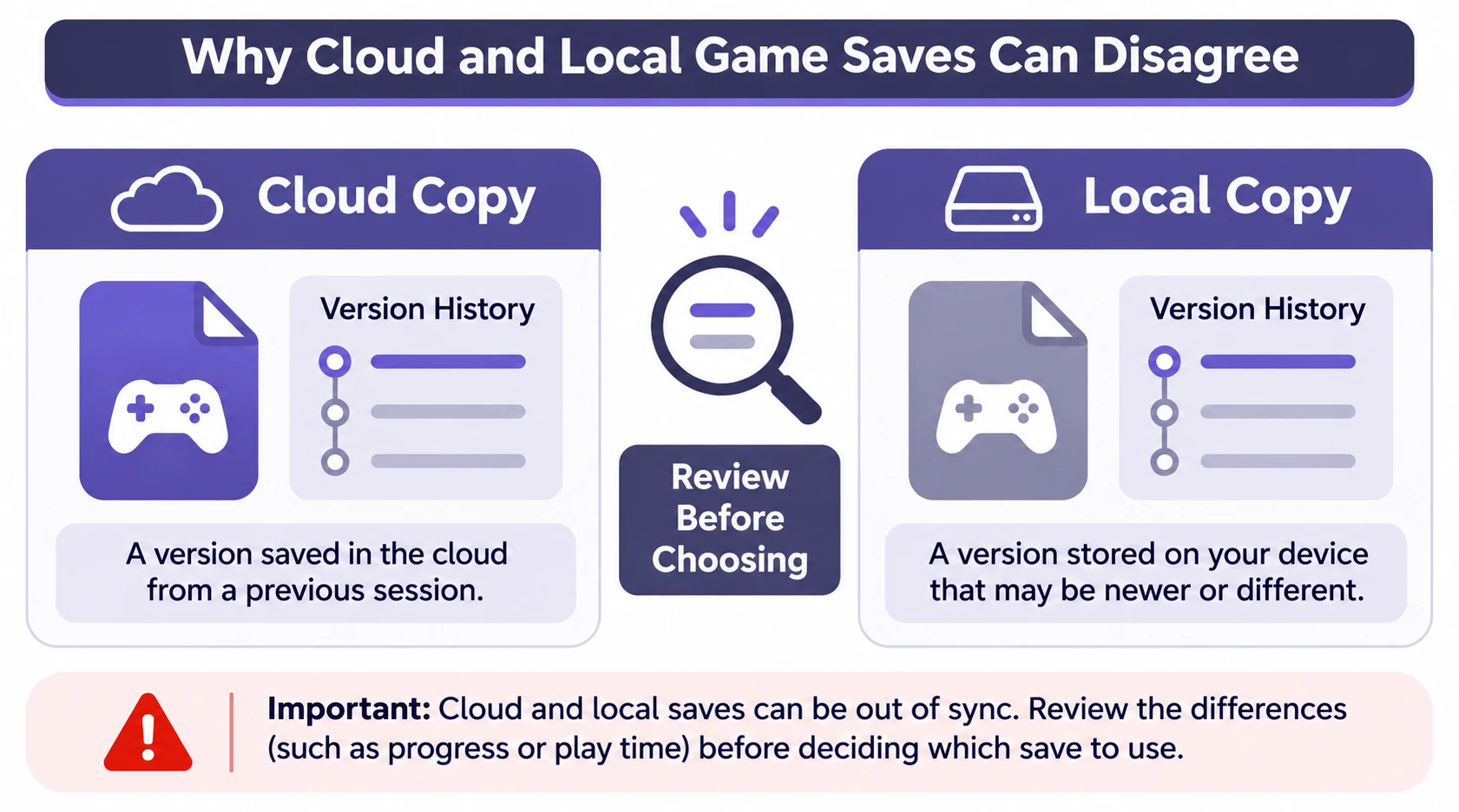
A conflict means two copies have changed without a completed sync. Treat the decision as a comparison of evidence, not a contest to pick whichever button looks newer.
- Identify both copies. Record their displayed dates, devices and accounts. Remember that a recent timestamp can also belong to a new or empty game session.
- Look for a preserved original. On PC, back up accessible save folders without overwriting them. On consoles, check the platform’s supported backup or transfer options before selecting a replacement.
- Compare the actual progress if you can do so safely. Character level, completed missions, in-game time and manual save slots may be more useful than timestamps alone.
- Choose deliberately. If one copy is clearly the last good save, select it using the platform’s documented recovery procedure. If neither is clearly correct, cancel the conflict prompt where possible and seek game-specific support.
- Verify before continuing. Open the game’s load menu, confirm the intended save is present, then finish the sync and resume play.
For example, suppose you played offline on a laptop after last playing on a desktop. The laptop’s local copy may contain newer progress even though the desktop has a cloud copy. Starting the desktop game and accepting the wrong version could replace the progress you meant to keep. The exact outcome depends on the game’s sync implementation, so preserve the best available copy before resolving the conflict.
What If No Usable Save Can Be Found?
There are situations where recovery is not possible. If a game never created a cloud backup, a local file was permanently overwritten and no earlier backup survives, there may be no valid save left to restore. Account-based games may also keep progress only on a developer’s servers, which the player cannot inspect directly.
Before giving up, check other game profiles or save slots, an old device that has not synchronized, previous Windows backups and any official transfer features. If files were deleted from a computer, our general deleted-file recovery guide explains broader recovery considerations, but success is uncertain and disk activity can reduce the chance of recovery.
When contacting support, provide the game title and edition, platform, account or player ID, approximate last successful save, what changed before the loss and any error message. Never send a password or one-time login code. Support teams may be able to resolve account or server-side problems, but they cannot guarantee recovery of a missing local save.
Prevent Future Game Save Loss
Once progress is restored, reduce the chance of losing it again:
- Confirm that cloud saving is supported and enabled for each important game, rather than assuming the launcher protects every title.
- Let the game close and finish synchronization before switching devices or shutting down.
- Keep separate, dated backups of accessible PC save folders, especially before a reset, drive replacement or major game modification.
- Check console subscription and cloud-backup status when those services are needed.
- Keep a working second copy rather than treating synchronization as a versioned backup. A bad or empty save can sometimes propagate to other devices.
- Before changing game editions, console generations or accounts, check the developer’s specific transfer rules. Cross-platform progression is not automatically supported.
Conclusion
To recover lost game progress, first protect the copies that still exist, then check the correct account and the game’s actual save location. Use the platform’s cloud download or local backup tools only after identifying which version contains the progress you need. Steam and Epic Games conflicts, Xbox offline sessions, PlayStation cloud storage, Nintendo’s Save Data Cloud and mobile account sync each have different limits.
If you cannot find a usable cloud, local or developer-managed save, further reinstalling or resetting devices is unlikely to help. Preserve the available evidence and ask the game’s support team before taking a destructive step.

Tech Bonafide is the editorial identity of TechBonafide, an independent technology publication covering AI, software, cybersecurity, gadgets, and emerging technology.