

WhatsApp notifications can arrive late when your phone restricts background activity, loses its internet connection or delays the display of alerts. On Android, battery optimization, sleeping apps and mobile data restrictions are worth checking. On an iPhone, Focus settings, Scheduled Summary and notification permissions are particularly important.
However, a message arriving late is not necessarily the same as a notification appearing late. Your phone may already have received the message without showing a banner or playing a sound. Identifying which problem you have can save you from changing settings that were working correctly.
Start with the checks below before reinstalling WhatsApp or resetting your phone. You will need a working internet connection, access to your phone settings and someone who can send you a few test messages. Menu names may vary depending on your Android version, phone manufacturer, iOS version and WhatsApp release.
Identify the Notification Problem
Before changing any settings, ask someone to send you a WhatsApp message while your phone is locked. Leave WhatsApp running normally in the background rather than deliberately force-closing it.
Observe whether the message produces a sound, appears on the lock screen, shows up in the notification panel or becomes visible only after you open WhatsApp.
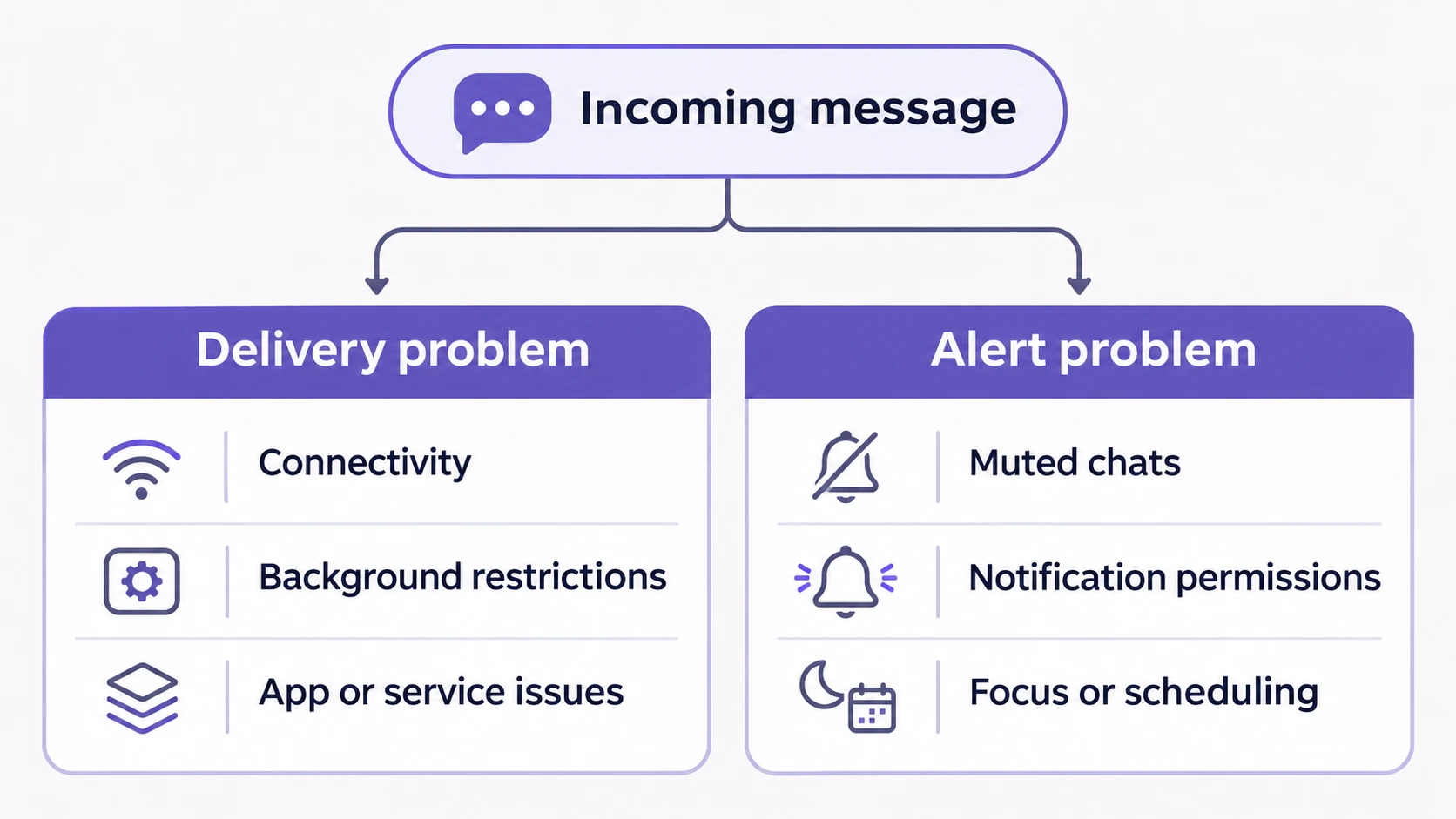
| What happens | Possible cause | What to check first |
|---|---|---|
| Messages appear only when WhatsApp opens | Background activity or connectivity problems | Battery and data restrictions |
| Notifications appear without sound | Muted alerts or sound settings | Notification sounds and chat mute settings |
| Notifications arrive together at certain times | Notification scheduling or interrupted connectivity | Scheduled Summary on iPhone and network stability |
| Only one conversation is affected | Conversation-specific notification preferences | Muted chats and custom notification settings |
| Notifications are late on mobile data but not Wi-Fi | Mobile network or data restrictions | Data Saver and cellular data permissions |
| Several messaging apps are affected | A broader phone or network problem | Internet connection and system-wide settings |
These symptoms provide useful clues, but they do not prove that a particular setting is responsible. Change one relevant setting at a time and repeat the message test.
Common Fixes for Android and iPhone
1. Check Your Internet Connection
WhatsApp needs internet access to exchange messages. A visible Wi-Fi icon or strong mobile signal does not necessarily mean that your internet connection is working properly.
- Open a trusted website in your browser to check internet access.
- Switch from Wi-Fi to mobile data and repeat the message test.
- Switch back to Wi-Fi to see whether the problem returns.
- Complete any required sign-in if you are using public Wi-Fi.
- Check whether a VPN or network filtering service is interfering with connectivity. If necessary, compare the result using another trusted network.
WhatsApp messaging works differently from ordinary cellular calls and carrier-based Wi-Fi Calling. Our guide to Wi-Fi Calling without a mobile signal explains why an internet connection and mobile network availability are separate considerations.
2. Check WhatsApp Notification Settings
Open WhatsApp and find Settings, then Notifications. On Android, Settings is commonly accessible through the three-dot menu. On iPhone, use the app’s Settings or profile area.
Review the notification options for individual messages, groups and calls where available. If only one conversation is affected, open that conversation, select its name and check whether notifications have been muted.
WhatsApp’s notification preferences cannot override alerts that your phone has blocked at the operating-system level. You can learn more from the official WhatsApp notification settings guide.
3. Restart Your Phone and Update WhatsApp
A temporary software problem can interfere with notifications. Restart your phone, open WhatsApp once and check whether the problem continues.
Visit Google Play on Android or the App Store on iPhone to check for a WhatsApp update. Also check your phone for available operating-system updates. Use official software distribution channels rather than downloading modified versions of WhatsApp.
How to Fix Delayed WhatsApp Notifications on Android?
Android phones can manage app activity through several independent settings. The exact controls differ between manufacturers, so use the search function in Settings if a menu name does not match your phone.
1. Allow WhatsApp Notifications
- Open your phone’s Settings.
- Select Apps and find WhatsApp.
- Open Notifications.
- Enable WhatsApp notifications if they are disabled.
- Review individual message, group and call notification categories if your phone offers them.
- Check that the relevant categories are configured to alert you rather than remain silent.
Also review your lock-screen notification settings. A phone can receive notifications without displaying them on the lock screen. You do not need to expose private message previews to enable alerts.
Google’s guide to controlling notifications on Android explains how app-level and lock-screen notification preferences work.
2. Review Battery Restrictions
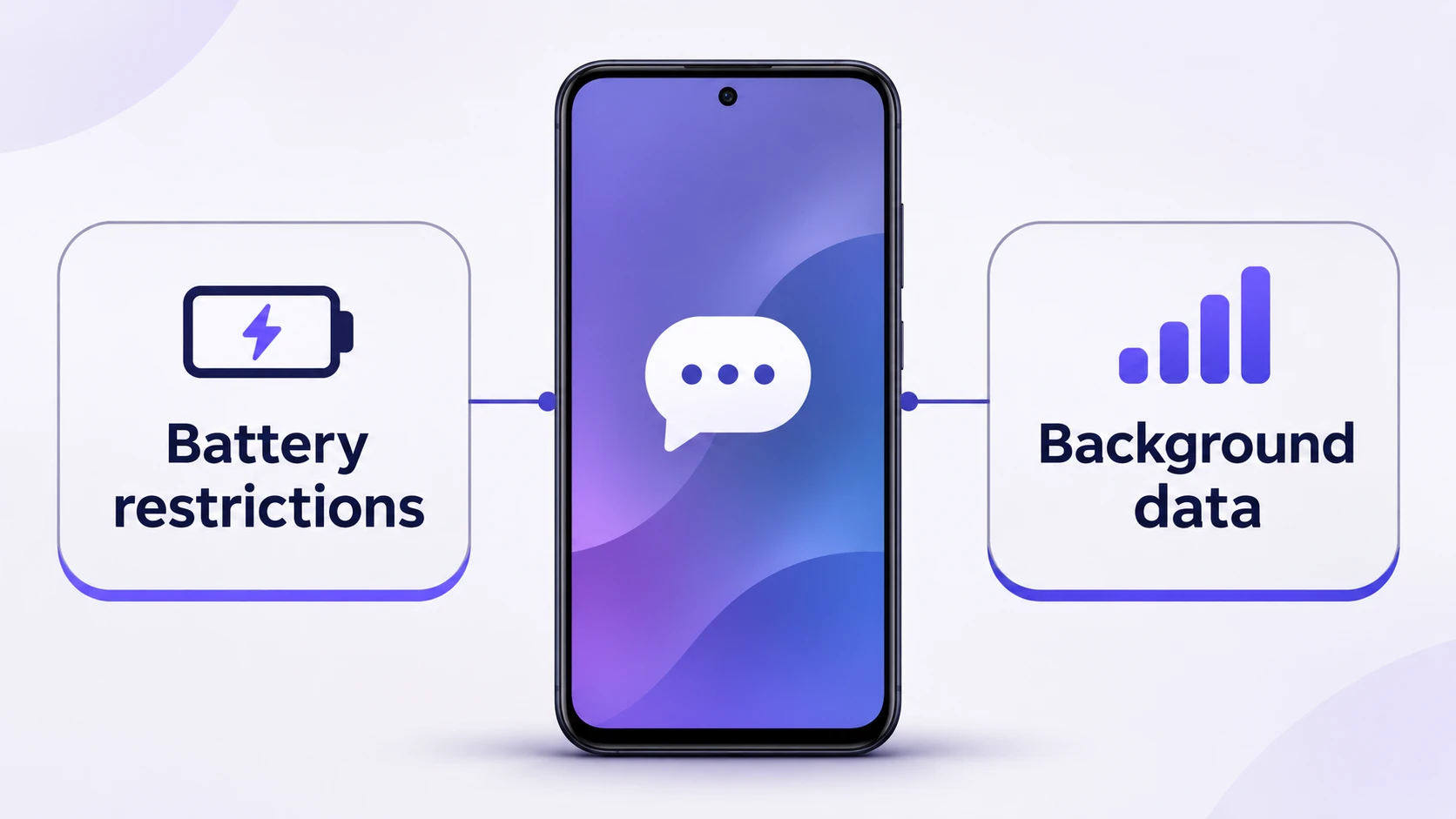
Battery management helps Android phones conserve energy by limiting certain background activities. These restrictions can be useful, but they may contribute to late notifications in some circumstances.
- Open Settings and find WhatsApp under Apps.
- Look for Battery, App battery usage or a similarly named option.
- Check whether WhatsApp is explicitly restricted from running in the background.
- If it is restricted, try the normal optimized setting and test notifications again.
- If the problem continues, temporarily allow unrestricted background battery usage where your phone offers that option.
If notifications become more reliable after the change, the previous battery restriction may have contributed to the problem. Allowing more background activity can increase battery consumption, so avoid removing battery restrictions from every app.
Check Battery Saver as well. Google’s Pixel Battery Saver documentation explains that some alerts may be delayed in standard Battery Saver mode and that apps paused by Extreme Battery Saver cannot send notifications while paused.
3. Allow Background Mobile Data
If messages arrive normally over Wi-Fi but become delayed when you leave home, background mobile data restrictions are worth investigating.
- Open Settings and select WhatsApp from the Apps menu.
- Find Mobile data, Data usage or Mobile data and Wi-Fi.
- Check that background mobile data is allowed if the option is available.
- If Data Saver is enabled, look for an option that allows WhatsApp to use data without that restriction.
On supported Pixel phones, you can manage exceptions through Settings > Network & internet > Data Saver > Unrestricted data. See Google’s Data Saver instructions for more information.
Making an exception for WhatsApp may increase its mobile data usage. You can restore the previous setting if the change does not improve notifications.
4. Remove WhatsApp From Samsung Sleeping Apps
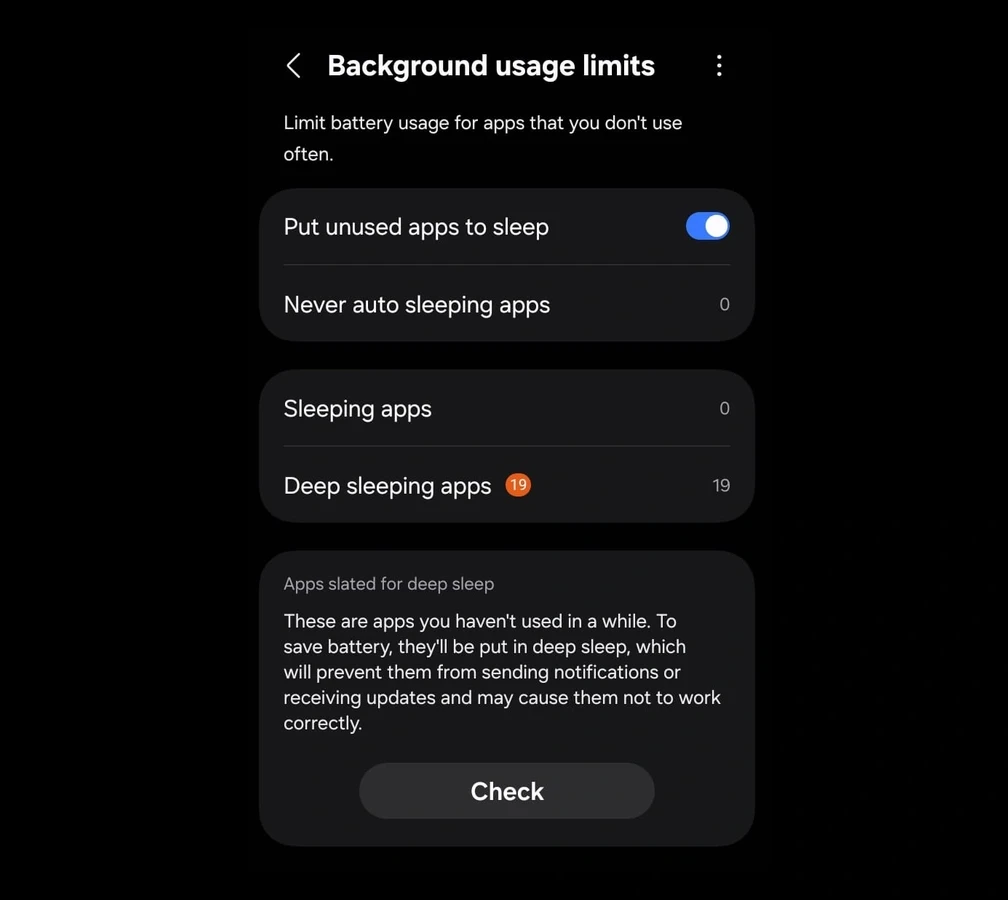
Samsung Galaxy phones have additional controls for apps that are rarely used or restricted to save battery. These controls can limit what an app does when it is not open.
- Open Settings.
- On newer Galaxy phones, select Battery. On some older models, open Battery and device care, then Battery.
- Select Background usage limits.
- Check the Sleeping apps and Deep sleeping apps lists.
- Remove WhatsApp from either list if it appears there.
- Test incoming messages while the phone is locked.
If the problem repeatedly returns because WhatsApp is being put to sleep, consider adding it to the list of apps that should not automatically sleep, if your phone provides that option.
Samsung’s official guide to sleeping apps on Galaxy phones explains the available controls and differences between newer and older models.
5. Check Do Not Disturb and Other Modes
Open your phone’s Quick Settings panel and check whether Do Not Disturb, a bedtime mode or another interruption-control mode is active.
Temporarily disable the relevant mode and repeat the message test. If it resolves the missing alerts, adjust that mode to allow the notifications you need rather than permanently disabling a useful feature.
How to Fix Delayed WhatsApp Notifications on iPhone?
On an iPhone, start with notification permissions and the settings that determine when and where an alert appears. These controls can affect your experience even when WhatsApp messages are reaching the device.
1. Enable WhatsApp Notifications
- Open the iPhone Settings app.
- Select Notifications and find WhatsApp.
- Turn on Allow Notifications if it is disabled.
- Enable the Lock Screen, Notification Center and Banners options according to your preferences.
- Turn on Sounds if you want an audible alert.
If you prefer to keep conversations private, you can restrict message previews while continuing to receive notifications.
2. Check Scheduled Summary
Scheduled Summary can collect eligible notifications and present them together at selected times. If WhatsApp alerts appear in groups rather than when you expect them, check whether the app is included.
- Open Settings.
- Select Notifications.
- Open Scheduled Summary.
- Remove WhatsApp from the summary if it is included.
- Select immediate delivery in WhatsApp’s notification settings if that option is available.
This does not make WhatsApp’s internet connection faster. It changes how eligible notifications are presented to you.
Apple explains these controls in its iPhone notification settings guide.
3. Review Focus Settings
Focus modes such as Sleep, Work and Do Not Disturb can silence selected notifications. A scheduled Focus may also explain why you miss WhatsApp alerts at particular times of the day.
- Open Settings and select Focus.
- Choose the Focus mode that is currently active or scheduled.
- Review its app notification permissions.
- Allow WhatsApp notifications where appropriate.
- Check whether the mode has an automatic schedule.
For a quick comparison, temporarily turn off the active Focus from Control Center and ask someone to send another message.
Apple’s instructions for allowing or silencing notifications during a Focus explain how to manage these exceptions.
4. Check Cellular Data Access
If WhatsApp works correctly over Wi-Fi but not on mobile data, open Settings and find the Cellular or Mobile Data section. Make sure WhatsApp is allowed to use mobile data.
Repeat the message test with Wi-Fi turned off. If other internet-based apps also fail on mobile data, investigate your mobile connection or contact your carrier rather than repeatedly changing WhatsApp settings.
5. Understand Background App Refresh and Low Power Mode
Background App Refresh helps apps update content while they are not actively being used. It is not the same thing as the system that presents incoming push notifications.
Apple distinguishes background content updates from visible remote alerts in its developer documentation on background notifications.
Turning on Background App Refresh is therefore not a guaranteed fix for late WhatsApp alerts. If the issue seems to occur only while Low Power Mode is active, you can temporarily turn that mode off and compare the results.
Keep your usual power-saving preferences if changing them makes no difference.
6. Check Your Apple Watch
If you use an Apple Watch, a notification may appear on your watch rather than your iPhone. This can make a correctly delivered notification seem to be missing from the phone.
Open the Watch app on your iPhone, select My Watch, then Notifications. Review how notifications are handled for WhatsApp and check your watch when the iPhone is locked.
Apple’s Apple Watch notification guide explains how notification delivery differs between the two devices.
Why Do WhatsApp Messages Only Arrive When You Open the App?
If several messages appear together immediately after opening WhatsApp, background connectivity or app activity restrictions are possible causes. Opening the app may allow it to reconnect or update its content.
On Android, investigate battery restrictions, sleeping apps and background data access first. On iPhone, check internet access, notification permissions, Focus and notification delivery preferences.
Remember that seeing several unread messages when you open WhatsApp does not establish exactly when those messages reached your phone. The alerts may have been suppressed even though the messages were already available.
There is no need to keep WhatsApp permanently open on the screen. Leave the app normally in the background while testing instead of repeatedly force-stopping it.
How to Test Whether the Problem is Fixed?
A simple comparison can help you identify which change makes a difference without modifying several settings at once.
- Ask a trusted contact to send a test message while your phone is locked.
- Note when the message was sent and when you noticed the notification.
- Change one setting that matches the symptom you observed.
- Lock your phone again and repeat the test under similar conditions.
- Repeat the comparison over Wi-Fi and mobile data.
- Test a group message or WhatsApp call separately if those are also affected.
For example, if messages are delayed only when Data Saver is enabled, allowing background mobile data for WhatsApp and repeating the test can help determine whether that restriction is involved.
Repeat successful tests after the phone has remained locked for longer. A single prompt notification does not prove that an intermittent problem has been permanently resolved.
Restore settings that make no useful difference, especially changes that increase battery or data consumption.
What to Do if WhatsApp Notifications are Still Delayed?
If the problem persists, check whether other messaging apps have similar delays and whether other WhatsApp users are experiencing problems at the same time. A wider network or service interruption may be responsible.
When only one phone is affected, record its model, operating-system version, WhatsApp version, affected network and the conditions under which notifications are delayed. This information can help when contacting WhatsApp or your phone manufacturer’s support team.
Reinstalling WhatsApp should be a last resort rather than an early troubleshooting step.
Important: Deleting WhatsApp or clearing its app storage can remove locally stored conversations and media. Before reinstalling the app, confirm that you have a recent successful chat backup and the information required to restore it, including any applicable encrypted-backup credentials. Messages created after the last successful backup may not be recoverable.
Open WhatsApp Settings > Chats > Chat backup to review the available backup information. Consult the official WhatsApp backup and restoration guidance before deleting the app.
A factory reset is not a reasonable first response to delayed WhatsApp notifications. Seek device-specific support if the safer troubleshooting steps do not resolve the issue.
Frequently Asked Questions
Does Battery Saver Delay WhatsApp Notifications?
It can contribute to delays on some Android phones, depending on how the device restricts background activities and notification delivery. Test WhatsApp with Battery Saver temporarily disabled before deciding whether a permanent exception is necessary.
Why are WhatsApp Notifications Late Even With Wi-Fi?
Your phone may be connected to a Wi-Fi network that has unstable or unavailable internet access. Notification permissions, battery restrictions and interruption-control settings can also affect alerts regardless of whether you use Wi-Fi or mobile data.
Why Do WhatsApp Messages Arrive Without a Notification Sound?
The conversation may be muted, the notification category may be silent or your phone may be using an interruption-control mode. Check these settings before assuming that message delivery itself is delayed.
Conclusion
The best way to fix late WhatsApp notifications is to identify whether messages are arriving late or whether your phone is delaying, hiding or silencing their alerts.
On Android, focus on notification permissions, battery restrictions, sleeping apps and background mobile data. On iPhone, prioritize notification permissions, Scheduled Summary, Focus and connectivity.
Test each relevant change with a new message while your phone is locked. Keep the settings that improve reliability, restore unnecessary changes and protect your chat history before considering a reinstall.

Tech Bonafide is the editorial identity of TechBonafide, an independent technology publication covering AI, software, cybersecurity, gadgets, and emerging technology.