
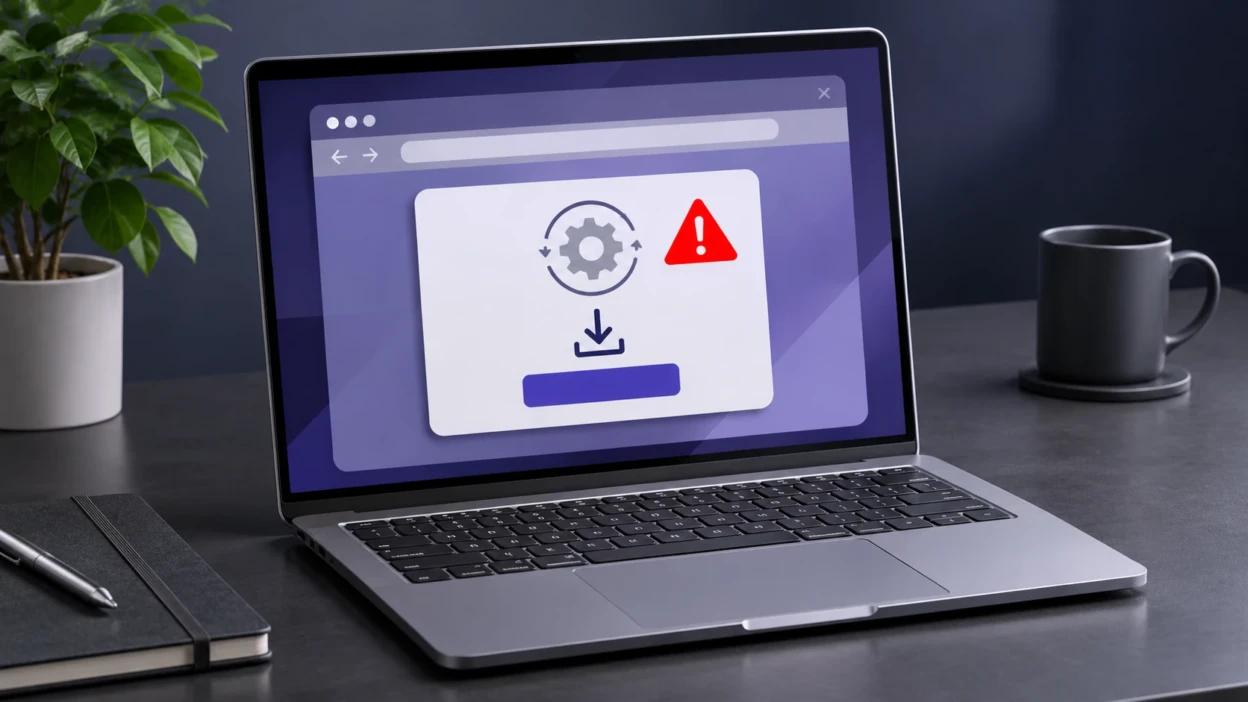
A message suddenly appears on a website telling you that your browser is outdated and must be updated before you can continue. It may display a familiar browser logo, a security warning and a convincing download button. However, the message could be a fake browser update designed to trick you into installing malware.
The safest way to verify a browser update is to ignore the website’s download button and independently check for updates through your browser’s settings, your operating system or your device’s trusted app store. A professional-looking notification alone does not establish that an update is genuine.
Understanding how these scams work can help you recognize suspicious downloads without avoiding the legitimate security updates your browser needs.
What is a Fake Browser Update?
A fake browser update is a deceptive message or download that impersonates a legitimate software update. Instead of delivering an authentic browser upgrade, it attempts to persuade you to download a harmful file, install an unwanted extension or perform an unsafe action.
These messages may appear through malicious advertisements, redirects or compromised websites. Even a website you have visited safely in the past can display harmful content if its advertising or website infrastructure has been compromised.
Mozilla’s guidance on fake Firefox updates documents fraudulent update notices that can appear while people browse otherwise legitimate websites.
The message may identify the browser you are using, which makes the request appear more credible. However, recognizing your browser does not mean the website is authorized to update it.
Warning Signs of a Fake Browser Update
Fake update messages vary in appearance, but several warning signs should encourage you to stop and verify the request independently.
1. An Unexpected Update Appears Inside a Webpage
A news article, shopping website or video page suddenly replaces its normal content with a message demanding a browser update. The message may prevent you from viewing the page until you download a file.
Some legitimate websites do warn visitors about unsupported browsers. However, such a warning does not establish that the website’s download is trustworthy. Check your browser through its own update mechanism instead.
2. The Message Pressures You to Install Immediately
Fraudulent prompts may claim that your browser is critically vulnerable, your device is unsafe or your access will be blocked unless you act immediately.
Urgency is not proof of fraud because genuine security updates can also be important. Treat it as a reason to verify the source, not a reason to skip verification.
3. The Website Offers an Unexpected File Download
Be cautious if a random website asks you to download an executable file, JavaScript file, archive or mobile application package as a browser update.
File extensions such as .exe, .msi, .js, .zip and .apk are not inherently malicious. The concern is receiving an unexpected installer from a source that has not been independently verified.
A familiar filename or browser icon does not prove that a file came from the browser developer.
4. The Download Comes From an Unfamiliar Address
Attackers can imitate browser names and logos while hosting downloads on unrelated domains. They may also use redirects that obscure the final download location.
HTTPS can protect a connection to a website, but it does not guarantee that the website or its downloads are safe. Instead of trying to validate an unexpected download through its appearance alone, use the browser’s official update channel.
5. You Are Asked to Run Commands or Disable Security Protection
A suspicious update page may instruct you to paste a command into a system utility, bypass a security warning or temporarily disable antivirus protection.
Important: Do not run commands, disable security protection or grant unexpected administrator permissions because a webpage tells you to install a browser update. Verify the update independently through a trusted source before making any system changes.
Similar social engineering methods are explained in our guide to fake CAPTCHA malware, where deceptive instructions can persuade users to perform harmful actions themselves.
6. The Update Requires an Unrelated Browser Extension
A website may claim that installing an extension is necessary to repair, secure or update your browser. An extension is not a replacement for a genuine browser software update.
Avoid installing extensions in response to unexpected update messages. If you genuinely need an extension, locate it independently through a trusted distribution channel and review its developer and requested permissions.
Real vs. Fake Browser Updates
The most useful distinction between a genuine update and a suspicious one is not its design. It is whether you can independently confirm the update through a trusted software distribution channel.
| Feature | Genuine Browser Update | Suspicious Update Request |
|---|---|---|
| Source | Browser updater, trusted app store, operating system or official distributor | Unexpected webpage, advertisement or unfamiliar download source |
| Verification | Can be checked independently through the appropriate update channel | May insist on using the button or instructions in the message |
| Installation | Uses an established update or software installation process | May request an unexpected download, extension or command |
| Security protection | Does not normally require bypassing device security protections | May pressure you to ignore warnings or disable protection |
| Reader action | Install through the independently verified channel | Avoid the offered download and verify separately |
These differences are practical indicators, not a definitive malware detection test. A legitimate notification can sometimes open an official download page, and a genuine standalone installer may require administrator permission. The source and context of the request remain important.
How to Verify a Browser Update Before Installing It?
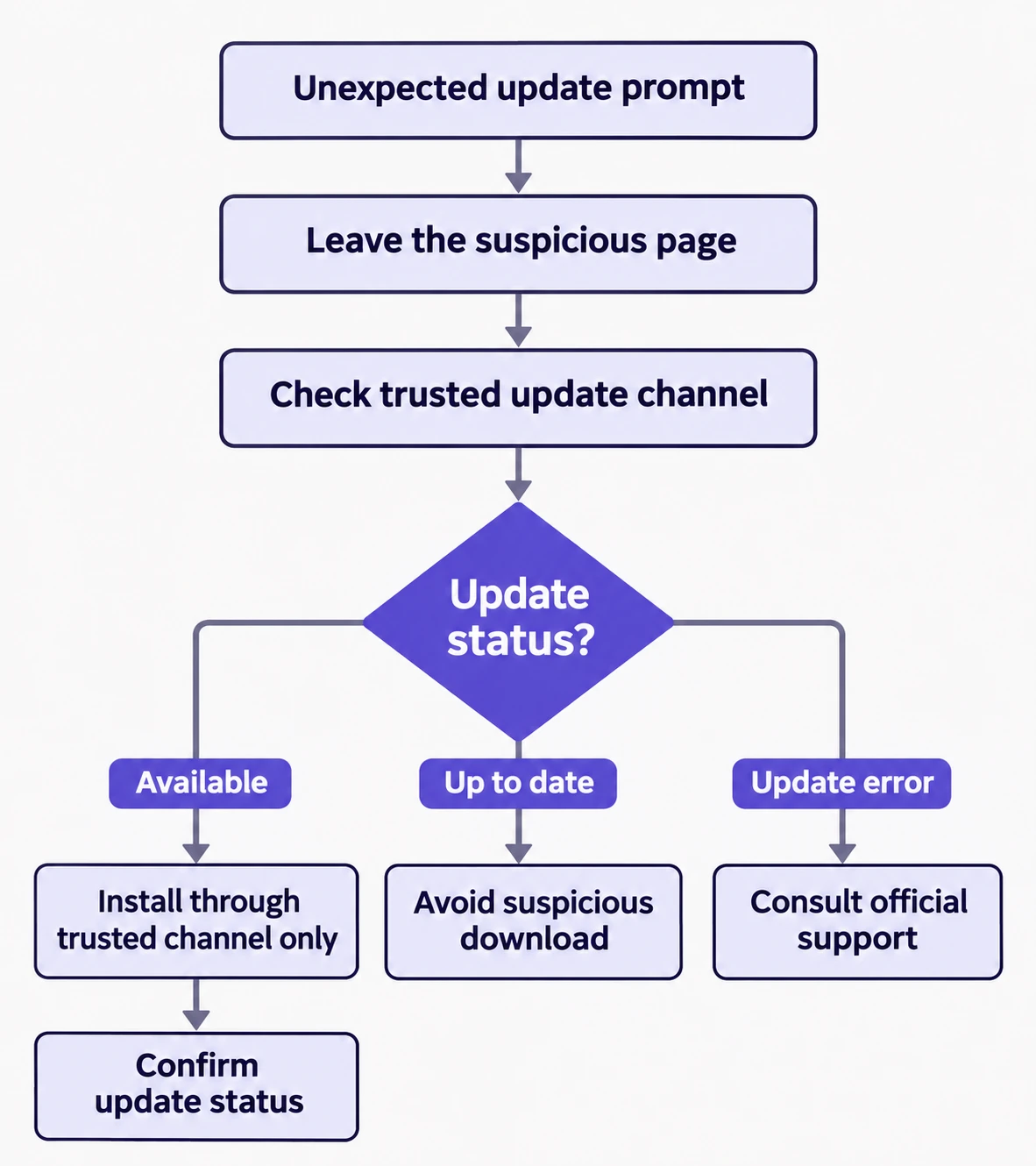
You do not need advanced cybersecurity tools to perform an initial verification. The following steps help separate a website’s claims from your browser’s actual update status.
- Leave the suspicious page: Do not use its update button or download instructions. Close the tab using the browser’s controls.
- Open the trusted update channel: Navigate independently to your browser’s update settings, operating system updater or trusted app store.
- Check the update status: Determine whether the official update mechanism reports an available update, an up-to-date installation or an update error.
- Install only through the trusted channel: If an update is available, follow the official procedure rather than returning to the suspicious webpage.
- Confirm the result: Restart the browser or device if required, then revisit the trusted update channel to check its status.
If the official updater reports that your browser is up to date but a website continues demanding an installation, do not download the offered file. The website could be deceptive, incompatible with your browser or incorrectly detecting its version.
If the official updater reports an error or your operating system is no longer supported, consult the browser developer’s documentation or your organization’s IT administrator instead of searching for unofficial update packages.
How to Update Your Browser Safely?
The appropriate update method depends on your browser, operating system and how the browser was originally installed. The following instructions cover common supported configurations.
Google Chrome on Desktop
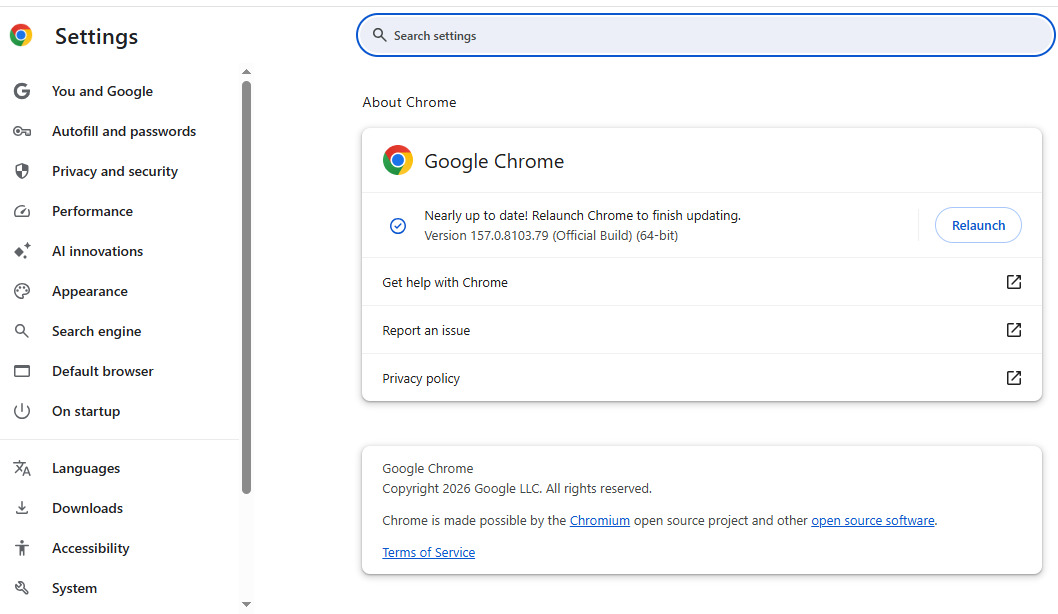
- Open Chrome independently of the suspicious webpage.
- Open the three-dot menu in the upper-right corner.
- Select Help, then About Google Chrome.
- Allow Chrome to check for available updates.
- Select Relaunch if required.
After restarting, return to About Google Chrome to review the version and update status. Refer to Google’s official Chrome update instructions if the update fails or your operating system is unsupported.
Mozilla Firefox on Desktop
On a typical Windows installation, open the Firefox menu, select Help and then About Firefox. On macOS, use Firefox in the system menu bar and select About Firefox. Firefox can check for updates from this window and may require a restart to finish the installation.
Some Firefox installations receive updates through an operating system package manager or application store. Follow the method appropriate to your installation, as described in Mozilla’s official Firefox update guide.
Microsoft Edge on Desktop
Open Edge, select its three-dot menu, choose Help and feedback, and open About Microsoft Edge. Allow the browser to check for updates and restart it if requested.
Update availability and behavior can depend on device configuration and organizational policies. See Microsoft’s Edge update settings documentation for additional guidance.
Safari on Mac, iPhone and iPad
Safari updates are delivered through Apple’s operating system software update mechanism. On a supported Mac, open System Settings, select General and then Software Update. On an iPhone or iPad, open Settings, select General and then Software Update.
Install applicable updates offered for your device. Older operating system versions may have different settings paths or limited update availability. Consult Apple’s Safari update guidance for the appropriate procedure.
Chrome, Firefox and Edge on Mobile Devices
For browsers installed through Google Play on Android, open the Play Store and check for available app updates. For browsers installed through Apple’s App Store, open the App Store and check your account’s available application updates.
Follow the official instructions for updating Android apps or updating apps from Apple’s App Store.
If your browser was installed through a Linux package manager, another supported distribution channel or a workplace-managed system, use that established update process instead. Menu labels and available options may vary by platform and configuration.
Why Fake Browser Updates are Dangerous?
A fraudulent browser installer can deliver software designed to perform activities unrelated to updating your browser. The consequences depend on the malicious software involved, the permissions available to it and the security protections on your device.
Possible consequences include:
- Theft of saved passwords, browsing data or authentication information.
- Unauthorized remote access to the infected device.
- Installation of additional malicious or unwanted software.
- Changes to browser settings or the installation of harmful extensions.
- Unauthorized access to online accounts.
Security researchers at eSentire documented fake browser update campaigns involving remote access and information-stealing malware.
Our explanation of how infostealer malware steals saved passwords provides additional context about why installing an unverified file can put multiple online accounts at risk.
Seeing a fraudulent notification does not automatically mean your device has been infected. The appropriate response depends on whether you simply viewed the message, downloaded something, granted permissions or executed the suspicious software.
What If You Already Downloaded or Installed a Fake Update?
Identify what happened before deciding how to respond. A suspicious file that was never opened presents a different situation from an installer that was executed with administrator permissions.
| What Happened? | Recommended Action |
|---|---|
| You only saw the message | Close the page and independently check for genuine updates. |
| You clicked the update button | Close the page and review recent downloads and any permissions you granted. |
| You downloaded a file but did not open it | Do not execute it. Use trusted security software where supported and remove the unwanted file when appropriate. |
| You allowed website notifications | Revoke the suspicious website’s notification permission through browser settings. |
| You installed an extension | Remove the suspicious extension, review its permissions and assess whether sensitive browsing information may have been exposed. |
| You ran the installer or a suspicious command | Disconnect the affected device from networks, stop sensitive activity and seek trusted security assistance. |
If you executed suspicious software, use a separate, trusted device to secure potentially affected accounts. Prioritize your email account and other important logins, change potentially exposed passwords, revoke suspicious sessions where possible and enable multifactor authentication.
Use reputable security tools appropriate to the affected operating system. A scan can help identify threats, but a clean result does not establish that all malicious activity or account exposure has been eliminated.
For a workplace device, contact your IT or security team immediately and follow its incident response instructions. Avoid deleting potential evidence or reinstalling the operating system without authorization.
For additional recovery steps, read our guide on what to do after clicking a suspicious link.
How to Reduce Your Risk of Fake Browser Update Scams?
You cannot guarantee that fraudulent update messages will never appear, but safer browsing and software maintenance habits can reduce your exposure and the likelihood of installing harmful files.
- Keep automatic browser and operating system updates enabled where supported.
- Use official browser update tools, trusted app stores and established software distribution channels.
- Avoid opening unexpected installers or software archives.
- Keep your device’s supported security protections enabled and updated.
- Review installed browser extensions and remove those you no longer trust or need.
- Review website notification permissions and revoke access for unfamiliar or suspicious websites.
- Use an operating system that continues to receive security updates.
Microsoft’s guidance on protecting yourself from online scams also recommends maintaining trusted security protection and exercising caution around deceptive requests.
If a browser update notification appears repeatedly, check whether it originates from a particular website, an allowed website notification or an installed extension. Persistent unwanted behavior may warrant a security investigation.
Final Thoughts
The best way to spot a fake browser update is to focus on its source rather than its appearance. Logos, professional designs, urgent warnings and familiar filenames can all be imitated.
Whenever an unexpected website asks you to update your browser, leave the page and independently check the appropriate official update channel. If a genuine update is available, install it there. If the browser is already up to date, there is no reason to install an unverified file merely because a webpage demands it.
Do not let the existence of fake updates discourage you from installing legitimate security patches. The goal is to keep your browser updated through a process you can trust.

Tech Bonafide is the editorial identity of TechBonafide, an independent technology publication covering AI, software, cybersecurity, gadgets, and emerging technology.