Fake CAPTCHA malware attacks disguise dangerous instructions as familiar “Verify you are human” security checks. Instead of completing a normal verification, victims may be tricked into copying and running malicious commands, downloading suspicious files, or granting unnecessary browser permissions. One widely documented version of this technique is called ClickFix, which uses fake verification or troubleshooting prompts to persuade users to execute harmful commands on their own devices. This guide explains how fake CAPTCHA scams work, how to recognize warning signs, what can happen after following a malicious prompt, and the steps to protect your computer and online accounts.
What Fake CAPTCHA Malware is?
A legitimate CAPTCHA helps websites distinguish human visitors from automated traffic through browser-based verification challenges. Fake CAPTCHA attacks imitate this familiar process but attempt to persuade users to perform unrelated actions, such as opening a system utility or running an unfamiliar command. This technique is closely associated with ClickFix, a form of social engineering in which victims are encouraged to execute malicious instructions themselves. Microsoft’s research on the ClickFix social engineering technique explains how attackers combine fake verification pages, clipboard manipulation, and command execution to deliver malicious software. Understanding this distinction is essential because the fake verification screen is typically the deception used to initiate the attack rather than the malware itself.
These pages often appear after clicking a search result, ad, pop-up, or a link in an email or message. They can also be injected into legitimate sites through compromised scripts, malvertising networks, or abused browser notifications.
Why Verify You are Human Can Be A Security Trap?
The strength of this attack is psychological, not technical. Most people have been trained to click through verification checks quickly. Attackers rely on habit, urgency, and the belief that a CAPTCHA is a standard security step.
The trap usually introduces an extra instruction that feels mildly technical but still plausible. It may ask for clipboard actions, keyboard shortcuts, browser permissions, or a download to “continue,” which is the moment the attack crosses into malware delivery.
How Fake CAPTCHA Malware Attacks Work?

Many campaigns follow a predictable pattern. Recognizing the flow helps you stop the process before any damage occurs.
- Malicious Page Exposure: The victim reaches a deceptive verification page through a malicious advertisement, phishing link, compromised website, or misleading search result.
- Fake Verification Display: The page imitates a familiar CAPTCHA or browser security check to make the instructions appear trustworthy.
- Clipboard or Instruction Manipulation: The page may place a command on the clipboard or instruct the visitor to perform unusual verification steps.
- User-Initiated Execution: In a ClickFix-style attack, the victim is persuaded to open a system utility, such as the Windows Run dialog or a terminal, and execute an unfamiliar command.
- Malware Retrieval or Execution: The command may download or launch additional malicious software. The exact behavior depends on the campaign and payload.
- Potential Follow-On Compromise: Successful infections may involve credential theft, browser-session theft, remote access, additional malware installation, or attempts to maintain access to the system.
Once the attacker gains a foothold, the follow-on activity is often more damaging than the initial trick. That is why early detection matters.
Common Variants You May Encounter
Fake CAPTCHA campaigns use different website designs and instructions, but they share the goal of persuading visitors to complete an unsafe action. Some pages ask users to run a copied command, while others promote fake downloads or misleading software fixes. Malwarebytes’ investigation into fake CAPTCHA sites and instructional videos shows how attackers have developed increasingly persuasive methods for guiding victims through malicious steps. Because the appearance of these pages can change, focus on whether the verification request involves unfamiliar commands, unnecessary software installations, or permissions unrelated to ordinary website access.
- ClickFix Clipboard Attack: A fake verification page tricks the visitor into copying or pasting a command into a system utility. The command may download or execute malware.
- Fake Browser Notification Check: A page claims that notifications must be enabled before verification can continue. This can expose users to repeated deceptive notifications or malicious links.
- Fake Security Software Download: A website presents a file as a verification tool, browser repair utility, or security update, even though the download may contain malicious software.
- Malicious Browser Extension Prompt: The page directs visitors to install an extension that claims to help complete verification but may request unnecessary access to browsing information.
Any CAPTCHA that requires software installation or OS-level actions should be treated as hostile. Legitimate verification never needs you to run commands on your computer.
Red Flags That Signal A Fake CAPTCHA Page
Recognizing suspicious verification instructions is one of the most effective ways to avoid fake CAPTCHA attacks. Pay attention to unfamiliar domains, unexpected redirects, urgent warnings, and requests to perform actions outside the browser. These tactics share similarities with other social engineering methods that disguise malicious destinations as ordinary online interactions. Our guide on QR code phishing explains how attackers use seemingly trustworthy visual prompts to direct people toward fake websites, credential theft, or malicious downloads. Regardless of how you reach a suspicious page, verify its purpose before interacting with unexpected instructions.
- Unusual Instructions: Requests to press Windows Key and R, open Terminal, launch PowerShell, or paste a command are not normal web behavior.
- Forced Permissions: Blocking content until notifications are enabled is a common abuse pattern.
- Mismatched Branding: Generic “security check” styling that does not match the site you expected to visit is a warning sign.
- Odd URLs Or Redirect Chains: Multiple redirects, random subdomains, and unfamiliar domains suggest traffic laundering.
- Broken Page Elements: Low-quality layout, missing logos, or pop-ups layered over content can indicate injected scripts.
Trust your discomfort. If a verification prompt feels more like a set of instructions than a challenge, it is likely a trap.
What Happens After You Follow the Prompt?
The outcome depends on the payload. Many fake CAPTCHA campaigns aim for credential theft, session hijacking, remote access, or ransomware staging.
Some fake CAPTCHA campaigns deliver information-stealing malware designed to collect sensitive information from an infected device. Depending on the malware family, attackers may attempt to extract saved credentials, browser cookies, authentication sessions, or other valuable data. Additional malware may provide remote access or create mechanisms for maintaining unauthorized control. Our guide on what infostealer malware is and how it steals saved passwords explains how these threats collect sensitive information, how infections commonly begin, and why protecting accounts after a suspected compromise is important.
Fake CAPTCHA Malware Versus Legitimate CAPTCHA
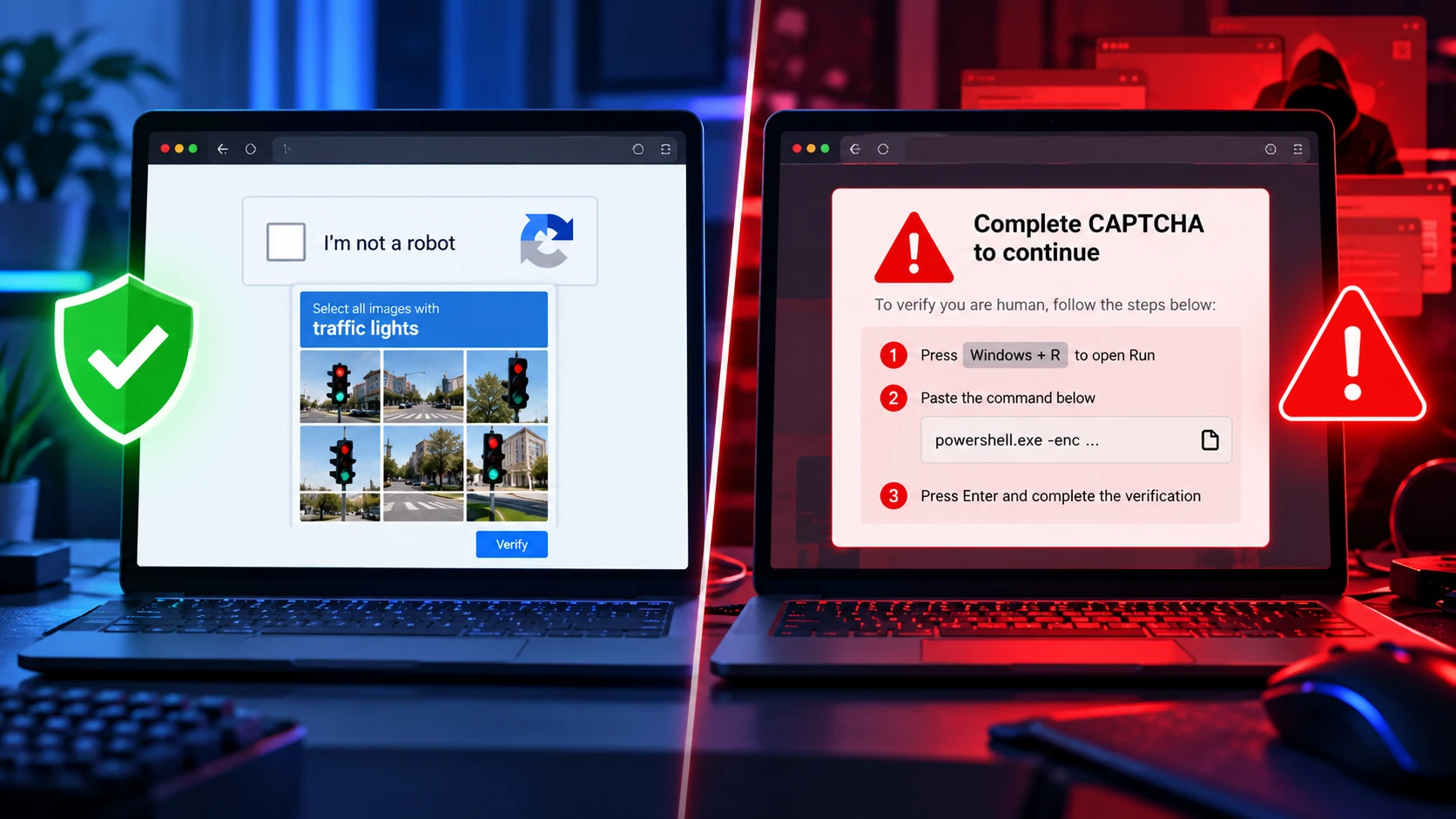
Comparing the two side-by-side makes the differences obvious. Use this quick reference when you are unsure.
| Signal | Legitimate CAPTCHA | Fake CAPTCHA Malware Pattern |
|---|---|---|
| User Action | Clicks a checkbox or solves an image challenge | Asks to paste commands, run tools, or install software |
| Permissions | Rarely requests browser permissions | Pushes notification permissions or extension installs |
| Urgency | Neutral messaging and normal page flow | Threatening prompts and countdown-style pressure |
| Destination | Continues to expected content on the same site | Redirects repeatedly or lands on unrelated domains |
This comparison is intentionally simple. If the prompt tries to move you from the browser into system tools, treat it as malicious.
How to Respond if You Suspect A Fake CAPTCHA?
When something feels off, the safest approach is to stop interacting and reduce risk quickly. Avoid trying to “finish” the verification or troubleshoot the page.
- Stop Interacting With the Page: Close the suspicious tab or browser window without following additional verification instructions.
- Do Not Execute Copied Commands: If the page copied text to your clipboard, do not paste or run it. Clear the clipboard if necessary.
- Identify What Happened: Determine whether you only viewed the page, allowed browser notifications, downloaded a file, installed an extension, or actually executed a command. These situations require different responses.
- Review Browser Permissions: If you allowed notifications or installed an unfamiliar extension, revoke the unnecessary permission and remove the suspicious extension.
- Isolate the Device if Malware May Have Run: If you executed a suspicious command or launched an unknown installer, disconnect the potentially affected device from the network where practical. On a work computer, contact your IT or security team promptly.
- Run Trusted Security Tools: Use reputable antivirus or endpoint security software to investigate the device. A security scan can identify known threats, but a clean result does not guarantee that every compromise has been eliminated.
- Protect Important Accounts: If credential or session theft is possible, use a trusted device to change important passwords, revoke active sessions where available, and review account activity.
- Seek Further Help When Necessary: If suspicious activity continues, financial accounts may be affected, or business credentials were exposed, seek professional incident-response assistance. A confirmed compromise may require restoring or rebuilding the affected system.
After responding to a suspicious CAPTCHA, continue monitoring important accounts for unexpected sign-ins, password-reset messages, or unfamiliar activity. If a command was executed or malware may have run, the response should go beyond clearing browser data. Microsoft’s ClickFix threat description explains that this technique can manipulate victims into initiating a malware infection, making security investigation important when command execution has occurred. For work devices, report the incident immediately to your IT or security team so they can assess exposure, investigate the endpoint, and decide whether additional containment or recovery measures are necessary.
Hardening Tips That Reduce Fake CAPTCHA Risk

Prevention is mostly about narrowing the pathways attackers use. A few settings and habits reduce exposure significantly without adding friction.
- Never Run Commands From Verification Pages: A website CAPTCHA should not require you to execute unfamiliar commands in PowerShell, Terminal, or the Windows Run dialog.
- Review Browser Notifications: Disable notification access for suspicious websites and avoid granting permissions merely to view content.
- Limit Browser Extensions: Install only necessary extensions from trusted sources and review their requested permissions.
- Use a Password Manager: A password manager can help reduce credential reuse and may warn indirectly about suspicious domains when saved credentials do not match. However, it does not prevent malware infection.
- Enable Strong Authentication: Use passkeys, security keys, or multi-factor authentication to strengthen access to important accounts. However, additional authentication does not eliminate every risk, particularly when malware steals valid sessions or attackers manipulate login approvals. Our guide to MFA fatigue attacks explains how repeated authentication requests can pressure users into approving unauthorized access. Review unexpected sign-in prompts carefully and never approve a request you did not initiate.
- Keep Software Updated: Maintain current browser, operating system, and security software updates to reduce exposure to known vulnerabilities.
- Avoid Suspicious Downloads: Do not install files promoted as mandatory CAPTCHA verification tools or emergency browser repairs.
- Report Suspicious Prompts: If a fake verification page appears on a trusted website or work device, report the incident through the relevant website or organizational security channel.
Security controls work best in layers. Even if one step fails, the next one can prevent a full account takeover.
Business Impact and Why Teams Should Care
Fake CAPTCHA malware is not only a consumer problem. Employees often encounter these pages while researching vendors, troubleshooting issues, or downloading tools, which puts corporate credentials and systems at risk.
The downstream impact can include unauthorized access to SaaS apps, stolen session cookies, invoice fraud, and operational disruption. If your organization handles sensitive data, a single compromised endpoint can escalate into a broader incident.
For organizations, preventing fake CAPTCHA attacks requires a combination of employee awareness, browser security controls, endpoint protection, and clear incident-reporting procedures. Security teams should teach employees to recognize suspicious verification instructions, particularly requests to run commands or install software to continue browsing. TechBonafide’s cybersecurity explainers can help readers understand these threats and develop safer browsing habits. Businesses with greater security requirements should also consider professional security assessments and appropriate endpoint monitoring tools to identify and respond to suspicious activity.
Conclusion
Fake CAPTCHA malware attacks exploit the familiarity of ordinary website verification prompts to trick users into performing unsafe actions. ClickFix-style campaigns are particularly dangerous because they persuade victims to execute malicious commands themselves. A legitimate website verification process should not require running unfamiliar system commands, installing unexpected software, or granting unrelated browser permissions.
If you encounter a suspicious CAPTCHA, stop interacting with the page and assess what actions you have already taken. If you only viewed the prompt, closing it may be sufficient. If you executed a command or installed suspicious software, take appropriate containment, scanning, and account-protection steps. Keeping browsers updated, reviewing permissions, and recognizing social engineering warning signs can substantially reduce exposure to these attacks.
Frequently Asked Questions
Can A Fake CAPTCHA Infect A Device Without Clicking Anything?
Most fake CAPTCHA attacks need user interaction to trigger downloads, permissions, or command execution. However, malicious redirects and compromised scripts can still expose you to risk, especially on outdated browsers. Keeping your browser and OS updated reduces the chance of silent exploitation.
Is Allowing Browser Notifications Dangerous?
Notifications are not malware by themselves, but they are frequently abused to deliver persistent scam pop-ups and malicious links. If a site demands notifications to proceed, treat it as suspicious. Remove notification permissions you do not recognize and keep them limited to trusted sites.
What Should I Do if I Pasted A Command From A CAPTCHA Page?
Disconnect from the network if possible, then run a full security scan using trusted protection tools. Review recent downloads, installed programs, and browser extensions for anything unfamiliar. Change important passwords from a clean device and check for unusual account sessions afterward.