A laptop battery can feel fine one week and suddenly start draining fast the next. Checking battery health helps you spot wear early, explain sudden shutdowns, and decide whether settings changes or a replacement makes sense.
What Battery Health Means?
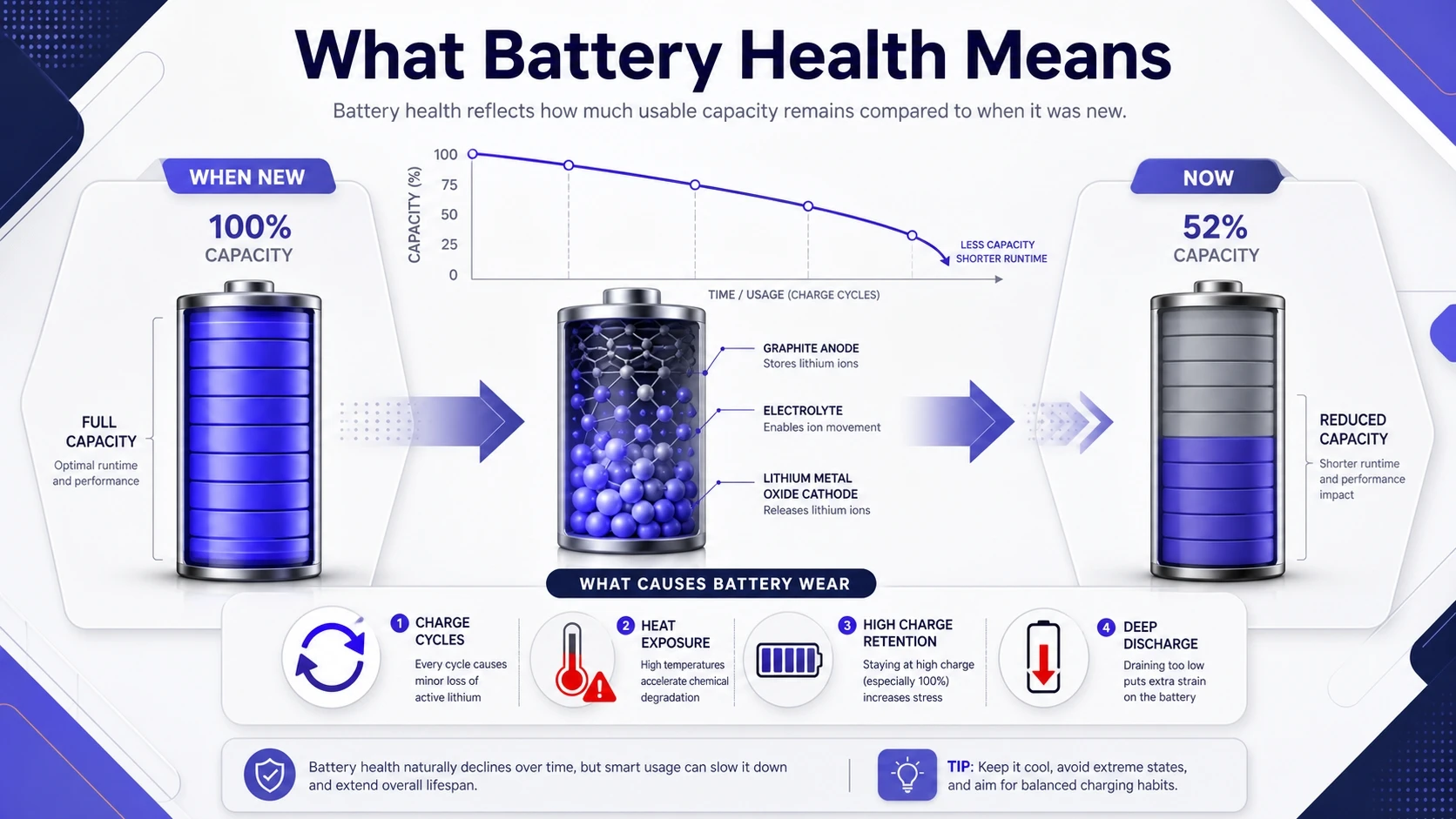
Battery health is a comparison of how much energy your battery can hold now versus when it was new. As the battery ages, its maximum capacity drops and the laptop may run shorter on a full charge.
Most laptops use lithium-ion or lithium-polymer cells. These wear gradually due to charge cycles, heat, high charge levels held for long periods, and deep discharges.
Signs Your Laptop Battery Health Is Declining
You do not need a report to notice early warning signs. Watch for patterns that persist after a restart and a full charge.
- Shorter runtime: The battery percentage drops faster than it used to under the same workload.
- Unexpected shutdowns: The laptop powers off even when the battery indicator shows remaining charge.
- Charging irregularities: Charging stalls, jumps, or takes much longer than normal.
- Heat and fan activity: The laptop runs warmer, which can accelerate battery wear.
- Swelling or case flex: Trackpad issues, lifted chassis, or visible bulging can indicate a safety risk.
These symptoms are a prompt to check battery health using the operating system tools and the battery’s own metrics.
How To Check Battery Health On Windows?
Windows can generate a detailed battery report that includes design capacity, full charge capacity, and usage history. It is the most reliable built-in method because it pulls data from the battery firmware.
Generate A Battery Report With Command Prompt
Use this approach if you want the clearest snapshot of wear and recent behavior. You need a Windows account with permission to run commands.
- Open Command Prompt: Search for Command Prompt, then choose Run as administrator if available.
- Create the report: Type powercfg /batteryreport and press Enter.
- Find the file path: Windows displays the saved HTML location, often inside your user folder.
- Open the report: Double-click the HTML file to view it in your browser.
Once the report is open, focus on a few sections that tell the most useful story.
How To Read The Key Windows Battery Report Fields?
The report can look dense, but only a handful of values matter for battery health. Use these to estimate wear and check whether the readings match your real-world runtime.
- Design capacity: The original capacity the battery was built to hold.
- Full charge capacity: The current maximum capacity after wear.
- Cycle count: How many full charge cycles the battery has completed, if reported.
- Recent usage: When the laptop ran on battery and how quickly it drained.
- Battery usage: A timeline of how much energy was used over time.
- Estimated battery life: Windows’ projection of runtime at full charge based on recent behavior.
When full charge capacity is much lower than design capacity, your battery health has declined. If capacity looks reasonable but runtime is still poor, check background apps, power plans, and thermal issues.
Check Battery Status In Windows Settings
Settings provides quick context, even though it does not show wear percentage by default. It is still helpful for diagnosing fast drain.
- Battery usage by app: Review which apps are consuming power in the background.
- Power mode: Test Balanced versus Best power efficiency to compare drain.
- Screen and sleep settings: Shorter display timeouts can noticeably extend runtime.
If Settings shows a single app dominating usage, address that first before concluding the battery is worn out.
How To Check Battery Health On MacOS?
macOS provides battery health and cycle count directly in system menus. Apple also uses battery health management on many models to reduce aging by adjusting charging behavior.
Check Battery Health In System Settings
The exact menu names vary slightly by macOS version, but the health view is consistent. You can check condition, maximum capacity, and recommended service messages.
- Open System Settings: Select the Apple menu, then open System Settings.
- Go to Battery: Choose Battery in the sidebar, then open Battery Health if shown.
- Review condition and capacity: Check Maximum Capacity and the Condition label.
- Confirm optimization settings: Ensure Optimized Battery Charging is enabled when it fits your schedule.
If macOS reports Service Recommended, the battery may still work, but wear is high and reliability can drop under load.
Find Cycle Count And Full Capacity In System Information
Cycle count is a strong indicator of age, especially when paired with maximum capacity. This view also shows other battery details such as voltage and amperage.
- Open System Information: Hold Option, open the Apple menu, then choose System Information.
- Select Power: In the left panel, open the Power section.
- Locate cycle count: Find Cycle Count under Battery Information.
- Check full charge capacity: Review Full Charge Capacity and compare it with the original design metrics shown by macOS.
If cycle count is high and maximum capacity is low, reduced runtime is expected. If cycle count is moderate but capacity is unusually low, heat exposure and charging habits may be contributing.
Battery Health Numbers You Should Pay Attention To
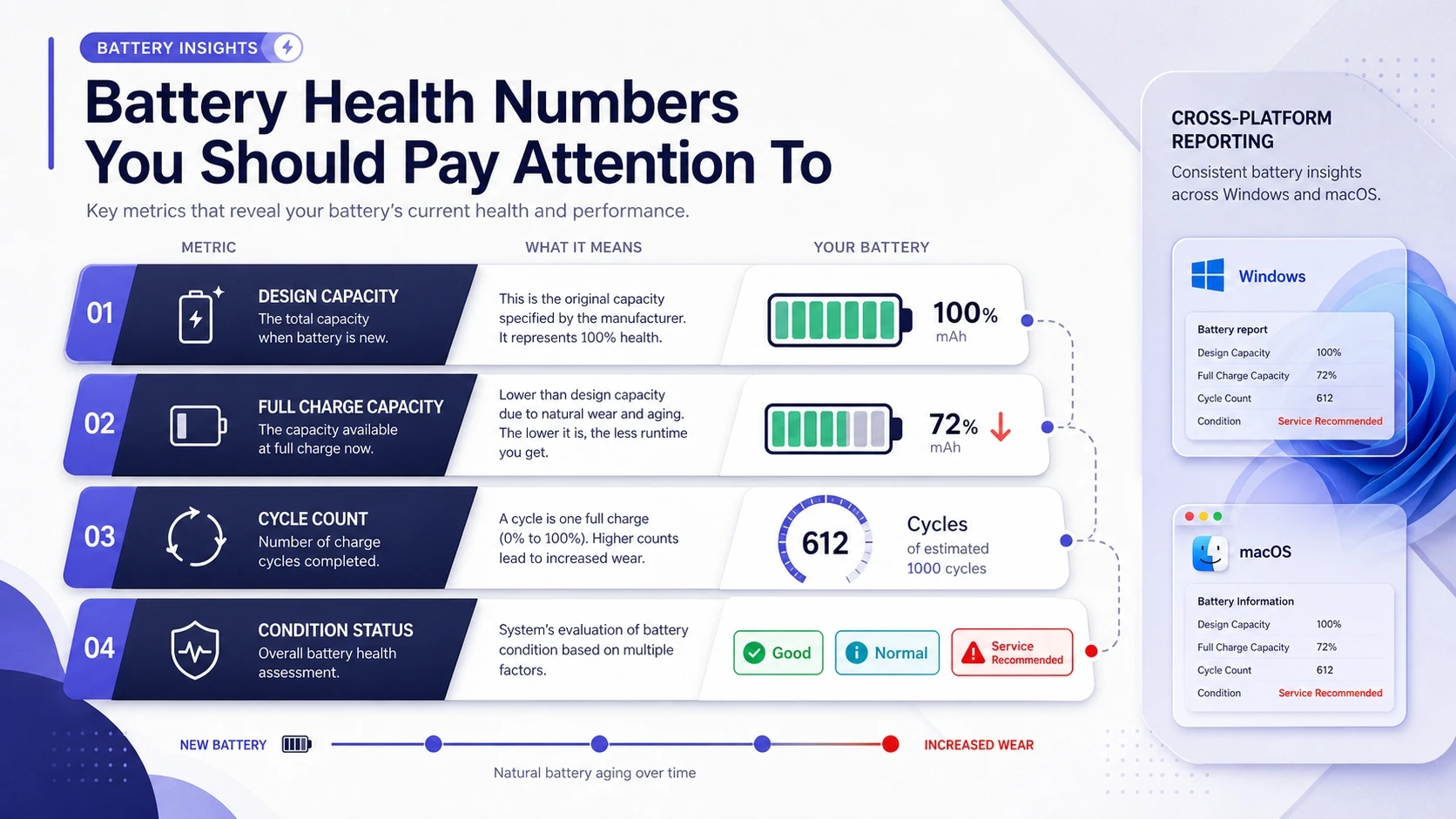
Battery health is not a single universal number across all laptops. Still, a few metrics are useful on both Windows and macOS.
| Metric | What It Tells You | Why It Matters |
|---|---|---|
| Design Capacity | Original energy storage when new | Baseline for calculating wear and comparing batteries |
| Full Charge Capacity | Current maximum energy storage | Lower values mean shorter runtime on a full charge |
| Cycle Count | Total full charge equivalents | Higher counts usually correlate with more wear |
| Condition Status | OS health message such as Normal or Service | Flags reliability and safety concerns earlier |
Use the table to interpret reports quickly, then pair the numbers with your real usage to confirm whether the battery or the software load is the core issue.
What To Do If Laptop Battery Health Is Poor?
A worn battery does not always require immediate replacement. The right next step depends on whether you need portability, stable performance, or predictable uptime.
Adjust Power And Background Activity
Before buying a battery, reduce drain and confirm the battery is truly the bottleneck. Small changes often produce noticeable gains, especially on older systems.
- Lower screen brightness: The display is often the largest power draw.
- Disable unnecessary startup items: Fewer background tasks reduce CPU wakeups and drain.
- Use battery saver modes: Windows Battery Saver and macOS Low Power Mode can extend runtime.
- Update drivers and OS: Power management fixes can improve standby drain and charging behavior.
If the laptop still drains quickly after cleanup, the capacity loss is likely the limiting factor.
Check Heat And Charging Habits
Heat is one of the fastest ways to accelerate battery wear. Charging to 100 percent and keeping it there for long periods can also contribute over time.
- Improve airflow: Keep vents clear and avoid soft surfaces that trap heat.
- Avoid constant high heat loads: Long gaming or rendering sessions on battery raise temperatures.
- Use smart charging features: Enable optimized charging on macOS and any vendor battery conservation mode on Windows laptops.
Once temperatures are under control, battery readings often become more consistent and reliable.
When Battery Replacement Makes Sense?
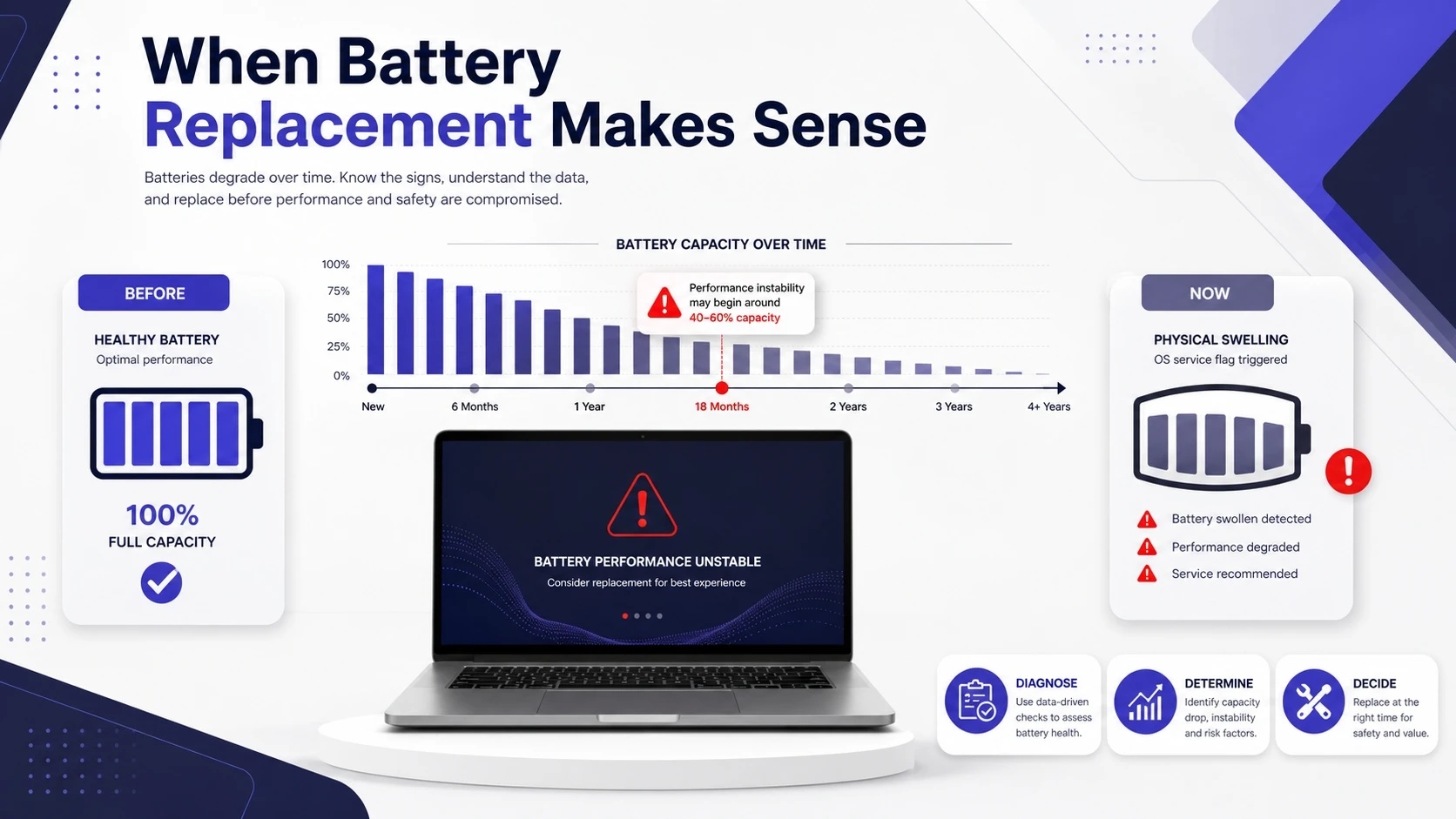
Replacement is usually justified when the battery can no longer support your typical unplugged session or the laptop becomes unstable near mid charge. It is also important when the battery shows physical swelling or the OS flags service needs.
If you want help verifying results from a Windows battery report or macOS cycle count, Tech Bonafide-style device troubleshooting and performance guidance can help you interpret the numbers and avoid unnecessary hardware spending.
Conclusion
To check laptop battery health on Windows, generate a battery report and compare design capacity with full charge capacity. On macOS, review Battery Health and confirm cycle count in System Information for a clear view of aging.
Once you know the numbers, focus on power settings, background apps, and heat control before replacing hardware. If the battery condition is poor or safety concerns appear, plan a replacement to restore reliable runtime.
Frequently Asked Questions
What is a good battery health percentage for a laptop?
A higher maximum capacity relative to the original design indicates better battery health. If full charge capacity is noticeably reduced, runtime will shrink and performance may throttle sooner on battery. Prioritize how long it lasts for your normal workload, not only the percentage.
Why does my battery report look fine but my laptop still dies quickly?
High background usage, heavy browser tabs, aging storage, or overheating can cause rapid drain even with decent capacity. Calibrating expectations also matters since modern CPUs can spike power draw briefly and drop percentage quickly. Check app-level battery usage and thermal behavior alongside the report.
Can I improve battery health after it drops?
You cannot restore lost chemical capacity, but you can slow further wear. Keep temperatures down, avoid deep discharges, and use optimized charging features when available. These habits improve stability and extend useful battery lifespan even on older laptops.