Deleting photos, videos, and downloads should free space, yet storage can stay stubbornly full. This usually happens because the files are not fully removed, hidden data keeps growing, or the storage report is lagging behind real changes. The fix is rarely one big delete – it is a few targeted cleanups that match how Android and iPhone manage data.
How Phone Storage Really Works?
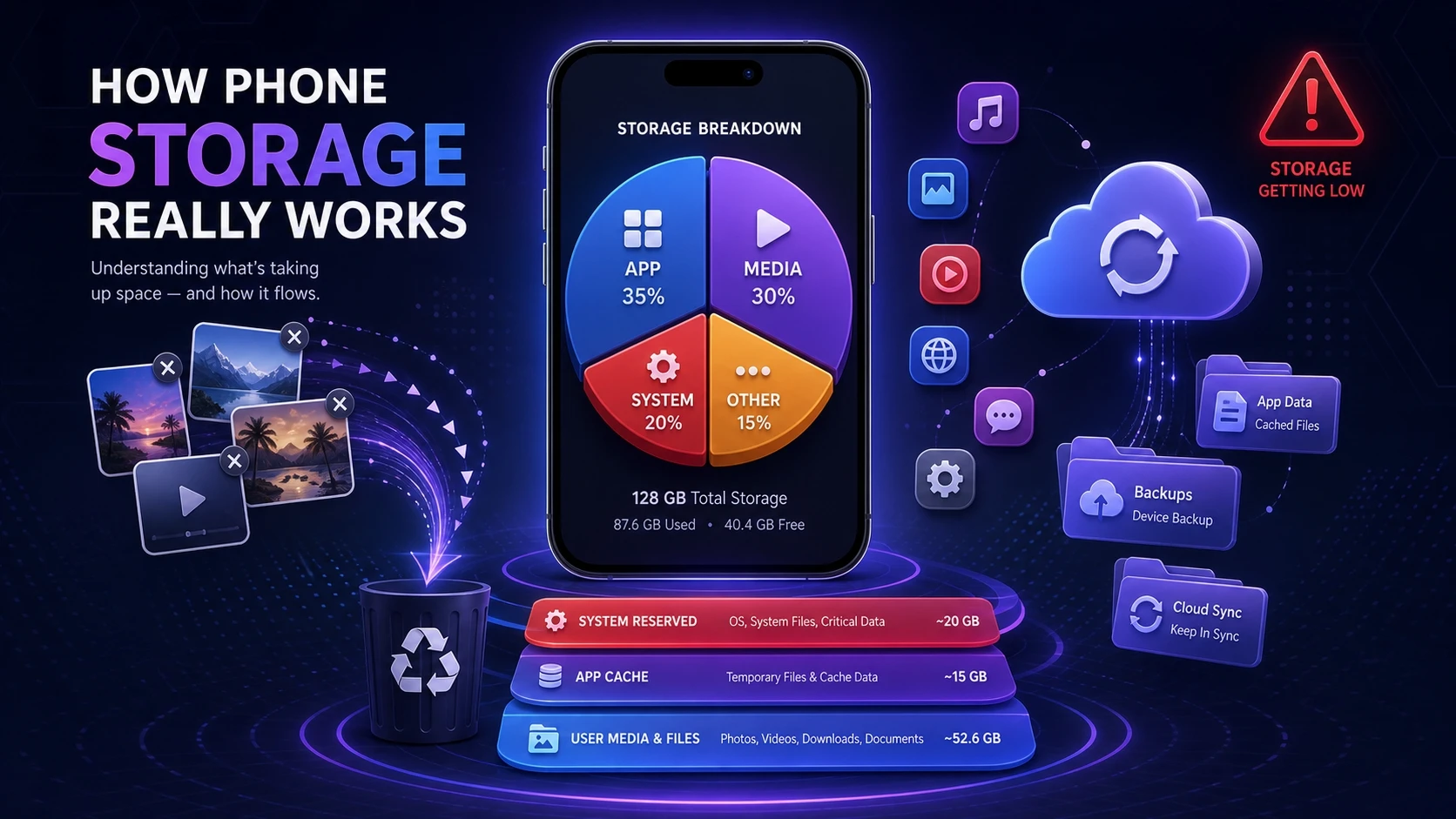
Your phone splits storage into categories such as apps, media, system, and other. The numbers you see are estimates based on indexing, caching, and reserved space. That means the storage graph can stay high even after you remove large items.
Phones also keep temporary data to make apps feel fast. Caches, offline files, and background downloads can quietly return after you clear space. A clean storage result comes from removing both visible files and the less obvious data tied to apps and services.
Deleted Files May Still Be On Your Phone
Most phones use a safety net where deleted items move to a trash folder first. Photos and file manager apps often keep deleted items for 30 to 60 days. Until you empty that trash, the space is not truly reclaimed.
Some apps have their own recycle bin separate from the system one. Messaging apps may keep media in a hidden folder even after you delete the chat. Clearing trash in the right place is the quickest win when storage stays full.
- Check Photo Trash: Open the photos app and empty the recently deleted album.
- Check File Manager Trash: Look for a recycle bin or trash section and clear it.
- Check Cloud App Trash: If you delete from a synced folder, clear the cloud trash too if it is keeping local copies.
After emptying trash, wait a minute and reopen storage settings so the system can recalculate.
App Cache And Temporary Files Keep Growing
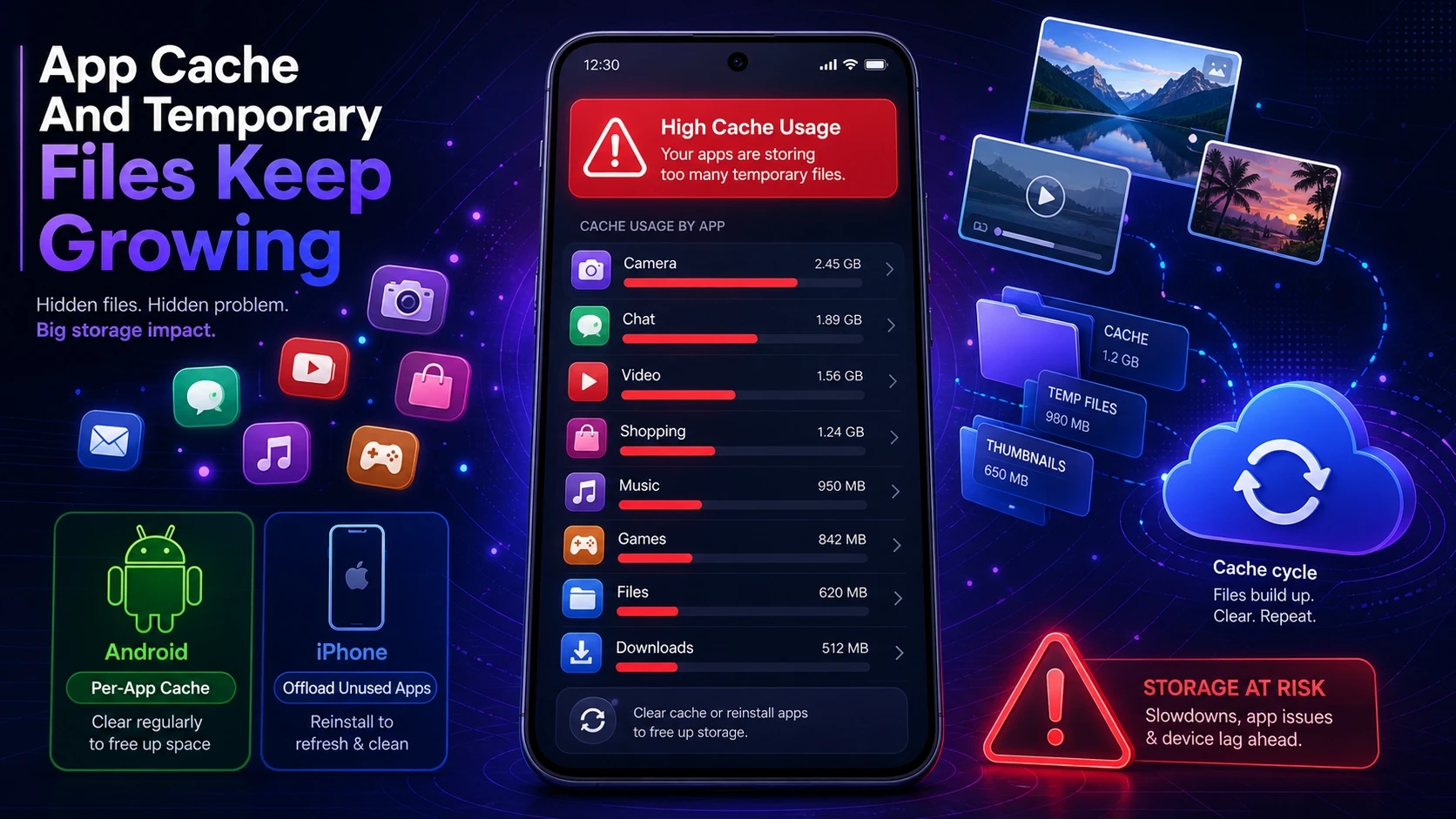
Apps store cache to speed up loading, reduce data use, and keep you logged in. Social apps, streaming apps, browsers, and shopping apps can build several gigabytes of cache. Deleting your personal files does not touch that cache.
On Android, you can usually clear cache per app in storage settings. On iPhone, many apps do not offer a clear cache button, so removing and reinstalling the app is the common way to purge stored temporary data. Before doing that, confirm the app data is backed up or tied to your account.
- Start With Big Apps: Sort apps by storage size and target the top few first.
- Clear Browser Data: Browsers can hold large site data and offline items.
- Remove Offline Downloads: Streaming apps store downloads separately from your gallery.
This approach frees space without forcing you to delete more photos than necessary.
Hidden App Data In Messages And Social Apps
Chat apps and social platforms save media in multiple places. Photos you see in a thread can also be stored as cached thumbnails, duplicated copies, or encrypted databases. Even if you delete a conversation, leftover media folders can remain.
Look inside the app storage settings for options to manage media, clear stored files, or reduce retention. Some apps let you set auto download rules, limit media quality, or delete old media. Tightening those settings prevents the same storage problem from returning next week.
System Data And Other Storage Can Be Misleading
System data is not just the operating system. It can include logs, indexes, temporary update files, voice assets, fonts, and app support files. The label may look vague, but it is often the sum of many small items.
Other storage may grow when apps store data in their own directories. If you recently updated the system, the phone may keep update packages temporarily. A restart can remove some temporary items and force storage recalculation.
Cloud Sync Can Keep Local Copies
Cloud services can create the feeling that deleting should free space, yet local caching may remain. If you use a cloud photo library, you may still have full resolution files stored locally for quick access. The storage setting that controls this differs by platform and app.
Check whether your photo service is set to keep originals on device or to optimize storage. When optimized storage is enabled, the phone keeps smaller versions locally and downloads the original only when needed. That can reclaim a large amount of space without deleting your library.
Downloads And Duplicates You Do Not See
The downloads folder is often only one piece of the puzzle. Many apps create their own download directories, including podcasts, maps, email attachments, and document editors. These files may not show up in your gallery, but they consume storage.
Duplicates also happen during file sharing, editing, and backup restores. Some editors save an exported copy while keeping the original and a project file. Cleaning duplicates is easiest when you sort by file size and review large videos first.
Storage Summary Table For Common Causes
| Cause | Where To Check | What To Do |
|---|---|---|
| Trash folders still holding files | Photos recently deleted and file manager trash | Empty trash and wait for storage to refresh |
| Large app cache | App storage usage screen | Clear cache or reinstall if needed |
| Offline media downloads | Streaming apps and podcast apps | Delete downloads inside each app |
| Cloud keeps local originals | Cloud photo or drive settings | Enable optimize storage or remove local copies |
Use the table to identify the most likely culprit based on where your storage spike appears.
Android Cleanup Checklist That Actually Works
Android gives more direct control over app storage, so a focused sweep usually solves the issue. Prioritize actions that target the biggest storage buckets first. Keep your changes minimal until you confirm space is freeing up.
- Empty All Trash Locations: Clear photos trash and any file manager recycle bin.
- Use Built In Storage Tools: Run the phone storage cleaner and review large files.
- Clear Cache On Heavy Apps: Focus on social, video, browser, and shopping apps.
- Review App Downloads: Remove offline maps, podcasts, and streaming downloads.
- Restart The Device: A reboot clears some temporary files and refreshes storage reporting.
After this pass, recheck storage and only then decide whether you need to uninstall large apps or move files off device.
iPhone Cleanup Checklist That Actually Works
On iPhone, storage pressure often comes from apps, messages, and system data. iOS also relies heavily on optimization settings rather than manual file browsing. The goal is to remove bulky stored data while keeping your account data intact.
- Empty Recently Deleted: Clear deleted photos and videos completely.
- Offload Or Delete Large Apps: Offload keeps documents while removing the app bundle.
- Review Messages Storage: Delete large attachments and set shorter message retention if needed.
- Clear Safari Website Data: Remove stored site data that builds up over time.
- Restart And Update When Stable: A restart helps indexing, and stable updates can reduce leftover temporary files.
If system data stays unusually high, checking for stuck downloads, failed updates, or a large cache heavy app often reveals the cause.
When Storage Numbers Do Not Update Right Away?
Storage calculations can lag because the system indexes files in the background. Large deletions may take time to reflect if the phone is busy, low on battery, or low on free space. Keeping the phone plugged in and connected to Wi Fi can speed up housekeeping tasks.
A restart is the simplest way to force a refresh. If the number still looks wrong, open the biggest storage category and confirm what the phone thinks is taking space. That view is usually more reliable than the summary chart.
How To Prevent Storage From Filling Up Again?
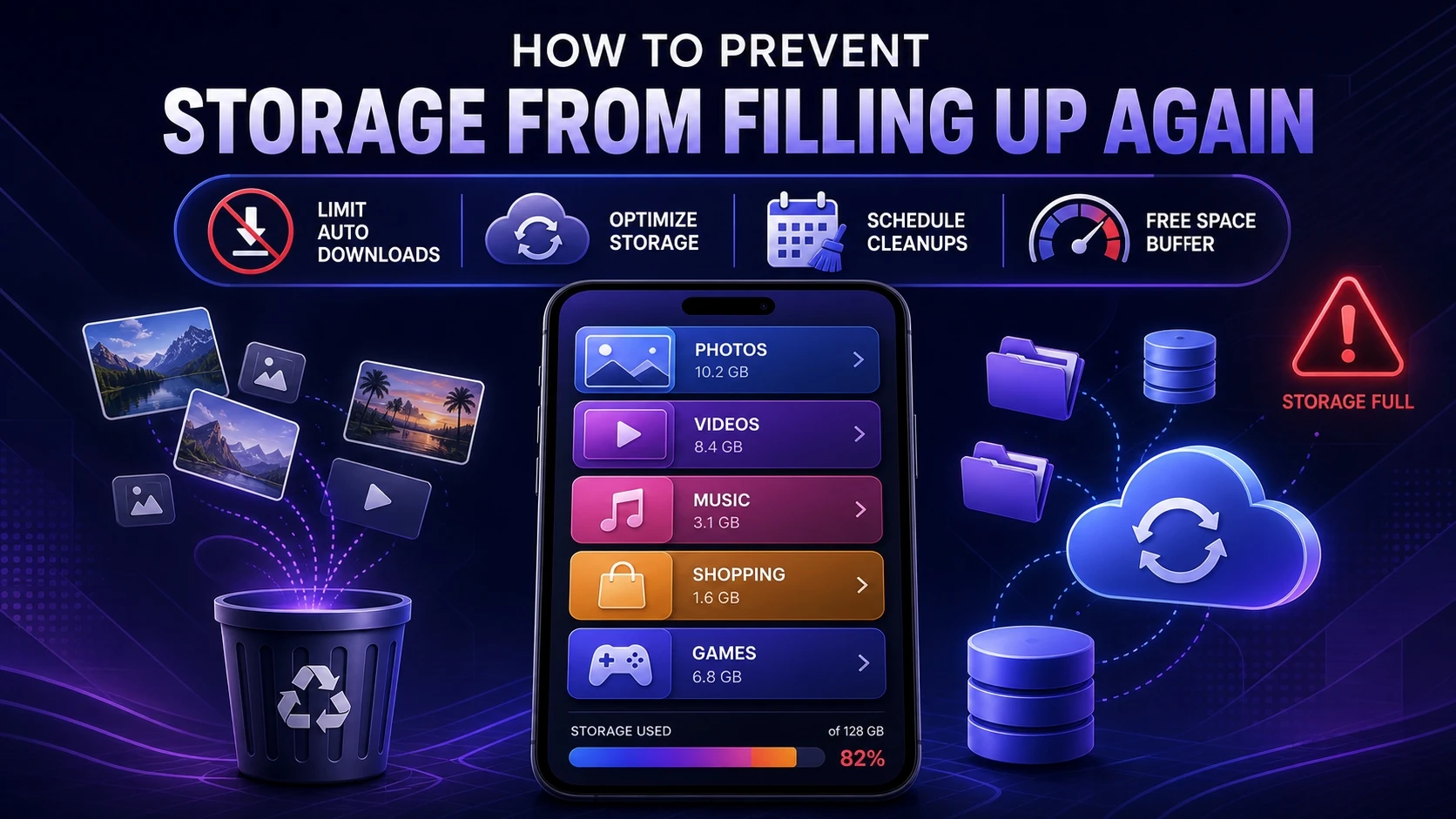
Once you free space, small habits keep it from creeping back. The biggest gains come from changing how apps store media and how cloud services keep local copies. A little prevention avoids the cycle of deleting and re-downloading the same files.
- Limit Auto Downloads: Disable automatic media downloads in chat and social apps.
- Use Optimize Storage Options: Prefer optimized photo storage when you rely on cloud libraries.
- Schedule Cache Cleanups: Check top storage apps monthly and clear cache when it grows.
- Keep A Free Space Buffer: Aim to keep several gigabytes free for updates and smooth performance.
These changes keep performance steady and reduce surprise storage alerts.
Conclusion
If your phone storage is still full after deleting files, the missing space is usually sitting in trash folders, app cache, offline downloads, or cloud settings that keep local originals. Clear the right hidden areas first, then confirm the storage report updates after a restart. With a few settings changes, you can keep free space available without constantly deleting personal media.
Frequently Asked Questions
Why does my phone say storage is full when I deleted a lot of photos?
Deleted photos often remain in a recently deleted or trash album until you empty it. Some photo apps also keep local cache files that remain after deletion. Empty trash and give the phone a moment to recalculate storage.
Is it safe to clear app cache to free storage?
Clearing cache is generally safe and can reclaim space quickly. The app may load a bit slower the next time while it rebuilds temporary files. If an app stores downloads offline, clear those inside the app so you do not remove content you still need.
What should I do if system data is taking too much space?
Restart the device and check for stuck downloads, pending updates, or a single app consuming abnormal storage. Clearing large app data, removing offline files, and updating to a stable system version can reduce system related bloat. If the issue persists, a full backup and reset is a last resort.