USB-C ports look identical, but what they support can vary widely. USB4 and Thunderbolt 4 are two of the most capable standards, yet they are not interchangeable in every situation. Understanding the practical differences helps you pick the right laptop, dock, monitor, cable, or external SSD without paying for features you will not use.
Quick Difference Between USB4 And Thunderbolt 4
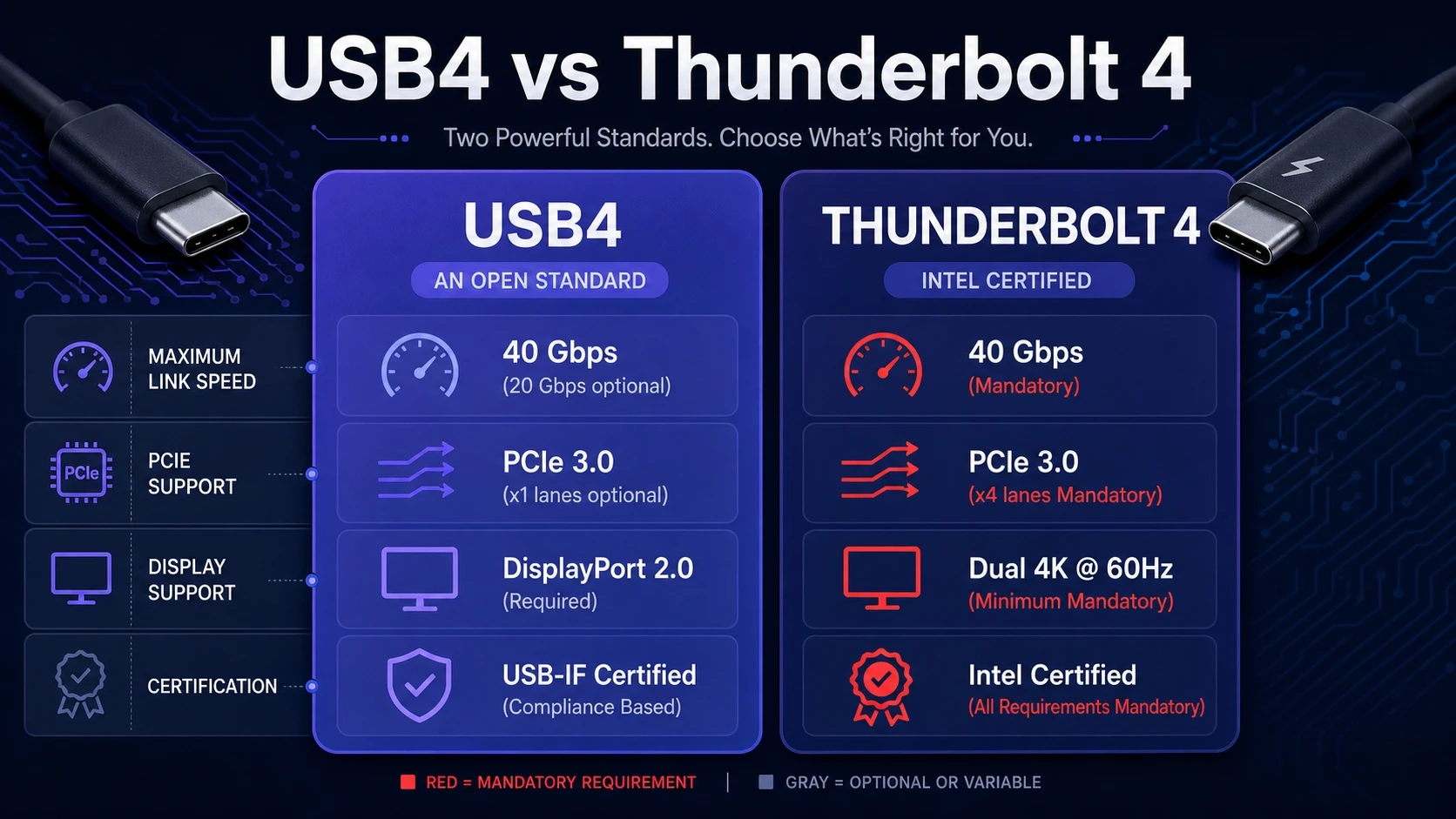
USB4 is an open USB standard that can deliver up to 40 Gbps and can optionally support features such as PCIe tunneling and multi-display video. Thunderbolt 4 is an Intel-certified specification built on USB-C that requires a strict set of capabilities, including 40 Gbps operation, PCIe support, and specific security and docking behaviors.
In simple terms, USB4 can be great, but it depends on the exact implementation. Thunderbolt 4 aims to remove the guesswork by making key features mandatory.
| Feature | USB4 | Thunderbolt 4 |
|---|---|---|
| Maximum Link Speed | Up to 40 Gbps depending on device | 40 Gbps required |
| PCIe Support For External SSD And eGPU | Optional and varies by model | Required with minimum PCIe performance |
| Display Support Over USB-C | Depends on DisplayPort Alt Mode and host design | Requires strong display capabilities and docking behavior |
| Certification And Compatibility | USB-IF compliance, feature set can differ | Intel certification with stricter requirements |
What USB4 Really Means On A Laptop Or PC
USB4 is a protocol that rides on the USB-C connector and improves how data and display traffic are managed through tunneling. The standard allows up to 40 Gbps, but device makers can ship USB4 ports that run at 20 Gbps or 40 Gbps.
USB4 also does not force every advanced feature to be present. That means two USB4 laptops can behave differently with the same dock or external drive, even though both advertise USB4.
USB4 Versions And Naming Confusion
USB naming has a history of being hard to follow. USB4 products may be labeled with throughput such as 20 Gbps or 40 Gbps, and some vendors only mention USB-C without the speed rating.
When shopping, look for explicit markings or specifications that state the port speed and whether it supports Thunderbolt or PCIe tunneling. If the spec sheet is vague, assume a more basic implementation.
What Thunderbolt 4 Guarantees?
Thunderbolt 4 uses the same USB-C port shape but includes a certification program that requires a baseline set of capabilities. This is the main reason it often costs more on laptops and docks.
A Thunderbolt 4 host must support 40 Gbps, robust PCIe tunneling for high-performance peripherals, and consistent behavior with docks. It is designed for people who want predictable results across storage, displays, and hubs.
Why Certification Matters?
With Thunderbolt 4, the label is meant to imply that key features are present and tested. That reduces the need to research every port detail before buying a dock or monitor.
For teams that standardize hardware, Thunderbolt 4 lowers support friction. It helps IT avoid mismatched cables, unsupported monitors, and inconsistent docking behavior across laptop models.
Speed And Real Throughput Differences
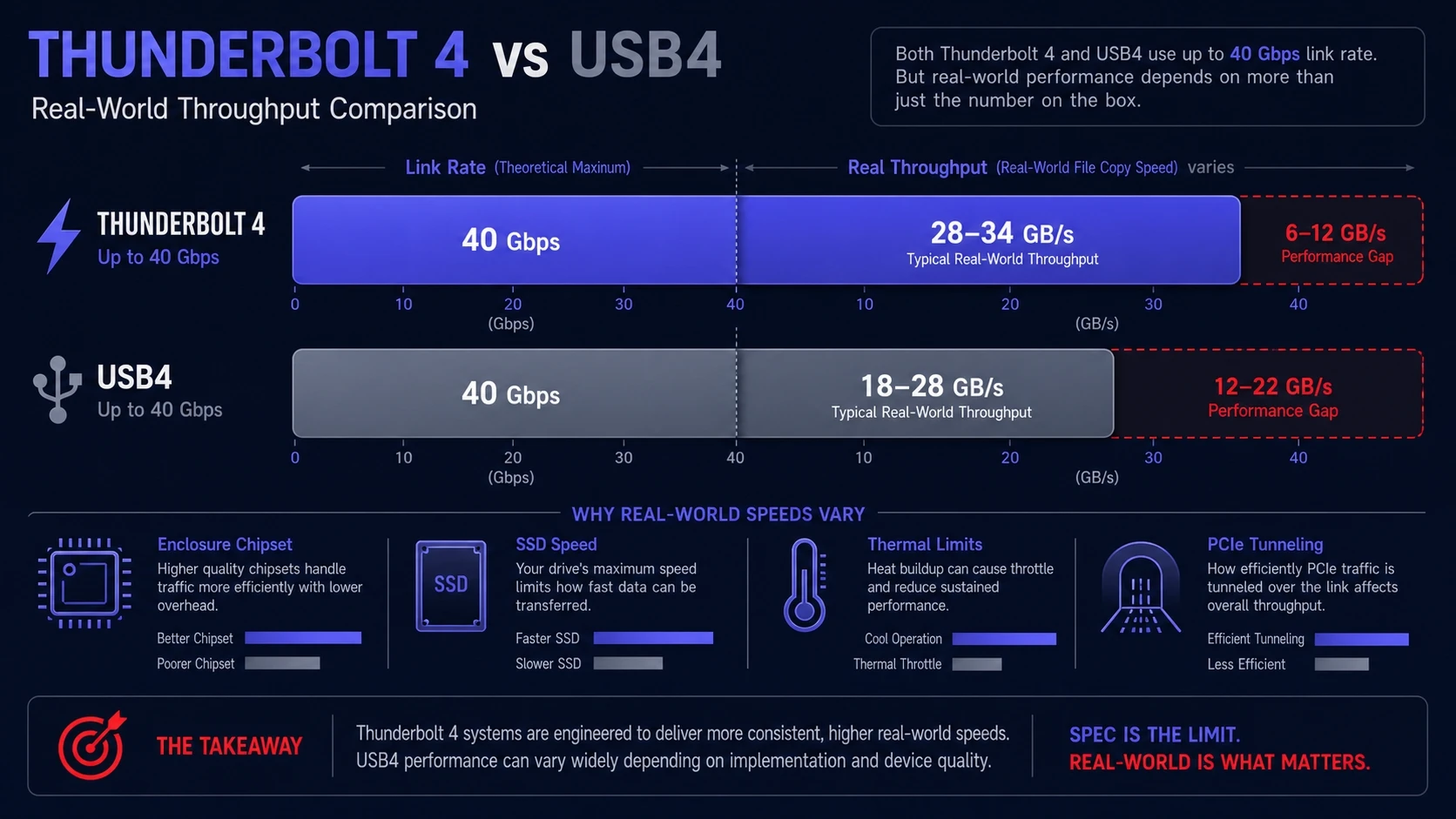
Both standards can advertise 40 Gbps, but that is the link rate, not the real file copy speed. Storage performance depends on the enclosure chipset, the SSD inside, thermal limits, and how the host handles PCIe tunneling.
Where Thunderbolt 4 often stands out is consistency with high-end external NVMe enclosures and PCIe-based devices. USB4 can reach similar performance when implemented well, but it is not guaranteed.
Display And Multi Monitor Support
Video over USB-C typically relies on DisplayPort Alt Mode or tunneling through USB4 and Thunderbolt. The number of displays, refresh rates, and resolutions depend on the GPU, the laptop firmware, and the dock design.
Thunderbolt 4 systems tend to have clearer expectations around docking and multi-display setups. USB4 can still drive excellent monitor configurations, but you must confirm what the specific laptop and dock support.
- Single High Resolution Display: Many USB4 and Thunderbolt 4 laptops handle one 4K display well with the right dock and cable.
- Dual Display Docking: Thunderbolt 4 docks are commonly the safer choice when you need two external monitors without troubleshooting.
- High Refresh Gaming Displays: Results vary more with USB4 because bandwidth and GPU routing differ across devices.
Checking the laptop display specifications and the dock compatibility notes is still important. The port standard alone does not tell the full story.
Docks Hubs And Power Delivery
USB4 and Thunderbolt 4 both work with USB Power Delivery, but charging support depends on the laptop and the dock power budget. A dock might supply 60 W, 90 W, or 100 W, while some laptops need more under full load.
Thunderbolt 4 docks often target professional setups with multiple ports and better validation across devices. USB4 docks can be excellent value, especially if your needs are limited to common peripherals and one display.
- Peripheral Density: Thunderbolt 4 docks commonly include more high-speed ports without sacrificing stability.
- Charging Headroom: Match dock wattage to your laptop requirements to avoid battery drain during heavy work.
- Future Flexibility: If you expect to add fast external storage, a Thunderbolt 4 dock can reduce upgrade friction.
For readers comparing docks, TechBonafide-style buying guidance typically focuses on port mapping, power budget, and chipset quality. Those factors decide day-to-day reliability more than the logo.
Cables Matter More Than Most People Expect
USB-C cables are not all the same. Some are charge-only, some support USB 2.0 data, others support 10 Gbps, 20 Gbps, or 40 Gbps, and not all are built for stable high bandwidth over longer lengths.
Thunderbolt 4 cables are designed and certified to meet the spec, which can simplify shopping. With USB4, you need to verify cable rating and length to maintain expected performance.
- Look For Speed Rating: Choose cables that clearly state 40 Gbps if you plan to use high-speed docks or NVMe enclosures.
- Mind Cable Length: Longer cables can reduce stability or speed unless they are designed for it.
- Prioritize Certified Options: Certification labels can prevent intermittent disconnects and charging issues.
A good cable is a small purchase that can remove a lot of uncertainty. It is also the easiest place to troubleshoot when performance is not matching expectations.
External SSD And eGPU Compatibility
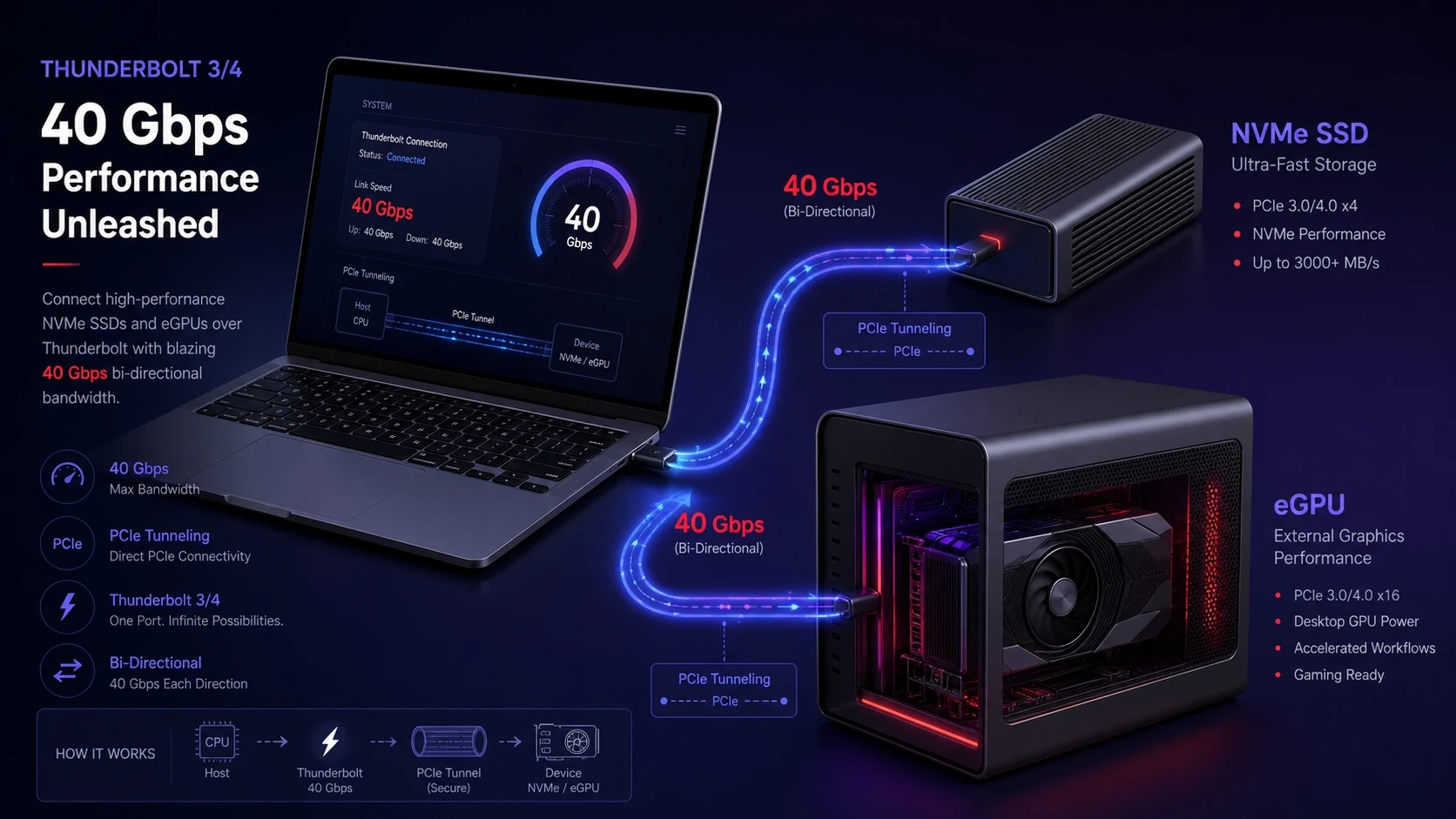
High-end external storage often relies on PCIe tunneling. Thunderbolt 4 requires PCIe support at a minimum level, which helps external NVMe enclosures perform closer to their potential.
USB4 can also support PCIe tunneling, but not every USB4 host enables it. If you are buying an external NVMe enclosure specifically for performance, confirm that the laptop USB4 port supports PCIe-based storage at the expected speed.
eGPU setups are especially sensitive to PCIe tunneling and platform support. Thunderbolt has historically been the safer path, but results still depend on GPU drivers and laptop firmware.
Security And Device Protection
Direct memory access features can create security concerns on some systems, especially in managed environments. Thunderbolt 4 emphasizes security requirements and system protections designed to reduce those risks.
USB4 security depends more on the host platform and OS configuration. If you work in a regulated setting, Thunderbolt 4 certification can be easier to justify for standardized deployments.
How To Choose Between USB4 And Thunderbolt 4?
The right choice depends on how predictable you need the port to be. If you rely on docking, multiple displays, and fast external storage, Thunderbolt 4 is often worth the premium.
If your main goal is a modern USB-C port with strong performance for everyday peripherals, USB4 can be a smart value. The key is verifying the exact port capabilities on your specific device.
- List Your Peripherals: Note the displays, storage, Ethernet, audio interfaces, and any specialty gear you plan to connect.
- Confirm Port Capabilities: Check whether the laptop supports 40 Gbps, PCIe tunneling, and the monitor setup you need.
- Match The Dock To The Job: Choose a dock based on port layout, power delivery, and confirmed compatibility with your laptop model.
- Buy The Right Cable Once: Use a 40 Gbps rated cable when performance and stability matter.
This quick checklist prevents most USB-C related surprises. It also keeps you from overspending on features you will never use.
Conclusion
USB4 and Thunderbolt 4 share the same USB-C connector, but they target different levels of consistency. USB4 is flexible and can deliver excellent performance, yet features vary by device. Thunderbolt 4 costs more, but it standardizes key capabilities around speed, PCIe, and docking reliability.
If you want the simplest buying path for high-performance docks and external SSDs, Thunderbolt 4 is usually the safer bet. If you are comfortable checking specifications and your needs are straightforward, USB4 can provide strong value with the right hardware choices.
Frequently Asked Questions
Can A USB4 Port Use A Thunderbolt 4 Dock?
Sometimes, but not always with full functionality. A USB4 port may work with a Thunderbolt dock for basic USB and display features, yet PCIe-based features can be limited or unavailable. Confirm the host supports the dock requirements before buying.
Is Thunderbolt 4 Always Faster Than USB4?
Not necessarily. Both can run at 40 Gbps, but Thunderbolt 4 guarantees that level and includes required PCIe behavior for certain peripherals. USB4 can match it when implemented at 40 Gbps with the right tunneling support.
How Do I Know If My USB-C Cable Supports 40 Gbps?
Look for packaging or markings that specify 40 Gbps or Thunderbolt certification. Many USB-C cables only support USB 2.0 or lower data rates even if they charge well. When in doubt, use a certified 40 Gbps cable from a reputable vendor.