

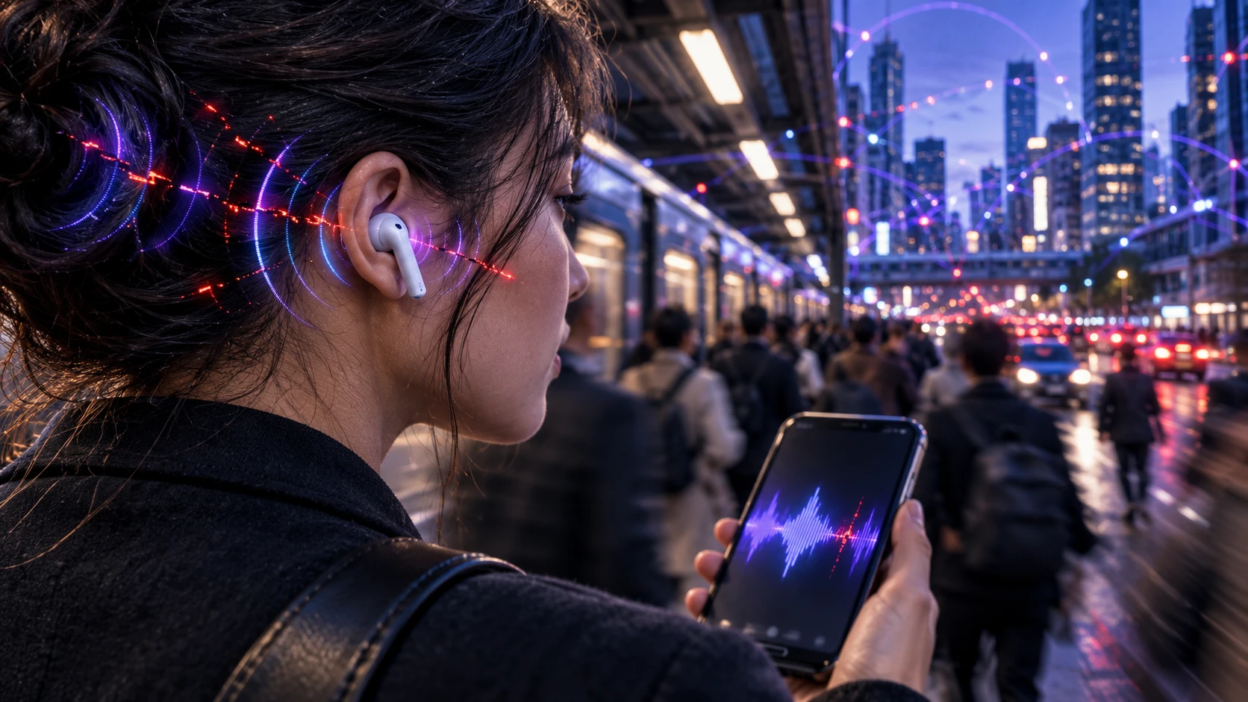
Wireless earbuds often cut out on busy streets and crowded trains because nearby wireless devices compete for radio frequencies, while your body, phone placement, and surrounding structures can weaken the Bluetooth connection. These interruptions may also come from audio settings, automatic device switching, or an unstable internet connection when streaming music. Understanding the difference helps you identify the real cause and fix the problem without immediately replacing your earbuds.
How Bluetooth Congestion Causes Audio Cutouts?

Busy streets and transit hubs are filled with wireless devices. Phones, smartwatches, earbuds, payment terminals, car infotainment systems, and Wi-Fi routers all use radio signals to communicate. When many devices operate close together, wireless interference can become more noticeable.
Wireless earbuds communicate through the 2.4 GHz frequency band, which is also used by many Wi-Fi networks and other wireless devices. Bluetooth uses a technique called adaptive frequency hopping to help avoid busy radio channels and reduce interference. However, when too many devices are active nearby, interference can still interrupt data transmission. If the connection cannot recover quickly enough, you may hear brief audio skips or experience a temporary dropout.
Why Wireless Earbuds Cut Out on Trains
Crowded trains can create difficult conditions for Bluetooth audio because many passengers use phones, wireless earbuds, smartwatches, and other connected devices at the same time. The train’s structure, your position inside the carriage, and nearby wireless activity can also affect signal reception. Although electrical equipment may generate electromagnetic interference, it should not automatically be blamed for audio dropouts without identifying a specific source.
This problem is also acknowledged in Sony’s Bluetooth audio troubleshooting guidance, which identifies crowded trains and busy roads as environments where nearby devices can interrupt wireless audio. If your earbuds work normally at home but frequently stutter during your commute, the surrounding wireless environment is worth investigating before assuming the earbuds are defective.
Street environments can present similar challenges. Nearby Wi-Fi networks, wireless speakers, and vehicles using Bluetooth connections may increase radio activity in busy areas. Buildings, crowded spaces, and changes in your position can also affect the signal between your phone and earbuds. These conditions may make it harder to maintain a consistent Bluetooth connection.
How Your Body and Phone Placement Affect Bluetooth
Your body can absorb and weaken radio signals, including those transmitted through Bluetooth at 2.4 GHz. If your phone is in a back pocket and you turn your head or change your walking direction, your torso may block part of the signal traveling between the phone and your earbuds.
This obstruction can sometimes cause brief audio dropouts, particularly when the wireless connection is already weak. You may notice interruptions while walking around corners, climbing stairs, or changing direction because the position of your phone relative to your earbuds keeps changing.
Keeping your phone in a front pocket or an outer jacket pocket can sometimes improve connection stability. If one earbud cuts out more frequently than the other, try moving the phone to the same side of your body and checking whether the interruption becomes less noticeable.
How Earbud Design Affects Connection Stability
True wireless earbuds are compact devices with limited space for antennas, batteries, and internal components. Antenna placement, hardware design, and the way wireless signals are managed can all influence connection reliability. Some earbuds maintain stable connections in crowded areas more effectively than others.
Some true wireless earbud designs use one earbud to help maintain the connection with the other, while different models use other connection arrangements. If communication between the earbuds becomes unstable, one side may briefly lose audio or fall out of sync. The exact behavior depends on the earbuds’ hardware, wireless design, and supported Bluetooth features.
How Bluetooth Codecs Affect Audio Stability
Bluetooth audio codecs determine how sound is compressed and transmitted between your phone and earbuds. Some high-bitrate audio settings require a more reliable wireless connection and may be less suitable for crowded environments. If your earbuds support an adaptive codec or a connection-stability setting, switching to that option may reduce interruptions, although the result depends on your phone, earbuds, and available codec settings.
Different Bluetooth audio codecs offer different balances of sound quality, data rate, compatibility, and connection stability. Understanding how SBC, AAC, aptX, and LDAC work can help you choose suitable settings for everyday listening, especially when your earbuds frequently lose audio in crowded environments.
Earbuds also use audio buffering to help maintain smooth playback. Buffer sizes and latency settings vary between devices. When interference delays incoming audio data for too long, the earbuds may not receive enough information to continue playing without interruption. This can turn a temporary wireless problem into an audible skip or pause.
Phone Settings and Power Management
Phone settings can sometimes contribute to audio interruptions, particularly when background apps are restricted or the device is handling several tasks at once. However, Bluetooth performance varies by phone model, operating system, and software version, so a particular setting should not automatically be considered responsible for every dropout.
If interruptions occur only when a battery-saving mode is enabled, temporarily disable that mode and repeat the same listening test. Also check whether the music app has background activity restrictions. If playback becomes stable, review the relevant settings before making permanent changes. Keep in mind that battery-saving modes do not necessarily weaken the Bluetooth radio on every device.
How Multipoint and Device Switching Cause Audio Pauses
Some wireless earbuds support multipoint connections or automatic switching between compatible devices. If your earbuds are connected to a phone and laptop, for example, an incoming call or audio activity on the laptop may cause the earbuds to switch their active audio source.
Some earbuds handle these transitions smoothly, while others briefly pause playback. The behavior depends on the device, operating system, and switching feature. If your audio interruptions happen when another paired device becomes active, temporarily disabling multipoint or automatic switching can help determine whether the feature is involved.
How to Find Out Why Your Earbuds Keep Cutting Out?
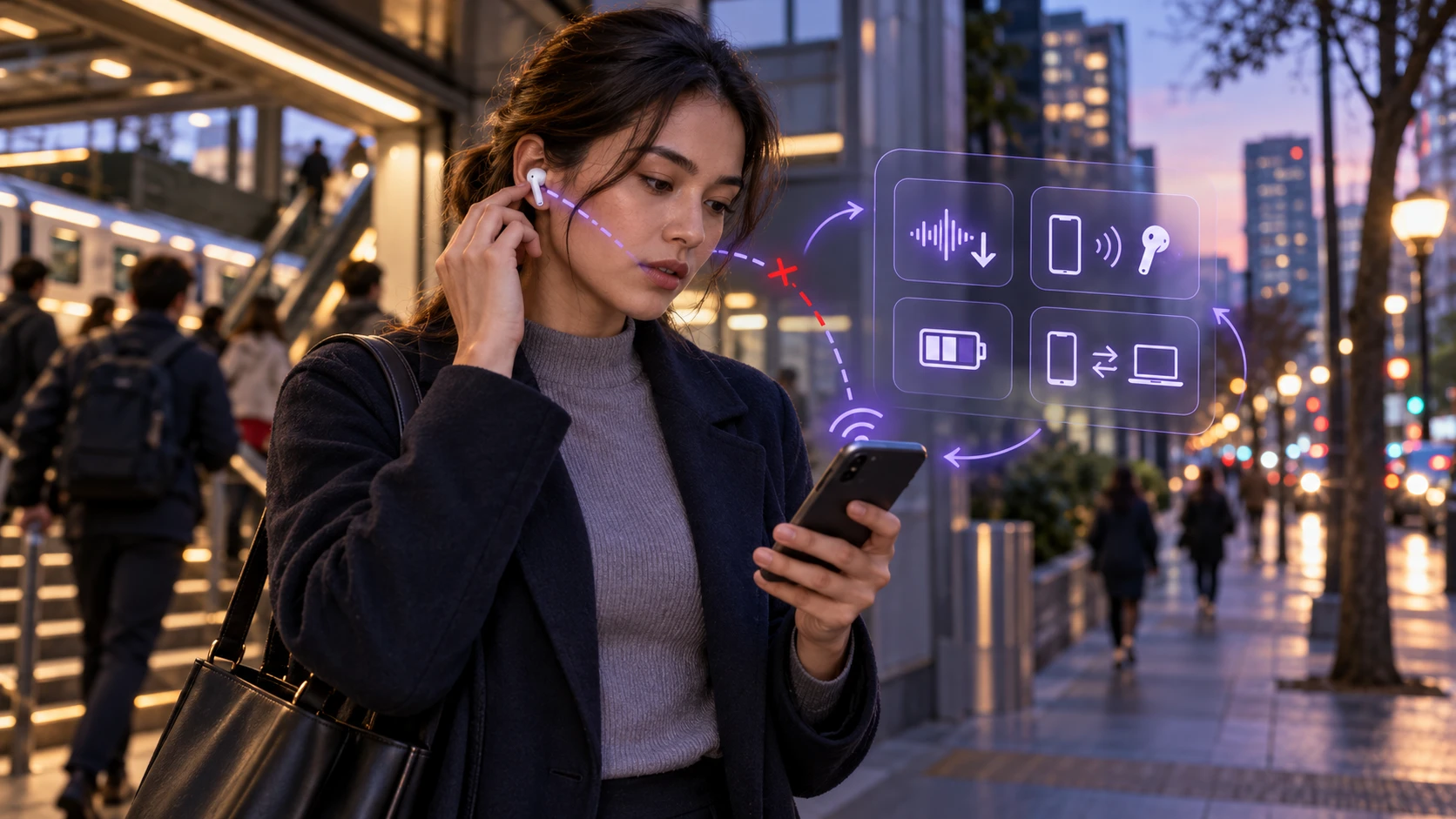
Solving cutouts is easier when you isolate what changes the most. A few quick checks can reveal whether you are dealing with interference, placement, streaming problems, settings, or a hardware limitation.
- Test downloaded audio: Download a song or podcast to your phone and play it while walking through a location where the sound usually cuts out. If downloaded audio works smoothly but streamed music keeps stopping, investigate your mobile data connection or streaming app before blaming Bluetooth. This test is also recommended in Apple’s wireless headphone troubleshooting guide.
- Change phone position: Move the phone to a front pocket or a jacket pocket on the same side as the weaker earbud. Check whether the connection becomes more stable.
- Test with one earbud: Use a single earbud for a short period to see whether the problem changes. This may help identify an issue involving one earbud or the connection between the two earbuds.
- Disable multipoint: Temporarily turn off multipoint or automatic device switching if your earbuds support these features. Check whether audio interruptions continue when the earbuds are connected to only one device.
- Try a different codec mode: If your earbud app offers a connection-stability setting, select it instead of prioritizing maximum audio quality. Not every phone or earbud model provides this option.
- Compare locations: Check whether cutouts happen more frequently near station entrances, busy intersections, or crowded platforms. Compare these results with listening in a quieter environment.
- Check the battery level: Make sure both earbuds and the connected phone have sufficient charge. If interruptions occur only when a device has a low battery, repeat the test after charging it.
- Test another phone: If possible, connect the earbuds to another compatible phone. If the problem happens with multiple phones, the earbuds or surrounding wireless conditions may be contributing to the issue.
Not every audio interruption is caused by Bluetooth. If the music stops while your earbuds remain connected, check the streaming app and internet connection as well. For example, readers experiencing repeated interruptions with Spotify can explore Bluetooth audio codecs to identify possible app settings, connectivity problems, and playback conflicts.
Once you know which factor changes the behavior most, you can apply a more targeted fix instead of replacing your earbuds without understanding the problem.
How to Stop Wireless Earbuds From Cutting Out?
Many Bluetooth audio interruptions can be reduced through practical adjustments. The goal is to improve the wireless signal, minimize unnecessary device switching, and identify settings that may affect playback.
- Keep the phone unobstructed: Place your phone in a front pocket or outer jacket pocket to reduce signal blocking. Avoid keeping it behind your body when possible.
- Update firmware and operating system: Check for available updates for your earbuds and phone. Manufacturers sometimes release updates that address connection problems, compatibility issues, and audio stability.
- Forget and reconnect your earbuds: Remove the earbuds from your phone’s Bluetooth device list, restart the phone, and pair them again. If the connection remains unstable, follow the manufacturer’s instructions to reset the earbuds. A reset may erase saved connections or customized settings.
- Check battery-saving settings: If interruptions happen only when battery saver is active, temporarily turn it off and compare playback. Also review background activity settings for the music app.
- Reduce nearby interference: Move away from active wireless equipment when practical. If your phone is sharing an internet connection through a Wi-Fi hotspot, temporarily disable the hotspot during a controlled test to see whether performance improves.
- Use a stable codec setting: Choose a connection-stability mode if your earbuds provide one. Some devices allow you to prioritize a reliable connection over maximum audio quality.
- Disable unnecessary device switching: If your earbuds frequently switch between a phone, tablet, or laptop, temporarily disable multipoint or automatic switching to determine whether the feature is causing interruptions.
If the connection still drops, check the support instructions provided by your earbud manufacturer before performing a full reset. For example, Google’s Bluetooth connection troubleshooting steps explain how to check firmware, test nearby interference, reconnect earbuds, and reset them when necessary. The exact steps will vary between brands and models.
These changes cannot eliminate every source of wireless interference, but they may help reduce frequent audio interruptions and improve listening stability during everyday commutes.
Quick Reference for Common Causes and Solutions
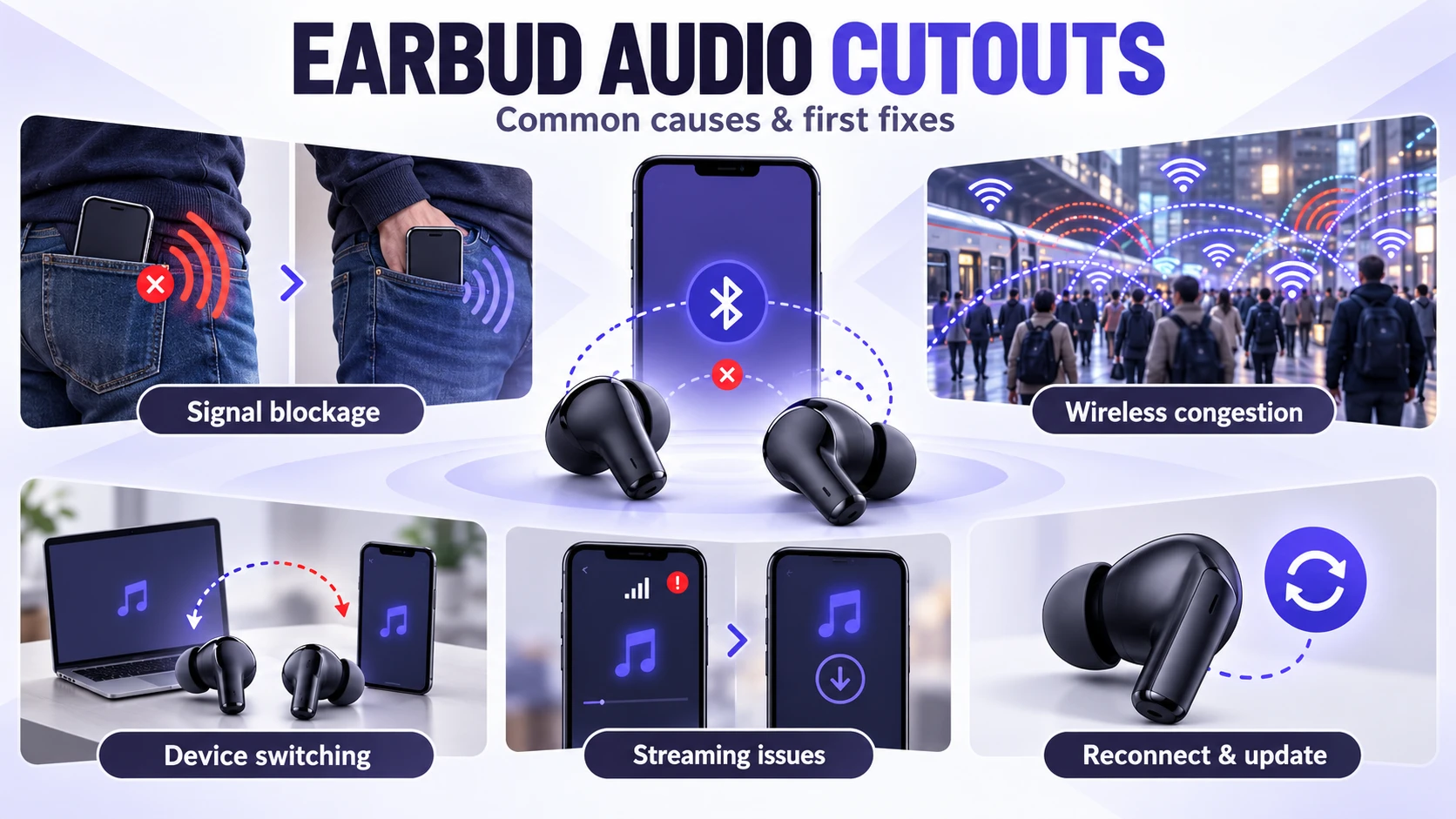
This table matches common symptoms with possible causes and useful first troubleshooting steps. Because several problems can produce similar audio interruptions, these suggestions should be treated as starting points rather than definite diagnoses.
| Symptom | Possible Cause | Best First Fix |
|---|---|---|
| Cutouts when the phone is in a back pocket | Body blocking or a weakened Bluetooth signal | Move the phone to a front or outer pocket and test again |
| Dropouts near stations and busy intersections | 2.4 GHz wireless congestion or signal interference | Keep the phone closer and try a connection-stability setting if available |
| Audio pauses when another paired device becomes active | Multipoint or automatic audio switching | Temporarily disable automatic switching or multipoint |
| Audio stutters mainly on crowded trains | Wireless congestion, phone placement, or signal obstruction | Move the phone closer, test downloaded audio, and compare performance in less crowded locations |
| Streaming music stops, but downloaded songs play normally | Unstable mobile data, network switching, or a streaming app issue | Check the internet connection and test another audio app |
| Only one earbud frequently loses sound | Earbud-specific connection problems, hardware issues, or signal blocking | Test each earbud separately and reconnect the pair |
| Audio interruptions continue in quiet locations | Software problems, connection settings, or possible hardware faults | Update firmware, reconnect the earbuds, and test another phone |
When It is Time to Replace or Upgrade
If your earbuds continue disconnecting after firmware updates, re-pairing, and testing with another compatible phone, the issue may involve the earbuds’ hardware or wireless connection design. A damaged antenna, internal fault, or battery problem can affect performance. However, an older Bluetooth version does not automatically mean an unstable connection, and a newer version alone does not guarantee better audio reliability.
Upgrading to earbuds with stronger antenna performance, improved chipsets, and better handling of crowded radio environments can help. A phone with a more robust Bluetooth implementation can also reduce dropouts, especially in high-interference commutes.
Before buying new earbuds, compare their connection performance, supported codecs, firmware support, and compatibility with your phone. Newer technologies can offer additional listening features, but they should not be treated as guaranteed solutions to interference. For example, understanding Bluetooth Auracast and LE Audio features can help you evaluate newer wireless audio products without assuming every Bluetooth upgrade will automatically prevent dropouts.
If the earbuds are still under warranty, consider contacting the manufacturer before purchasing a replacement. Persistent disconnections in different locations and with multiple phones may indicate a device-specific problem that requires professional support.
Conclusion
Wireless earbuds can cut out on busy streets and crowded trains because nearby wireless devices create interference, while your body, phone placement, and surrounding structures may weaken Bluetooth signals. Codec settings, automatic device switching, software problems, and unstable music streaming can also contribute to interruptions.
Start by moving your phone closer to your earbuds, testing downloaded audio, checking connection settings, and updating your devices. If the problem continues, try reconnecting your earbuds and testing them with another compatible phone. These simple checks can help you determine whether the issue comes from your surroundings, device settings, or hardware before spending money on a replacement.