


Running out of phone storage is not always caused by photos and videos. On Android and iPhone, everyday apps can quietly consume several gigabytes through cached files, offline downloads, message attachments, and saved media. Checking how much space each app uses can help you identify hidden storage-hungry apps and free up space without deleting important personal files.
Why Storage Disappears So Fast?
Apps store more than their core installation size. They also create caches, logs, temporary files, downloaded media, and databases that expand with use.
Many of these files are useful for speed and offline access, but they can grow without clear limits. If you never review storage, a few apps can consume several gigabytes.
Sometimes, storage remains almost full even after you delete photos, videos, or downloaded files. This can happen when recently deleted items, application caches, or locally stored files continue occupying space. If you experience this problem, our guide explaining why phone storage remains full after deleting files covers additional causes and troubleshooting steps for Android and iPhone.
What Counts As A Hidden Storage Hog?
A storage-hungry app is not necessarily one with a large installation size. An app may take up little space when first installed but gradually accumulate downloaded files, documents, saved media, and cached content. Checking its total storage usage helps reveal how much space it actually occupies.
Apps that stream content, handle photos, store messages, or download files are common culprits. System features can also hold local data that looks like it belongs nowhere.
- Cached data: Temporary files used to load content faster that can grow over time.
- Offline downloads: Music, podcasts, videos, and maps saved for offline use.
- In-app media stores: Stickers, GIF packs, filters, and auto-saved media folders.
- Message attachments: Photos, videos, voice notes, and documents stored inside chats.
- Duplicate storage paths: Files saved both in an app and again in the system gallery or files app.
Once you know what to look for, it becomes easier to spot the apps that are growing quietly.
Find Storage Hungry Apps on Android

Android makes it straightforward to see storage use by app. The exact path can vary slightly by manufacturer, but the labels are usually consistent.
Check App Storage in Settings
- Open storage overview: Go to Settings, then Storage, and wait for the breakdown to load.
- Open the apps list: Tap Apps or App storage to view usage by application.
- Sort by storage usage: If your phone provides a sorting option, arrange apps by storage size to identify the biggest consumers. Some Android devices already display apps according to their storage usage, while others require checking individual app details.
- Inspect a top app: Open an app entry and review total storage, cache size, and user data.
This view is the fastest way to find apps that are consuming space without obvious signs.
For additional guidance, Google’s Android storage cleanup guide explains how to remove unnecessary files, manage downloaded content, and clear application caches. These official instructions can help users understand which cleanup options are available and what happens when stored data is removed.
Review Downloads and Offline Content
Some apps store downloads in their own folders rather than a single Downloads directory. Video, music, and podcast apps often keep large offline libraries.
- Streaming apps: Review downloaded episodes and remove ones already watched or listened to.
- Map apps: Review offline maps and delete downloaded areas you no longer need. For example, you can manage offline maps in Google Maps by opening the app, selecting Offline maps from your profile menu, and removing unwanted downloads.
- File sharing apps: Clear received files that were saved temporarily and never moved.
After trimming offline libraries, recheck the app list to confirm the space returned to the device.
Clear Cache Without Breaking Logins
On Android, clearing an app’s cache generally removes temporary files without deleting your account or personal information. However, the app may need to download some content again. Clearing storage or app data is different because it can remove local settings, downloaded content, and other information stored by the application. Before selecting Clear storage or Clear data, confirm that important files and account information are backed up.
- Open the app entry: Go to Settings, Apps, choose the app, then Storage.
- Clear cache: Tap Clear cache and confirm if prompted.
- Reopen the app: Let it rebuild only what it needs, then review storage again later.
Use clear storage or clear data only when you are ready to sign in again and potentially lose local settings.
If an application is using excessive cached storage or behaving slowly, clearing temporary files may help. For more detailed instructions, read our guide on how to clear cache to fix phone slowness, which explains available cache-clearing methods for Android and iPhone. Remember that cache files can build up again as applications continue running.
Find Storage Hungry Apps On iPhone
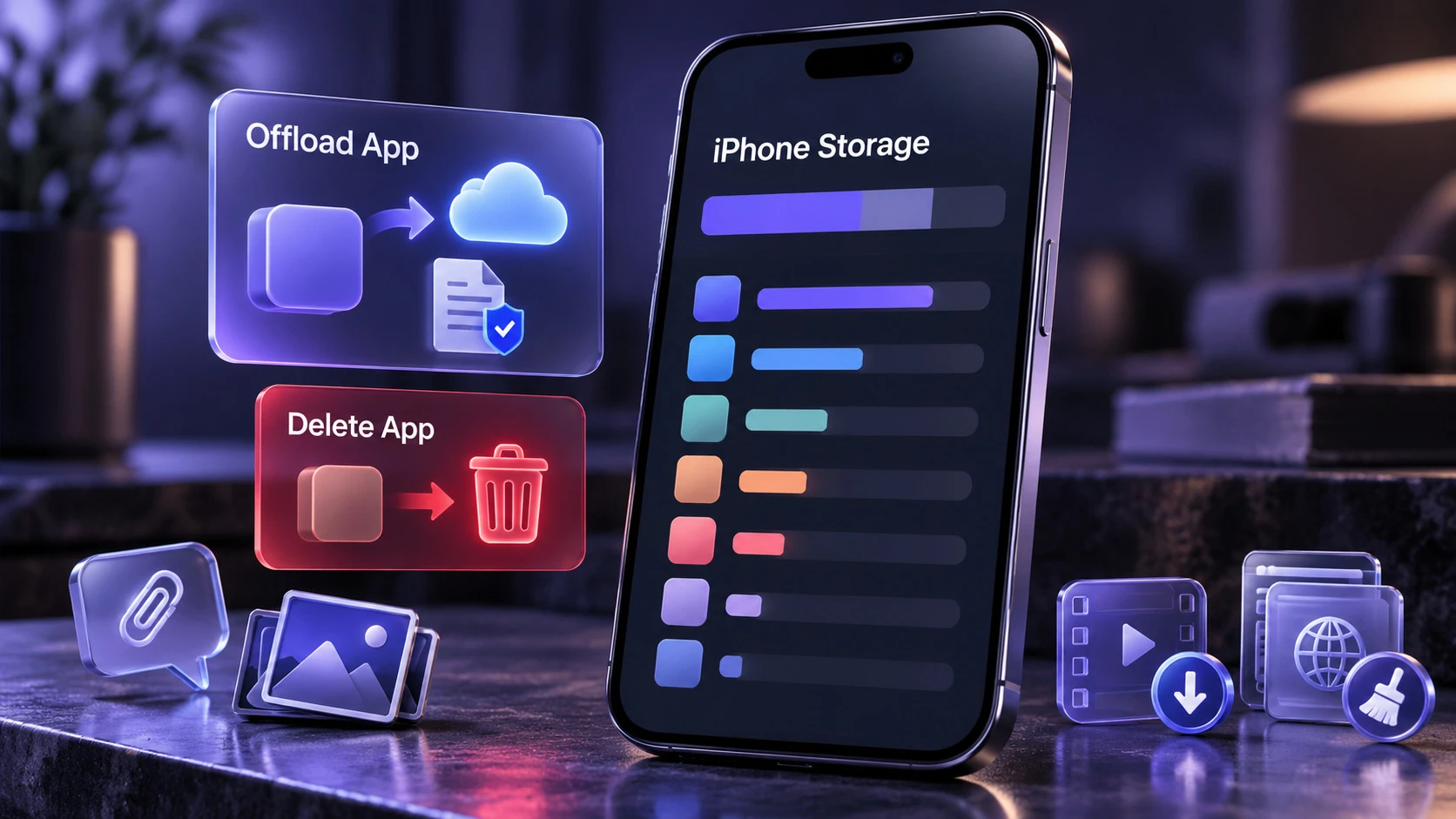
iPhone provides a built-in storage overview that helps identify apps using the most space. The iPhone Storage screen displays installed applications, their storage usage, and available cleanup recommendations. For individual apps, you can review information such as app size and stored documents and data, although some temporary or cached files may not appear in the reported totals.
Use iPhone Storage View
- Open iPhone Storage: Go to Settings, General, then iPhone Storage.
- Wait for the list to populate: iOS needs a moment to calculate per-app usage.
- Tap a large app: Review the app size and documents and data to see what is growing.
- Choose an action: Use Offload App or Delete App depending on what you need.
If you need more help understanding available storage options, Apple’s iPhone storage management guide explains how to review storage usage, remove unnecessary files, and offload applications while keeping their documents and data. Available settings may differ depending on the iOS version installed on your device.
Offload App removes the application’s installation files while keeping its documents and data, making it useful when you want to free up space without losing stored information. Delete App removes the application and its associated local data, which may include downloaded files, settings, and information that has not been backed up. If an app’s documents and data are consuming most of the space, offloading may provide only limited savings. Always check backup and synchronization options before deleting an important app.
Clean in App Downloads and Media
iOS does not offer a universal clear cache button for most apps. Many apps have their own internal settings for downloads, storage limits, and media retention.
- Video and music apps: Remove offline downloads and reduce download quality if the app supports it.
- Messaging apps: Review large photos, videos, voice messages, and documents stored inside conversations. For example, WhatsApp provides storage management features that let users identify and remove large media files. Its official instructions explain how to free up storage on WhatsApp without automatically deleting entire conversations. Review important attachments before removing them, and adjust media auto-download settings where available.
- Browser apps: Review cached images, downloaded files, and stored website data when a browser is consuming significant storage. Clearing cached files may free space temporarily, but removing cookies or other site data can sign you out of websites and reset saved preferences. Before deleting browsing information, understand the difference between browser cache and cookies so you can choose the appropriate cleanup option.
After you clean content inside the app, return to iPhone Storage to confirm the reduction.
Quick Comparison of What to Check First
Android and iPhone show storage differently, but the usual storage drains are similar. This checklist helps you prioritize what to inspect before deleting anything important.
| Where Storage Grows | Android What to do | iPhone What to do |
|---|---|---|
| App Cache | Clear the affected app’s cache through Settings. | Use the app’s cleanup options; consider deleting and reinstalling only after confirming important data is backed up. |
| Offline Downloads | Delete downloads inside streaming and map apps. | Remove downloads in the app settings or library. |
| Message Attachments | Delete large media in chats and reduce auto-download. | Review attachments and adjust media retention settings. |
| Duplicate Media Copies | Review duplicate photos, videos, and files in gallery or file management apps. | Use the Duplicates collection in Photos when available, and review Recently Deleted before permanently removing files. |
How to Check Whether Storage Cleanup Worked?
After removing unnecessary downloads, clearing caches, or managing media files, return to your phone’s storage settings to check the available space. On Android, open Settings and review the Storage section. On iPhone, go to Settings, General, and iPhone Storage to compare the available capacity.
Storage numbers may not update immediately after large files are removed. Give your phone time to recalculate usage, then check the biggest applications again. If an app continues using excessive space, review its internal downloads and stored media before taking more aggressive action.
Remember that clearing cache may provide temporary savings because applications can recreate these files during normal use. Removing unnecessary offline downloads and adjusting media retention settings may deliver more lasting results.
Stop Apps From Reclaiming Space

Clearing space helps, but preventing regrowth is what keeps your phone stable. A few settings changes can reduce how fast storage fills up.
- Set download limits: Lower the maximum downloads stored offline in streaming and podcast apps.
- Reduce media auto-save: Disable automatic saving of chat media to your gallery when it is not needed.
- Review large conversations: Identify chats containing large videos, photos, and documents. Remove unnecessary attachments using the messaging app’s storage management features, and back up important information before deleting it. Remember that archiving a conversation usually hides it from the main chat list rather than removing its stored media.
- Review storage monthly: A quick check prevents another surprise storage crisis.
These habits reduce background growth and limit how much manual cleanup you need.
What Not to Delete When Freeing Storage
Some items look safe to remove but can cause frustration later. Be careful with authentication apps, offline password vaults, and work profile apps that store local encrypted data.
Before deleting an application or clearing its stored data, check whether its important information is synchronized with an account or included in a working backup. Authentication apps, encrypted vaults, messaging applications, and note-taking tools may contain information that cannot be recovered simply by signing in again. If you cannot confirm that the data is recoverable, avoid deleting it until you have secured an appropriate backup or export.
If you are unsure what an app stores, begin by reviewing its temporary cache, unnecessary offline downloads, and duplicate media. Avoid clearing app data or uninstalling important applications until you confirm that essential files, messages, and settings can be restored. On iPhone, offloading an app can preserve its documents and data, while deleting and reinstalling it may permanently remove information stored only on the device. When storage is critically low, prioritize removing unwanted downloads and other files that you can safely recover or download again.
Conclusion
Finding hidden storage-hungry apps starts with checking how much space individual applications use and identifying the files responsible for that growth. On Android, reviewing app storage, removing unnecessary downloads, and clearing unusually large caches can help recover space. On iPhone, checking documents and data, managing downloads inside apps, and offloading unused applications can provide useful savings. The most effective method depends on what is actually consuming your device’s storage.
Once you regain space, set limits on downloads and media retention so the same apps do not take it back. A short monthly review keeps storage predictable and your phone running smoothly.