
Browser cache and cookies both store website-related information, but they serve different purposes. Cache helps websites load faster by saving reusable files, while cookies can remember login sessions, preferences, and information used for tracking.
Knowing which one to clear can help you fix website loading problems without unnecessarily signing out of accounts or resetting useful settings. For example, clearing cached files may help when a website displays an outdated layout, while deleting cookies for a particular site may help resolve some login problems.
This guide compares browser cache vs cookies, explains their privacy and performance implications, and shows when to clear cache, cookies, or both. You’ll also learn how to manage stored browser data without deleting more information than necessary.
What Is Browser Cache?

Browser cache is a local storage area that keeps copies of files a site needs to load. That typically includes images, stylesheets, scripts, and sometimes parts of web pages. The goal is faster loading on repeat visits because the browser reuses saved files instead of downloading them again.
Clearing cached images and files is generally less disruptive than deleting cookies because it usually does not remove website login sessions or saved account preferences. However, some cached resources may still contain information about pages you previously visited, particularly on a shared device. After clearing the cache, websites may initially load more slowly while the browser downloads fresh copies of their resources. Removing outdated or damaged cached files can also help resolve certain display and loading problems, although it will not fix every website issue.
What Are Browser Cookies?
Cookies are small pieces of data that websites ask your browser to store and send with relevant requests. They can contain session identifiers, language preferences, and other values used to maintain website functionality. Many websites rely on cookies to recognize an existing login session, remember preferences, or support analytics and advertising.
Cookies are different from other browser storage technologies, such as local storage and IndexedDB, which websites may also use to save data. Browser settings that refer to “cookies and other site data” can therefore remove more than cookies alone. Understanding this distinction helps explain why clearing site data may reset an application’s preferences or locally stored information.
Clearing cookies can be helpful for login loops and account issues, but it can also sign you out of websites and reset site settings. Some cookies are essential for basic site functions, while others exist mainly for tracking and personalization.
Browser Cache vs Cookies: Key Differences
Cache focuses on performance by saving reusable site files. Cookies focus on continuity by saving small pieces of information that help sites recognize your browser. Both can impact privacy, but in different ways.
| Comparison Factor | Browser Cache | Browser Cookies |
|---|---|---|
| Primary Purpose | Stores reusable website resources to improve loading efficiency | Helps websites maintain sessions, preferences, and other information |
| Typical Contents | Images, stylesheets, scripts, and cached page resources | Session identifiers, preference values, and tracking identifiers |
| Effect on Website Speed | Can make repeat visits faster | Usually has a smaller direct effect on loading speed |
| Effect on Login Sessions | Clearing cached images and files usually preserves logins | Deleting cookies may sign you out |
| Effect on Preferences | Usually preserves preferences maintained through cookies | May reset website preferences and remembered settings |
| Common Troubleshooting Use | Outdated layouts, missing images, or damaged cached resources | Login loops, session problems, or some persistent preference issues |
| Privacy Considerations | Locally stored resources may reveal some previously accessed content | Cookies may help recognize browsers or support tracking |
| What Happens After Clearing | The browser downloads needed resources again | Websites may create new cookies when visited again |
| Best Clearing Approach | Clear when cached resources appear to cause problems | Delete selected site cookies when a session or privacy issue requires it |
Should You Clear Cache When a Website Looks Broken?

When a website displays missing images, outdated styling, or unexpected loading problems, previously stored website resources may be contributing to the issue. Google’s official guide to clearing cache and cookies explains how removing stored browser data can help resolve certain loading and formatting problems. Try refreshing the affected page first, then consider clearing cached images and files if the issue continues. Keep cookies unless there is a separate reason to reset the website’s session or preferences.
Before deleting browser data, try refreshing the affected page. If your browser supports a hard reload, use it to request fresh page resources. When the problem continues, consider clearing cached images and files while keeping cookies selected only if you also need to reset website sessions.
Check whether the problem affects one website or several. If only one website behaves incorrectly, investigate that site’s stored data or try another browser profile before clearing everything. Remember that a hard reload and the available site-specific clearing controls can differ between browsers and devices.
- Clear cache first: Best for layout problems, missing images, or outdated page elements.
- Keep cookies initially: Avoid unnecessary sign-outs when the issue is only visual or performance related.
If the page still fails after clearing cache, the next suspect is often cookies for that specific site.
Should You Clear Cookies When You Cannot Sign In?
Login failures are more commonly tied to cookies than cache. A damaged session cookie, an expired authentication token, or conflicting cookies from multiple subdomains can trap you in a sign-in loop. Clearing cookies for the affected site often resets the session state and resolves the issue.
Clearing cookies can also fix repeated consent popups or incorrect region settings that keep returning. If you rely on saved preferences, clear cookies only for the specific site instead of clearing all cookies at once.
- Clear site cookies: Best for login loops, repeated redirects, and persistent consent banners.
- Keep cache if possible: Keeps loading fast while you test whether the sign-in issue is cookie related.
If deleting cookies for the affected website does not resolve the login problem, try restarting the browser and checking whether extensions or privacy settings are interfering with authentication. For browser-based applications, troubleshooting may also involve account settings, linked devices, or network access. Our guide to setting up and using WhatsApp Web in popular browsers covers common login, connection, and browser compatibility problems. Clear additional browser data only when there is a reason to suspect it is involved.
Should You Clear Cache to Improve Browser Speed?
Browser cache can occupy storage space because it keeps copies of frequently requested website resources. Clearing cached images and files may temporarily recover disk space, but it does not guarantee that a slow browser will become faster. In fact, frequently deleting cache can make repeat visits slower because the browser must download resources again.
If your browser is performing poorly, first check available device storage, browser updates, resource-heavy extensions, and whether the problem occurs on particular websites. Clear cached files when there is a specific loading problem or storage-related reason rather than treating routine deletion as necessary maintenance.
Cookies are usually small in size, so clearing them rarely creates meaningful storage savings. Clearing cookies for performance reasons only makes sense when you suspect heavy tracking scripts are causing repeated consent prompts or unstable behavior tied to persistent identifiers.
- Clear cache periodically: Useful when storage is tight or pages feel inconsistent.
- Clear cookies selectively: Focus on sites that misbehave or that you no longer use.
For ongoing performance issues, the browser itself may not be the only factor, so it helps to rule out extensions and network problems too.
Should You Clear Cookies for Privacy and Security?
Cookies can support website functionality, but some are also used to recognize browsers or support advertising-related tracking. Google’s official cookie management guide explains the difference between first-party and third-party cookies and provides controls for deleting existing cookies or changing third-party cookie preferences.
Blocking third-party cookies may reduce some forms of cross-site tracking, but it does not prevent every tracking method and may affect certain website features. Review your browser’s current privacy settings rather than assuming every browser blocks third-party cookies in the same way. If your goal is to preserve logins, prefer targeted cookie changes over deleting all website data.
Cached website resources and other browsing data can reveal information about previous activity to someone with access to the same browser profile. On a shared or public computer, sign out of accounts and avoid allowing the browser to save passwords or sensitive information. Clearing cookies and site data may help remove session information, but it should not be treated as a guarantee that every trace of activity has disappeared.
For sensitive browsing, use a separate profile or an appropriate private-browsing session when available, and close it properly afterward. Keep in mind that private browsing does not make online activity invisible to websites, network operators, or other parties that may observe the connection.
- Clear cookies to reduce tracking: Especially third-party cookies and old site data you no longer need.
- Clear both on shared devices: Helps remove traces of activity and active sessions.
- Keep essential cookies on personal devices: Maintains account sessions and security prompts you trust.
If you handle sensitive work or regularly access confidential accounts, consider using a separate browser profile to keep work sessions and site settings distinct from personal browsing. Also review the privacy features of any browser tools that can access website content. For example, our explanation of AI browser privacy and security risks discusses how AI-powered browsing features may introduce additional data-sharing considerations beyond ordinary cache and cookies.
Which Browser Data Should You Keep?
Keeping the right data saves time and avoids friction. For most people, it is better to keep cookies for trusted sites you use daily and clear only what causes problems. Cache can be kept most of the time because it improves speed and usually does not create major privacy risks on a personal device.
- Keep cookies for trusted logins: Banking, email, and work tools you access often, as long as the device is secure.
- Keep cache for frequent sites: Helps pages load faster and reduces repeated downloads.
- Keep preferences cookies: Language, accessibility, and site settings that improve usability.
When troubleshooting browser problems, start with the smallest possible change, such as clearing data for an affected website instead of deleting information across every site. If online privacy is your main concern, remember that cookie deletion is only one part of protecting your browsing activity. Our guide to the best internet browsers for privacy explores other privacy features and browser settings worth considering.
How to Clear Cache and Cookies Without Losing Important Data
Modern browsers provide controls for managing cookies, cached files, and other website data, but the available options vary by browser. Mozilla’s guide to clearing cookies and site data in Firefox explains how users can remove stored data for individual websites or clear broader categories of information.
Before proceeding, confirm whether the selected option removes cookies, cached resources, or additional site storage. Deleting only the data connected to the affected website may reduce unnecessary disruption, although some browser controls remove multiple types of site data together.
Identify the Problem: Determine whether the website has a display issue, a login problem, or a general loading failure.
- Try a Normal Refresh: Reload the page and, where supported, try a hard reload before deleting stored data.
- Choose the Right Data Type: For outdated images or broken layouts, consider clearing cached images and files. For login loops or session issues, consider deleting cookies for the affected website.
- Use Site-Specific Controls When Available: Open your browser’s privacy or site-data settings and select the affected website instead of automatically clearing data for every website.
- Check What Will Be Deleted: Review whether the selected option includes cookies, cached files, browsing history, stored site data, or saved passwords.
- Retry the Website: Reload the page or reopen the browser after the change and check whether the original problem is resolved.
- Test Extensions and Browser Settings: If the problem continues, temporarily disable relevant extensions or test another browser profile.
- Expand Troubleshooting Only When Necessary: Consider broader data clearing only after targeted steps fail, and remember that the selected time range can affect other websites and sessions.
This approach fixes most problems while keeping the convenience of saved sessions where it matters.
How to Clear Cache and Cookies in Chrome, Firefox, and Edge
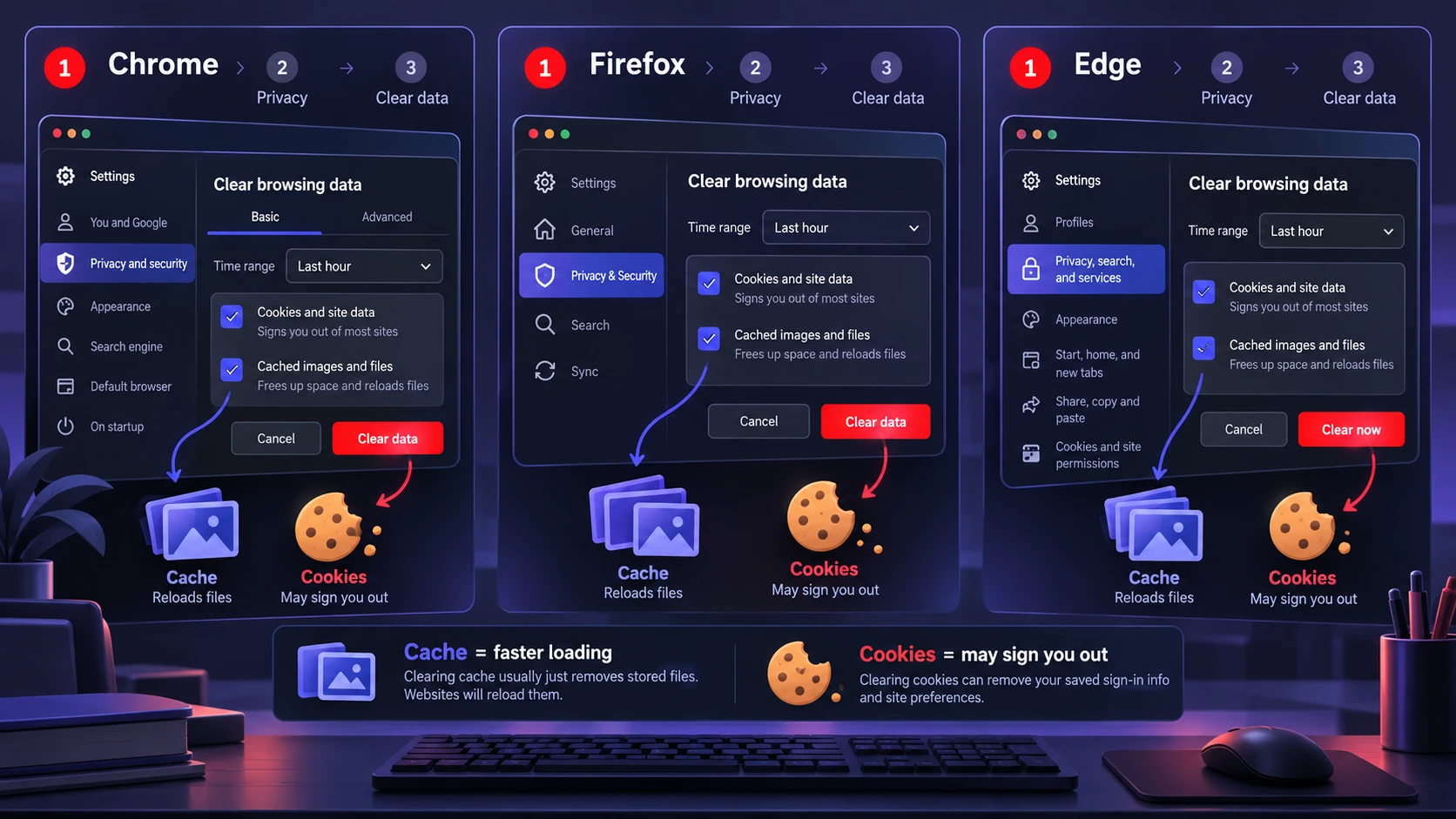
The exact location of browsing-data settings depends on your browser, device, and software version. The following desktop instructions provide a starting point.
Google Chrome
- Open Chrome and select the three-dot menu.
- Choose Delete browsing data.
- Select the desired time range.
- Choose Cached images and files to clear cache or Cookies and other site data to remove cookies.
- Review all selected options before clicking Delete data.
To remove stored data for a specific website, open Chrome’s privacy and site-data settings and locate the affected domain.
Mozilla Firefox
- Open Firefox and go to Settings.
- Select Privacy & Security.
- Find the relevant cookies and site-data controls.
- Choose whether to manage stored data for particular websites or remove broader categories.
- Review the confirmation message before clearing the selected information.
Microsoft Edge
- Open Edge and select the three-dot menu.
- Open Settings, then the privacy and browsing-data section.
- Select the option to choose what browsing data to clear.
- Select the time range and the relevant categories, such as cached images and files or cookies.
- Review the selected categories and confirm the deletion.
Important: Clearing cookies may sign you out of websites, while deleting cached files usually requires those resources to be downloaded again. Avoid selecting saved passwords or other unrelated browsing information unless you specifically intend to remove it.
What to Do When Clearing Cache and Cookies Does Not Work
If clearing browser data does not solve a login or loading problem, investigate other possible causes, including extensions, browser settings, device time, VPN connections, and network conditions. Microsoft’s guidance on troubleshooting Edge sign-in problems explains how stale cookies, cached credentials, and browser configuration can contribute to repeated sign-in prompts.
Test the affected website in another browser profile or on another device to narrow down possible causes. If the problem persists across environments, the website or network may need further investigation. Clearing more data repeatedly is unlikely to help unless there is evidence of a storage-related issue.
If a website works correctly in one browser profile but fails in another, the difference may involve extensions, privacy settings, stored site data, or profile configuration. Compare the affected and working environments before changing additional settings.
You can also test whether the problem occurs on another device or internet connection. If the same issue persists across browsers and devices, the website itself or a network-related problem may be involved. Avoid repeatedly clearing cookies when there is no evidence that stored browser data is causing the failure.
- Check Extensions and Privacy Settings: Ad blockers, script-blocking extensions, and restrictive privacy settings can sometimes interfere with website functionality or sign-in processes. Our guide on whether browser extensions are safe explains how permissions and extension behavior can affect browsing security. Test the affected website with extensions temporarily disabled and review their permissions before enabling them again.
- Verify device time settings: Incorrect time can invalidate secure cookies and certificates.
- Test a clean profile: Separates profile corruption from site problems.
Once you pinpoint the cause, you can restore normal browsing without repeatedly clearing data.
Conclusion
The main difference between browser cache and cookies is their purpose. Cache stores reusable website resources to improve loading efficiency, while cookies help websites maintain sessions, remember preferences, and support other functions.
If a website displays outdated images or broken layouts, begin with a refresh and consider clearing cached files. If you are experiencing login loops or session problems, deleting cookies for the affected website may help, although it can sign you out or reset preferences. For privacy concerns, review cookie controls, tracking protection, and other browsing data rather than relying on cache deletion alone.
Whenever possible, clear only the information connected to the problem. Understanding what each option removes can help you troubleshoot websites while preserving useful browser settings and account sessions.
Frequently Asked Questions
Does Clearing Browser Cache Delete Passwords or Bookmarks?
Clearing cache typically removes temporary site files and does not delete saved passwords or bookmarks. Passwords and bookmarks are usually stored separately in the browser profile. Still, double-check the selected options before confirming a clear action.
Should You Clear Cookies or Cache First?
If the issue is visual, slow loading, or outdated content, clear cache first. If the issue is login loops, repeated redirects, or account state problems, clear cookies for that site first. Clearing the smallest scope usually fixes the problem with the least disruption.
How Often Should You Clear Cache and Cookies?
There is no universal schedule that fits everyone. Clear cache when sites misbehave or when storage is tight, and clear cookies selectively for sites you no longer use or when privacy needs change. Frequent full clearing can create unnecessary sign-ins and extra friction.