
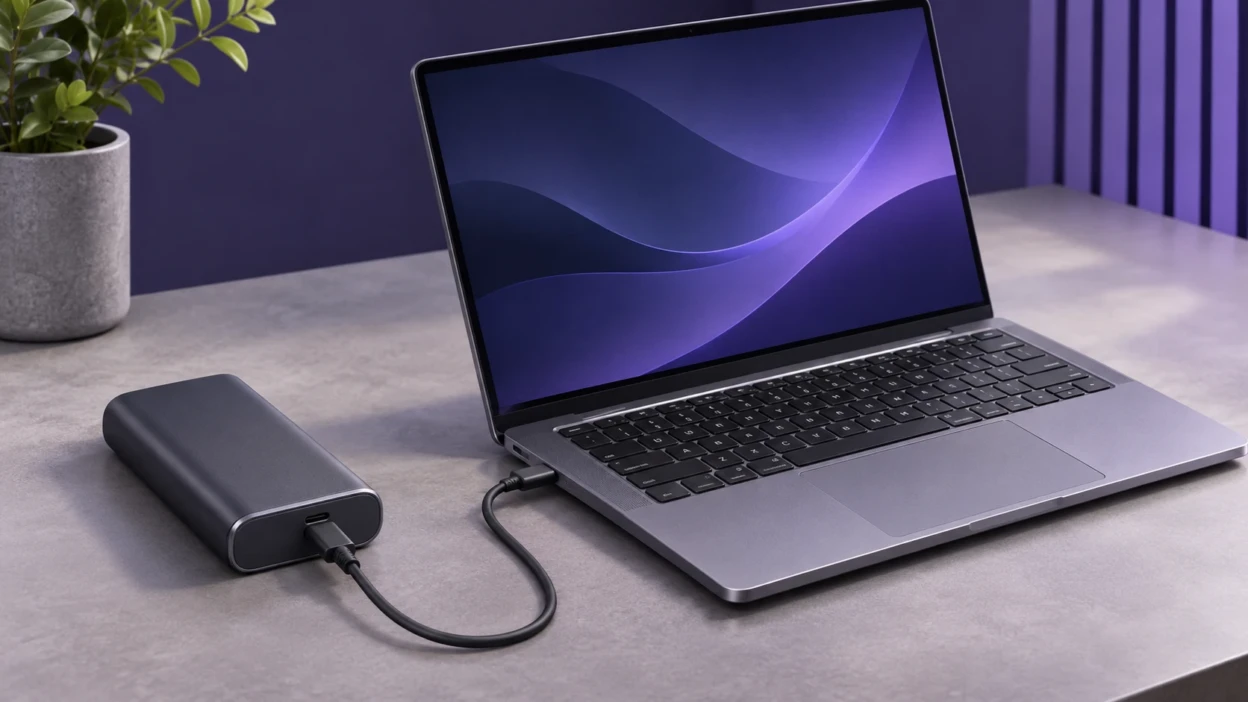
A power bank can charge your laptop if the computer accepts power through a compatible charging port, the power bank supplies the required voltage and wattage, and the cable supports that power level. A large battery capacity alone does not guarantee compatibility.
A 20,000 mAh power bank designed for smartphones might not charge a laptop at all, while another power bank with the same capacity and a suitable USB-C Power Delivery output could provide useful backup power. The difference is how the stored energy can be delivered.
Before buying a new power bank or relying on one you already own, check the laptop’s charging requirements, the power bank’s individual port specifications and the cable connecting them.
Check If Your Laptop Supports Power Bank Charging
Start by identifying your exact laptop model and checking its official specifications or user manual. Look for USB-C charging input, USB Power Delivery (USB PD), or another manufacturer-supported external charging method.
Having a USB-C port does not automatically mean a laptop can receive power through it. Some ports are designed for accessories, data transfer or external displays rather than charging the computer.
If your laptop has several USB-C ports, check which ones support power input. A port that charges your phone or connects to a monitor is not necessarily capable of charging the laptop itself.
Lenovo’s laptop power bank guidance also emphasizes the importance of matching the computer’s charging connection and power requirements.
Laptops that use round barrel connectors or proprietary charging connections may require a manufacturer-supported DC charging solution. An ordinary USB-C power bank does not automatically become compatible just because an adapter can physically connect the two devices.
Find Out How Much Power Your Laptop Needs?
The original laptop charger is a useful starting point. Its label normally lists an output voltage and current, which you can multiply to calculate the maximum power of that output.
Power (W) = Voltage (V) × Current (A)
For example, an adapter rated at 20V and 3.25A can supply 65W. A compatible USB-C power bank capable of delivering that voltage and current would be a reasonable starting point for a laptop that accepts 65W USB PD charging.
However, the original charger’s wattage is not always the laptop’s minimum charging requirement or its maximum USB-C input rating. A gaming laptop supplied with a high-power proprietary adapter might accept considerably less power through USB-C, if it supports USB-C charging at all.
Check the following details in the laptop’s documentation:
- Supported charging port and charging protocol.
- Recommended and minimum adapter wattage, when specified.
- Supported input voltage and current, when published.
- Any restrictions on third-party chargers or charging during heavy workloads.
If the manufacturer does not publish a minimum input requirement, do not assume that a lower-wattage power bank will work simply because its connector fits.
Read Your Power Bank’s Output Specifications
Power banks can have different ratings for stored energy, recharging their own battery and supplying power to connected devices. For laptop charging, you need to examine the output specification of the exact port you intend to use.
Match the Voltage and Current
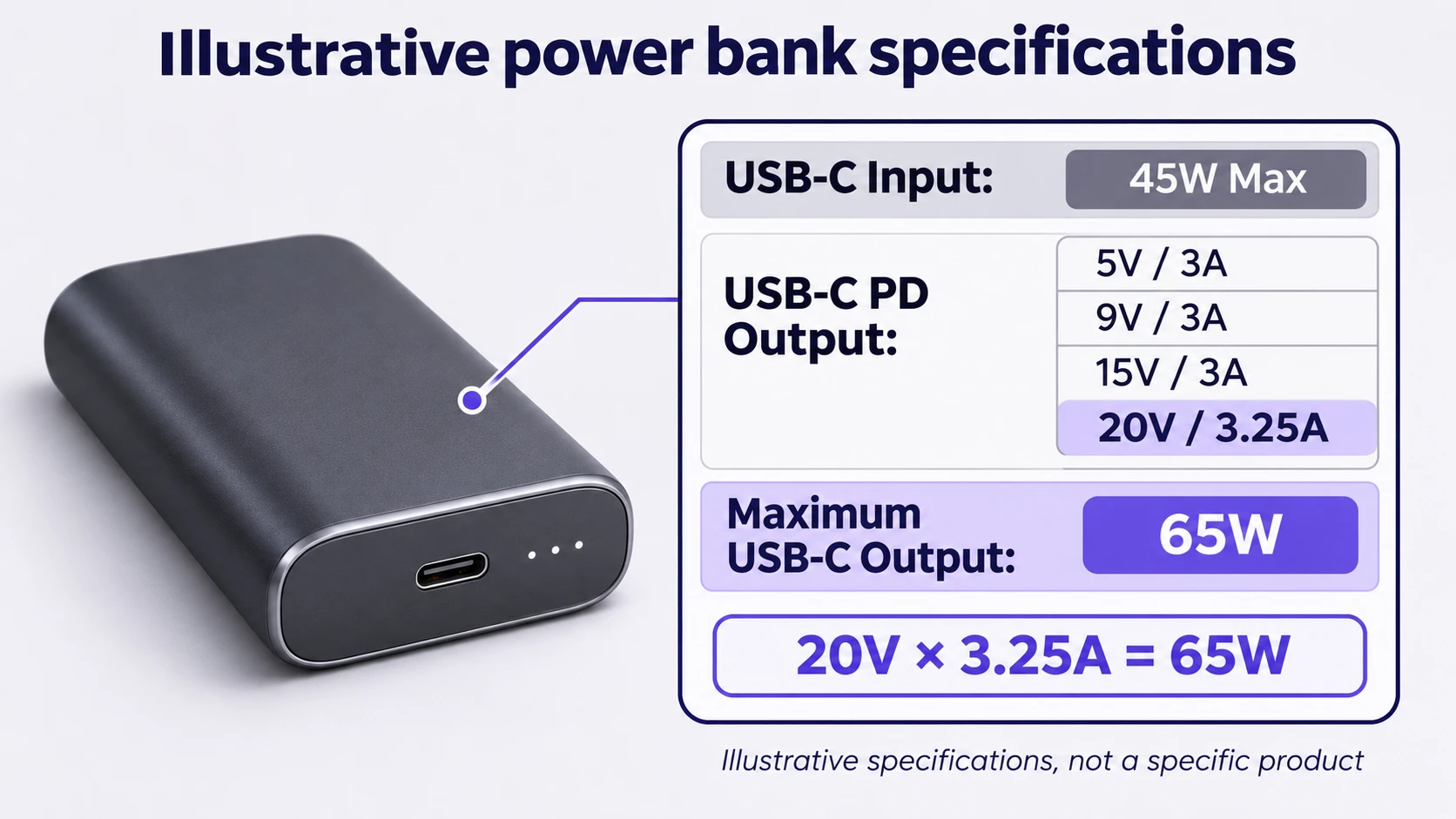
Consider a hypothetical power bank with the following USB-C PD output options:
| Output Voltage | Maximum Current | Maximum Power |
|---|---|---|
| 5V | 3A | 15W |
| 9V | 3A | 27W |
| 15V | 3A | 45W |
| 20V | 3.25A | 65W |
If your laptop supports 20V USB PD charging at 65W, this hypothetical output specification offers a suitable power profile, provided the cable and laptop are compatible.
USB Power Delivery allows compatible equipment to negotiate a supported power level. A power bank capable of supplying more current than the laptop requests does not normally force that additional current into the computer.
The USB Power Delivery standard supports power levels up to 240W with appropriate Extended Power Range equipment. Individual laptops and power banks have their own limits, which may be much lower.
For a more detailed explanation of charging protocols, see our guide to USB-C fast charging, PD and PPS.
Single-Port Output Versus Combined Output
A power bank advertised as 100W does not necessarily provide 100W from one USB-C port. It might offer 65W from one port and 35W from another when both are used.
Connecting another device can also change the available power. For example, a hypothetical power bank might supply 100W to a laptop when used alone but reduce that output to 65W when a phone is connected.
Always check the manufacturer’s power distribution specifications for the particular combination of ports you intend to use.
Do Not Confuse Input With Output
A power bank that accepts 100W when recharging its own battery does not necessarily supply 100W to a laptop. Input and output are separate specifications, even when both functions use the same USB-C connector.
For laptop compatibility, look specifically for USB-C PD output, the supported voltage and current, and the maximum output from one port.
Check Your USB-C Cable’s Power Rating
Even if the laptop and power bank support the same charging mode, an unsuitable cable can restrict how much power reaches the computer.
The USB-IF cable certification requirements specify power markings of 60W or 240W for USB-C to USB-C cables submitted under its current compliance program.
- 60W cable: Suitable for compatible charging modes within its rated limit. At 20V and 3A, that limit is 60W.
- 100W cable: An existing compliant cable rated for 20V and 5A can support traditional 100W USB PD charging.
- 240W cable: An appropriate choice for higher-power USB PD charging, including Extended Power Range modes, when the connected devices support them.
As explained in UL Solutions’ USB-C cable guidance, the newer 240W cable specification replaced the previous 100W cable specification for USB-IF certification.
For a laptop requiring 65W at 20V and 3.25A, use a suitable electronically marked 5A cable rather than relying on a cable limited to 3A.
Remember that a higher-rated cable does not increase the power available from the bank or the maximum power the laptop can accept.
Is a 45W, 65W or 100W Power Bank Enough?
The appropriate wattage depends on the laptop’s supported charging input and intended workload. These examples provide a starting point for comparing equipment, rather than universal compatibility guarantees.
| Single-Port PD Output | Potential Use | What to Check |
|---|---|---|
| 18W to 30W | Devices that explicitly accept low-power charging | Many laptops may reject or be unable to charge adequately at this power. |
| 45W | Compatible low-power laptops | Check whether 45W meets the laptop’s minimum input requirement. |
| 65W | Laptops designed for compatible 65W USB-C charging | Confirm the required power profile and cable rating. |
| 100W | Laptops that accept higher-power USB PD input | Check 20V/5A support where required and shared-port limits. |
| 140W or higher | Compatible higher-power laptops | Check Extended Power Range support or any manufacturer-specific requirements. |
A higher-wattage power bank can still be suitable for a lower-wattage USB PD laptop when both devices support a compatible power profile. Conversely, a powerful laptop might accept USB-C charging but remain unable to maintain full performance during demanding tasks.
For a real-world specification example, Anker’s published specifications for its 737 power bank list USB-C output options of 20V at 5A and 28V at 5A, corresponding to 100W and 140W respectively. Reaching the higher power level requires compatible charging equipment.
These are manufacturer-rated capabilities, not independently measured charging results or a recommendation to purchase that particular model.
How Much Laptop Battery Can a Power Bank Add?
Once you establish charging compatibility, the next question is how long the power bank can help your laptop run. Wattage determines the potential rate of power delivery, while watt-hours (Wh) describe stored energy.
Use the power bank’s stated Wh rating where available. If it only lists battery capacity in mAh and its corresponding nominal battery voltage, calculate the energy using this formula:
Energy (Wh) = Capacity (mAh) ÷ 1,000 × Nominal Battery Voltage (V)
For a deeper explanation of battery capacity and conversion losses, read our guide to power bank specifications and real charging capacity.
Example: Charging a Laptop With a 20,000 mAh Power Bank
Suppose a compatible power bank contains a nominal 20,000 mAh battery rated at 3.7V, and the laptop has a 60Wh battery.
- Calculate stored energy: 20,000 ÷ 1,000 × 3.7 = 74Wh.
- Assume an illustrative overall energy efficiency of 75%: 74 × 0.75 = 55.5Wh reaching the laptop battery.
- Compare with the laptop battery: 55.5 ÷ 60 × 100 = 92.5% of one full battery charge.
Under these assumptions, the power bank could theoretically add around 93 percentage points to a sufficiently discharged laptop battery while the laptop is not consuming significant operating power.
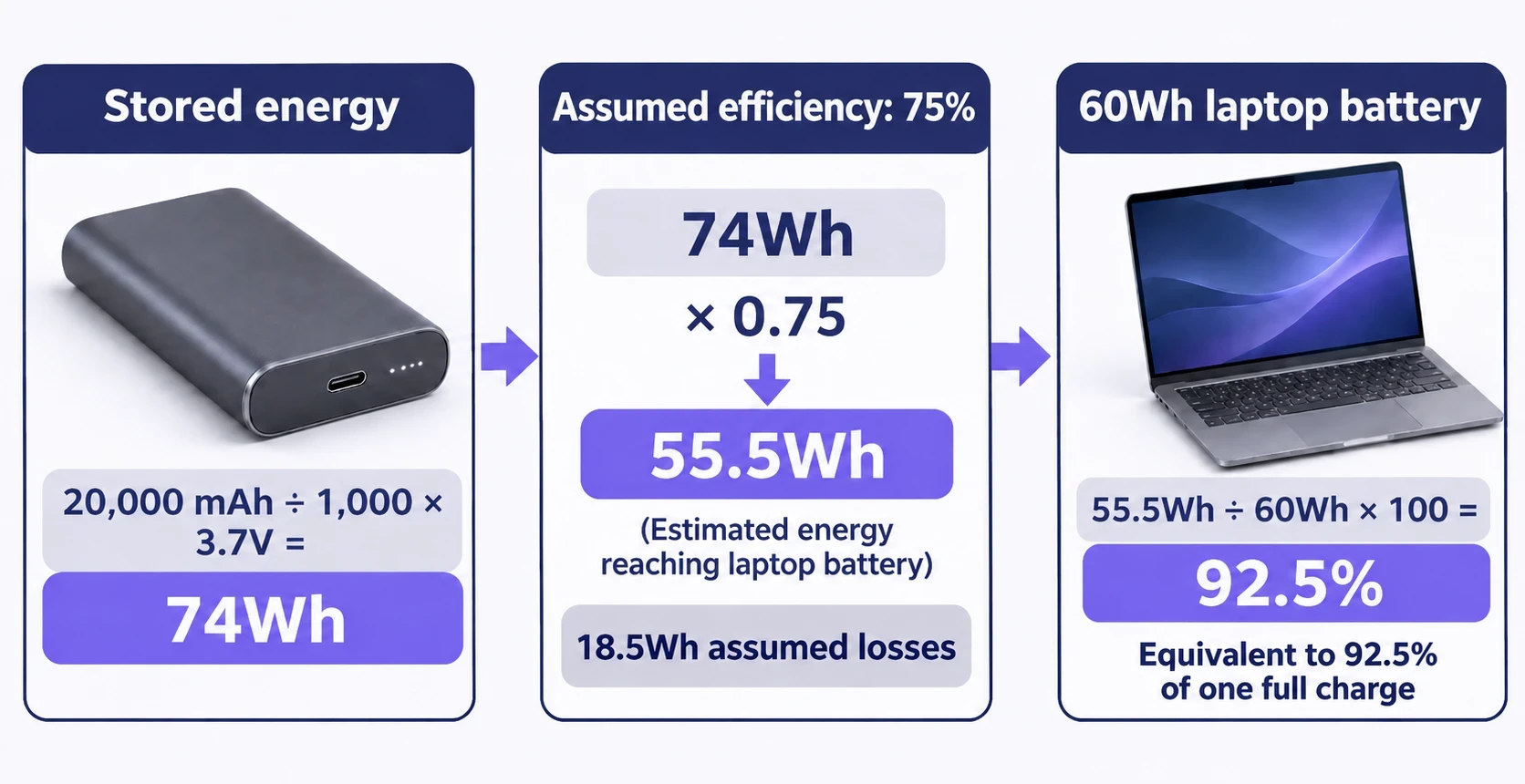
This is an illustrative calculation, not a guaranteed recharge result. The assumed efficiency is not a measured value or a universal industry average. Actual results depend on battery condition, conversion losses, charging limits, temperature and laptop activity.
What Changes When You Use the Laptop While Charging?
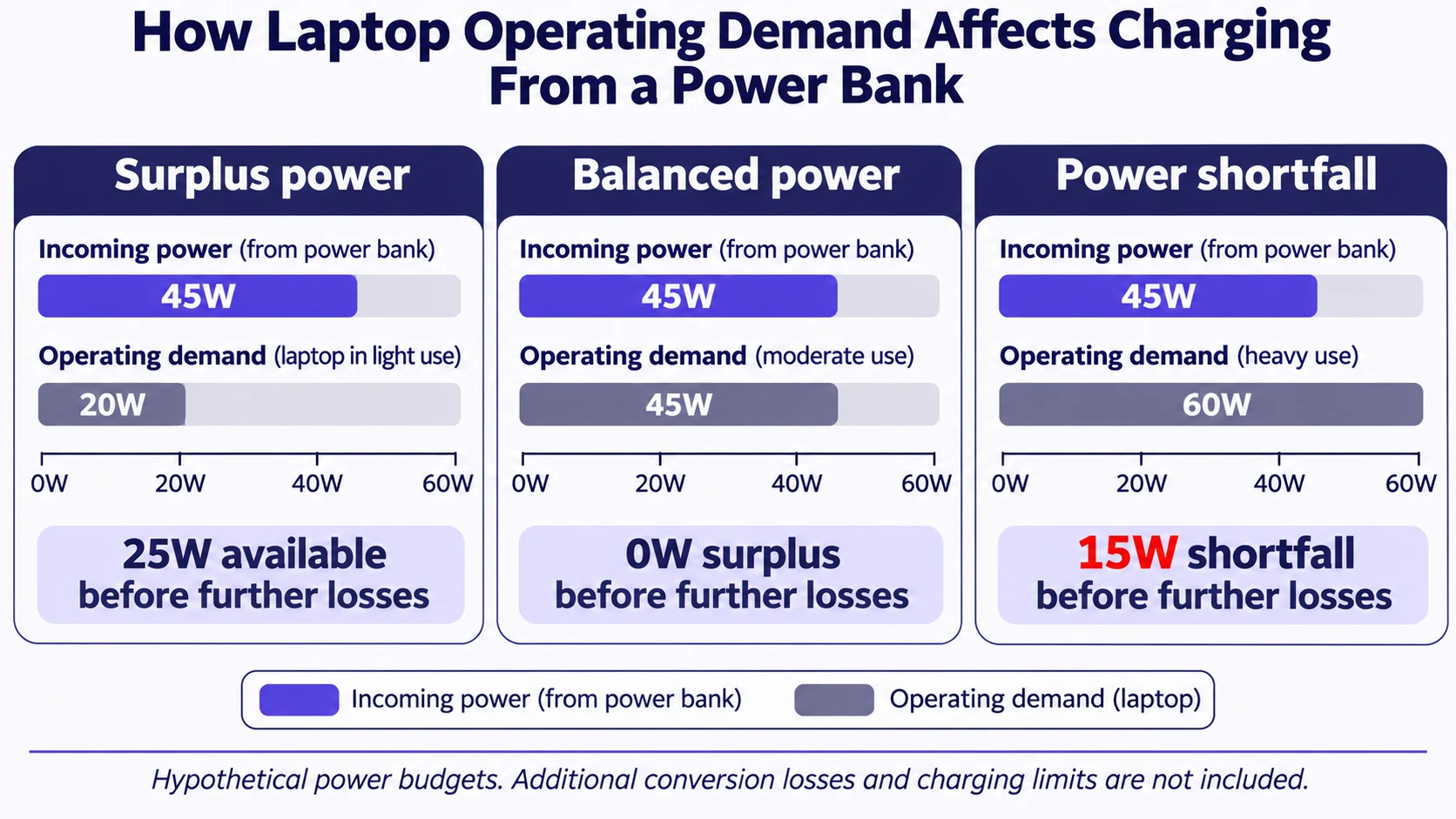
When you work on the laptop while it is connected to a power bank, some of the incoming energy is used to operate the computer rather than recharge its battery.
Consider three simplified scenarios in which a laptop receives 45W of electrical input:
| Laptop Input | Operating Power | Approximate Outcome |
|---|---|---|
| 45W | 20W | 25W remains before further losses and charging limits. |
| 45W | 45W | Little or no surplus power is available for battery charging. |
| 45W | 60W | A 15W shortfall may require battery power or reduced performance. |
These examples simplify the laptop’s internal power management and exclude additional conversion losses. They illustrate why a power bank may charge a sleeping laptop successfully but only slow battery discharge while the computer is under heavy load.
How to Verify That Your Laptop is Charging?
After checking the specifications, you can perform a simple functional check without specialized equipment.
- Charge the power bank and make sure the laptop battery is below any configured charging limit.
- Disconnect other devices from the power bank.
- Connect a suitably rated USB-C cable directly between the power bank’s supported output and the laptop’s documented charging port.
- Check whether the laptop recognizes the external power source or displays a charging notification.
- Record the laptop’s battery percentage and check it again after approximately 10 to 15 minutes under a light workload.
- If the battery percentage does not increase, repeat the check with the laptop asleep or switched off.
The suggested observation period is a practical starting point, not a standardized charging test. Battery percentage can update slowly, and charging may pause because of battery protection settings or temperature.
Microsoft’s guidance for Windows 10 and Windows 11 identifies incompatible chargers, insufficient power, incorrect ports and unsuitable cables as possible reasons for slow charging or battery discharge while connected.
If the original wall charger works normally but the power bank does not, recheck the power bank’s USB PD profiles, cable rating and single-port output. Our explanation of why a 100W USB-C charger can still charge a laptop slowly covers these charging bottlenecks in more detail.
When Should You Avoid Using a Power Bank?
Use charging equipment that meets the relevant safety requirements in your region and is compatible with your laptop. Avoid improvised DC cables, unverified voltage-conversion adapters and damaged USB-C connectors.
Keep the power bank uncovered on a stable surface while charging, and follow the manufacturer’s operating temperature limits. If you depend on simultaneous charging of the bank and laptop, confirm that the power bank explicitly supports that operating mode.
Important: Stop using or charging a power bank if its battery appears swollen. Do not puncture, squeeze or attempt to repair it. Follow the manufacturer’s safety instructions and local guidance for disposing of damaged lithium batteries.
Anker’s swollen battery safety guidance explains why continuing to use a swollen power bank creates a serious safety risk.
Final Compatibility Checklist
Before relying on a power bank to charge your laptop, confirm these five details:
- Laptop: The selected port supports USB PD charging input or another documented compatible charging method.
- Power bank: The selected output provides a supported voltage and sufficient current.
- Cable: Its power and current ratings meet the charging requirements.
- Shared output: Connecting other devices does not reduce laptop charging power below the required level.
- Battery capacity: The available watt-hours are sufficient for the backup energy you expect.
The best way to determine whether your power bank can charge a laptop is to match the documented charging specifications first and then verify actual battery behavior. A high mAh rating tells you about stored charge, but compatible power delivery determines whether that energy can be useful to your computer.

Tech Bonafide is the editorial identity of TechBonafide, an independent technology publication covering AI, software, cybersecurity, gadgets, and emerging technology.