

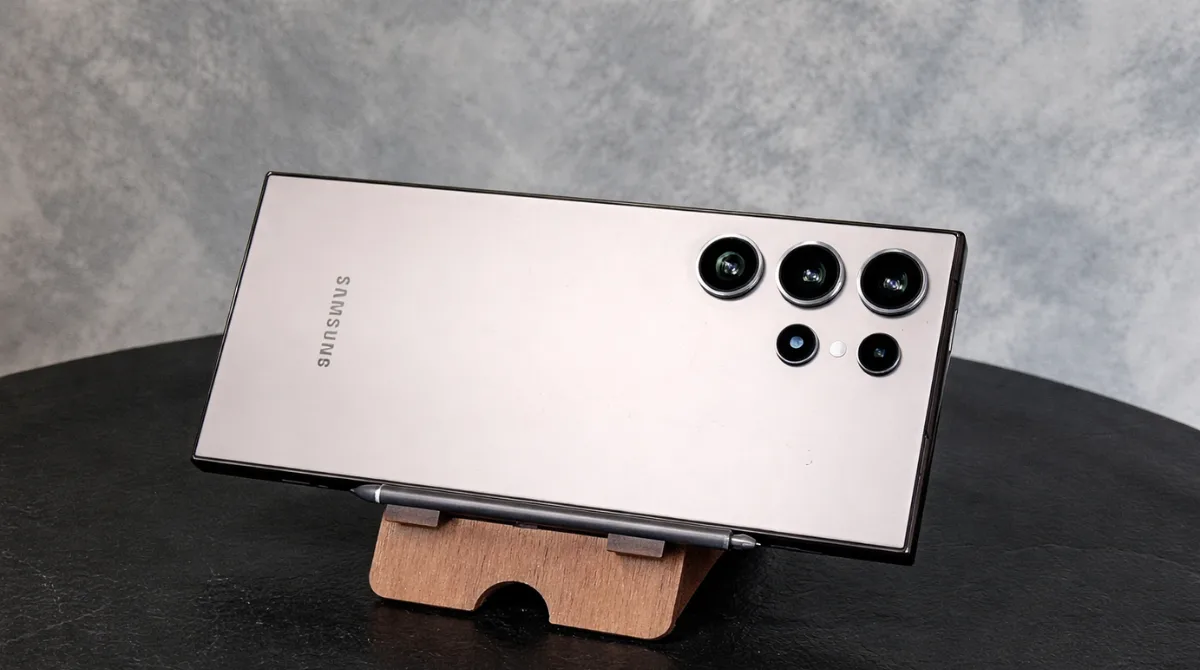
New phones feel best when you set them up around your daily habits, not just the specs sheet. This guide walks through the Samsung Galaxy S26 Ultra features that deliver noticeable benefits right away.
You will see what to enable first, where to find the settings and which options are easy to miss. The goal is simple, get more useful results from the S26 Ultra from the first day.
Top Samsung Galaxy S26 Ultra Features You Should Use First
Start with the options that affect everything you do, notifications, navigation, organization and how you interact with the device. These foundational settings make the rest of the experience smoother.
Before deep customization, update system apps, review permissions and confirm your Samsung account and backup settings. That single pass reduces future friction.
- One-Handed Mode: Enable it in Advanced Features to reach top corners faster on a large display.
- Modes And Routines: Create context-based automation for sleep, work, driving and workouts with minimal taps.
- Notification Categories: Fine-tune app alerts so important items stay visible and low-value pings stay quiet.
- Quick Panel Layout: Reorder toggles for Wi‑Fi, Bluetooth, hotspot and eye comfort so they are always within one swipe.
- Secure Folder: Separate sensitive apps and files behind a second lock for better privacy and organization.
Once these essentials are in place, the phone feels faster and more intentional without changing how you use it.
Galaxy AI Features That Improve Everyday Tasks
Galaxy AI is most helpful when it reduces small daily effort, reading, writing, translating and sorting information. Focus on tools that save time without forcing a new workflow.
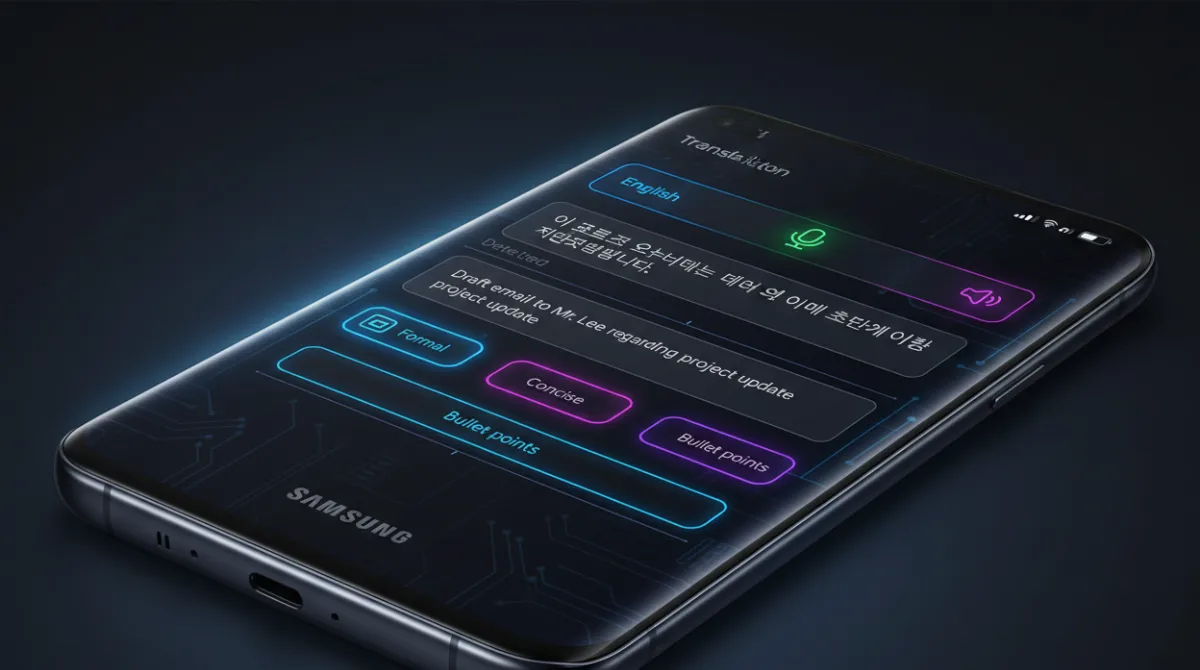
Look for AI controls inside Samsung Keyboard, Samsung Notes, Gallery and the system share sheet. These are the places where assistance appears naturally.
- Writing Assist In Samsung Keyboard: Clean up tone, grammar and structure before sending messages, emails, or posts.
- Live Translate For Calls: Use on-device translation support when communicating across languages for clearer conversations.
- Note Summaries In Samsung Notes: Turn long notes into short summaries and action points for quicker review.
- Transcript And Summary For Recordings: Convert meeting audio into text and condensed highlights for easy follow-up.
- Smart Search In Gallery: Find photos faster by searching objects, scenes, or text inside images.
After enabling these, revisit app permissions and offline language packs so AI tools remain dependable when connectivity changes.
Camera Features That Make The S26 Ultra Stand Out
The S26 Ultra camera experience improves most when you adjust controls, not when you keep everything on full auto. A few toggles can lift consistency in low light, motion and mixed lighting.
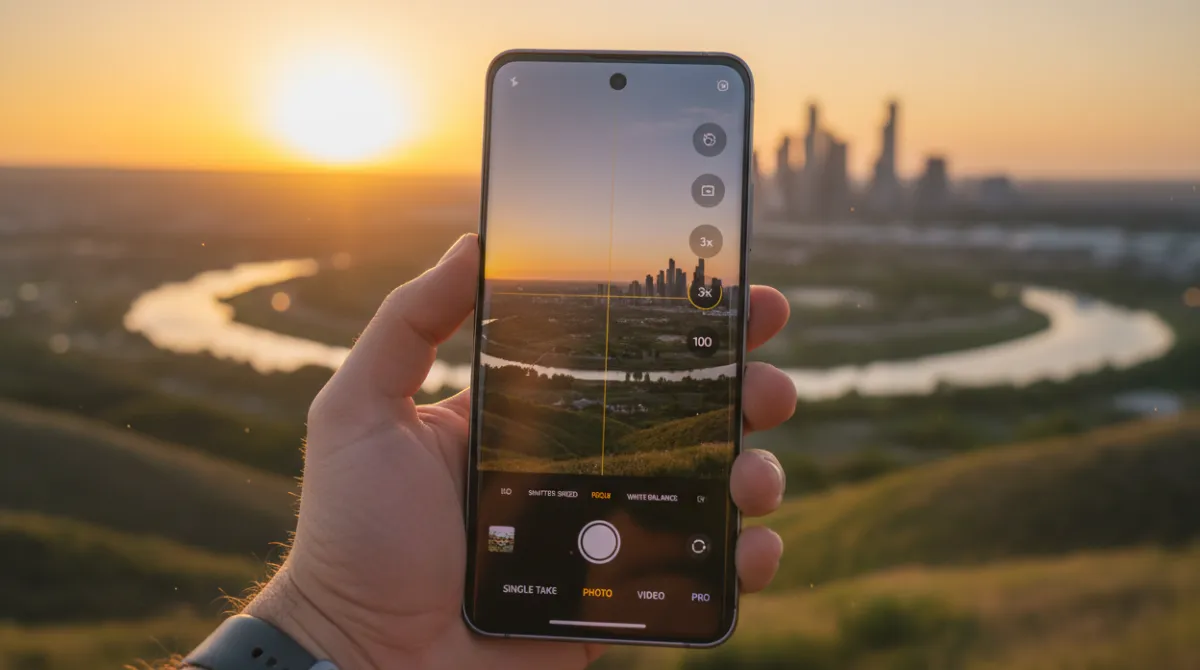
Start by exploring the camera modes row and the settings menu, then pin the tools you use most. A tighter camera layout makes shooting feel quicker.
- Expert RAW And Pro Mode: Capture more editable files and control shutter speed, ISO and white balance for precise results.
- Adaptive Pixel And Detail Enhancer: Improve fine textures and clarity when scenes are complex.
- Night Mode Controls: Adjust exposure time to reduce blur and keep highlights under control.
- Director View: Switch between lenses while recording so framing stays consistent.
- Audio Zoom: Emphasize sound near your zoomed subject for cleaner voice and less background distraction.
Also review grid lines, auto HDR and lens switching behavior so the camera behaves predictably across zoom levels.
Display And Design Features Worth Exploring
A big part of the S26 Ultra appeal is how it feels in the hand and how it looks over long sessions. The right display settings reduce fatigue while keeping the screen sharp and responsive.
Spend a few minutes tuning brightness behavior, motion smoothness and color settings. Small tweaks here impact every app you open.
- Adaptive Refresh Rate: Keep motion smooth while letting the phone scale down when content is static.
- Eye Comfort Shield: Reduce harsh blue tones at night with a schedule that matches your routine.
- Extra Dim: Lower the floor brightness for dark rooms without losing readability.
- Always On Display: Set a minimal clock and notification icons to reduce distractions while staying informed.
- Edge Panels: Add a slim shortcut strip for tools, contacts and clipboard without cluttering the home screen.
After that, review home screen grid size and icon labels to balance information density with clean design.
Performance And Gaming Features For Power Users
If you push heavy apps, multitasking, or mobile games, focus on stability first. The S26 Ultra can feel significantly faster when you manage background activity and prioritize responsiveness.
Samsung includes performance controls across Device Care, Game Booster and developer options. Use only what you need so heat and battery stay in check.
- Optimize Device Care. Run storage cleanup, set auto optimization and review memory usage to prevent slowdowns.
- Set Performance Profile. Choose a balanced profile for daily use, then switch to higher performance only when needed.
- Tune Game Booster. Adjust touch protection, frame stability and notification blocking for uninterrupted sessions.
- Control Background Apps. Put rarely used apps to sleep so they do not drain resources in the background.
- Enable Advanced Multitasking. Use split screen and pop-up view for real work without constantly swapping apps.
When performance is stable, your gaming and productivity gains feel consistent instead of spiky or unpredictable.
Battery And Charging Features You Should Know
Battery life improves more from smart limits than from constant micromanagement. Use the S26 Ultra battery tools to protect longevity while still charging fast when you need it.
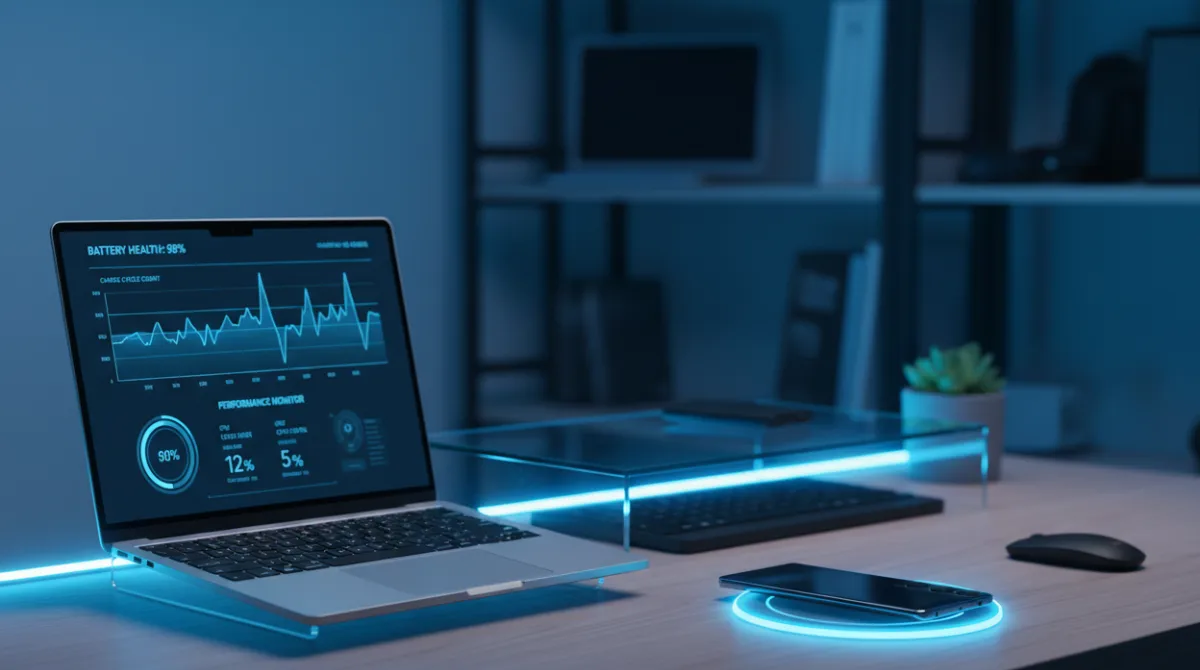
Charging controls, background limits and display tuning work together, so avoid extreme settings that make the phone annoying to use.
- Battery Protection: Limit maximum charge for healthier long-term battery behavior.
- Adaptive Power Saving: Let the phone adjust power saving based on your usage patterns.
- Fast Charging Controls: Toggle fast or super fast charging depending on heat and time constraints.
- Wireless Charging Options: Use wireless charging when convenient, but prefer wired charging for speed.
- Battery Usage Breakdown: Identify apps that spike background drain and restrict them when necessary.
To make decisions easier, keep a short reference of what to use based on your goal.
| Goal | Feature To Use | What It Changes |
|---|---|---|
| Longer daily battery | Adaptive Power Saving | Balances performance and background activity automatically |
| Better battery lifespan | Battery Protection | Reduces time spent at very high charge levels |
| Faster top-ups | Super Fast Charging | Raises charging speed when you need quick power |
| Less heat during heavy use | Performance Profile | Limits sustained boost to keep temperatures steadier |
Once you pick a default charging style, revisit it after a week of use and adjust based on your real schedule.
Security And Privacy Features On The S26 Ultra
A premium phone is also a high-value target, so security deserves early attention. The S26 Ultra includes strong tools, but you need to turn on the right protections and confirm your recovery options.
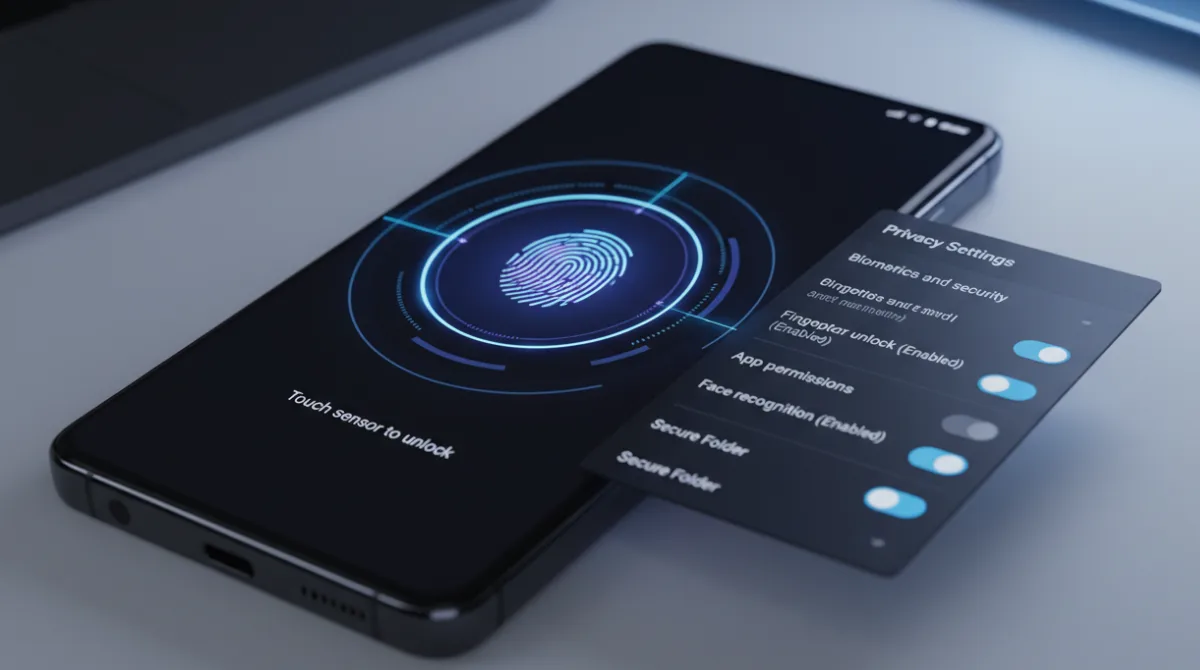
Take a few minutes to lock down accounts, then reduce what apps can see by default. You get better privacy without losing convenience.
- Biometrics And Passcode: Use fingerprint and a strong device passcode so authentication stays fast and secure.
- Samsung Knox Protections: Keep core security features enabled, including secure boot and real-time monitoring where available.
- Auto Blocker: Reduce risks from unknown app installs and suspicious USB behavior.
- Permission Manager: Review camera, microphone, location and notification access app by app.
- Private DNS And Tracking Controls: Limit unnecessary tracking and improve network-level privacy when supported.
After setup, confirm your backup and find-my-device settings so you can recover quickly if the phone is lost.
Hidden Samsung Galaxy S26 Ultra Features Most Users Miss
Some of the most satisfying tools are buried in menus that people rarely open. These features help with speed, comfort and control without changing the look of your phone.
Try a few, keep what feels natural and skip the rest. The best customization is the one you forget is even there.
- One-Hand Operation Plus: Add gesture handles for back, recent apps and quick actions that reduce thumb travel.
- Good Lock Modules: Customize the lock screen, quick panel and multitasking behavior with deeper system-level options.
- Separate App Sound: Route audio from a specific app to Bluetooth while the rest plays through the phone speaker.
- Dual Messenger: Run two accounts for supported messaging apps without constant logouts.
- Clipboard Protection And Auto Clear: Reduce the risk of sensitive text lingering in your clipboard history.
Once you explore these, your S26 Ultra setup becomes more personal and noticeably more efficient.
Conclusion
The best Samsung Galaxy S26 Ultra features to try first are the ones that improve how you communicate, capture and control your day. Start with core settings, then add Galaxy AI tools, camera controls and battery protections that match your routine.
Finish by tightening security and testing a few hidden features until the phone feels effortless. With a focused setup, the S26 Ultra delivers its value quickly without endless tweaking.