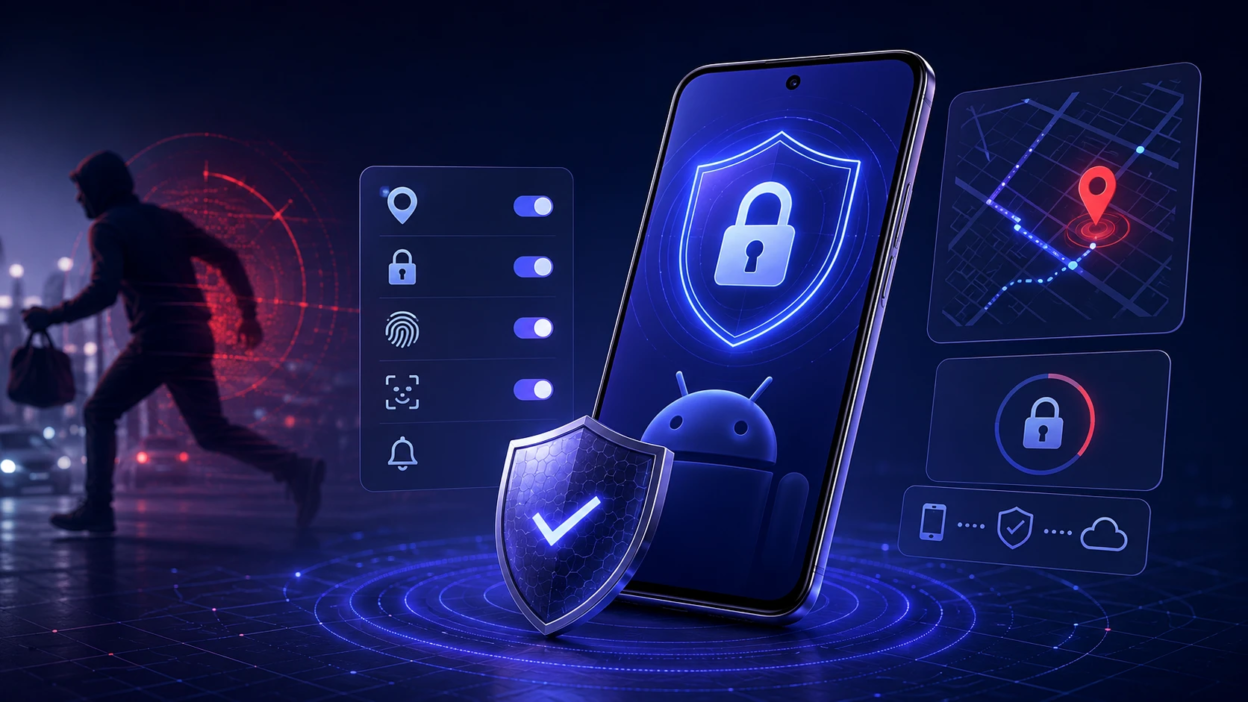
Android theft protection is a set of security features that help you block access, track your device, and protect your data when a phone is lost or stolen. It combines lock screen security, Google account safeguards, remote controls, and on-device protections that make theft less rewarding. When these settings are turned on ahead of time, recovery is faster and personal data is far less exposed.
How Android Theft Protection Works?
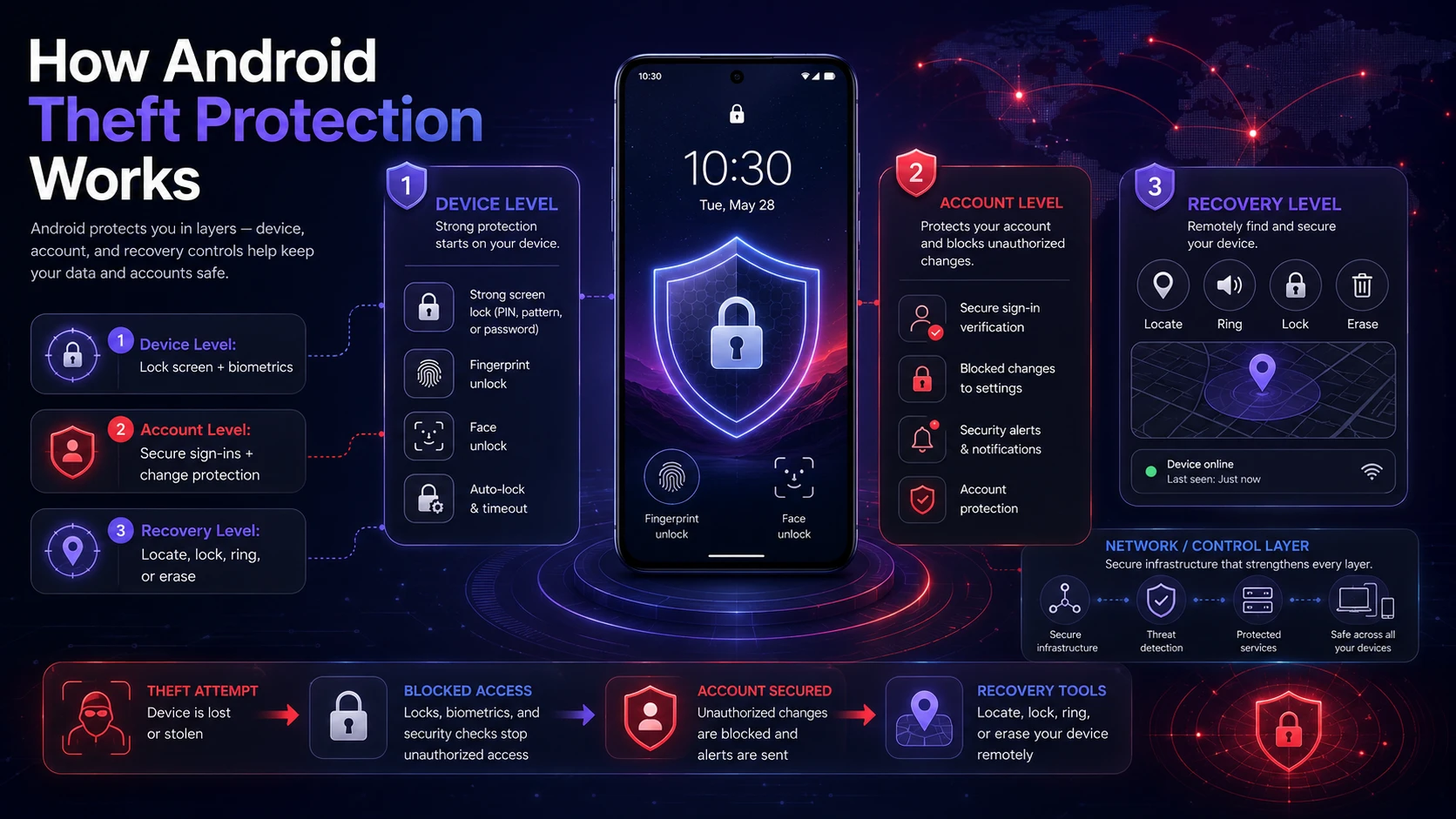
Android protects you in layers, starting with the lock screen and moving outward to account and network level controls. Some defenses prevent immediate access, while others help you regain control after the device is gone. The goal is to keep your accounts safe even if the phone is powered on and connected.
At the device level, strong screen lock and biometrics slow down unauthorized access. At the account level, Google protections can lock down sign-ins and block changes. At the recovery level, Find My Device can locate, ring, lock, or erase the phone to limit damage.
Device Lock And Biometric Settings To Turn On
Your lock screen is the first and most important barrier. A weak PIN is often the quickest path to stolen accounts, especially if the thief can access notifications, email, or password reset messages. Choose settings that balance speed for you and friction for anyone else.
- Use A Long PIN Or Password: Prefer at least 6 digits, and avoid birthdays or repeated patterns. A password offers more resistance than a short PIN.
- Enable Fingerprint Or Face Unlock: Use biometrics for convenience, but keep a strong PIN as the fallback. Turn on the option that requires the lock method after restart.
- Set Auto Lock Quickly: Shorten the screen timeout and lock delay so the phone re-locks fast when it leaves your hand.
- Disable Sensitive Content On The Lock Screen: Hide notification content so one-time codes and private messages are not visible while locked.
Once these basics are solid, the rest of your theft protection becomes far more effective.
Find My Device And Location Services
Find My Device is Android’s core recovery tool. It relies on your Google account, device connectivity, and location permission to work reliably. Turn it on now, not after something goes wrong.
Enable location services and allow Find My Device to access location. Keep Wi-Fi and Bluetooth scanning enabled so location can be more accurate, even when a network connection is inconsistent.
- Turn On Find My Device: Verify it is enabled in Google settings and confirm your device appears in the Find My Device list.
- Turn On Location: Allow location services and improve accuracy with Wi-Fi and Bluetooth scanning.
- Enable Device In Google Play Visibility: This helps your phone appear as a manageable device for remote actions.
After enabling it, test the ring feature once to confirm permissions are correct.
Account Protection And Sign In Security
Phone theft often turns into account takeover if email, cloud storage, or authentication apps are compromised. Strengthening Google account security reduces the chance that a thief can change passwords, remove devices, or bypass recovery options. This is especially important if the phone stores password managers or authenticators.
- Enable Two Step Verification: Use an authenticator or hardware key, and keep backup codes stored safely off the phone.
- Add A Recovery Phone And Email: Keep them current so you can regain access quickly if something changes.
- Review Signed In Devices: Remove old phones and unknown sessions, and verify your current device list is accurate.
- Turn On Google Play Protect: It helps detect malicious apps that may be installed after theft or during a compromise.
These controls help even if the thief never unlocks the device, since account attacks can happen through SIM swaps or leaked credentials.
SIM Protection And Network Controls
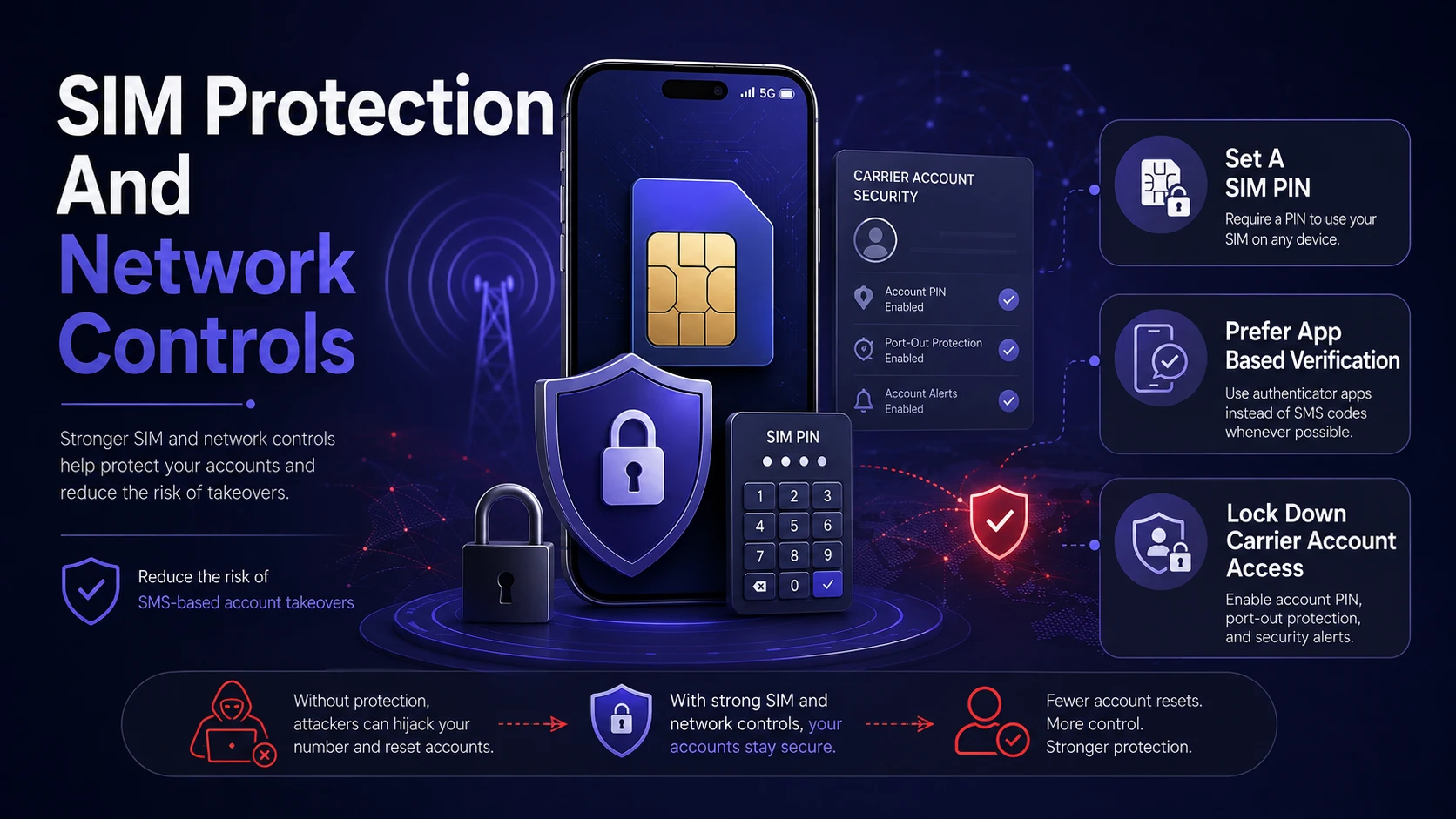
A SIM card can be used to receive text-based verification codes if your accounts still rely on SMS. A thief may also try to move the SIM to another phone. Blocking that path reduces the risk of quick account reset attempts.
- Set A SIM PIN: A SIM PIN prevents the SIM from being used in another device without the code.
- Prefer App Based Verification: Use authenticator apps or passkeys where possible, rather than SMS codes.
- Lock Down Carrier Account Access: Add a carrier account passcode so changes cannot be made easily by social engineering.
These steps reduce the chance that phone number control becomes the weak link in your security chain.
Anti Theft Settings In Android That Improve Resilience
Android includes additional controls that help keep access locked down during common theft patterns. Some settings prevent quick changes to security options, while others limit what can be accessed from a locked screen. The best setup keeps your device usable for you while being restrictive when locked.
- Require Authentication To Power Off Or Change Network When Possible: If your device supports these restrictions, turn them on to reduce easy offline behavior.
- Limit Quick Settings On Lock Screen: Reduce what can be toggled without unlocking, especially Wi-Fi, mobile data, and airplane mode.
- Enable Stronger Screen Lock Requirements For Sensitive Apps: Banking apps, password managers, and email should require biometrics or device credentials.
Review these items after any major Android update, since options can move or reset.
Recommended Theft Protection Setup Checklist
The settings below cover the highest-impact protections most people should turn on. Treat them as a baseline, then adjust based on how you use your phone for work, payments, and authentication.
| Setting | Where To Find It | Why It Matters |
|---|---|---|
| Screen Lock With Strong PIN | Settings Security | Blocks quick access to apps, notifications, and account recovery flows |
| Find My Device And Location | Google Settings Location | Enables locating, locking, ringing, and erasing remotely |
| Two Step Verification | Google Account Security | Reduces account takeover risk even if the phone is stolen |
| SIM PIN | Settings Network And Internet SIM | Prevents SIM removal from enabling SMS code interception on another device |
After you complete this checklist, test remote access and confirm you can sign in to your Google account from another device.
What To Do Immediately If Your Android Phone Is Stolen?
Speed matters, but accuracy matters more. Start by securing accounts and cutting off access, then focus on recovery steps. Use a trusted device to avoid logging in from unknown computers.
- Use Find My Device: Locate the phone, ring it if nearby, then lock it with a message and contact number if appropriate.
- Secure Your Google Account: Change your password, review recent security activity, and sign out of sessions you do not recognize.
- Contact Your Carrier: Suspend service, block the SIM, and ask about blacklisting the device IMEI if available.
- Erase The Device If Needed: If recovery is unlikely, remote erase limits exposure of photos, messages, and saved logins.
- Update High Risk Accounts: Reset passwords for email, banking, and password managers, and rotate recovery options.
Document the device identifiers you have, including IMEI and serial number, and keep any report details for follow-up.
Common Mistakes That Weaken Theft Protection
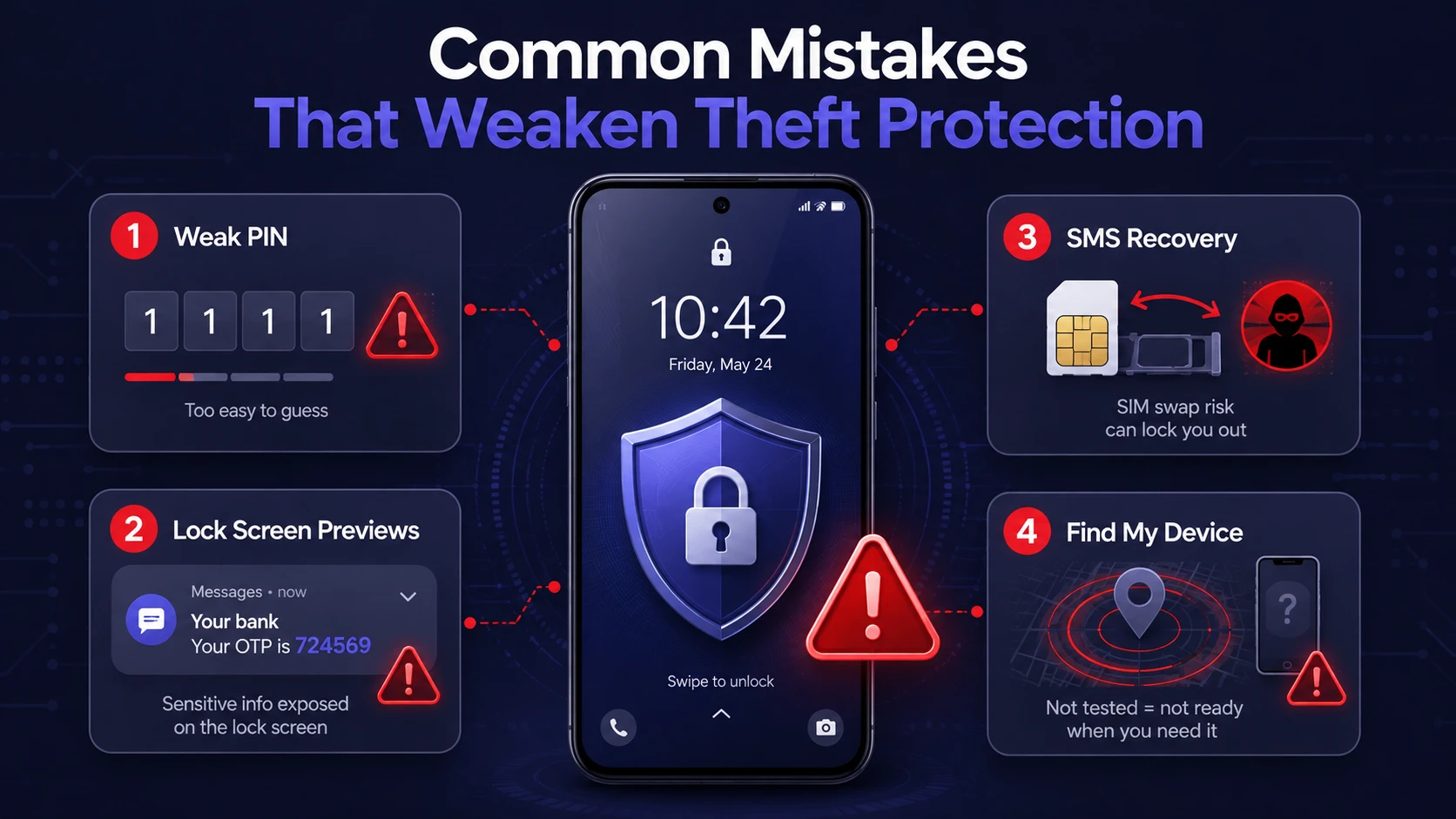
Many theft protection failures come from a few avoidable setup gaps. Cleaning these up takes minutes and improves outcomes dramatically. Focus on changes that reduce information leakage from the lock screen and reduce reliance on SMS.
- Using A Short Or Reused PIN: Simple patterns and repeated digits are guessed quickly and undermine all other controls.
- Leaving Notification Previews On: One-time codes and account prompts can appear on the lock screen.
- Relying On SMS For Account Recovery: SIM swaps and SIM removal can lead to fast account resets.
- Not Testing Find My Device: Permissions, battery settings, and location accuracy issues often show up only when it is too late.
Addressing these mistakes improves both prevention and recovery without changing how you use your phone day to day.
Conclusion
Android theft protection works best when it is set up as a layered system, not a single toggle. A strong lock screen, Find My Device, hardened Google account security, and SIM protections work together to reduce risk and speed up recovery. Turn on the core settings, test them once, and revisit them after major system updates to keep your protection consistent.
Frequently Asked Questions
Does Find My Device Work If The Phone Is Offline?
Location and remote actions work best when the phone is powered on and connected, but you may still see the last known location. If the device comes back online later, remote lock or erase commands can apply then. Keeping location accuracy options enabled improves your chances.
Should I Use A Password Or A PIN For Theft Protection?
A long PIN is a strong and practical choice for most people, especially at 6 digits or more. A password can be even stronger, but only if it is unique and not easy to guess. Avoid short PINs and patterns that can be inferred from personal info.
What Should I Do If My Two Step Verification Is On The Stolen Phone?
Use backup codes, a security key, or a secondary trusted device to sign in and secure your account. Update your verification methods so the stolen phone is removed as an approval option. Then rotate passwords for email and any accounts that rely on that email for resets.