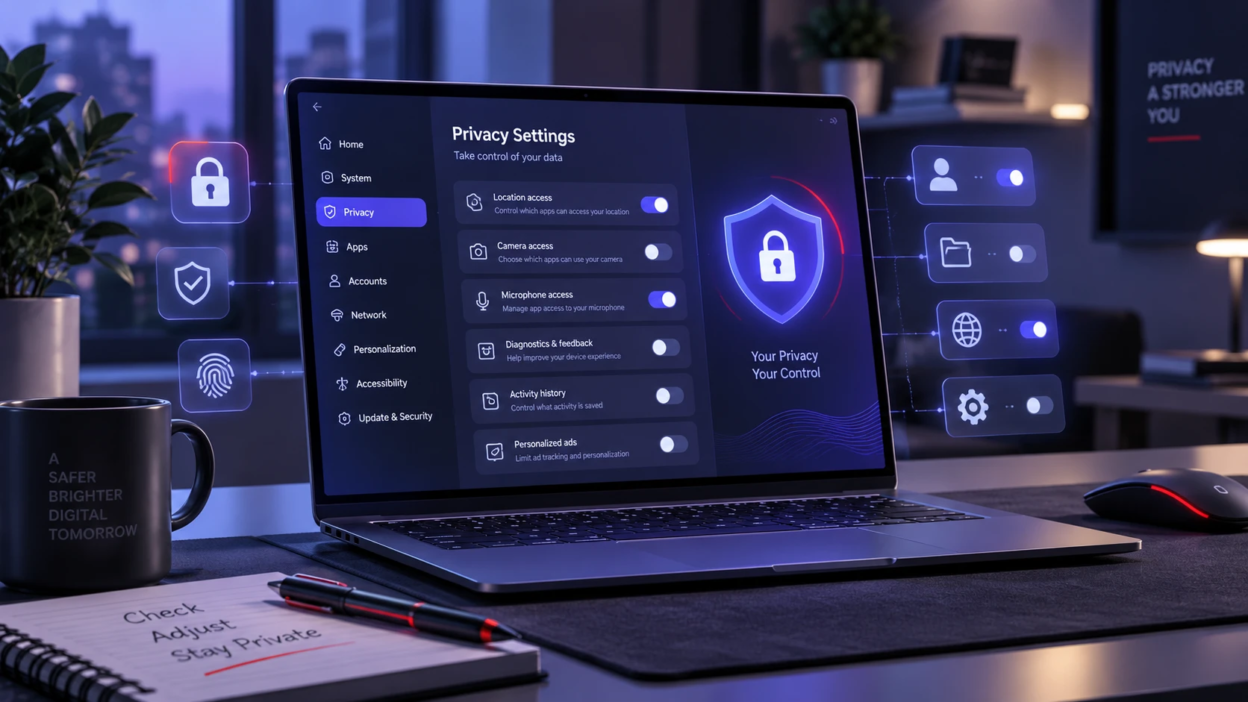
Setting up a new Windows 11 PC feels fast until you realize many privacy choices are buried in menus. A few minutes of review can reduce unnecessary data sharing, cut background activity, and give you clearer control over what apps can access.
Start With Your Microsoft Account And Sign In Options
Windows 11 works best with a Microsoft account, but it also enables cloud syncing and identity based personalization. Decide what you want tied to your account before installing many apps or signing into browsers.
Open Settings, go to Accounts, then Your info and Sign in options. Check each sign in method and remove what you will not use so there are fewer paths into the device.
- Windows Hello: Use PIN and biometrics for convenience, but set a strong device PIN and keep fingerprint or face sign-in only if you trust your environment.
- Dynamic lock: Disable it if it causes frequent unlock prompts or relies on a shared Bluetooth device.
- Account syncing: Review what syncs across devices, especially passwords, settings, and browsing data, so you do not share more than intended.
After you settle sign-in choices, move to the settings that control advertising and tracking.
Turn Off Ad Personalization And Suggested Content
Windows can use an advertising ID and related signals to tailor ads inside apps. This personalization is not required for core functions and can be reduced without breaking the system.
Go to Settings, then Privacy and security, then General. Switch off options related to advertising ID, suggested content, and language lists when you do not need them.
- Advertising ID: Turning this off limits ad profiling across Microsoft Store apps.
- Website access to language list: Disabling this reduces passive sharing of language preferences.
- Suggested content in Settings: Turning it off reduces prompts that are based on usage patterns.
Next, address diagnostic data since it influences how much information leaves the device.
Review Diagnostic Data And Tailored Experiences

Diagnostic data helps Microsoft improve reliability, but it can also include details about device usage. On a new PC, this is a good time to confirm that only essential data is being sent.
Open Settings, then Privacy and security, then Diagnostics and feedback. Limit optional diagnostic data, and consider turning off tailored experiences if you prefer fewer personalized tips based on activity.
- Optional diagnostic data: Disable it to reduce the breadth of usage information collected.
- Tailored experiences: Turn it off to reduce personalization based on diagnostics.
- Delete diagnostic data: Use this after setup if you want to clear any initial setup related telemetry stored with your account.
With diagnostics tightened, the next privacy surface area is app permissions.
Audit App Permissions For Location, Camera, And Microphone
Permission defaults often favor convenience, and many apps request access early. A clean system is easier to lock down because you can set strong defaults before installing extra software.
In Settings, open Privacy and security and review each permission category. Start with the most sensitive ones, then continue through the rest.
- Location: Turn it off if you do not use maps, local weather, or location-based services.
- Camera: Allow only the apps you trust for video meetings and disable the rest.
- Microphone: Keep access limited to communication tools and disable background access when possible.
- Contacts and calendar: Restrict access to mail and scheduling apps that truly need it.
Once the big permissions are under control, review background activity which can quietly expand data collection.
Limit Background App Activity And Startup Behavior
Some apps run in the background to sync, send notifications, or preload content. This can impact privacy and performance, especially on a new device that has vendor utilities installed.
Go to Settings, then Apps, then Startup to disable items you do not need at boot. Also open Settings, then Apps, then Installed apps, pick an app, then Advanced options, and limit background permissions where available.
- Startup apps: Disable nonessential launchers and update helpers to reduce always-on activity.
- Background permissions: Set to Never or Power optimized when you do not need constant syncing.
After reducing background access, check what Windows is doing with your search and cloud features.
Control Search, Cloud Content, And Activity History
Windows Search can show web results and pull suggestions tied to your account. Activity history can also support cross-device experiences, which is useful for some users but unnecessary for others.
Open Settings, then Privacy and security, then Search permissions. Review safe search settings, cloud content, and search history on this device. Also check Activity history in Privacy and security and disable it if you do not need cross-device continuity.
- Search history on this device: Clear it after initial setup and disable if you prefer less local tracking.
- Cloud content search: Turn it off if you do not want account content surfaced in results.
- Activity history: Disable it to reduce timeline style logging and account level association.
With search and history addressed, review browser related privacy since it is often the most exposed surface.
Harden Microsoft Edge And Default Browser Privacy
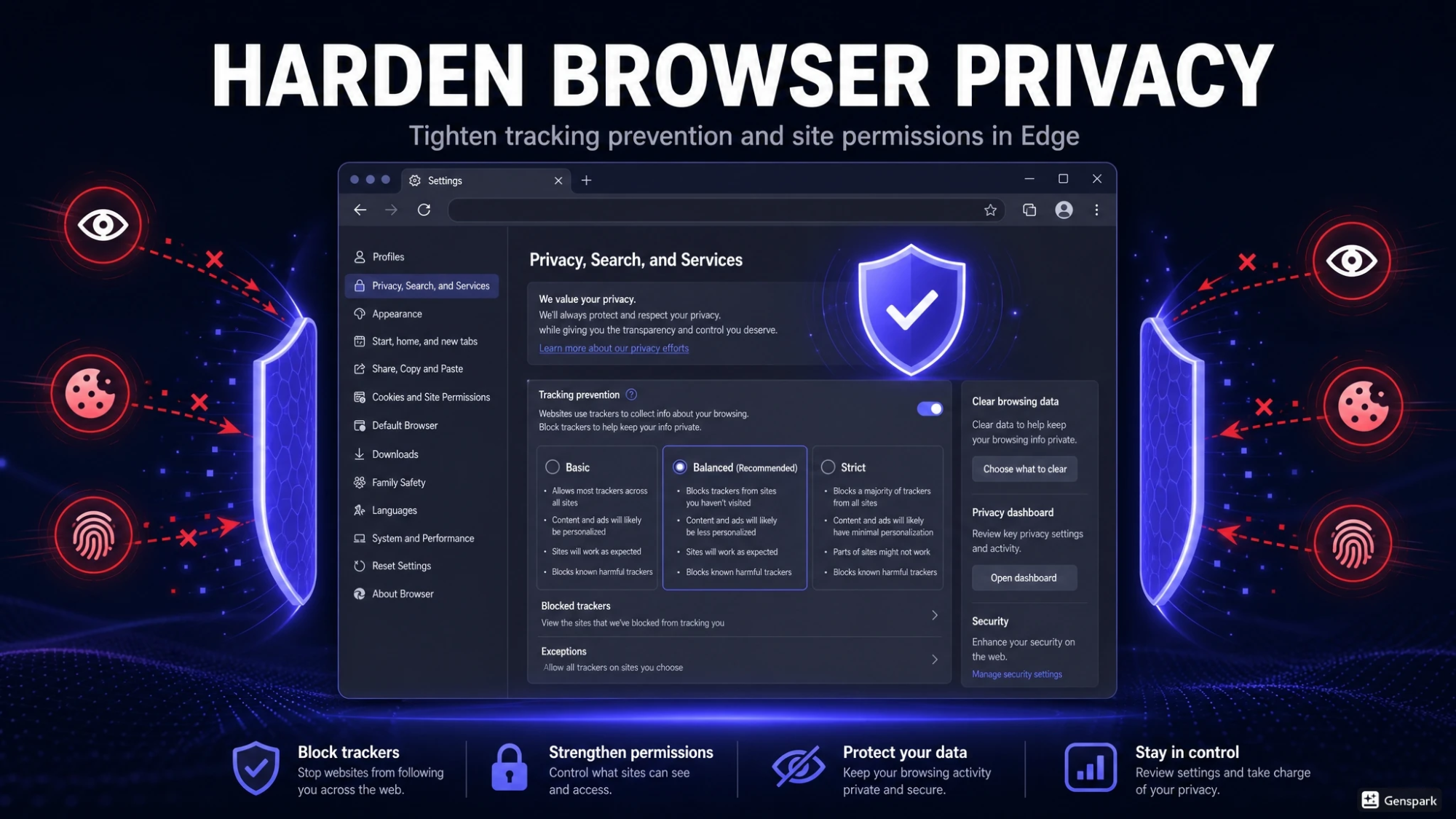
Edge privacy controls can reduce trackers, limit third-party cookies, and tighten permissions. Even if you use another browser, it is worth adjusting Edge because Windows uses it for some components.
Open Edge Settings, then Privacy, search, and services. Choose a tracking prevention level that fits your needs, and review site permissions like camera, microphone, location, and notifications.
- Tracking prevention: Use Balanced or Strict depending on how much site breakage you can tolerate.
- Third-party cookies: Block them to reduce cross-site tracking, then allow exceptions only when needed.
- Site permissions: Set a default of Ask and clear permissions that were granted during setup.
Next, tighten Windows security and network level privacy settings that influence how discoverable the PC is.
Adjust Device Security And Network Privacy Settings
Security settings overlap with privacy because they reduce unauthorized access and unwanted data exposure. On a new PC, verify that Windows Security is configured before you store sensitive files or credentials.
Open Windows Security and review Device security, Firewall and network protection, and App and browser control. Also check your active network profile in Settings, then Network and internet, then Wi-Fi or Ethernet, and set it to Public for unknown networks.
- Firewall profiles: Keep the firewall enabled for all networks to reduce inbound exposure.
- SmartScreen checks: Keep it on for app and web protection unless you have a managed enterprise policy.
- Public network profile: Use it on shared networks to reduce discoverability.
To keep this review practical, the table below summarizes what to change first and what effect to expect.
| Setting Area | Recommended Action | What It Reduces |
|---|---|---|
| Advertising And Suggestions | Disable advertising ID and suggested content toggles | Ad profiling and personalized prompts |
| Diagnostics And Feedback | Turn off optional diagnostic data and tailored experiences | Extra usage signals sent to Microsoft |
| App Permissions | Limit location, camera, microphone, contacts access | Unnecessary access to sensitive sensors and data |
| Search And Activity | Disable cloud content search and activity history if not needed | Account linked search and device activity association |
After these core settings are done, review features that share data with other devices and nearby systems.
Disable Nearby Sharing And Cross Device Features You Do Not Use
Windows includes features that make file sharing and device handoff easier. If you do not use them, turning them off reduces the chance of accidental sharing and reduces background discovery.
In Settings, go to System and look for Nearby sharing. Also review Bluetooth and Devices settings for options related to sharing, pairing, and device discovery.
- Nearby sharing: Turn it off unless you actively share files with nearby PCs.
- Bluetooth discovery: Keep it off when not pairing to reduce passive visibility.
Once sharing is tightened, make sure you can easily verify what is installed and remove anything you do not trust.
Remove Vendor Utilities You Do Not Need
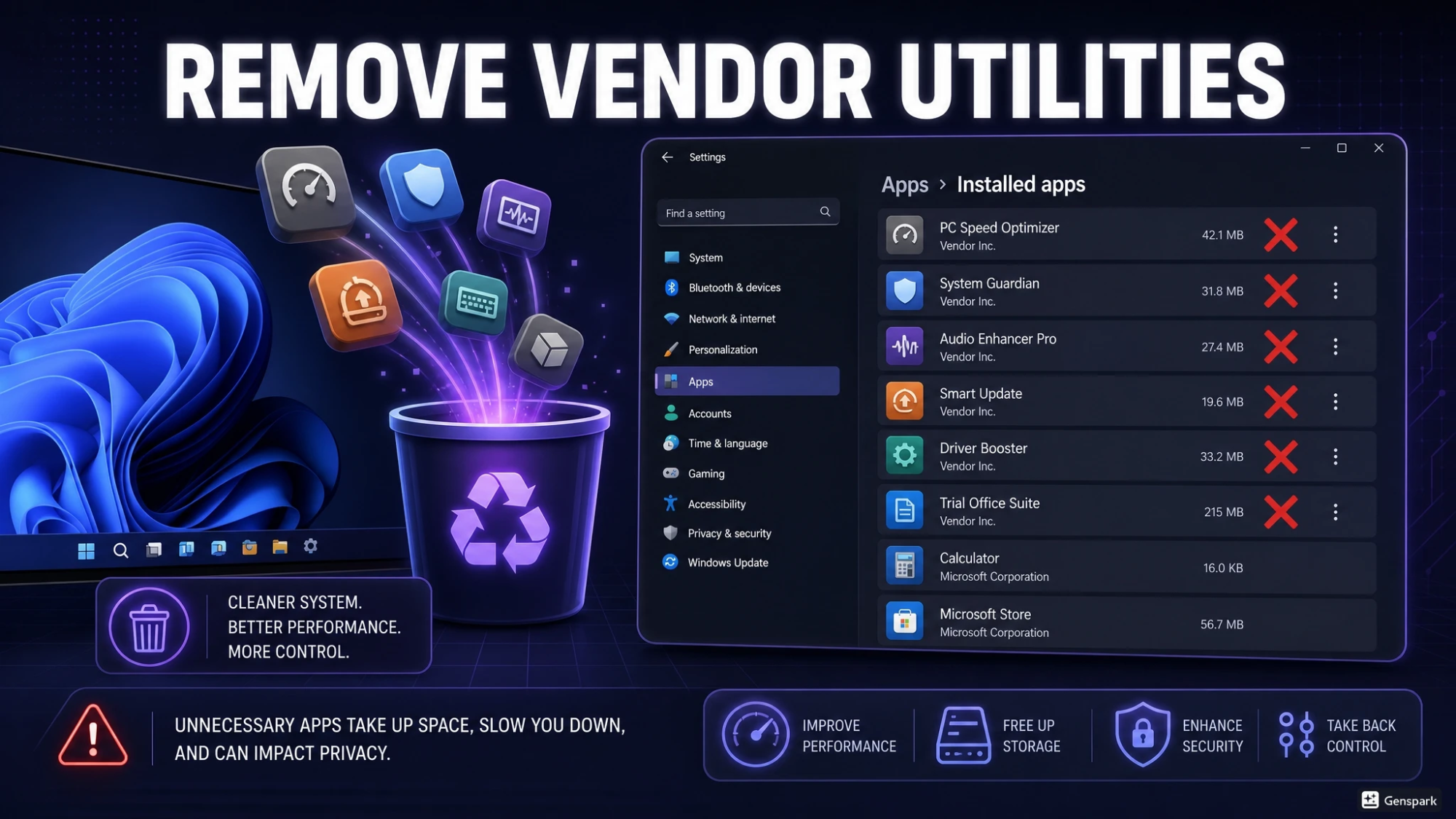
New PCs often ship with manufacturer tools and trial software. Some of these utilities run background services, show promotions, or collect usage data for support analytics.
Open Settings, then Apps, then Installed apps and uninstall anything you do not recognize or do not need. Keep essential driver and update tools only if you verify they come from your PC manufacturer and provide clear value.
- Trial software: Remove it to reduce background services and pop-ups.
- Duplicate security tools: Avoid running multiple antivirus products, which can increase instability and data exposure.
If you want a cleaner starting point, Tech Bonafide style guidance is to pair privacy tuning with a quick PC health check so updates, drivers, and security baselines are consistent from day one.
Conclusion
Windows 11 can be private by default if you take control of a few key areas early. Focus on ad personalization, diagnostic data, app permissions, search and activity options, and browser tracking settings.
After that, reduce background apps, disable unused sharing features, and uninstall vendor extras you will not maintain. These changes keep your new PC simpler, faster, and less chatty without sacrificing everyday usability.
Frequently Asked Questions
Will changing Windows 11 privacy settings break important features?
Most changes only limit data sharing and personalization, not core functions. Some conveniences like location-based apps, cross-device syncing, or web results in search may be less automatic. If something feels missing, you can re-enable a single toggle instead of resetting everything.
Which privacy settings should I review first on a brand new PC?
Start with advertising ID settings, optional diagnostic data, and the camera and microphone permissions. Then review search permissions and activity history because those can connect device behavior to your account. Doing these early prevents apps from getting broad access during first run prompts.
Do I need third party privacy tools to secure Windows 11?
Built-in controls cover most needs when configured carefully, especially permissions, diagnostics, and browser tracking prevention. Third party tools can help with reporting and automation, but they can also add complexity. If you use one, choose a reputable option and confirm it does not weaken Windows Security.