

Switching to a new browser does not mean you have to lose your saved passwords or reset every online account. Most major browsers provide password import and export tools that let you transfer existing login credentials. The safest approach is to keep your old browser available, prepare your account recovery methods, transfer your passwords and verify that important accounts still work before removing anything.
However, moving saved passwords is not the same as transferring complete account access. Passkeys, two-factor authentication codes, active login sessions and recovery information may require separate steps. Understanding these differences can prevent an ordinary browser switch from turning into an account recovery problem.
What to Do Before Moving Your Passwords?
Before starting the migration, make sure you can still access your existing browser profile and unlock its password manager. If you use several browser profiles, identify which one contains your personal or work-related credentials.
Install or update the destination browser using its official download source. The following instructions focus on desktop browsers. Mobile devices, older software versions and organization-managed computers may have different options or restrictions.
Complete these preparations before transferring your passwords:
- Confirm that your primary email account is accessible.
- Check that your recovery email address and phone number are current.
- Make sure your authenticator app or physical security key is available.
- Store account recovery codes securely where supported.
- Identify whether your passwords are stored in the browser or a separate password manager.
- Keep your existing browser profile and important login sessions available.
Pay particular attention to your primary email account. Many online services rely on email for password resets, so losing access to that account can make recovering other accounts considerably harder.
Services such as Google provide backup codes for two-step verification. Other services may offer different recovery methods. Check the security settings of each important account rather than assuming the same recovery option works everywhere.
Choose the Right Password Transfer Method
There are three common ways to make existing passwords available in another browser. The right method depends on where your passwords are stored, which browser you are moving to and whether you are changing devices at the same time.
| Transfer Method | Best For | Main Limitation |
|---|---|---|
| Direct browser import | Switching between supported browsers on the same computer | Some browser and operating system combinations restrict password import |
| CSV export and import | Transferring passwords between different supported password managers | Creates an unencrypted password file |
| Password manager synchronization | Using the same supported password manager across devices or browsers | Requires access to the correct account and compatible software |
Try direct browser import first when it is available for your particular browser combination. This can avoid creating a separate file containing readable passwords.
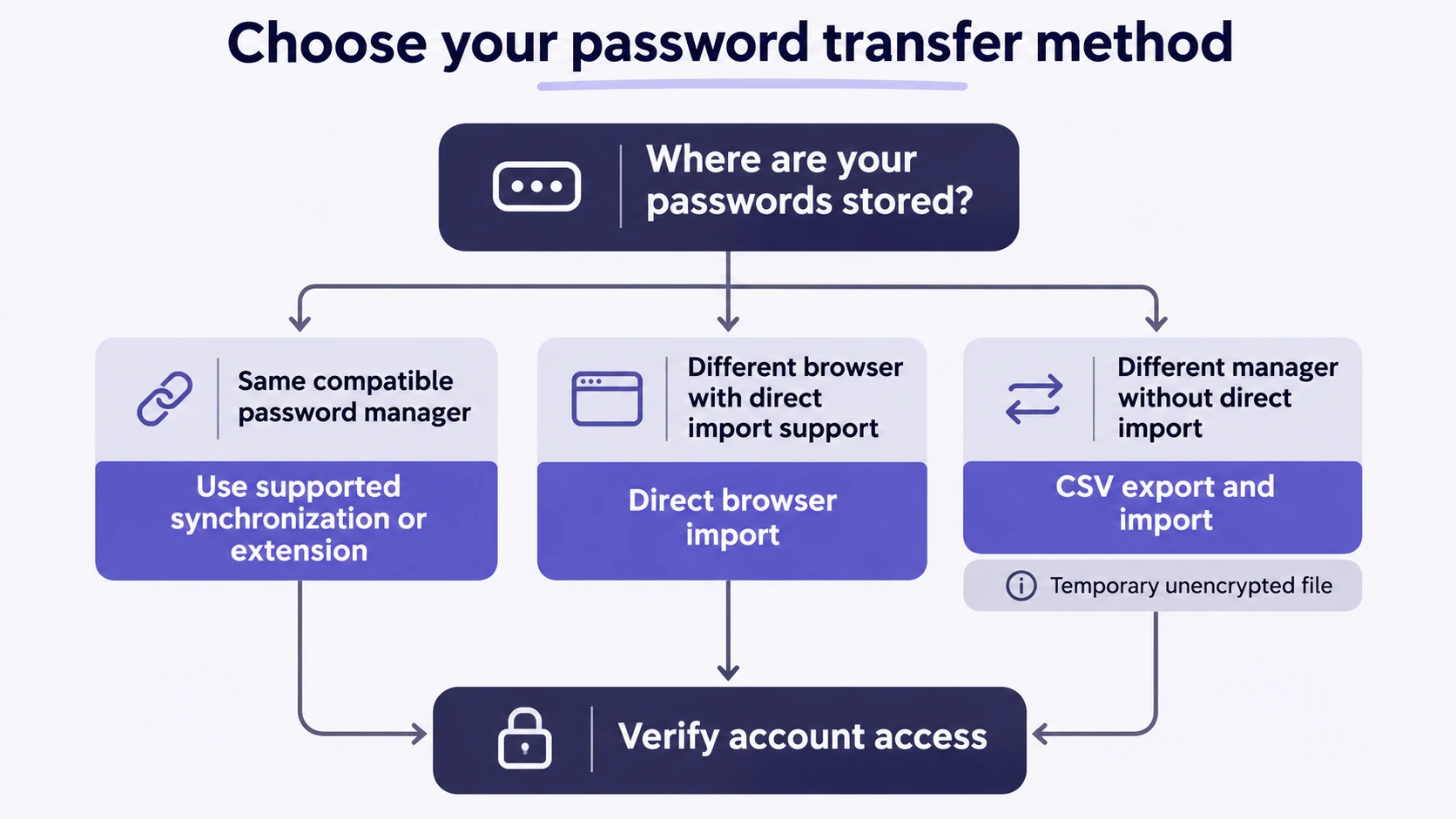
If direct import is unavailable, use the official CSV export and import tools. CSV stands for comma-separated values, a file format used to store structured information such as website addresses, usernames and passwords.
If you already use a separate password manager with a compatible browser extension, you may only need to install that extension in the new browser and unlock your existing vault. Browser synchronization by itself does not generally transfer passwords between unrelated browser accounts.
How to Move Passwords Between Browsers?
The following methods cover Chrome, Edge, Firefox and Safari on desktop computers. Menu names can vary with software updates. Follow the linked official instructions if an option appears in a different location on your installed version.
Google Chrome
Chrome stores its built-in saved passwords through Google Password Manager. If you are moving to another browser, you can export your existing password entries as a CSV file.
- Open Chrome using the profile that contains your saved passwords.
- Open the three-dot menu and find Google Password Manager under Passwords and autofill.
- Open its settings and locate the password export option.
- Choose Download file and complete any requested device authentication.
- Save the file in a private local folder.
To move passwords into Chrome, open Google Password Manager settings, locate Import passwords and select your existing CSV file. Complete the import prompts and review the resulting password entries.
Google’s password import and export instructions explain the supported file format. The CSV should contain the expected website address, username and password fields.
If you are moving between Chrome installations rather than switching browser providers, using the same Google Account may be sufficient for passwords already saved to that account. Confirm where the passwords are stored before relying on synchronization.
Microsoft Edge
Microsoft Edge supports importing saved passwords from other supported browsers and password files. On Windows, start by checking its browser data import settings.
- Launch Edge and open Settings.
- Find the browser data import controls in the profile settings.
- Select your previous browser or the supported password file option.
- Choose the saved password data you want to import.
- Complete the import and review the saved credentials in Edge.
When moving away from Edge, open its saved password management area and look for the password export control. If the option is unavailable, check whether your browser version or organization settings restrict exporting.
Microsoft provides official browser data import instructions for Edge on Windows. Available import sources and data categories may differ between installations.
Mozilla Firefox
Firefox provides an import wizard for transferring supported browser data. It also allows saved login information to be imported and exported using CSV files.
To import passwords into Firefox:
- Open Firefox and enter its Settings.
- Locate Import Data in the browser data import settings.
- Select the source browser or the password CSV option.
- Choose the appropriate source profile or file.
- Complete the migration and inspect your saved passwords.
There is an important exception when moving from Chrome to Firefox on Windows. Mozilla’s browser migration documentation explains that this password transfer requires a CSV file rather than automatic password import.
To export passwords from Firefox, open Passwords from the browser menu and use the export option in the password management menu. Mozilla’s login data export guide explains how to create the file and the security risks involved.
Safari and Apple Passwords
On Macs running macOS Sequoia or later, saved Safari passwords can be managed through Apple’s standalone Passwords app. You can use this app to move supported password entries between Apple Passwords and other password managers.
To move passwords from another browser into Apple Passwords:
- Export your passwords from the original browser or password manager.
- Open the Passwords app on your Mac.
- Choose the File menu and select Import Passwords from File.
- Select your exported CSV file and complete the import.
- Review any passwords that could not be imported.
Apple’s password import documentation explains that imported passwords do not overwrite existing entries in the app.
To move passwords out of Apple Passwords, open its File menu and choose the option to export all passwords or an individual selected password. Then import the resulting file into the destination browser or password manager.
Apple’s password export guide also identifies limitations involving Wi-Fi passwords, certain shared passwords and Sign in with Apple accounts. Do not assume these items are included in an ordinary password export.
How to Protect Exported Passwords?
A password export file is different from the protected password vault that normally stores your credentials. Standard CSV password exports contain readable information and should only exist for as long as necessary to complete the migration.
Important: An exported password CSV file is not encrypted. Anyone who obtains and opens it may be able to read your saved usernames and passwords. Never upload it to an online file converter, send it through email or leave it in a shared or automatically synchronized folder.
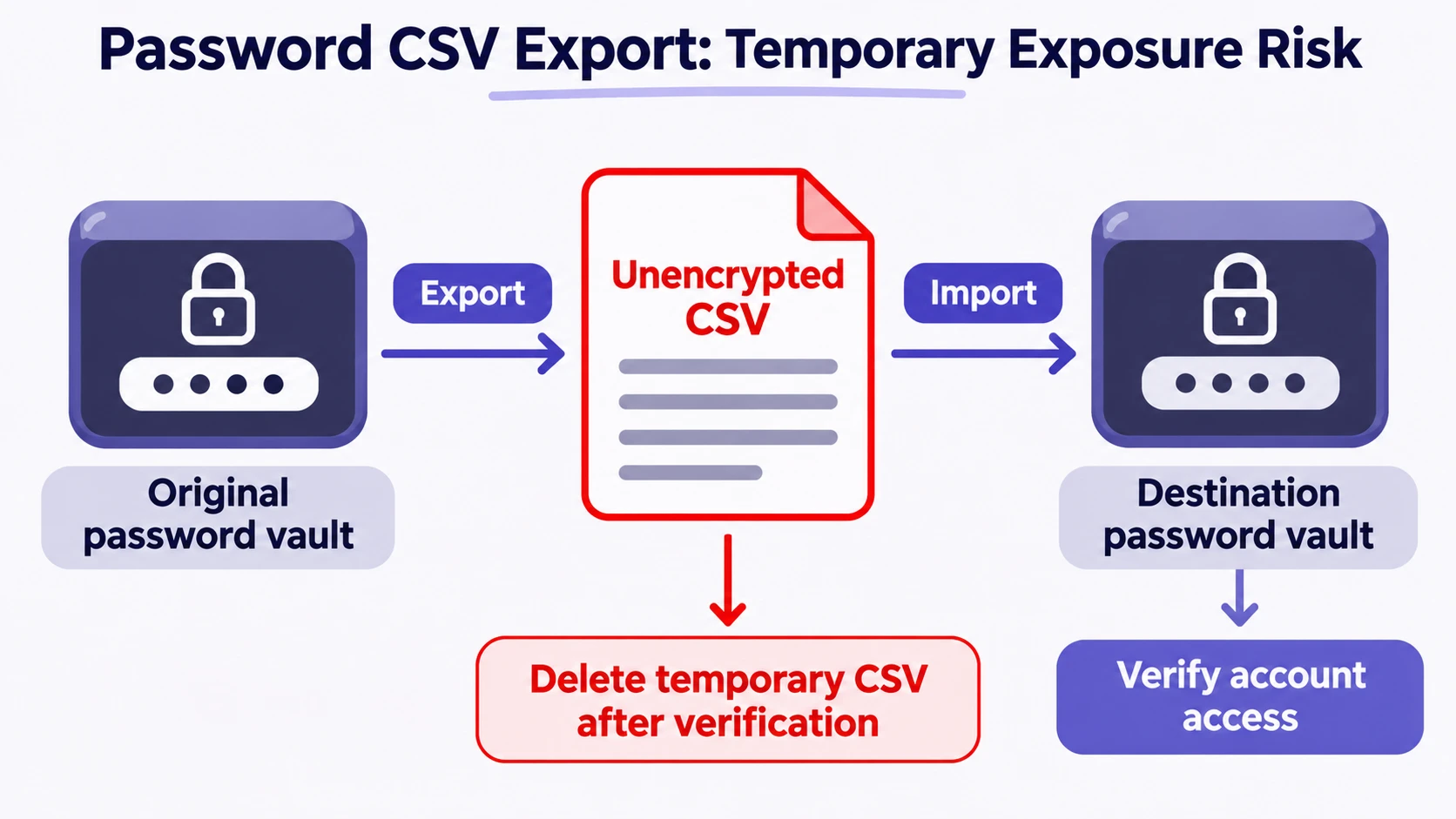
Export the file only on a trusted computer. Choose a private local storage location and avoid folders that automatically upload their contents to cloud services.
After verifying the import, delete the exported file and remove it from the Recycle Bin or Trash. Check whether another copy exists in your downloads, transfer locations or synchronized storage.
Ordinary file deletion is not a guarantee that every recoverable copy has disappeared. If you believe the password file was exposed to another person or an unauthorized service, change the affected passwords, starting with your most important accounts, and review their active sessions.
For transfers between computers, consider an existing supported password manager synchronization method instead of carrying an unencrypted file between devices.
What May Not Transfer With Your Passwords?
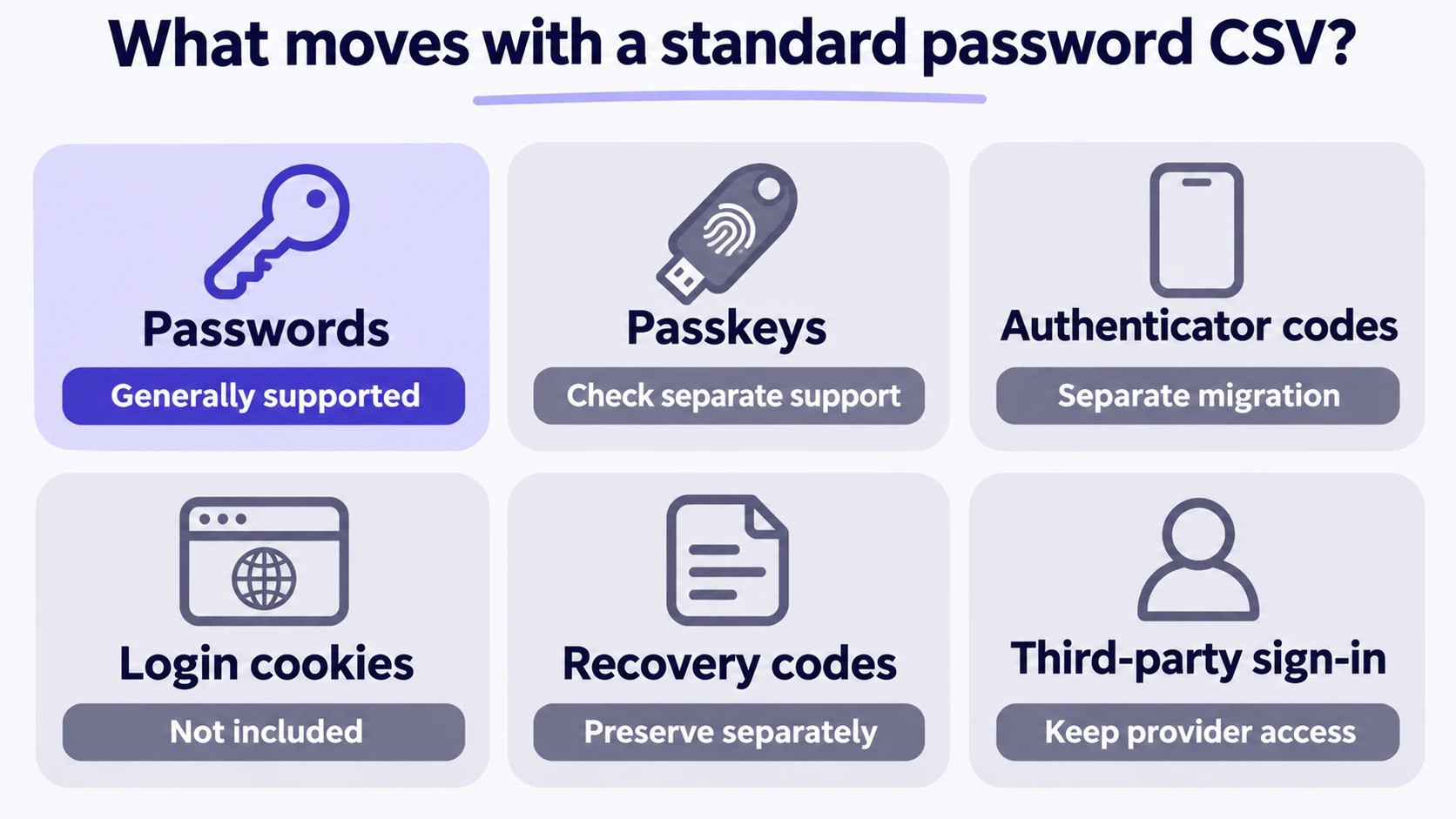
A standard password CSV primarily transfers saved login information. Other forms of authentication and browser data may be stored separately or require their own migration procedure.
| Account Data | Standard Password CSV Transfer | Recommended Action |
|---|---|---|
| Website usernames and passwords | Generally supported | Import and verify saved entries |
| Passkeys | Do not assume support | Check the passkey provider’s migration or synchronization options |
| Authenticator codes | Not a standard password CSV feature | Retain or separately migrate the authenticator |
| Recovery codes | Not reliably included | Keep securely stored copies |
| Login sessions and cookies | Not transferred by a password CSV | Sign in again when required |
| Third-party sign-in accounts | Not transferred as ordinary credentials | Retain access to the identity provider |
Passkeys and Authentication Codes
Passkeys use cryptographic credentials rather than ordinary reusable passwords. Some passkey providers synchronize credentials across supported devices or offer dedicated transfer methods, but a conventional password CSV should not be treated as a passkey backup.
If an important account uses a passkey, check whether your existing credential remains available in the new browser. Where supported, add and verify another passkey before removing the original one.
Similarly, if a website requires a code from an authenticator app, transferring the website password will not necessarily transfer that authentication method. Keep your authenticator accessible and follow its official migration instructions if you are also changing devices.
Understanding the differences between passkeys and authenticator apps can help you identify which credentials need separate attention.
Cookies and Third-Party Sign-In
You may notice that a website asks you to sign in again even after its password has been successfully imported. This happens because the saved password and the existing authenticated session are separate pieces of information.
A standard password CSV does not transfer the cookies responsible for maintaining those sessions. Learn more about the differences between browser cache and cookies to understand why retaining a password does not automatically keep you signed in.
Accounts created using Google, Apple or another third-party identity provider also require continued access to that provider. A website may not have a separate password available to export if you originally registered through a third-party sign-in option.
How to Verify That Your Passwords Transferred?
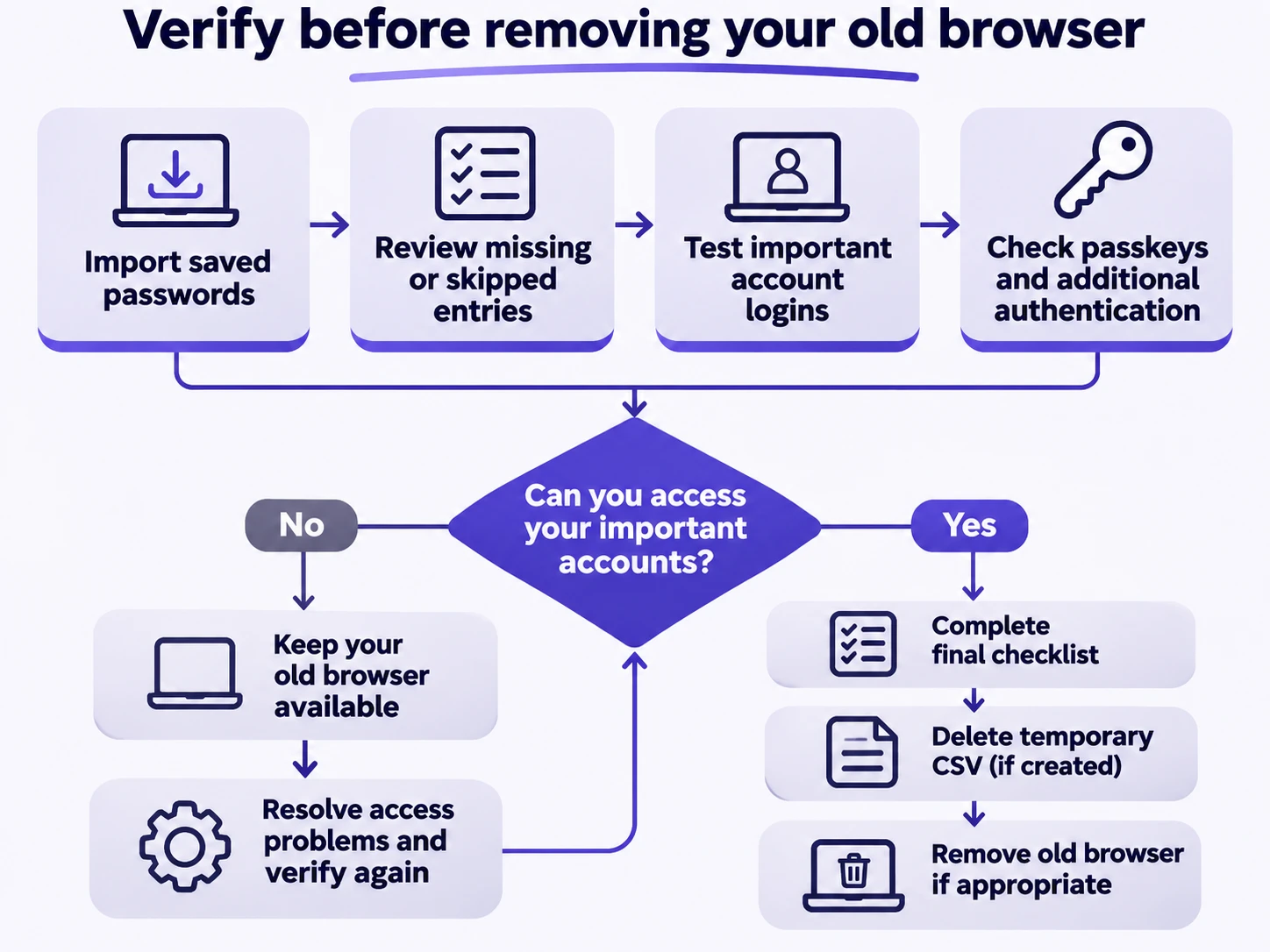
An import completion message is a useful starting point, but it does not establish that every account remains accessible. Verify both the stored credentials and your ability to use them.
- Open the password manager in your new browser and confirm that familiar website entries appear.
- Compare the approximate number of saved entries where both managers display a count.
- Review any failed imports, skipped entries or duplicate credentials.
- Visit the official website of your primary email provider in the new browser and complete a fresh login.
- Repeat the process for important financial, work, cloud storage and identity provider accounts where appropriate.
- Confirm that passkeys and additional authentication methods work wherever they are required.
- Delete temporary password export files once the transfer has been verified.
Password counts do not always match exactly. Different managers can handle duplicate credentials, unsupported entries and multiple logins for the same website differently.
For example, you might find that your email password appears correctly in the new browser but the service still requires approval from your phone. In this situation, the password migration may have succeeded while account access still depends on your additional authentication method.
Keep your old browser available during verification. Test a new login rather than signing out of the only working session on an important account.
How to Fix Common Password Import Problems?
If some passwords are missing or do not work after migration, avoid resetting the original browser or repeatedly importing the same file. Identify the cause first.
| Problem | Possible Cause | What to Do |
|---|---|---|
| No passwords appear | Wrong source or destination profile | Check both browser profiles and password managers |
| CSV file is rejected | Unsupported file structure or missing fields | Compare the file format with official import requirements |
| Some passwords are missing | Skipped, duplicate or unsupported records | Review import results and compare individual entries |
| Passwords appear but do not autofill | Autofill settings, website behavior or extension conflicts | Check the active password manager and use the correct website |
| A website rejects the saved password | Outdated credentials or the wrong account | Check the original saved entry and use official account recovery if needed |
| A verification code is required | Additional authentication is still enabled | Use your existing authenticator or approved recovery method |
| Import or export controls are unavailable | Software restrictions or managed device policies | Check official support documentation or contact your administrator |
If the destination browser rejects a CSV file, check whether its expected column names and file format match the original export. Do not upload a password file to a public troubleshooting forum or online conversion tool.
If you suspect an entry contains an outdated password, use the original browser to check it. When necessary, recover the account using the website’s official password reset procedure and save the updated credential in your chosen password manager.
Should You Use a Separate Password Manager?
If you regularly switch browsers or operating systems, a separate password manager may reduce your dependence on a single browser’s built-in storage.
With a compatible password manager, you can often install its extension in a different browser, unlock the same vault and continue using your stored credentials without creating a new CSV export for every browser switch.
However, this introduces another account or vault that you need to protect and recover. Before choosing a password manager, evaluate its supported browsers and devices, recovery options, encryption design, passkey support and official data export capabilities.
Built-in browser password managers can still be suitable for people who primarily use one browser or device ecosystem. The better choice depends on your devices, account recovery needs and how frequently you switch platforms.
Once you choose a primary password manager, review overlapping autofill settings to avoid confusion about which manager stores newly created or updated passwords.
When is it Safe to Remove Your Old Browser?
Do not remove the old browser simply because the destination browser reports a successful import. First confirm that your important accounts are accessible and that any separate authentication methods remain available.
Before deleting the old browser profile or uninstalling the browser, complete this final checklist:
- Important password entries are present in the destination manager.
- Your primary email and other essential accounts accept fresh logins.
- Required passkeys, authenticator apps and security keys are accessible.
- Account recovery methods remain available.
- Temporary unencrypted password export files have been removed.
- Any failed or skipped password entries have been reviewed.
- New passwords are being saved in your intended password manager.
Be careful when deleting saved passwords from a synchronized browser profile. Depending on the password manager and synchronization settings, deleting credentials may affect other connected devices. Check the provider’s documentation before making bulk deletions.
If an important account still cannot be accessed, postpone removing the original browser. Use the existing profile and approved account recovery options to resolve the problem first.
Final Thoughts
The safest way to move passwords to a new browser is to treat the process as an account access migration rather than a simple file transfer. Use direct import or supported password manager synchronization when available, protect any temporary CSV files and verify your essential accounts before removing the original browser.
Most importantly, remember that passwords are only one part of modern account security. Preserving your passkeys, authentication methods and recovery options is what makes a browser switch less likely to leave you locked out of your accounts.

Tech Bonafide is the editorial identity of TechBonafide, an independent technology publication covering AI, software, cybersecurity, gadgets, and emerging technology.