

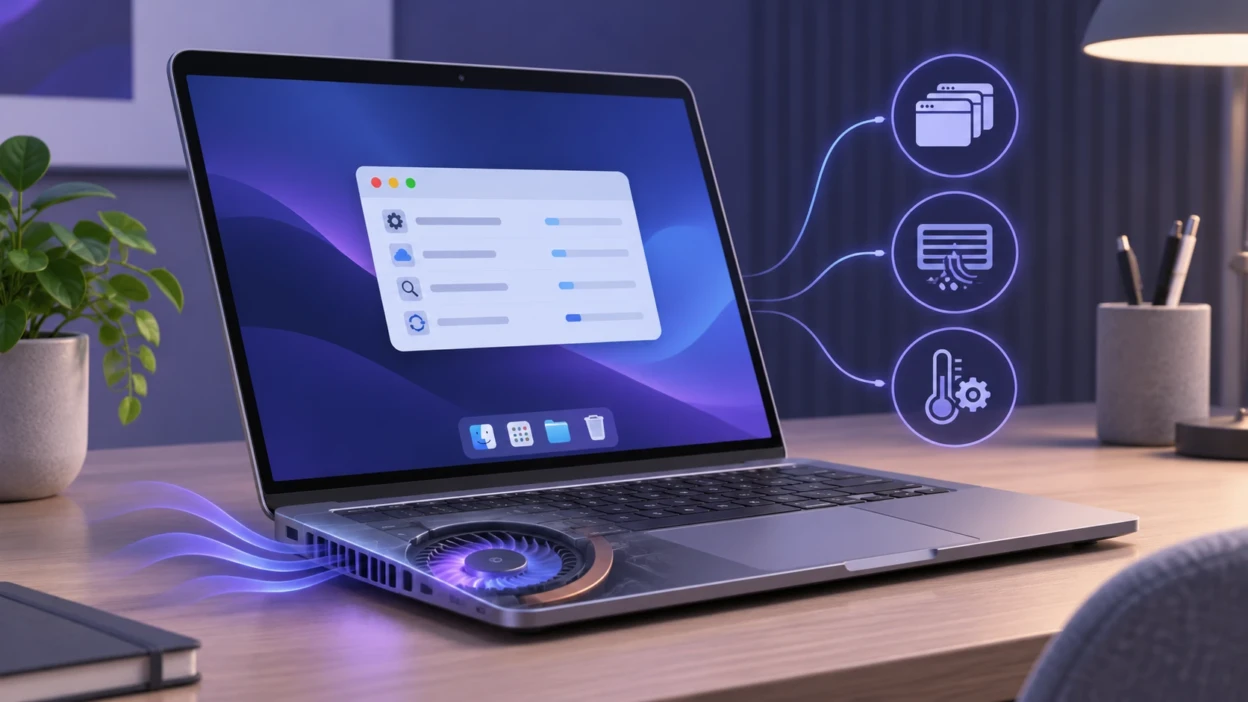
If your laptop fan is loud even when no applications are open, the computer may still be working in the background. Windows updates, antivirus scans, file indexing, and other hidden processes can use the processor and generate heat without displaying anything on your screen.
Other possible causes include dust buildup, blocked ventilation, high-performance power settings, or a problem with the cooling system. Some fan noise is normal, but a laptop that remains unusually loud while idle deserves a closer look.
The best way to fix the problem is to identify what is producing the heat before changing settings or opening the laptop. Here’s how to find the cause and reduce unnecessary fan noise on Windows and macOS.
Why Does My Laptop Fan Run When Nothing Is Open?
Closing every visible application does not mean your laptop has stopped working.
Your operating system continues running essential services in the background. These services handle security checks, software updates, file synchronization, device management, and other tasks.
When these activities increase processor usage, the laptop produces more heat. Temperature sensors then signal the cooling system to increase fan speed.
The fan may also remain active after a demanding task has finished because the internal components have not cooled down yet.
Apple’s explanation of fan noise and thermal management confirms that background tasks such as Spotlight indexing can cause fans to run faster. The surrounding temperature and available ventilation also affect fan activity.
The important distinction is between a fan responding normally to heat and a fan that remains excessively loud because something is wrong.
Common Reasons Your Laptop Fan Is So Loud at Idle
Several factors can make a laptop noisy even when the desktop looks inactive.
1. Background Processes are Using the CPU
The central processing unit (CPU) performs the instructions required by the operating system and applications.
Processes that can keep it busy include:
- Windows Update or macOS software updates.
- Antivirus scanning.
- Search indexing.
- Cloud storage synchronization.
- Automatic application updates.
- Backup software.
- Browser background processes.
For example, a laptop may appear idle while cloud storage software uploads a large folder. The upload, file scanning, and encryption work can keep the processor active.
Another example is a laptop that becomes noisy shortly after a major system update. The operating system may still be completing background maintenance.
These activities are not necessarily problems. However, if one process continues consuming substantial resources without a clear reason, it may need investigation.
2. Dust Is Blocking the Cooling System
Laptops move air through vents and internal cooling components to remove heat.
Over time, dust, hair, and lint can accumulate around the intake openings, fan blades, and heat sink. A heat sink is the metal component that transfers heat away from the processor.
When airflow becomes restricted, the cooling system may need to work harder to maintain a safe operating temperature.
According to Dell’s fan troubleshooting documentation, blocked vents and dust accumulation can contribute to loud fans, overheating, and reduced performance.
Dust is especially worth checking if the laptop has gradually become louder over several months or is regularly used in a dusty environment.
3. The Laptop Is Not Getting Enough Airflow
A laptop can overheat even when its internal fans are clean.
Placing it on a bed, blanket, cushion, or other soft surface may cover the ventilation openings. This prevents the cooling system from drawing in enough air or removing hot air efficiently.
Room temperature also matters. In a warm environment, the laptop has less opportunity to release heat, so its fans may run faster.
A hard, flat desk generally provides better ventilation than a soft surface. A suitable laptop stand may also help when the device has intake vents underneath.
4. Power Settings Favor Performance Instead of Efficiency
Many modern laptops offer several power or thermal profiles.
A performance-focused setting can allow the CPU or graphics processor (GPU) to use more power, potentially increasing heat and fan activity.
This is particularly relevant to gaming laptops and high-performance workstations, where manufacturer utilities may control cooling behavior independently of Windows.
Some devices provide Quiet, Balanced, Performance, or similarly named modes. Their availability and behavior depend on the manufacturer and model.
Switching to an appropriate balanced setting may reduce unnecessary fan noise, although it can also limit performance during demanding activities.
5. Charging or Recent Heavy Activity Is Keeping the Laptop Warm
You may notice that your laptop fan becomes louder when you connect the charger, even though you are not actively using applications.
On some laptops, charging adds heat, while the device may also change its performance behavior when connected to external power.
A laptop can also remain warm after gaming, exporting videos, installing updates, or completing other demanding tasks.
If the fan gradually becomes quieter as the device cools, the behavior may be normal.
However, charging-related noise should not be confused with electrical problems. A damaged charger, unusual battery swelling, burning smell, or excessive heat requires immediate attention.
If battery life has also become noticeably worse, TechBonafide’s guide on checking laptop battery health on Windows and macOS explains how to review battery condition.
6. A Faulty Fan or Cooling Component Is Creating Noise
Not all fan noise is caused by processor activity.
The cooling fan itself may develop mechanical problems. Worn bearings, damaged blades, or physical obstructions can produce rattling, grinding, or clicking sounds.
Other possible hardware-related causes include:
- Poor contact between the processor and cooling assembly.
- Problems with the laptop’s thermal management system.
- A damaged heat sink or cooling component.
- A faulty temperature sensor or fan controller.
These problems are less straightforward to diagnose at home.
A noisy laptop does not automatically need new thermal paste or a replacement fan. Hardware repairs should be considered after simpler software and airflow checks.
Start With a Simple Laptop Idle Test
Before making changes, carry out a short observation test. This helps you distinguish temporary fan activity from a persistent problem.
- Place the laptop on a hard surface. Make sure its ventilation openings are not blocked.
- Close unnecessary applications. Save your work first and exit browsers, games, and other demanding programs.
- Restart the laptop. Use the operating system’s normal Restart option rather than forcing a shutdown.
- Allow background activity to settle. Observe the computer for approximately five to ten minutes. This is a practical test period, not a universal cooling standard.
- Listen to the fan. Notice whether the sound becomes quieter, stays constant, or repeatedly increases and decreases.
- Check resource usage. Use Task Manager on Windows or Activity Monitor on a Mac, following the steps below.
Record three observations: the noise pattern, whether the laptop feels unusually hot, and whether CPU or GPU activity is elevated.
If the fan becomes quieter after a few minutes and the laptop behaves normally, temporary background work may explain the noise.
If the fan remains loud, continue with the operating-system checks.
How to Find Hidden Background Processes on Windows?
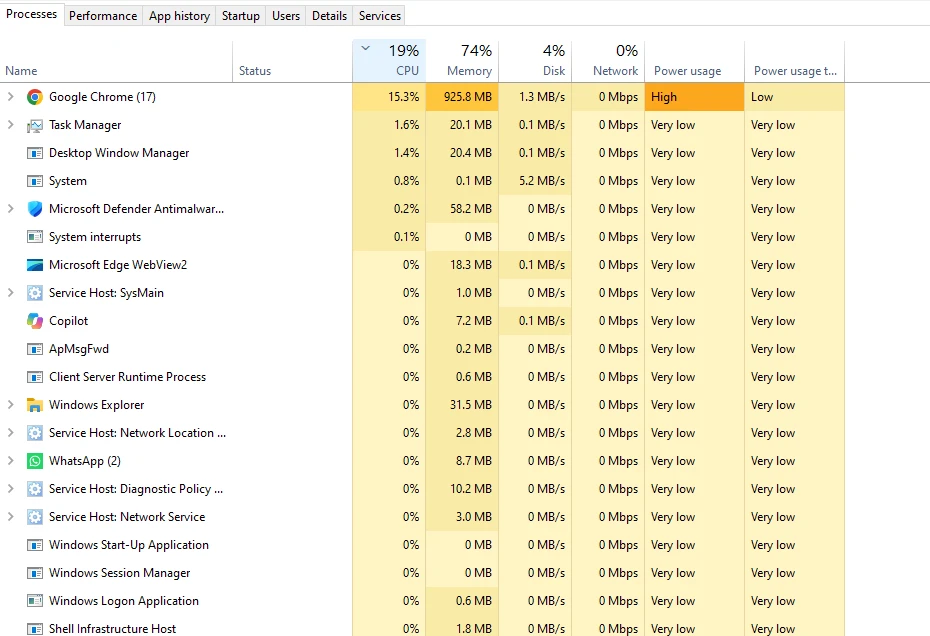
Windows 11 includes Task Manager, which can show applications and system processes that continue working without an open window.
Step 1: Open Task Manager
Press Ctrl + Shift + Esc to open Task Manager.
Alternatively, right-click the Start button and select Task Manager.
Step 2: Identify CPU-Intensive Processes
Select the Processes section and click the CPU column heading to sort processes by processor usage.
Look for applications or services that repeatedly appear near the top.
Examples might include a browser process, a cloud synchronization application, security scanning software, or an update-related process.
Pay attention to sustained activity rather than a single brief spike.
Step 3: Check Other Resource Usage
Open the Performance section to review overall CPU activity and available GPU information.
If CPU usage is low but the GPU remains busy, graphics-related background activity may be contributing to heat.
Memory and disk activity can also provide useful context, although high memory usage alone does not prove the laptop is overheating.
Microsoft’s official Windows performance troubleshooting guide explains how to review resource usage and identify processes affecting system performance.
Step 4: Investigate Unusual Processes
If a process is consistently using substantial resources:
- Identify the application or service responsible.
- Check whether it is performing an expected update, scan, backup, or synchronization.
- Allow legitimate maintenance tasks to finish where practical.
- Close or restart an unnecessary application if it is not responding.
- Investigate the software further if the activity continues unexpectedly.
Do not end unfamiliar Windows system processes just because their CPU usage is high. Interrupting essential services or updates can cause system problems.
Step 5: Check Windows Startup Apps
Some applications launch automatically when you sign in and remain active.
To review them in Windows 11:
- Open Task Manager.
- Select Startup apps.
- Review the listed applications.
- Disable automatic startup for nonessential applications you recognize.
- Restart the laptop and observe whether the noise changes.
Microsoft provides additional instructions for configuring startup applications in Windows.
Do not disable security software, essential device utilities, or unfamiliar services without understanding their function.
How to Check Background Activity on a Mac?
Mac users can investigate the same problem with Activity Monitor.
Step 1: Open Activity Monitor
Open Finder, select Applications, then Utilities, and launch Activity Monitor.
You can also find Activity Monitor using Spotlight Search.
Step 2: Review Processor Usage
Select the CPU tab.
Choose View > All Processes if the full process list is not already displayed, then click % CPU to sort by processor usage.
Look for applications or processes that continue using substantial processor resources when the Mac appears idle.
Apple’s Activity Monitor process guide explains how to examine applications, system processes, and invisible background tasks.
Step 3: Look for Expected Background Activity
Common examples include:
- Spotlight indexing after transferring data.
- iCloud synchronization.
- Photo library processing.
- Software updates.
- Backup operations.
- Applications configured to run in the background.
If the Mac recently completed an update or transferred a large amount of data, allow legitimate background tasks to finish.
Step 4: Review Login Items
Open System Settings > General > Login Items & Extensions, where supported by your macOS version.
Review applications that open automatically and those allowed to perform background activity.
Remove unnecessary login items or disable background permissions for applications you recognize and do not need running.
Be aware that turning off background activity can prevent an application from synchronizing files, checking for updates, or performing other expected functions.
Step 5: Check Mac-Specific Fan Behavior
If the fan remains unusually loud despite low workload and clear ventilation, Apple’s troubleshooting guidance differs by processor type.
For a Mac with Apple silicon, restart the computer and follow Apple’s current model-specific fan troubleshooting instructions.
For an Intel-based Mac, resetting the System Management Controller (SMC) may help in certain cases. Follow Apple’s model-specific instructions because reset procedures differ between Mac models.
Not every Mac laptop contains a fan, so consult the specifications for your exact model if you are uncertain about the source of the sound.
How to Fix a Loud Laptop Fan Without Opening the Laptop?
Once you understand the likely cause, try the following changes in order.
Improve Ventilation First
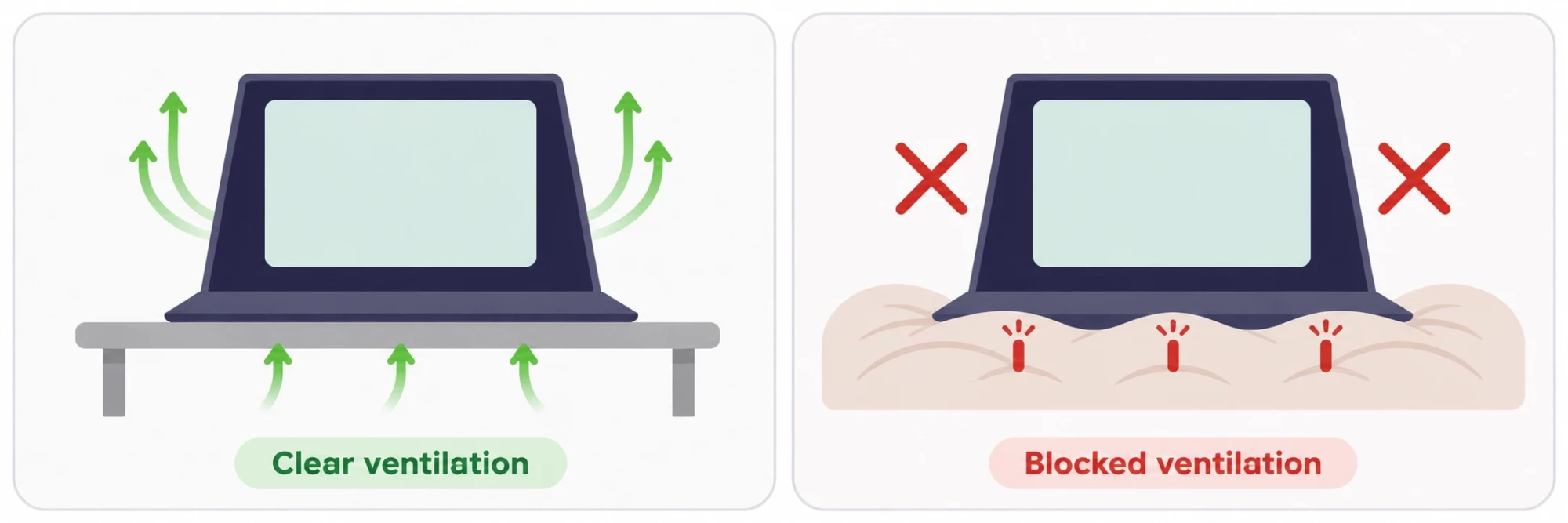
Move the laptop to a clean, hard, stable surface and make sure there is enough space around its ventilation openings.
If the laptop has intake vents underneath, a properly designed stand may improve airflow.
Avoid placing a powered-on laptop on bedding, upholstered furniture, or inside a bag where heat can accumulate.
If changing the surface noticeably reduces fan noise, poor ventilation was likely contributing to the problem.
Reduce Unnecessary Startup and Background Activity
Remove unused applications from automatic startup and check software that performs continuous synchronization or background processing.
You do not need to disable every background service.
Focus on applications that are using unexpected resources or performing work you do not currently require.
If a specific application repeatedly causes excessive processor activity, check for an update, review its settings, or contact its developer.
Switch to a Balanced Power Setting
On Windows 11:
- Open Settings.
- Select System > Power & battery.
- Find Power mode.
- Choose Balanced or Best power efficiency, if available.
- Observe whether the fan becomes quieter during comparable idle conditions.
Microsoft’s Windows power mode documentation explains the available settings.
Some laptops also have manufacturer-controlled thermal modes. For example, ASUS documents configurable fan and performance modes for supported models through MyASUS and related utilities.
These features are model-dependent, so use the manufacturer’s approved software rather than unverified third-party fan-control programs.
A quieter profile may reduce maximum performance. Switch back to an appropriate performance setting when running demanding applications if necessary.
Check for Pending Updates and Software Problems
Check whether your operating system is completing downloads or installing updates.
On Windows 11, open Settings > Windows Update.
On recent macOS versions, open System Settings > General > Software Update.
Install appropriate updates and restart when the operating system requests it.
If the problem started immediately after an update, check the manufacturer’s support documentation for known compatibility issues before changing advanced settings.
Do not assume that every fan problem requires a BIOS update.
If the manufacturer identifies a relevant firmware or driver update for your exact model, follow its official installation instructions. A failed or interrupted firmware update can cause serious system problems.
Scan for Malware if Activity Looks Suspicious
Malware can sometimes consume system resources without opening a visible application.
However, a noisy fan by itself is not evidence of infection.
If unexplained CPU activity occurs alongside suspicious pop-ups, unexpected software, or other security warnings, run a scan using a trusted security product.
Windows users can open Windows Security > Virus & threat protection and perform a Quick scan. Microsoft’s Windows Security documentation provides guidance on the available protection features.
Avoid installing unknown optimization tools or antivirus applications that promise to eliminate fan noise instantly.
Inspect and Clean the Ventilation Openings
Shut down the laptop, unplug external power, and let it cool before inspecting the vents.
Look for visible dust, lint, or objects obstructing airflow.
Cleaning methods vary by manufacturer. Some brands recommend carefully applied canned compressed air, while others specify different cleaning precautions for particular models.
Follow the instructions for your exact laptop. Avoid high-pressure air equipment, inserting objects into vents, or opening the case without the appropriate service guidance.
For example, ASUS’s overheating and fan troubleshooting guide explains ventilation and cleaning precautions for supported devices.
If dust has accumulated deep inside the cooling assembly, professional cleaning may be safer and more effective.
What If My Laptop Fan Is Loud but CPU Usage Is Low?
Low CPU usage does not automatically mean the cooling system should be silent.
Several explanations are possible:
- The laptop is still cooling down. The fan may continue removing heat from components after processor activity has decreased.
- The GPU may be active. A graphics processor can contribute to internal heat, even when the CPU appears relatively idle.
- Airflow may be restricted. A laptop with blocked vents can struggle to remove heat without substantial current processor activity.
- The thermal profile may be aggressive. Some manufacturers configure their fans to start sooner or maintain particular speeds.
- There may be a hardware issue. A sensor, fan controller, cooling component, or fan bearing may be malfunctioning.
A CPU percentage is only one part of the diagnosis. It does not directly tell you the internal temperature, cooling efficiency, or condition of the fan.
For additional technical context, TechBonafide’s CPU vs GPU vs NPU comparison explains how different processors handle workloads and contribute to device performance.
If the fan remains unusually loud with low resource usage, good airflow, and no obvious background activity, consider running the laptop manufacturer’s hardware diagnostic tools.
Laptop Fan Noise: Symptoms, Likely Causes, and Next Steps
Use the following table to narrow down the problem. The causes listed are possibilities, not confirmed diagnoses.
| What You Notice | Possible Explanation | What to Check First |
|---|---|---|
| Fan becomes loud immediately after startup | Startup processes, software updates, or normal initial fan behavior | Allow startup activity to settle and check Task Manager or Activity Monitor |
| Fan runs loudly with no applications open | Background CPU/GPU activity, performance settings, or restricted cooling | Check resource usage and ventilation |
| Fan is loud but CPU usage is low | Remaining internal heat, GPU activity, fan profile, or hardware problem | Check GPU activity, airflow, and manufacturer diagnostics |
| Fan becomes louder when charging | Charging-related heat or a different plugged-in power profile | Compare power settings and normal battery operation |
| Fan becomes loud when using the laptop on a bed | Blocked ventilation | Move the laptop to a hard surface |
| Fan makes grinding, clicking, or rattling sounds | Possible worn or damaged fan | Run a hardware diagnostic and arrange inspection |
| Fan is extremely loud and the laptop repeatedly shuts down | Possible overheating or cooling-system failure | Stop demanding tasks and seek technical support |
If more than one symptom applies, investigate software activity and ventilation first unless there are immediate safety concerns.
When Should You Seek Professional Laptop Repair?
Some cooling problems cannot be fixed through software settings or basic cleaning.
Arrange professional inspection if:
- The fan makes repeated grinding, scraping, or rattling sounds.
- The laptop continues overheating despite clear ventilation and low workload.
- A manufacturer diagnostic reports a fan or thermal error.
- The computer repeatedly shuts down or displays thermal warnings.
- The cooling fan appears damaged or fails to operate when required.
- The noise remains abnormally loud after reasonable software and airflow checks.
Manufacturers such as Dell provide model-dependent hardware diagnostics to help distinguish software problems from cooling hardware faults.
Replacing thermal paste or opening the cooling assembly should not be an automatic first step. Modern laptop designs vary, and incorrect disassembly can damage the cooling hardware or other components.
Check your device’s warranty and official service options before arranging internal repairs.
Important safety warning: If you notice smoke, a burning smell, battery swelling, or a visibly deformed laptop case, stop using the computer. Shut it down and disconnect the charger if you can do so safely. Do not attempt routine cleaning or continued troubleshooting until a qualified professional has assessed the device.
If overheating is accompanied by display failures, TechBonafide’s guide to common causes of black screens on laptops covers other hardware and software issues that may produce similar symptoms.
How to Prevent Excessive Laptop Fan Noise?
A few practical habits can reduce avoidable heat buildup and make future fan problems easier to identify.
- Use the laptop on a stable, well-ventilated surface.
- Keep intake and exhaust openings free of obstructions.
- Review unnecessary startup applications occasionally.
- Maintain current operating-system and manufacturer-supported software.
- Use power settings suited to your actual workload.
- Inspect vents for dust and follow model-specific cleaning guidance.
- Investigate new grinding noises or repeated overheating rather than ignoring them.
You do not need to make your laptop completely silent. Fans are designed to respond to temperature changes, and occasional increases in speed can be part of normal operation.
The goal is to eliminate unnecessary noise while keeping the device properly cooled.
Conclusion
A laptop fan that becomes loud when nothing appears to be open is often responding to background processing, remaining heat, or restricted airflow. Less commonly, the problem involves thermal settings or failing cooling hardware.
Start by placing the laptop on a hard surface, allowing background tasks to settle, and checking resource usage with Task Manager or Activity Monitor. Then review startup applications, power settings, and ventilation.
If noise continues with low resource usage and good airflow, use the manufacturer’s diagnostics or arrange professional inspection. Identifying the actual cause is more effective—and safer—than simply trying to force the fan to slow down.

Tech Bonafide is the editorial identity of TechBonafide, an independent technology publication covering AI, software, cybersecurity, gadgets, and emerging technology.