


AI APIs can become expensive surprisingly quickly. A chatbot that costs only a few cents per conversation may generate a much larger bill when thousands of people use it. Long prompts, repeated requests, and automated AI agents can increase those costs even faster.
The safest way to control AI API spending is to set an enforced monthly spending limit where your provider supports it, enable budget alerts, and add request-level cost controls inside your application. These protections serve different purposes, and using them together reduces the risk of unexpected charges.
OpenAI, Anthropic, Google, Microsoft Azure, and Amazon Web Services provide different billing controls. Some can stop new requests when spending reaches a threshold, while others mainly notify you about rising costs.
This guide explains how those controls work, where to configure them, and what additional steps developers should take before allowing an AI application to run without supervision.
Understand the Difference Between API Spending Limits and Budget Alerts
Before changing your billing settings, understand what each type of limit actually does.
A spending alert sends a notification when your API usage reaches a selected amount. An enforced spending limit can reject or pause API requests after a threshold is reached.
A rate limit works differently. It restricts how frequently an application can send requests, not necessarily how much money those requests cost.
| Control | What it does | Does it stop spending? |
|---|---|---|
| Budget alert | Sends notifications when spending reaches a threshold | No |
| Enforced spending limit | Rejects or pauses new requests after a spending threshold is reached | Yes, subject to enforcement delays and coverage |
| API rate limit | Restricts requests or tokens within a time period | Not necessarily |
| Application spending limit | Checks an application’s budget before allowing more requests | Yes, if correctly implemented across all requests |
| Token limit | Restricts how much text a model can generate in one request | Reduces potential cost per request but does not cap total spending |
For example, imagine your AI application’s monthly budget is $100.
If you configure only an alert at $100, the provider may notify you while the application continues processing requests.
If you configure an enforced limit of $100, supported services will stop accepting new billable requests when the limit takes effect. However, processing delays or requests already underway may still produce additional charges.
This distinction matters because a displayed budget is not always an actual spending cap.
Developers should also understand how request limits work. TechBonafide’s guide to API rate limits and 429 errors explains how throttling differs from longer-term quotas.
Step 1: Calculate How Much Your AI API Requests Cost?
You cannot set a useful spending limit without understanding what creates the charges.
Many AI language APIs use token-based pricing. Tokens are the units used to process input and generate output. A long document requires more input tokens than a short message, while a detailed response usually requires more output tokens than a brief answer.
Providers commonly charge different rates for:
- Input tokens: The information sent to the model.
- Output tokens: The content generated by the model.
- Cached input: Previously processed information that may qualify for different pricing.
- Additional operations: Features such as web searches, image generation, audio processing, or other paid tools.
The amount charged can also depend on the selected model, processing mode, and deployment.
Calculate the Cost of a Typical Request
For a basic text-generation request without other charges, use this formula:
Request cost = (Input tokens ÷ 1,000,000 × Input price) + (Output tokens ÷ 1,000,000 × Output price)
Suppose an application uses a model with these hypothetical prices:
- Input: $2 per million tokens
- Output: $8 per million tokens
Each request processes 12,000 input tokens and produces 2,000 output tokens.
| Cost Component | Calculation | Cost |
|---|---|---|
| Input tokens | 12,000 ÷ 1,000,000 × $2 | $0.024 |
| Output tokens | 2,000 ÷ 1,000,000 × $8 | $0.016 |
| Total per request | $0.024 + $0.016 | $0.040 |
| 5,000 requests | 5,000 × $0.040 | $200 |
In this example, 5,000 requests cost approximately $200.
These prices are illustrative, not a quotation from a particular provider. The calculation also excludes caching adjustments, additional tools, and other possible charges.
For current model-specific prices, consult the provider’s official documentation, such as OpenAI’s API pricing page.
Build a Budget With Extra Room
Suppose you can afford a maximum monthly API bill of $100.
Setting an enforced limit at exactly $100 leaves no room for delayed usage reporting or requests already being processed.
A more cautious approach would be to:
- Set an initial operational spending limit below $100.
- Use the remaining amount as a safety margin.
- Configure alerts before the operational limit is reached.
- Review actual usage before increasing the limit.
For illustration, you might begin with an $80 operational limit and retain $20 of financial headroom.
That 20% margin is an example, not a universally safe percentage. The appropriate margin depends on your request volume, billing delay, concurrency, and the maximum cost of requests already in progress.
An application capable of sending hundreds of expensive requests simultaneously may need substantially more protection.
Step 2: Set a Spending Limit on the OpenAI API
OpenAI supports monthly spending limits at both the organization and project levels.
The platform distinguishes between spending alerts, which monitor costs, and enforced limits, which can stop new API traffic.
According to OpenAI’s official spend limits documentation, administrators can enable a hard limit when they need requests to fail after tracked spending reaches a configured threshold.
Set an Organization-Level Limit
Use this option when you want a spending boundary across your organization’s API projects.
- Sign in to the OpenAI API Platform.
- Open your organization settings.
- Navigate to Organization limits.
- Find the Spend section.
- Select Edit spend limit.
- Enter your monthly spending limit.
- Enable Enforce a hard limit.
- Save the settings.
The organization limit applies to API usage billed across its projects.
Set a Project-Level Limit
If you manage multiple applications, separate project budgets can make spending easier to control.
For example, you might use different projects for a customer-support chatbot, document-processing application, and experimental AI agent.
To configure a project limit:
- Open your project settings in the OpenAI API Platform.
- Select Limits.
- Find Spend and choose Edit spend limit.
- Enter the monthly budget for that project.
- Turn on Enforce a hard limit.
- Save your changes.
- Add spending alerts at useful warning thresholds.
The project limit applies only to usage billed to that project. An organization-level limit can provide an additional ceiling across projects.
What Happens When the Limit Is Reached?
When an enforced OpenAI spending limit takes effect, affected requests can fail with HTTP 429.
The response may contain an error code such as:
project_spend_limit_exceededorganization_spend_limit_exceeded
These errors indicate that a spending restriction was reached.
Do not confuse them with an ordinary API rate-limit error. Increasing your requests-per-minute allowance will not fix an exhausted spending budget.
OpenAI also warns that enforcement is not instantaneous. Recorded spending may slightly exceed the configured amount before the restriction takes effect.
Important: Entering a monthly budget without enabling the hard-limit setting can leave the budget functioning as a monitoring control rather than a request-stopping restriction.
Step 3: Set Monthly Spending Limits on Anthropic Claude
Anthropic’s Claude API also supports monthly spending controls.
Claude Console organizations have spending caps associated with their usage tiers. Administrators can configure a lower organization spending limit when they want tighter cost control.
The configuration process is described in Anthropic’s API rate and spending limits documentation.
Configure an Organization Spending Limit
- Sign in to the Claude Console.
- Open Settings.
- Select Billing.
- Find the Spend limits section.
- Choose Adjust limit, or Set limit if no custom limit exists.
- Enter the desired monthly amount.
- Confirm the change.
Your custom limit cannot exceed the maximum allowed by your organization’s usage tier.
Create Separate Budgets for Claude Workspaces
Teams using Claude for several projects may want different spending limits for each application.
Anthropic supports this through Workspaces.
To configure a workspace budget:
- Open the Workspaces page in the Claude Console.
- Select the workspace you want to manage.
- Open Spend limits.
- Choose Change limit under the monthly spending limit.
- Enter the amount.
- Configure email notifications if needed.
Anthropic’s Workspace management documentation explains that workspace spending limits must remain below the organization’s limit.
One important restriction is that the default Workspace does not support its own separate spending limit. For an application that needs a smaller workspace-level budget, use a suitable non-default workspace.
What Happens When Claude Reaches a Limit?
Anthropic distinguishes between two situations.
When the organization reaches its usage-tier spending cap, API requests can return HTTP 429.
When it reaches a custom organization or workspace spending limit, requests return HTTP 400 with a message explaining that the configured spending limit has been reached.
Access generally resumes after the limit is increased or removed, or when the applicable monthly period resets.
Anthropic also documents that spending enforcement can lag behind recorded usage in some environments. Therefore, a spending limit should not be treated as a guarantee that the final bill will match the configured amount exactly.
Step 4: Set a Spending Cap on the Google Gemini API
Google provides project-level spending controls for the Gemini API.
Google introduced Project Spend Caps in Google AI Studio in March 2026. These allow developers to establish a monthly dollar limit for an individual project.
According to Google’s announcement about Gemini API spending caps, the configured spending cap remains active until it is changed or disabled.
Configure a Gemini API Project Cap
- Open Google AI Studio.
- Select the project you want to manage.
- Navigate to the Spend page.
- Find Monthly spend cap.
- Choose the option to edit the cap.
- Enter the required amount and save it.
- Check the project’s spending dashboard to monitor usage.
Google also applies separate billing-account spending ceilings associated with usage tiers.
These account-level restrictions and developer-configured project limits serve different purposes.
Understand Google’s Enforcement Delay
A Gemini API project spending cap is not guaranteed to stop usage at the precise moment its recorded cost reaches the configured amount.
Google’s March 2026 announcement describes an approximately 10-minute enforcement delay and states that customers remain responsible for charges incurred during that period.
For an application generating significant traffic, even a short delay can matter.
Therefore, developers should combine Gemini spending caps with application-level request controls.
Google Cloud Also Offers Enforced Spend-Cap Budgets
For eligible services, Google Cloud Billing provides another option.
Under Budgets & alerts, authorized users can create a budget using Spend cap enforcement rather than Alerts only.
The process is:
- Open Google Cloud Billing.
- Go to Budgets & alerts.
- Create a new budget.
- Select Spend cap enforcement.
- Choose one project and one eligible service.
- Enter the monthly target amount.
- Save the budget.
Google’s spend-cap budget documentation identifies eligible services including the Gemini API and Gemini Enterprise Agent Platform, formerly Vertex AI.
When an enforced cap is triggered, Google pauses new usage for the selected service within the project.
However, there are important restrictions:
- Enforcement is not instantaneous.
- Requests already running can complete and incur charges.
- Each spend-cap budget covers one project and one eligible service.
- Other cloud services may continue generating charges.
- These budgets are not available for every billing arrangement or service.
- Manually lifting an enforced cap changes its protection for the remainder of the budget period.
A normal Google Cloud budget with alerts enabled should not be confused with a budget configured for spend-cap enforcement.
Step 5: Control Azure OpenAI and Amazon Bedrock Spending
Cloud-based AI services do not all provide the same spending controls.
If your application accesses AI models through Microsoft Azure or Amazon Bedrock, you must check the billing rules of that platform rather than assume the model developer’s own API limits apply.
Microsoft Azure OpenAI
Microsoft provides cost monitoring and budget alerts through Azure Cost Management.
To configure monitoring:
- Sign in to the Azure portal.
- Open Cost Management.
- Select the appropriate subscription or resource scope.
- Navigate to Budgets.
- Create a budget and enter the target spending amount.
- Configure warning thresholds and notifications.
- Save and monitor the budget.
Microsoft’s Foundry cost-management documentation explicitly states that Azure OpenAI does not currently offer the same native hard spending-limit functionality as OpenAI’s direct API platform.
Azure budget alerts do not automatically stop consumption.
Developers who need automatic shutdown behavior must implement additional controls, potentially using automation triggered by budget notifications.
Because billing data and alerts can be delayed, such automation should not be treated as an exact spending ceiling.
Amazon Bedrock
Amazon Bedrock users can monitor costs through AWS billing and cost-management tools.
A practical starting point is to:
- Open AWS Billing and Cost Management.
- Navigate to Budgets.
- Create a cost budget for the relevant workload.
- Use the appropriate service, account, or cost-allocation filters.
- Configure alerts at selected thresholds.
- Review costs regularly in AWS Cost Explorer or supported reporting tools.
AWS also supports budget actions that can apply certain access-control policies when configured thresholds are reached.
However, a standard AWS cost-budget notification is not a real-time hard cap on Amazon Bedrock inference charges.
Budget actions depend on billing updates and must be carefully designed, tested, and authorized. Existing requests or other resources can continue generating costs.
For stronger control, developers can combine AWS billing monitoring with an application gateway that rejects additional AI requests when an internal spending budget is exhausted.
Step 6: Add Spending Limits Inside Your Application
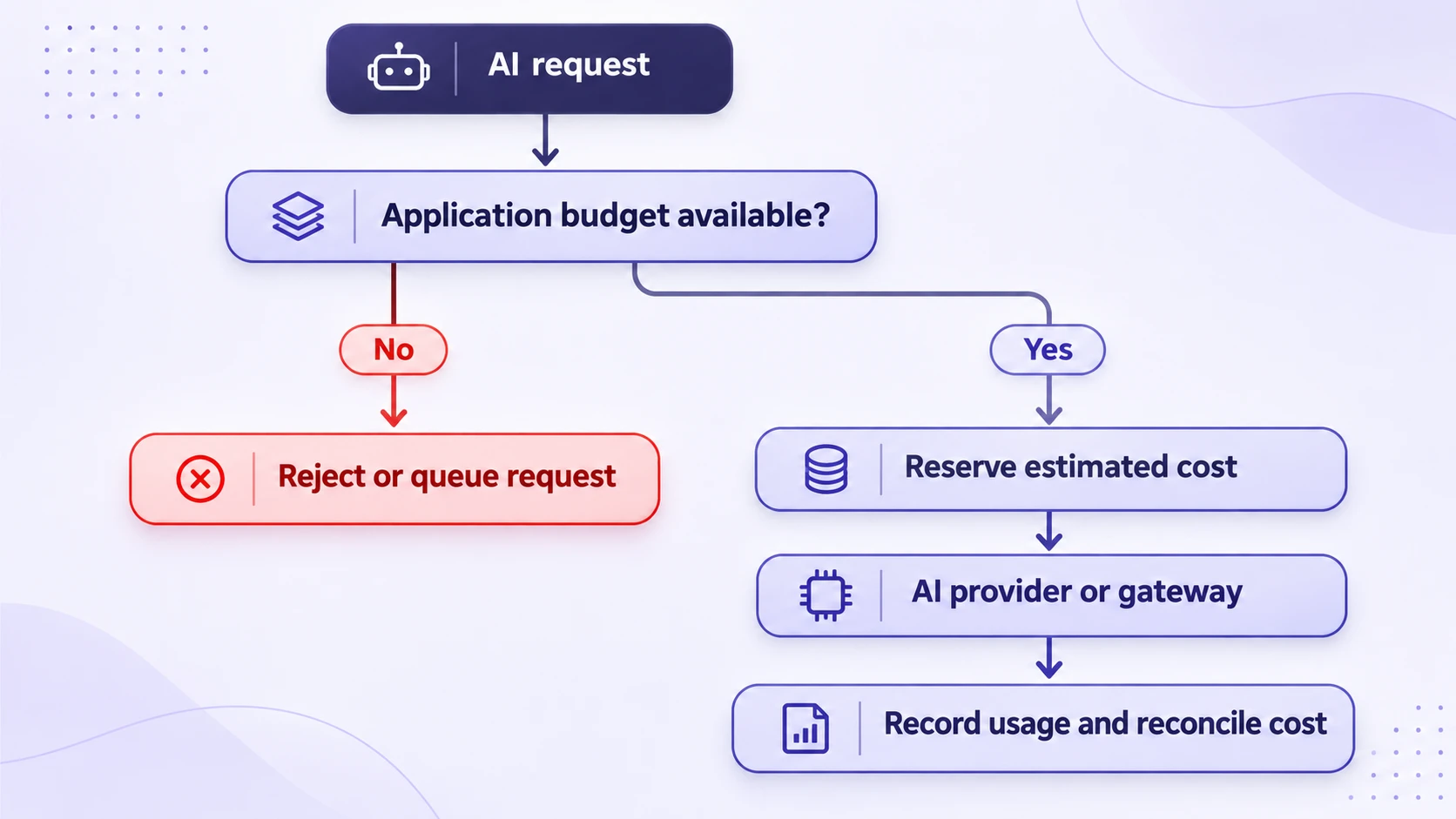
Provider-level spending caps are important, but they should not be the only protection.
An application should have its own rules for determining when an AI request is allowed.
These rules can operate at several levels:
- Monthly budget for the entire application
- Daily spending allowance
- Spending limit per customer or user
- Maximum cost per operation
- Limit on simultaneous requests
- Maximum number of AI-agent steps
- Maximum retry attempts
For instance, a document-analysis service might permit users to process a limited number of documents each day while restricting unusually large files.
A customer-support chatbot might impose a smaller budget on each account and temporarily disable advanced AI features when that account approaches its allowance.
This helps prevent one user or malfunctioning process from consuming an entire shared budget.
Check the Budget Before Sending a Request
A simple application-level spending system follows three stages:
- Estimate how much the next request could cost.
- Check whether enough budget remains.
- Allow or reject the request before sending it to the AI provider.
After a successful request, record the actual token usage and reconcile the estimated cost.
For systems processing multiple requests simultaneously, this check must be coordinated centrally.
Consider an application with $1 remaining in its budget.
If 20 requests each expect to spend $0.10, checking the balance independently could allow all 20 requests to proceed.
That would create up to $2 of additional usage even though only $1 remained.
To avoid this problem, a stronger implementation reserves estimated spending in a shared database or budget service before admitting each request.
The reservation should be atomic, meaning simultaneous requests cannot all claim the same remaining funds.
After completion, the system reconciles the reservation against measured usage. Uncertain charges should not simply be treated as free when a request fails or times out.
For a particularly strict budget, the estimated reservation should account for the maximum permitted output, tool usage, and any bounded retries, not merely the average cost of previous requests.
This approach provides stronger application-level protection, although pricing changes, delayed billing information, and usage outside the controlled application can still affect the final invoice.
Consider an AI API Gateway
An API gateway can centralize access to several AI providers.
Instead of allowing every application component to call a model directly, requests pass through a shared control point.
This can make it easier to enforce budgets across teams, models, or individual users.
For example, Cloudflare AI Gateway’s spending-limit documentation describes cost-based rules that can restrict usage by provider, model, or custom metadata such as a user identifier.
When an applicable rule is over budget, the gateway rejects additional requests.
Cloudflare also warns that its enforcement is eventually consistent. Concurrent requests can temporarily exceed the configured limit because their costs are recorded after processing.
A gateway is therefore a useful control layer, but it is not automatically a guarantee of an exact final bill.
Step 7: Reduce the Cost of Every AI Request
Spending controls prevent runaway usage, but reducing the cost of normal requests makes the budget last longer.
Several practical changes can help.
Choose the Right Model for Each Task
A powerful model is not necessary for every operation.
Simple classification, formatting, or short summaries may work adequately with a less expensive model.
More complex reasoning, demanding coding tasks, and difficult analysis may justify a higher-cost model.
Choose models based on actual task requirements and measured quality.
TechBonafide’s coverage of GPT-6.1 Terra and API pricing illustrates how differences between model prices can affect recurring AI expenses.
Set Reasonable Output Token Limits
Many APIs allow developers to control the maximum number of tokens generated in a response.
For example, OpenAI’s Responses API supports max_output_tokens, while Anthropic’s Messages API uses max_tokens.
These settings can prevent a single request from producing unnecessarily long output.
However, they do not limit how many requests your application can send.
They can also interrupt a response before it is complete, so choose values that suit the task.
Avoid Sending Unnecessary Context
Large inputs increase the amount of material processed.
Before submitting a request:
- Remove irrelevant conversation history.
- Avoid repeatedly sending documents that are not needed.
- Retrieve only the reference material relevant to the question.
- Shorten prompts without removing essential instructions.
- Monitor token usage instead of estimating it from visible word counts alone.
OpenAI’s cost optimization guidance recommends reducing unnecessary requests and tokens and selecting appropriately sized models.
Use Caching Where It Makes Sense
Some AI APIs offer discounted processing for reusable prompt content.
For example, applications that repeatedly send the same instructions or reference material may benefit from supported prompt-caching features.
Caching behavior and pricing depend on the provider and model.
Do not assume that simply storing a previous response or reusing a prompt automatically qualifies it for a provider’s discounted token pricing.
You should also avoid sharing sensitive cached responses between users who are not authorized to access the same information.
Control Automatic Retries and AI-Agent Loops
Retries are useful when a temporary error prevents a request from completing.
However, repeated calls can increase spending when the application does not recognize that an operation has already succeeded or when it continues retrying a permanent failure.
For safer handling:
- Limit the number of retries.
- Use backoff when retrying temporary failures.
- Do not retry spending-limit errors until the budget is restored.
- Track whether an uncertain operation may already have completed.
- Set maximum steps and tool-call counts for AI agents.
- Cancel unnecessary background jobs.
Automatic AI agents deserve particular attention because one user action may trigger many model calls, searches, and tool operations.
A spending budget should cover the entire workflow, not only the first model request.
Step 8: Monitor AI Spending and Detect Unusual Activity
A spending cap helps contain costs, but it does not explain why spending increased.
Useful monitoring should answer:
- Which application is generating the most API usage?
- Which model is responsible for the highest cost?
- How much does an average request cost?
- Which users or customers consume the most tokens?
- Are retries increasing?
- Has the number of requests suddenly changed?
- How much of the monthly budget remains?
For a small project, the provider’s billing dashboard may be enough.
For a larger application, record usage by project, model, application feature, and customer account.
Compare estimated application costs with the provider’s actual billing records. Differences may arise from cached-token rates, tool charges, pricing changes, delayed reporting, or operations that bypass your internal gateway.
Protect API Keys From Unauthorized Use
Unexpected API costs are not always caused by normal application traffic.
An exposed API key may allow unauthorized requests if it has not been properly restricted or revoked.
Store credentials securely, keep them out of public repositories and browser code, and use appropriately restricted credentials where supported.
Separate development and production access where practical.
If you suspect that a key has been compromised, disable or rotate it promptly, investigate the associated usage, and contact the provider about unexplained charges.
Our guide to API security risks in connected applications explains related authentication and abuse-prevention measures.
Step 9: Test Your Spending Controls Before Launch
A spending limit is only useful if it behaves as expected.
Before deploying an AI application publicly, test the configuration in a separate development environment.
Follow this checklist:
- Confirm billing ownership: Verify which organization, project, cloud account, and service will be charged.
- Configure a small test budget: Use a low-risk amount that you are willing to spend.
- Enable enforcement: Check that the setting blocks requests rather than merely sending notifications.
- Generate limited test usage: Monitor spending without deliberately creating a large bill.
- Observe the result: Confirm whether the provider rejects new requests after enforcement takes effect.
- Check error handling: Make sure the application recognizes spending-limit errors.
- Disable uncontrolled retries: Confirm the application does not repeatedly call the API after a budget block.
- Review the billing dashboard: Compare measured usage with the configured limit and any additional charges.
- Test recovery: Establish the approved process for restoring access when the budget is legitimately increased.
These checks can reveal configuration errors before they affect production users.
For applications that cannot tolerate an unexpected interruption, design a fallback response such as temporarily disabling an AI feature, placing work in a queue, or switching to a preapproved lower-cost operation.
Do not automatically switch to another paid provider when the budget is exhausted unless that fallback has its own approved spending limit.
Common Mistakes That Lead to Unexpected AI API Bills
Even developers who configure budgets can encounter unnecessary costs.
The most common mistakes include:
- Treating an alert as a hard limitA notification does not necessarily stop requests. Confirm the actual enforcement behavior in the provider’s documentation.
- Using only request-per-minute limitsA single expensive request may process substantially more information than a simple one. Traffic controls alone cannot guarantee a spending ceiling.
- Sharing one unrestricted API key across applicationsThis makes it harder to identify the source of unexpected costs and may expose unrelated projects to the same budget risk.
- Forgetting background operationsScheduled tasks, evaluation jobs, automatic document processing, and unattended AI agents may continue generating requests when nobody is using the application.
- Ignoring reporting delaysProvider dashboards may not immediately reflect every completed request. Concurrent traffic can produce spending above a configured cap.
- Failing to account for extra chargesSome AI workflows use additional billable tools, hosted resources, storage, or processing features. Token costs may represent only part of the total expense.
- Setting limits without planning for interruptionA spending cap may protect the budget while temporarily disabling a customer-facing feature. Decide how the application should behave before the limit is reached.
- Assuming cloud AI and local AI have identical costsLocally operated AI can eliminate some per-request API charges, but it introduces hardware, electricity, maintenance, and infrastructure expenses.
For a broader comparison, see TechBonafide’s guide to local AI versus cloud AI.
Conclusion
Setting an AI API spending limit is one of the first steps developers should take before launching a paid AI feature.
Start by calculating typical request costs and deciding how much your application can afford to spend each month. Then configure enforced limits where your provider supports them, add early warning alerts, and protect individual requests with application-level budget checks.
OpenAI, Anthropic, and Google offer direct spending-control features, while Azure OpenAI and Amazon Bedrock require particular care because ordinary cloud budget notifications do not provide the same immediate enforcement.
Most importantly, remember that even an enforced spending cap may allow a small amount of additional usage before it takes effect.
For an experimental project, a modest monthly cap and regular monitoring may be sufficient. For a public application handling large numbers of requests, combine provider limits, centralized request controls, token restrictions, and reliable billing reports.
The goal is not simply to lower AI costs. It is to make those costs understandable, manageable, and less likely to surprise you.

Tech Bonafide is the editorial identity of TechBonafide, an independent technology publication covering AI, software, cybersecurity, gadgets, and emerging technology.