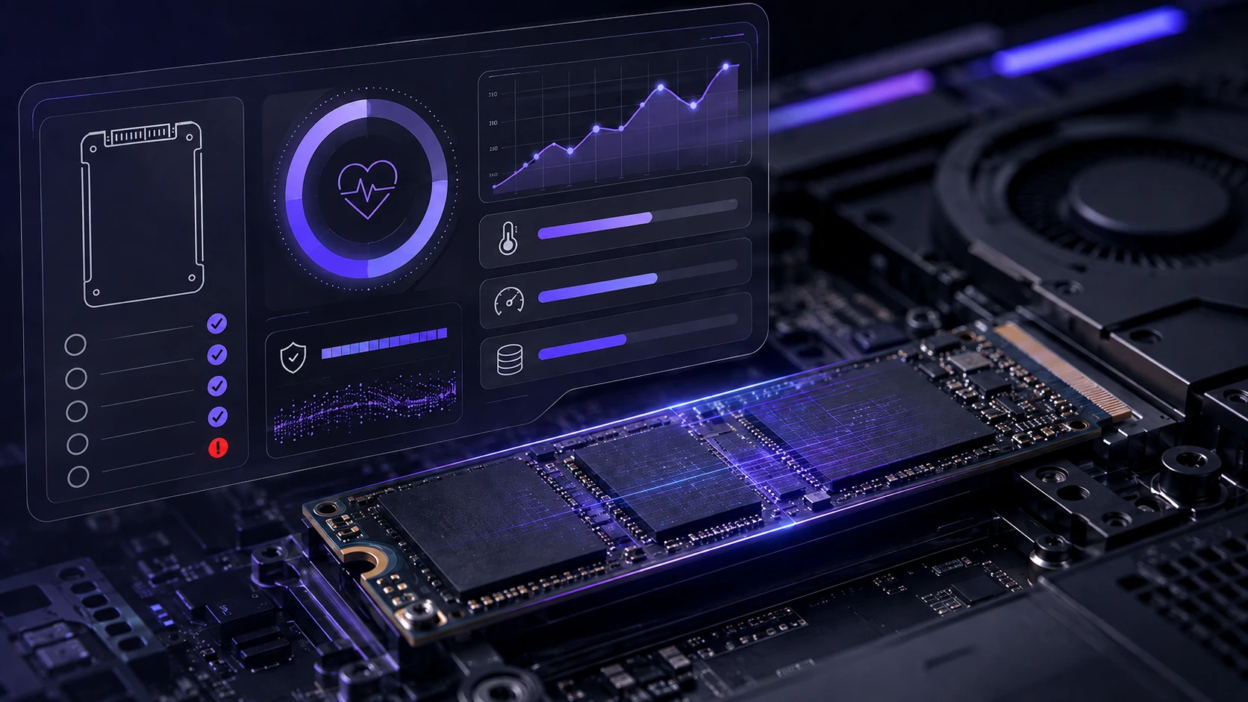
SSD failure rarely gives a dramatic warning, but it usually leaves measurable clues in SMART data, system logs, and day-to-day performance. The key is to check SSD health on a schedule, understand what the numbers mean, and act early with backups and replacement planning.
What SSD Health Means And Why It Changes?
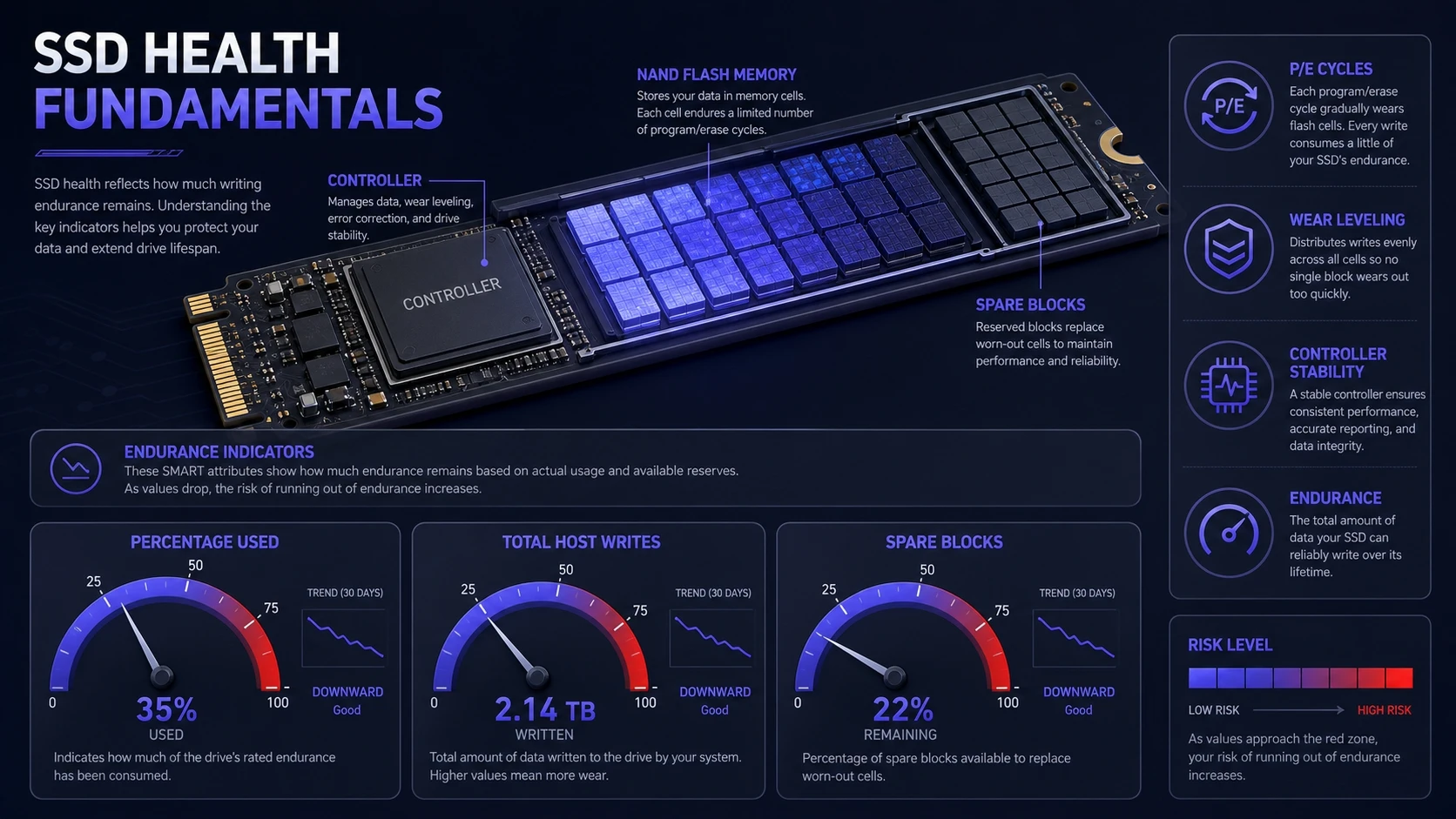
SSD health is a mix of remaining flash endurance, controller stability, and error behavior under real workloads. Unlike hard drives, SSDs wear out based on program and erase cycles, even when they still feel fast.
Manufacturers track this wear with internal counters such as percentage used, total host writes, and spare blocks available. When these counters move in the wrong direction, the drive can still work, but your risk rises quickly.
Common Signs Your SSD Is Getting Worse
Visible symptoms matter because they often show up before a complete failure. If you notice patterns, treat them as a prompt to check SSD health immediately.
- Slower Boot Or App Launch: Consistent delays can indicate background error correction or reduced performance due to wear management.
- Random Freezes Under Load: Brief hangs during installs, updates, or large file copies can show controller retries or unstable NAND behavior.
- Unexpected Read Errors: Files that fail to open, checksum mismatches, or repeated decompression errors can point to rising uncorrectable errors.
- Blue Screens Or Kernel Panics: Storage related stop codes or repeated I O errors in logs are serious signals, especially if they repeat.
- System Updates Failing: Update loops or rollback events can happen when writes fail during patching or staging.
Symptoms alone do not confirm failure, but they are a strong reason to review SMART data and logs next.
Check SSD Health With SMART Data
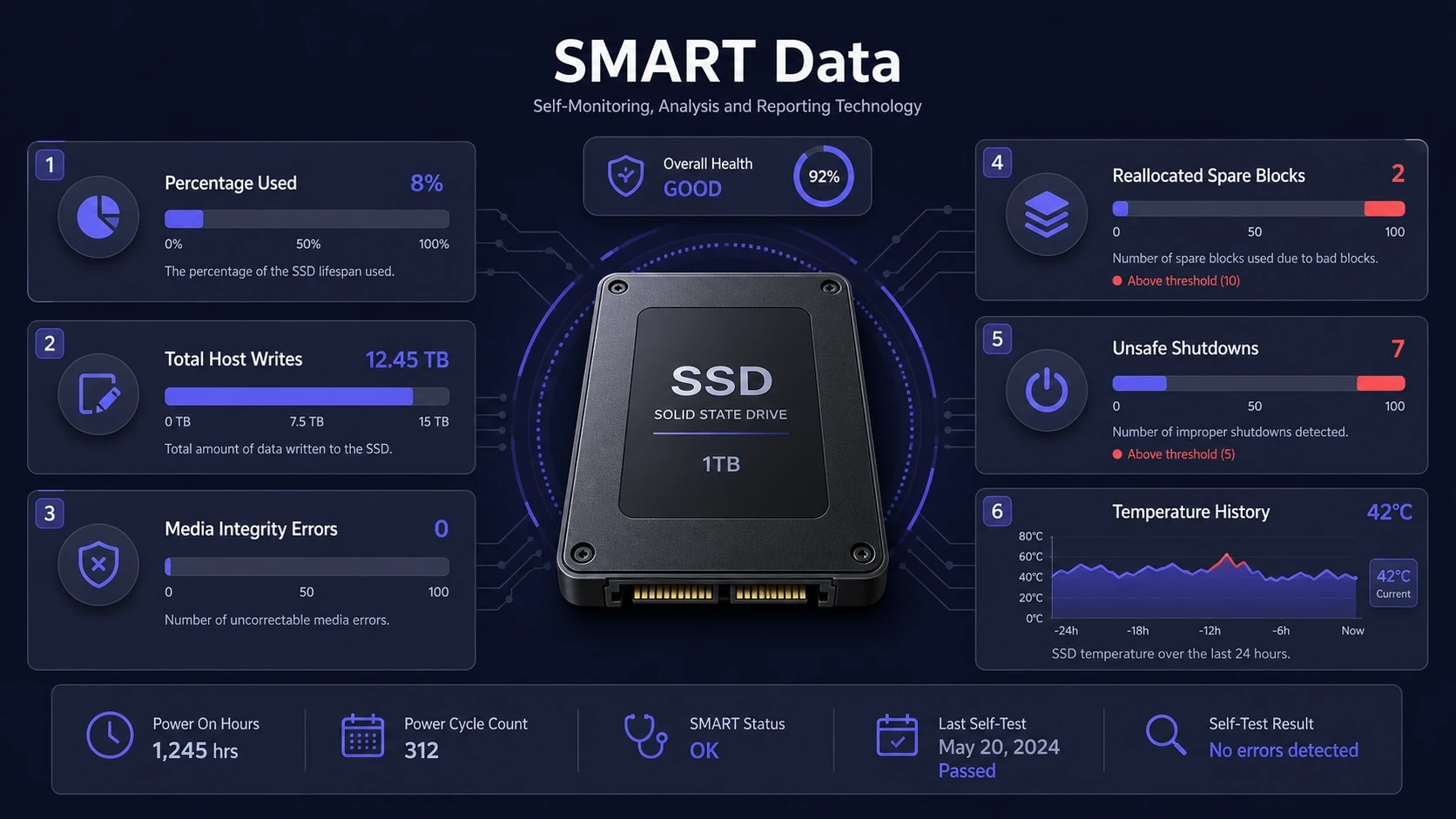
SMART is the most useful baseline because it surfaces wear, errors, and internal events the operating system cannot see directly. Most modern SSDs expose a health percentage and endurance details, but the names of attributes vary by brand.
Focus on trends rather than a single snapshot. A sudden change in error counters, or a fast drop in remaining life, matters more than a minor fluctuation.
Key SMART Values To Review
Different tools label these fields differently, but the underlying meaning is usually consistent. When a drive reports a low remaining life or rising uncorrectable errors, prioritize backups first, then deeper diagnostics.
- Percentage Used Or Remaining Life: A rising percentage used indicates endurance consumption and helps predict replacement timing.
- Total Host Writes: Compares how much data the drive has written against its rated endurance, often shown as TBW or similar counters.
- Media And Data Integrity Errors: Signals uncorrectable issues that can lead to data loss, even if the drive still mounts.
- Reallocated Or Spare Blocks: Shows how much spare area is being used to replace failing cells, and fast growth is a risk sign.
- Unsafe Shutdowns: High counts can increase corruption risk and may correlate with file system issues after power loss.
- Temperature History: Sustained high temperatures can accelerate wear and increase error rates.
After reviewing these values, confirm whether the operating system has logged matching storage warnings.
How To Check SSD Health On Windows?
Windows offers quick checks through built-in tools, and deeper visibility through PowerShell and event logs. Use a layered approach, starting with health status and then drilling into error patterns.
Use Windows Drive Status And PowerShell
Start with Windows settings and hardware status, then verify the SMART health indicator. If Windows reports a warning, treat it as urgent and proceed to immediate backup.
- Check Drive Health Status: Open Windows storage settings and review the drive health section for warnings related to reliability.
- Run Get PhysicalDisk: Use PowerShell to view the media type and health status reported by the storage stack.
- Review SMART Details With A Utility: Use a reputable local SMART viewer to read manufacturer attributes and compare with prior baselines.
Next, confirm whether Windows has logged disk resets, timeouts, or I O errors.
Review Event Viewer Storage Errors
Event Viewer often shows early trouble such as controller resets, timeouts, or NTFS warnings. Repeated storage events over several days can be as important as a single SMART warning.
- Open System Logs: Review the System channel and filter for disk, storahci, nvme, and file system events.
- Check Error Frequency: Look for patterns that repeat during high activity such as updates, gaming loads, or large transfers.
- Correlate With SMART Changes: If errors rise while SMART integrity counters also rise, plan a controlled migration.
Once Windows checks are complete, validate the file system and data integrity.
How To Check SSD Health On Mac?
macOS can show basic drive information through Disk Utility and system reports. For Apple Silicon and modern macOS versions, SMART support depends on the connection type, and external enclosures may not pass through full SMART data.
Disk Utility First Aid can catch file system issues, but it cannot fully diagnose NAND wear. If SMART data is available, review it alongside system logs for storage errors.
How To Check SSD Health On Linux?
Linux users typically rely on smartmontools and NVMe CLI utilities to read SMART and NVMe log pages. These tools can show endurance, media errors, temperature, and error log entries with high precision.
After checking SMART, review kernel logs for I O errors and timeouts. A drive that looks healthy in a single snapshot may still be unstable under load if error logs are growing.
SSD Health Checks That Matter Most
Some checks deliver more signal than others, especially when you want to prevent failure rather than react to it. Use the table below to pick the right check based on symptoms and urgency.
| Check | What It Tells You | When To Act |
|---|---|---|
| SMART Remaining Life | Endurance consumption and wear indicator | Back up and plan replacement when it drops quickly or reaches a low threshold |
| Media And Data Integrity Errors | Uncorrectable errors that can lead to data loss | Back up immediately and migrate if the counter is nonzero or rising |
| Operating System Event Logs | Timeouts, resets, file system warnings, and I O errors | Investigate if errors repeat, especially during heavy writes or updates |
| File System Check | Directory consistency and metadata integrity | Run after unsafe shutdowns, freezes, or any suspected corruption |
After running these checks, the next step is deciding whether monitoring is enough or if you should migrate now.
How Often To Monitor SSD Health?
A simple schedule prevents last-minute scrambles. Monthly checks work for most personal systems, while weekly checks make sense for workstations, servers, and machines that handle constant writes.
Increase frequency if you do video editing, heavy compiling, virtualization, databases, or frequent large downloads. These workloads can push write amplification higher, which accelerates endurance consumption.
What To Do If Your SSD Health Looks Bad?
When indicators move in the wrong direction, avoid stress testing that adds heavy writes. Your priority is preserving data and moving to a stable drive.
- Back Up Critical Data First: Copy irreplaceable files to a separate device or trusted storage before you attempt repairs or cloning.
- Check Cabling And Slot Stability: Reseat NVMe drives, verify SATA cables, and confirm the drive is not overheating due to poor airflow.
- Update Firmware Carefully: Apply vendor firmware updates only after a backup, since power loss or instability during updates can cause issues.
- Clone To A New SSD: Use a reliable cloning tool and verify the clone boots and files open cleanly after migration.
- Retire The Drive: If uncorrectable errors or integrity counters continue to rise, stop using it for important data.
Once you have a stable replacement, you can reduce the chance of repeating the same problem.
Preventive Habits That Extend SSD Lifespan
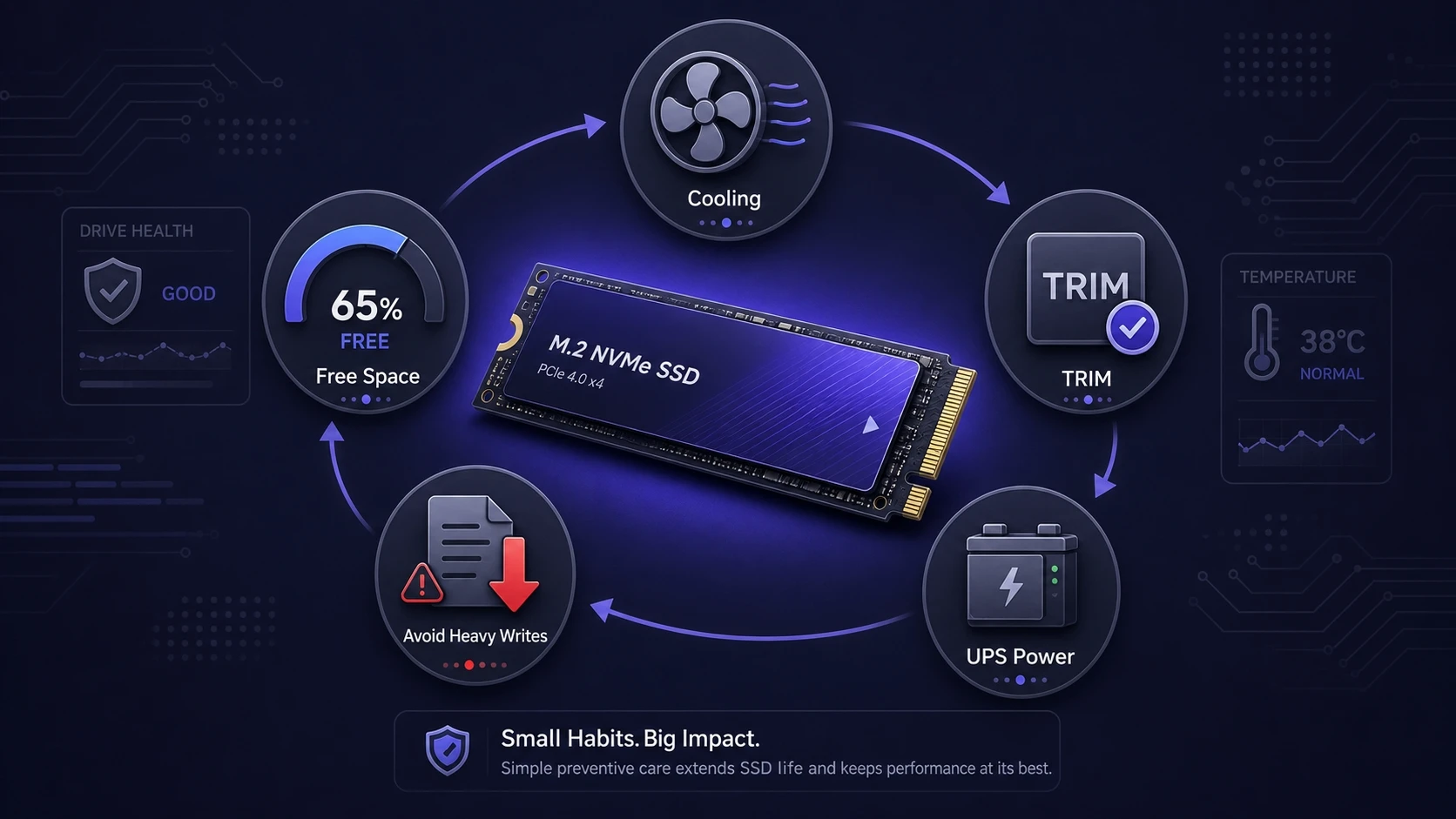
Healthy SSD usage is mostly about avoiding heat, avoiding sudden power loss, and keeping enough free space for wear leveling. These habits also make performance more consistent over time.
- Keep Free Space Available: Leaving comfortable headroom helps the controller spread writes and reduces write amplification.
- Control Temperature: Ensure airflow over M.2 drives and avoid blocked vents in laptops or small form factor systems.
- Enable TRIM: TRIM helps the drive manage deleted blocks efficiently and supports long-term performance.
- Use A UPS For Desktops: Stable power reduces unsafe shutdowns that can increase corruption risk.
- Avoid Unnecessary Heavy Writes: Limit repeated full-disk benchmarks and large temporary caches when you can.
These practices reduce risk, but they never replace a solid backup routine.
When It Makes Sense To Get Professional Help?
If your system will not boot, the SSD disappears, or critical files cannot be read, professional recovery may be the safest path. Continued power cycles and repeated cloning attempts can worsen damage, especially when the controller is unstable.
For businesses, planning matters as much as recovery. Tech Bonafide supports teams with practical IT guidance, procurement friendly upgrade planning, and reliability focused workflows that reduce downtime when storage issues appear.
Conclusion
To check SSD health before your drive fails, combine SMART trends, operating system logs, and basic file system checks. Watch for rising integrity errors, rapid drops in remaining life, and repeating I O warnings, then act early with backups and migration.
Consistency is what prevents surprises. A short monthly review and a tested backup plan can turn SSD failure from a crisis into a routine maintenance task.
Frequently Asked Questions
What Is The Fastest Way To Check SSD Health?
The fastest approach is reading the drive health status and SMART summary in a trusted local utility, then confirming there are no storage errors in system logs. This gives both the drive view and the operating system view in a few minutes.
Is A SMART Health Warning Always Accurate For SSDs?
It is a strong signal, but it depends on the attribute and vendor implementation. Treat any SMART warning or nonzero uncorrectable error counter as actionable and back up immediately, even if performance still seems normal.
Can An SSD Fail Even If Health Percentage Looks Fine?
Yes, controller issues, firmware bugs, overheating, or power events can cause sudden failure even when endurance looks high. That is why logs, temperature monitoring, and reliable backups matter alongside the health percentage.