HDMI 2.1 vs DisplayPort 2.1 is an important comparison for gamers choosing a connection for a 1440p or 4K high-refresh-rate monitor. Both standards can deliver sharp visuals, smooth gameplay, HDR, and variable refresh rate (VRR), but their bandwidth capabilities, supported features, and device compatibility differ. DisplayPort 2.1 can offer greater bandwidth for demanding PC monitor setups, while HDMI 2.1 is widely supported by gaming consoles and TVs. This guide compares bandwidth, refresh rates, VRR, HDR, input latency, and cable requirements to help you choose the right connection for your gaming setup.
What HDMI 2.1 and DisplayPort 2.1 Really Control?
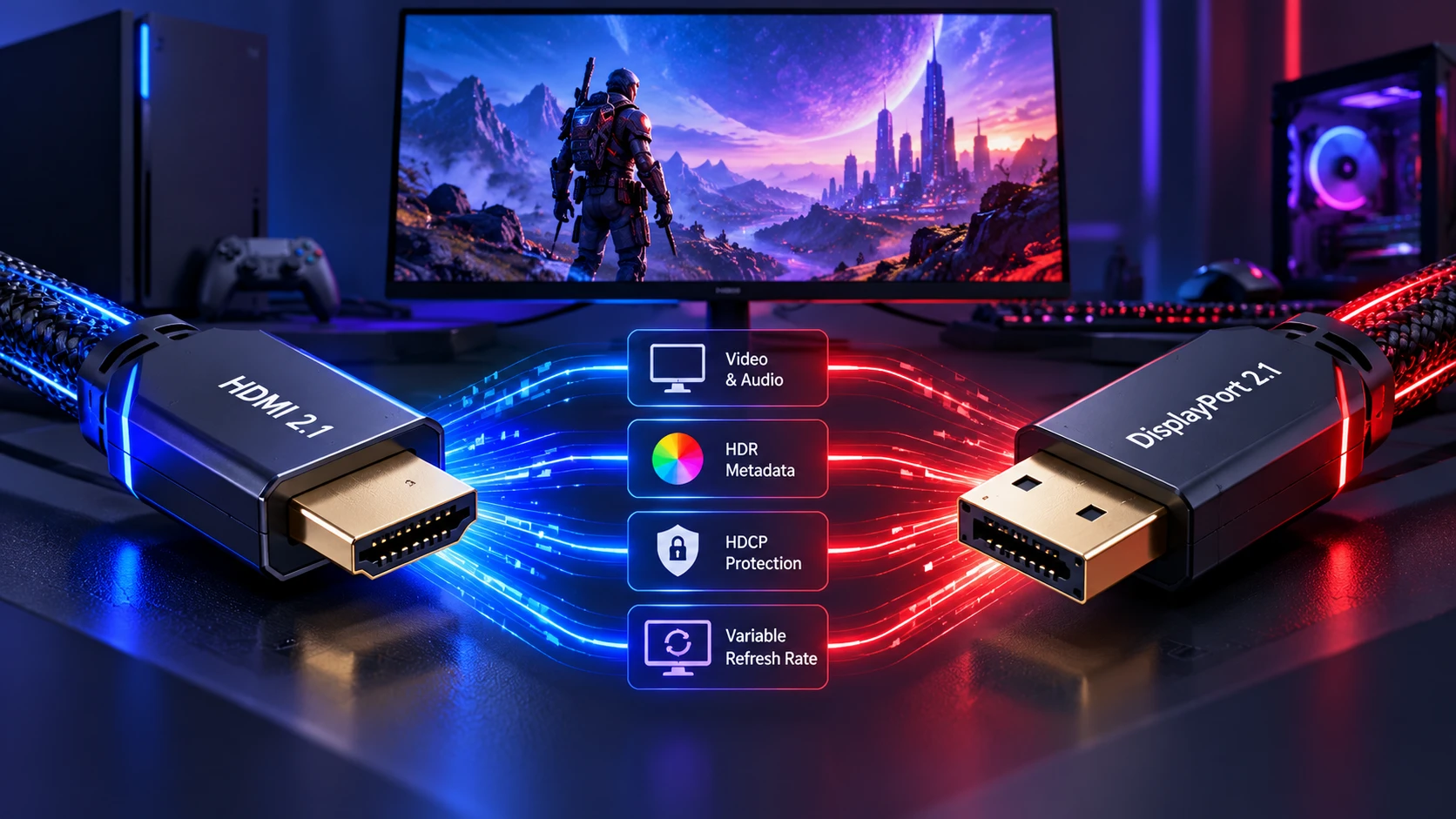
Both standards carry digital video and audio from a source device to a monitor. They also transport feature data such as HDR metadata, HDCP copy protection, and variable refresh rate signaling. If any part of that chain is mismatched, the monitor may fall back to lower refresh rates or disable features.
The headline difference is available bandwidth and how that bandwidth is used. Higher bandwidth makes it easier to run 4K at high refresh rates with full color depth and without heavy compression. It also increases headroom for future monitor upgrades.
Bandwidth and Data Rate Differences
HDMI 2.1 introduces Fixed Rate Link (FRL) signaling and supports a maximum raw bandwidth of 48 Gbps with compatible full-bandwidth hardware. According to the official HDMI 2.1 specification, the standard also supports high-resolution modes such as 4K at 120 Hz, along with additional display and gaming features. DisplayPort 2.1 supports multiple Ultra-High Bit Rate modes, with UHBR20 reaching up to 80 Gbps of raw bandwidth. However, the maximum capability of either standard is not guaranteed on every device, making it important to check the actual specifications of the GPU, monitor, and cable.
DisplayPort 2.1 devices can support different Ultra-High Bit Rate link modes, so not every DisplayPort 2.1 connection delivers the maximum 80 Gbps raw bandwidth. VESA’s DisplayPort UHBR certification guidance explains the relationship between supported link rates and certified cable capabilities. Before purchasing, confirm whether your graphics card and monitor support UHBR10, UHBR13.5, or UHBR20, and choose a compatible cable. Also verify the available resolution, refresh rate, color depth, and compression support to avoid unexpected display limitations.
| Feature | HDMI 2.1 | DisplayPort 2.1 |
|---|---|---|
| Maximum Raw Bandwidth | Up to 48 Gbps | Up to 80 Gbps with UHBR20 |
| Actual Link Support | Depends on device implementation | Depends on UHBR mode and device implementation |
| Typical Use | Gaming consoles, TVs, PC monitors | PC gaming monitors and workstations |
| High Refresh Gaming | Supports demanding 4K modes | Higher potential bandwidth for demanding display modes |
| Variable Refresh Rate | HDMI VRR on supported devices | Adaptive-Sync and compatible VRR implementations |
| Compression | DSC may be used for demanding modes | DSC may be used for demanding modes |
| Recommended Cable | Certified Ultra High Speed HDMI cable | Appropriate VESA-certified DP40, DP54, or DP80 cable |
| Console Compatibility | Standard connection for current major consoles | Generally unavailable as a native connection on current major consoles |
| Best Fit | Console gaming and mixed-device setups | High-bandwidth PC gaming setups |
The practical takeaway is simple. If you aim for the highest possible refresh rate at 4K or plan to move beyond 4K later, DisplayPort 2.1 is usually the more future-proof pipe. If you need maximum compatibility across TVs, capture devices, and consoles, HDMI 2.1 is often the easier path.
Gaming Monitor Refresh Rate and Resolution Targets
Gaming monitors generally fall into three common resolution categories. Full HD (1080p) monitors often prioritize high refresh rates for competitive gaming, while 1440p monitors balance image sharpness and performance. At 4K, high refresh rates create greater display bandwidth demands, especially with higher color depth. If you want to understand how resolution, pixels, and refresh rates affect display quality, read our guide on how pixels work, which explains the fundamentals of modern display technology.
HDMI 2.1 supports 4K gaming at 120 Hz on compatible graphics cards, consoles, monitors, and TVs, making it a practical connection for mixed gaming setups. DisplayPort 2.1 can provide additional bandwidth for PC monitors targeting higher refresh rates, deeper color formats, or more demanding resolutions. However, the actual supported display mode depends on the port’s link rate and whether features such as Display Stream Compression are available. Before purchasing a monitor, check the manufacturer’s specifications for 4K refresh rates, color depth, and VRR support on each input.
- 1080p High Refresh: Either connection works well, so choose the port your GPU and monitor handle most reliably.
- 1440p High Refresh: DisplayPort is commonly the smoothest experience on PC monitors, but HDMI 2.1 can be equally clean on newer displays.
- 4K High Refresh: HDMI 2.1 is widely supported, while DisplayPort 2.1 offers more headroom if both devices support it.
This is where shopping details matter. A monitor may list HDMI 2.1 but limit refresh rate at 4K due to internal processing, while the same monitor may run higher over DisplayPort. Reading the detailed timing table in the monitor specs saves time later.
VRR Support and Smoothness in Real Play
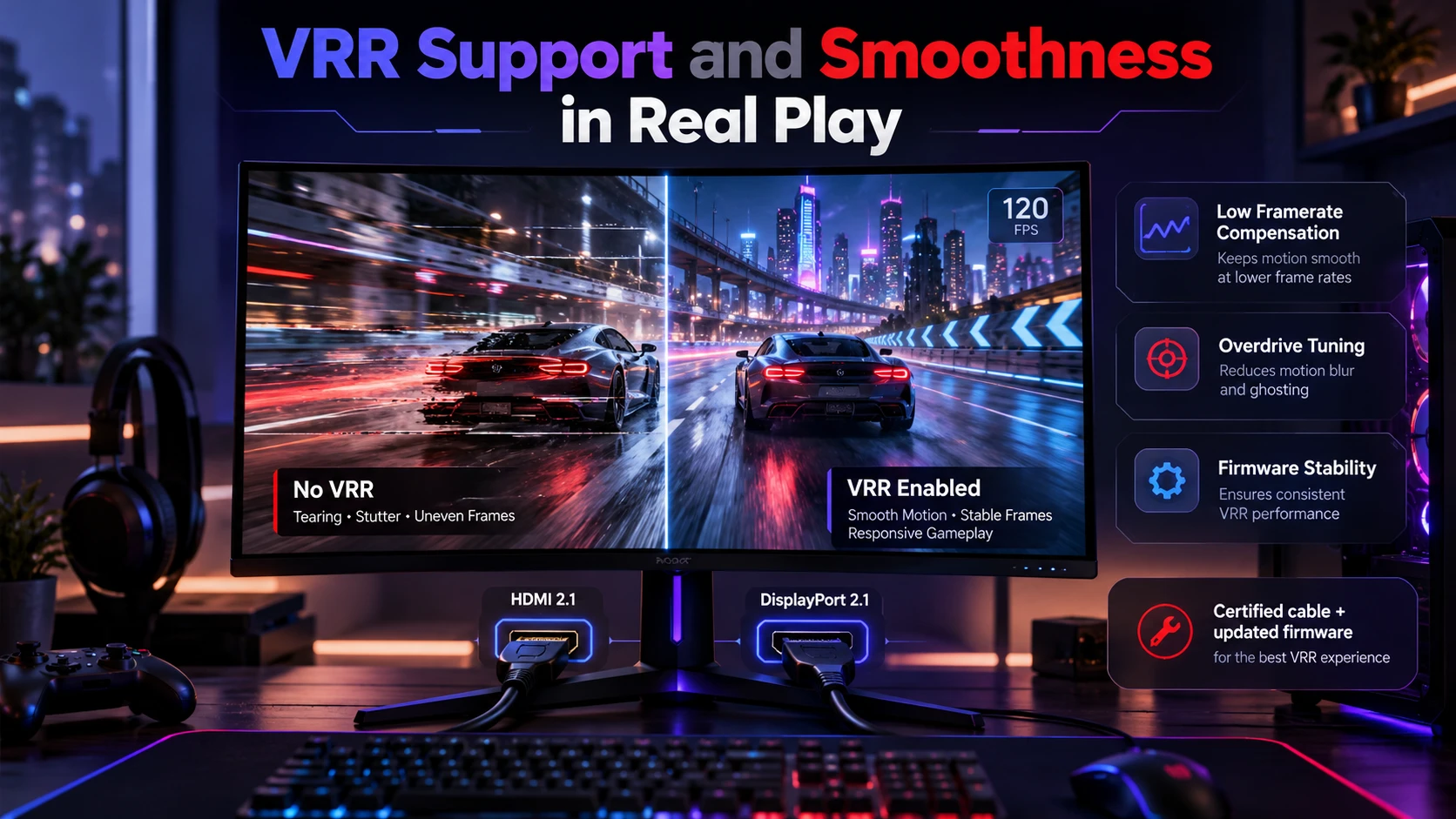
Variable refresh rate (VRR) allows a compatible display to adjust its refresh timing to match changing frame delivery from the GPU. This can reduce screen tearing and some forms of stutter during gameplay. HDMI 2.1 includes HDMI VRR capability, while DisplayPort supports Adaptive-Sync-based solutions used by many gaming monitors. Technologies such as AMD FreeSync and NVIDIA G-SYNC Compatible also depend on supported display and graphics hardware configurations. Because VRR support is not identical across every connection and device, check the monitor’s specifications and supported refresh-rate range before assuming that all VRR features will work.
On PC gaming monitors, DisplayPort has long been a common connection for variable refresh rate support, while HDMI VRR is also available on compatible modern displays. The experience depends on the GPU, monitor firmware, driver support, and the selected refresh-rate range. VRR also works alongside the frame output produced by the game, making consistent rendering performance important. Our frame generation vs native FPS guide explains how displayed frame rates, responsiveness, and monitor refresh behavior interact in modern gaming setups.
- Low Framerate Compensation: Helps VRR remain smooth when FPS dips under the VRR window.
- Overdrive Tuning: Some monitors tune pixel response better for one input than another.
- Firmware Stability: VRR flicker and handshake drops are often solved through updates.
If you run into flicker, black screens, or random signal drops, the cause is often the cable quality or a buggy handshake between devices. A certified cable and updated firmware can resolve most of these issues.
HDR, Color Depth, and Chroma Subsampling
High Dynamic Range (HDR) gaming depends on the display’s brightness, contrast, color capabilities, and signal support. Higher color depth can help represent smoother tonal transitions, while limited connection bandwidth may require compression or chroma subsampling at demanding display modes. Chroma subsampling reduces color-detail resolution and can make fine desktop text or interface edges appear less sharp. For readers who want a beginner-friendly explanation of digital color and screen resolution, our guide to RGB and display technology explains how pixels and color channels work together to create images.
DisplayPort 2.1 generally offers more breathing room for full RGB at high refresh. HDMI 2.1 can still deliver excellent HDR gaming, especially on displays tuned for consoles, but you may need to confirm whether the monitor supports full bandwidth modes on its HDMI ports. Some monitors reserve the best timings for one specific input.
Input Latency and Practical Performance
The connector standard itself is rarely the main source of input lag. Input latency is mostly driven by the display panel, scaler, overdrive settings, and whether extra processing is enabled. Still, the chosen connection can affect which modes you can run, which indirectly changes latency.
If one connection supports a higher refresh rate than the other, it may offer smoother motion and lower display-related latency when the system delivers enough frames. However, DisplayPort does not automatically provide lower input lag than HDMI. If both connections use the same resolution, refresh rate, color settings, and processing mode, the latency difference is often minimal. For competitive gaming, prioritize the input that supports your monitor’s intended refresh rate and VRR features, and check independent display latency measurements where available.
PC Gaming Vs Console Gaming Compatibility
For modern PlayStation and Xbox gaming consoles, HDMI is the standard video connection, making HDMI 2.1 particularly useful for 4K gaming at up to 120 Hz and supported VRR modes. However, HDMI 2.1 is not required for every console setup, especially when using lower resolutions or refresh rates. DisplayPort is generally more relevant to PC gaming because current major consoles do not provide a native DisplayPort output. If you connect both a PC and console to one monitor, using DisplayPort for the PC and HDMI for the console can simplify switching between devices.
For PC gaming, DisplayPort is commonly used with high-refresh-rate monitors, although HDMI 2.1 can also provide excellent performance when the hardware supports the required display modes. The best connection depends on the graphics card outputs and monitor capabilities rather than the connector name alone. PC and console gaming also differ in hardware flexibility and graphics settings. For further context, our PS5 vs PC graphics comparison explains how resolution, frame rates, and graphics capabilities differ between these gaming platforms.
- Console First Setups: HDMI 2.1 is the straightforward choice for a clean 4K 120 Hz pipeline.
- PC First Setups: DisplayPort is often the simplest path to the monitor top refresh rate.
- Mixed Setups: Using both ports can be ideal, with PC on DisplayPort and console on HDMI.
Switching inputs should be seamless, but some monitors store different image settings per input. Calibrating each input once prevents surprises when you swap between devices.
Cable Quality, Certification, and Signal Stability
At high bandwidth, cable quality becomes a real performance factor. A cable that works at 60 Hz can fail at 240 Hz, showing intermittent black screens, sparkles, or audio dropouts. This is more common with long cable runs and cheaper, untested cables.
For demanding HDMI 2.1 connections, choosing a certified Ultra High Speed HDMI cable provides greater confidence in supporting modes that require up to 48 Gbps. The official Ultra High Speed HDMI Cable Certification Program explains how qualifying cables are tested and identified through certification labels. For DisplayPort 2.1, match the cable to the supported link rate of your graphics card and monitor, using an appropriate VESA-certified DP40, DP54, or DP80 cable. If signal problems such as flickering or random black screens appear, test another certified cable and check the supported display settings before replacing hardware.
How to Choose the Better Connection for Your Monitor?
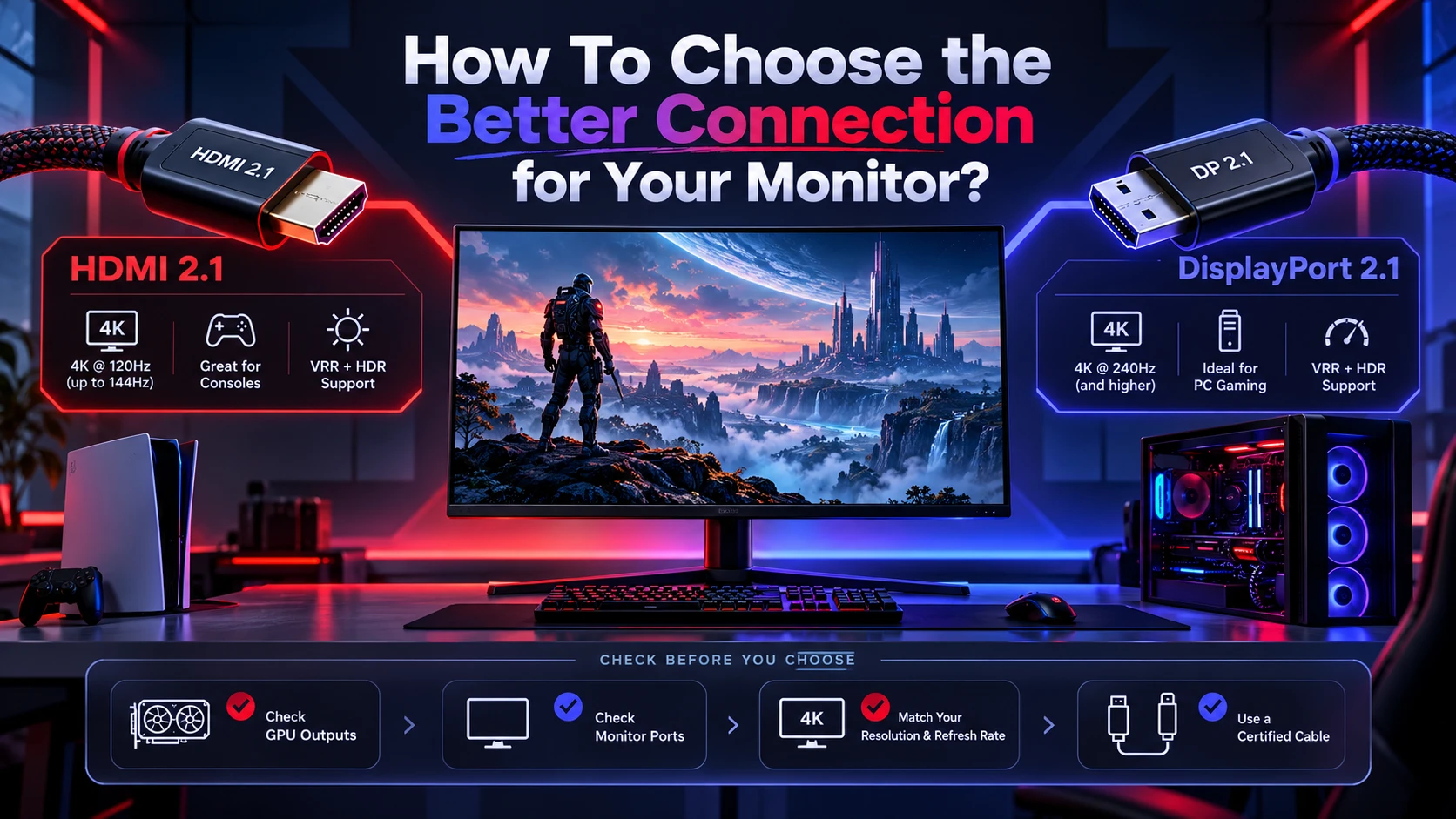
The better connection is the one that supports your target resolution and refresh rate without compromises. It should also deliver stable VRR and HDR performance without constant troubleshooting. That choice can differ between two monitors that look similar on paper.
- Confirm Your GPU Outputs: Check whether your graphics card offers HDMI 2.1, DisplayPort 2.1, or an older DisplayPort version.
- Check the Monitor Port Versions: Identify which input supports the highest refresh rate and full color modes at your preferred resolution.
- Prioritize Your Primary Platform: Pick HDMI 2.1 for console-first play, and pick DisplayPort 2.1 when the PC is the priority and the monitor supports it fully.
- Validate VRR and HDR Modes: Ensure the monitor supports VRR over the selected port and does not force chroma subsampling in your preferred mode.
- Buy A Known Good Cable: Use certified cables and keep the run short to avoid instability at high bandwidth.
Once you narrow it down, test your exact settings in the GPU control panel. Verify refresh rate, color format, bit depth, and VRR status before committing to cable routing and desk setup.
Quick HDMI 2.1 vs DisplayPort 2.1 Decision Checklist
Before choosing a connection, answer these questions:
- Are You Using a Console? HDMI is the standard connection for modern PlayStation and Xbox consoles.
- Are You Using a High-Refresh PC Monitor? Check whether DisplayPort or HDMI supports the monitor’s highest refresh rate.
- Do You Need 4K at 120 Hz? Verify that both the graphics card and display support the required mode.
- Do You Need VRR and HDR? Confirm that both features work over the selected input at your preferred settings.
- Are You Using a High-Bandwidth Display? Check the HDMI link capability or DisplayPort UHBR mode rather than relying only on version numbers.
- Is Your Cable Certified? Choose a cable suitable for the connection’s bandwidth and length requirements.
For console-focused setups, HDMI 2.1 is often the simplest option. For demanding PC gaming monitors, DisplayPort 2.1 may provide greater bandwidth when the hardware supports higher UHBR modes. The best choice is the connection that delivers your preferred display settings reliably.
Conclusion
HDMI 2.1 and DisplayPort 2.1 can both deliver excellent gaming experiences, but the better connection depends on your hardware and display requirements. HDMI 2.1 is especially practical for consoles, TVs, and mixed PC-console setups, while DisplayPort 2.1 can offer greater bandwidth for demanding PC gaming monitors when higher UHBR link rates are supported.
Before choosing a cable, confirm your GPU and monitor specifications, maximum refresh rate, color depth, VRR compatibility, and cable certification. If both connections support your preferred settings, neither standard automatically guarantees better picture quality or lower input lag. Choose the connection that provides the features you need with stable performance.
Frequently Asked Questions
Is DisplayPort 2.1 Always Better Than HDMI 2.1 for Gaming Monitors?
No, because the best choice depends on the exact GPU and monitor implementation. DisplayPort 2.1 often has more bandwidth headroom, but HDMI 2.1 may be the only option for consoles and can be excellent on many 4K 120 Hz monitors.
Will I Get Lower Input Lag On DisplayPort 2.1 Compared to HDMI 2.1?
Not necessarily. DisplayPort 2.1 does not automatically reduce input lag compared with HDMI 2.1. If both connections support the same resolution, refresh rate, and display processing settings, the difference is usually small. However, if DisplayPort supports a higher refresh rate on your monitor, it may provide a smoother and potentially more responsive experience. Check your monitor’s tested latency and supported input modes rather than choosing based only on the connection name.
Why Does My Monitor Support 4K 120 Hz On One Port But Not the Other?
Some monitors have different bandwidth limits or internal scaler behavior per input. Firmware, cable quality, and GPU settings can also limit available modes. Checking the monitor manual timing table and using a certified cable usually clarifies the limit.