Third-party apps and services can connect to your Google Account to sync data, sign you in, or send emails on your behalf. Over time, these connections can build up, and a few may have more access than you still want. A quick audit helps you spot what is connected, understand permissions, and remove anything you do not trust.
What App Access to A Google Account Means?
Third-party apps can connect to your Google Account in different ways. Some use Sign in with Google to verify your identity, while others request permission to access specific Google services through OAuth. These connections do not all provide the same level of access.
Sign in with Google typically shares basic information, such as your name, email address, and profile picture. An app that requests additional permissions may be able to read Gmail messages, access selected Google Drive files, or manage Calendar events, depending on the permissions you approve.
Google also supports linked accounts, where Google connects with another service to provide additional features. Understanding the difference between these connections helps you decide which access to keep and which to remove.
Not every connected app is risky, but any extra access expands your attack surface. If an app is abandoned, poorly secured, or no longer needed, removing it reduces exposure with almost no downside.
One security risk to understand is OAuth phishing attacks, where a malicious application tricks users into approving access through a genuine sign-in or consent process. Even when Google’s authorization screen is legitimate, you should verify the application and its requested permissions before granting access.
Where to Find Connected Apps and Services?
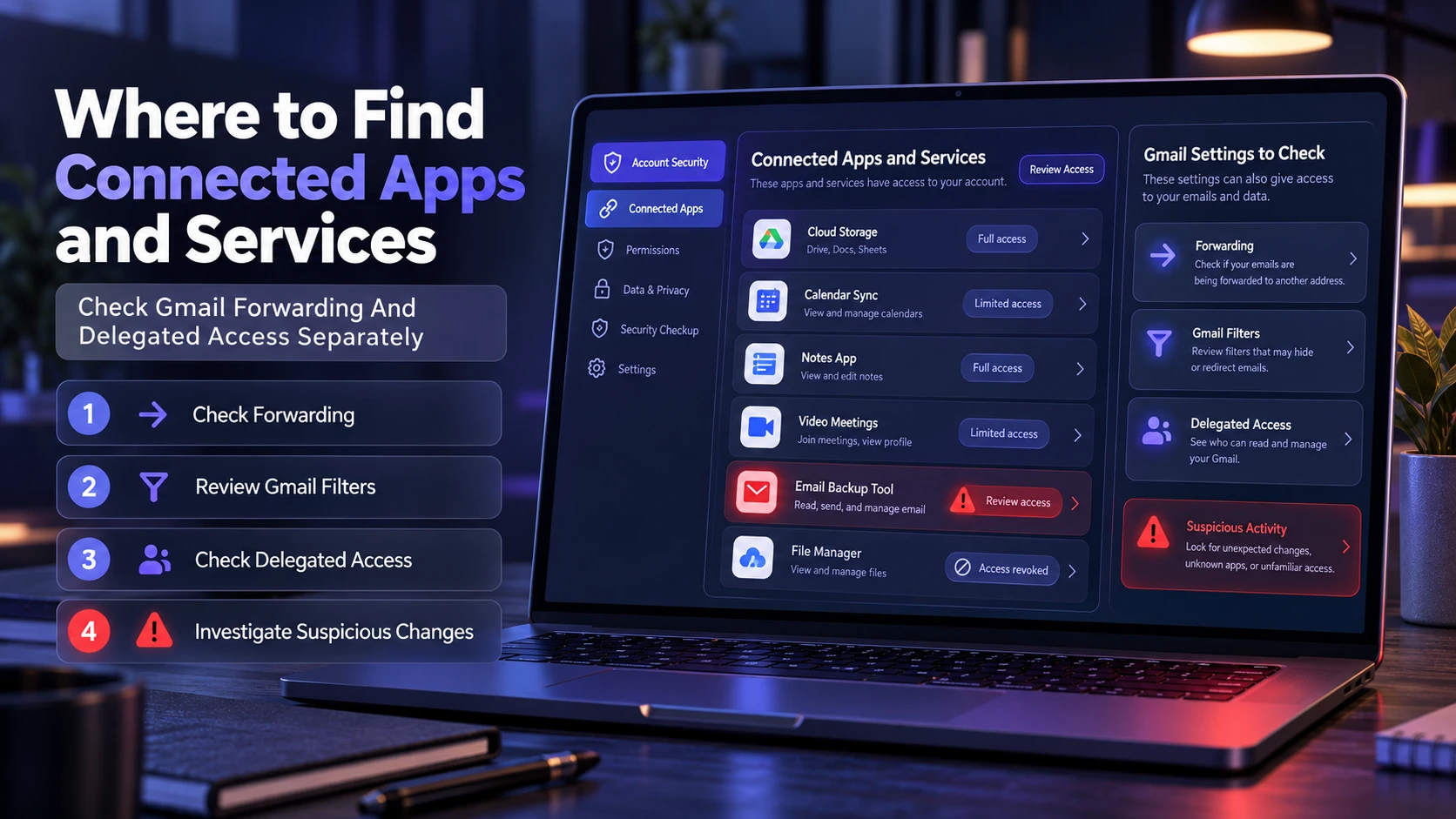
Google provides a dedicated page for managing third-party connections. You can open your Google Account’s linked apps page directly or navigate through the Security & sign-in settings. This page helps you review apps that use Sign in with Google, services with permission to access Google Account data, and linked accounts. Because these connection types work differently, review each relevant category instead of assuming every app has the same permissions.
You may also see access points inside specific products like Gmail, Drive, and Calendar, depending on what the app requested. A complete review checks both third-party access and any forwarding or delegation settings that could act like access.
Check Gmail Forwarding and Delegated Access Separately
Google’s connected apps page is not the only place to look when investigating unwanted email access. Gmail can also forward messages automatically or allow another authorized user to access a mailbox through delegation.
To review these settings on a computer:
- Check Forwarding: Open Gmail, select Settings, and click See all settings. Open the Forwarding and POP/IMAP or Forwarding tab, where available, and verify that no unfamiliar forwarding address is enabled.
- Review Gmail Filters: Open the Filters and Blocked Addresses tab. Check whether any unfamiliar filters automatically forward, archive, or delete incoming messages.
- Check Delegated Access: Open the Accounts and Import or Accounts tab and find Grant access to your account. Remove any delegate you do not recognize, if the option is available.
- Investigate Suspicious Changes: If you discover settings you never approved, correct them and follow Google’s account security instructions.
These settings are separate from ordinary third-party app permissions. Removing an OAuth connection does not necessarily remove Gmail forwarding rules or delegated mailbox access.
If you need help reviewing these features, follow Google’s Gmail forwarding instructions to manage automatic forwarding. You can also read Google’s Gmail delegation guide to understand how another authorized person can access your mailbox and how to remove that permission.
How to See Which Apps Can Access Your Google Account?
Use these steps to view all apps and services currently connected to your Google Account. The screens can vary slightly by device, but the labels remain similar.
- Open Google’s Linked Apps Page: Visit your Google Account’s linked apps page and sign in to the Google Account you want to review.
- Choose A Connection Type: Select Sign in with Google to review apps that use your Google identity, or select Access to your Google Account to find apps with permission to access Google data.
- Select An App or Service: Choose a connected application and click See details to examine its connection.
- Review the Permissions: Check which Google services and information the app can access. Pay particular attention to Gmail, Google Drive, Calendar, and Contacts permissions.
- Review Other Connection Categories: Return to the linked apps page and examine linked accounts or other available connection categories, where applicable.
- Identify Unnecessary Access: Make a note of applications you no longer use, do not recognize, or believe have more permissions than required.
The separate connection filters help you distinguish simple Google sign-in from permissions that let another application access your Google data.
Once you can see the full list, the next step is deciding what stays and what should be removed.
For additional guidance on connection types, permission reviews, and removal options, consult Google’s guide to managing linked apps. It explains how to manage Google Sign-In connections, account-data permissions, and linked services.
How to Remove Apps From Your Google Account Safely?
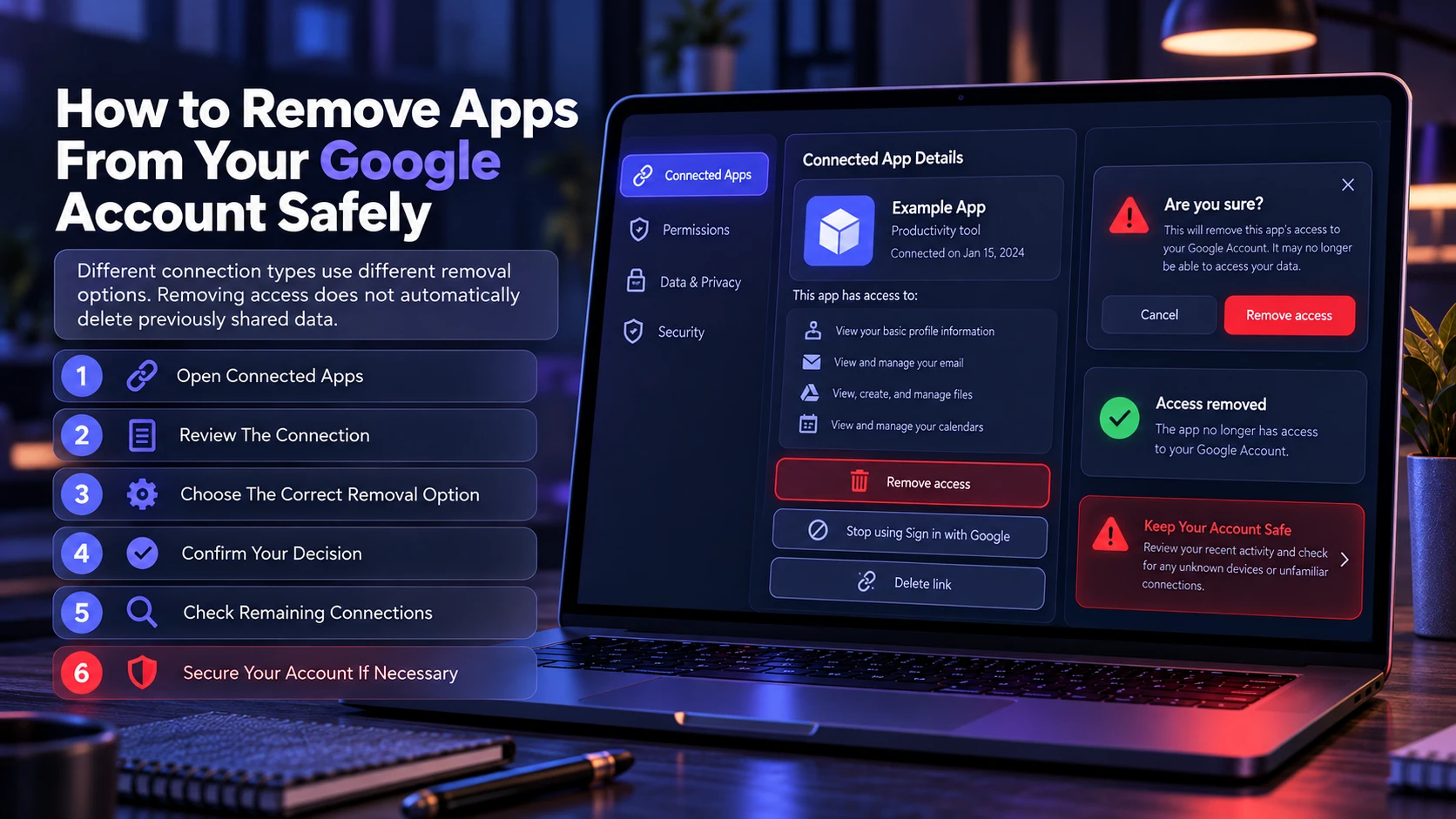
Removing a connection changes what an app can do with your Google Account, but the result depends on the connection type. Revoking Google Account data access prevents the app from continuing to use those permissions. Stopping Sign in with Google disconnects that sign-in method, while deleting a linked-account connection stops the associated account-linking features. These actions do not automatically delete your account or previously shared information from the third-party service.
If you depend on a service for work, remove access only after confirming you have an alternative sign-in method or a backup export of important data.
- Open the Connected Apps List: Visit your Google Account’s linked apps page and select the connection you want to remove.
- Review the Connection: Select the app and click See details to confirm the permissions or sign-in method you are disconnecting.
- Choose the Correct Removal Option: For Google Account data permissions, select Remove access. For a Sign in with Google connection, select Stop using Sign in with Google. For a linked-account connection, use the available Delete link option.
- Confirm Your Decision: Follow Google’s confirmation prompt. If you use the app for work or important files, verify that disconnecting it will not interrupt an essential service.
- Check Remaining Connections: Return to the linked apps page and confirm that the specific connection has been removed. If the app has multiple connection types, review each one separately.
- Secure Your Account If Necessary: If the connection was unfamiliar or unauthorized, review recent security activity, investigate unknown devices, and change your Google password if you suspect compromise.
This keeps the process clean and avoids leaving behind partial access in other sessions.
How to Judge Whether An App Should Keep Access?
The key decision is whether the permission level matches the value you still get. An app you used once for a migration or a trial should not keep long-term access to Gmail or Drive.
Check the application’s name, publisher, purpose, and requested permissions before deciding whether to keep it. An unfamiliar name does not automatically mean the app is malicious because some services appear under their developer or parent company name. However, if you cannot verify the connection or do not remember approving its access, revoke unnecessary permissions and investigate your account’s recent security activity.
- Permission scope: Prefer apps that request minimal access needed to function.
- Recent Usage: Consider whether you still actively use the service. Review any available connection details, and remove permissions from apps you no longer need.
- Publisher trust: Verify the developer name and avoid lookalike app entries.
- Security posture: If the service offers MFA and clear privacy controls, it is typically safer.
A short review like this helps you make fast, confident decisions without overthinking every entry.
Apply similar security checks to browser add-ons. Some extensions request broad access to browsing activity, website content, or other sensitive information. Reviewing browser extension permissions can help you recognize excessive access requests and remove unnecessary browser tools.
Common Permissions You Will See and What They Allow
Google permissions are often phrased in plain language, but they still represent real capabilities. Gmail and Drive permissions are especially sensitive because they can expose private content and business files.
The table below summarizes common access types, why they matter, and when it is reasonable to keep them.
| Permission Type | Possible Access | Security Recommendation |
|---|---|---|
| Basic Profile | View your name, email address, and profile picture | Allow for trusted services that need identity-based sign-in |
| Google Drive | Access selected files or broader Drive content, depending on permissions | Prefer limited file access and remove unused integrations |
| Gmail | Read messages, send emails, or manage mailbox content, depending on scope | Allow only when email access is essential to the service |
| Google Contacts | View or manage contact information | Review carefully because contacts may contain other people’s information |
| Google Calendar | View events or create and modify calendar entries | Keep only necessary scheduling integrations |
| Google Photos | Access photos or albums permitted by the granted connection | Review which photos are shared and remove unnecessary access |
Use this as a quick filter. The broader the access, the stronger your reason should be to keep it.
Permission requests can vary significantly between applications, even when they connect to the same Google service. According to Google’s explanation of third-party data access, connected apps can access the data and services you authorize. Always review the specific permissions instead of assuming every Gmail or Drive integration has unrestricted access.
Extra Security Checks After Removing App Access
Revoking access is a strong first step, but it should be paired with a short account hygiene pass. This is especially important if you removed an app because it looked suspicious or unfamiliar.
These checks help you catch anything else that could keep an attacker in your account.
- Review recent security activity: Look for sign-ins you do not recognize, unusual locations, or repeated failed logins.
- Check your devices: Remove old phones, tablets, and browsers you no longer use from the device list.
- Update your recovery info: Confirm your recovery email and phone number are current and secure.
- Enable two-step verification: Use an authenticator app or a security key for stronger protection.
After that, your account is usually in a much safer state with very little ongoing maintenance.
For a guided review of your Google Account’s security settings, open Google Security Checkup. This tool provides personalized recommendations that can help you identify security issues, review your protection settings, and strengthen your account.
You can also consider using passkeys for stronger protection against phishing-based sign-in attacks. TechBonafide’s guide to passkeys compared with passwords explains how these authentication methods differ and why passkeys can provide additional security.
Why Removed Apps Might Still Hold Data?
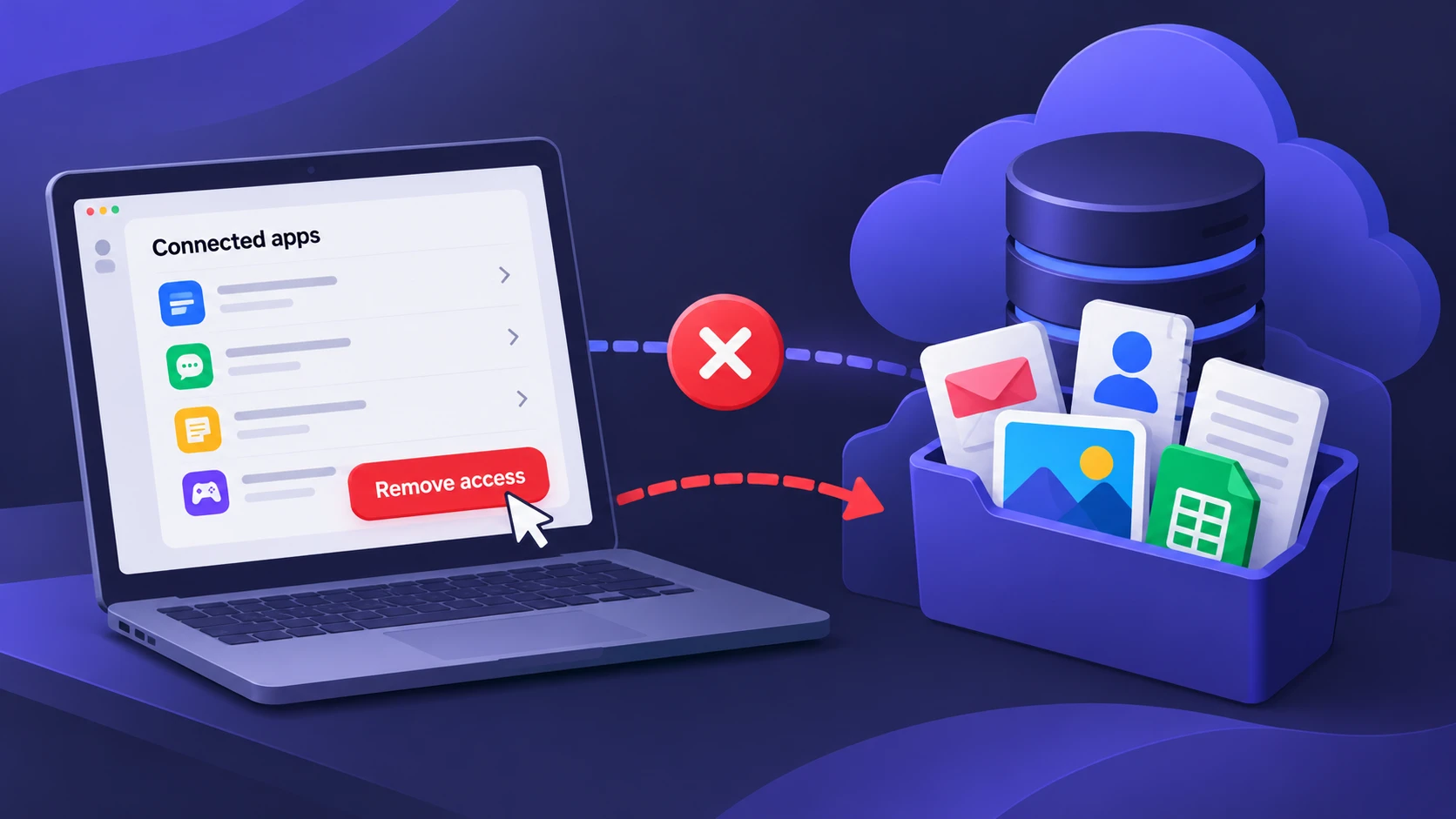
Removing access stops future data sharing, but it does not automatically delete data the app already collected. If the app previously synced your email metadata, contacts, or files, that information may remain in the app provider account.
If you want a provider to remove information it previously collected, review its privacy policy and account settings. Look for options to delete stored information, disconnect integrations, or submit a data deletion request. Deleting your third-party account may help, but the provider’s retention policies determine what information can be removed and whether any records must be retained. Removing Google Account access and requesting deletion from the provider are two separate actions.
How Often You Should Review Connected Apps?
A quick review every few months is enough for most people. Do a review sooner if you install many extensions, try new productivity apps, or connect services for automation.
You should also review access right after a password change, after a lost device, or after you notice suspicious emails or account behavior.
Conclusion
Checking which apps can access your Google Account is one of the fastest ways to improve your privacy and security. Start by reviewing the third-party access list, remove anything you do not need, and confirm that high-impact permissions like Gmail and Drive are tightly limited.
Pair that cleanup with a quick security activity review and two-step verification. Small habits like these significantly reduce the risk of account takeover and unwanted data exposure.
Frequently Asked Questions
Will Removing An App Break Google Sign-In for That Service?
Yes, removing a Sign in with Google connection can prevent you from using that sign-in method with the third-party service. Before disconnecting an important account, check whether the service offers a separate password, passkey, or another supported login method. If you only remove the service’s Google Account data permissions, the effect may be different. You can reconnect a trusted service later if its authentication and permission options allow it.
Why Do Some Apps Show Broad Permissions Like Full Drive Access?
Some applications request broad Google Drive permissions to support features such as backup, file management, or bulk synchronization. However, an app’s technical needs do not automatically justify access to every file. Check the exact permissions displayed by Google and determine whether the app’s features require that level of access. If the request appears excessive or you no longer use the service, consider removing its access.
What Should I Do If I See An App I Never Approved?
If you discover an application you never authorized, remove its access and review your Google Account’s recent security events. Check for unfamiliar devices, unexpected changes to recovery information, and unusual Gmail settings. If you suspect someone else has accessed your account, change your password using a trusted device and follow Google’s account recovery and security guide. Enable two-step verification and investigate any other suspicious activity before considering the account secure.
If the suspicious activity continues, investigate whether a device or browser may have been compromised. Threats such as infostealer malware can collect saved credentials and session information, so removing an unwanted app connection alone may not resolve every account security issue.