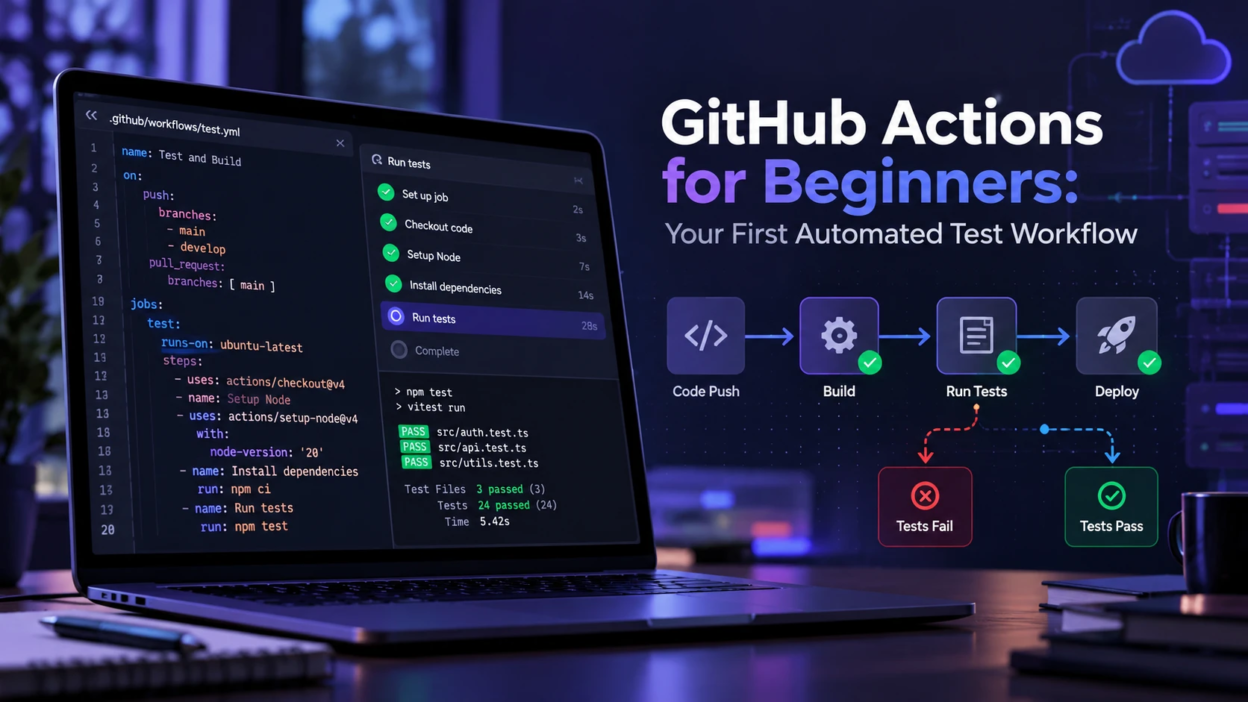
GitHub Actions lets you automatically run tests whenever selected events occur in your GitHub repository, such as a push to the main branch or a pull request targeting main. Instead of running every test manually, you can create a continuous integration (CI) workflow that checks your code whenever important changes are submitted. This beginner-friendly guide explains how to create a GitHub Actions workflow using YAML, run automated Node.js tests, check execution logs, fix common failures, and keep your CI pipeline reliable as your project grows.
What GitHub Actions Does?
GitHub Actions is a built-in automation system that runs jobs in response to events in a repository. A workflow is defined in a YAML file stored in your repo, and it executes on GitHub-hosted runners or your own machines.
For beginners, continuous integration (CI) is one of the most useful applications of GitHub Actions. CI automatically builds or tests code when configured repository events occur, helping developers identify errors before changes are merged. However, automated tests alone do not guarantee that the main branch is ready for release. Teams should also use code reviews, appropriate branch protection rules, and required status checks to reduce the chance of introducing broken changes.
Continuous integration is one part of a broader DevOps approach that combines automation, collaboration, testing, and software delivery practices. For more background, explore TechBonafide’s guide to the principles and practices of DevOps.
Key Concepts You Need Before Writing YAML
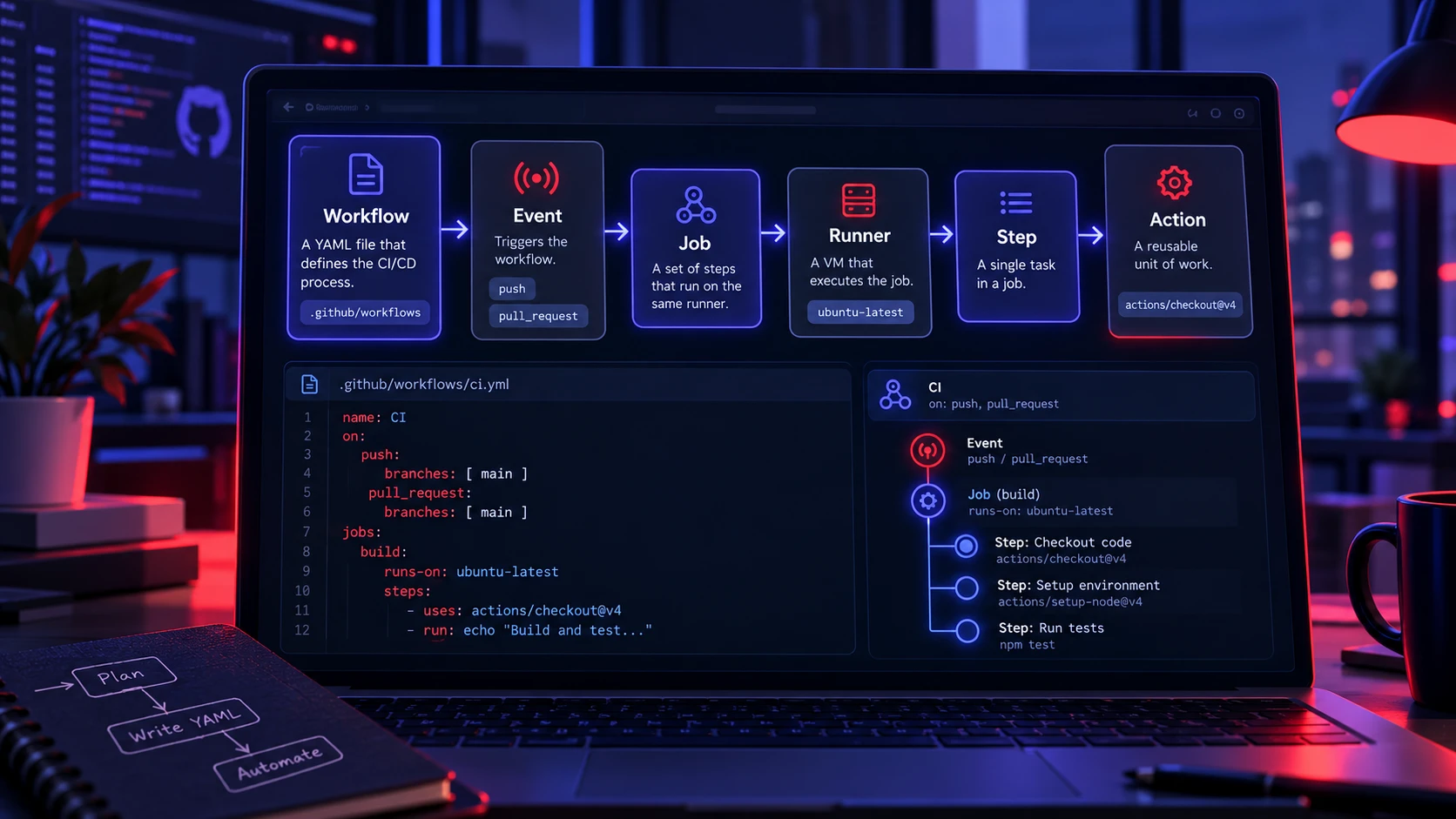
Understanding a few terms makes workflow files much easier to read. These concepts map directly to the YAML fields you will write.
- Workflow: The automation definition stored under .github/workflows.
- Event: The repo activity that starts a workflow such as push or pull_request.
- Job: A group of steps that run on the same runner.
- Step: A single action or shell command.
- Runner: The environment that executes jobs such as ubuntu-latest.
- Action: A reusable step packaged for common tasks such as checkout.
With these terms clear, you can build a workflow that is readable and easy to debug.
GitHub Actions workflows use specific YAML fields to define events, jobs, permissions, and execution steps. For a complete explanation of supported configuration options, refer to the GitHub Actions workflow syntax documentation.
Workflow File Location and Naming
GitHub only detects workflows stored in .github/workflows. Each workflow file must have a .yml or .yaml extension.
Use a name that matches the intent, such as tests.yml. Keep one responsibility per workflow at first, then split later if your pipeline grows.
Build Your First Automated Test Workflow
A first workflow should do three things well. It should check out code, set up the runtime, and run tests with the same command developers use locally.
Prerequisites Before Creating Your First Workflow
Before creating a GitHub Actions workflow, make sure your repository contains a Node.js project with a working test command. The example in this guide uses npm, but you can adapt the same approach for Python, Java, or other programming languages.
Check these requirements before continuing:
- GitHub Repository: Your project must be stored in a GitHub repository where you have permission to add workflow files.
- Node.js Project: Your repository should contain a package.json file with the project’s scripts and dependencies.
- Dependency Lockfile: Commit a compatible package-lock.json file so npm ci can install the expected dependency versions.
- Working Test Script: Make sure npm test runs successfully on your local machine before trying it in GitHub Actions.
- Correct Branch Name: The example uses a branch named main. Change the YAML branch filters if your repository uses a different branch name.
You can test the project locally by running npm ci followed by npm test. Fix any dependency or test failures before creating the workflow. This makes it easier to identify whether later failures come from the application or from the GitHub Actions configuration.
Place this workflow file at .github/workflows/tests.yml.
name: Tests

on:
  push:
    branches: [main]
  pull_request:
    branches: [main]
  workflow_dispatch:

permissions:
  contents: read

jobs:
  test:
    name: Run Node.js Tests
    runs-on: ubuntu-latest

    steps:
      - name: Check Out Repository
        uses: actions/checkout@v6

      - name: Set Up Node.js
        uses: actions/setup-node@v7
        with:
          node-version: '24'
          cache: npm

      - name: Install Dependencies
        run: npm ci

      - name: Run Tests
        run: npm test
This workflow runs automated tests when code is pushed to the main branch, when a pull request targets main, or when an authorized user starts it manually. It checks out the repository, configures Node.js 24, caches npm package downloads, installs dependencies using npm ci, and executes the project’s npm test script. The workflow also limits its default GITHUB_TOKEN permission to reading repository contents. Before using this example, confirm that your project supports Node.js 24 and includes a package.json file, a compatible package-lock.json file, and a working test command. Adjust the Node.js version to match your project’s supported runtime if necessary.
If you want to explore other Node.js testing configurations, GitHub’s Node.js CI guide explains how to select runtime versions, install dependencies, use caching, and run automated checks. It also provides examples that can be adapted to different Node.js projects.
Choosing the Right Triggers
Triggers decide when automation runs, which impacts speed and cost. A beginner-friendly approach is to run tests on pull requests and on main branch pushes only.
- push on main: Confirms the merged state stays healthy.
- pull_request on main: Validates changes before merge and provides fast feedback.
- manual run: Useful for debugging without creating commits.
To run a workflow manually, add workflow_dispatch under the on section of your YAML file. The updated example in this guide already includes that trigger. After the workflow file exists on your repository’s default branch, open the repository’s Actions tab, select the Tests workflow, click Run workflow, choose the appropriate branch, and start the run. You need the appropriate repository permissions to run it manually. Keep your triggers focused on the events your team actually needs, since unnecessary executions can increase CI usage and make results harder to review.
For additional instructions about manual workflow execution, including repository permissions and running workflows from selected branches, see GitHub’s manual workflow instructions.
Understanding Runners and Environments
GitHub-hosted runners are the simplest choice and work for most test workflows. The common options are ubuntu-latest, windows-latest, and macos-latest.
Pick the OS that matches your production environment or developer machines. For many web and backend projects, ubuntu-latest is the best default for speed and compatibility.
Common Setup Patterns for Reliable CI
Small changes in a workflow can make it much more stable. These patterns help prevent flaky builds and speed up repeated runs.
- Use Maintained Action Versions: Follow the official release documentation when selecting GitHub Actions versions. Major-version tags are convenient for beginners, while reviewed full commit SHAs or supported workflow dependency lockfiles provide stronger protection against unexpected dependency changes.
- Install Dependencies Consistently: Use npm ci with a committed package-lock.json for compatible Node.js projects. For other languages, use the appropriate dependency installation process and lockfiles where supported.
- Cache Package Downloads: Configure the caching features of your runtime setup action when appropriate. For npm, caching can speed up repeated installations without replacing the need for npm ci.
- Limit Workflow Permissions: Give the GITHUB_TOKEN only the permissions required by the job. A basic test workflow that reads repository code generally does not need write permissions.
- Keep Test Failures Visible: Use commands that return a failure status when tests fail. Avoid hiding test failures with shell commands or unconditional success handling.
Once your first workflow is green consistently, you can add linting, formatting checks, or build steps.
Workflow security also depends on the actions your pipeline executes. GitHub’s secure use guidance explains how to reduce risks from untrusted actions, limit workflow permissions, and manage dependencies more safely. These precautions become increasingly important when workflows access deployment credentials or external services.
Workflow Configuration Reference Table
This table summarizes common fields and how they affect your automated test workflow. Use it as a quick guide when reading and editing YAML.
| YAML Field | Purpose | Beginner Recommendation |
|---|---|---|
| name | Gives the workflow a readable name | Use a clear name such as Tests |
| on | Defines events that trigger execution | Start with push, pull_request, and optional workflow_dispatch |
| permissions | Controls GITHUB_TOKEN access | Give the workflow only the access it needs |
| jobs | Defines one or more workflow jobs | Start with a single test job |
| runs-on | Selects the runner environment | Use ubuntu-latest for a typical Linux-based project |
| steps | Lists commands and actions in execution order | Checkout, configure runtime, install, and test |
| uses | Runs a reusable GitHub Action | Select reviewed and maintained action versions |
| run | Executes a shell command | Use commands such as npm ci and npm test |
| with | Provides inputs to an action | Set options such as node-version and cache |
With these pieces understood, editing workflows becomes routine instead of intimidating.
Keeping Secrets Safe in Test Workflows
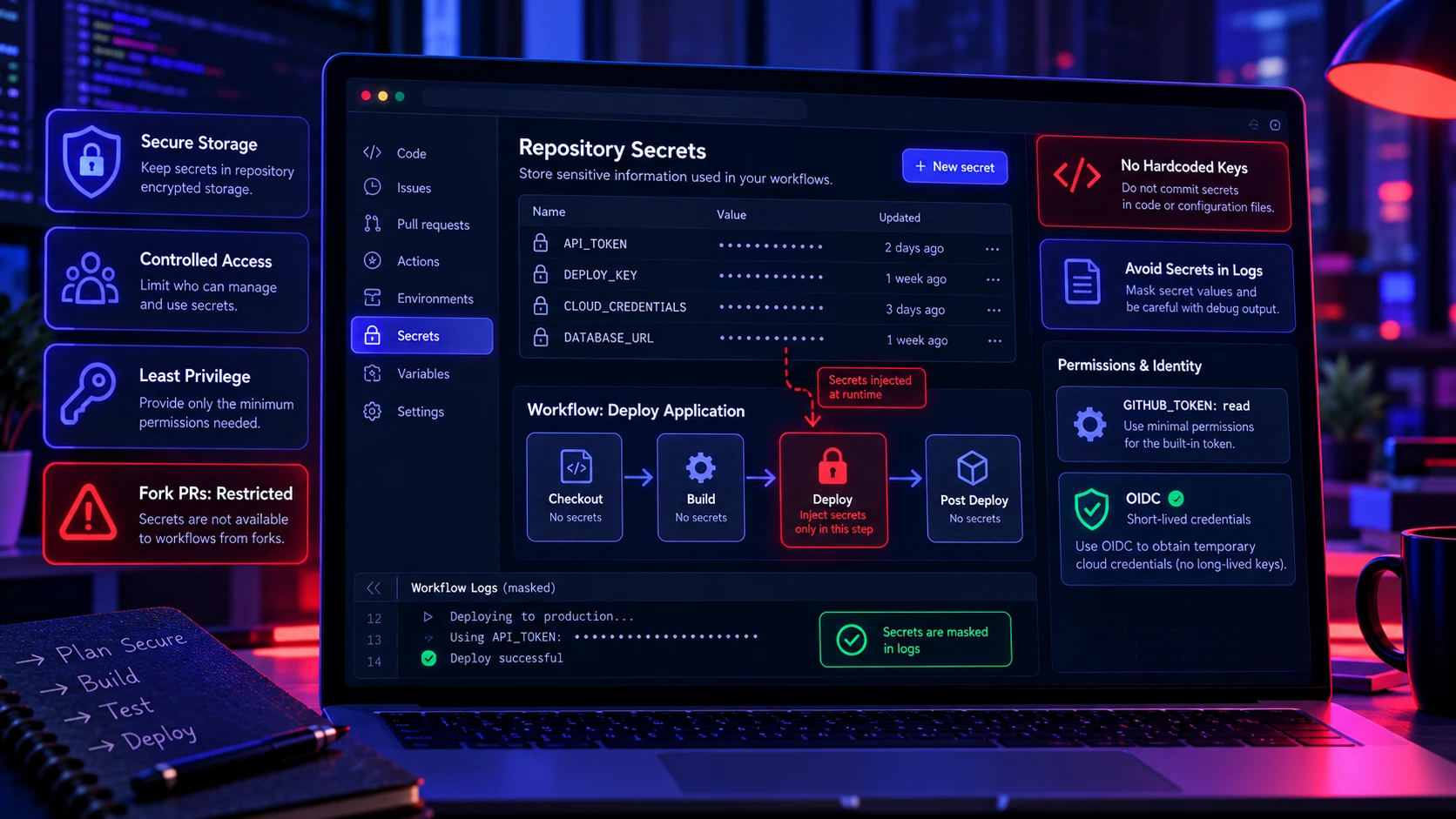
Automated test workflows sometimes require credentials for private package registries, testing services, or external APIs. Instead of adding passwords or access tokens directly to your YAML file, store sensitive values using GitHub Actions secrets. For repository-level secrets, open Settings, select Secrets and variables, choose Actions, and create a new repository secret. Reference that secret only in the job or step that needs it.
Apply the following security practices when configuring credentials:
- Never Hardcode Credentials: Do not put API keys, passwords, or private tokens directly into workflow files or application source code.- Limit Access: Use the minimum required GITHUB_TOKEN permissions and avoid giving test jobs unnecessary access to repository settings or deployment resources.
- Protect Pull Request Workflows: Remember that GitHub generally does not provide repository secrets to workflows triggered from forked pull requests. Do not use privileged pull request triggers to bypass this restriction without understanding the security risks.
- Avoid Logging Secrets: Do not intentionally print credentials or include them in test output. Review third-party actions before allowing them to access sensitive information.
- Prefer Short-Lived Credentials Where Possible: For cloud authentication, consider supported OpenID Connect (OIDC) integrations instead of storing long-lived cloud credentials.
The beginner workflow in this guide does not need external credentials when it only installs public dependencies and runs local tests. Add secrets only when your project has a genuine requirement for authenticated services.
As your CI/CD pipeline grows, managing credentials across different tools and environments becomes more important. TechBonafide’s guide to automated secrets management in DevOps explains approaches to secure credential storage, access control, and automated secrets rotation.
For the exact steps required to create repository, environment, or organization secrets, follow GitHub’s secrets documentation. The guide also explains how secrets are referenced inside workflows and identifies restrictions affecting forked pull requests and automated dependency updates.
Reading Logs and Fixing Failures
After committing your workflow file, open the Actions tab in your GitHub repository and select the Tests workflow. Choose the latest workflow run to see whether it passed or failed. Open the Run Node.js Tests job and expand individual steps, such as Install Dependencies or Run Tests, to inspect the output. A green result indicates that the configured commands completed successfully, while a failed step identifies where the process stopped.
If a run fails, read the error message and check the commands immediately before it. Dependency errors may indicate a missing lockfile, incorrect versions, or unavailable packages. Test failures may come from application code, missing environment variables, or differences between your development environment and the GitHub runner. Fix the underlying problem, commit your changes, and review the new workflow run to confirm that the issue is resolved.
- Dependency errors: Confirm lockfiles are committed and the install command matches them.
- Missing tooling: Add setup actions for runtimes such as Node, Python, Java, or .NET.
- Wrong working directory: Set working-directory if your project is in a subfolder.
- Flaky tests: Reduce network calls, stabilize time-based tests, and isolate shared state.
If failures are intermittent, add more deterministic setup and tighten your test suite, rather than retrying blindly.
Reliable continuous integration also depends on the quality of the underlying tests. If your workflow repeatedly fails because of unstable or incomplete test coverage, explore TechBonafide’s guide to software testing automation tools to understand different testing approaches and how automation fits into CI/CD pipelines.
For more detailed troubleshooting, GitHub’s workflow log instructions explain how to open job logs, identify failed steps, search error messages, and download execution logs. These features can help you investigate problems that are difficult to reproduce locally.
When to Use Matrix Testing
Matrix testing runs the same job across multiple runtime versions or operating systems. It is helpful when you support multiple Node versions, multiple Python versions, or cross-platform builds.
Start with one environment until the workflow is stable. Add a matrix later to expand coverage without increasing complexity too early.
Example: Test Multiple Node.js Versions
Once your first workflow runs reliably, you can use a matrix to test the same project across multiple Node.js versions. For example, a project that supports Node.js 22 and Node.js 24 can run the same test job in both environments.
Replace the existing jobs.test definition with a matrix-enabled job when you are ready to expand coverage. The following example assumes you have already defined the workflow name and event triggers.
jobs:
  test:
    runs-on: ubuntu-latest

    strategy:
      matrix:
        node-version: ['22', '24']

    steps:
      - name: Check Out Repository
        uses: actions/checkout@v6

      - name: Set Up Node.js
        uses: actions/setup-node@v7
        with:
          node-version: ${{ matrix.node-version }}
          cache: npm

      - name: Install Dependencies
        run: npm ci

      - name: Run Tests
        run: npm test
GitHub Actions creates a separate job for each listed Node.js version. This lets you identify compatibility problems before publishing software that must work across multiple runtime environments. Matrix testing is especially useful for reusable packages and libraries, but a single runtime is sufficient for your first CI workflow.
How to Keep Your Main Branch Protected?

Automated tests are most useful when your team can act on their results before code is merged. A successful test run gives developers confidence, but simply creating a GitHub Actions workflow does not prevent someone from merging changes that fail CI.
GitHub branch protection rules and repository rulesets can require specific status checks to pass before changes are merged into protected branches. After your testing workflow is running successfully, consider requiring the relevant test job as a status check for your main branch.
Follow these practical steps:
- Open your GitHub repository and go to Settings.
- Find the available branch protection or repository ruleset settings.
- Create or edit a rule that applies to your main branch.
- Enable the requirement for status checks to pass before merging.
- Select your established GitHub Actions test check and save the rule.
The available controls depend on your repository permissions, plan, and existing organization policies. Make sure the selected check runs consistently for the pull requests the rule is intended to protect.
For instructions on creating and configuring merge requirements, see GitHub’s repository ruleset documentation. It explains how repository administrators can configure rules, including required status checks, to help protect important branches.
Once your first CI workflow is stable, consider expanding your DevOps knowledge into deployment automation, containerization, infrastructure management, and monitoring. TechBonafide’s article on evaluating practical DevOps tutorials outlines important skills beginners should look for when choosing learning resources and building practical experience.
Conclusion
Creating your first GitHub Actions workflow is a practical introduction to continuous integration. With a workflow file stored in .github/workflows, you can automatically check out repository code, set up the correct runtime, install dependencies, and execute tests when configured events occur. Start with a simple workflow, confirm that it works, and use execution logs to investigate failures.
As your project grows, improve the workflow with secure permissions, branch protection rules, matrix testing, and additional checks such as linting or build validation. The goal is not to create the most complicated pipeline but to build a reliable testing process that gives developers useful feedback before changes reach production.