
Controller input delay on PC can make aiming, steering, jumping, and other actions feel slow, even when your game appears to run smoothly. The problem might come from the controller’s connection, Windows settings, game software, graphics performance, or display.
To reduce controller input delay on PC, start by testing a direct USB connection, checking for wireless interference, updating controller firmware, and reviewing Steam Input settings. Then check your game’s frame rate, low-latency graphics options, and display refresh rate. The best fix depends on where the delay occurs, so test one change at a time rather than applying every tweak at once.
Identify Where the Delay Comes From?
Before changing settings, determine whether you are experiencing actual controller input delay or another performance problem.
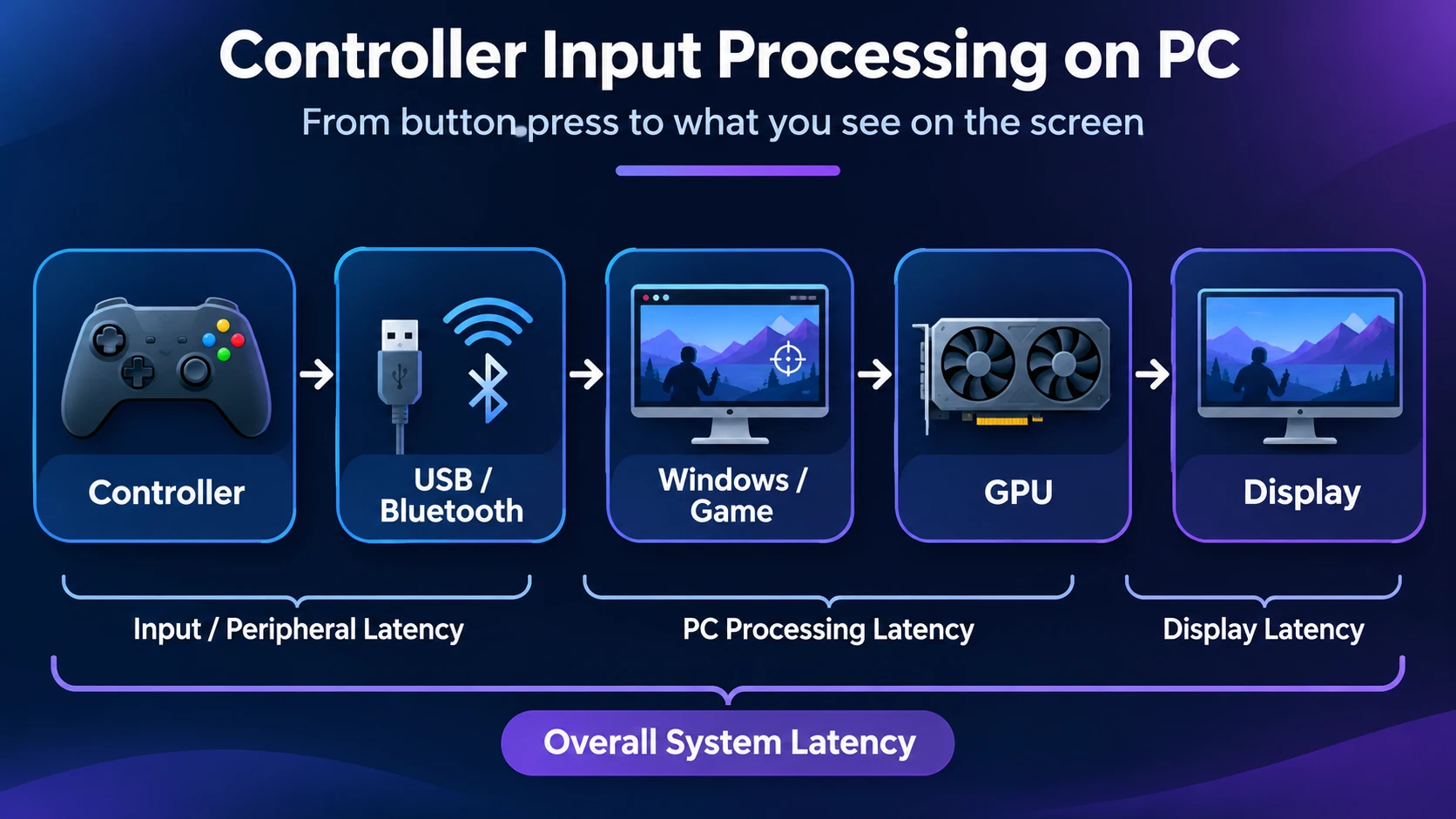
When you press a button, several things happen before the result appears on screen. The controller detects the input, sends it through USB or a wireless connection, and Windows passes it to the game. The game processes the action, the graphics hardware produces a frame, and the display presents it.
Each stage can introduce delay. This is why a controller may feel unresponsive even when its buttons and wireless connection are working correctly. NVIDIA’s system latency optimization guide explains how input processing, rendering, and display output contribute to responsiveness.
| What You Notice | Possible Cause | First Check |
|---|---|---|
| Buttons respond inconsistently in multiple games | Controller, connection, or input software | Windows input test and direct USB |
| Delay appears only over Bluetooth | Wireless connection, interference, or adapter | Distance, battery, pairing, and USB comparison |
| Controls feel slow in one game | Game settings, input mapping, or rendering | Steam Input and game-specific settings |
| Delay increases when FPS drops | Frame-time spikes or graphics workload | Graphics settings and frame pacing |
| Menus feel responsive, but online actions are delayed | Network, server, or game synchronization | Compare offline play and online network statistics |
For the last situation, the controller may not be responsible. Our guide to input lag vs ping explains how local responsiveness differs from internet-related delay.
Check Whether the Controller Registers Inputs
Windows includes a basic game-controller testing interface that can help determine whether compatible controllers register button presses and stick movements correctly.
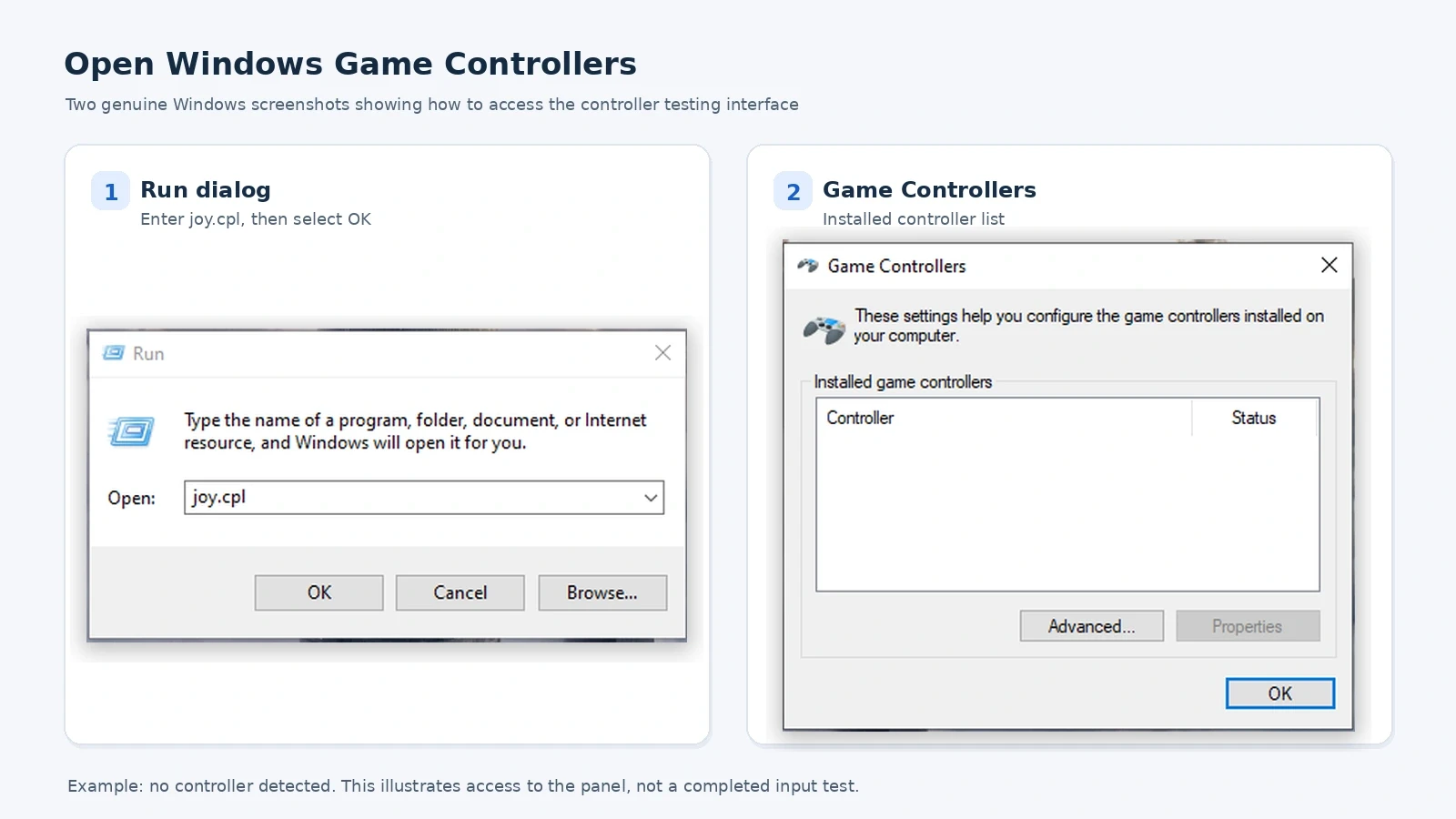
- Connect your controller to the PC.
- Press Windows + R to open the Run dialog.
- Type joy.cpl and press Enter.
- Select the controller if it appears in the list.
- Open Properties and look for the available button, trigger, and stick indicators.
- Press buttons and move the sticks to see whether the indicators respond and return to their expected positions.
Some controllers and input modes may not expose every feature in this older Windows interface. If the controller is not listed, check the manufacturer’s application or Steam’s controller-testing options before assuming the hardware is defective.
What this test tells you: It can reveal missing inputs, stuck controls, or obvious connection problems. It does not measure the exact time between a physical button press and the result appearing in a game.
Next, launch a game with a simple offline training area or menu. Try the same button repeatedly and observe whether the response is consistent. If the Windows input test appears normal but the game feels slow, investigate the game’s software, rendering, and display path.
Compare Wired and Wireless Connections
A direct USB connection is a useful troubleshooting baseline because it removes Bluetooth or other wireless transmission from the comparison. It does not guarantee that every controller will respond faster over USB.
- Use a compatible USB data cable. A charge-only cable may power a controller without carrying game input.
- Connect the controller directly to a USB port on the PC rather than through a hub or monitor during the test.
- Confirm that Windows and the game recognize the wired connection.
- Keep the same game, graphics settings, display, and test location.
- Compare the response with your usual wireless connection.
- If the connection is unstable, try another cable or USB port before replacing the controller.
If USB fixes intermittent inputs or delayed responses, investigate the wireless setup. If the delay feels the same over USB, focus next on input software, game performance, and the display.
For example, Microsoft’s Xbox Wireless Controller specifications describe supported wired USB-C and wireless connections on compatible Windows PCs. The available connection modes differ between controller models, so consult the documentation for your exact device.
Keep in mind that a cable may provide charging rather than a wired data connection on certain controller designs. Confirm the operating mode before interpreting your comparison.
Fix Bluetooth and Wireless Connection Problems
Wireless controllers can work well on PC, but connection quality depends on the controller, adapter, signal conditions, and software.
Bluetooth shares the 2.4 GHz radio band with several other wireless technologies. The Bluetooth Special Interest Group explains that interference can disrupt wireless packets, even though Bluetooth includes mechanisms designed to improve reliability.
Try these checks in order:
- Move closer to the receiver. Test with the controller near the PC, with fewer obstacles between them.
- Check battery power. Recharge the controller or replace its batteries if appropriate.
- Check the Bluetooth antenna. If your desktop motherboard uses an external antenna, make sure it is properly connected.
- Reposition a USB wireless adapter. Try a different location or a suitable extension cable if the adapter is hidden behind the PC case.
- Reduce nearby interference. Temporarily disconnect unnecessary Bluetooth accessories and compare the connection.
- Pair the controller again. In Windows 11, go to Settings > Bluetooth & devices > Devices. Remove the controller, put it into pairing mode, and add it again.
- Update the Bluetooth adapter driver. Use Windows Update or the PC or adapter manufacturer’s official support page.
Microsoft’s Bluetooth troubleshooting instructions also recommend checking distance, battery power, pairing, drivers, and available Windows updates.
If your controller supports a dedicated wireless receiver, compare that mode with Bluetooth under the same conditions. Some receivers are designed for a particular controller family and may offer better connection consistency in certain setups. However, no wireless technology is automatically faster for every model.
Windows 10 users can find pairing controls under Settings > Devices > Bluetooth & other devices. Menu names may vary slightly across Windows releases.
Update Controller Firmware and Drivers
Firmware and driver updates can correct compatibility problems, disconnections, and input-related bugs. An update should not be treated as a guaranteed reduction in controller latency.
Update an Xbox Controller on PC
For a supported Xbox controller, use Microsoft’s Xbox Accessories application:
- Open the Microsoft Store and find Xbox Accessories from Microsoft.
- Install or update the application.
- Connect the compatible controller using a USB data cable or another update-supported connection.
- Open Xbox Accessories and select the detected controller.
- Check the firmware or update options, then follow the application’s instructions if an update is available.
- Allow the process to finish without disconnecting the controller.
Microsoft has documented controller firmware improvements delivered through Xbox Accessories, including changes to controller behavior and connectivity. Its Xbox controller update announcement provides one example. Benefits depend on the affected controller and firmware version.
If the application cannot detect a Bluetooth-connected controller, try a supported wired connection and consult the instructions for your model.
Update a PlayStation DualSense Controller on PC
Sony supports DualSense and DualSense Edge controller firmware updates on compatible Windows PCs through its PlayStation Accessories application.
- Visit Sony’s official PlayStation Accessories page.
- Check the listed system requirements and download the Windows application.
- Connect your compatible DualSense or DualSense Edge controller using a supported connection.
- Open the application and follow its firmware update instructions.
- Reconnect the controller to your game and test it again.
Sony lists Windows 10 64-bit and Windows 11 among the application’s supported systems. Actual game support and controller features vary. Sony’s DualSense PC connection guide explains its USB and Bluetooth compatibility.
Update Windows and Relevant Device Drivers
If the controller remains unreliable, check the software used by the connection and game:
- Install appropriate updates from Windows Update.
- Check the PC manufacturer’s Bluetooth, USB, and chipset driver support pages.
- Update the graphics driver using the GPU manufacturer’s official software or website.
- Check for game and Steam client updates.
- Restart the PC when an update requires it, then repeat the original test.
Use drivers intended for your specific hardware and Windows version. Avoid unverified driver-updater utilities and controller firmware files from unrelated websites.
Check Steam Input and Controller Software
Steam Input allows supported controllers to work with games through configurable mappings. It can be useful when a game does not directly support your controller, but an unexpected configuration or overlapping input software may cause problems.
Valve’s Steam Input documentation describes controller detection and configuration. The appearance and names of settings can change between Steam client versions.
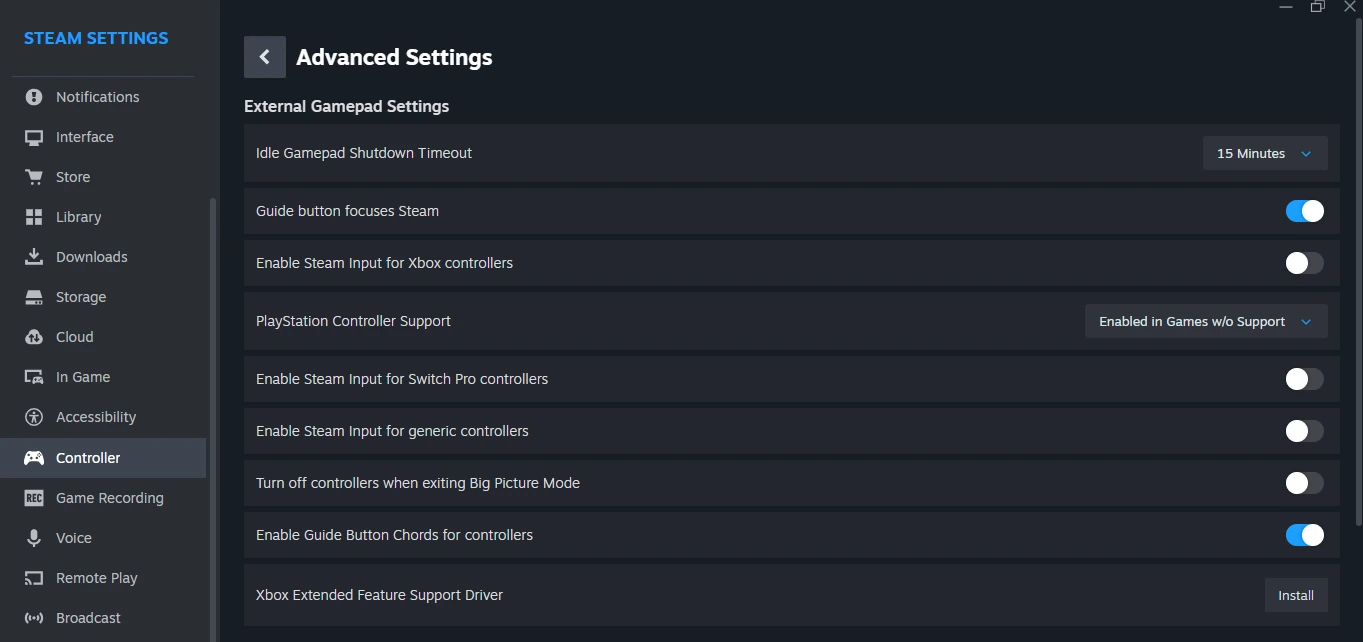
- Open Steam and select Steam > Settings > Controller.
- Confirm that Steam detects your controller, if your current client provides that information.
- Open the affected game’s library entry and find Properties > Controller, where available.
- Record the current Steam Input setting before changing it.
- If the game supports your controller natively, compare its response with Steam Input enabled and disabled.
- Keep the setting that provides reliable controls and restore the original configuration if the controller stops working.
If you use a separate remapping tool, such as DS4Windows or reWASD, check whether Steam or another application is also translating the same controller inputs. For a controlled test, close unnecessary remappers and compare one input method at a time.
Do not assume Steam Input always adds noticeable delay or should always be disabled. Some games need it for controller compatibility, custom layouts, or particular features. Disabling it may remove working controls rather than improve responsiveness.
If buttons activate the wrong actions, menus move twice, or the game switches unexpectedly between keyboard and controller prompts, investigate duplicate mappings before changing graphics settings.
Reduce Game and Graphics Rendering Delay
Sometimes the controller sends inputs correctly, but the PC takes longer to display the resulting action. Low frame rates, uneven frame times, overloaded hardware, and rendering queues can all affect how responsive a game feels.
Start with these adjustments:
- Enable Windows Game Mode. On Windows 11, open Settings > Gaming > Game Mode and make sure it is enabled. Its effect depends on the system and workload.
- Reduce demanding graphics settings. If GPU load is consistently high, compare lower settings such as resolution, ray tracing, or other expensive effects.
- Check frame-time consistency. Large fluctuations or frequent stutters can make controls feel unreliable, even when average FPS looks acceptable.
- Try supported low-latency features. Enable NVIDIA Reflex in games that offer it on supported hardware. For compatible AMD graphics hardware, investigate the available Radeon Anti-Lag options.
- Compare synchronization settings. Test V-Sync and supported variable refresh rate options while watching for tearing, stutter, and changes in response.
- Test a stable FPS limit. If a game runs inconsistently at an unrestricted frame rate, a suitable cap may improve frame pacing. The best limit depends on the game and display configuration.
- Close unnecessary background work. Pause demanding downloads, recording tasks, or other applications when they are causing resource contention.
NVIDIA documents how Reflex and rendering settings can reduce parts of the system latency pipeline. AMD explains the compatibility and differences between its Radeon Anti-Lag technologies, including the game integration required for Anti-Lag 2.
Turning off V-Sync can reduce certain forms of waiting, but may introduce screen tearing. Variable refresh rate can provide a better balance on supported hardware, depending on the game and configuration. For more detail, see our comparison of VRR vs V-Sync.
Avoid changing registry timers, forcing unusual controller polling rates, disabling security protections, or applying unknown driver overrides just to chase lower latency. Such changes are not universal fixes and can create new compatibility or stability problems.
Check Display Refresh Rate and Game Mode
A responsive controller cannot compensate for excessive display processing. This is especially important when playing PC games on a television.
To check your refresh rate in Windows 11:
- Open Settings > System > Display > Advanced display.
- Select the monitor you use for gaming if more than one is connected.
- Check the active refresh rate.
- Choose an appropriate higher supported rate if your monitor and connection allow it.
- Confirm that the game is running at the intended refresh rate and display mode.
Microsoft’s Windows refresh rate instructions explain how to select a supported setting. Windows 10 provides similar controls through its display settings, although labels may differ.
If you use a television, open its picture settings and look for Game Mode, PC Mode, or another low-latency option. These settings can reduce processing that would otherwise delay the displayed image. However, available modes and their effects depend on the TV model.
Independent display testing by RTINGS demonstrates why input lag should be compared under the display modes and refresh rates actually used for gaming.
Windows Game Mode and a TV’s Game Mode are different features. The Windows setting addresses PC gaming behavior, while the TV setting changes how the display processes the incoming image.
For further display troubleshooting, read our guide to why a 144Hz monitor can still feel laggy.
Adjust Deadzones and In-Game Controls
Not every slow-feeling controller is experiencing high electronic input latency. Some games intentionally ignore small stick movements until they pass a deadzone threshold.
A large deadzone can make aiming or steering feel unresponsive because you must move the stick farther before the game reacts. Trigger deadzones, aim acceleration, sensitivity curves, and camera smoothing can also change how controls feel.
Check the following options if your game provides them:
- Stick deadzone: Reduce it gradually if small movements are ignored, but stop before unwanted drift appears.
- Trigger deadzone: Check whether the game requires more trigger travel than you prefer.
- Aim acceleration: Compare different settings if camera movement feels inconsistent.
- Camera smoothing: Test a lower setting if the game offers this option and aiming feels delayed.
- Controller calibration: Use supported game or manufacturer tools if the sticks do not center correctly.
Record your original settings before making adjustments. A smaller deadzone can improve the point at which a game reacts to movement, but it does not necessarily reduce the controller’s physical input transmission time.
Verify Whether Your Changes Helped
Changing many settings together makes it difficult to identify which adjustment actually helped. A controlled comparison gives you more useful information than a single subjective impression.
- Choose one game with a repeatable offline menu, training area, or camera movement.
- Record the controller model, connection mode, game settings, and display refresh rate.
- Perform the same action several times under your original configuration.
- Change one variable, such as Bluetooth to USB or Steam Input enabled to disabled.
- Repeat the same action in the same scene and compare the consistency of the response.
- Return to the original setting and test again if the difference is unclear.
- Keep changes that solve a repeatable problem without introducing new issues.
For example, you can record whether a controller misses inputs, produces double inputs, becomes unreliable at a distance, or feels different when frame rates drop. These observations help locate the problem, but they are not laboratory measurements of latency in milliseconds.
Polling rate tools report how frequently a controller sends updates. That can be useful technical information, but reporting frequency alone does not establish the total delay from a button press to an on-screen reaction.
Reliable button-to-screen measurements require a measurement method that captures the physical input and visible response with sufficiently precise timing. A controlled high-speed camera setup or specialist measurement equipment can provide stronger evidence than ordinary gamepad testing software. Results still depend on the controller, game, hardware, display, and measurement method.
If the controller works reliably over USB and another supported wireless mode but remains delayed in one game, prioritize that game’s compatibility and rendering configuration. If the same buttons fail across games and connections, consider hardware diagnostics or manufacturer support.
Common Controller Delay Questions
Is USB Always Faster Than Bluetooth?
No. Wired USB removes radio transmission from the connection, making it useful for troubleshooting wireless problems. However, controller processing, firmware, polling behavior, and connection implementation vary between models. Compare supported modes on the same controller before assuming which is fastest.
Does a Higher Polling Rate Always Reduce Input Delay?
No. More frequent input reports may reduce the time between opportunities to send updates, but the complete response also depends on the controller’s internal processing, the game’s input handling, frame rendering, and the display. An advertised polling rate is not the same as measured button-to-screen latency.
Can Internet Lag Make a Controller Feel Delayed?
Yes, particularly when online games depend on server confirmation for certain actions. However, network delay is different from local controller input delay. If offline controls and menus respond normally but online actions feel late, investigate ping, packet loss, server behavior, and game synchronization rather than changing controller settings first.
Conclusion
Reducing controller input delay on PC starts with finding the source of the problem. Test the controller over a direct USB connection, check wireless reliability, update supported firmware, and review Steam Input or other controller-mapping software. If those steps do not help, investigate game frame times, graphics latency settings, display refresh rate, and TV processing.
There is no single controller setting that guarantees the lowest delay on every Windows PC. The most useful approach is to compare one change at a time, keep the settings that produce reliable responses, and avoid unnecessary tweaks that can make gaming less stable.

Tech Bonafide is the editorial identity of TechBonafide, an independent technology publication covering AI, software, cybersecurity, gadgets, and emerging technology.