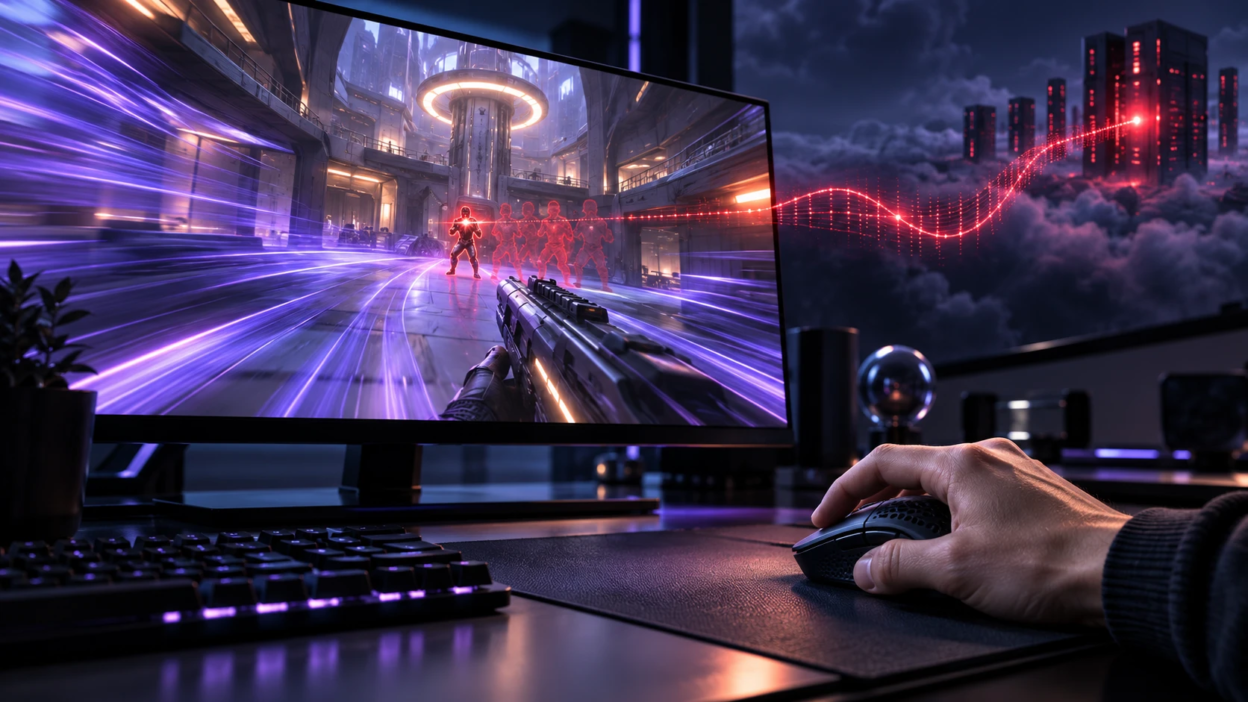
High FPS can look silky smooth while the game still feels delayed. That disconnect usually comes down to two different problems – input lag and ping – plus a few hidden delays in the full path between your hands and the server.
What Does Ping Mean in Gaming?
In online gaming, ping usually refers to the network round-trip time (RTT): the time required for data to travel from your device to a server and for a response to return. It is commonly displayed in milliseconds (ms).
A lower ping generally means information can travel between the player and server more quickly. However, ping does not measure every source of gameplay delay, including local rendering latency, server processing, or inconsistent network delivery.
Lower ping generally means faster feedback from the server. High ping increases the time between your action and when the server confirms it, which can make hit registration, peeking, and ability timing feel off.
Ping is usually shown in milliseconds in the game UI. It is influenced by distance to the server, routing quality, congestion, Wi-Fi interference, and bufferbloat on your network.
What Causes Input Lag in Gaming?
Input lag is the end-to-end delay from a physical input to the moment you see the result on your display. It includes device, software, rendering, and display delays, even if your internet connection is perfect.
Input lag is not a single delay that one setting can eliminate. Total system latency involves several stages, including input-device processing, operating system scheduling, game simulation, CPU and GPU rendering, frame buffering, and display output.
These stages affect how quickly a physical action becomes visible on screen. NVIDIA’s system latency optimization guide explains how rendering queues, synchronization settings, and supported low-latency technologies can influence responsiveness.
- Peripheral Delay: Mouse, keyboard, or controller polling rate, wireless vs wired, and debounce settings can add measurable delay.
- Game Engine Delay: Input sampling timing, simulation tick rate, and internal queues can push actions later into the frame.
- Render Queue Delay: GPU driver and game settings can buffer frames, which makes motion smooth but increases delay.
- Display Delay: TV post-processing, monitor settings, and refresh behavior can affect how quickly an image appears on screen. Pixel response time also influences motion clarity, although it is different from the delay before an image begins appearing. For a more detailed explanation, see our comparison of input lag and response time, which explains how these display measurements affect gaming performance.
When a game feels heavy or floaty despite running at 240 FPS, local system latency may be responsible. However, the cause depends on where the problem appears. Delayed camera movement in a genuinely offline game points toward local processing or display latency, while problems limited to online matches may involve network instability, server behavior, or both.
Why High FPS Can Still Feel Slow?
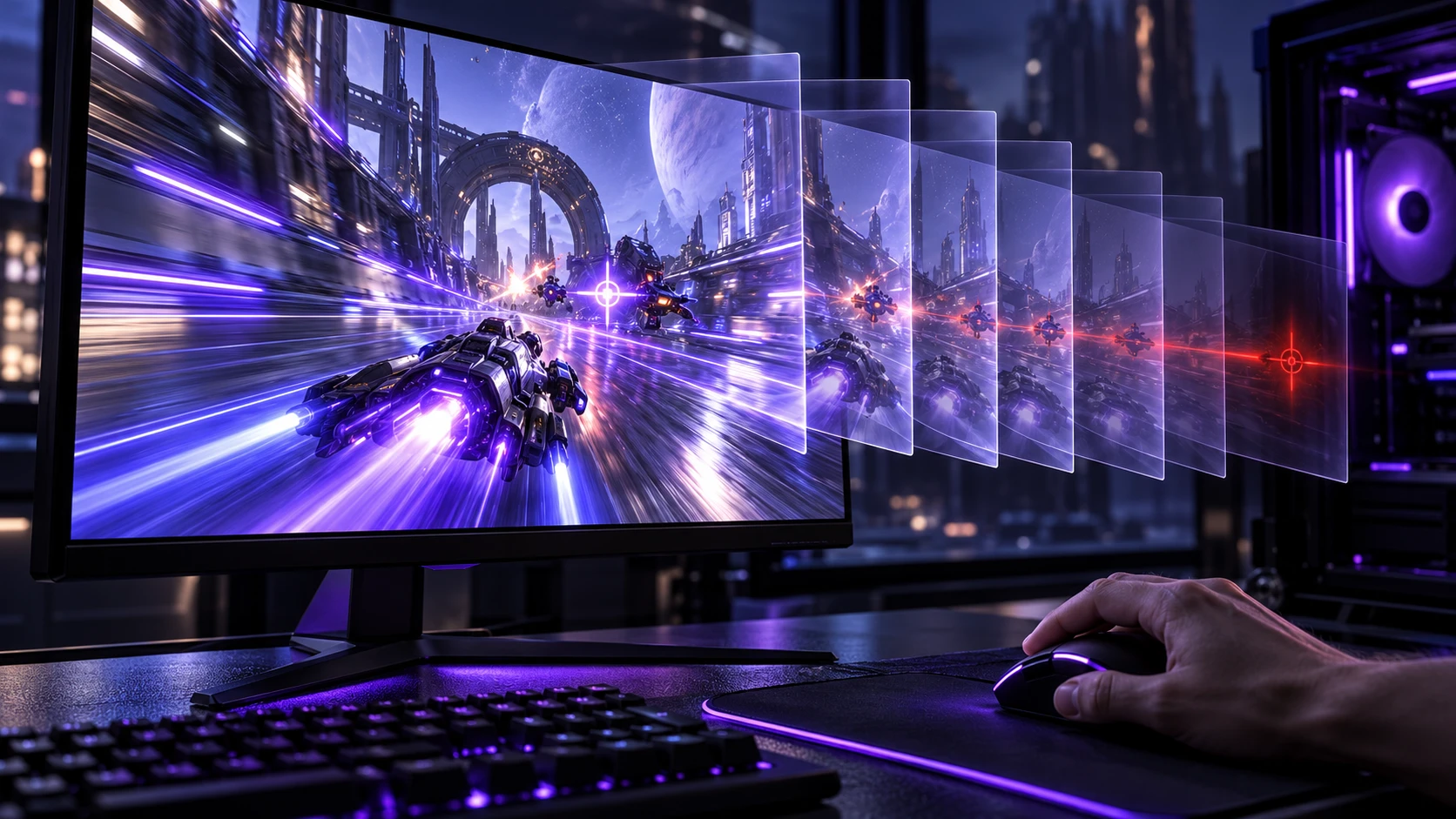
FPS is a throughput metric. It tells you how many frames are produced per second, but it does not guarantee that the newest input is shown on the next frame.
If the GPU is buffering frames, the display is adding processing, or the game samples input late in the frame, you can have high FPS with noticeable delay. Also, inconsistent frame pacing can feel worse than a lower but stable FPS.
- Frame Time Spikes: Averages can look good while periodic spikes create a delayed, rubbery feel.
- GPU-Bound Rendering: When the GPU becomes the main performance bottleneck, frames may accumulate in the rendering pipeline and increase system latency. However, high GPU usage alone does not prove that significant buffering is occurring. Technologies such as NVIDIA Reflex can reduce render queue delays in supported games, even when GPU utilization remains high.
- V-Sync Behavior: Traditional V-Sync can add a full frame or more of delay depending on timing.
- Background Load: Overlays, capture tools, and background tasks can shift scheduling and add jitter.
That is why chasing higher FPS numbers alone can be misleading. The real goal is responsive input handling, stable frame delivery, and low overall system latency.
This distinction becomes especially important when games use frame generation to increase displayed FPS. While generated frames can improve perceived smoothness, they do not replace the responsiveness benefits of faster native frame rendering. Our guide to frame generation and native FPS explains these trade-offs in more detail.
Input Lag vs Ping: Key Differences
Ping and input lag measure different parts of gaming responsiveness. Ping generally measures the round-trip time between your device and a game server, while local input lag describes how long it takes for an action from your mouse, keyboard, or controller to appear on your screen.
Online gaming also involves server processing, simulation timing, and the delivery of updated game information. These additional delays are not fully represented by either a basic ping reading or a local input-lag measurement.
Both problems can occur together. A player may experience delayed controls despite low ping, or responsive camera movement while online actions register late. The comparison table below explains how to recognize common symptoms and identify what to investigate first.
| What You Notice | More Likely Cause | What to Check First |
|---|---|---|
| Mouse movement feels delayed in an offline game | Local system latency | Display Game Mode, V-Sync configuration, GPU rendering delay, frame times |
| Shots or abilities register late only during online matches | Network or server-related delay | Server region, ping, packet loss, jitter, game server status |
| High FPS looks smooth but controls feel slow | Render queue, input processing, or display latency | Supported low-latency features, GPU load, display settings |
| Other players teleport or movements suddenly correct themselves | Packet loss, jitter, or server synchronization problems | In-game network graphs, Wi-Fi stability, background network traffic |
| Ping increases sharply while downloading or uploading | Network congestion or bufferbloat | Loaded-latency testing, router queue management, competing traffic |
| FPS is high but occasional movement feels uneven | Frame-time spikes or inconsistent frame pacing | Frame-time graph, 1% lows, CPU/GPU background activity |
Hidden Causes of Gaming Latency
A lot of delay is not labeled as ping or input lag in menus. It hides in sync tech, frame pacing, and network stability.
Three factors are especially likely to make a fast system feel slow.
- Jitter: Variable latency is often more noticeable than a steady higher ping because timing becomes unpredictable.
- Packet Loss: When game data fails to reach its destination, players may experience missing updates, sudden position changes, or corrections to predicted movement. Many real-time multiplayer games use UDP-based communication, where lost gameplay packets are not necessarily retransmitted. The exact effect depends on how the game handles networking, prediction, and synchronization.
- Bufferbloat: Excessive buffering in routers or other network equipment can increase latency when the connection is busy. This may cause ping spikes during downloads, uploads, cloud backups, or streaming. Players can learn how to measure and address bufferbloat using loaded-latency tests and supported queue management features.
Reducing these issues often improves feel more than upgrading a GPU.
How to Test Input Lag vs Ping?
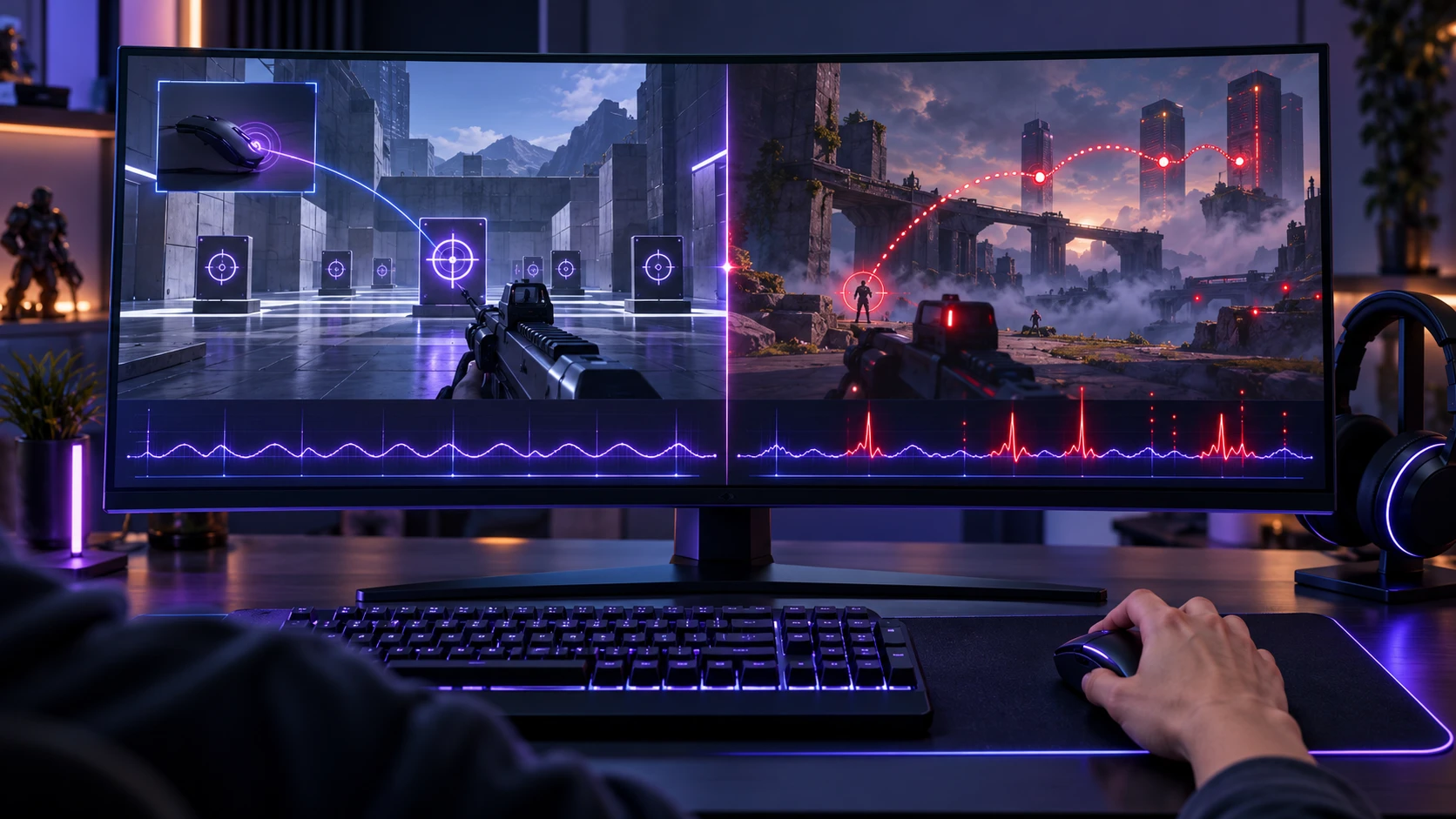
You can separate input lag from ping by using controlled checks that isolate local play from online play. The goal is to identify whether delay happens before the network, on the network, or after server confirmation.
- Test Local Responsiveness: Start with a genuinely offline game mode, local benchmark, or practice environment that does not depend on a remote server. Check how quickly camera movement, aiming, and other actions appear on screen. Remember that some multiplayer practice ranges still connect to online servers, so they cannot fully isolate local input lag from network delay.
- Compare Server Regions: Join a closer region and a farther region and note whether delay scales with ping.
- Watch for Network Warnings: Icons for packet loss or high variance point to stability issues, not FPS.
- Log Frame Time: Use in-game graphs to check for spikes, which can mimic network delay during fights.
Once you know which bucket the problem fits, fixes become much more straightforward.
How to Reduce Input Lag Without Killing Visual Quality?
The best input lag improvements usually come from removing queues and reducing frame time variance. You can often keep high FPS while making the game feel snappier.
- Set An Appropriate FPS Limit: A frame-rate cap can help stabilize frame delivery and prevent unnecessary GPU load, but the ideal limit depends on your hardware, game engine, and synchronization settings. On compatible variable refresh rate (VRR) displays, a cap slightly below the monitor’s maximum refresh rate may help avoid reaching the VRR ceiling. For competitive games, compare capped and uncapped performance while monitoring frame times and system latency.
- Use Low Latency Features: Enable the game or driver low latency option if it does not introduce stutter.
- Tune V-Sync and VRR: With VRR monitors, avoid combinations that reintroduce buffering and test what feels best.
- Reduce Heavy Post Effects: Motion blur, excessive shadows, and certain anti-aliasing modes can increase frame time.
- Check Display Settings and Refresh Rate: Enable a suitable low-latency display mode, disable unnecessary TV image processing, and confirm that your monitor is operating at the intended refresh rate. Also verify that your graphics card, display cable, and monitor support the refresh rate and variable refresh rate features you want to use. Our comparison of HDMI 2.1 and DisplayPort 2.1 explains how these connections support different gaming display configurations.
If your system still feels sluggish, review your graphics driver configuration, background applications, and frame-time measurements before upgrading hardware. Focus on consistent responsiveness and measurable improvements instead of relying only on average FPS benchmarks.
How to Lower Ping and Improve Connection Stability?
Lower ping usually starts with choosing an appropriate game server region, but connection stability is equally important. Sudden changes in latency, packet loss, and congestion can affect online gameplay even when the average ping looks acceptable.
Before changing router settings, measure your connection during both idle and busy conditions. Tools such as the Cloudflare Speed Test can help evaluate latency, jitter, and packet loss. Remember that a general internet speed test measures the connection to its own test infrastructure, so its results may differ from the ping shown by your game server.
- Go Wired When Possible: Ethernet avoids common Wi-Fi interference that causes jitter and spikes.
- Control Background Traffic: Pause large uploads, cloud sync, and device updates during competitive play.
- Address Bufferbloat: Smart queue management on a capable router can prevent ping jumps under load.
- Check Server Routing and ISP Performance: If your ping remains unusually high when connected to a nearby game server, compare different server regions and check whether other players using the same ISP experience similar issues. Network diagnostic tools may help identify routing delays or connection problems. Changing DNS servers generally does not reduce the round-trip latency of an already established game connection because DNS mainly handles domain-name resolution.
When network instability is responsible for delayed gameplay, begin by measuring ping, jitter, and packet loss. Then check router settings, background network traffic, and the connection between your gaming device and router. If problems continue across different devices and server regions, contact your internet service provider with the test results.
Best Competitive Gaming Settings for Lower Latency
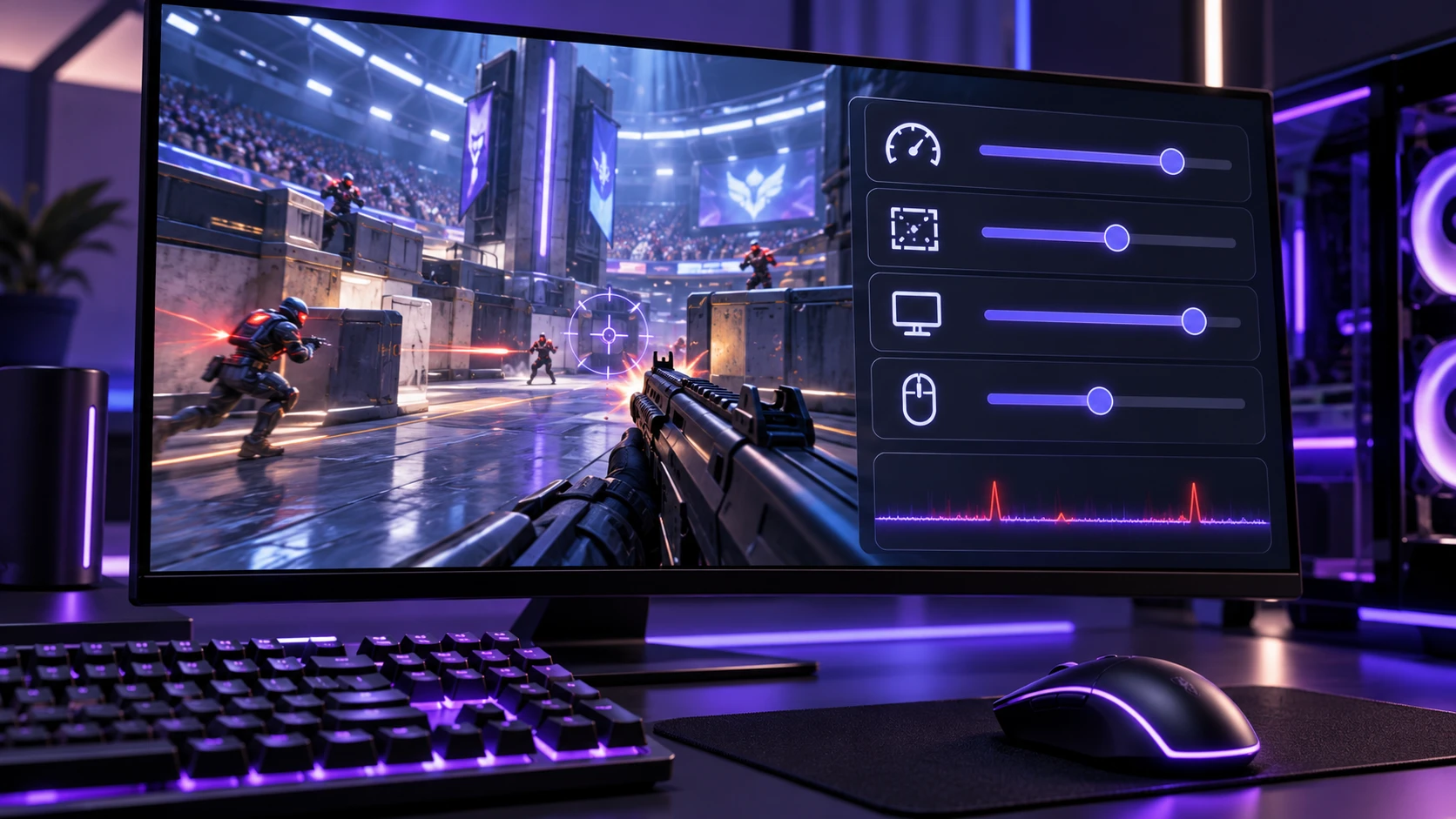
Settings priorities change depending on whether you are GPU bound or CPU bound. Still, a few categories tend to give the most consistent latency wins across systems.
- Frame Rate Limit: Use a limit that keeps 1 percent lows stable and prevents maxed GPU usage.
- Render Scale: Lowering render scale reduces GPU load and queueing more predictably than random quality toggles.
- Fullscreen and Windowed Modes: Test exclusive fullscreen and borderless windowed modes to determine which performs better in your particular game. Modern operating systems support presentation features that can reduce unnecessary frame latency. Microsoft’s documentation on Windows 11 optimizations for windowed games explains how compatible windowed games can benefit from updated presentation technology.
- Polling Rate and USB Stability: High polling helps only when the system is stable and not dropping USB packets.
Apply changes one at a time. That keeps the results clear and prevents chasing placebo improvements.
Conclusion
Ping and input lag solve different parts of the same problem, which is why high FPS alone does not guarantee a responsive game. Ping measures server round-trip time, while input lag includes everything from your device to the display pipeline and frame queues.
When online games feel slow, identify whether the delay is local, network-driven, or a mix. Then target the right fixes – latency-first graphics settings for input lag, and stability work like wired connections and bufferbloat control for ping.
Frequently Asked Questions
Can Low Ping Still Feel Laggy?
Yes. Low ping does not prevent input lag from render queues, V-Sync buffering, or display processing. Stable frame times and low local latency are required for the game to feel responsive.
Is FPS or Frame Time More Important for Responsiveness?
Both FPS and frame time matter for gaming responsiveness. Higher native FPS generally reduces the time between newly rendered frames, while consistent frame times help prevent visible stutter and uneven input feedback. A game running at a high average FPS can still feel inconsistent if occasional frames take much longer to render.
For competitive gaming, evaluate average FPS, 1% low FPS, frame-time spikes, and system latency together. The best experience usually comes from a combination of high native frame rates, stable frame delivery, and minimal rendering delays.
What is the Fastest Way to Improve Both Ping and Input Lag?
Start with wired networking and eliminating background traffic to stabilize ping. Then reduce local latency by preventing GPU saturation, using an appropriate FPS cap, and disabling unnecessary display processing. Testing one change at a time makes the improvement measurable.