

A 144Hz monitor can still feel laggy, choppy, or unresponsive even when your computer appears to be running games at high FPS. Common causes include incorrect refresh rate settings, inconsistent frame times, V-Sync configuration, GPU rendering delays, monitor processing, and input device issues. In some cases, online network lag can also make gameplay feel delayed, even when the monitor is working correctly.
This guide walks through the most reliable checks to make a 144Hz monitor feel as responsive as it should. Each section focuses on practical fixes that improve motion clarity and reduce input lag without guesswork.
A 144Hz monitor refreshes its display up to 144 times per second, with approximately 6.94 milliseconds between refreshes. However, running the monitor at 144Hz does not guarantee that a game produces 144 frames per second. If the game delivers frames unevenly, controls may feel delayed and movement may appear jerky. Understanding the difference between refresh rate, FPS, frame time, and input lag helps identify which setting needs attention.
Confirm You Are Actually Running 144Hz
Many systems default to 60Hz after a driver update, a new cable, a docking station change, or a fresh Windows installation. A monitor may support 144Hz while the operating system is configured to output 60Hz or 120Hz. Some monitor menus display the maximum supported refresh rate rather than the current input signal, so it is important to check the correct information screen.
Check the refresh rate in Windows Advanced display settings, your graphics control panel, and the monitor’s information menu. In Windows, verify both the desktop refresh rate and the active display signal mode where available. If the readings differ, confirm that the correct monitor, resolution, and display mode are selected. Some monitors also support Dynamic Refresh Rate, which can change the refresh rate automatically during certain activities.
- Windows Display Refresh Rate: Open Settings > System > Display > Advanced display, select the correct monitor, and choose 144Hz if the option is supported. For complete instructions, see Microsoft’s guide to changing the display refresh rate in Windows.
- NVIDIA Control Panel or AMD Software: Confirm that the active resolution and refresh rate are configured correctly. Available settings depend on your graphics card, drivers, and display connection.
- Monitor OSD Information Page: Open the monitor’s on-screen display and look for its current input resolution and refresh rate. Check the manual if the information screen is unclear.
If Windows shows a value such as 143.98Hz instead of exactly 144Hz, this may be normal due to the display’s timing configuration. The important thing is to confirm that the monitor is operating in its intended high-refresh-rate mode.
Once the output is confirmed, the next bottleneck may be the connection itself.
Check Cable, Port, and Bandwidth Limits
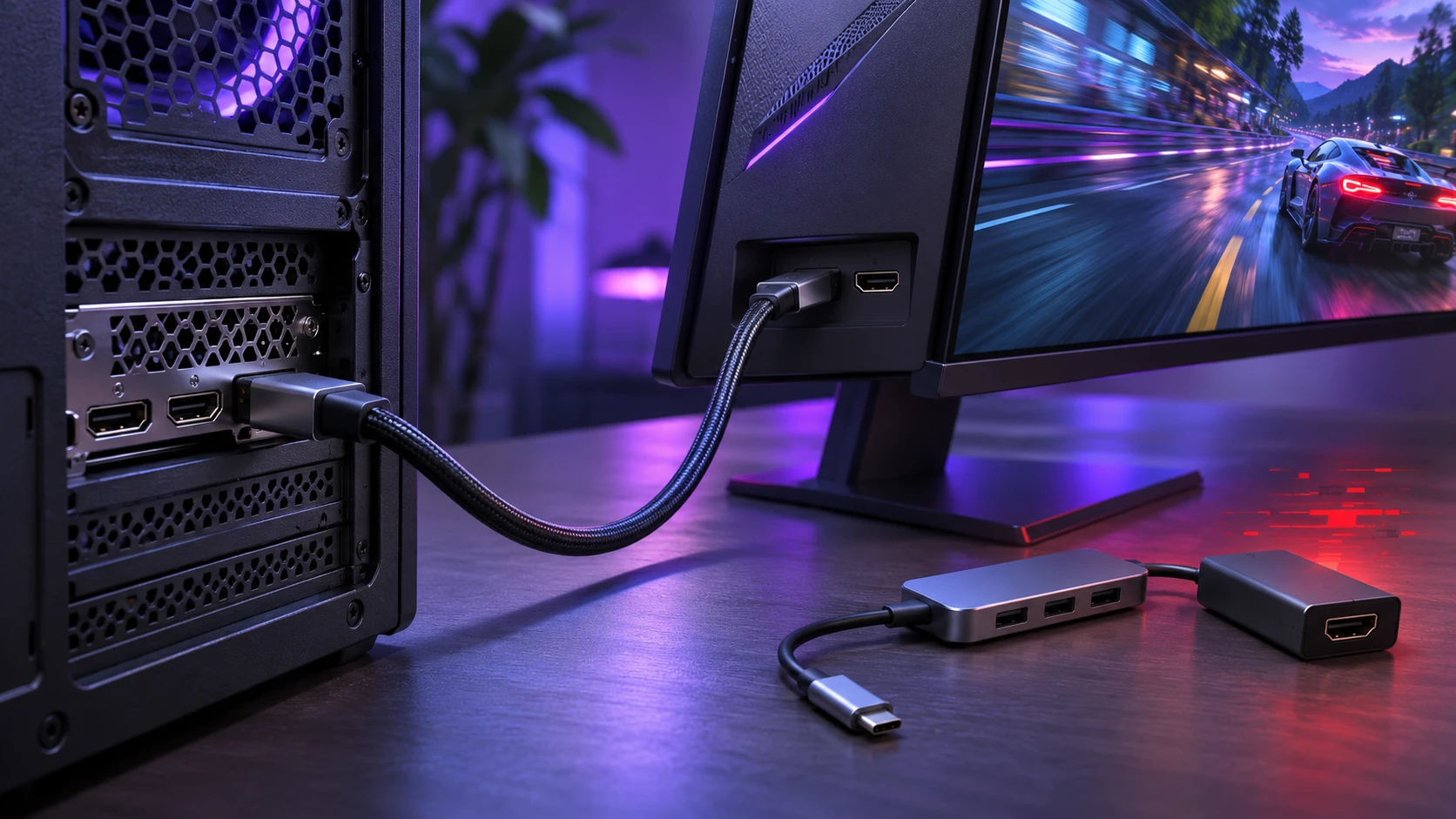
An incompatible cable, adapter, or display port can prevent a monitor from using its intended resolution and refresh rate. Depending on the connection’s available bandwidth, the system may offer a lower refresh rate, reduced color depth, or chroma subsampling. A faulty digital cable may also cause black screens, flickering, or temporary signal loss. However, cable quality does not normally create gradual input lag or reduce the number of frames rendered by the GPU.
Use the monitor manual to confirm which connection supports 144Hz at your chosen resolution. Some displays support their maximum refresh rate only through particular DisplayPort or HDMI inputs. The capabilities of the graphics card, cable, monitor port, and any adapter all matter.
- Check DisplayPort and HDMI Capabilities: Use a connection that supports the required resolution, refresh rate, and color settings. DisplayPort is a common choice for gaming monitors, but a compatible HDMI connection can also deliver high refresh rates.
- Avoid Unnecessary Adapters: DisplayPort-to-HDMI converters, USB-C hubs, and docking stations may limit the available display modes. If the computer and monitor support a suitable direct connection, test it before using an adapter.
- Replace Questionable Cables: If you experience black screens, flickering, or signal interruptions, test a suitable replacement cable that supports your display’s requirements. The Video Electronics Standards Association provides guidance on choosing a certified DisplayPort cable for reliable connections.
After changing the cable or connection, return to the operating system’s display settings and confirm that the intended refresh rate is available. If 144Hz remains unavailable, check whether the selected resolution, color format, or display mode exceeds the connection’s supported capabilities.
If the connection is working correctly, the next issue is often frame delivery rather than refresh capability.
Understand Frame Time Spikes and Frame Pacing
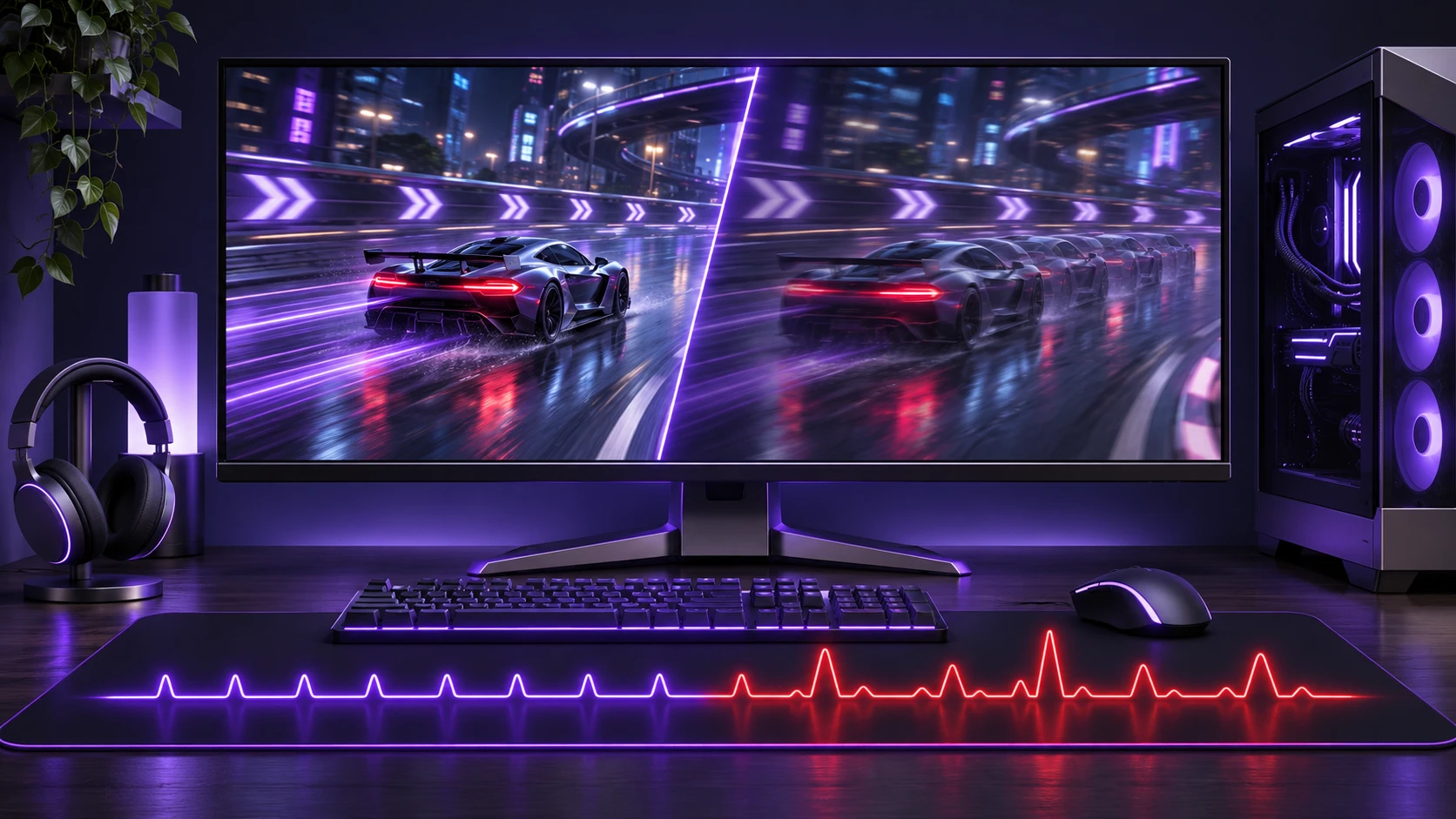
High refresh rate helps improve motion smoothness, but consistent frame delivery remains important. A game that averages high FPS but suffers repeated frame-time spikes may still feel stuttery or sluggish on a 144Hz monitor.
Instead of focusing only on average FPS, monitor frame-time consistency and sudden performance spikes. Stable frame times generally produce smoother motion, while uneven frame delivery can cause microstutter even when average FPS remains high. Our detailed guide explains why games can stutter even with high FPS and how to investigate common causes such as CPU load, shader compilation, memory pressure, and synchronization problems.
| Symptom | Possible Cause | What to Check |
|---|---|---|
| Choppy motion while FPS seems high | Frame-time spikes or inconsistent frame pacing | Monitor frame-time graphs, reduce demanding settings, and check background applications |
| Laggy feeling during intense scenes | CPU or GPU bottlenecks, power limits, or thermal throttling | CPU utilization, GPU utilization, temperatures, clock speeds, and frame-time spikes |
| Stutter every few seconds | Shader compilation, background processes, memory pressure, or asset streaming | Monitor frame-time spikes, check RAM and VRAM usage, close unnecessary background applications, and investigate game-specific issues |
| Feels delayed even at stable FPS | Additional latency from synchronization, buffering, or display processing | V-Sync configuration, frame-rate limits, supported low-latency features, and monitor settings |
Frame-time monitoring tools and supported in-game performance overlays can help identify these patterns. Compare average FPS with frame-time graphs and 1% low FPS readings whenever those measurements are available.
After identifying the symptom pattern, prioritize the settings most likely to cause the problem. Change one setting at a time and test the same gameplay scene before deciding whether it helped.
Fix V-Sync, G-SYNC, FreeSync, and Frame Caps
Synchronization settings can reduce screen tearing, but certain configurations may also increase latency or produce uneven frame delivery. A 144Hz monitor may feel less responsive when its synchronization settings do not match the game’s performance and the display’s capabilities.
Choose a synchronization setup that matches your monitor, graphics card, and gaming priorities. Variable refresh rate (VRR) technologies such as G-SYNC and FreeSync allow compatible displays to adjust their refresh timing to changing frame rates. A frame-rate limit slightly below the monitor’s maximum refresh rate can help prevent games from reaching the VRR ceiling. However, V-Sync is not always supposed to be disabled when VRR is enabled. Some recommended configurations use VRR together with V-Sync to control tearing near or beyond the refresh-rate limit. Test the settings recommended for your graphics hardware and compare responsiveness in the same game.
- If You Use G-SYNC or FreeSync: First confirm that your monitor and graphics card support variable refresh rate technology. NVIDIA users can follow NVIDIA’s G-SYNC setup instructions, while AMD users can follow AMD’s FreeSync setup guide. Once enabled, test an appropriate frame-rate cap and synchronization configuration in your game to balance smoothness, tearing prevention, and responsiveness.
- If You Use V-Sync Only: Traditional V-Sync can reduce tearing by synchronizing frame presentation with the monitor’s refresh cycle. However, it may increase input latency or introduce noticeable stutter when the game cannot maintain the required frame rate. Compare the results with V-Sync enabled and disabled to determine which trade-off suits your setup.
- Review Triple Buffering: Triple buffering may improve frame delivery in some rendering configurations, but its effect on latency depends on the game and graphics API. Avoid changing it globally without testing the result.
For example, a 144Hz monitor with VRR support may benefit from a frame-rate cap slightly below 144 FPS when the game and driver configuration support that approach. The exact limit should be treated as a starting point for testing rather than a universal requirement.
Once synchronization is configured correctly, focus on GPU rendering settings that may affect buffering and overall system latency.
Reduce Input Lag From GPU Driver Settings
Graphics settings that allow frames to accumulate in the rendering queue can make a 144Hz monitor feel slow even when movement appears relatively smooth. Reducing unnecessary frame buffering can improve the time between an input and its visible result.
Look for supported low-latency settings in your graphics software and consider using game-specific profiles instead of changing global settings. Different games and rendering APIs may respond differently to the same option.
- NVIDIA Low Latency Mode: In games without NVIDIA Reflex, the driver’s Low Latency Mode may help reduce queued frames in supported configurations. When NVIDIA Reflex is available in a game, prioritize the in-game Reflex option because it can manage rendering latency more directly. Test individual game profiles before applying global changes.
- AMD Radeon Anti-Lag: Radeon Anti-Lag can reduce input-to-display delay in supported games and graphics configurations. Availability and behavior depend on the Radeon GPU, driver version, and game. Advanced variants such as Anti-Lag+ have additional compatibility requirements, so users should verify support in AMD Software before enabling them.
- Disable Unnecessary Overlays: Recording tools, chat overlays, monitoring software, and other background applications can sometimes contribute to frame-time instability. Close them individually and compare performance before assuming they are responsible.
Low-latency settings do not automatically improve every game. Some configurations may trade a small amount of smoothness for improved responsiveness, while others may show little measurable difference.
Even with correctly configured GPU settings, Windows display behavior and monitor processing can still affect the overall experience.
Optimize Windows Display and Power Settings
Power-saving features can create uneven performance, especially on laptops or compact computers operating under power or thermal limits. Changes in CPU and GPU clock speeds may affect how consistently frames arrive during demanding gameplay.
Windows 11 also includes display optimizations that can reduce frame latency in certain DirectX 10 and DirectX 11 games running in windowed or borderless modes. Microsoft explains how to enable Windows 11 optimizations for windowed games through the system’s graphics settings. The feature applies to compatible games rather than guaranteeing improved performance in every title.
On Windows laptops, test gaming performance while connected to the appropriate power adapter and review the available power mode settings. Choose a higher-performance mode when necessary, but avoid assuming that a maximum-performance plan will always improve frame times. Also check whether Dynamic Refresh Rate, battery-saving features, or graphics power preferences are affecting gameplay. Change one setting at a time and compare the results.
- Power Mode: Review the available Windows power settings and select a suitable performance mode when gaming. On laptops, check whether battery-saving restrictions are limiting CPU or GPU performance.
- Game Mode: Windows Game Mode is generally designed to prioritize gaming resources. Keep it enabled unless testing reveals a specific compatibility or performance problem.
- Hardware-Accelerated GPU Scheduling: On supported systems, compare performance with this setting enabled and disabled if you suspect a related issue. Its effects depend on the graphics hardware, driver, and workload.
- Dynamic Refresh Rate: On supported Windows 11 devices, check whether Dynamic Refresh Rate is affecting the maximum refresh rate available to a particular game. If necessary, temporarily disable it and compare the results.
When testing these settings, use the same game, scene, resolution, and graphics preset. This makes it easier to identify whether a change improves performance or merely produces a different result under a lighter workload.
Next, confirm that the monitor is not applying unnecessary display processing.
Check Monitor OSD Settings That Add Delay
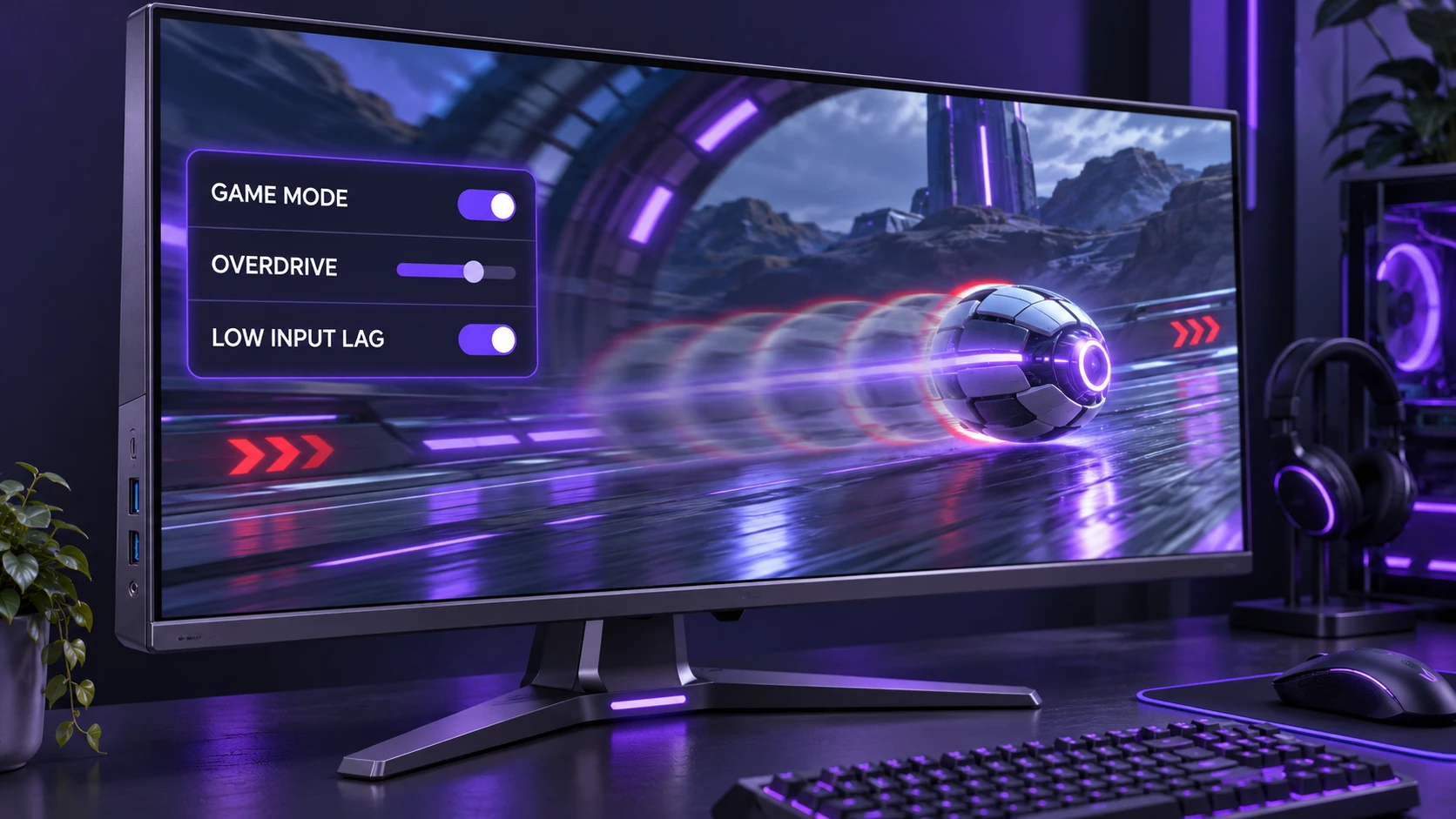
Some monitors and televisions include picture-processing features that may increase display latency. These can include certain image enhancement modes, dynamic contrast settings, or motion interpolation on displays that support it. However, not every gaming monitor includes these features, and HDR does not automatically cause noticeable input lag. The effect depends on the display model and its processing behavior.
Enable the monitor’s Game Mode or low input lag setting if available, then test its overdrive options using familiar moving scenes. Excessive overdrive can produce visible halos or inverse ghosting, while insufficient overdrive may leave noticeable motion trails. These motion-clarity problems are not the same as input delay. Our explanation of the difference between input lag and response time helps identify whether the problem involves display latency or pixel transitions.
- Game Mode or Low Input Lag Mode: Enable a supported low-latency display mode when it reduces unnecessary image processing. The improvement depends on the monitor’s design and settings.
- Overdrive Response Time: Start with a moderate setting and watch for ghosting, overshoot, or bright trails behind moving objects. The best setting may change when the monitor operates at different refresh rates.
- Disable Motion Interpolation Where Available: Some televisions and displays create intermediate frames to make motion look smoother. This processing can increase latency, so it is generally unsuitable for games requiring fast input response.
Also check whether motion blur reduction or backlight strobing features interact with variable refresh rate settings. Some monitors cannot use these technologies simultaneously, while others offer limited combinations.
Once the display settings are configured correctly, the remaining laggy feeling may come from the game and its rendering workload.
Game Settings That Commonly Make 144Hz Feel Worse
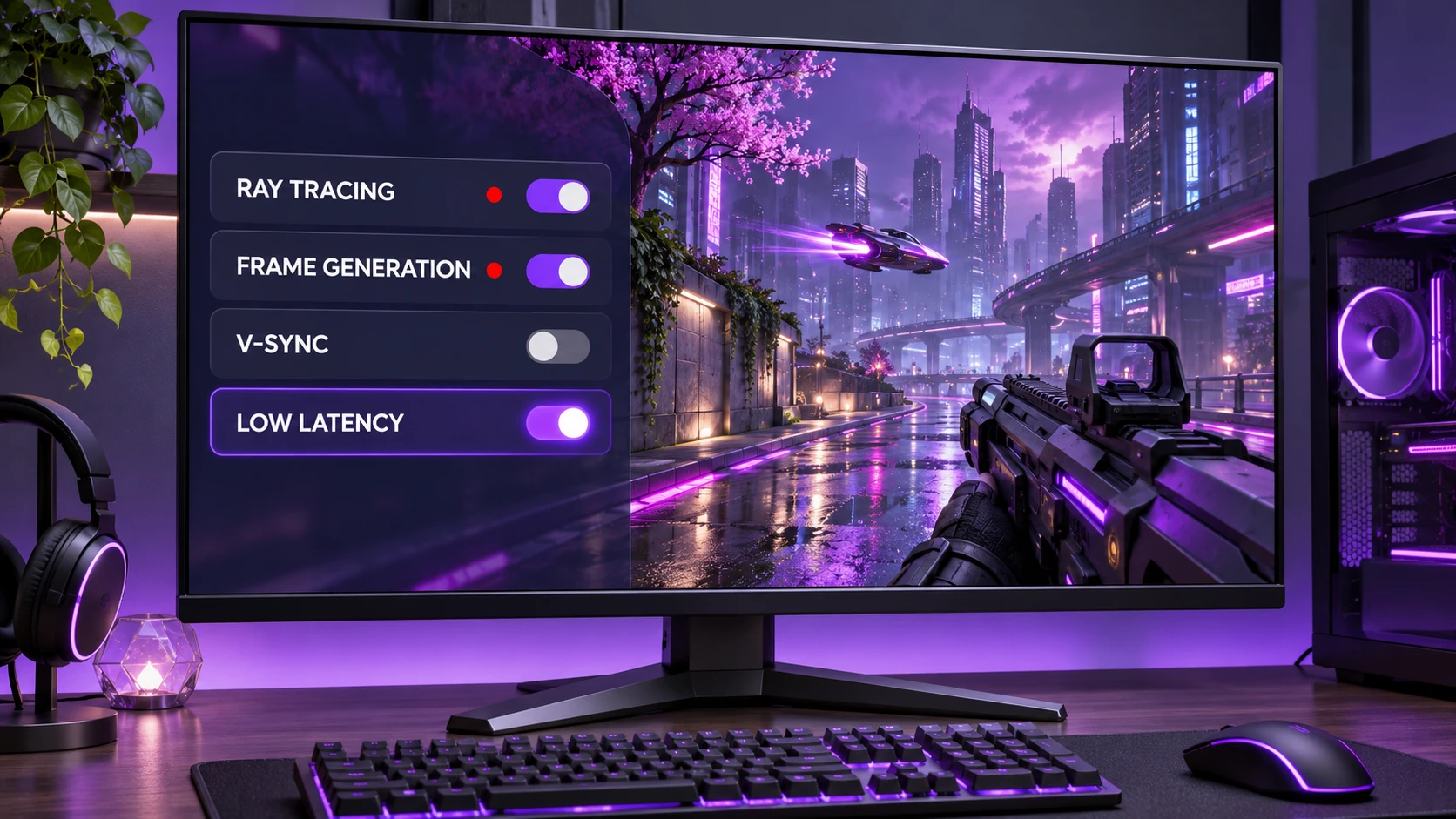
Some graphics settings place heavy demands on the CPU or GPU, while others influence rendering latency or frame delivery. Adjusting the settings responsible for performance spikes can improve responsiveness more effectively than reducing every graphics option without testing.
Prioritize stable frame times and low-latency features. Then increase visual quality only when the experience remains consistent.
Frame generation also deserves attention because it can increase displayed FPS without providing the same responsiveness as an equivalent increase in native rendering speed. Generated frames can improve perceived motion smoothness, but input responsiveness still depends heavily on the underlying game frame rate and rendering pipeline. Our comparison of frame generation versus native FPS explains why a higher FPS counter does not always mean lower input latency.
- Ray Tracing: Ray tracing can increase rendering demands and lower frame rates when the graphics card lacks sufficient performance headroom. Reduce demanding ray tracing options if frame times become unstable.
- Ultra Shadows and View Distance: High shadow quality and extended view distance may place additional demands on the CPU or GPU, depending on the game engine. Lower these settings individually when monitoring reveals performance spikes.
- In-Game V-Sync: Review how the game’s synchronization settings interact with any driver-level options. Avoid applying multiple frame-rate limiters or conflicting synchronization settings without understanding their effects.
- NVIDIA Reflex or Similar Options: Enable a supported in-game latency reduction feature when it improves responsiveness. NVIDIA Reflex can reduce latency by coordinating parts of the CPU and GPU rendering pipeline in compatible games. For more details about how these technologies work, see NVIDIA’s system latency optimization guide.
Other settings, such as texture quality, resolution scaling, and post-processing effects, should be adjusted according to the actual performance bottleneck. For example, lowering texture quality may help when video memory is insufficient, while reducing GPU-heavy effects may improve frame times when the graphics card is fully occupied.
After tuning the game, check the hardware for power limitations, thermal throttling, and other performance bottlenecks.
Rule Out CPU, GPU, and Thermal Throttling
A computer may produce 144 FPS in less demanding scenes but experience substantial drops when temperatures rise or system resources become heavily loaded. These changes can create inconsistent frame times and make gameplay feel less responsive.
Monitor temperatures, utilization, and clock speeds while running the exact workload where the problem occurs. If performance repeatedly decreases alongside clock-speed reductions, investigate cooling, power limits, and workload demands. High utilization or temperature alone does not prove that thermal throttling is occurring.
- CPU Single-Core Limits: Some games depend heavily on one or more CPU threads. Check individual core utilization and frame-time behavior rather than relying only on overall CPU usage.
- GPU Power and Temperature Limits: Graphics cards may reduce clock speeds when they reach power or thermal limits. Compare performance, clock speeds, and temperatures during repeated tests.
- RAM Capacity and Speed: Insufficient memory, excessive background memory usage, or unstable memory settings can contribute to stuttering. Review RAM usage and investigate instability before changing memory configurations.
- VRAM Pressure: Games that exceed available graphics memory may experience delayed texture loading or irregular frame times. Monitor VRAM usage and test lower texture settings when necessary.
Cooling problems should be addressed using appropriate maintenance and manufacturer guidance. Before changing hardware settings, check for blocked vents, dust accumulation, inadequate airflow, or unusual fan behavior.
If the computer maintains stable frame times and temperatures, input devices and polling behavior are worth investigating next.
Check Mouse Polling, USB Issues, and Controller Latency
A laggy feeling sometimes originates from the input device rather than the monitor. USB connection problems, unstable wireless communication, overloaded hubs, or unusually high mouse polling rates on certain systems can affect input consistency.
Test the mouse and keyboard using direct USB connections where practical. If stuttering appears specifically during rapid mouse movement, try a lower polling rate and compare the results in the same game.
- USB Port Choice: Test a direct motherboard USB connection if a hub or adapter appears unreliable. Rear motherboard ports can be a useful troubleshooting option on desktop computers, although they are not inherently faster for every device.
- Polling Rate Balance: Very high mouse polling rates can increase processing demands on some systems. Compare available polling settings if movement-related stutter occurs.
- Wireless Mode Checks: Ensure that wireless receivers have a stable connection and are not unnecessarily obstructed. Check for interference and install appropriate firmware updates when recommended by the manufacturer.
- Controller Connection: If you use a controller, compare wired and wireless operation when supported. Connection quality, game settings, and controller processing can all influence responsiveness.
When the cause is still unclear, a structured check sequence prevents wasted time.
If the problem appears mainly during online multiplayer matches, test whether network latency is being mistaken for monitor input lag. High ping, packet loss, jitter, or server delays can make actions feel unresponsive even when the monitor and GPU are working normally. Compare gameplay in a genuinely offline game or local benchmark with an online session. Our guide to the difference between input lag and ping explains how to identify local rendering delay versus network-related problems.
Quick Checklist to Make a 144Hz Monitor Feel Smooth
Work through the display, rendering, and input settings systematically. Change one thing at a time and retest in the same scene so you can identify which adjustment actually improves the experience.
- Verify 144Hz Output: Confirm that the correct monitor is using the intended resolution and refresh rate in Windows, your graphics software, and the monitor’s information screen.
- Confirm the Right Cable and Port: Check that the selected connection supports 144Hz at your resolution and color settings. Test a suitable direct connection if an adapter or docking station may be limiting the signal.
- Stabilize Frame Times: Monitor frame-time spikes, reduce settings responsible for performance bottlenecks, and close unnecessary background applications.
- Configure Sync and Frame Caps: Use a compatible combination of VRR, V-Sync, and frame-rate limiting. Follow the recommended configuration for your graphics hardware and test the results.
- Enable Supported Low-Latency Options: Test NVIDIA Reflex, Radeon Anti-Lag, or suitable driver settings when available. Keep changes that improve responsiveness without causing instability.
- Review Monitor Processing: Enable a supported low-input-lag mode, disable unnecessary processing, and adjust overdrive to balance motion clarity with overshoot artifacts.
- Check Thermals and Clocks: Ensure that the CPU and GPU maintain appropriate performance during sustained gaming workloads.
- Test Input Devices: Check mouse polling behavior, USB connections, controller settings, and wireless interference if input movement feels inconsistent.
- Separate Local Lag From Network Lag: Compare offline and online gameplay to determine whether ping, jitter, packet loss, or server performance contributes to the problem.
If the problem continues, determine whether it affects every game or only one title. Test a different game, compare fullscreen and borderless windowed modes, review recent driver or game updates, and monitor performance during repeated tests. If problems began immediately after a driver update, investigate that update before reinstalling drivers. Resetting a game’s configuration should be a later troubleshooting step, especially if it would remove custom settings.
Conclusion
A 144Hz monitor can still feel laggy when the system fails to deliver frames consistently or when additional latency is introduced during input processing, rendering, synchronization, or display output. Refresh rate alone cannot eliminate frame-time spikes, incompatible synchronization settings, monitor processing delays, or input device problems.
Start by confirming the actual refresh rate and checking the display connection. Then investigate frame pacing, synchronization settings, GPU latency features, Windows configuration, and monitor processing. If the problem persists, monitor hardware performance and test input devices while distinguishing local latency from online network issues.
With a suitable configuration and stable frame delivery, a 144Hz monitor can provide smoother motion and more responsive gameplay. The most reliable improvement comes from identifying the actual cause and making targeted changes rather than applying every performance tweak at once.
Frequently Asked Questions
Why Does My 144Hz Monitor Feel Like 60Hz?
A common cause is the computer operating at 60Hz even though the monitor supports 144Hz. Check the active refresh rate in Windows Advanced display settings, your graphics control panel, and the monitor’s information screen. If the monitor is already running at 144Hz, investigate low game FPS, uneven frame pacing, synchronization settings, and display processing.
Should I Use V-Sync on a 144Hz Monitor?
V-Sync can reduce screen tearing, but traditional V-Sync may increase input latency or cause uneven frame delivery in some conditions. If the monitor supports G-SYNC or FreeSync, follow the recommended VRR configuration for your graphics hardware and consider a suitable frame-rate cap. Some VRR setups also use V-Sync to control tearing near the refresh-rate limit, so disabling it is not always necessary.
Can a Bad Cable Make a High-Refresh-Rate Monitor Feel Laggy?
An incompatible cable or connection can prevent the monitor from reaching its intended refresh rate, while a faulty cable may cause flickering, black screens, or signal interruptions. However, cable quality does not usually increase rendering latency or lower the FPS produced by the graphics card. Check the monitor’s supported connections and replace a suspect cable when signal problems occur.
Do You Need 144 FPS for a 144Hz Monitor?
No. A 144Hz monitor can operate at 144Hz even when a game produces fewer than 144 FPS. However, higher and more consistent native frame rates generally improve responsiveness and motion clarity. When supported, variable refresh rate technology can help reduce tearing and certain forms of stutter when the game’s frame rate changes.
Why Does My 144Hz Monitor Stutter When FPS is High?
High average FPS does not guarantee smooth gameplay because individual frames may take different amounts of time to render. CPU spikes, shader compilation, background tasks, memory limitations, and synchronization settings can cause uneven frame delivery. Monitoring frame-time graphs and 1% low FPS can help identify performance problems that average FPS does not reveal.