

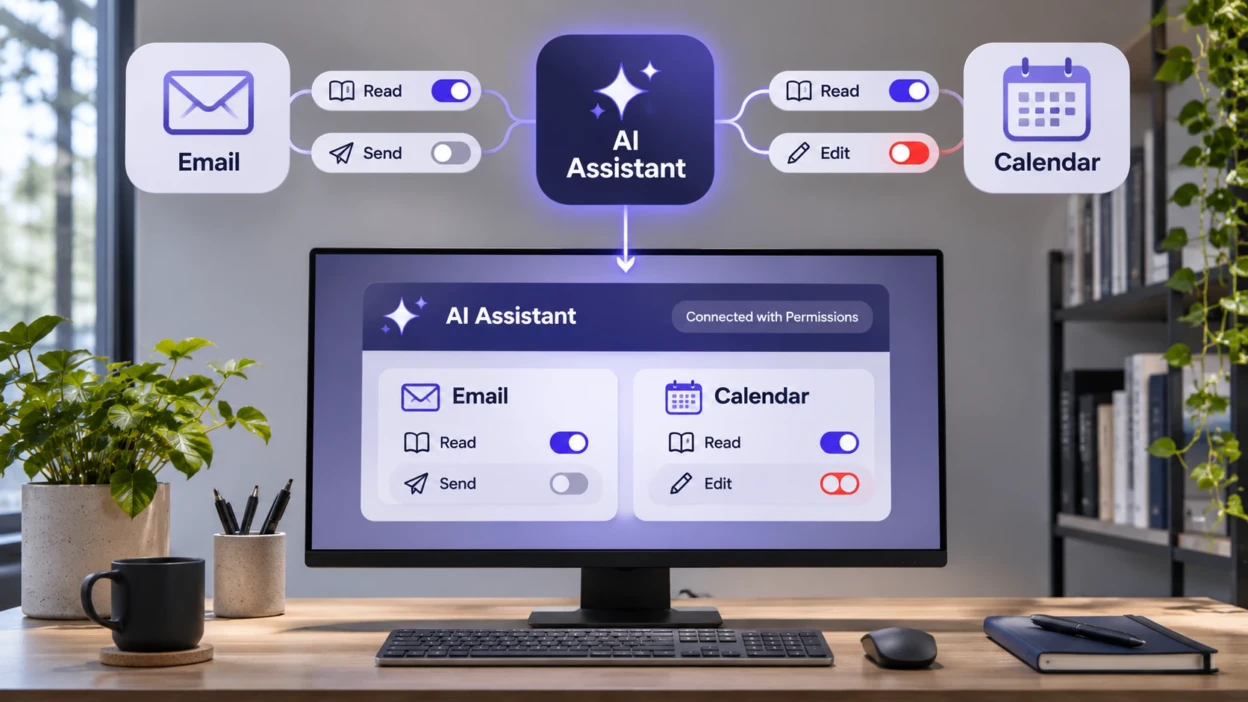
Connecting an AI agent to your email and calendar can do more than make a daily summary. Depending on the access you approve and the features the agent supports, it may read messages, prepare or send replies, check meeting details, and create, change, or remove calendar events. Reading your schedule is different from changing it, and reading an email is different from sending one.
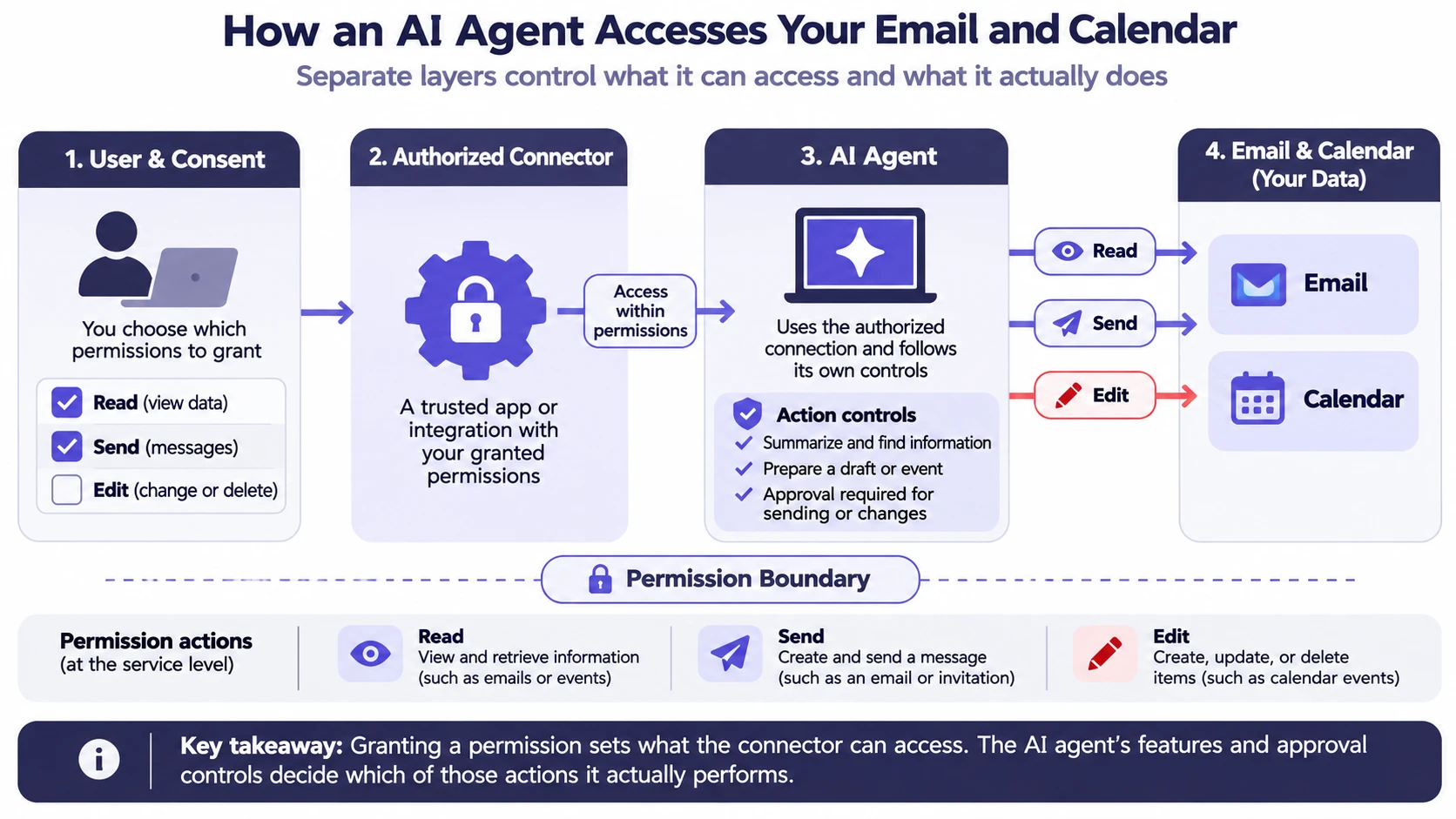
The key is to separate the permission an app receives, what its software can actually do, and whether it asks for your approval before acting. A permission describes possible access, not proof that a particular agent has used it. Here is how those boundaries work with Gmail, Google Calendar, Outlook, and Microsoft 365.
How Email and Calendar Permissions Work?
Many AI integrations use OAuth, an authorization system that lets you approve specific access without giving the app your account password. The approval screen may list permissions to read mail, send messages, view calendars, or manage events. Signing in with an account is not automatically the same as granting access to its inbox. TechBonafide’s guide to Google Account app access explains that distinction in more detail.
A connected agent normally works through an app or connector that calls the email or calendar service. The service checks the authorization granted to that connection. The agent’s own design, organization policies, and approval controls can further limit what happens. Some apps also obtain authorization that lets them refresh access and work when you are not actively using them, as described in Google’s OAuth documentation.
| Permission level | Example of an allowed task | What to watch for |
|---|---|---|
| Email metadata access | Find senders, subjects, or message headers | Even without message bodies, metadata can reveal contacts and patterns. |
| Email reading | Summarize a thread or find a booking email | Message bodies and possibly accessible attachments can contain private information. |
| Email sending | Send a reply or invitation email | A message may reach someone else before you review it. |
| Mailbox management | Apply labels, archive, or delete messages | The exact allowed changes depend on the service and scope. |
| Calendar free/busy | Find an available meeting window | This need not reveal full event descriptions. |
| Calendar event reading | Summarize a meeting, location, or attendee list | Event details can disclose relationships and private plans. |
| Calendar event writing | Create, reschedule, or delete an event | Changes can affect other participants and trigger notifications. |
Gmail and Google Calendar Examples
Google documents distinct Gmail scopes. gmail.readonly permits viewing messages and settings; gmail.send permits sending mail; gmail.compose permits managing drafts and sending messages; and gmail.modify permits reading, composing, sending, and modifying mail, but not bypassing the trash for immediate permanent deletion. The broader https://mail.google.com/ scope also permits permanent deletion. These distinctions matter when an app describes itself as a simple drafting assistant. See the official Gmail scope descriptions.
For Calendar, Google’s calendar.events.freebusy scope can provide availability without event details. calendar.events.readonly allows event reading, while calendar.events permits viewing and editing events. The broader calendar scope includes calendar management powers. An agent asking only to find a free time slot usually has less reason to request wide calendar control. The Google Calendar scope list provides the exact differences.
Outlook and Microsoft 365 Examples
Microsoft Graph also separates capabilities. Delegated Mail.Read allows reading a signed-in user’s mail. Mail.ReadWrite allows creating, reading, updating, and deleting mail, but it does not include sending permission. Mail.Send is separate. Calendars.ReadWrite can create, update, and delete events in user calendars. These descriptions come from the Microsoft Graph permissions reference.
Microsoft also distinguishes delegated permissions, where an application acts within the signed-in user’s access, from application permissions, where an authorized application can work without a signed-in user and may have much broader organizational reach. Organizations can configure restrictions for some application permissions. A consumer connecting a personal calendar should not assume its consent works exactly like an administrator approving an organization-wide app.
What an AI Agent Can Do With Your Email?
With suitable permissions and implemented features, an email-connected agent may:
- Find and summarize conversations: Search a mailbox, pull relevant messages, and summarize what a customer, colleague, or service provider said.
- Extract useful details: Identify dates, addresses, confirmation numbers, or action items in messages. If attachments are accessible through the integration, it may process their content too.
- Prepare drafts: Write a suggested reply that stays unsent until you check it, if the product offers a draft-and-review workflow.
- Send messages: Reply to a contact, send a follow-up, or email meeting details if sending access and the agent’s controls allow it.
- Organize or change mail: Apply labels, move or archive items, and possibly delete messages when the granted permissions and service operations allow those actions.
Inbox reading can expose more than the message you had in mind. Other conversations may contain invoices, personal records, meeting links, account notices, or messages from people who never agreed to use the AI tool. Permission to read mail does not by itself give an agent control of another website or account, but the information it sees can still be sensitive.
A useful way to set boundaries is to ask whether a task truly needs the whole mailbox. If you only want a summary of one conversation, manually supplying that conversation may avoid a standing connection. If you need continuous inbox triage, the benefit may justify broader access, but the provider’s retention and security practices deserve closer review.
What an AI Agent Can Do With Your Calendar?
Calendar integrations vary from checking availability to actively changing schedules. With free/busy access, an assistant can look for an opening without reading the full description of every appointment. With event-reading permission, it may also see meeting titles, participants, locations, notes, and links, depending on the event and calendar’s access settings.
With write access, a capable agent may create a meeting, change its time, update details, or delete an event. Calendar systems can notify attendees about some changes. A mistaken edit therefore may affect other people, not just the account owner. Shared-calendar capabilities also depend on the user’s rights, the particular scope, and organizational rules.
For simple scheduling suggestions, availability-only or read-only access is a practical starting point. Grant event-writing access only when automatic scheduling or changes are genuinely part of the job. TechBonafide’s Google Calendar sharing guide covers a separate control: granting access to other people rather than to connected applications.
Example: Turning One Email Into a Meeting
Imagine receiving a message saying, “Could we talk next week about the proposal?” A properly designed agent could follow this sequence if each required action is supported and authorized:
- Read the relevant email and identify that the sender wants a meeting.
- Check free/busy information to find suitable times.
- Prepare a suggested reply with two possible slots.
- Show you the recipient, wording, time zone, and proposed event details for approval.
- After approval, send the reply and create the calendar event, if it has both capabilities.
- Return the saved event details so you can confirm the result in your own calendar.
This is a hypothetical workflow, not a test of a named AI product. An agent with only mail-reading and free/busy permissions could suggest a time but could not send the reply or write the event through those permissions. Even with wider authorization, a product may deliberately require confirmation or omit a feature.
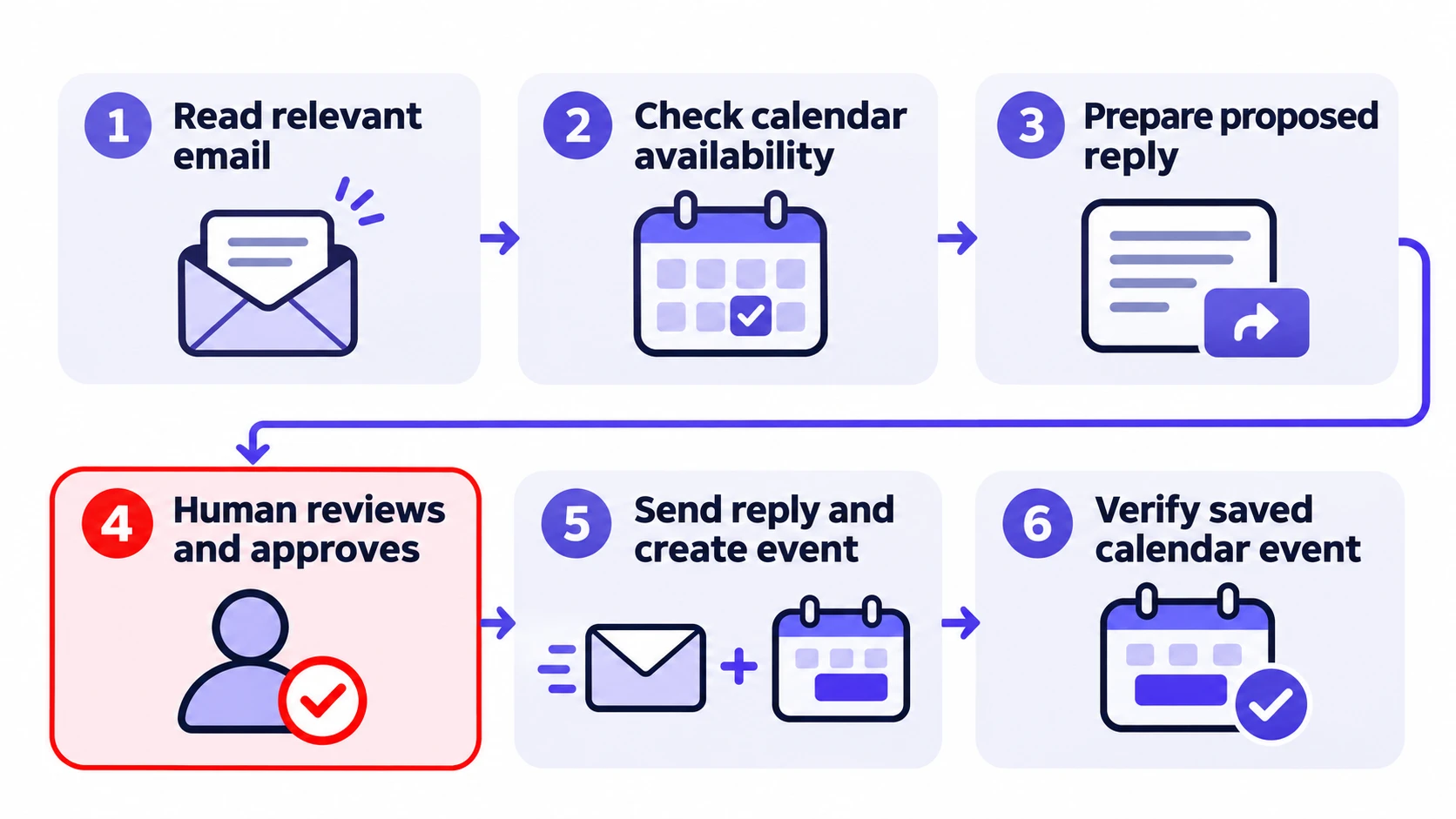
The most useful dividing line is between suggesting an action and executing it. Ask the agent to show its proposed message or calendar change before a consequential action, and verify the final state in the underlying email or calendar service.
The Main Privacy and Security Risks
Broad access creates opportunities for error or misuse even when the assistant is genuinely useful. The risk rises when an app combines sensitive data access, the ability to act, and little human review.
Prompt Injection in Emails and Invitations
An incoming message or calendar description may contain instructions aimed at the AI rather than the human reader. If an agent treats that untrusted content as an instruction, it might try to change its task, reveal information, or use a connected tool in an unintended way. This is called indirect prompt injection. OWASP identifies the risk and recommends limiting tool privileges and validating actions. TechBonafide also explains the mechanism in its prompt injection guide.
An instruction hidden in an email is not automatically effective. The outcome depends on the model, the surrounding application, its defenses, and the permissions available. Strong boundaries at the connector and action-approval level matter more than simply asking the model to ignore suspicious text.
Important: If an AI tool can send email or alter calendar events, an incorrect or manipulated action may affect other people before you notice. Keep a separate approval step for sending sensitive messages, deleting mail, or changing important meetings, and restrict the tool’s permissions to what the task requires.
Stored Data, Background Access, and Connected Accounts
A connected app may process selected content on its servers, send it to a model provider, or keep task history. The exact behavior depends on that product’s architecture, privacy policy, contracts, and settings; an OAuth permission screen alone does not establish its data retention rules. Check whether message content is stored, used for model improvement, shared with subprocessors, or deleted after disconnection.
Access may also continue between sessions where the authorization system and product support background operation. Removing a connection can stop future authorized API access, but it does not necessarily erase data already copied or derived by the provider. Treat access revocation and data deletion as separate requests.
What to Check Before You Approve an Agent?
Review the actual permission request rather than relying on a product’s promise to “manage your day.” A brief checklist is often enough to reveal a mismatch:
- Match scope to task: A scheduling suggestion may need free/busy access, not permission to edit every calendar.
- Separate read from write: Ask why an inbox summarizer needs sending, modification, or deletion rights.
- Look for combined powers: Reading private mail plus sending external messages creates a larger exposure than either ability alone.
- Verify the app and publisher: A genuine Google or Microsoft consent page does not prove the requesting application is trustworthy. Review TechBonafide’s OAuth phishing explanation if the request looks unfamiliar.
- Check approvals and logs: Prefer tools that show drafts, proposed event changes, and a clear history of completed actions.
- Read the data policy: Look for storage, retention, deletion, model-training, and third-party-processing terms.
- Check workplace rules: For business accounts, ask whether an administrator has approved the integration and whether access covers shared or organization-wide data.
If the consent screen requests broad access for a narrow task and the developer offers no clear reason, decline or choose a less privileged method.
How to Review and Remove Existing Access?
Revoking an unnecessary integration can stop it from making new authorized requests, although the tool may lose features and previously transferred data may remain with its provider. If you suspect abuse, also review recent account activity, sent messages, mailbox rules, and calendar changes.
Google Accounts
- Open the Google Account linked apps page.
- Find the relevant app under access to your Google Account and open its details.
- Read the Gmail and Calendar access shown, then use Remove access if you no longer want the connection.
- If the page shows a separate Agent access section for a supported Google agent, review it too. Stopping an agent’s use of a linked app is not the same as removing the underlying account link.
- If the app already copied information, contact the provider or use its data-deletion controls separately.
Google’s linked-app management instructions describe the available connection types and removal controls. Screen labels may vary by account and product.
Microsoft Work or School Accounts
- Open the Microsoft My Apps portal with your work or school account.
- Locate the application, open its menu, and choose Manage your application where available.
- Review the permissions you personally granted and select Revoke Permissions if appropriate.
- If the administrator granted the permissions, contact your IT team rather than assuming you can remove those grants yourself.
Microsoft provides these steps in its My Apps permission guide. Administrators can review organizational grants through Entra ID > Enterprise apps > All applications > Permissions, as described in Microsoft’s administrator documentation. Personal Microsoft accounts may use different account-management controls, so do not treat the work or school steps as universal.
Safer Ways to Use Email and Calendar Agents
For occasional tasks, copying a selected email into an assistant or manually entering meeting availability can avoid ongoing account permissions. Remove names, private details, and confidential content before sharing it with any tool whose data practices you have not approved. For regular workflows, start with read-only or free/busy access, then add write permissions only when the benefit is clear.
For teams, use approved integrations, documented permission owners, restricted accounts or mailboxes where practical, and reviewable action logs. Require human confirmation for external messages and high-impact calendar changes. Check whether a proposed setup can operate on shared mailboxes, other users’ calendars, or organization-wide data before approving it. Review stale integrations periodically and revoke access when a project ends.
These controls do not make an agent infallible. They reduce the damage possible from mistakes, compromised integrations, and malicious content. The safest useful configuration is the one that gives the agent enough access to complete its specific task without granting extra authority just in case.
The Bottom Line
An AI agent with email and calendar permissions can be anything from a read-only scheduling helper to a tool that sends messages and changes other people’s meeting plans. Its actual reach depends on the granted scopes, the account’s existing rights, the product’s features, and its approval controls. Check those four things before connecting it, verify important actions afterward, and remove access when the job no longer requires it.

Tech Bonafide is the editorial identity of TechBonafide, an independent technology publication covering AI, software, cybersecurity, gadgets, and emerging technology.