Evil twin Wi-Fi attacks use fake hotspots that look legitimate but exist to intercept your traffic, capture credentials, and profile your device. They succeed because people trust familiar network names, accept pop-ups quickly, and reuse passwords across accounts. This guide breaks down how these attacks work, what gets stolen, and the most practical defenses you can apply right away.
What An Evil Twin Wi-Fi Attack Is?
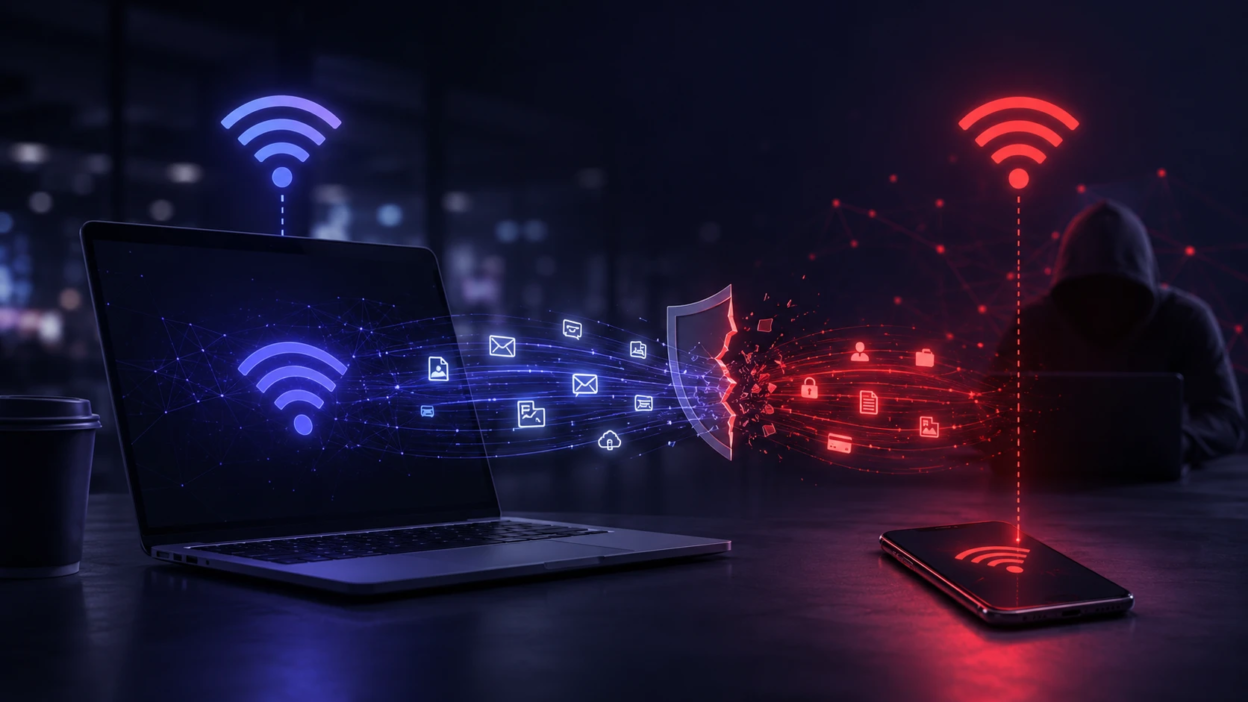
An evil twin is a rogue wireless access point that copies the name of a real network and often mimics its login flow. The attacker places it where you expect Wi-Fi to be available, then waits for devices to connect automatically or for users to pick the familiar name.
Once connected, the attacker can force your traffic through their device. Depending on the setup, they can read unencrypted data, downgrade secure connections, or redirect you to lookalike sign-in pages.
Why Fake Hotspots Are So Effective?
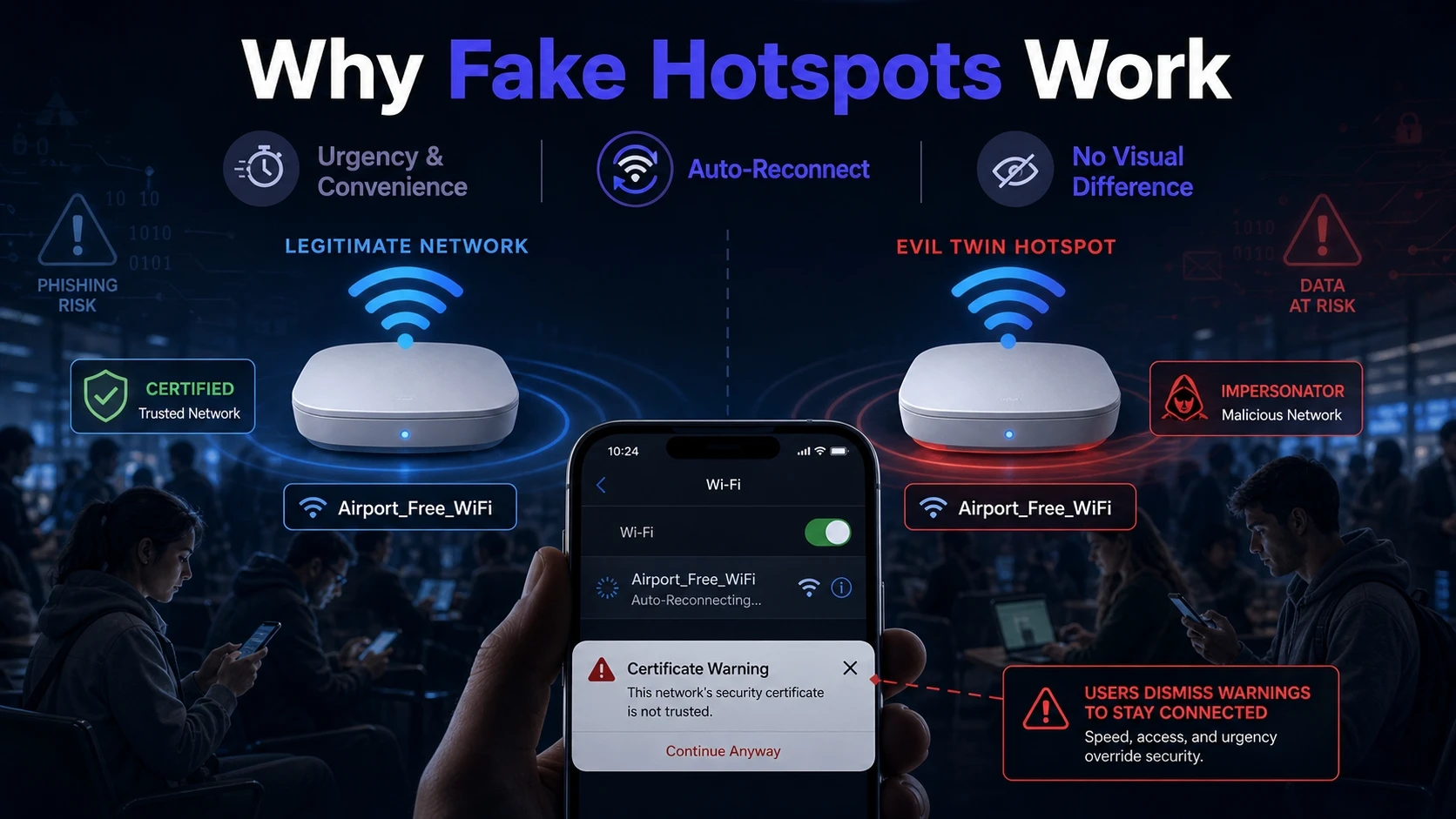
Wi-Fi names are easy to copy, and most people cannot visually distinguish a legitimate access point from a malicious one. Many devices also remember networks and try to reconnect without asking, which gives attackers a low-effort entry point.
Attackers also benefit from urgency and convenience. When the goal is a quick connection, users tend to ignore security cues like certificate warnings, strange login screens, or repeated disconnects.
How Attackers Set Up An Evil Twin Hotspot?
The mechanics are simpler than most people think. An attacker needs a Wi-Fi-capable device, the ability to broadcast a network name, and a way to route or intercept traffic.
- SSID Cloning: The rogue hotspot uses the same network name as a trusted Wi-Fi network.
- Stronger Signal Lure: A higher-power signal or closer placement makes the fake option appear as the best connection.
- Captive Portal Copy: A cloned sign-in page prompts for email, passwords, or payment details.
- Man In The Middle Routing: Traffic is forwarded through the attacker to the real internet to avoid suspicion.
- Deauth Forcing: Some setups push devices off the real network so they reconnect to the stronger fake one.
Understanding these building blocks makes the warning signs easier to spot and reduces the chance of a silent compromise.
What Data Gets Stolen During The Attack?
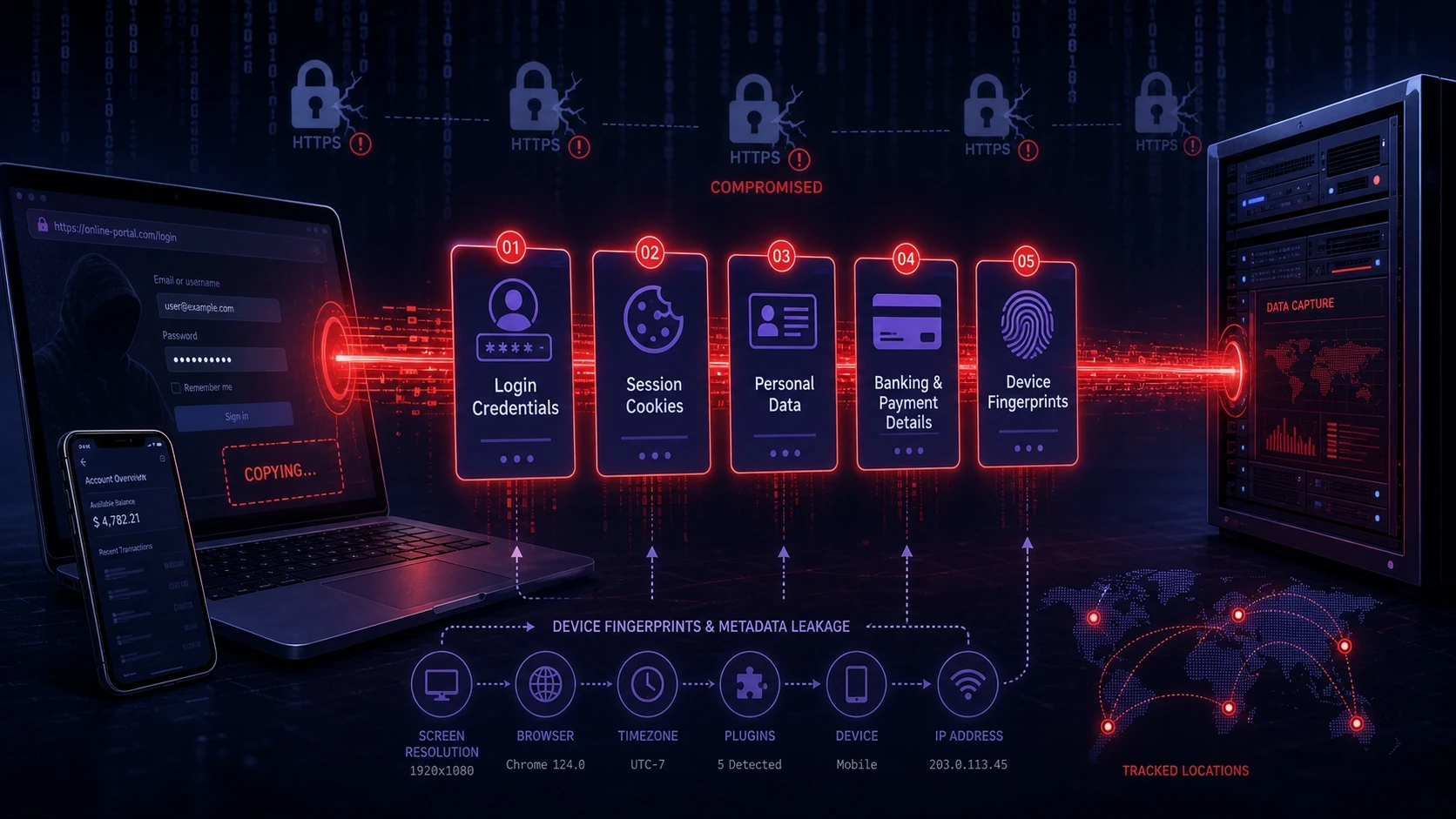
The exact exposure depends on whether your connections are encrypted end-to-end and whether you enter credentials into a fake portal. Even with HTTPS, attackers can still learn a lot through metadata and device behavior.
- Login Credentials: Passwords entered into cloned portals or captured from poorly secured app sign-ins.
- Session Cookies: Tokens that can enable account access if a service is misconfigured or a device is compromised.
- Personal Data: Names, emails, phone numbers, and other details typed into forms on spoofed pages.
- Banking And Payment Details: Card information submitted to fake payment prompts or redirected checkout pages.
- Device Fingerprints: OS version, language, browser details, and identifiers that support tracking and targeting.
Even when passwords are not captured, the intelligence gathered can fuel phishing, account takeover attempts, and credential stuffing.
Common Warning Signs You Are On A Rogue Network
Evil twin Wi-Fi attacks aim to feel normal, so the signs can be subtle. Treat repeated friction as a signal to pause and verify rather than clicking through.
- Duplicate Network Names: Two options with the same name or slight variations like extra spaces or characters.
- Unexpected Login Pages: A portal asking for email passwords, social logins, or sensitive details.
- Certificate Warnings: Browser alerts about insecure connections or invalid certificates.
- Frequent Disconnects: Drops that push you to reconnect repeatedly, sometimes after choosing the same network.
- Unusual Redirects: Websites loading the wrong domain, unexpected ads, or repeated prompts to install profiles.
If any of these appear, disconnect immediately and switch to mobile data or a verified network.
How To Protect Yourself On Public Wi-Fi?
Defense works best as a routine rather than a one-time fix. Focus on connection hygiene, device settings, and reducing the value of intercepted traffic.
- Confirm The Official Network Name: Ask staff for the exact SSID and whether a password is required.
- Disable Auto Join: Turn off auto-connect for public networks and remove saved hotspots you no longer use.
- Use A Trusted VPN: A reputable VPN encrypts traffic from your device to the VPN server, limiting interception.
- Prefer HTTPS And Secure Apps: Avoid services that show certificate errors or load on plain HTTP.
- Avoid Sensitive Actions: Skip banking, password changes, and account recovery tasks on unknown Wi-Fi.
- Enable Multi Factor Authentication: MFA reduces the impact of stolen passwords, especially for email and finance.
- Keep OS And Browsers Updated: Security patches reduce exposure to downgrade tactics and known exploits.
These steps are practical on phones and laptops and dramatically lower your risk even in high-traffic locations.
Security Settings That Reduce Risk On Phones And Laptops
A few configuration choices remove common attacker advantages. Most of these take minutes and keep working in the background.
- Use Randomized MAC Addressing: This limits tracking across networks and reduces profiling.
- Turn Off Wi-Fi When Not Needed: This prevents passive scanning and accidental auto-connections.
- Block Automatic Captive Portal Pop-Ups: If your device allows it, require manual browser navigation before sign-in.
- Set Your Network Profile To Public: On laptops, public mode disables discovery and reduces exposure to lateral attacks.
- Use A Password Manager: Autofill fails on lookalike domains, which helps you avoid entering credentials into spoofed portals.
After locking these in, you can move on to stronger protection for teams and organizations.
How Organizations Can Reduce Evil Twin Exposure?
Businesses face higher stakes because one compromised device can expose internal apps, email, and customer systems. A policy-first approach paired with modern controls prevents most incidents or contains them quickly.
- Enforce WPA2 Enterprise Or WPA3 Enterprise: Certificate-based authentication is harder to spoof than shared passwords.
- Use EAP TLS Where Possible: Mutual authentication helps ensure the device validates the network, not just the other way around.
- Roll Out Always On VPN Or ZTNA: Traffic stays encrypted and access is identity-driven rather than network-driven.
- Deploy MDM Policies: Control auto-join settings, require updates, and block risky profiles.
- Train Staff On Captive Portal Hygiene: Teach people to verify SSIDs and never enter corporate credentials into Wi-Fi portals.
For teams that need help designing these controls, Tech Bonafide can support security hardening, endpoint policy planning, and practical guidance that fits your environment and budget.
Quick Comparison Of Safe And Risky Wi-Fi Behaviors
| Situation | Risky Choice | Safer Choice |
|---|---|---|
| Two networks share the same name | Connect to the strongest signal | Verify the official SSID with staff and use it only |
| Captive portal requests email password | Enter credentials to get online | Disconnect and use mobile data or a trusted VPN |
| Browser shows certificate warning | Proceed anyway | Stop, close the page, and switch networks |
| Work tasks on public Wi-Fi | Access admin panels without protection | Use always on VPN or ZTNA and limit sensitive actions |
Keep this checklist in mind and you will avoid most traps that make evil twin Wi-Fi attacks profitable.
What To Do If You Connected To A Suspicious Hotspot?
Fast action limits damage. Focus on cutting off access, rotating credentials safely, and checking for follow-on abuse.
- Disconnect Immediately: Turn off Wi-Fi and forget the network so your device does not rejoin.
- Enable Mobile Data Or A Trusted Network: Use a connection you control before logging into any accounts.
- Change Passwords Starting With Email: Email reset links are the gateway to other accounts, so secure it first.
- Review Active Sessions: Sign out of other devices where the service supports it and revoke suspicious sessions.
- Turn On MFA: Add an authenticator app or hardware key for high value accounts.
- Monitor Accounts And Alerts: Watch for password reset emails, new logins, and unexpected payment activity.
If this happened on a work device, report it to your security team quickly. Tech Bonafide can also help assess exposure, strengthen policies, and put preventive controls in place after an incident.
Conclusion
Evil twin Wi-Fi attacks succeed by blending into normal connectivity and exploiting quick decisions. The strongest protection comes from verifying network names, disabling auto-join, using a trusted VPN, and treating captive portals and certificate warnings as stop signs.
When you combine good habits with secure device settings and strong authentication, fake hotspots become far less dangerous. Keep your defenses simple, consistent, and easy to follow so you stay protected wherever you connect.
Frequently Asked Questions
Can a VPN prevent evil twin Wi-Fi attacks completely?
A VPN greatly reduces interception by encrypting traffic from your device to the VPN server. It does not stop a fake captive portal from collecting credentials you type into it. You still need to verify the network name and avoid entering sensitive logins into Wi-Fi portals.
How can I tell the real network from an evil twin hotspot?
The most reliable method is confirmation from the venue of the exact SSID and whether a password is required. Be cautious of duplicate names, unusual sign-in prompts, and certificate warnings. When in doubt, use mobile data or a personal hotspot.
What accounts should I secure first after a suspected connection?
Start with your email account because it controls password resets for most services. Next secure financial accounts, then high-value logins like work tools and cloud storage. Review active sessions and turn on multi factor authentication to reduce takeover risk.