


Google Drive is usually the easier starting point for sharing a document with a friend, classmate, or small group. Its sharing controls make it clear whether someone can view, comment on, or edit a file. OneDrive is also straightforward for basic sharing, and it becomes especially useful when a team already works in Microsoft 365 or needs to manage who can use different links.
Neither service is universally easier or safer. A link that anyone can open is convenient, while a link limited to named people offers more control. The better choice depends on the recipient, the type of collaboration, and whether a personal, work, or school account is involved. This comparison focuses on browser-based sharing rather than storage prices or upload speeds.
File Sharing at a Glance
Both services let you share a file with named people or send a link. The biggest difference is how their collaboration roles and link-management options fit your task.
| Sharing task | Google Drive | OneDrive |
|---|---|---|
| Send a simple link | Choose Restricted or Anyone with the link, where allowed. | Copy a link and check its audience, which may be limited to added people, an organization, or anyone. |
| Invite specific people | Enter email addresses and choose Viewer, Commenter, or Editor. | Add recipients and choose available permissions such as Can view or Can edit. |
| Review without full editing | Commenter is a distinct role for supported files. | Can review is available for supported file types, including some Word workflows. |
| Share with someone outside the platform | Anyone links need no Google sign-in; eligible Workspace accounts can use visitor sharing. | Anyone links need no Microsoft sign-in; eligible work or school invitations can use email verification. |
| Set time-limited access | Work and school accounts support expiration for certain named-user permissions, not a general expiration for every public link. | Supported additional links may have expiration or password options, depending on account, subscription, and policy. |
| Remove access later | Review sharing settings and inherited folder access. | Review direct, group, folder, and link permissions before removing access. |
These are documented capabilities, not the results of a timed usability test. Account type and organization policy can change the options displayed. For a broader comparison involving backups, syncing, and capacity, see TechBonafide’s cloud storage options guide.
How to Share Files With Google Drive?
Google Drive provides two common approaches: invite people directly, or copy a link. Both start from the Share control beside a selected file or folder.
Invite Specific People
- Open Google Drive in a browser and sign in to the account that owns or can share the file.
- Select the file or folder and choose Share.
- Enter the recipient’s email address or a supported group.
- Choose Viewer, Commenter, or Editor, as appropriate.
- Review the notification setting, then select Send or Share.
Viewer is suitable for a final PDF or reference document. Commenter makes sense when someone needs to give feedback without directly editing the content. Editor is intended for collaboration and can allow more extensive changes, especially to shared folders. Google’s Drive sharing instructions explain the available roles and how folder permissions work.
Create a Sharing Link
- Select the item and open Share.
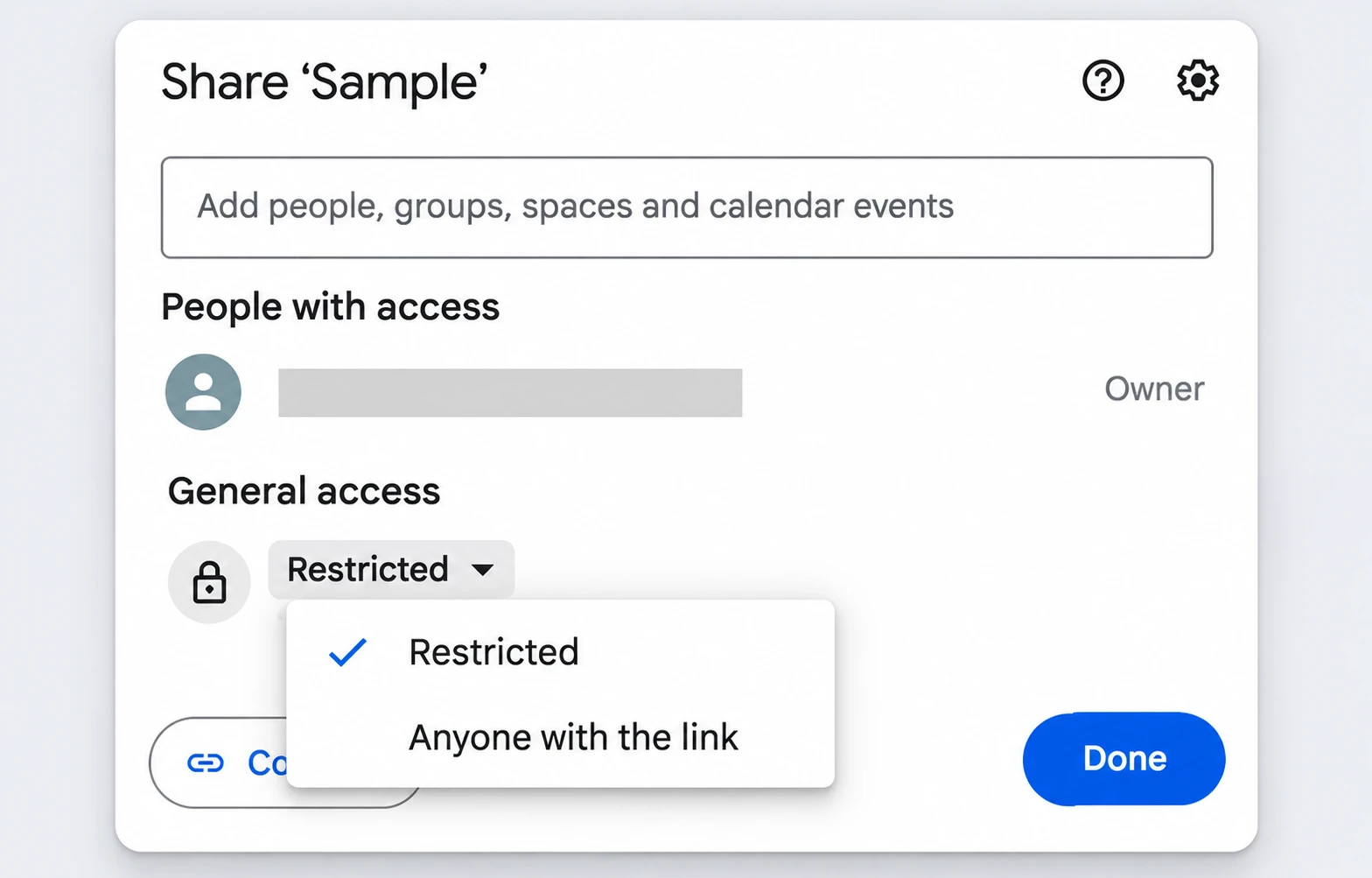
- Under General access, select Restricted or Anyone with the link, if the latter is available.
- Choose the role the link should grant, then select Copy link and Done.
- Send the link to the intended recipients.
Restricted means only people who already have permission can open the item. Anyone with the link permits a recipient to open it without signing in to Google, so forwarding that link can also extend access. An organization may prevent its members from creating open links.
How to Share Files With OneDrive?
OneDrive also supports direct invitations and links. Microsoft documents separate experiences for personal and work or school accounts, so labels and available settings may differ. The steps below describe the main browser workflow, not every version of the interface.
Invite Specific People
- Sign in to OneDrive on the web and select the file or folder.
- Choose Share and add the intended people or email addresses.
- Select an available permission, such as Can view or Can edit. Work or school accounts may also display Can review or Can’t download for supported content.
- Review the recipient list and notification option, then share the item.
This works naturally when colleagues already use Word, Excel, PowerPoint, or Microsoft 365. But an editing invitation to a folder can permit changes to items inside it, not just the ability to read them. Microsoft’s OneDrive sharing guide explains the available permissions.
Copy a Link and Check Its Audience
- Select the file or folder and open Share.
- Look at the link settings before copying. Depending on the account, these may appear under File link settings or a settings icon.
- Choose the audience you actually intend, such as only people already added, people within the organization, or anyone with the link, where permitted.
- Set a suitable view or edit permission and select Copy link.
Microsoft’s newer work or school sharing experience includes a main file link whose permissions can be changed without generating a different URL. It can also support additional links with separate settings. Older or personal account screens can look different. The practical rule is to read the audience and permission shown in your own sharing dialog rather than assume a copied link is private.
Sharing With People Who Use Different Accounts
If you send a family photo or event schedule using an Anyone link, recipients generally do not need a matching Google or Microsoft account to open it. That is convenient, but it also means possession of the link may be enough to gain access.
For restricted collaboration, the experience is more specific. Google Workspace organizations can enable visitor sharing so a person without a Google Account can access supported files after verifying an email address. This feature is subject to the organization’s sharing settings. A normal email invitation should not be assumed to work for every non-Google recipient.
For OneDrive work or school sharing, Microsoft describes external guest access that may use a one-time email passcode when the recipient lacks a Microsoft account. Microsoft personal accounts and managed organizations can apply different requirements. An organization may also disable outside sharing altogether.
For a cross-company project, ask the recipient whether the invitation opened successfully before concluding that either service is broken. A sign-in request can reflect the link type, an account mismatch, or an administrator’s rule.
Permissions, Link Controls, and Privacy
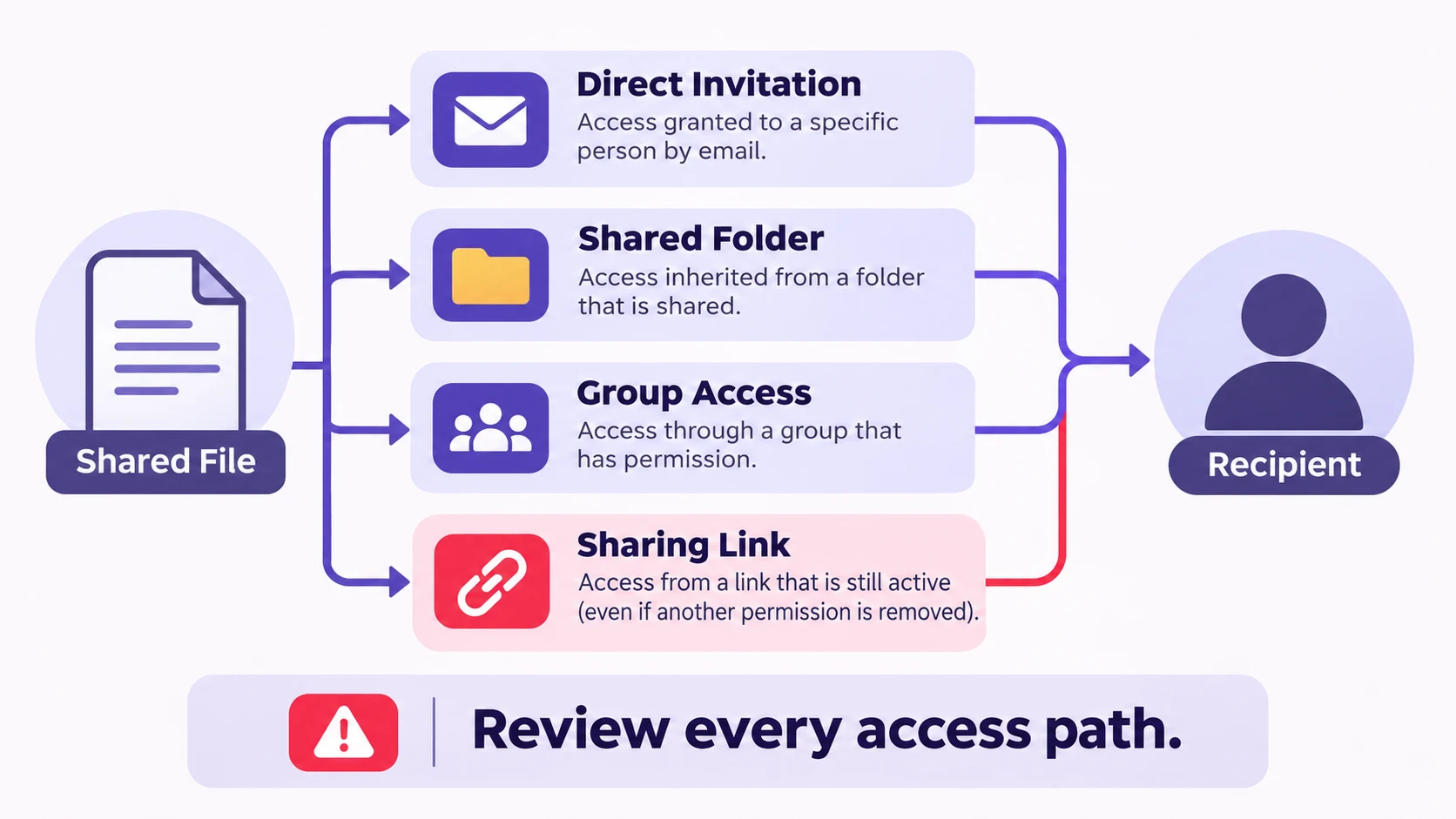
Ease of sharing also means being able to correct a mistake. Both services let owners review who has access, but changing one permission does not always remove access granted by a parent folder or another link.
Important: Before sharing a confidential file, check both the link audience and the permission level. Anyone links can be forwarded to other people, and edit access to a shared folder can allow changes or deletion of its contents. Prefer named recipients and the least access needed for the task.
Google Drive lets owners remove named users or change general link access. Inherited folder permissions matter: changing a file’s role may not reduce rights someone already receives through its parent folder. In work or school accounts, some named-user permissions can expire. This is not the same as setting an expiration date on every Anyone link.
OneDrive’s controls can be more detailed. Depending on the account and link type, supported additional sharing links can use passwords or expiration dates. In Microsoft’s newer work or school experience, these options apply to supported additional links rather than the main file link. A person may retain the highest permission granted by a direct invitation, group, folder, or another link. Microsoft’s permissions management guidance explains why every source of access matters.
Review and Revoke Access
- In Google Drive: Open the file’s Share menu, inspect people and General access, then remove users or switch the link back to Restricted when appropriate. Check whether a parent folder still grants access.
- In OneDrive: Open Share or Manage access, inspect people, groups, and links, and remove each route that grants unwanted access. For supported work or school experiences, owners may have a broader Remove access action that makes the item private to its owners.
- For either service: Reopen the sharing dialog to confirm the resulting permissions. Restricting downloads is useful where supported, but it cannot guarantee that someone will not capture or reproduce information they can see.
Permissions granted to third-party applications are a separate subject from the people who can open a shared link. If you are concerned about connected applications, TechBonafide also explains how to review apps with access to your Google Account.
How to Fix Common Sharing Problems?
Someone sees a request-access screen: Confirm that you shared with the correct email address and that the recipient opened the invitation using the intended account. If it is a link, check whether it is restricted to existing recipients. For work or school accounts, an administrator may have blocked external sharing.
Someone can edit when you expected view-only access: Check folder permissions and any other links or group access. On OneDrive, a view-only invitation does not cancel a separate editing permission. On Google Drive, a file may inherit broader rights from its folder.
A OneDrive link has stopped working: The owner may have revoked it, changed the permissions, or moved the item. Microsoft advises creating a new link when a previously shared link breaks after an item is moved.
A recipient needs to download a copy: Check the permission granted and whether a download restriction is enabled. Do not switch a sensitive document to an Anyone link merely to work around a blocked download.
For a simple verification, reopen the sharing settings after making changes and ask an authorized recipient to confirm they can open the file with the intended level of access. This checks the actual recipient experience without exposing a private document through a public test link.
Which Service Is Easier for You?
- Sharing coursework or a draft for comments: Google Drive is a convenient choice, particularly when collaborators use Google Docs and its separate Commenter role.
- Working inside a Microsoft 365 team: OneDrive fits well when teammates already rely on Microsoft Office files and organizational access controls.
- Sending a file to someone outside your company: Both can work. Check whether you need an open link, a restricted invitation, or an email-verification flow before choosing.
- Sending a time-limited link: OneDrive may offer suitable password or expiration controls on supported links, while Google Workspace supports expiration for some named-user access. Verify your account’s options first.
- Sharing a file that already exists in one service: Usually, the easiest option is to share it where it is rather than move it solely for a different sharing menu.
Final verdict: Google Drive has the simpler everyday learning curve for many people who want to send a link or invite someone to comment. OneDrive is a strong choice for Microsoft 365 collaboration and for users who benefit from its available link-management controls. In either service, successful sharing means the intended person can get in, has only the permissions they need, and can lose access when the collaboration ends.

Tech Bonafide is the editorial identity of TechBonafide, an independent technology publication covering AI, software, cybersecurity, gadgets, and emerging technology.