


Unused cloud resources can quietly increase your monthly bill. A virtual machine left running after a project ends, an unattached storage disk, or an unused public IP address may continue generating charges even when nobody is actively using it.
To find and remove unused cloud resources safely, start with a complete inventory, compare resource costs with actual activity, identify dependencies and owners, protect any data that must be retained, and remove only resources that have passed a review. This approach supports the same cost ownership and waste-reduction principles covered in our guide to FinOps and cloud cost management.
This tutorial explains how to investigate unused resources in Amazon Web Services (AWS), Microsoft Azure, and Google Cloud without treating every idle resource as safe to delete.
What Counts as an Unused Cloud Resource?
An unused cloud resource is infrastructure that no longer serves a required workload or business purpose. An idle resource is different: it may show little activity while still supporting scheduled jobs, disaster recovery, seasonal traffic, or standby capacity.
Cloud providers can identify potential waste through monitoring data and resource relationships, but these signals do not establish whether a resource is safe to remove.
| Resource | Possible Warning Sign | What to Check Before Removal |
|---|---|---|
| Virtual machines | Low CPU or network usage over an observation period | Scheduled jobs, memory usage, traffic patterns, and application ownership |
| Storage disks | Disk is unattached to a running instance | Stored data, recovery plans, backup requirements, and intended future use |
| Public IP addresses | Reserved address is not attached to a resource | DNS records, allowlists, planned deployments, and external integrations |
| Load balancers | Little traffic or no active targets | DNS routing, failover configurations, and application dependencies |
| Managed databases | Few connections or long periods of limited activity | Data retention, scheduled workloads, replicas, and restore requirements |
| Snapshots and images | Old backups or machine images without recent use | Recovery points, instance templates, compliance rules, and backup chains |
Storage deserves particular care because an unattached disk can still contain valuable data. Understanding the difference between storage technologies can also help during cleanup. See our explanation of object, block, and file storage before making changes to unfamiliar storage resources.
Prepare a Cloud Resource Inventory
Before deleting anything, create a record of what exists and how each resource is used. The goal is to establish a reliable list of cleanup candidates rather than making decisions from a single dashboard.
- Define your scope. List the AWS accounts, Azure subscriptions, or Google Cloud projects you manage. Include relevant regions and zones.
- Use appropriate permissions. Begin with read-only access where possible. Reserve deletion privileges for approved changes.
- Record resource identifiers. Capture the exact resource ID, service, location, environment, owner, and associated application.
- Review cost and utilization. Check billing data alongside CPU, memory where available, storage activity, network traffic, and service-specific usage metrics.
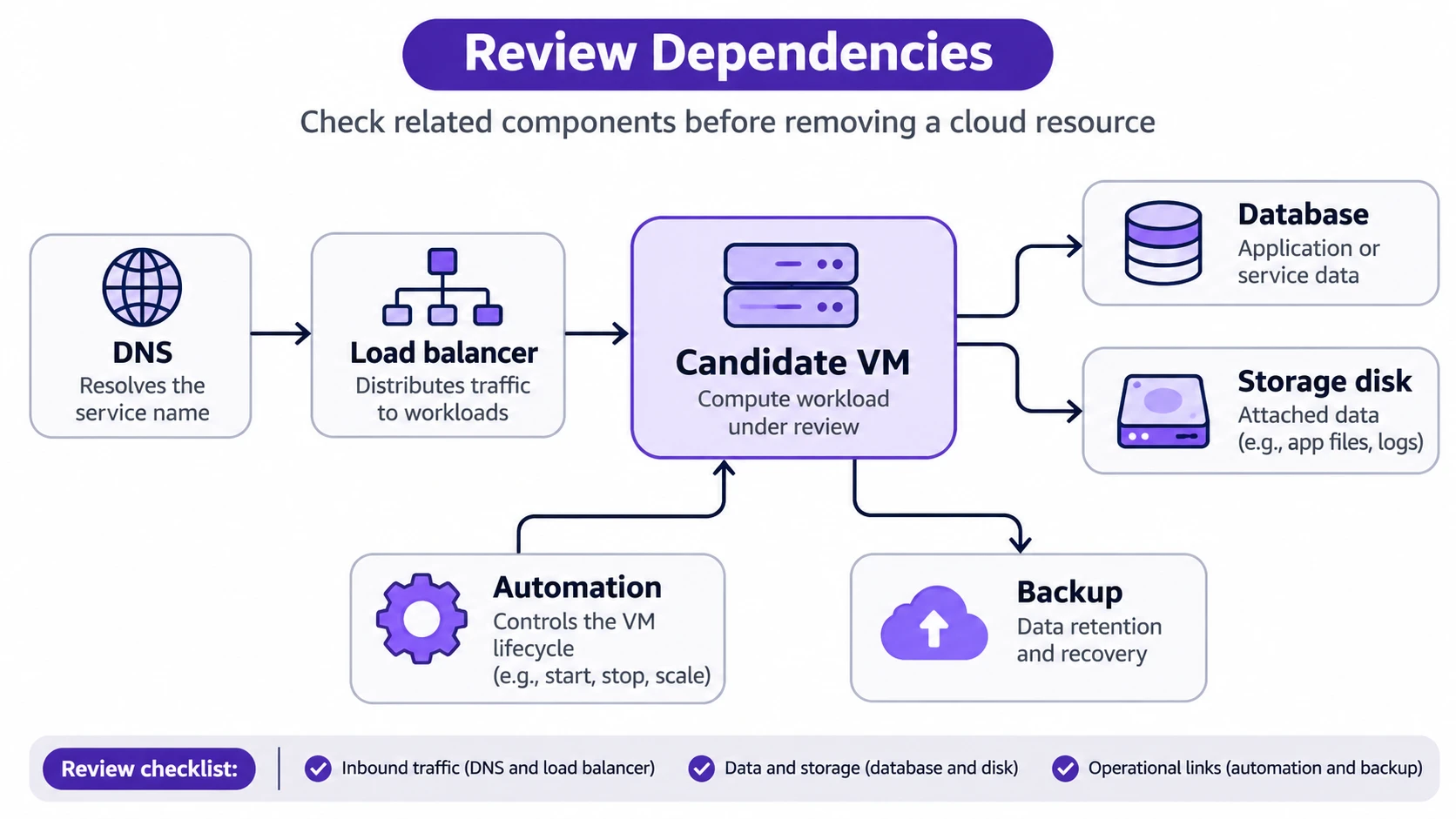
- Document dependencies. Identify connections to databases, DNS, load balancers, container platforms, backups, deployment tools, and other services.
- Establish a baseline. Record costs and application health before any changes so you can compare results afterward.
Choose an observation period that covers the workload’s normal operating cycle. A server used for monthly processing or quarterly recovery testing might appear idle during a shorter review.
If ownership is unknown, classify the resource as needing investigation. Missing tags or incomplete monitoring data are not evidence that a resource is unnecessary.
How to Find Unused Resources in AWS?
AWS provides billing, optimization, and service-specific tools for finding potentially unused infrastructure. Start with recommendations, then inspect the underlying resources before taking action.
- Open AWS Compute Optimizer. If the service is enabled and the necessary recommendations are available, review its Idle resources recommendations. These may include EC2 instances, EBS volumes, databases, and other supported services.
- Review AWS Cost Optimization Hub. Where enabled, use its savings opportunities to examine recommended actions and estimated savings. These estimates are not guaranteed reductions in your final bill.
- Check AWS Cost Explorer. Review spending by service and relevant account. Where supported and enabled, resource-level cost data can help identify individual cost drivers.
- Inspect the relevant service consoles. In EC2, examine instances, EBS volumes, snapshots, and networking resources. Review other services, such as RDS and load balancing, when their costs or recommendations suggest waste.
- Confirm dependencies. Check whether instances are managed by Auto Scaling, a deployment system, or another AWS service. Review associated storage and network resources before considering removal.
AWS documents the resource types and observation criteria used by Compute Optimizer idle recommendations. Its resource-level Cost Explorer documentation explains the availability and configuration requirements for more detailed cost analysis.
Be particularly careful when terminating EC2 instances. The instance’s storage may be deleted or retained depending on its configuration. A managing service may also recreate an instance that was removed manually. AWS explains these cases in its guidance on unexpected charges.
How to Find Unused Resources in Microsoft Azure?
Azure Advisor, Cost Management, and Azure Resource Graph provide different views of unused or underutilized infrastructure.
- Open Azure Advisor. Sign in to the Azure portal, search for Advisor, and select the Cost tab to review available optimization recommendations.
- Review spending. Use Cost Management to compare costs across subscriptions, resource groups, and services. Identify resources or environments with charges that appear inconsistent with their purpose.
- Investigate at scale. Where appropriate, use Azure Resource Graph to search across accessible subscriptions and inspect resource relationships or Advisor recommendations.
- Find unattached disks. In the Azure portal, search for Disks. Open a managed disk and review its disk state. An Unattached state makes the disk a candidate for investigation, not automatic deletion.
- Check virtual machine states. Distinguish a VM that is simply stopped from one that has been deallocated. Compute billing behavior differs, and disks or networking resources may continue generating charges.
Microsoft describes these features in its documentation for Azure Advisor cost recommendations, Advisor recommendations in Azure Resource Graph, and finding unattached disks.
Do not assume deleting a virtual machine automatically removes its disks, network interfaces, or public IP addresses. The result depends on the resource configuration and deletion options. Likewise, deleting an Azure resource group is much broader than deleting one unused resource.
How to Find Unused Resources in Google Cloud?
Google Cloud combines billing reports with recommendations for supported compute, storage, and networking resources. Review both cost and utilization evidence before making changes.
- Review Cloud Billing reports. Select the relevant billing account and use filters or groupings for projects, services, and SKUs to understand where charges originate.
- Inspect idle VM recommendations. Review Compute Engine recommendations for supported virtual machines. Google Cloud uses historical CPU and network activity to identify possible idle instances.
- Check storage and addresses. Review available recommendations for Persistent Disk volumes, external IP addresses, and custom images.
- Inspect resource dependencies. Check whether disks belong to a recovery workflow, whether IP addresses appear in external configuration, and whether VMs are managed by instance groups or other services.
- Review available actions. Compare stopping, resizing, snapshotting, and deleting. Choose the action that fits the workload’s actual purpose and recovery requirements.
Google provides separate documentation for idle VM recommendations and idle disk, IP address, and image recommendations. You can investigate cost trends through Cloud Billing reports.
Recommendation coverage is not universal. Some workloads, including certain specialized VM configurations and managed environments, may not receive the same recommendations as ordinary standalone VMs. A missing recommendation therefore does not prove that a resource is fully utilized or cost-effective.
How to Confirm a Resource Is Safe to Remove?
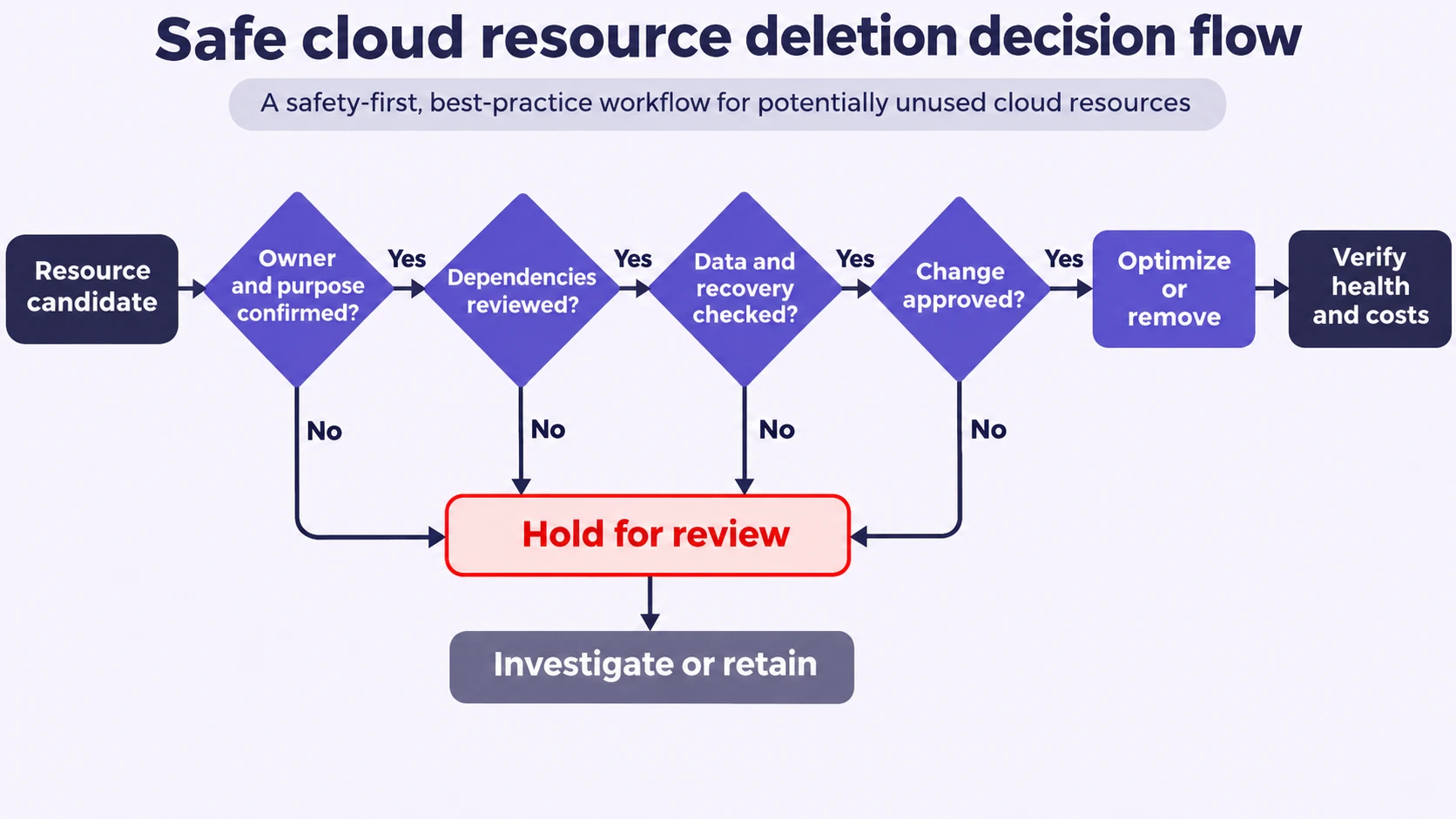
Finding a possible unused resource is the beginning of the decision, not the end. Every candidate should pass the following checks before deletion is approved.
- Ownership: Can the responsible application or infrastructure owner confirm that the resource is no longer needed?
- Activity: Have you reviewed a complete workload cycle, including scheduled jobs, seasonal demand, and recovery exercises?
- Dependencies: Have you checked DNS, service discovery, network rules, storage attachments, databases, automation, and infrastructure-as-code definitions?
- Data protection: Is the required data retained in an appropriate backup or snapshot, and is there a documented, feasible restoration procedure?
- Business requirements: Are there retention, security, compliance, availability, or contractual reasons to keep the resource?
- Approval: Has the proposed action been reviewed by the appropriate owner, with the exact resource ID, scope, expected impact, and recovery plan recorded?
For higher-risk resources, such as production databases, encryption-related infrastructure, and disaster recovery systems, require a more detailed change review. If a dependency or recovery requirement remains unclear, postpone deletion.
A useful classification is retain, optimize, approved for removal, or investigate further. This separates cost-saving opportunities from changes that could damage a working system.
Remove Cloud Resources in Safe Stages
Once a resource has passed the checks, choose the least disruptive action that achieves the goal. Reducing capacity or stopping a workload temporarily can sometimes provide useful evidence before permanent removal.
Important: Deleting a disk, database, snapshot, IP address, or entire resource group can permanently remove data or interrupt dependent services. Do not delete a resource solely because it is idle or unattached. Confirm its owner, dependencies, retention requirements, recovery method, and approved change scope first.
- Record the original state. Save the resource ID, configuration, dependencies, relevant monitoring data, and current costs in the change record.
- Choose an appropriate action. Consider a supported stop, deallocation, resize, or schedule adjustment if it meets the goal. Remember that retained storage, addresses, and other services may still cost money.
- Protect necessary data. Create or verify the required backups and snapshots. Confirm access permissions, retention periods, and recovery steps. Backups themselves may generate ongoing charges.
- Review automation. Identify deployment templates, infrastructure-as-code state, scaling policies, and controllers that could recreate the resource or reverse the change. Review any proposed configuration changes before applying them.
- Execute the approved change. Work within the agreed maintenance window where necessary. Confirm the account, region, resource type, and exact identifier before using the provider’s documented deletion workflow.
- Monitor and retain evidence. Verify the resource’s new state, monitor dependent applications, and retain the change record. If a reversible action causes a problem, follow the approved rollback plan.
Do not disable production protections or remove resource locks merely to complete a cost-saving task. Investigate why a safeguard exists and obtain the required authorization before considering any change.
Permanent deletion is not always reversible. Where restoration is possible, it may require recreating infrastructure and restoring data rather than simply undoing a deletion.
Verify Resource Removal and Cost Savings
A successful deletion message does not prove that an application is healthy or that every associated charge has stopped. Verification must cover both resource state and business impact.
- Check the resource inventory. Confirm that the approved resource was stopped, resized, or deleted as intended, and that unrelated resources remain unchanged.
- Check application health. Review relevant monitoring, scheduled jobs, service endpoints, error rates, and dependency status.
- Inspect remaining billable resources. Look for retained disks, snapshots, backup storage, public addresses, load balancers, logging, and other associated services.
- Compare billing data. Review the same billing scope and relevant service categories before and after the change. Allow for reporting delays and account for workload changes, discounts, commitments, and billing adjustments.
- Close the change record. Document the observed result, any residual charges, unresolved issues, and whether further action is required.
Cloud billing reports may not reflect changes immediately. Avoid claiming a precise saving from a dashboard estimate alone. The meaningful result is a verified change in the relevant cost and usage data without an unacceptable effect on the workload.
Network-related charges also deserve attention. Our cloud egress fee estimation guide explains why data movement can introduce separate expenses when resources are migrated or reorganized.
How to Prevent Unused Cloud Resources from Returning?
One cleanup can remove unnecessary infrastructure, but consistent ownership and resource lifecycle management help prevent the same problem from returning.
- Use ownership tags and labels. Record the responsible team, environment, workload, and cost center wherever supported.
- Give temporary resources an expiry process. Add review or expiration dates for test and development infrastructure. Require approval before automated deletion, especially where data may be retained.
- Review cost recommendations regularly. Compare provider recommendations with monitoring data and changes to the workload.
- Use budgets and alerts. Monitor unexpected spending, while recognizing that ordinary budget alerts are notifications rather than automatic spending limits.
- Build cleanup into deployment workflows. Document how environments are retired, which data must be preserved, and who approves removing connected resources.
- Track actual outcomes. Compare verified cost changes, operational health, and any unexpected recovery work instead of measuring success only by the number of deleted resources.
Keep deletion automation separate from discovery until approval rules, dependency checks, and recovery procedures are reliable. A tool that finds candidates is not automatically safe to use as a tool that removes them.
Final Cloud Cleanup Checklist
Before approving the next cleanup, confirm that:
- The exact resource and its owner have been identified.
- Cost, activity, and dependency evidence supports the decision.
- Required backups, retention rules, and recovery steps have been reviewed.
- The change is approved and limited to the intended resources.
- Application health and remaining charges will be checked afterward.
The safest cloud cleanup process is deliberate and repeatable. Use AWS, Azure, or Google Cloud recommendations to find candidates, but let workload evidence, ownership, and recovery planning determine what gets removed. This is how teams can reduce unnecessary spending without turning a cost-saving exercise into an outage or data-loss incident.

Tech Bonafide is the editorial identity of TechBonafide, an independent technology publication covering AI, software, cybersecurity, gadgets, and emerging technology.