

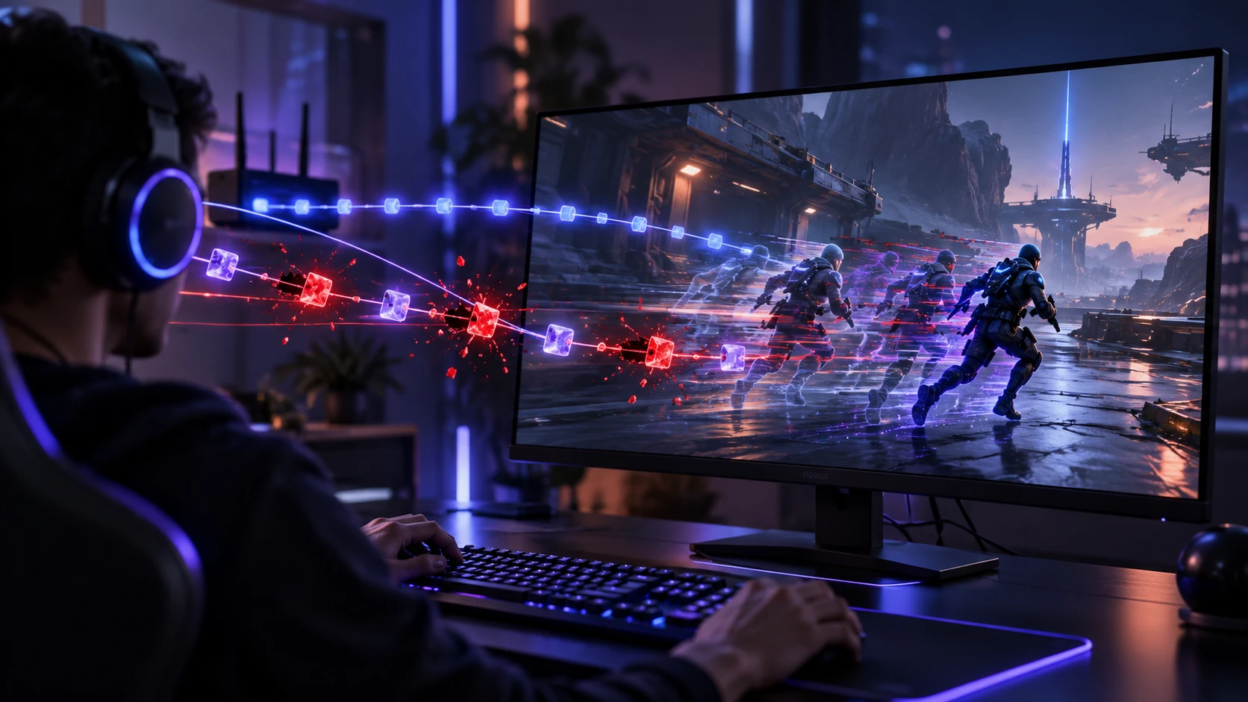
Ping is only one small part of how smooth an online game feels. When packet loss shows up, the game can freeze, rubber band, miss shots, or desync even while your latency number looks perfect. Understanding what packet loss is and how to track it helps you fix lag at the source instead of chasing the wrong setting.
What Packet Loss Means for Online Gaming?
Online multiplayer games exchange small data packets between your device and the game server. These packets can carry player inputs, movement updates, and other information needed to keep the game synchronized. Voice chat may use a separate stream of data. When important game updates are lost or delayed, your device and the server may temporarily show different versions of the action, causing missed updates, sudden corrections, or delayed responses.
Most modern games try to hide brief loss using prediction and interpolation. That trick works only for short gaps. When loss repeats or arrives in bursts, the game has to guess too much and the result looks like stutter or sudden teleports.
Why Ping Looks Fine While the Game Still Lags?
In online gaming, ping usually refers to round-trip latency, which is the time data takes to travel between your device and the server and receive a response. A low ping value does not guarantee a stable connection because some packets may still be lost or delayed. Jitter, which describes changes in latency over time, can also affect gameplay. This means a player can experience rubber banding, delayed actions, or sudden movement corrections even when the displayed ping remains low.
Some tests also average results and hide spikes. A steady 20 ms average can mask brief bursts of delay and loss that happen during fights. Games react to the worst moments, not the average.
Not every delay in a game comes from the internet connection. Slow controls, display processing, and system performance can also affect responsiveness. To understand these differences, read our guide to input lag vs ping, which explains how local input delay differs from network-related gaming problems.
Common Causes of Packet Loss

Packet loss can start inside your home, on the path through your ISP, or near the game server. The hard part is that the symptoms look similar. Narrowing down the cause saves time and prevents random setting changes.
- Wi-Fi Interference: Congested channels, walls, microwaves, and neighboring routers can interfere with wireless communication and force retransmissions. Severe interference may also contribute to packet loss.
- Weak Signal or Distance: A low signal-to-noise ratio increases transmission errors and can contribute to packet loss and jitter, especially during busy periods.
- Router or Modem Strain: Overheating, aging hardware, or buggy firmware can drop packets under load.
- Bufferbloat Under Heavy Network Usage: Large uploads or downloads can create excessive queues in routers or other network equipment, increasing latency and jitter. Packet loss may also occur when queues overflow, but a sudden ping increase does not automatically mean packets are being lost.
- ISP Congestion or Routing Issues: Busy nodes, peering problems, or unstable routes can cause random drops.
- Bad Cables or Ports: Damaged Ethernet cables or loose connectors can introduce frame errors and loss.
Once you know which category is most likely, you can test in a more targeted way.
Packet Loss Symptoms That Matter in Games
Different games expose packet loss in different ways. Fast shooters tend to show it as hit registration issues and micro freezes. Real-time strategy and MOBA games often show delayed ability casts or unit warping.
Watch for patterns, but treat them as clues rather than confirmed causes. Network problems that appear mainly during evening hours may suggest congestion on the internet provider’s network. Lag that increases during large household uploads or downloads may indicate queueing and bufferbloat. Repeat the same tests under different conditions before deciding where the problem starts.
How to Test Packet Loss Properly?
A basic download-speed result cannot rule out packet loss because connection quality depends on more than bandwidth. Some modern tests also measure latency, jitter, packet loss, and performance under heavy network usage. For example, the Cloudflare Speed Test can help users evaluate these connection-quality measurements. Run tests during the same conditions that cause gaming lag, including peak hours or periods of heavy household internet activity.
- Start With A Wired Baseline: Connect the gaming device by Ethernet and retest to help separate Wi-Fi issues from problems involving your router, ISP, or external network.
- Run Repeated Ping Tests: First test your router’s gateway address, then test a reliable public internet endpoint. Compare packet loss and response times to help identify whether the problem is inside your home network or farther along the connection. Some game servers block ping requests, so use the game’s built-in network statistics whenever available.
- Check Jitter and Spikes: Look for inconsistent response times since jitter can occur alongside packet loss. Compare latency during idle periods and heavy network activity to identify sudden changes.
- Use Traceroute Carefully: Traceroute can help identify the network path between your device and a destination. However, a timeout or unusually high response time at one intermediate router does not always indicate a real connection problem. Some routers limit or deprioritize diagnostic responses while continuing to forward normal traffic. Netskope’s traceroute analysis guide explains why individual hop results can be misleading. Look for problems that continue through later hops and the final destination.
- Test During Upload Load: Start an upload from another device and observe whether gaming lag, latency spikes, or packet loss appear. A sharp increase in latency under load may suggest bufferbloat, even when packet loss remains low.
How to Run A Basic Packet Loss Test?
Windows users can open Command Prompt and run the following command to send 100 test requests to a public endpoint:
ping -n 100 1.1.1.1On macOS or Linux, users can run:
ping -c 100 1.1.1.1Review the results for lost packets, packet-loss percentage, and changes in response time. For example, four lost replies out of 100 requests represent 4% packet loss in that test.
You can also test your router’s actual gateway address to compare local network performance with an external connection. If the router responds consistently but the public endpoint shows repeated problems, the issue may be farther along the network path.
For more details about available Windows options, see Microsoft’s ping command documentation. Remember that ping uses ICMP probes, so these results may differ from the traffic used by an online game.
After you collect a few results, you can match the pattern to likely fixes.
Understanding the difference between bandwidth and connection stability can make these test results easier to interpret. Our guide to judging internet speed explains important measurements such as download speed, upload speed, latency, and jitter, helping readers understand why a fast connection may still perform poorly during online gaming.
Quick Reference for Diagnosing the Source
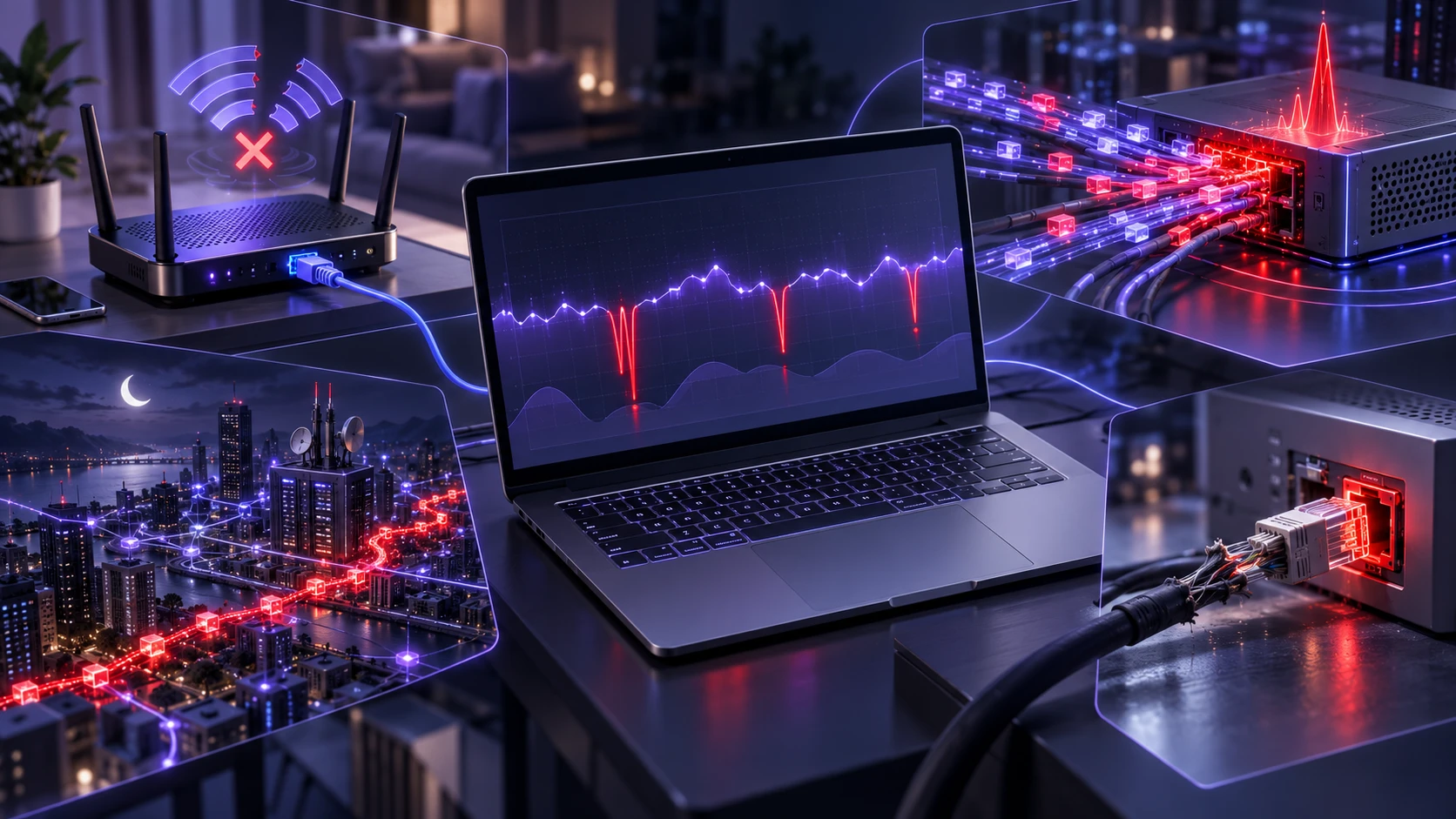
| Symptom | Most Likely Cause | Best First Fix |
|---|---|---|
| Loss disappears on Ethernet | Wi-Fi interference or weak signal | Use Ethernet when possible, move the router closer, or test a suitable Wi-Fi band |
| Lag or ping spikes during heavy uploads | Bufferbloat or upstream congestion | Check loaded latency, enable supported Smart Queue Management, and reduce competing uploads |
| Loss mainly at peak evening hours | Possible ISP congestion or routing instability | Repeat tests, document results, and contact your ISP with timestamps if the issue persists |
| Random loss at any time, even when idle | Possible faulty cable, port, modem, or network equipment | Swap the Ethernet cable, check connections, restart equipment, and review modem signal levels where available |
Fixes That Usually Work at Home
Start with changes that reduce variables. A stable wired connection removes most wireless interference problems. If wiring is not possible, treat Wi-Fi like a shared radio and optimize it for consistency.
- Prefer Ethernet for the Gaming Device: A direct cable avoids wireless airtime contention and reduces the risk of interference-related retransmissions.
- Choose A Suitable Wi-Fi Band: When your router and gaming device support them, 5 GHz or 6 GHz connections may provide better performance in crowded wireless environments. However, these higher-frequency bands generally have shorter effective range and may struggle more through walls. Test the available bands and choose the one that provides the most stable connection at your gaming location.
- Change the Wi-Fi Channel: Pick a cleaner channel based on a scan rather than guessing. Channel availability and performance depend on your router, location, and surrounding wireless networks.
- Reboot and Update Firmware: Restarting network equipment may resolve temporary problems, while manufacturer firmware updates can address known stability bugs and improve compatibility.
- Enable Smart Queue Management: On compatible routers, SQM can reduce excessive queue buildup and help control latency and jitter during heavy uploads or downloads.
- Limit Background Traffic: Pause cloud backups, large downloads, and device updates while gaming, especially when multiple devices share a limited connection.
If the issue improves after one change, keep that change and avoid stacking too many tweaks at once.
Router placement, wireless channel selection, and firmware updates can also influence connection stability. For more practical instructions, explore our guide to simple router tricks for slow internet, which covers common home-network adjustments that may help reduce interference and improve wireless performance.
Router Settings That Help Without Breaking Things
Some settings help gaming when used carefully. The goal is stable delivery, not maximum throughput. A slightly lower top speed may be a reasonable trade-off if it significantly reduces latency spikes under heavy network usage.
Quality of Service (QoS) features can improve gaming stability, but their effectiveness depends on the router’s hardware and available settings. If your router supports Smart Queue Management (SQM), start with upload and download limits slightly below your measured connection speeds, then test whether latency improves during heavy network usage. OpenWrt’s Smart Queue Management guide explains how this technology can reduce bufferbloat on compatible systems. Basic device-priority settings are not necessarily equivalent to SQM, and some routers may experience reduced maximum throughput when advanced queue management is enabled.
When the Problem is Outside Your Home
If packet loss persists on a wired connection with a healthy modem signal, the problem can be in the ISP network or beyond. In that case, collect clean evidence. Record times, server regions, and results from repeated tests.
Reach out to your ISP with specific notes such as loss percentage, duration, and whether it happens across multiple destinations. Clear data makes it easier for support to escalate beyond scripted troubleshooting.
What If Your Tests Show No Packet Loss?
If repeated network tests show no clear packet loss, the lag may come from another source. Uneven frame times, graphics settings, background applications, or game-server performance can create symptoms that resemble connection problems. Compare a genuinely offline game session with an online match to help separate local performance issues from network-related delays.
Our guide to game stuttering with high FPS explains how to investigate these additional causes. If the problem affects only one online game, check its official server-status information and in-game network diagnostics before changing router settings again.
Conclusion
Packet loss is one reason online games can lag even when ping appears normal. Ping reflects network delay, while packet loss indicates missing data, and jitter shows how much that delay changes over time. A stable gaming connection depends on all three. By comparing wired and wireless connections, checking network performance under load, and addressing router or hardware problems, players can identify many common causes of gaming lag.
If loss remains after home fixes, focus on documenting the issue and contacting your internet provider with clear test results. Stable packet delivery and consistent latency are both important for smooth online gameplay.
Frequently Asked Questions
How Much Packet Loss is Bad for Gaming?
There is no single packet-loss percentage that affects every game in the same way. Even 1% packet loss can be noticeable in fast competitive games, particularly when missing packets arrive in bursts or affect important gameplay updates. Higher or repeated loss generally increases the risk of stuttering, rubber banding, and delayed actions. Focus on repeated measurements and actual gameplay symptoms rather than relying on one short test.
Can Wi-Fi Show Low Ping But Still Drop Packets?
Yes. Wi-Fi can deliver fast ping responses while still experiencing interference, weak signals, or wireless congestion. Some transmission errors are corrected through wireless retransmissions, but repeated problems can increase jitter and contribute to packet loss. Comparing the connection with Ethernet is one of the most useful ways to determine whether the wireless network is involved.
Does A VPN Fix Packet Loss in Games?
A VPN may help in some cases when the problem involves an unstable network route and the VPN provides a better path to the game server. However, a VPN can also increase latency or introduce additional connection problems. It cannot directly fix weak Wi-Fi signals, damaged cables, or bufferbloat inside your home network. Test your connection on Ethernet and investigate local issues before considering a VPN as a possible routing workaround.