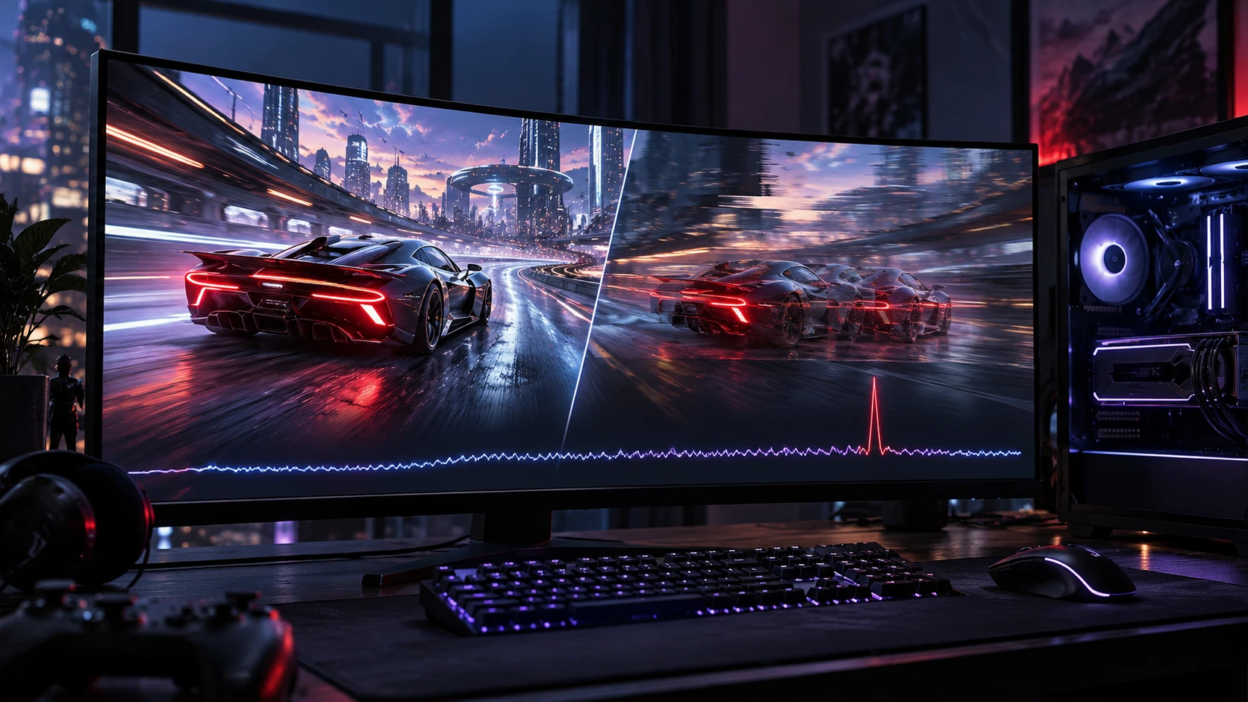
High FPS can look great on a counter while still feeling choppy in your hands. That mismatch usually comes from uneven frame delivery, system spikes, or display syncing issues rather than raw rendering speed. This guide breaks down why a game can stutter with high FPS and what to fix first for consistently smooth gameplay.
What High FPS Stutter Really Means?
An FPS counter may show a high frame rate, but that number can hide inconsistent frame delivery. Smooth gameplay depends on how regularly frames appear on the screen. For example, at 200 FPS, the average interval between frames is approximately 5 milliseconds. However, an occasional frame taking 40 milliseconds can produce a noticeable hitch, even when the overall FPS remains high. These sudden changes in frame timing explain why a game can feel choppy despite impressive performance numbers.
Poor frame pacing is a common cause of microstutter, especially during camera movement, rapid turns, or demanding gameplay scenes. Gamers should also distinguish native rendered frames from artificially generated frames because a higher displayed FPS number does not automatically eliminate underlying performance problems. Our comparison of frame generation vs native FPS explains how these technologies affect smoothness and responsiveness.
Check Frame Time and Frame Pacing
Frame time is how long each frame takes to render, measured in milliseconds. Stable frame time feels smooth, even if FPS is lower than your peak numbers.
Use an in-game frame-time graph if available, or a performance-monitoring tool that records frame times and 1% low FPS. NVIDIA’s FrameView performance tool supports performance measurements across a range of graphics cards and can help identify inconsistent frame delivery.Compare 1% low FPS with average FPS to understand how performance changes during demanding moments. A large gap can indicate inconsistent frame delivery, but there is no universal ideal ratio for every game. Check the frame-time graph for repeated spikes and compare results from the same gameplay scene before deciding whether a performance problem exists.
- Watch 1 percent lows: Large drops usually correlate with stutters you can feel.
- Look for spikes: Tall frametime spikes point to asset streaming, background tasks, or CPU scheduling issues.
- Test A fixed cap: A steady cap can improve pacing even if peak FPS falls.
Once you confirm pacing problems, you can target the bottleneck instead of chasing higher averages.
CPU Bottlenecks and Background Spikes
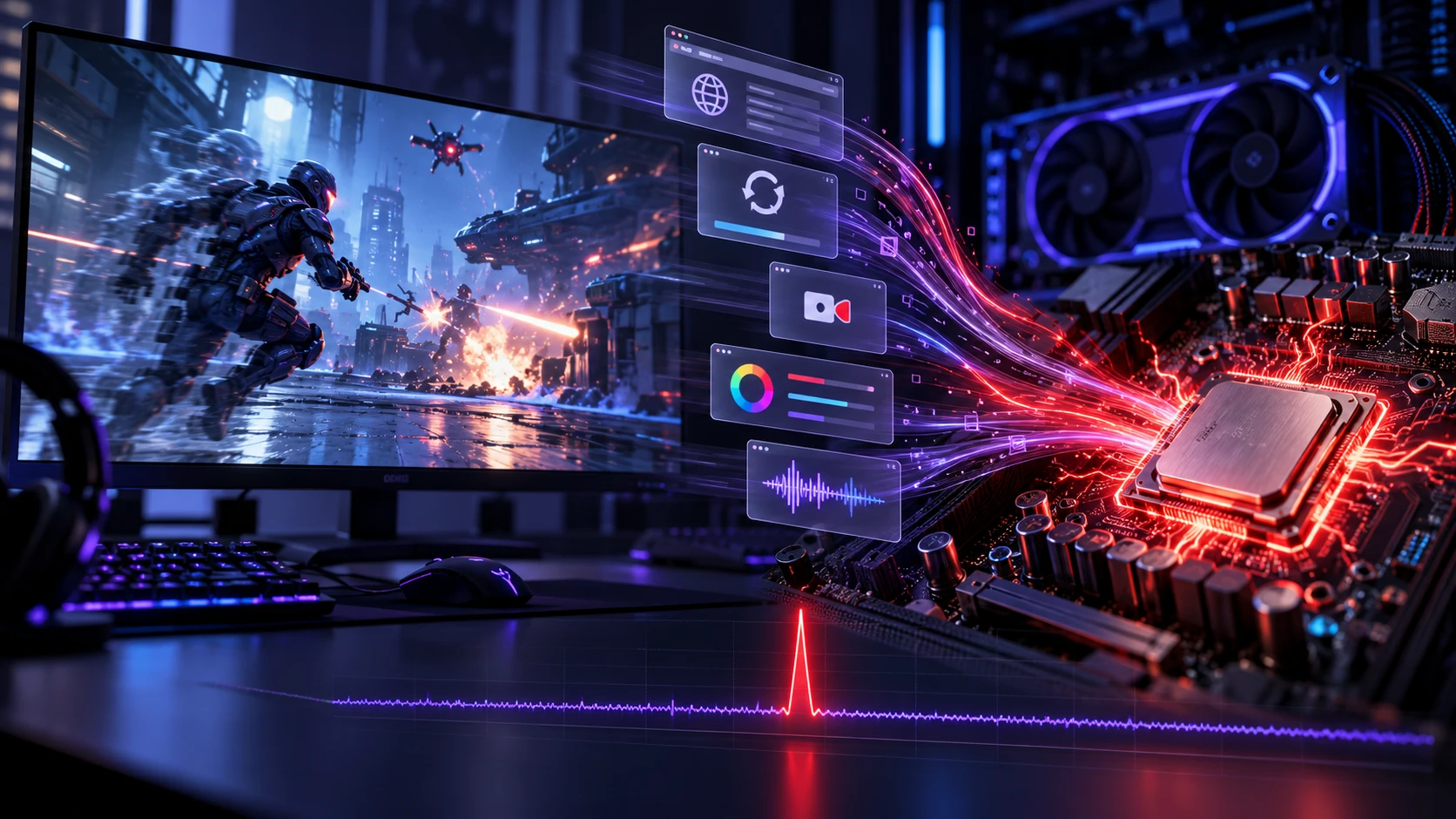
High FPS does not guarantee the CPU can feed the GPU consistently. Many games are sensitive to single core performance, background interrupts, and thread scheduling.
Stutters often appear when something briefly steals CPU time. Common triggers include browser tabs, update services, RGB utilities, capture tools, and audio enhancements.
- Close heavy background apps: Especially web browsers, launchers, and overlays you do not need.
- Check CPU utilization patterns: A single core pegging at 100 percent can stutter even when overall usage looks moderate.
- Reduce CPU heavy settings: Crowd density, view distance, physics, and ray tracing can shift load onto the CPU.
If background software appears to be responsible, consider using a clean boot to identify conflicting startup applications and services. Follow Microsoft’s official clean boot instructions for Windows, record which services you disable, and restore normal startup settings after troubleshooting.
GPU Driver and Shader Compilation Stutter
Driver issues can cause frametime spikes even when the GPU has headroom. Fresh driver releases can fix stutter in one game while introducing it in another, so stability matters more than being on the newest version.
Shader compilation is another common source of stutter, especially after an update or first launch. Games may compile shaders during gameplay, which creates periodic hitching until the cache is built.
- Check Graphics Driver Stability: If stuttering begins after a driver update, compare performance with a known stable version. Use official NVIDIA, AMD, or Intel drivers appropriate for your hardware.
- Allow Shader Compilation to Finish: If the game provides a shader-compilation screen, wait until the process finishes before starting gameplay. Some games may still compile additional shaders during play.
- Avoid Unnecessary Shader Cache Resets: Clearing shader caches forces affected shaders to be compiled again and can temporarily increase stuttering. Reset a cache only when troubleshooting evidence or official game support instructions justify it.
- Consider A Clean Driver Installation Last: If normal driver updates or rollbacks fail and evidence points to a driver problem, use the graphics manufacturer’s supported clean-install procedure.
If stutters began after a driver update, rolling back to a known stable version can be a practical test.
Storage and Asset Streaming Issues
Modern games stream textures, meshes, and audio constantly. When the storage device cannot deliver data fast enough, the CPU or GPU waits and the frame time spikes.
Storage-related stuttering can occur when a game cannot load required assets quickly enough. Traditional hard drives are more vulnerable to delays during demanding asset-streaming workloads, while SSDs generally provide faster access to game data. However, an SSD does not eliminate stuttering caused by shader compilation, insufficient memory, or CPU limitations. Check storage activity, available space, drive temperatures, and health indicators before deciding whether the storage device is responsible.
- Install Games on A fast SSD: Asset streaming is smoother with low latency storage.
- Keep Free Space Available: Low free space can slow writes, caching, and updates.
- Check Drive Health: Reallocated sectors, high error counts, or thermal throttling can cause intermittent hitches.
After storage is ruled out, focus on memory and settings that increase streaming pressure.
RAM Limits, Pagefile, and Memory Leaks
When available RAM becomes limited, Windows may move some memory pages to storage to manage memory pressure. Heavy paging can contribute to noticeable frame-time spikes, particularly when a demanding game repeatedly needs data that is no longer in physical memory. However, normal pagefile activity does not automatically indicate a performance problem. Monitor RAM consumption, memory pressure, and frame-time spikes together before concluding that insufficient system memory is causing stuttering.
Some games also develop memory leaks over long sessions. The result is smooth performance at first and worsening stutter after an hour or two.
- Monitor RAM usage: If you are close to full capacity, stutter risk increases.
- Leave the pagefile enabled: Disabling it can cause instability and worse stutter in memory spikes.
- Restart long sessions: A restart clears accumulated allocations when a title leaks memory.
Keeping Windows and the game updated can reduce leak related stutters, but some titles still benefit from periodic restarts.
Display Sync Issues, VRR, And Input Lag
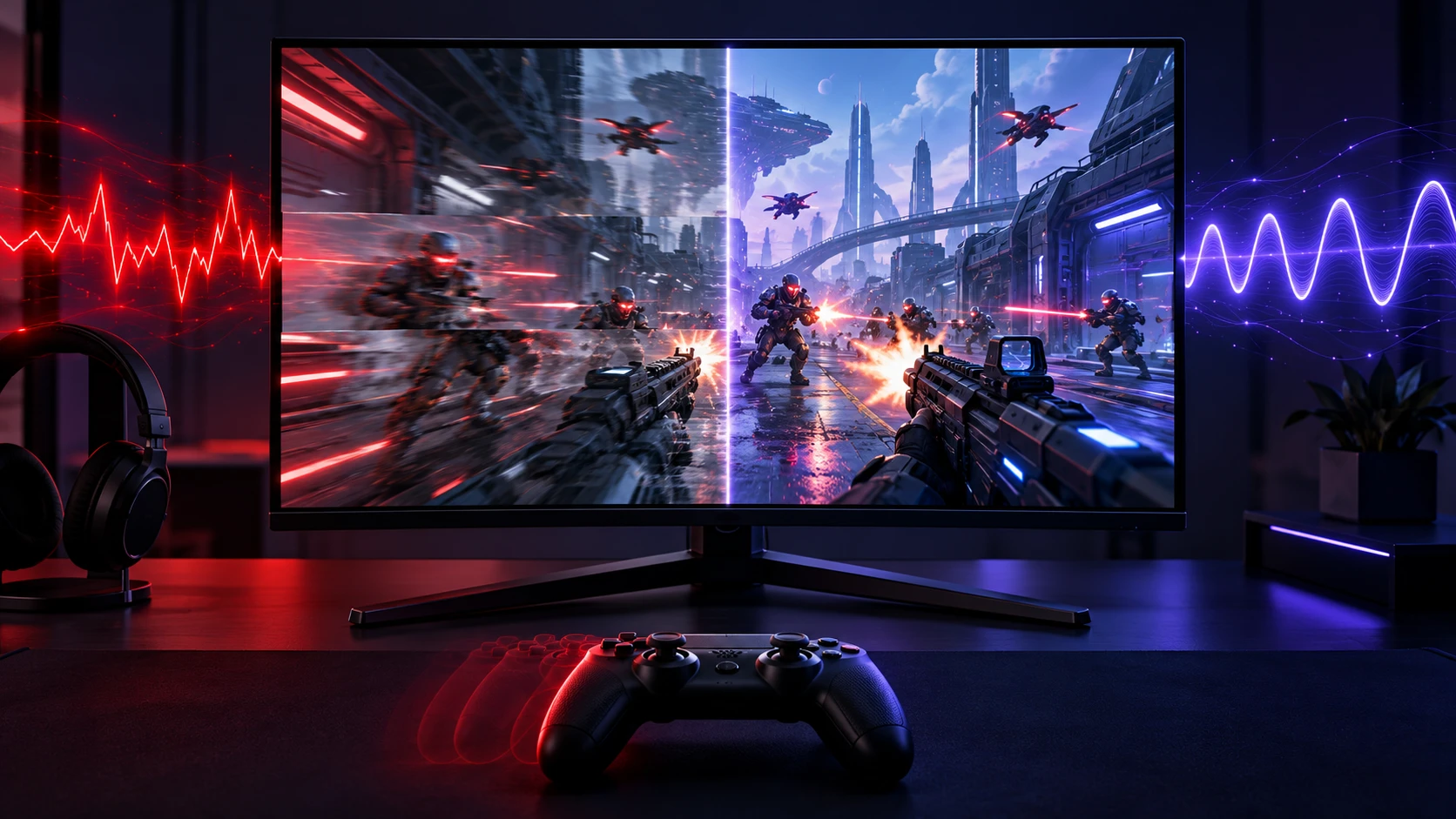
A high FPS number does not ensure frames align with your display refresh cycle. When timing is off, you can get tearing, judder, or stutter depending on sync settings.
Variable refresh rate (VRR) technologies, including NVIDIA G-SYNC and AMD FreeSync, allow compatible displays to adjust their refresh timing to match changing frame rates. This can reduce screen tearing and certain forms of judder within the monitor’s supported VRR range. Setting an appropriate FPS limit may help prevent the game from reaching the upper refresh-rate boundary, but the ideal configuration depends on the game, graphics driver, V-Sync settings, and latency preferences. VRR cannot eliminate stuttering caused by shader compilation, CPU spikes, or slow asset streaming.
- Use VRR When Supported: Enable NVIDIA G-SYNC or AMD FreeSync when your graphics hardware and monitor support the feature. NVIDIA users can follow the official G-SYNC setup instructions to check whether the display and driver are configured correctly.
- Cap FPS slightly below refresh: A cap under the max refresh can keep VRR active and reduce spikes.
- Avoid conflicting sync layers: Running multiple sync options across game, driver, and overlays can cause uneven pacing.
Once the display configuration is stable, fine-tune game settings while monitoring frame pacing and responsiveness. If gameplay still feels delayed even after visible stuttering improves, the problem may involve system latency or display behavior rather than frame delivery alone. Our guide to input lag vs response time explains how to distinguish delayed controls from display motion problems.
In Game Settings That Commonly Trigger Stutter
Some settings increase workload variability, which creates frame time spikes even if average FPS stays high. The worst offenders are features that depend on what is on screen rather than a steady load.
High texture settings can contribute to stuttering when a game exceeds the practical VRAM capacity available to its rendering workload. This may result in additional data transfers, delayed texture loading, or inconsistent frame times. If you suspect graphics memory pressure, reduce texture quality by one level and compare performance in the same gameplay scene. Our guide to VRAM requirements for gaming explains how texture settings, resolution, and graphics memory capacity affect performance.
- Lower Texture Quality If VRAM Is Tight: It often reduces hitches more than it reduces visuals.
- Tune Shadows and View Distance: These can spike when turning or entering new areas.
- Reduce Ray Tracing Features: They can amplify CPU and GPU variance in complex scenes.
- Test Post-Processing Settings Individually: Reduce demanding visual effects only when performance measurements indicate that they contribute to frame-time spikes. Effects such as motion blur and film grain are often matters of visual preference rather than direct causes of stuttering. Compare the same gameplay scene before and after changing each setting.
Change one setting at a time and test in the same scene to identify which option actually smooths frame delivery.
Quick Diagnostic Table for High FPS Stutter
| What You Notice | Possible Cause | What to Check First |
|---|---|---|
| Stutter during camera movement | Uneven frame pacing, CPU spikes, or VRR configuration | Monitor frame times and test a stable FPS cap |
| Hitches when entering new areas | Shader compilation, asset streaming, or VRAM pressure | Repeat the same area and compare texture settings |
| Sudden spikes every few seconds | Background processes, overlays, or driver conflicts | Close unnecessary applications and review CPU activity |
| Stuttering increases during long sessions | RAM pressure, memory leaks, or thermal throttling | Check memory usage, temperatures, and clock speeds |
| FPS is high but movement looks uneven | Display synchronization or frame-delivery problems | Confirm refresh rate, VRR support, and synchronization settings |
| Only online movement appears delayed | Network latency, packet loss, or server issues | Compare offline gameplay and monitor network statistics |
Start with the symptom that best matches your experience, then follow this troubleshooting sequence:
- Record Baseline Performance: Measure average FPS, 1% lows, and frame-time spikes in a repeatable gameplay scene.
- Test A Stable FPS Limit: Apply a reasonable cap and check whether frame delivery becomes more consistent.
- Reduce Background Activity: Close unnecessary overlays, browser tabs, recording tools, and other demanding applications.
- Check Hardware Pressure: Monitor CPU and GPU utilization, temperatures, RAM usage, and VRAM consumption while reproducing the stutter.
- Change One Setting At A Time: Adjust the most likely cause, repeat the test, and compare results before keeping the change.
If the problem appears in only one game, investigate that game’s known performance issues before making major system-wide changes.
Windows Settings That Can Improve Smoothness
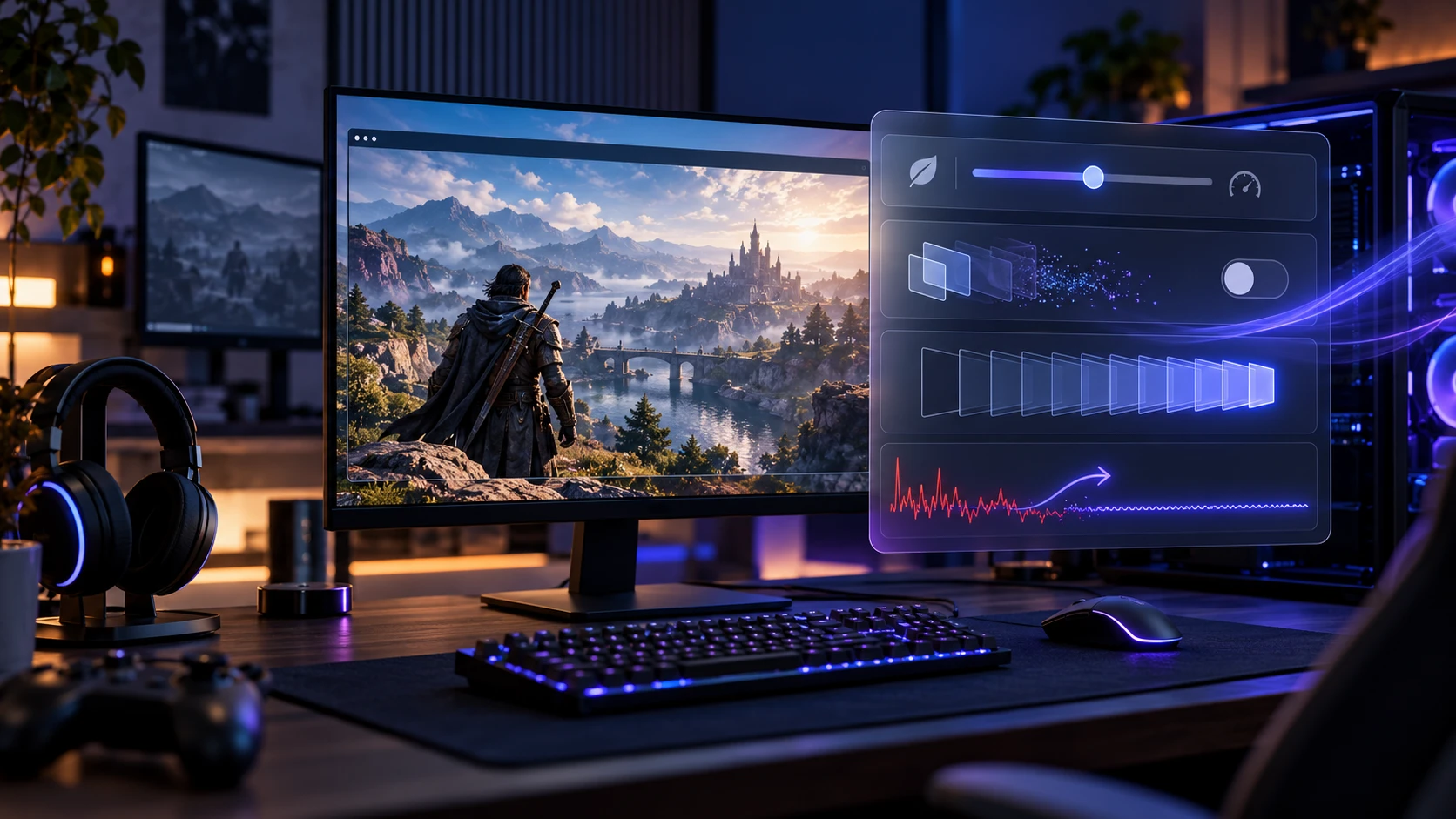
Windows can introduce stutter through power management, GPU scheduling, and background services. Small configuration changes can stabilize frame times without hurting peak FPS.
Start with settings that are easy to reverse. Keep notes so you can roll back anything that makes things worse. Windows 11 also includes optimizations for windowed games, which can reduce frame latency and improve compatibility with features such as variable refresh rate in supported DirectX 10 and DirectX 11 games running in windowed or borderless modes. Check whether this setting is available before experimenting with more advanced system changes.
- Check Windows Power Settings: If CPU or GPU clock speeds drop unexpectedly during gameplay, test an appropriate performance-oriented power mode. On laptops, connect the charger and check manufacturer-specific performance settings. Higher performance modes can increase power consumption and heat, so they should be tested rather than treated as a universal solution.
- Disable Unnecessary Overlays: Game bars and capture layers can conflict and cause frametime spikes.
- Update Chipset and Audio Drivers: Latency from system drivers can show up as microstutter in some setups.
If you use multiple monitors, test with the secondary display disabled to rule out refresh conflicts and background video playback.
Conclusion
Games can stutter with high FPS when frame delivery is inconsistent, not when performance is simply too low. Frame time spikes usually trace back to CPU scheduling, shader compilation, storage streaming, memory pressure, or sync settings that do not match your display.
Start by checking 1 percent lows, cap FPS for steadier pacing, and remove background noise. After that, focus on drivers, storage, and the few in game settings that most often trigger frametime spikes.