

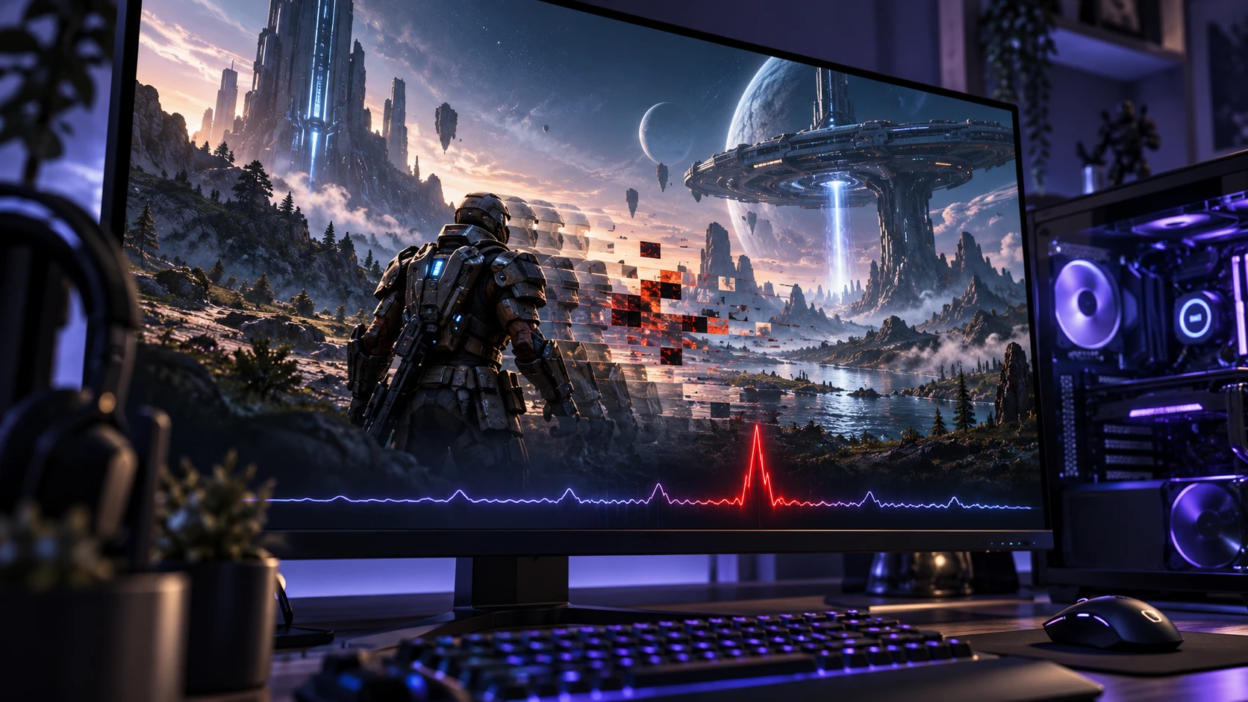
Shader compilation stutter can make PC games freeze briefly or feel uneven, even on powerful gaming computers. It often appears when entering a new area, seeing an effect for the first time, or launching a game after a major update. The problem occurs when shader or graphics pipeline preparation interrupts smooth frame delivery. Although some causes depend on how the game was developed, players can take several practical steps to reduce unnecessary stuttering, improve frame-time consistency, and identify when a game update is needed.
What Shader Compilation Stutter Means?
Shaders are small programs that run on the GPU and control how lighting, materials, shadows, post-processing, and many effects are drawn. Games ship with shader code that still needs to be compiled into a format your specific GPU driver can execute efficiently. That compilation can happen ahead of time, or it can happen during gameplay.
Shader compilation stutter occurs when the game or graphics driver needs to prepare shaders or graphics pipelines during gameplay, causing a delay in frame delivery. This work may involve CPU processing, driver compilation, or the creation of Pipeline State Objects (PSOs), which define combinations of graphics settings used by the GPU. When the process delays a frame, players may notice a sudden pause, micro-stutter, or momentary loss of responsiveness. The problem is usually easier to identify through frame-time spikes than through average FPS alone.
Why It Happens on PC More Than Consoles?
PC hardware is diverse, which means shader pipelines and driver behavior vary widely across GPUs, CPUs, and operating system builds. Developers cannot precompile a single universal shader package that fits every PC combination with the same predictability. That variability pushes more work to runtime compilation or to driver-managed caching.
Consoles have fixed hardware and stable drivers, so studios can precompile and validate shader pipelines more thoroughly. On PC, even the same GPU model can behave differently depending on driver version, API mode, storage speed, and background load. Those factors combine to make stutter easier to trigger.
Common Symptoms You Can Identify
Not every gaming stutter is caused by shader compilation, so identifying the pattern is important. Shader-related hitches often appear when a new effect, animation, or environment is rendered for the first time. However, memory limitations, asset streaming, CPU bottlenecks, and background applications can create similar symptoms. If your game continues to stutter despite high average FPS, our guide to the causes of game stutter even when FPS is high explains additional problems worth investigating.
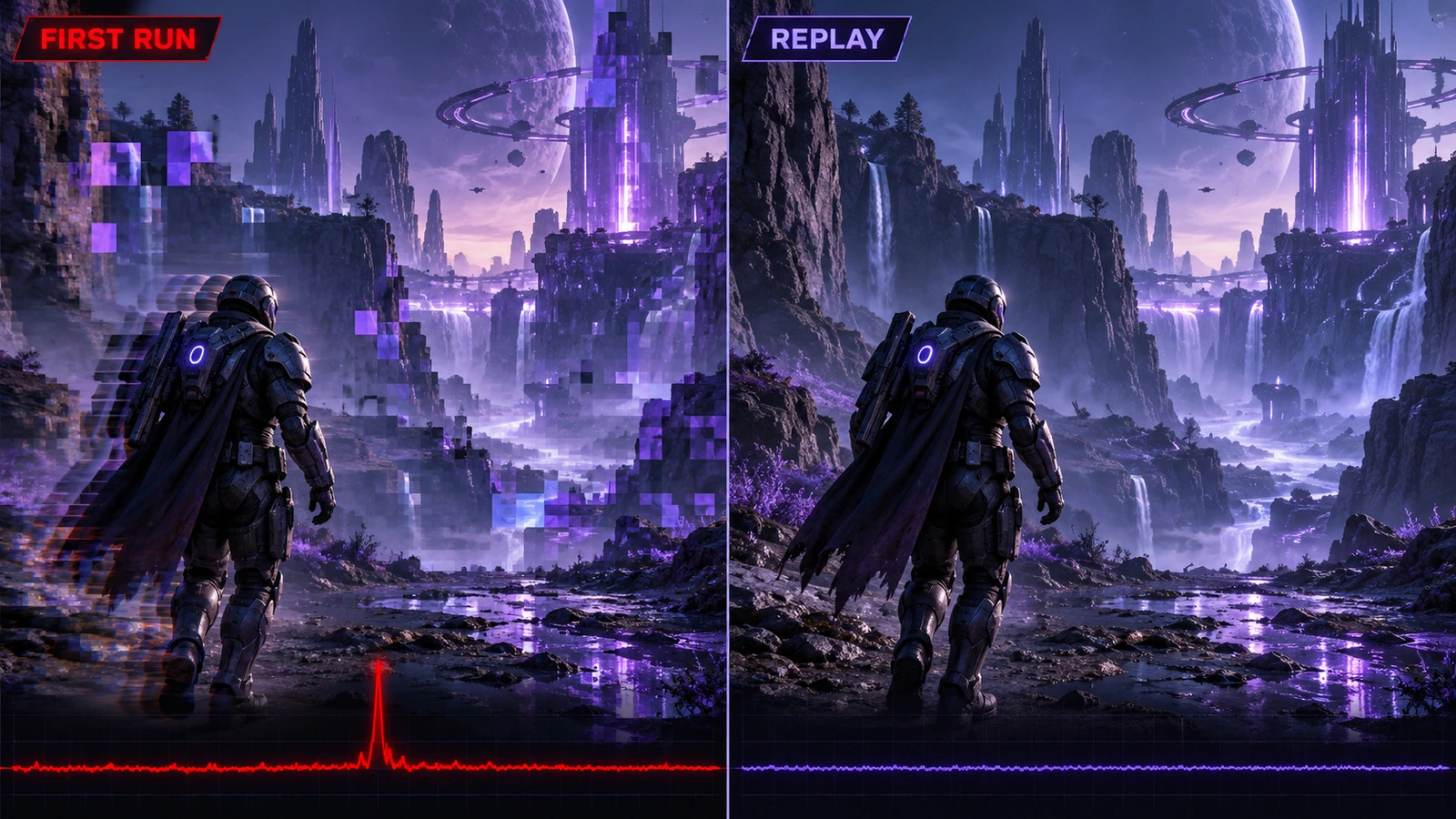
- First-time hitching: A short pause happens when an effect, animation, or area appears for the first time. If the same scene runs more smoothly afterward, shader or pipeline caching may be involved. However, asset loading and other performance problems can produce similar symptoms.
- Frame-time spikes: Average FPS may look fine, but the frame-time graph shows sharp spikes.
- Traversal hitches: Moving quickly through the world triggers short pauses as effects and materials appear.
- Post-update regression: The game feels worse after a driver update or game patch until caches rebuild.
Quick diagnostic test
Launch the game and visit an area where stuttering frequently occurs. Record the frame-time behavior while moving through the environment or triggering a specific effect. Revisit the same area without changing settings and compare the results. If the first run produces noticeable hitches but later runs are consistently smoother, shader or pipeline caching may be contributing. If the same stutters continue every time, investigate CPU limitations, memory pressure, asset streaming, thermal throttling, and other possible causes. This test provides useful clues but cannot conclusively identify shader compilation without additional game or engine diagnostics.
Once you recognize these symptoms, measure your game’s frame-time behavior before changing system settings. NVIDIA’s FrameView performance measurement tool can record frame rates and frame-time data, helping you identify sudden performance spikes that average FPS numbers may hide. Compare the first playthrough of an area with a second visit to see whether hitching becomes less frequent. Remember that a frame-time spike confirms uneven frame delivery but does not prove shader compilation is the cause.
How Shader Caches Work and Why They Break?
Modern graphics drivers and game engines use shader caches to reduce repeated compilation work. Games may maintain their own graphics pipeline caches, while drivers and operating systems can store compiled shader data for future use. Microsoft’s documentation on the DirectX shader cache system explains how Windows can store and reuse shader-related data across application sessions. When caching works correctly, previously compiled shaders or pipelines may load more quickly, helping reduce repeated stuttering in familiar gameplay areas.
Shader caches may need to be rebuilt after graphics driver updates, major game patches, or changes to rendering APIs and certain graphics settings. Whether a cache remains usable depends on how the game, driver, and caching system manage compatibility. Storage problems can also delay cache access, although slow storage should not automatically be blamed for shader compilation stalls. Players should generally leave working shader caches intact because repeatedly deleting them can force additional compilation and temporarily make stuttering worse.
Quick Fixes in Game Settings
Changing graphics settings can improve general gaming performance and reduce some types of frame-time spikes. Depending on the game engine, disabling certain visual features may also reduce the number of shader or pipeline combinations needed during gameplay. However, lowering graphics quality does not guarantee that shader compilation stutter will disappear. Start with demanding settings such as ray tracing, shadows, and volumetric effects, then compare performance in the same gameplay area.
- Reduce ray tracing features: Lowering or disabling ray-traced shadows, reflections, and global illumination can reduce graphics workload. In some games, it may also reduce the number of pipelines required. Test this setting separately because shader compilation behavior varies between engines.
- Lower shadow quality and distance: Shadows often involve multiple passes and variants that increase compilation workload.
- Limit volumetrics and screen-space effects: Volumetric fog, SSR, and heavy post-processing can add shader permutations.
- Cap frame rate: A reasonable FPS limit may improve frame pacing when a game regularly runs faster than necessary, but it cannot prevent an unexpected shader compilation stall. Choose a frame-rate target that suits your monitor, graphics settings, and responsiveness preferences. If gameplay still feels delayed after frame pacing improves, our guide to input lag vs response time explains other factors that influence how quickly games respond to player actions.
- Use a consistent display mode: Compare fullscreen and borderless windowed modes to identify which provides steadier frame delivery in your game. Windows 11 includes optimizations for windowed games that can reduce presentation latency in supported DirectX 10 and DirectX 11 titles. These features may improve general frame pacing, but they do not directly eliminate shader compilation stalls.
Change one graphics setting at a time and test the same gameplay section before making another adjustment. Restart the game when the settings menu requires it, but remember that restarting alone does not guarantee shader compilation will finish before gameplay. If the game provides a dedicated shader compilation screen, allow that process to complete before testing performance.
Driver and OS Tweaks That Often Help
Graphics drivers play an important role in shader compilation and caching. Updating a GPU driver may improve compatibility or performance, but it can also require previously compiled shaders to be rebuilt. NVIDIA explains this behavior in NVIDIA’s Shader Cache Size documentation, which also describes how cache storage limits can affect shader reuse. If stuttering begins immediately after a driver update, allow time for compilation to occur during normal gameplay before making further changes. For persistent problems, compare results with a known stable driver version.
- Choose a known stable driver: If stutter started after updating, testing one prior stable version can be worthwhile.
- Keep shader cache enabled: Disabling shader cache can force more compilation during gameplay.
- Ensure enough free disk space: Low free space can degrade cache writes and cause additional stalls.
- Close background CPU hogs: Compilation is CPU-heavy, and background load increases the chance of a hitch.
- Check chipset and storage drivers: If you experience system-wide storage problems, device errors, or unusual performance regressions, check the PC or motherboard manufacturer’s support page for appropriate driver updates. Avoid installing unrelated drivers solely to address shader stutter when the system is already working normally.
If you use overlays, capture tools, or RGB suites, try disabling them briefly to check if they worsen frame-time spikes.
Storage and Memory Factors That Affect Stutter
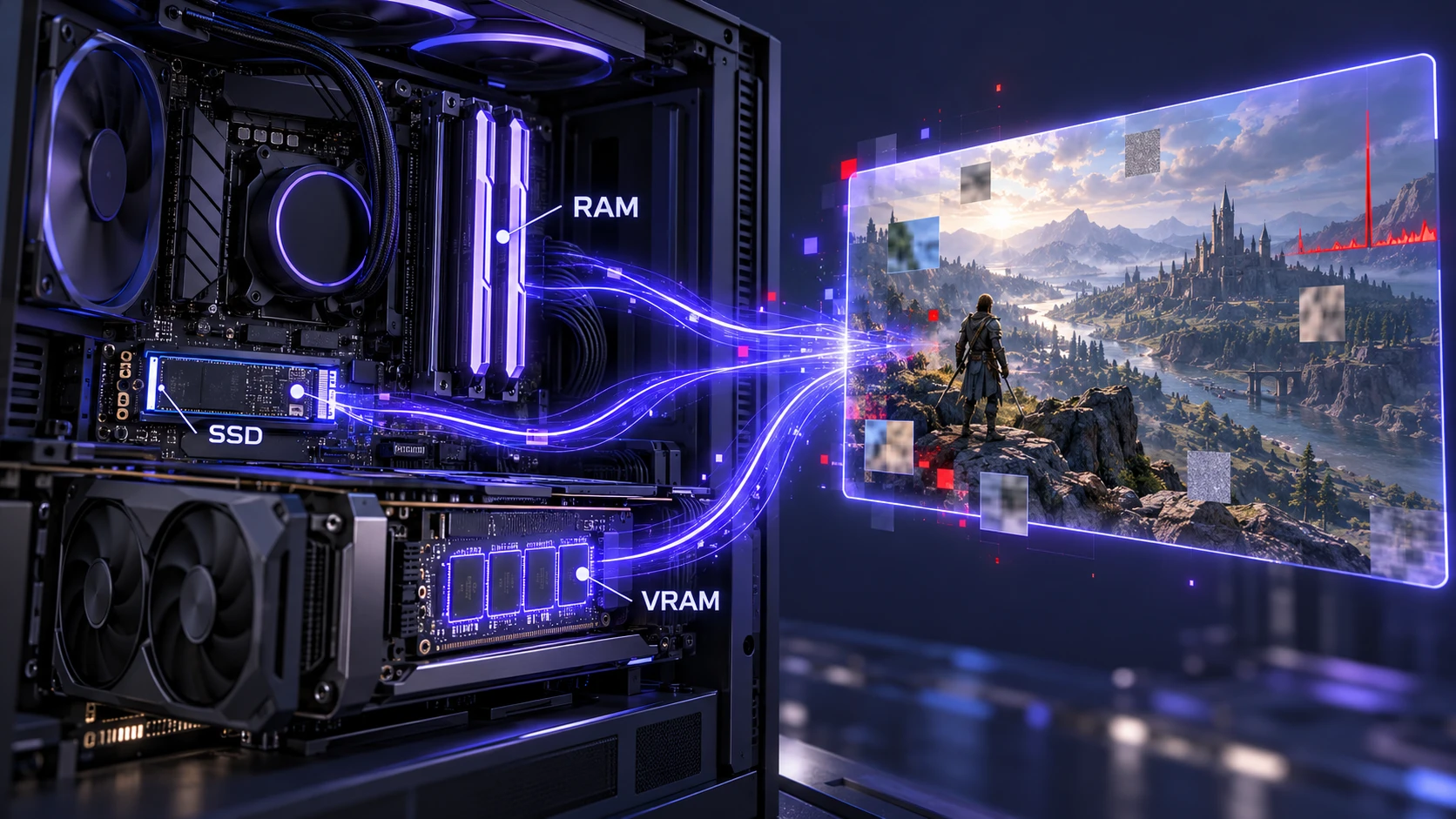
Storage performance can affect loading times, texture streaming, and access to cached game data. Installing a modern game on an SSD may reduce storage-related hitches, particularly in large open-world environments. However, shader compilation itself can involve significant CPU and graphics driver work, so upgrading from a hard drive to an SSD does not guarantee that compilation stutter will disappear. If a game already runs from a healthy SSD, investigate shader caching, memory pressure, and engine-related issues before considering another storage upgrade.
System memory and graphics memory limitations can also cause gaming stutter. When a game runs low on available RAM, Windows may rely more heavily on its page file, increasing the risk of delays during memory-intensive activity. Insufficient graphics memory, or VRAM, can separately affect texture loading and frame-time consistency. Our guide to VRAM requirements for modern PC gaming explains how graphics memory capacity and texture settings influence gaming performance. Monitor both RAM and VRAM usage before deciding that shader compilation is responsible for every hitch.
When the Game Has A Shader Precompilation Option
Some PC games include a shader precompilation process during startup or after major updates. This allows certain shaders and graphics pipelines to be prepared before gameplay begins, reducing the amount of compilation required during active scenes. Epic Games explains the importance of Pipeline State Object caching in Unreal Engine and how preparing graphics pipelines in advance can reduce rendering hitches. Depending on the game and hardware, this preparation may take several minutes. However, precompilation does not guarantee that every possible shader or pipeline will be ready before gameplay.
If the game displays a shader compilation progress indicator, allow the process to finish before starting gameplay. Avoid closing the game while compilation is actively progressing unless the application becomes unresponsive or the developer’s support instructions recommend restarting it. Some titles save completed compilation work between sessions, while others may need to rebuild shaders after updates. Once compilation finishes, launch the game normally and check whether first-time stuttering has improved. Restart only when the game requests it or when troubleshooting a specific problem.
API Choices and Upscaling Settings
Games that support multiple graphics APIs may behave differently when using DirectX 11, DirectX 12, or Vulkan. Each API gives game engines different ways to manage graphics pipelines, compilation, and caching. Khronos explains these mechanisms in its official Vulkan pipeline caching guidance, including how previously prepared pipeline data can be reused. If your game officially supports more than one graphics API, test each option in the same gameplay area and compare frame-time consistency. Avoid forcing unsupported API modes through unofficial modifications.
Upscaling technologies such as NVIDIA DLSS, AMD FSR, and Intel XeSS can improve rendering performance by producing the final image from a lower internal resolution. However, reducing GPU workload does not directly prevent shader compilation or graphics pipeline creation from interrupting gameplay. Frame generation is a separate technique that adds synthesized frames, but it also cannot repair unstable native frame delivery caused by compilation stalls. Our comparison of frame generation vs native FPS explains why higher displayed frame rates do not always mean smoother or more responsive gameplay. Prioritize stable native frame times before relying on upscaling or frame generation.
Settings and Actions Checklist
This table summarizes targeted actions and what they usually influence. It is designed for quick troubleshooting without guesswork.
| Action | What It Targets | What You May Notice |
|---|---|---|
| Run In-Game Shader Precompilation | Builds pipeline cache ahead of gameplay | Fewer first-encounter hitches |
| Keep Shader Cache Enabled In Driver | Reuses compiled shaders across sessions | Smoother replays and repeat areas |
| Install Game on A Healthy SSD | Asset streaming and cache file access | Fewer storage-related hitches, but compilation stalls may remain |
| Lower Ray Tracing and Shadow Settings | May reduce graphics workload and pipeline variations | More consistent frame times in some games, but compilation stalls may remain |
Apply one change at a time so you can tell what actually improves your system rather than stacking tweaks blindly.
What Not to Do When Chasing This Issue?
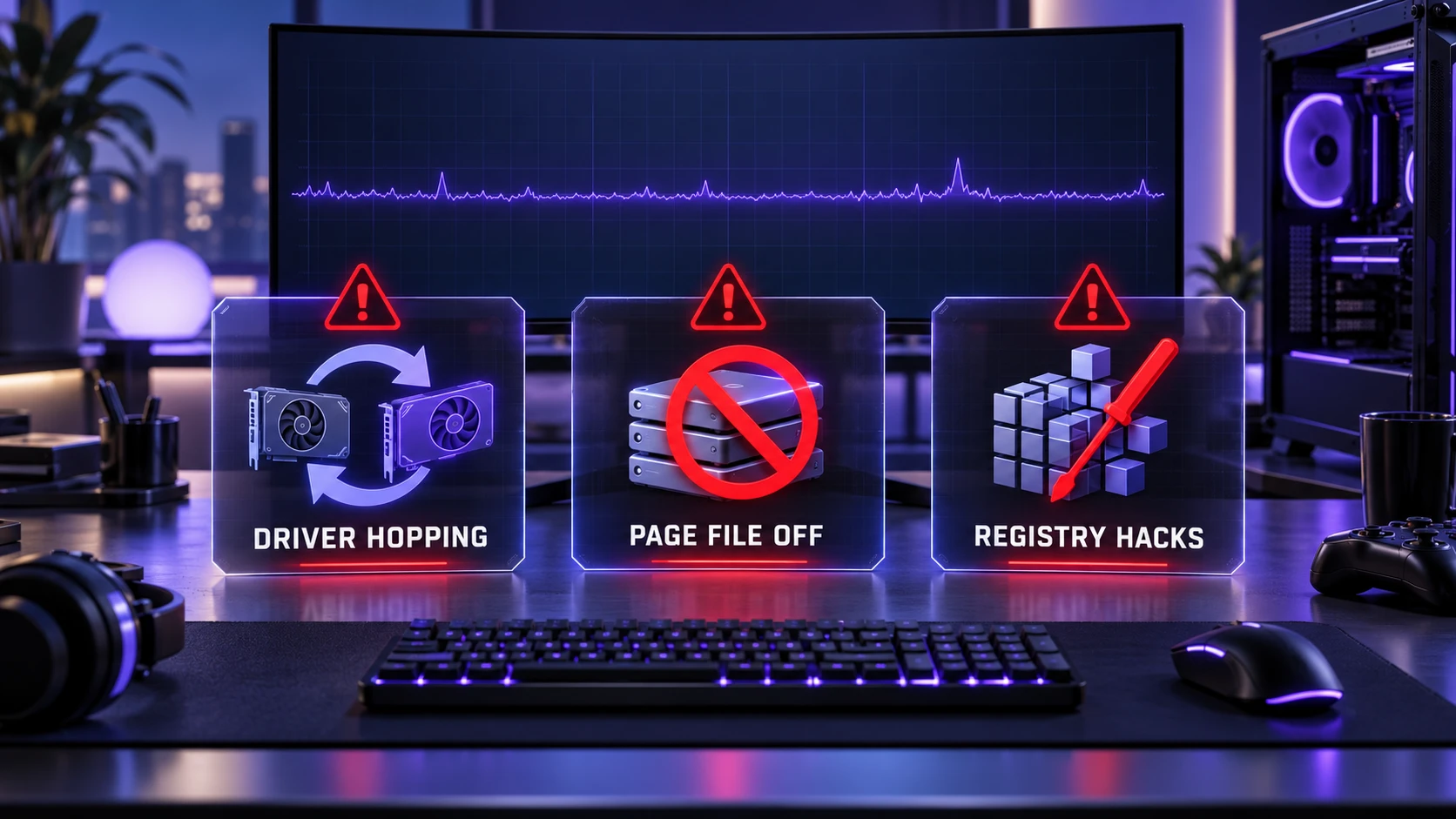
Some common advice can waste time or introduce new instability. Shader compilation stutter is not usually fixed by extreme overclocking, aggressive power tweaks, or constantly reinstalling drivers. These actions can make frame-time behavior harder to diagnose.
- Avoid constant driver hopping: Frequent changes keep invalidating caches and can extend the stutter period.
- Do not disable the page file: Low-memory moments can become much worse without it.
- Skip registry hacks: They rarely address pipeline compilation and can create other problems.
Keep your approach controlled and reversible, and prioritize repeatable testing in the same in-game area.
Conclusion
Shader compilation stutter comes from real-time shader and pipeline building colliding with gameplay, creating frame-time spikes that feel worse than a simple FPS drop. It shows up more on PC because hardware and drivers vary, caches get invalidated, and some ports rely on runtime compilation too heavily.
Start by allowing any in-game shader precompilation process to finish, keeping supported shader caches enabled, and measuring frame times in a repeatable scene. Graphics settings, driver stability, and storage health can improve other causes of uneven gameplay, but they may not eliminate compilation stalls caused by the game engine. If first-time hitches persist across different hardware configurations, a developer update may be needed to improve shader or pipeline preparation.
Frequently Asked Questions
Is Shader Compilation Stutter the Same As Low FPS?
No. Low FPS is a sustained performance limit, while shader compilation stutter is typically a brief hitch caused by compilation work creating a sudden frame-time spike. You can have high average FPS and still experience noticeable stutters. Monitoring frame times helps separate the two.
Will Shader Compilation Stutter Go Away After Playing Longer?
Often it improves after the game compiles and caches the most common shaders and pipelines. It can return after game updates, driver updates, or switching graphics APIs because caches may be rebuilt. If the game includes a shader precompilation option, using it usually speeds up that smoothing process.
Can a Better GPU Fix Shader Compilation Stutter?
A faster GPU does not automatically eliminate shader compilation stutter. The delay may come from CPU-side compilation, graphics pipeline creation, driver behavior, or incomplete shader caching. A GPU upgrade can improve overall rendering performance, but the same game may still experience first-time compilation hitches. Before purchasing new hardware, check whether the issue also affects other players using different PC configurations and whether the developer has released a performance update.


