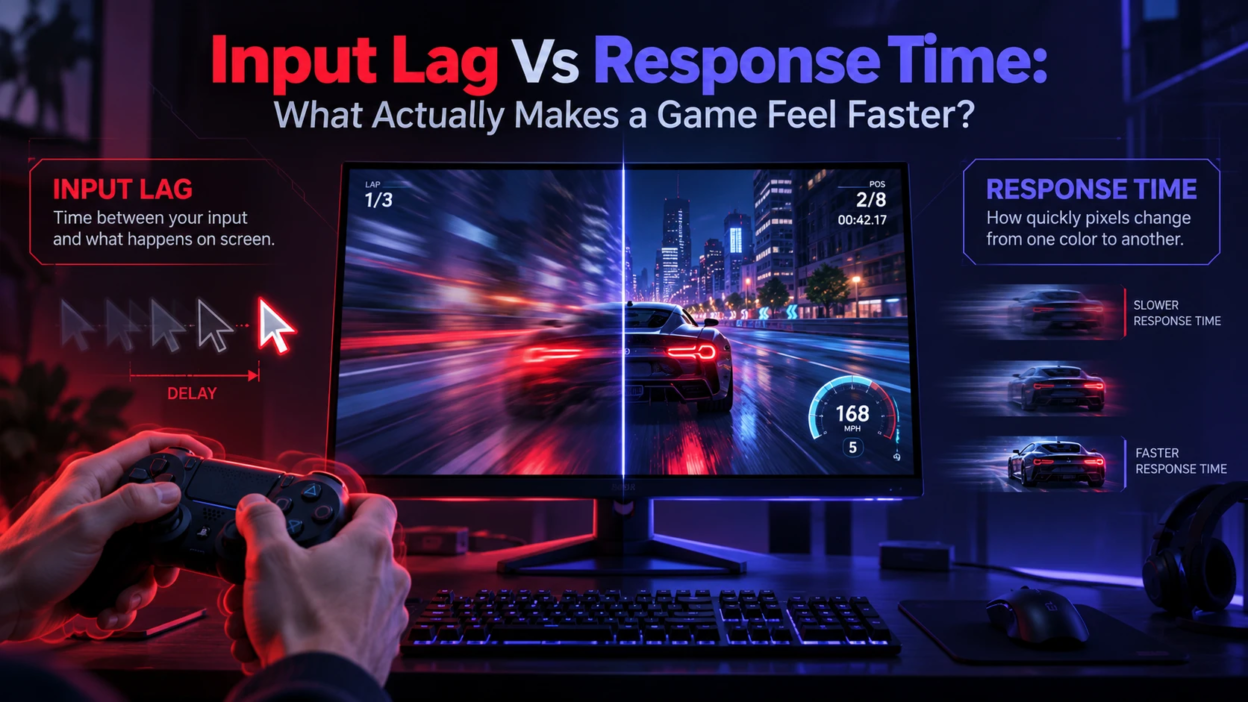
Fast-paced gaming depends on how quickly your actions appear on screen and how clearly the display shows movement. Two important specifications, input lag and response time, are often confused, even though they measure different aspects of display performance. Input lag describes the delay before an image begins appearing, while response time measures how quickly pixels transition between colors. Understanding both helps gamers choose better monitors and TVs, adjust performance settings, and avoid paying for specifications that may not improve their gaming experience.
What Input Lag Means?
Input lag refers to the delay between a display receiving a video signal and beginning to show the corresponding image. It is measured in milliseconds (ms), and lower display input lag generally means faster visual feedback. This measurement primarily covers the display’s signal handling, processing, and presentation delay rather than every stage between pressing a button and seeing the result.
The complete delay from a mouse click or controller input to a visible response is called total system latency, often described as click-to-photon latency. It includes input device delay, game engine processing, CPU and GPU rendering, frame buffering, and display latency. A gaming monitor can have very low input lag while the overall gaming experience still feels delayed because another part of the system is slow. Understanding this distinction helps players identify whether their display, hardware, or game settings need improvement.
What Response Time Means?
Response time describes how quickly pixels transition from one color level to another. It influences motion clarity, ghosting, and smearing during fast movement. It does not measure the delay before an input reaches the display, but it affects how cleanly motion appears once an image begins updating. Readers who want to understand how individual pixels produce images can explore our guide to how pixels work, which explains RGB, resolution, and display technology.
Manufacturers often advertise response-time figures based on favorable test conditions, so a 1 ms rating does not necessarily reflect performance across every pixel transition. Real response behavior depends on transition type, refresh rate, panel technology, and overdrive settings. RTINGS’ monitor response time testing methodology examines pixel transitions and overshoot behavior to help readers understand real motion performance. A monitor with balanced response times and controlled overshoot may produce clearer motion than one with an aggressive overdrive setting designed to achieve an impressive advertised number.
Why A Game Feels Faster?
A game feels responsive when actions produce timely visual feedback and moving objects remain clear. Low display input lag reduces the delay before updated images begin appearing, while fast pixel response times help minimize ghosting and smearing. However, overall responsiveness also depends on game frame rate, CPU and GPU performance, and consistent frame delivery.
In competitive shooters, fighting games, and racing titles, players may notice delays when aiming, reacting, or controlling movement. Slow pixel transitions can create visible trails behind moving objects, making targets harder to follow. For a balanced gaming experience, prioritize low measured input lag, stable frame times, suitable refresh rates, and well-controlled pixel response behavior rather than focusing on a single advertised specification.
Where Delay Comes From in the Signal Path?

Several components contribute to overall delay, and improving one part does not always fix the rest. A clean setup focuses on the biggest contributors and removes unnecessary processing. This is also why reviews that measure total display lag can be more useful than raw panel specs.
- Input Device Polling: Mouse and controller polling rates determine how frequently input updates are sent to the system. Higher polling rates can reduce reporting intervals, but the actual benefit depends on the device, connection, operating system, and game. Reliable wired or low-latency wireless connections can also help maintain consistent input delivery.
- Game Engine Pipeline: Heavy graphics settings, long rendering queues, and CPU or GPU bottlenecks can delay frame delivery and reduce responsiveness. Understanding the responsibilities of each processor can help identify performance limitations. Our guide to CPU vs GPU vs NPU explains how different processors handle workloads and why their capabilities affect system performance.
- Operating System and Drivers: Background load, power saving modes, and misconfigured drivers can increase scheduling delays.
- Display Processing: Scaling, noise reduction, motion interpolation, and dynamic contrast can add noticeable lag on TVs.
- Pixel Transition Behavior: Slow transitions and poorly tuned overdrive can blur motion even when latency is low.
Once you know which stage is holding you back, changes become targeted instead of guesswork.
Refresh Rate, Frame Time, and Perceived Responsiveness
Refresh rate defines how often the display can show a new frame. At higher refresh rates, each frame occupies less time, which can reduce the wait for the next visible update. Even with the same input lag in milliseconds, a higher refresh rate often feels snappier because updates arrive more frequently.
Higher refresh rates shorten the interval between display updates, but the actual benefit also depends on how many frames the game produces. For example, a 120 Hz screen can refresh twice as often as a 60 Hz screen, while a 240 Hz display can refresh four times as often. The following table shows the time between refreshes at common refresh rates.
| Refresh Rate | Time Per Refresh |
|---|---|
| 60 Hz | 16.67 ms |
| 120 Hz | 8.33 ms |
| 144 Hz | 6.94 ms |
| 240 Hz | 4.17 ms |
Frame time is the inverse of frame rate, and unstable frame delivery can make gameplay feel inconsistent even when average FPS appears high. Sudden frame-time spikes may cause visible stutter and uneven control feedback. Technologies that generate additional displayed frames can improve perceived smoothness without providing the same input responsiveness as an equivalent native frame rate. For a deeper explanation of these trade-offs, read our comparison of frame generation vs native FPS. A responsive gaming setup should prioritize consistent native frame delivery, low system latency, and suitable display refresh rates.
How Overdrive and Motion Features Affect Clarity?
Overdrive is a monitor setting that accelerates LCD pixel transitions to reduce visible trailing behind moving objects. When configured correctly, it can improve motion clarity, but aggressive overdrive may create overshoot and inverse ghosting, often visible as bright or dark halos. Gamers can use the Blur Busters UFO Ghosting Test to visually compare different overdrive settings and identify unwanted motion artifacts. This test is useful for checking motion behavior, although it does not replace specialized equipment for measuring exact pixel response times.
Black frame insertion and similar strobing modes can improve perceived motion clarity, but they often reduce brightness and can introduce flicker sensitivity. Motion smoothing and interpolation should stay off for gaming because they add processing and can raise delay significantly.
How to Measure and Compare the Right Specs?
For input lag, the most useful comparisons come from measurements at a known refresh rate and in the mode you will actually use. Independent testing organizations such as RTINGS explain their monitor input lag testing methodology, including measurements at different refresh rates and display settings. For response time, look for full transition behavior and overshoot control rather than a single advertised number. Consistency matters more than a best-case figure.
When evaluating displays, pay attention to whether the measurement includes signal processing. A monitor with a dedicated low latency mode can outperform a TV that has great panel speed but heavy image processing. If you shop for a new monitor, TechBonafide style buyers guides and setup notes can help narrow choices based on real gaming needs rather than marketing claims.
Quick Comparison Table
| Feature | What it Measures | Gaming Impact | What to Check |
|---|---|---|---|
| Display Input Lag | Delay before a received image signal starts appearing | Affects how quickly visual feedback appears | Measured lag at 60 Hz, 120 Hz, and maximum refresh rate |
| Pixel Response Time | Time required for pixels to transition between colors | Affects ghosting, smearing, and motion clarity | Real transition measurements, overshoot, and overdrive tuning |
| Refresh Rate | Number of screen refreshes per second | Determines how frequently new frames can be displayed | Supported Hz, actual game FPS, and frame pacing |
| Variable Refresh Rate (VRR) | Adjustment of display refresh timing to match compatible frame output | Reduces screen tearing and certain types of stutter | G-SYNC, FreeSync, supported VRR range, and flicker behavior |
| Total System Latency | Delay from physical input to visible on-screen response | Affects overall gaming responsiveness | Input devices, CPU/GPU processing, render queue, and display latency |
Settings That Usually Make the Biggest Difference
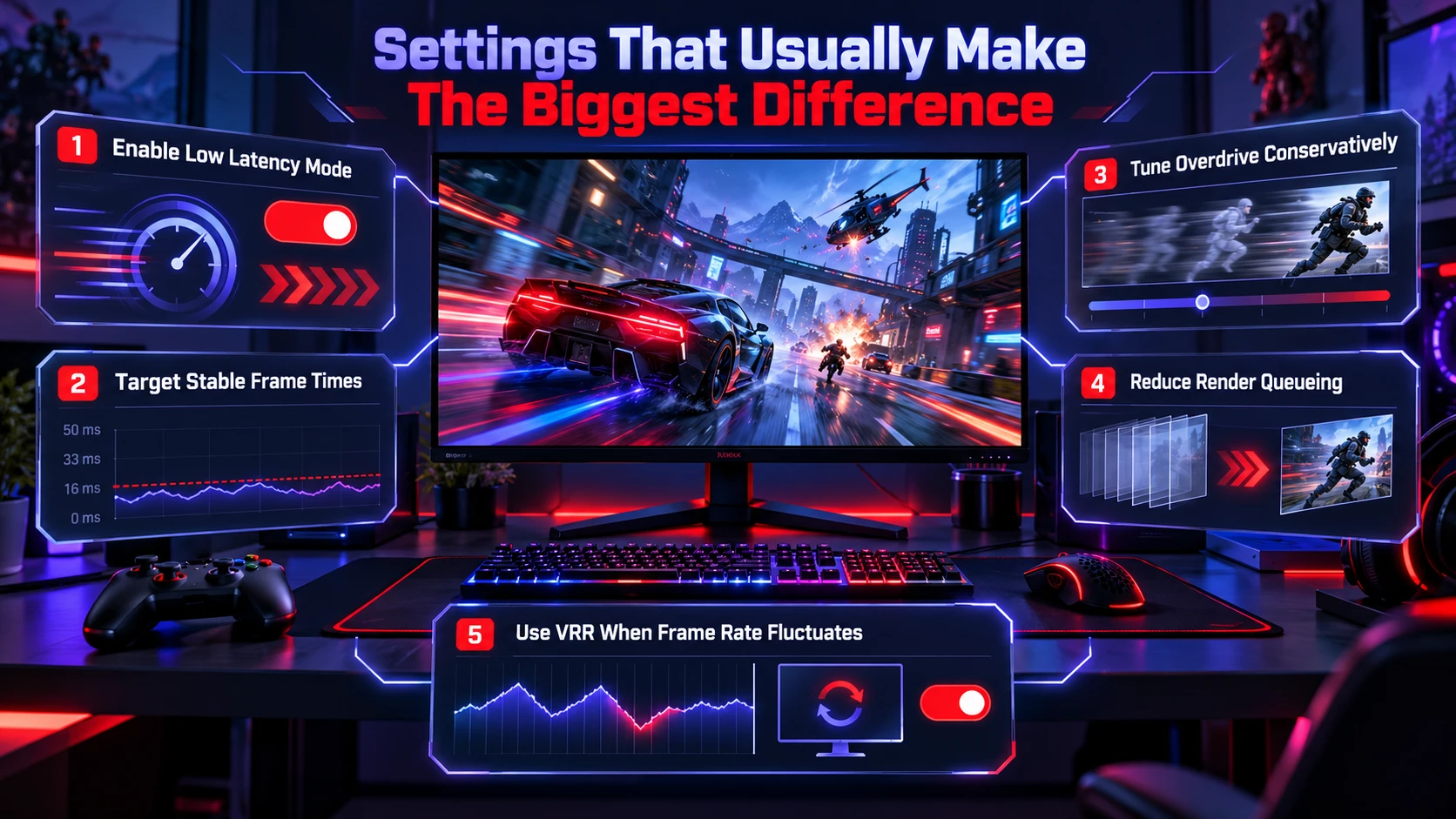
Most responsiveness gains come from removing extra processing and reducing system queueing. Changes should be tested in the actual games you play, since engine behavior varies. Keep notes so you can revert anything that causes instability.
- Enable A Low Latency Display Mode: Use Game Mode on TVs or low latency modes on monitors to disable extra processing.
- Target Stable Frame Times: Prioritize consistent frame delivery instead of chasing the highest possible FPS. When using VRR with a synchronization configuration that benefits from frame-rate limiting, setting a cap slightly below the monitor’s maximum refresh rate can help avoid reaching the VRR ceiling. However, the ideal setting depends on the game, graphics driver, V-Sync configuration, and whether minimum latency or tear-free presentation matters more.
- Tune Overdrive Conservatively: Choose a setting that reduces trailing blur without obvious halos during fast pans.
- Reduce Render Queueing: Use supported in-game and driver-level latency reduction features to minimize unnecessary rendering delays. NVIDIA’s system latency optimization guide explains how NVIDIA Reflex and related settings can reduce parts of the CPU-to-GPU rendering pipeline. When available, prioritize the game’s supported latency reduction options and compare performance before enabling additional driver overrides.
- Use VRR When Frame Rate Fluctuates: Variable Refresh Rate (VRR) synchronizes compatible display refresh timing with frame output to reduce tearing and certain forms of stutter. Technologies such as AMD FreeSync support this approach on compatible displays and graphics hardware. Check your monitor’s supported VRR range, graphics settings, and any flicker or frame-pacing issues before deciding on the best configuration.
After these changes, reassess with your usual sensitivity and field of view. Small latency differences are easier to feel when everything else is consistent.
Common Misunderstandings
One of the biggest gaming monitor misconceptions is assuming that a 1 ms response time means 1 ms input lag. These specifications measure different things: response time describes pixel transitions, while display input lag measures the delay before a received image begins appearing. Similarly, a 240 Hz monitor cannot eliminate delays caused by CPU bottlenecks, GPU rendering queues, or inconsistent frame delivery. Buyers should consider independently measured latency, full response-time results, and real gaming performance rather than relying on advertised numbers alone.
Another trap is chasing maximum overdrive to hit a marketing number. If overshoot becomes obvious, the image can look worse and tracking can feel less precise. Balanced motion handling often improves performance more than extreme settings.
Choosing Between A Gaming Monitor and A TV

Gaming monitors often provide low input lag and high refresh rates, making them attractive for competitive PC gaming. Modern gaming TVs can also deliver responsive performance, particularly when Game Mode or a supported low-latency mode is enabled. RTINGS’ TV input lag testing methodology explains how TV responsiveness is measured at different resolutions, refresh rates, and picture settings. Console gamers should compare tested 60 Hz and 120 Hz latency, VRR support, compatible HDMI inputs, and Game Mode performance rather than assuming every monitor is automatically faster than every TV.
If you are upgrading your gaming display, prioritize independently measured input lag, motion clarity, reliable VRR behavior, and refresh rates your system can realistically support. Panel technology also matters because OLED and LCD-based displays can differ in pixel response behavior, brightness, and motion performance. Our comparison of OLED vs Mini-LED screens explains these technology differences and can help readers evaluate the trade-offs when selecting a gaming monitor or TV.
Conclusion
Input lag is the delay you feel, while response time is the motion behavior you see. A game feels faster when the whole chain is optimized, from input device to frame pacing to low processing display modes. Focus on measured latency, stable performance, and sensible overdrive rather than single headline specs.
When you tune these fundamentals, controls feel more direct and motion becomes easier to track. That is the combination that makes gameplay feel truly faster.
Frequently Asked Questions
Is Lower Input Lag Always Better for Every Game?
Lower input lag usually improves control feel, but some single player games may prioritize visuals over the last few milliseconds. If lowering latency causes unstable frame times or stutter, the experience can feel worse. Aim for the best balance of low lag and steady pacing.
Can A Monitor Have Great Response Time But Still Feel Slow?
Yes, because response time affects pixel transitions, not end to end delay. If the display or system adds processing, buffering, or scaling delay, actions can still appear late. Look for low measured input lag in the mode you will use.
Does VRR Increase Input Lag?
VRR can slightly change latency depending on the display and settings, but it often improves perceived smoothness when frame rate varies. The biggest benefit is reducing tearing and judder without forcing heavy buffering. Test VRR with your usual frame cap and latency options to confirm the best feel.
Is 1 ms Response Time Better Than 5 ms Input Lag?
These numbers cannot be compared directly because they measure different stages of display performance. A 1 ms response-time rating describes a pixel transition under specified test conditions, while 5 ms display input lag refers to the delay before an incoming image begins appearing. A monitor with a 1 ms advertised response time can still have higher input lag, and a monitor with low input lag can still show motion blur or ghosting. For gaming, check independently measured results for both specifications.