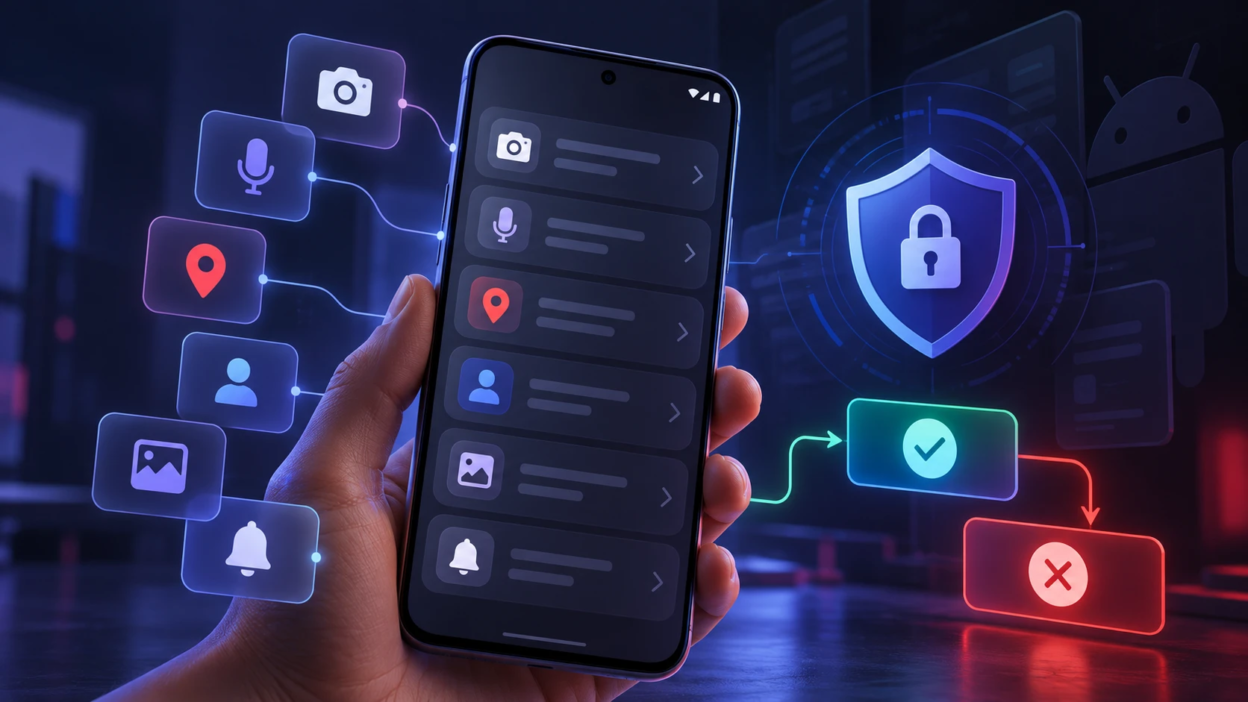
Android app permissions determine which sensitive features and information an application can access, including your location, camera, microphone, contacts, photos, and files. Some permissions are necessary for everyday functions, while others may expose personal data if granted without a clear reason. Understanding which Android app permissions are safe to allow can help you protect your privacy without disabling useful features. This guide explains different permission types, risky access requests, safer settings, and the steps to review or change permissions on your Android phone.
What Are Android App Permissions?
A permission is a gate Android uses to protect sensitive data and device features. When an app asks for access, you are deciding whether it can read, change, or use something outside the app itself.
Android provides different permission controls depending on the type of information or device capability an app requests. Google’s official guide to changing Android app permissions explains how to review access by individual application or permission category and how to change the available approval settings. As a general rule, grant access only when it supports a feature you want to use, and review sensitive permissions such as location, camera, microphone, and contacts regularly.
Types of Android App Permissions Explained
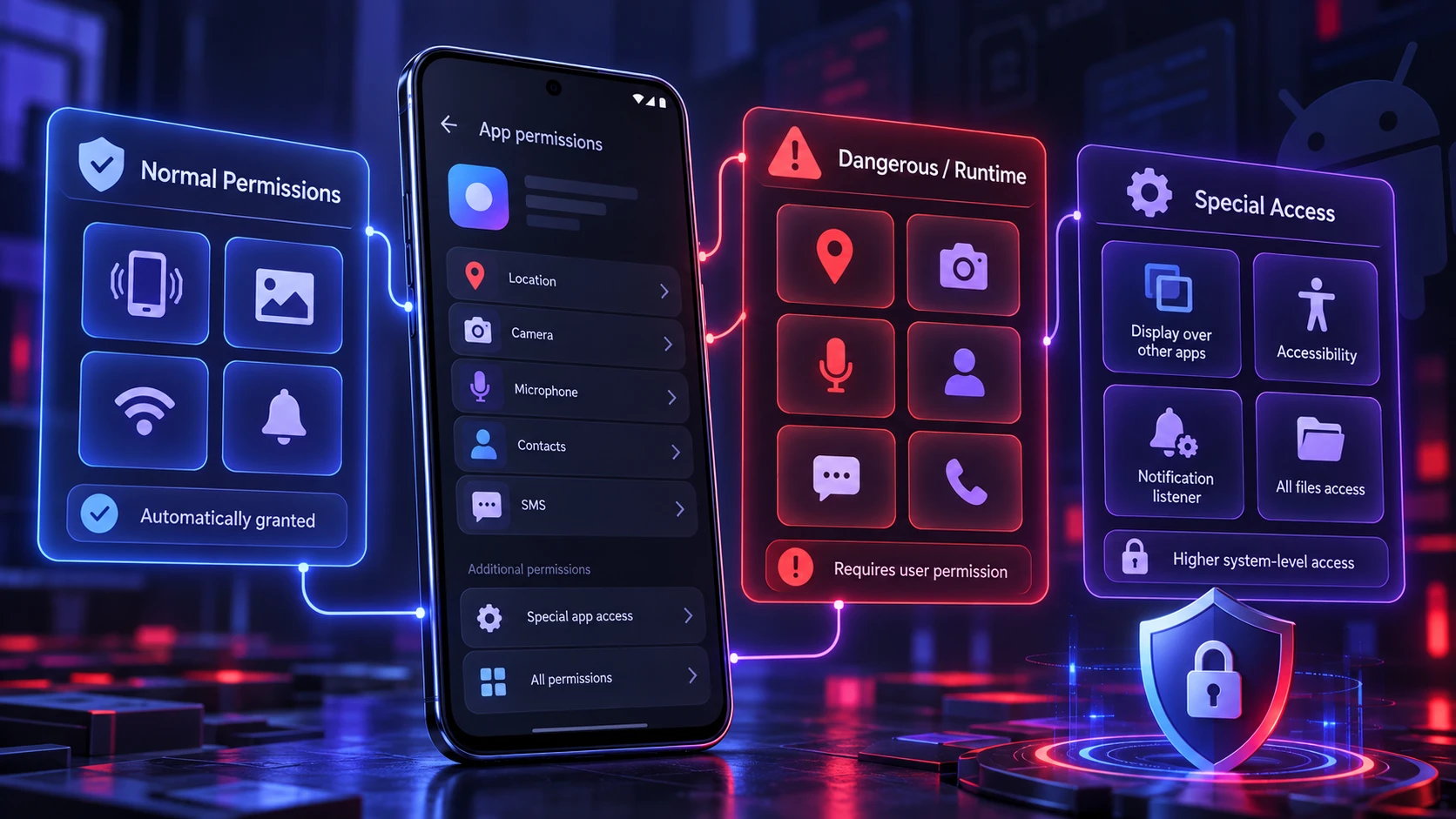
Permissions are grouped by how sensitive they are and how Android presents them. Understanding the category helps you judge risk quickly.
- Normal Permissions: Lower-risk permissions that Android generally grants automatically when an app is installed, such as permission to control vibration. They do not usually require a separate runtime approval prompt.
- Dangerous or Runtime Permissions: Permissions that protect sensitive information or device capabilities, such as location, camera, microphone, contacts, and SMS. Android generally asks for user approval when an app requests these permissions.
- Special App Access: Additional access managed through dedicated system settings, such as displaying over other apps or accessing all files. Accessibility and notification-listener access also require additional user approval or settings-based controls, but they should not all be treated as identical Android permission categories.
When an app requests a dangerous permission, treat it as a privacy decision, not a routine tap.
Which Android App Permissions Are Safe to Allow?
Some permissions are commonly safe when they match the app’s core function. The key is relevance, timing, and the option to limit access.
When Android displays a permission request, choose the least extensive access that still allows the feature to work. Depending on the permission and Android version, available options may include Allow only while using the app, Ask every time, or Don’t allow. Location permissions may also provide approximate and precise location choices. Not every permission offers the same controls, so review the actual options shown on your device rather than assuming all access can be limited in the same way.
| Permission | When It Is Reasonably Safe | Safer Setting To Choose |
|---|---|---|
| Camera | Used for scanning, video calls, or taking photos inside the app | Allow only while using the app |
| Microphone | Needed for calls, voice notes, or audio recording features | Allow only while using the app |
| Location | Essential for navigation, delivery tracking, or local weather accuracy | While in use, precise only if required |
| Photos And Videos | Needed to upload a photo, edit media, or attach files | Select photos only, not full library |
Use this table as a general guide, but remember that available permission controls vary across Android versions and applications. For example, changes introduced with Android 13 included notification permission prompts and further support for privacy-focused media selection. Our Android 13 features overview explains these updates and other operating system changes. When managing a newer or older device, check the exact permissions and controls available in its Settings application.
Android App Permissions That Require Extra Caution
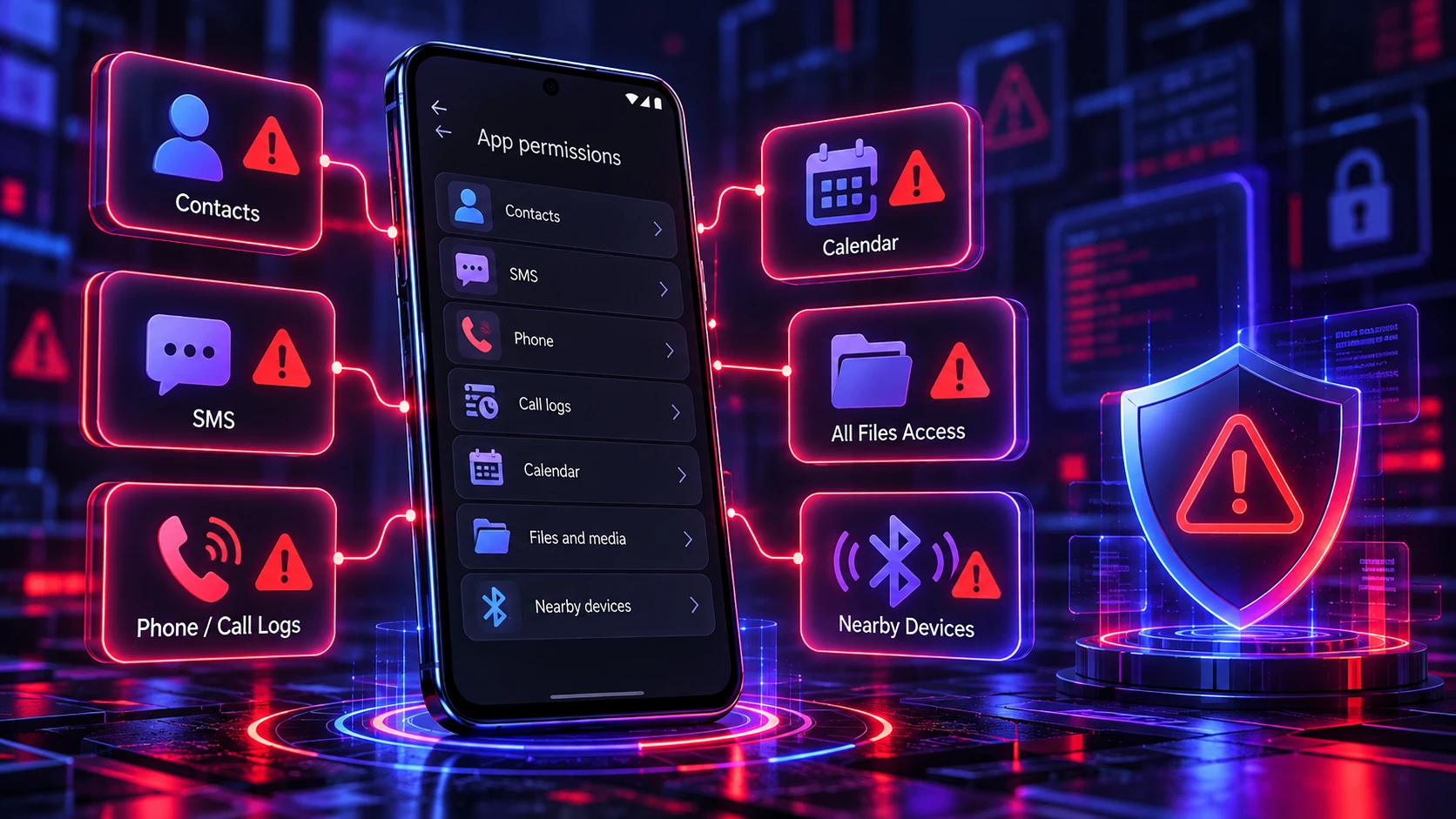
Some permissions can expose identity, enable tracking, or raise the impact of a breach. These are not always unsafe, but they require a stronger reason.
- Contacts: High-value personal data that can be used for profiling and spam.
- SMS: Text messages may contain verification codes, login alerts, and account recovery information. Grant SMS permissions only when they are necessary for a legitimate feature. SMS-based account recovery also carries risks beyond app permissions, including phone-number takeover attacks. Our guide on how to protect your phone number from SIM-swapping attacks explains additional steps for reducing these risks.
- Call Logs And Phone: Can reveal who you communicate with and when.
- Calendar: Can disclose routines, meeting details, and locations.
- All Files Access: Broad file access that increases exposure of documents and downloads.
- Nearby Devices And Bluetooth: Can support tracking via device discovery if misused.
If an app asks for any of these without a clear feature that depends on it, deny it and continue only if the app still works for your needs.
High-Risk Android Special App Access Settings
Some powerful Android capabilities require extra approval through system settings. Android’s official special permissions guidance explains that functions such as drawing over other apps and broad storage access are managed differently from ordinary runtime permissions. Other sensitive features, including accessibility services and notification access, also require careful review because they may expose information or enable actions beyond a typical app feature. Before granting any of these capabilities, confirm why the app needs them and whether the developer is trustworthy.
- Accessibility Access: Powerful control intended for assistive features, but it can also read screen content and automate taps.
- Notification Access: Lets an app read and act on notifications, which may include message previews and one-time codes.
- Display Over Other Apps: Can overlay the screen, which is sometimes abused for misleading prompts.
- Install Unknown Apps: Allows app installs from outside Google Play, raising malware risk if misused.
- Usage Access: Can see which apps you use and how often, which supports profiling.
Grant these only to apps you strongly trust and only when the feature is essential.
How to Check Whether an App Permission Request Is Legitimate
A good decision is usually based on relevance and control. If you feel rushed or confused, deny first and reassess later.
- Match It To A Feature: Grant permissions only when you are about to use the feature that needs it.
- Prefer Limited Options: Choose while-in-use, ask every time, or selected photos when available.
- Watch For Bundled Requests: Multiple sensitive permissions requested up front can be a warning sign.
- Check The App Category Fit: A calculator should not need contacts, SMS, or microphone.
Checking whether a permission matches the app’s purpose can help reduce unnecessary data exposure. It is also important to examine the app’s developer, download source, and security warnings before installation. Our guide to Google Play explains the platform’s app distribution system and Google Play Protect, which helps detect potentially harmful applications. However, downloading an app from a recognized store does not mean every permission it requests is necessary or risk-free.
How to Change App Permissions on Android
You can change permissions at any time, and doing quick audits is worth it. Android makes it possible to remove access without uninstalling the app.
- Open Your Phone Settings: Go to Settings and select Apps. Choose the application you want to review, or select See all apps if it is not immediately visible.
- Review Individual App Permissions: Open the app’s information page and tap Permissions. Check which permissions are allowed and denied.
- Change Permission Settings: Select a permission and choose an available option, such as Allow only while using the app, Ask every time, or Don’t allow. Available choices depend on the permission type.
- Use Permission Manager: To review permissions by category, go to Settings > Security & privacy > Privacy > Permission manager on supported devices. The menu path may differ by manufacturer and Android version.
- Review Unused App Settings: Open an app’s information page and look for Unused app settings or Pause app activity if unused. Keep automatic permission removal enabled where supported unless an important app requires different handling.
- Check Background Location: Review apps that have access to your location all the time. Change them to while-in-use access unless continuous background location is necessary for the intended feature.
After these changes, keep an eye on whether key features still work, then fine-tune only what is necessary.
How to Use Android Privacy Dashboard and Permission Indicators
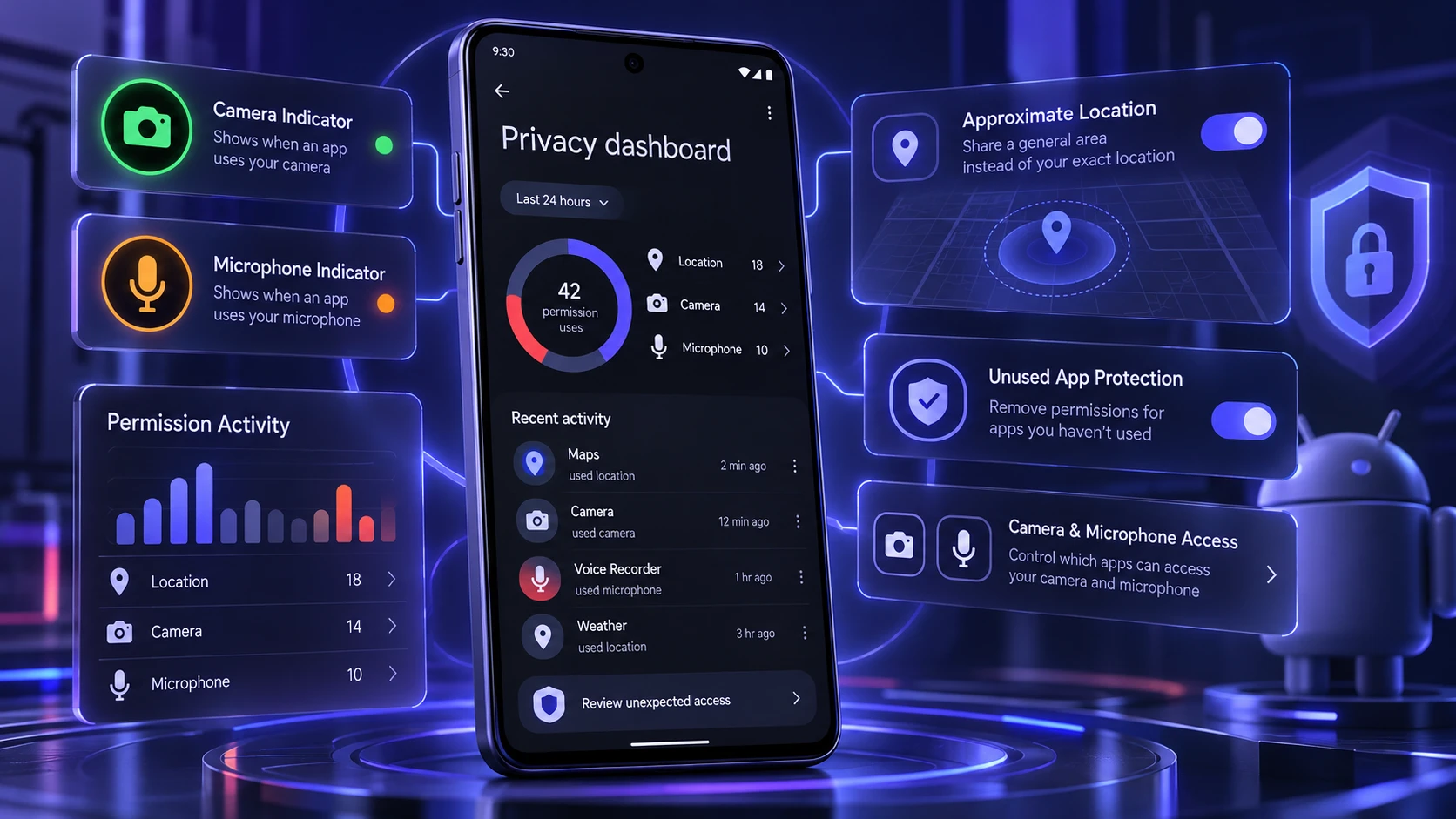
Android provides privacy indicators and system controls that help users understand when applications access sensitive device features. Google’s official Privacy Dashboard guidance explains how to review recent permission activity and identify applications that have accessed information such as location, camera, or microphone. The available history and menu options depend on the Android version and device. Reviewing this activity can help identify permission use that deserves closer investigation, although an access record alone does not establish that an app is malicious.
- Camera and Microphone Indicators: On supported Android versions, an indicator appears when an app uses the camera or microphone. Investigate access that does not match what you are doing.
- Privacy Dashboard: Review recent permission activity, including access to location, camera, and microphone. The amount of history displayed depends on the Android version.
- Approximate Location: Use approximate location for apps that do not need your precise position. Navigation and certain location-dependent features may require greater accuracy.
- Unused App Protection: Android can automatically revoke permissions from apps that have not been used for an extended period. Review unused apps periodically and remove those you no longer need.
- Camera and Microphone Controls: On supported devices, system privacy controls allow you to temporarily disable camera or microphone access when you do not want apps to use these sensors.
If you see access you do not recognize, revoke the permission and review the app’s behavior.
Common Android Permission Mistakes to Avoid
Most permission issues come from habit, not hacking. A few small behavior changes can cut exposure a lot.
- Accepting Everything On First Launch: Granting access before you know the app’s value increases unnecessary data sharing.
- Leaving Background Access Enabled: Always-on permissions expand tracking and data collection windows.
- Ignoring Special App Access: Accessibility and notification access can be more sensitive than standard permissions.
- Keeping Old Apps Installed: Unused apps accumulate permissions and expand your attack surface.
Reviewing app permissions is an important part of maintaining Android security, but it should be combined with other device protections. Strong screen locks, updated recovery information, and theft-protection features help protect sensitive information if a phone is lost or stolen. Our guide to Android theft protection settings explains which safeguards to review and how they can support safer everyday phone use.
How TechBonafide Helps Readers Understand Android Privacy
TechBonafide publishes technology guides and explainers that help readers understand mobile security, application settings, and digital privacy risks. For individuals and small teams, learning how app permissions work is an important step toward safer device use.
If you manage Android phones for work, consider creating a basic permission-review policy that covers approved applications, sensitive access requests, unused apps, and operating system updates. Organizations handling confidential information may also need dedicated mobile device management tools or professional security assessments. Regular permission reviews can support better privacy practices, but they should be part of a broader device security approach.
Conclusion
Android app permissions should be granted according to the feature you want to use, the sensitivity of the requested access, and the controls available on your device. Camera, microphone, location, and media permissions may be appropriate for legitimate features, but broad or unrelated requests deserve closer attention. Powerful settings such as accessibility services, notification access, and all-files access require additional caution.
To protect your privacy, review permissions through Android Settings, use limited-access options where available, and check recent activity in the Privacy Dashboard. Remove unnecessary access from apps you no longer use, keep your device updated, and avoid granting permissions simply because an app requests them. A careful approach helps balance everyday convenience with stronger control over your personal data.
Frequently Asked Questions
Is it Safe To Allow Location Permission on Android Apps?
Location permission can be safe when it matches the app’s core function, such as navigation or delivery tracking. Choose allow only while using the app and use approximate location when precise GPS is not required.
What Should I Do if an App Refuses to Work Without A Permission?
First, confirm the permission is truly needed for the feature you want. If it is not relevant, consider uninstalling the app and finding an alternative that requests less access. If it is relevant, grant the narrowest option and disable background access where possible.
How Often Should I Review Android App Permissions?
A monthly check is a practical baseline, and it is also worth reviewing after installing new apps or major updates. Focus on sensitive categories such as location, camera, microphone, contacts, and special app access settings.