
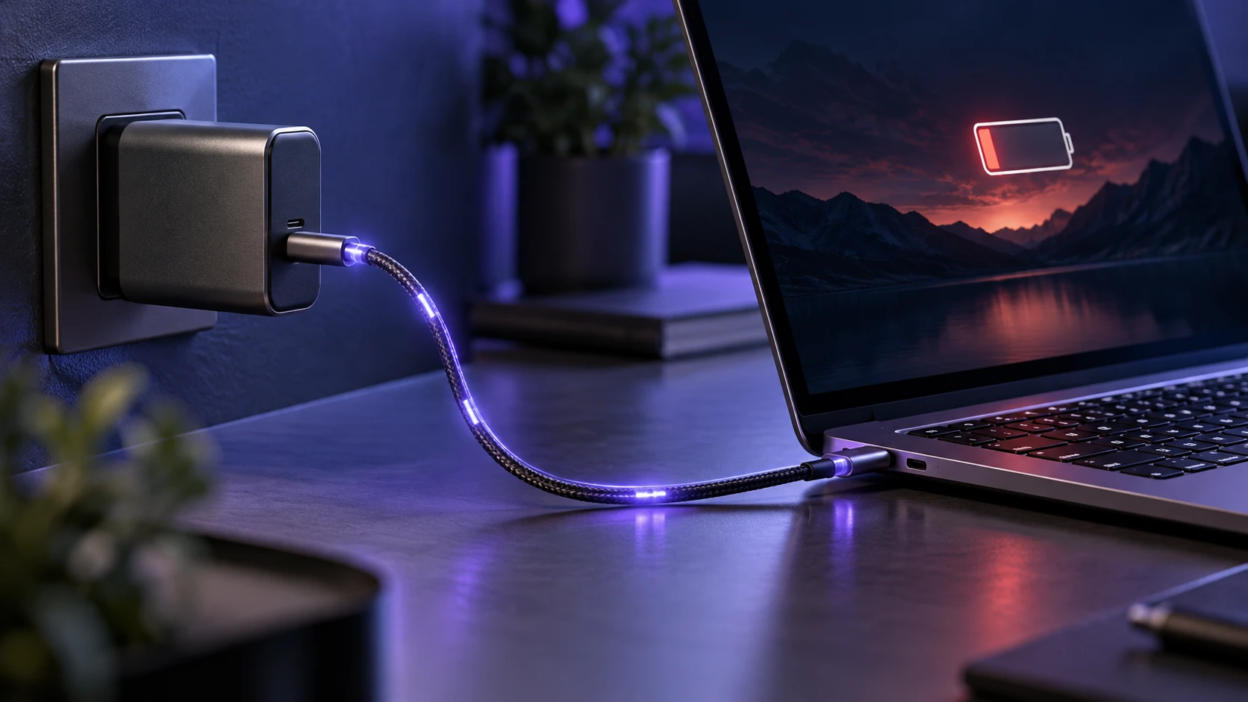
A 100W USB-C charger sounds powerful enough to charge almost any laptop quickly. However, some laptops still charge slowly, display low-power warnings, or lose battery percentage while plugged in. This happens because the charger’s advertised wattage does not guarantee that the laptop can receive or use the full 100W. Actual charging performance depends on USB Power Delivery compatibility, cable ratings, the laptop’s charging requirements, and how much power the device consumes during use.
USB-C charging is a conversation between the charger, the cable, and the laptop. If any part of that conversation fails to match what the laptop wants, charging can fall back to a slower mode. Understanding the most common bottlenecks helps you get the speed you expected.
USB-C Power Delivery Negotiation Limits
Most modern laptops charge over USB-C using USB Power Delivery. The charger advertises a set of voltage and current options called power profiles. The laptop chooses one profile, and charging speed depends on that match.
The USB Power Delivery standard, maintained by the USB Implementers Forum, explains how compatible devices negotiate electrical power and how newer specifications support charging at higher wattages.
A 100W USB-C Power Delivery charger commonly provides up to 20V at 5A. However, a laptop only requests the voltage and current that its charging system supports. For example, a charger capable of supplying 20V at 5A can also supply a laptop requesting 20V at 4.25A. The laptop does not need a separate 20V/4.25A profile. Slow charging can occur when the required voltage is unavailable, the cable restricts the maximum current, or the laptop limits power because of its own charging requirements.
- Available output profiles: Check whether the charger provides the voltage and current supported by the laptop. A charger advertised as 100W total may not deliver 100W from every USB-C port, especially when multiple devices are connected.
- Laptop compatibility requirements: Some laptops require a minimum adapter wattage or have manufacturer-specific charging requirements. When these conditions are not met, the laptop may display a slow-charging warning, limit performance, or refuse to charge normally.
- Vendor tuning: Certain laptop makers tune charging to work best with their own adapters. Third-party chargers can still work, but may cap power.
For a beginner-friendly explanation of how charging standards select different power levels, read our guide to USB-C Power Delivery, PPS, and wattage.
Once you know negotiation is the gatekeeper, the next step is checking whether the cable and port can actually carry the chosen power.
Cable Ratings and E-Marker Chips
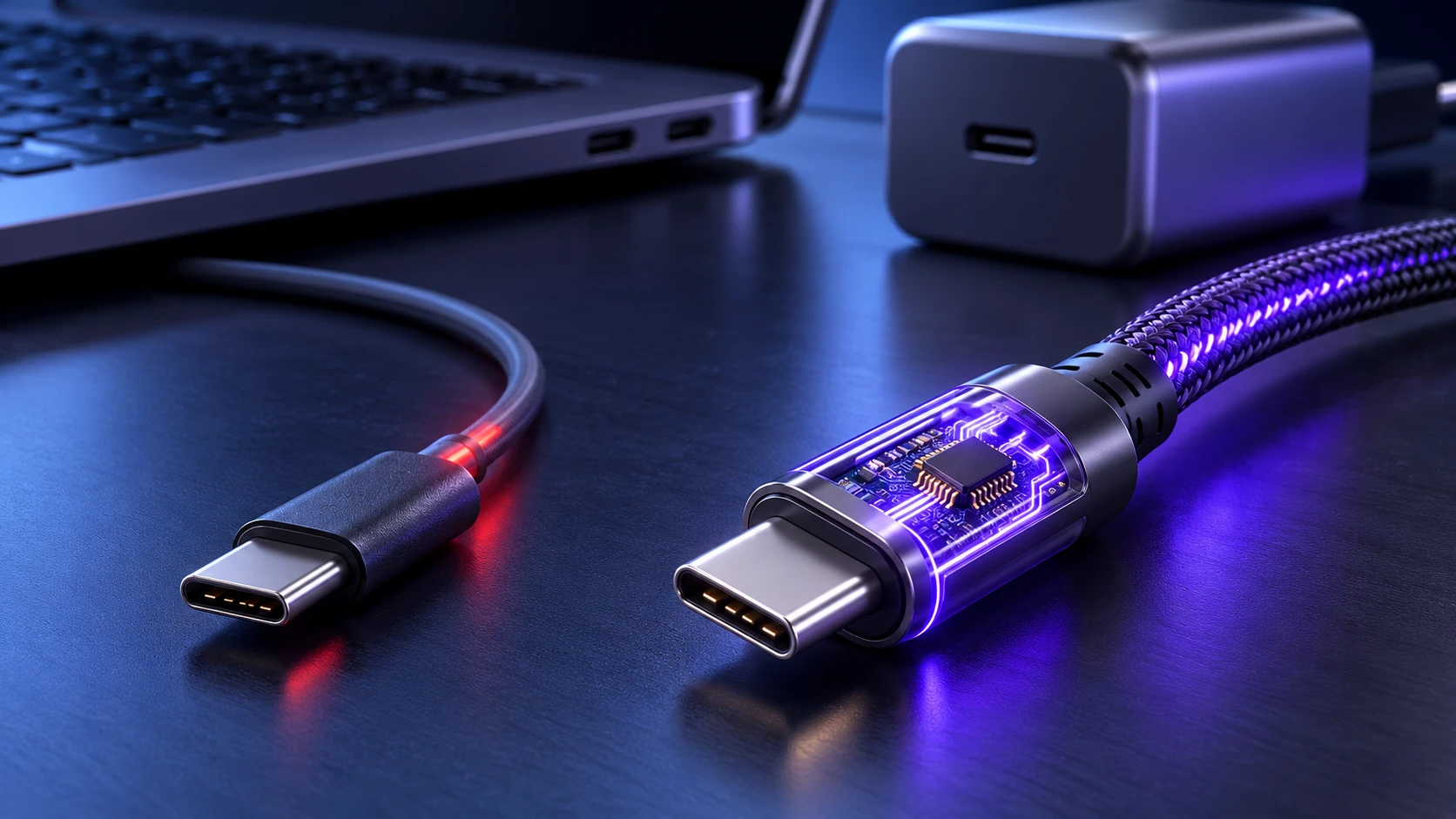
The cable is the most overlooked limiter. To reach 100W on common USB PD, the system often needs 20V at 5A. That 5A level requires a cable with an e-marker chip that tells the laptop and charger it is safe.
The USB Implementers Forum publishes USB-C cable power-rating requirements covering certified cable markings and power capabilities. Buyers can use these markings to identify cables designed to support the wattage their devices require.
If a USB-C cable supports only 3A, it cannot carry the 5A needed for traditional 100W USB Power Delivery charging at 20V. At 20V and 3A, the maximum available power is 60W before accounting for conversion losses. Even when the charger supports 100W, the laptop may receive less power because of the cable’s current rating.
- 3A cable ceiling: Many USB-C cables included with phones top out at 60W. They can charge a laptop, but slowly under load.
- Worn connectors: Loose USB-C ends can cause renegotiation or intermittent drops to lower wattage modes.
- Long cable losses: Extra length can increase resistance and heat. Some laptops respond by reducing draw for stability.
A cable’s charging capability is also different from its data-transfer capability. Our guide explaining why a USB-C cable charges a phone but won’t transfer files shows why USB-C cables with similar appearances can support different functions.
After the cable, the USB-C port you use matters just as much.
Not All USB-C Ports Support Full Power Input
Many laptops have multiple USB-C ports, but not all are equal. One port may be full USB-C charging input, while another is data-first, limited-input, or tied to a different internal controller. Charging through a secondary port can cap wattage.
Docking ports and Thunderbolt ports can also behave differently depending on the laptop design. Some models accept higher input only on a specific side or a specific port marked for charging.
Dell’s guidance on USB-C docks and slow charging explains how docks and hubs may consume part of an adapter’s available power, leaving less electricity for the connected laptop.
- Supported charging port: Check the laptop manufacturer’s specifications to identify which USB-C ports accept power input and their supported charging wattage. Some laptops support charging through multiple ports, while others restrict charging to specific connections.
- Dock routing overhead: When power passes through a dock or hub, the laptop may see a reduced budget after the accessory draws its share.
- Firmware rules: Some BIOS and embedded controller rules cap third-party charging on certain ports to reduce heat.
Port capabilities can also vary between USB-C, USB4, and Thunderbolt connections. Our comparison of USB4 vs Thunderbolt 4 explains how these connections differ and why dock compatibility and charging requirements should be checked separately.
Even with a good port and cable, the laptop may still charge slowly if it is consuming more power than it receives.
System Load Can Outrun A 100W Adapter
A 100W charger may not provide enough power for a high-performance laptop running demanding applications. Gaming, video editing, rendering, and other intensive tasks can increase power consumption, especially when the CPU and dedicated GPU are working together. If the laptop consumes most or all of the incoming power, little may remain for charging the battery. When the system needs more power than the adapter supplies, the battery percentage may decrease even while the charger is connected.
Some laptops also reserve power headroom for spikes. They may cap charging to maintain stability, meaning you see slow charging during heavy tasks even though the adapter is capable.
- High-performance modes: Turbo boost, discrete graphics, and high refresh rates increase draw and reduce charge rate.
- Peripheral power: External SSDs, hubs, and bus-powered devices can consume meaningful wattage.
- Battery protection logic: The system may slow charging to manage temperatures, especially on thin designs.
Thermals and battery health also influence the charging curve, even at the same wattage.
Battery Temperature and Health Throttling
Lithium batteries charge fastest within a safe temperature range. If the battery is warm from gaming, video rendering, or a hot room, the laptop may reduce charging current. That looks like a slow charger, but it is a protective measure.
Charging may also pause because of battery protection settings. For example, Apple’s Optimized Battery Charging and Charge Limit features can delay charging or stop it at a selected percentage on supported Mac laptops to help reduce battery aging.
Battery protection features can also intentionally pause or slow charging to reduce long-term battery wear. Depending on the laptop model, these settings may delay charging beyond 80%, temporarily stop charging at a selected limit, or adjust charging behavior based on usage patterns. This does not necessarily indicate a defective charger or battery.
- Heat management: Warm batteries trigger lower charge rates until temperatures stabilize.
- Charge limit features: Conservation modes can pause charging at a set percentage.
- Aging cells: Older batteries may accept charge less efficiently, particularly near higher states of charge.
If charging remains unusually slow even with compatible hardware, checking the battery’s condition can help identify possible wear or other battery-related problems. Follow our guide on how to check laptop battery health on Windows and macOS to review capacity, charging behavior, and available battery health information.
If your laptop supports newer USB PD modes, there is another compatibility layer to consider.
EPR and Higher Voltage Modes Do Not Always Kick in
Standard Power Range (SPR) USB Power Delivery supports charging up to 100W, traditionally using 20V at 5A. Extended Power Range (EPR) expands USB Power Delivery beyond 100W by supporting higher voltage levels, including 28V, 36V, and 48V. A laptop requiring more than 100W through standard USB PD may need an EPR-compatible charger, cable, and charging port. If the equipment cannot negotiate the required higher-power mode, charging may continue at a supported lower power level.
Even without EPR, some chargers distribute power differently across ports. A charger may be rated 100W total, but not 100W on a single port when other ports are in use.
- Port sharing: Multiport chargers often reduce wattage per port when more than one device is connected.
- SPR fallback: If EPR is unavailable, a compatible connection may still supply up to 100W through SPR. The actual power depends on the charger, cable, and laptop capabilities.
- Controller quirks: Some combinations renegotiate frequently, and laptops respond by choosing a stable lower profile.
To make the limits easier to spot, it helps to compare common charging chain outcomes side by side.
| Charging Chain Factor | Common Limitation | Typical Result |
|---|---|---|
| USB-C Cable Type | 3A cable without e-marker | Caps near 60W, slower charge under load |
| Laptop USB-C Port | Secondary port with lower input support | Negotiates a lower wattage profile |
| Multiport Charger Use | Power shared across ports | Single port drops below 100W while charging other devices |
| Laptop Power Requirement | Laptop requires more than 100W during demanding workloads | Charging slows, pauses, or battery percentage decreases |
| Laptop USB-C Input Limit | Laptop accepts less than 100W through its USB-C charging port | Higher-wattage charger does not increase the accepted input power |
| Battery And Thermals | Warm battery or longevity mode enabled | Charging throttles until cooler or capped percentage reached |
With the main causes mapped, you can troubleshoot efficiently and confirm whether the laptop is truly receiving close to 100W.
How to Check Real Charging Wattage?
One practical way to investigate slow charging is to use a USB-C power meter that supports the required voltage, current, and USB Power Delivery mode. An inline meter can display the electrical power flowing from the charger toward the laptop, helping identify unusually low input wattage or changes during use. However, the displayed input power is not the same as the power reaching the battery because some electricity is used to operate the laptop and some is lost during power conversion.
Many laptops also report adapter wattage or charging status in system menus or vendor utilities. Those readings are useful for quick checks, but the inline meter is better for diagnosing cable and port limitations.
- Inline USB-C meter: Confirms the negotiated voltage and current and catches drops.
- System power mode check: Lowering performance mode can increase net charging when the adapter is marginal.
- Charger port isolation: Testing with only the laptop connected helps verify whether port sharing is reducing power.
Quick Troubleshooting Checklist for Slow USB-C Laptop Charging
If your laptop still charges slowly with a 100W adapter, follow these steps in order:
- Check Laptop Requirements: Look up your laptop model’s recommended charging wattage and confirm that USB-C Power Delivery charging is supported.
- Connect Directly: Plug the charger directly into the laptop’s supported charging port without using a dock, hub, or extension adapter.
- Test A Suitable Cable: Use a known-good, properly rated USB-C cable. For traditional 100W charging at 20V, use a compatible 5A e-marked cable.
- Disconnect Other Devices: If the charger has multiple ports, disconnect other devices to check whether power sharing is limiting output.
- Reduce System Load: Close demanding applications and compare charging behavior while the laptop is idle and under heavy use.
- Check Battery Settings: Review battery protection limits, temperature warnings, and manufacturer charging notifications.
- Compare With the Original Charger: If the problem continues, test the manufacturer’s recommended charger and cable to help identify a compatibility issue.
Test under similar battery levels and operating conditions when comparing results. Charging power naturally changes with battery percentage, temperature, and system activity.
Once you can verify the wattage, choosing the right hardware becomes straightforward.
Choosing A Charger and Cable That Match Your Laptop
Before buying a USB-C charger, check the laptop’s recommended adapter wattage, supported charging standard, and USB-C input requirements. Choose a charger that provides the required output from the port you intend to use. For conventional 100W USB PD charging, select a compatible 5A e-marked USB-C cable. Modern USB-IF-certified cables may carry a 240W power-rating label, while some older compatible products are marked 100W.
A GaN USB-C charger can be a convenient option for people who charge laptops, tablets, and other devices from one adapter. However, GaN technology alone does not guarantee faster laptop charging. Buyers should compare the charger’s USB PD output profiles, single-port power capability, multiport power-sharing rules, and compatibility with their laptop before making a purchase.
- Single-port headroom: Prefer chargers that can deliver the full 100W from one port without conditions.
- Certified 5A cable: Use an e-marked cable to unlock higher current modes.
- Device-first compatibility: Match the laptop charging requirements before optimizing for extra ports.
If you are considering a compact replacement adapter, our guide explaining what a GaN charger is and whether it is better than a regular charger covers the technology, its advantages, and the compatibility factors to check before buying.
After hardware is aligned, a few settings can remove hidden caps that keep charging slow.
Settings That Quietly Slow Charging
Battery care features may intentionally slow or pause charging, especially when the battery approaches a configured charge limit. Check your laptop’s BIOS, manufacturer utility, or operating system settings for options such as smart charging, optimized charging, and battery conservation mode. If necessary, temporarily adjust a charging limit to determine whether it explains the behavior, then restore your preferred battery protection settings after testing.
Also review power plans. Maximum performance modes increase system draw, while balanced modes often allow faster net charging because the laptop consumes less power during charge.
- Charge limit toggles: Look for 60 to 80 percent caps and charging pauses.
- Firmware updates: BIOS and USB-C controller updates can improve PD negotiation stability.
With negotiation, cabling, ports, and settings addressed, you can usually reach the highest stable charge rate your laptop supports.
Windows users who continue experiencing charging problems can follow Microsoft’s laptop slow-charging troubleshooting guide, which covers charger compatibility, insufficient adapter power, cable limitations, and charging-port requirements.
Conclusion
A 100W USB-C charger is only as fast as the negotiated power profile, the cable rating, and the laptop port you plug into. Slow charging is often caused by a 3A cable, a lower-power USB-C port, multiport power sharing, high system load, or battery thermal and health limits.
Confirm real wattage with a USB-C power meter, use a 5A e-marked cable, and verify the correct port and settings. With the right match, a quality 100W charger can deliver consistent performance rather than unpredictable trickle charging.
Frequently Asked Questions
Why Does My Laptop Show Plugged in But not Charging With a 100W USB-C charger?
The laptop may be drawing less power than it is consuming, so the battery cannot increase. It can also happen when the cable or port limits negotiation to a low wattage profile. Checking wattage with a USB-C power meter quickly reveals whether the system is receiving enough power.
Does a 100W USB-C Cable Matter if the Charger is Already 100W?
Yes, because the cable can cap current. Many USB-C cables are limited to 3A, which often restricts charging to around 60W even with a 100W charger. A 5A e-marked cable is typically required to unlock the highest current modes reliably.
Why is Charging Slower When I use a USB-C hub or Dock?
Hubs and docks can reserve part of the charger budget for themselves and connected peripherals. Some also introduce negotiation quirks that lead the laptop to choose a lower stable profile. Testing the charger directly connected to the laptop helps confirm whether the dock is the bottleneck.