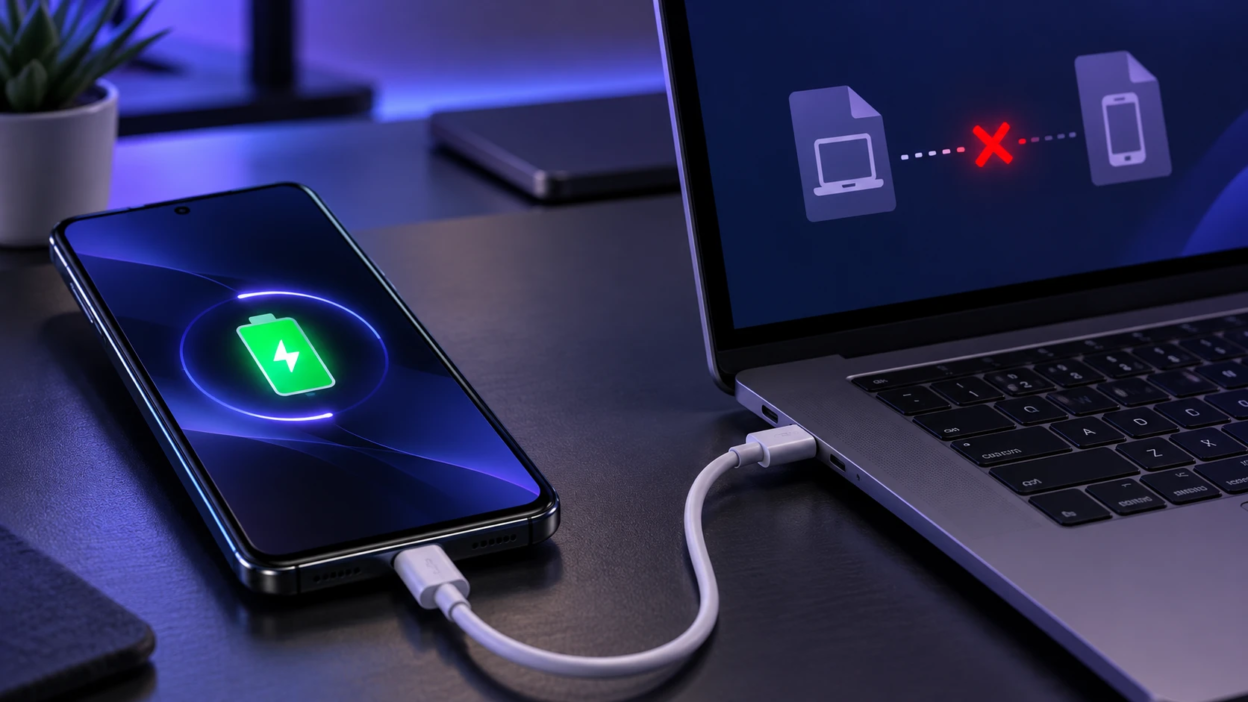
Your USB-C cable may charge your phone but fail to transfer files because of missing or damaged data connections, incorrect USB settings, a faulty port, or a computer driver problem. Although USB-C connectors look similar, cables can support different data speeds and charging capabilities.
The quickest way to identify the problem is to try a known-working data cable, unlock your phone, select File Transfer mode, and connect directly to another USB port. This guide explains why charging can work without file transfer and how to fix the problem step by step.
Why USB-C Connector Shape Does Not Guarantee Data Speed?
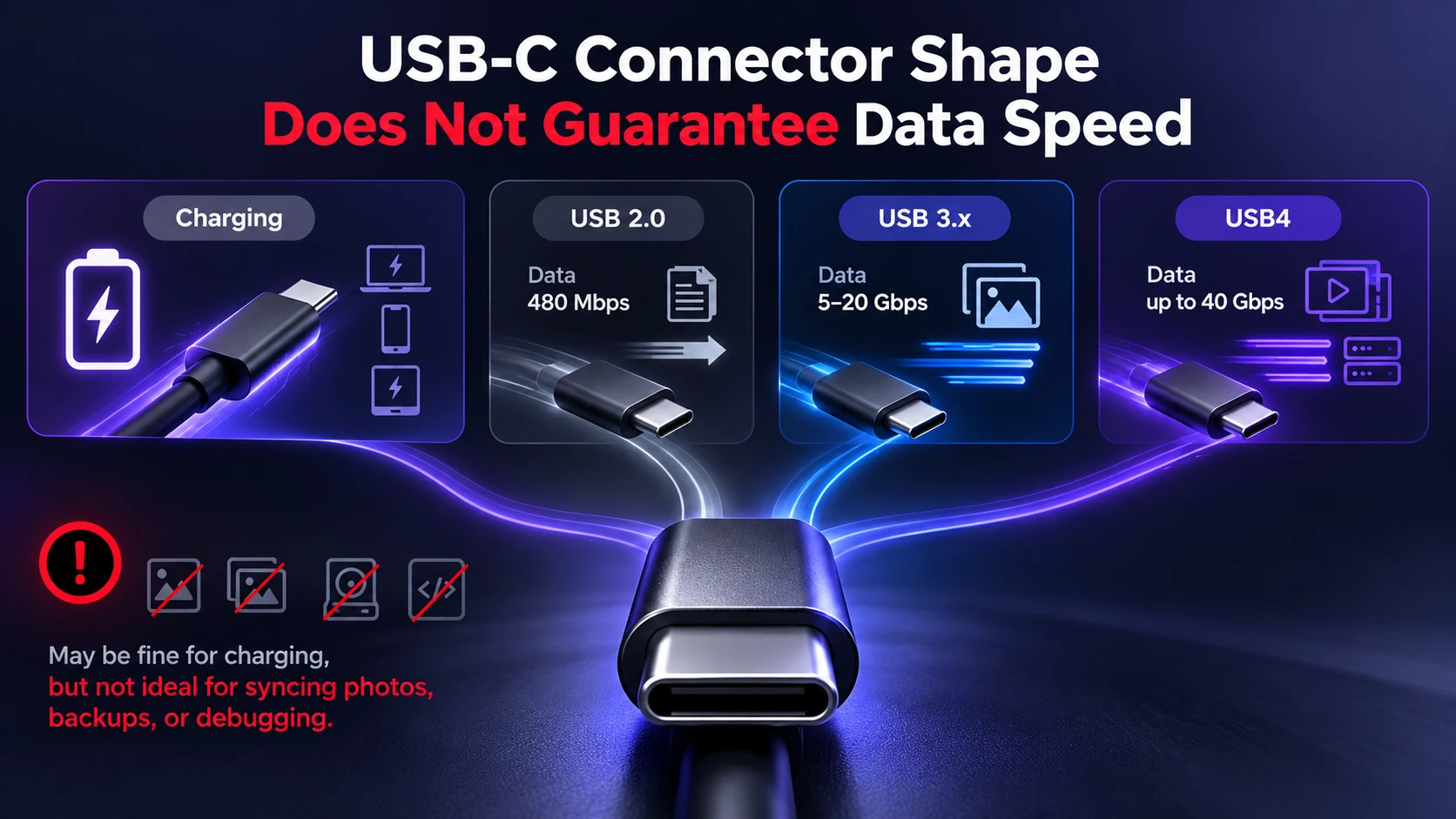
USB-C describes the physical connector rather than a specific data-transfer speed. A USB-C cable may support USB 2.0, faster USB standards, or additional capabilities depending on its construction and specifications. A standard USB 2.0 Type-C data cable can still transfer files, although it cannot provide USB 3.x or USB4 speeds.
The official USB-IF guidance on cables and connectors explains that USB cables have different capabilities and that users should select cables matching their devices and performance requirements.
This mismatch is common because charging performance is easy to market, while data support is often buried in fine print. A cable can be perfectly safe for charging and still be unusable for syncing photos, backups, or ADB debugging.
Can A USB-C Cable Be Charge-Only?
Some cables sold as charge-only may have missing, disconnected, or nonfunctional data conductors. Such cables can supply charging power while preventing USB file transfer. However, this should not be confused with a standard USB 2.0 Type-C cable, which supports data transfer at speeds of up to 480 Mbps.
USB-C cables should not be considered charge-only simply because they are inexpensive or do not support USB 3.x speeds. If a cable is advertised exclusively for charging, check its specifications and test it with a device that supports USB data transfer.
These charge-only designs also show up in bundled accessories and promotional cables. They reduce cost and can improve durability, but they remove file transfer completely.
USB Data Standards and Speed Limits
Some USB-C cables support USB 2.0 data transfer, with a maximum signaling rate of 480 Mbps. Others support faster USB standards, provided the connected devices and ports are also compatible. USB 2.0 remains suitable for basic file transfers, while higher-speed connections can make larger backups and external storage transfers more practical.
To understand how USB standards differ, read TechBonafide’s guide to USB 3.0 speeds and features, which explains the differences between USB 2.0 and USB 3.0 and their effects on data-transfer performance.
A working USB 2.0 data cable can normally transfer files between compatible devices, even when the phone or computer supports a faster USB standard. The connection generally operates at the highest speed supported by the complete connection, including the cable, device, and port.
USB 2.0 supports signaling speeds of up to 480 Mbps, although actual file transfer speeds are lower. If a phone charges but is not detected, check its USB connection mode, cable condition, ports, and computer drivers instead of assuming that USB 2.0 is the problem.
| What You Notice | Possible Cause | What to Do Next |
|---|---|---|
| Phone charges but computer does not detect it | Cable data connection, incorrect phone mode, or USB port problem | Unlock the phone, select File Transfer, and test a known-working data cable |
| Device repeatedly connects and disconnects | Damaged cable, loose connection, worn port, or unstable hub | Connect directly to another port and test a different cable |
| File transfer works but is slow | USB 2.0 connection or a speed limitation in the phone, port, or cable | Check the supported USB speeds of all connected components |
| Phone appears on the computer but files are unavailable | Phone is locked or the wrong USB mode is selected | Unlock the phone and select File Transfer or the appropriate photo-transfer option |
| Fast charging works, but file transfer fails on one computer | Computer driver, USB controller, security policy, or port problem | Test another port and check Device Manager for errors |
Once you identify the pattern that matches your symptoms, troubleshooting becomes much faster. Next, check the device side settings that can block transfers even with the right cable.
Phone Usb Settings Can Block File Transfer
Android and some other devices can default the USB connection to charging only. In that mode, the phone may refuse to expose MTP, PTP, or other interfaces until you allow it. If your cable supports data but transfers never start, this setting is a prime suspect.
To enable file transfer on an Android phone, unlock the device and connect it to your computer using a working USB data cable. Tap the USB charging notification, then choose File Transfer under the available USB connection options. The wording and menu location may vary depending on the phone manufacturer and Android version.
For additional help, follow Google’s official Android file transfer instructions, which explain how to move files using a USB cable and troubleshoot common connection problems. Most users do not need to change developer settings for ordinary file transfers.
Computer-Side Issues That Look Like A Cable Problem
Operating systems can fail to enumerate a phone even when the cable is fine. Driver conflicts, outdated chipset drivers, and USB controller power saving settings can interrupt detection. Some security tools also block new USB devices until explicitly allowed.
First, connect the phone to another USB port on the same computer. If possible, test the same phone and cable on a different computer. When the connection works elsewhere, the original computer’s USB port, drivers, settings, or security restrictions may be responsible.
Windows users can also follow Microsoft’s USB-C troubleshooting guide to identify connection errors and investigate device-recognition problems. If Windows reports an unrecognized USB device, check the related error in Device Manager before attempting driver changes.
USB-C Port Wear, Dirt, and Mechanical Fit
USB-C ports collect lint and can wear over time, especially on phones carried in pockets. A plug that feels seated might not make reliable contact on the data pins, while still allowing enough contact for charging. That leads to a device that charges but never stays connected for transfers.
If a USB-C connector feels unusually loose, disconnects repeatedly, or works only when held at an angle, stop forcing the connection. Disconnect the cable, power off the device, and inspect the port for visible debris or damage.
Avoid inserting metal objects, applying liquids, or using excessive force inside the port. Follow the device manufacturer’s cleaning instructions, and consider professional inspection if the connector is damaged or the problem continues after testing another cable.
Power Delivery and Data are Separate Negotiations
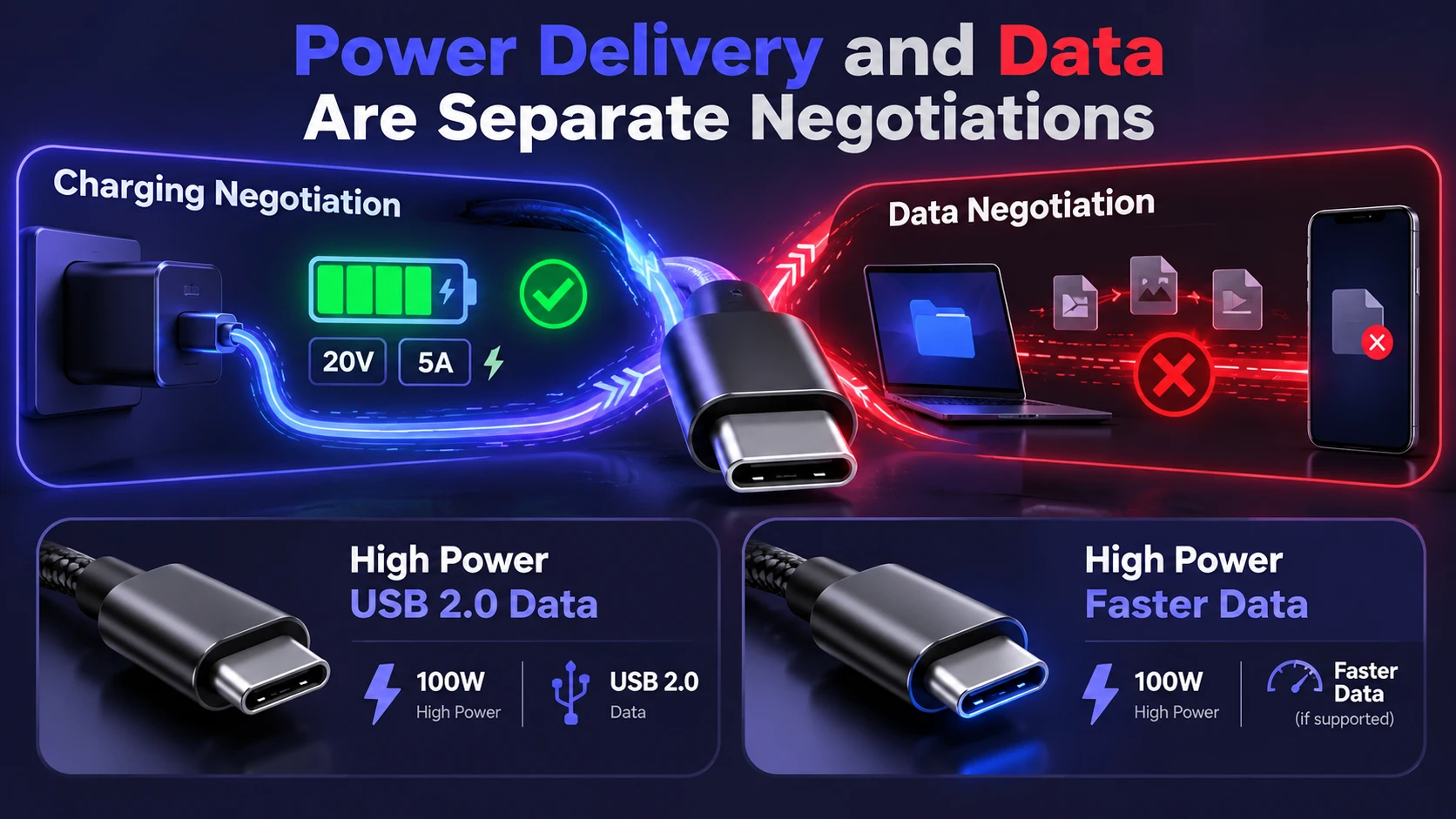
USB Power Delivery is a negotiation for voltage and current, and it can succeed even if data lanes are absent or unstable. That is why you might see fast charging icons while file transfer fails completely. In many setups, the power contract is handled on different pins than high speed data.
A cable’s charging capability does not automatically indicate its data-transfer speed. Some cables are designed to support higher charging power while offering only USB 2.0 data speeds. Others support faster data connections, provided the connected devices and ports are compatible.
If you want to understand how charging power is negotiated, TechBonafide’s guide to USB-C fast charging, Power Delivery, and PPS explains how compatible chargers and devices select charging power. When choosing a cable for both charging and file transfers, check its power rating and supported data speed independently.
Quick Checks to Confirm A Data-Capable Cable
You cannot reliably tell by appearance alone, but a few checks reduce guesswork. Packaging, markings, and simple tests can confirm whether a cable supports file transfer. These checks also help avoid mislabeling common in generic listings.
- Check the Data Speed Rating: Look for specifications such as USB 2.0 (480 Mbps), USB 5Gbps, USB 10Gbps, or USB 40Gbps. Even a USB 2.0 data cable can transfer files.
- Do Not Judge by Cable Thickness: A thick charging cable does not automatically support faster data transfer, and a thin cable is not necessarily charge-only. Check the manufacturer’s specifications instead.
- Test With a Compatible Device: Connect a phone using the cable and computer port you want to test. Unlock the phone, select File Transfer, and check whether it is detected. Compare the result with a cable already confirmed to transfer data.
- Check Both Power and Data Specifications: Charging wattage and data speed describe different capabilities. If the seller lists only charging wattage, ask whether the cable supports USB file transfer before purchasing.
If you still see inconsistent behavior after these checks, move to a controlled troubleshooting process. That will separate cable issues from device settings and port problems.
Troubleshooting Steps That Usually Fix It
Work from simple to specific so you do not chase the wrong cause. The goal is to confirm data capability, confirm device mode, and remove port and software variables. Each change should be tested before moving on.
- Use a Known-Working Data Cable: Replace the current cable with one that successfully transfers files between compatible devices. A new cable is not automatically a data-capable cable.
- Unlock Your Phone: Keep the phone unlocked after connecting it to the computer. Some Android devices require unlocking before file transfer becomes available.
- Select File Transfer Mode: Open the phone’s USB notification and choose File Transfer. The exact wording may vary by manufacturer and Android version.
- Connect Directly to Another USB Port: Disconnect USB hubs, docks, and unnecessary adapters. Try another built-in computer port to rule out connection problems.
- Restart Your Phone and Computer: Restart both devices, reconnect the cable, and check whether the computer recognizes the phone.
- Check Windows Device Manager: Open Device Manager and look for an unrecognized device or warning icon. Review the device’s status or error code before changing drivers.
- Test Another Computer: If the same phone and cable work on another computer, investigate the original computer’s USB ports, drivers, and settings. Obtain any required driver updates from Windows Update or the device manufacturer’s official support website.
Test file transfer after each step so you can identify which change fixes the connection.
After you restore a stable connection once, you can optimize for speed and reliability. The next section covers what to buy and what to avoid.
How to Choose the Right USB-C Cable for Data?
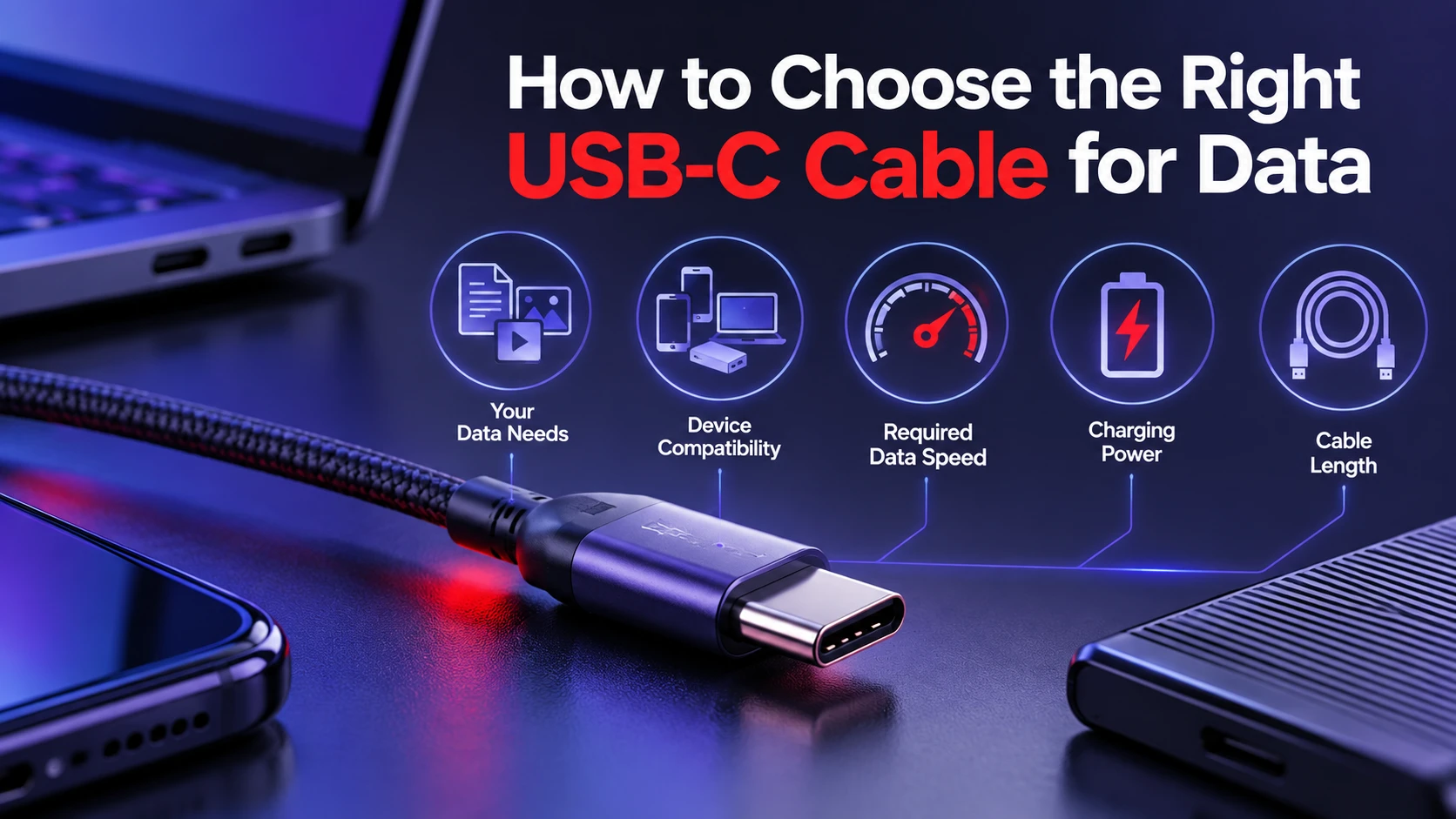
Choose a USB-C cable based on the devices you use and the tasks you want to complete. A USB 2.0 data cable may be sufficient for transferring ordinary documents and photos, while faster USB connections are more useful for large file transfers and compatible external SSDs.
Before purchasing a higher-speed cable, confirm that your phone, computer, or external device supports the intended connection standard. If you are comparing high-performance docks, external storage, and accessories, TechBonafide’s USB4 vs Thunderbolt 4 comparison explains important compatibility and performance differences.
Cable length can also affect high-speed data performance, so choose a length appropriate for the intended connection. For faster USB standards, confirm that the cable is designed to support the required speed over its advertised length.
If you need both charging and file transfer, check the cable’s supported wattage and data speed separately. The USB-IF cable certification and labeling requirements explain how certified USB-C cables are identified by their supported power and data capabilities. USB 2.0 Type-C cables may not display the same data-rate markings as higher-speed certified cables, so review the complete specifications before buying.
When Should You Replace a USB-C Cable or Seek Repair?
Replace your USB-C cable if it has visible damage, a loose or bent connector, or repeated connection failures that disappear when you use another known-working cable. Avoid continuing to use a cable with exposed wiring, overheating, or other signs of physical damage.
If several known-working data cables fail with the same device, test the computer’s USB ports and the phone’s connection settings. When the problem continues across multiple computers and cables, the device’s USB port or internal hardware may need professional inspection.
A replacement cable should match both your charging requirements and your device’s supported data-transfer capabilities. Choosing a clearly specified, properly certified cable can reduce compatibility problems.
Conclusion
A USB-C cable may charge your phone while failing to transfer files because of faulty or missing data connections, incorrect USB settings, damaged ports, or computer driver problems. A USB 2.0 cable that supports data should normally allow file transfer between compatible devices, although it operates at lower speeds than newer USB standards.
The key is to identify whether the problem comes from the cable, the phone’s connection mode, or the computer rather than replacing accessories without testing them.
Start by confirming you have a data capable cable, then verify the phone is set to file transfer and test on a direct port. Once those basics are handled, choosing clearly labeled cables with the right USB standard is the most reliable long term fix.
Frequently Asked Questions
How Can I Tell If My USB-C Cable Supports File Transfer?
Check for a listed USB data standard or a data speed rating on the packaging or product page. If only charging wattage is mentioned, the cable may be charge-only. A quick confirmation is to test the cable with a USB-C flash drive or another device that requires data.
Why Does My Phone Show Fast Charging But My Computer Does Not Detect It?
Fast charging relies on power negotiation that can work even when data lines are missing or unstable. Your cable may be charge-only, or the port contact may be good enough for power but not for data pins. Switching to a known data cable and selecting file transfer mode usually resolves it.
Is USB-C the Same As USB 3 or USB4?
No, USB-C is the connector shape, while USB 3.x and USB4 are data standards that define speed and features. A USB-C cable can be USB 2.0 only, USB 3.x, or USB4 depending on how it is built. Matching the cable standard to your device needs is key for reliable transfers.