
Smooth gameplay is not only about high FPS. It is about how well your GPU and display stay in sync while frame times rise and fall under real load. VRR and V-Sync both try to solve tearing and uneven motion, but they do it in different ways with different tradeoffs.
The quick answer is that VRR usually delivers smoother gameplay when frame rates fluctuate, provided your display and graphics hardware support it. V-Sync remains useful for eliminating screen tearing on fixed-refresh displays, especially when FPS stays consistent. However, the best setting also depends on input lag, frame pacing, and the type of games you play.
What VRR and V-Sync Actually Do?
V-Sync is a display synchronization method that tells the GPU to present frames in lockstep with the monitor refresh cycle. When it works cleanly, it removes tearing by preventing mid-refresh frame changes.
VRR (Variable Refresh Rate) is a display technology that adjusts refresh timing to follow the frame output of compatible graphics hardware. Technologies such as AMD FreeSync technology and NVIDIA G-SYNC use this approach to reduce screen tearing and certain types of stutter. Instead of requiring every completed frame to fit a fixed refresh schedule, VRR allows the display to adjust its timing within a supported range.
Screen Tearing and Why It Happens?
Tearing appears when the GPU swaps to a new frame while the monitor is still scanning out the previous one. The result is a visible horizontal split where two frames share the screen.
Tearing can show up even at high frame rates if frame delivery is not aligned to the refresh interval. It can also be more noticeable during fast camera pans and high contrast edges.
Stutter, Judder, and Frame Pacing
Stutter is the perception of uneven motion, usually caused by inconsistent frame times rather than low FPS alone. A game can average 90 FPS and still feel rough if frame pacing is unstable. Several factors, including shader compilation, CPU bottlenecks, and background processes, can interrupt frame delivery. Our detailed guide explains why games stutter even at high FPS and how to identify the most common causes.
With traditional V-Sync on a fixed-refresh display, missing a refresh deadline can cause a frame to remain visible longer than expected. On a 60 Hz monitor, some double-buffered setups may show noticeable jumps between 60 FPS and 30 FPS when performance falls below the target. The exact behavior depends on the game’s presentation method and buffering settings, but inconsistent frame delivery can make motion appear less smooth.
Input Lag Differences You Can Feel
V-Sync can add input lag because the GPU may wait to present a fully rendered frame until the next refresh window. That extra waiting stacks on top of the normal render and display pipeline.
VRR can reduce the additional waiting associated with traditional V-Sync, particularly when frame rates fluctuate within the supported refresh range. However, total responsiveness still depends on the game engine, rendering queues, graphics settings, and display processing. It is also important to distinguish system input delay from pixel response behavior. Our comparison of input lag vs response time explains why these measurements affect the gaming experience differently.
How VRR Makes Motion Look Smoother?
VRR improves motion presentation by adjusting the display’s refresh timing to follow compatible frame output. When frame times fluctuate within the supported range, the display can follow those changes instead of being restricted to a fixed refresh schedule. However, a higher displayed frame count does not always mean faster game responsiveness, particularly when generated frames are involved. Our guide to frame generation vs native FPS explains why rendered frames and generated frames can affect smoothness and responsiveness differently.
Within the supported VRR range, the display can adjust its refresh timing as new frames arrive, reducing the judder and tearing caused by a mismatch between FPS and refresh rate. However, VRR cannot eliminate every type of stutter. Sudden CPU bottlenecks, shader compilation delays, asset-loading problems, and large frame-time spikes can still cause visible hitches. VRR improves how frames are displayed, but consistent rendering performance remains important.
How V-Sync Makes Motion Look Smoother?
V-Sync’s strength is clean tear-free output on fixed refresh displays. At a stable frame rate that matches the refresh rate, motion can look very consistent.
The problem appears when the game cannot hold the target. Depending on the buffering model, V-Sync can cause hitching or sudden frame time jumps that feel worse than mild tearing.
VRR Range, LFC, and Common Limits
VRR only works within the supported refresh range of the display. A typical window might start around 48 Hz and go up to 120 Hz or higher, depending on the panel.
When FPS drops below the display’s minimum VRR refresh rate, compatible displays may use Low Framerate Compensation (LFC). This feature repeats an existing rendered frame across multiple refreshes to keep the monitor operating within its supported range. For example, a game running at 40 FPS might be displayed at 80 Hz when the hardware supports that behavior. LFC does not generate additional animation frames or restore lost performance, and it is not available on every VRR display.
When V-Sync Still Matters With VRR
VRR operates within the refresh-rate range supported by the display. When a game’s FPS exceeds the upper limit, the display cannot continue matching every newly produced frame. Depending on the V-Sync setting and the game’s presentation behavior, tearing may return or additional frame waiting may occur. Setting an FPS cap slightly below the monitor’s maximum refresh rate can help avoid this transition.
Some VRR configurations benefit from keeping V-Sync enabled alongside a frame-rate cap slightly below the display’s maximum refresh rate. For NVIDIA G-SYNC systems, NVIDIA’s system latency optimization guide explains how V-Sync, NVIDIA Reflex, and low-latency settings can work together to reduce tearing while controlling delay. The best combination depends on the graphics driver, presentation mode, and game. AMD FreeSync users should also check the recommendations for their specific hardware rather than assuming every V-Sync configuration behaves identically.
Recommended Settings for Most PC Setups
The best choice depends on whether your display supports VRR and how stable your frame rate is. Many gamers get the smoothest feel with VRR on, a sensible FPS cap, and the right in-game sync mode.
- VRR Enabled on the Display: Turn on VRR in the monitor or TV settings and confirm that the graphics driver recognizes the feature. The display connection must also support the required refresh rate and VRR mode. If you are choosing between different PC monitor connections, our HDMI 2.1 vs DisplayPort 2.1 comparison explains the practical differences for gaming displays.
- Frame Rate Cap Slightly Below Max Refresh: When using VRR, consider limiting FPS a little below the maximum supported refresh rate. For example, 141 FPS on a 144 Hz monitor or 117 FPS on a 120 Hz display can be useful starting points. The ideal cap depends on the game, frame limiter, and latency settings. NVIDIA’s Max Frame Rate guidance explains how frame limiting can help keep games within the VRR operating range.
- V-Sync Configuration When Using VRR: On NVIDIA G-SYNC systems, enabling V-Sync in the graphics driver alongside a suitable FPS cap can help prevent tearing near the upper refresh limit. However, driver-level V-Sync behavior may differ between fullscreen and windowed games. Check your game’s settings and graphics driver recommendations. AMD FreeSync users should follow their hardware-specific guidance rather than assuming every configuration works identically.
- Check Buffering and Latency Options: Avoid changing every buffering setting without testing its effect. Triple buffering, render queues, low-latency modes, and synchronization options can behave differently depending on the game and graphics API. Start with the default configuration, change one setting at a time, and compare smoothness and input responsiveness before keeping the adjustment.
After setting the basics, the next step is checking that your game is frame pacing well and not being limited by background load.
Recommended Settings for Consoles and TVs
Modern consoles often support HDMI VRR on compatible TVs. When it is available, VRR typically improves smoothness in performance mode titles where frame rate varies.
If the TV VRR mode introduces issues such as raised black levels or dimming changes, it can be worth comparing with standard V-Sync behavior. Some TVs handle VRR processing better in game mode, which also reduces latency.
On PlayStation 5, users can check VRR compatibility and related settings under Settings > Screen and Video > Video Output. PlayStation’s official video output settings guide explains how to enable VRR, check the connected display’s capabilities, and troubleshoot unexpected behavior. Console players should also confirm that their TV supports VRR through the HDMI connection being used and that any required TV gaming features are enabled.
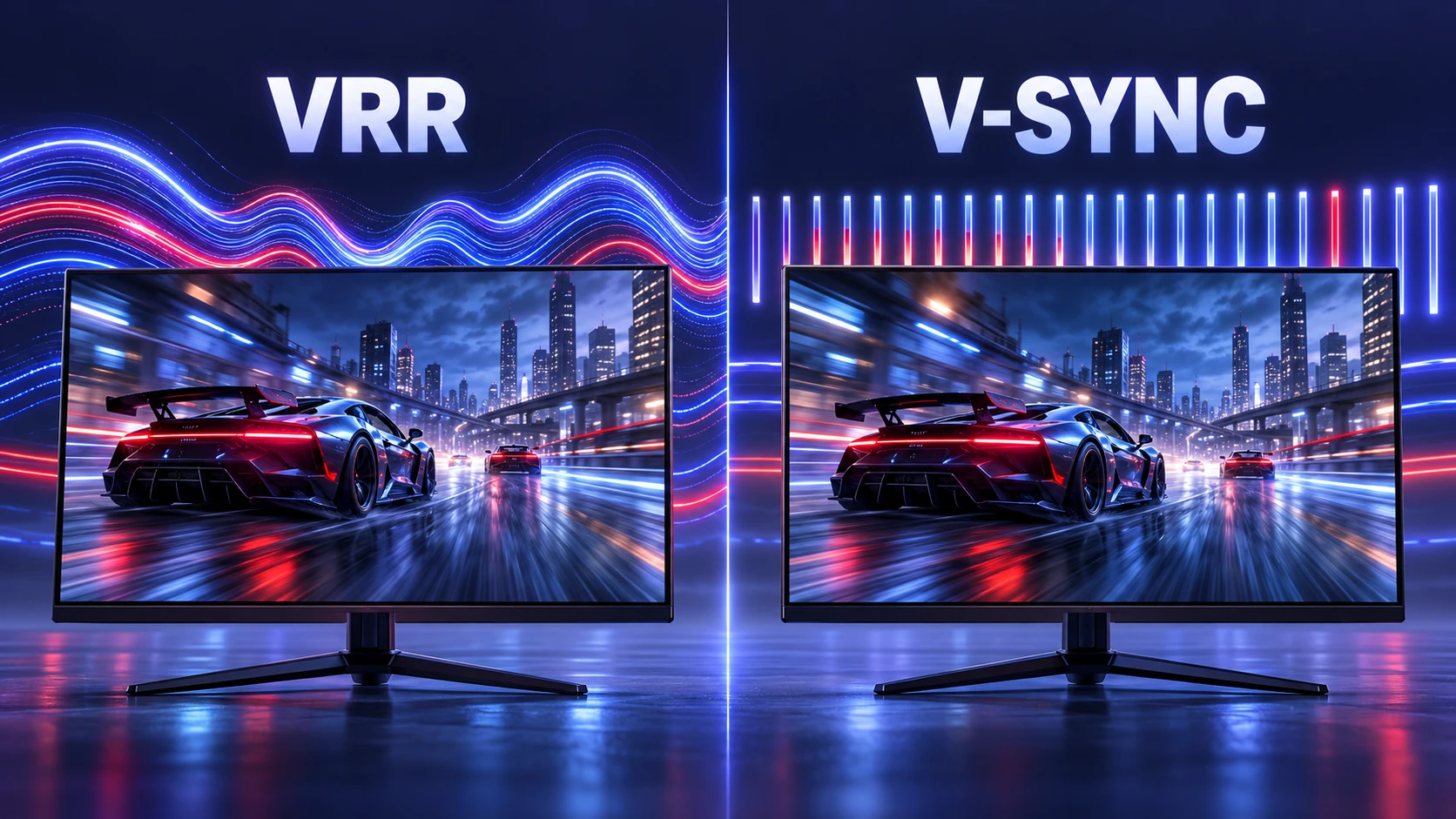
VRR vs V-Sync Quick Comparison
| Category | VRR | V-Sync |
|---|---|---|
| How It Works | Adjusts display refresh timing to follow compatible frame output | Synchronizes frame presentation with fixed display refresh timing |
| Screen Tearing | Reduces or prevents tearing within the supported VRR range when configured correctly | Prevents tearing but may require additional frame waiting |
| Stutter During FPS Drops | Reduces refresh-mismatch stutter but cannot eliminate rendering hitches | May introduce visible cadence changes when refresh deadlines are missed |
| Input Lag | Often lower than traditional V-Sync in comparable tear-free setups | Can increase latency depending on buffering and presentation settings |
| Display Requirement | Requires compatible VRR display and graphics hardware | Works on conventional fixed-refresh displays |
| Best Use Case | Games with changing FPS on VRR-compatible monitors and TVs | Stable frame rates on displays without VRR |
This breakdown makes it easier to choose based on the problem you are trying to solve first.
How to Tell Which One is Working?
To check whether VRR is active, first confirm that the feature is enabled in your monitor or TV settings and supported by the graphics driver. Some gaming displays provide a live refresh-rate indicator in their on-screen menu. When a game runs within the supported VRR range, this reading may change as FPS changes. Smoother camera movement can also be a useful sign, although visual appearance alone does not prove that VRR is working.
With V-Sync, tearing should disappear, but you may notice added latency or hitching if the frame rate cannot stay locked. If motion feels inconsistent, check if the game is bouncing around a refresh threshold.
Common Problems and Fixes
VRR and V-Sync issues often come from mismatched caps, incorrect refresh settings, or heavy background load. Fixes are usually straightforward once you know what to look for.
- VRR Flicker: Check whether the flickering occurs only when VRR is enabled, especially during large FPS changes or dark scenes. Try stabilizing frame times with a reasonable FPS cap, reducing demanding graphics settings, and checking for relevant display firmware or graphics driver updates. Some displays remain sensitive to VRR-related brightness fluctuations, so disabling VRR for the affected game may be necessary if the problem continues.
- Tearing With VRR on: Confirm FPS is not exceeding the display’s maximum refresh rate and use a cap to stay inside the range. Also verify that VRR is enabled in both the display and graphics settings and that the connection supports the feature.
- Stutter With V-Sync: Lower settings to maintain the refresh target or switch to VRR if the display supports it.
- Unexpected Input Lag: Check for extra buffering options, enable game mode on TVs, and avoid overly aggressive frame queues.
Once the major symptoms are under control, fine tuning becomes much easier.
Conclusion
VRR usually makes games smoother because it matches the display refresh timing to compatible frame delivery, reducing tearing and refresh-mismatch stutter during performance swings. However, it cannot eliminate every frame-time spike or rendering problem. V-Sync can still look great when frame rates remain stable and the display lacks VRR, but it can add input lag and feel less smooth when FPS drops.
If your monitor or TV supports VRR, enabling it with a sensible frame-rate cap often provides a strong balance of smooth motion, low latency, and minimal tearing. The ideal V-Sync configuration depends on your graphics hardware, game, and display settings. If VRR is unavailable, traditional V-Sync remains a straightforward way to eliminate tearing, especially when your system can maintain consistent performance.