
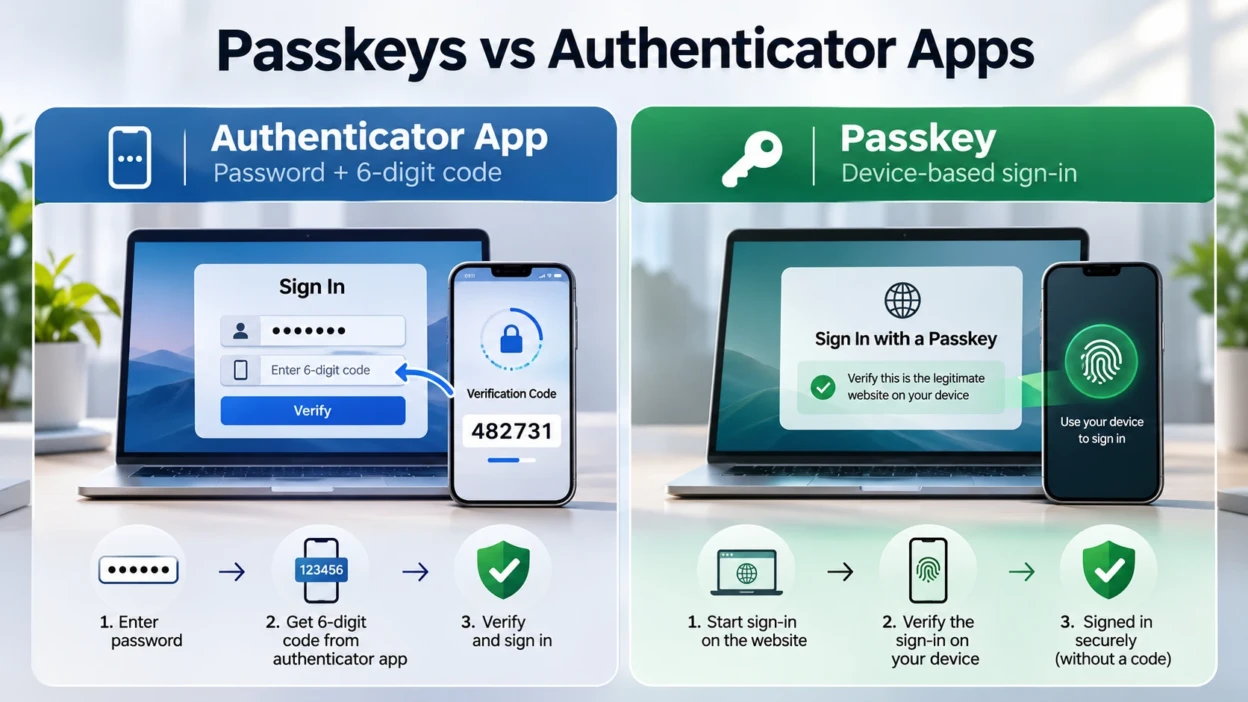
An authenticator app can help protect an account when someone knows its password. A passkey goes further by making it much harder for a fake website to obtain a valid sign-in response. For accounts that support both methods, a properly implemented passkey is generally the stronger choice against credential phishing. Authenticator-app codes are still a useful second factor when passkeys are not available.
That distinction matches guidance from the US National Institute of Standards and Technology (NIST) and the UK National Cyber Security Centre (NCSC). Neither method makes an account impossible to compromise. Device security, active sessions and account recovery remain important.
The comparison here is between FIDO2 passkeys and time-based one-time password (TOTP) codes from an authenticator app. An app’s name does not always reveal its authentication method: some authenticator apps can also store passkeys or handle other kinds of sign-in approval.
What Passkeys and Authenticator Apps Actually Do?
How a Passkey Signs You in?
A passkey uses a pair of cryptographic keys. A website keeps the public key, while the corresponding private key is controlled by your device or passkey provider. When you sign in, the website sends a challenge and the authenticator produces a signed response for that service. Your private key is not typed into the website.
You typically approve the request using a fingerprint, face recognition or a device PIN. Biometric information used to unlock a passkey remains on the device rather than being sent to the website. Passkeys use FIDO2 standards, including WebAuthn, and are tied to the service’s legitimate domain. The FIDO Alliance’s explanation of passkeys describes both synced and device-bound versions.
How Authenticator-App Codes Work?
A traditional code-generating authenticator app stores a secret established when you enroll an account, often by scanning a setup QR code. The app and the service use that shared secret and the current time to calculate a temporary code. You enter the code after your password, and the service checks whether it matches.
Many TOTP codes refresh every 30 seconds, although the service’s settings can differ. The TOTP specification, RFC 6238, explains the time-based mechanism. Apps such as Google Authenticator can generate codes without mobile service or an internet connection once enrollment is complete. That is useful, but a code can still be copied into a fraudulent sign-in page.
Passkeys vs Authenticator Apps at a Glance
| Security question | Passkey sign-in | Password plus authenticator-app code |
|---|---|---|
| Main role | Can replace the password on supported services | Usually adds a second step after a password |
| Resistance to fake login sites | Phishing-resistant when FIDO2 is correctly implemented | Not phishing-resistant; a valid code can be relayed |
| Secret presented to the website | Signed cryptographic response, not the private key | A temporary code derived from a shared secret |
| What you do to sign in | Approve with a device unlock method or security key | Enter password and then read or type a code |
| Losing the main phone | Depends on synced keys, other registered passkeys and recovery | Depends on backup, transfer, recovery codes and service policy |
| Availability | Requires passkey support for the account and compatible sign-in tools | Available wherever the service supports authenticator-code MFA |
| Best practical use | First choice for supported accounts, especially important ones | Stronger than password-only access when passkeys are unavailable |
The table compares common consumer setups, not every enterprise policy. A passwordless login may still have other permitted recovery or fallback methods. Those paths can change the security of the account as a whole.
Why Phishing Protection Changes the Answer?
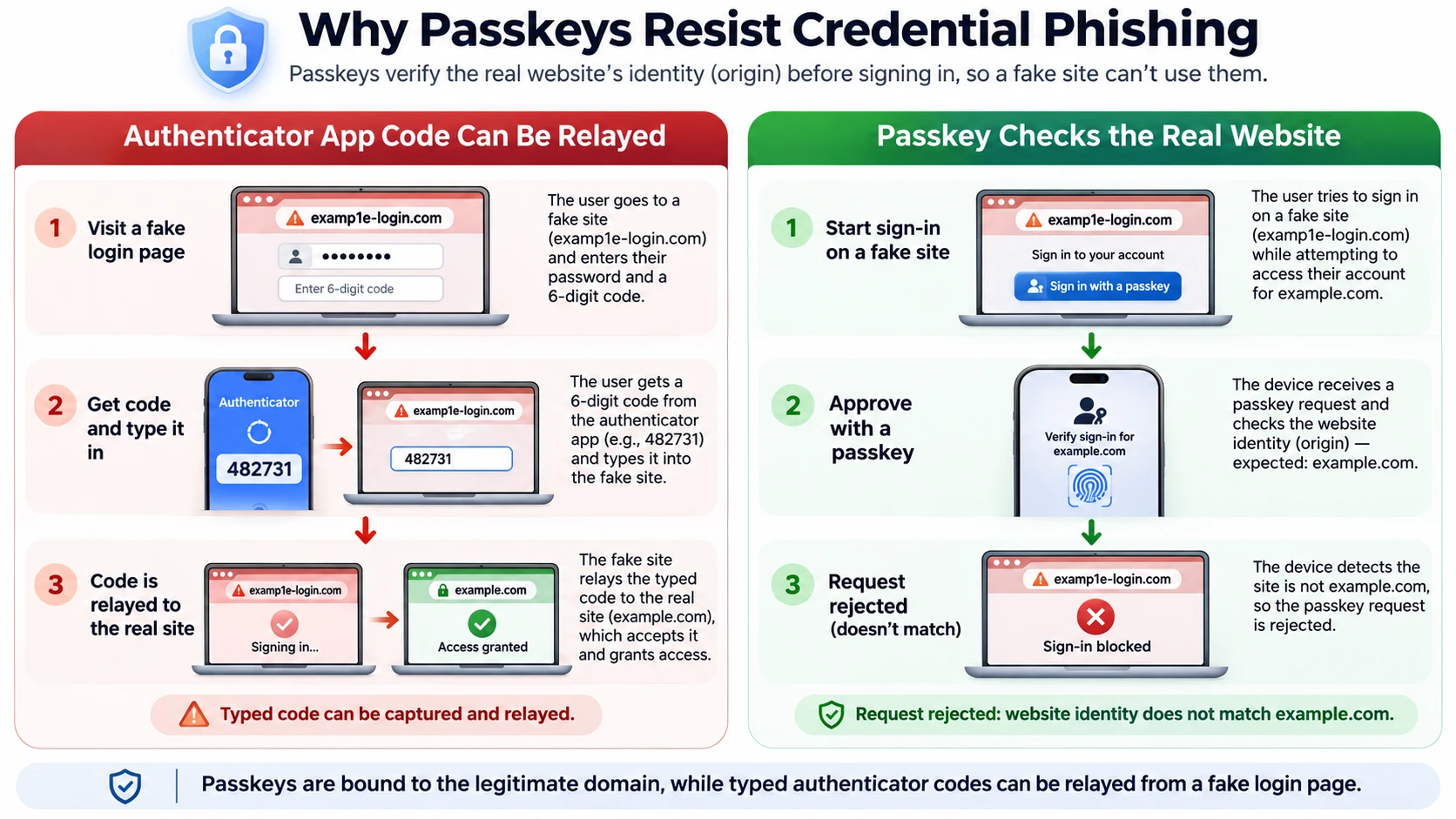
Imagine receiving an email that links to a convincing copy of a familiar account sign-in page. If you enter a password and then a valid authenticator code, an attacker controlling the fake page may immediately relay both to the real service. The short lifetime of a TOTP code limits how long it can be used, but does not prevent real-time relay.
With a properly implemented passkey, the browser and authenticator bind the response to the legitimate service identity. A fake domain cannot request a usable passkey assertion for the real domain in the same way it can collect a typed code. NIST therefore distinguishes phishing-resistant cryptographic authentication from manually entered one-time passwords.
This does not protect against every attack. Someone who gains control of an unlocked device, takes over an already signed-in session or exploits an account’s recovery process might still gain access. For related guidance, see TechBonafide’s article on MFA fatigue attacks and repeated login prompts.
The Trade-Offs That Really Matter
Synced Passkeys vs Device-Bound Passkeys
A synced passkey can become available on other devices through a supported credential manager. This makes replacing a phone or computer easier, but places importance on the security of the sync provider’s account, trusted devices and recovery process. For example, Apple documents how iCloud Keychain protects and recovers passkeys.
A device-bound passkey stays on one authenticator, such as a supported hardware security key. That can provide tighter control over where the credential exists, but losing the only registered device can create a serious access problem. For high-risk accounts, a second registered security key or another strong recovery method may be appropriate.
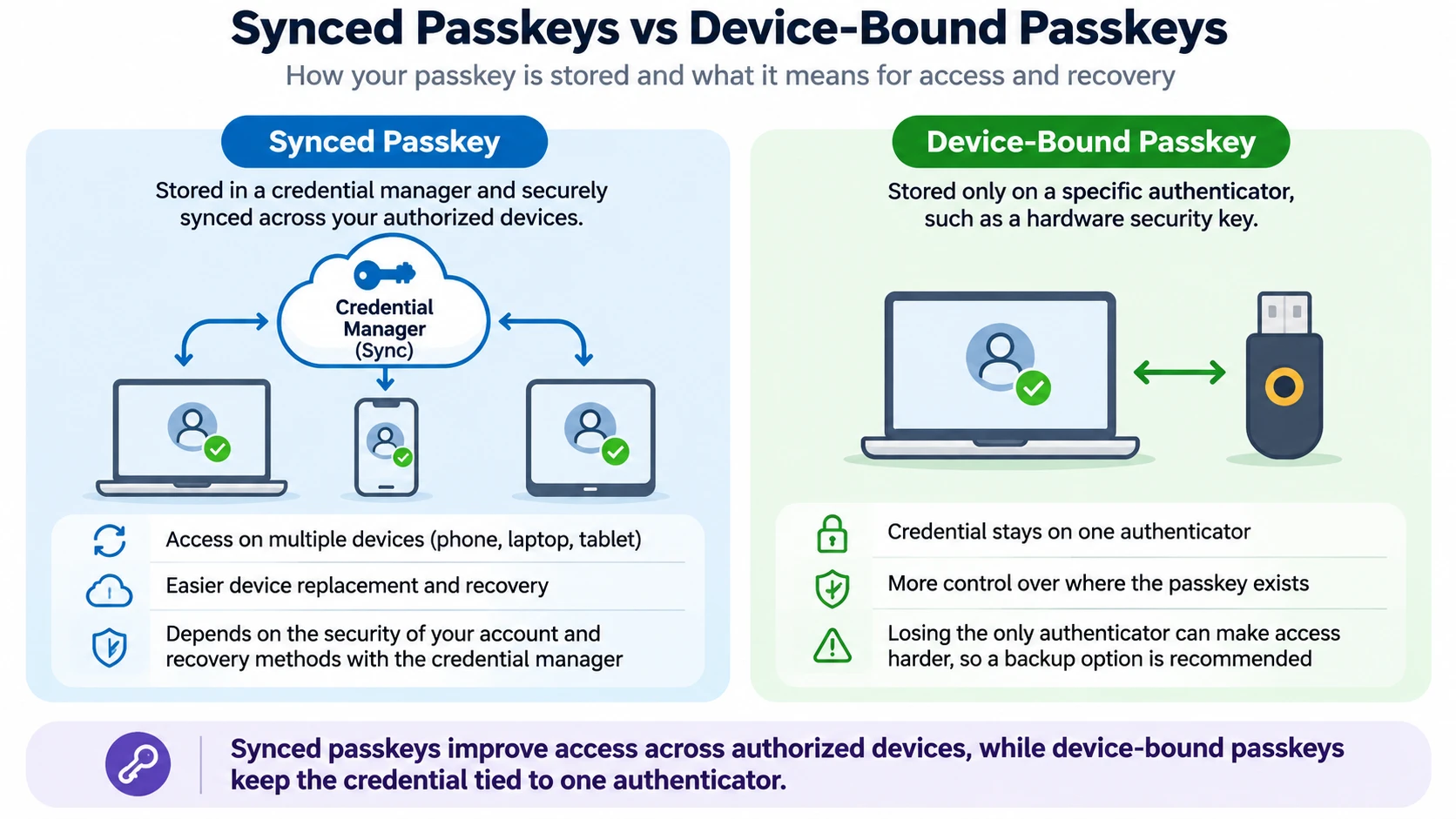
Both types provide phishing resistance. Device-bound does not automatically mean every account using it is safe, and synchronized does not mean the private key is openly available to the sync provider. The security details depend on implementation and recovery controls.
Stolen Devices, Sessions and Weak Recovery
A passkey does not prevent someone who can unlock your device from attempting to use credentials stored on it. It also does not retroactively protect a session that an attacker has already stolen. A service that lets anyone reset access through a weak email or SMS process may expose a weaker route into the same account.
The OWASP Passkey Security Cheat Sheet recommends registering more than one authenticator and protecting recovery methods. Review the devices and sign-in methods attached to an account, not just whether its security page says “passkey enabled.”
Authenticator-App Backups Are Not Identical
TOTP apps may store codes only on one phone, allow manual transfers or offer account-based backup. For example, Google Authenticator supports optional code synchronization, while Microsoft Authenticator documents backup limitations, including restrictions when moving between iOS and Android and the need to re-register certain work accounts.
A backup makes recovery easier, but it also means the account protecting that backup deserves strong security. Check the exact settings of your app before replacing your phone.
Important: Before deleting an authenticator app, resetting a phone or removing an old sign-in method, confirm that at least one other verified way to access each important account works. A backup that has not been restored or an unused recovery code may fail when you need it, potentially locking you out.
Which Method Should You Choose?
- For email, cloud storage and other important accounts that support passkeys: Prefer a passkey, and register a second supported way back in before relying on one device.
- For services that offer only passwords and authenticator codes: Use a unique password and enable app-based codes. This is materially better than leaving the account password-only, even though codes can be phished.
- For higher-risk work or administrator accounts: Follow your organization’s policy. Managed, device-bound FIDO2 credentials and strong recovery controls may be appropriate when the environment supports them.
- For accounts where phone replacement is a major concern: Check whether passkeys sync securely, whether TOTP codes are backed up and how recovery works. Do not choose an option solely because it looks easiest during initial setup.
TechBonafide’s passkeys versus passwords comparison explains why the password itself is often the first weakness. If a service offers neither passkeys nor authenticator codes, use a unique password and the strongest other available verification method.
How to Improve Your Account Protection Safely?
- Start with your main email account. Open its security settings from the official website or app. Look for “Passkeys,” “Security keys” or “Two-step verification.” Exact labels vary by service.
- Add a passkey if supported. Follow the service’s enrollment prompts on a device you own and protect with a strong screen lock. Avoid creating personal passkeys on shared or public devices.
- Register a backup path. If the service allows it, add another passkey on a different device or a supported physical security key. Check any recovery codes and store them separately in a secure place.
- Use authenticator codes where needed. For accounts that do not support passkeys, enable TOTP-based verification instead of relying on the password alone. Protect the app and check its backup or transfer options.
- Review weaker fallback methods. Look for SMS, email-based recovery, old devices or passwords that remain enabled. Change or remove a method only after confirming what the service requires for recovery.
- Check your setup from a trusted device. Sign out of a nonessential session and sign in through the official service to verify that the intended method is available. Do not test by removing your only working recovery option.
For phone-number takeover risks, TechBonafide also covers protecting accounts from SIM-swapping attacks. Account protection includes securing the recovery email address and mobile number that a service might still accept.
What If You Lose Your Phone?
First, use another already trusted device or the service’s official recovery procedure. A synced passkey may be available through your credential provider on a replacement device after its recovery checks. A device-bound passkey normally requires another registered authenticator or a recovery route provided by the service.
If your phone held TOTP codes, restore them using your authenticator app’s supported backup or transfer process, or use safely stored recovery codes. Restoration and work-account re-enrollment requirements vary between apps. Do not assume that installing the same app automatically restores every account.
Then secure the lost device using your platform’s remote-lock or lost-device features, review account activity and remove a lost device or credential from each relevant account when appropriate. Register a replacement sign-in method before deleting the last usable one. If compromise is suspected, revoke unfamiliar sessions and follow the service’s incident recovery instructions.
Common Questions That Affect the Decision
Can You Use Both a Passkey and an Authenticator App?
Often, yes. A service might allow a passkey for primary sign-in while retaining authenticator codes as another permitted method. But the service decides which methods can be enrolled and when they are accepted. Adding both does not automatically mean the service asks for both at every login, and a weaker fallback can remain an attack path.
Does a Passkey Always Replace Two-Factor Authentication?
Not necessarily. A passkey used with local user verification can combine possession of the authenticator with a PIN or biometric check. A service may still require an additional step for sensitive actions, and its policies determine what counts as sufficient authentication. Passkeys and traditional two-factor login are not identical account configurations.
Are Push Approvals the Same as Authenticator Codes?
No. A push approval asks you to accept a sign-in request, sometimes with number matching, while TOTP uses a changing code. Neither should be assumed phishing-resistant merely because it appears inside an authenticator app. Some apps also support FIDO2 passkeys, which use a different protocol. Reject any unexpected login request.
Final Verdict
Choose a passkey when your account supports it and you can maintain secure recovery options. Its protection against lookalike login sites is a meaningful advantage over manually entered authenticator codes. Where passkeys are not supported, a unique password plus authenticator-app codes remains a sensible security improvement.
The strongest practical setup is not just the most advanced sign-in button. It is a phishing-resistant method where available, secure devices, carefully managed fallbacks and a recovery plan you have confirmed before something goes wrong.

Tech Bonafide is the editorial identity of TechBonafide, an independent technology publication covering AI, software, cybersecurity, gadgets, and emerging technology.