
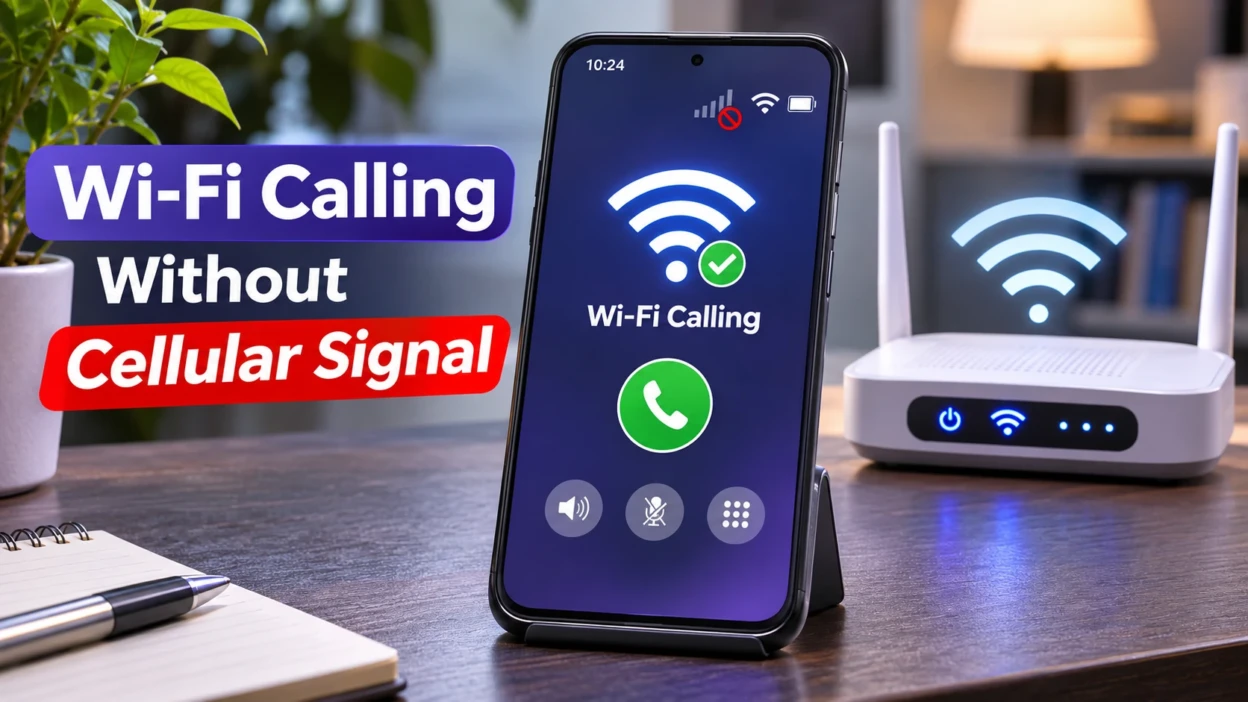
Your phone can show no mobile signal and still make an ordinary phone call. If your mobile carrier supports Wi-Fi Calling for your phone and line, a working Wi-Fi internet connection can carry calls to and from your usual phone number. The person you call does not need Wi-Fi Calling or the same kind of phone. But the feature still depends on an eligible mobile account, compatible device and functioning internet connection.
That makes Wi-Fi Calling useful in a basement, an office with thick walls or a home where broadband works better than the nearby cell tower. It is different from calling through WhatsApp or FaceTime, and it will not rescue a call when both mobile service and internet access are unavailable.
What Works When Mobile Bars Disappear?
The key question is not just whether Wi-Fi is switched on. It is whether the phone has internet access and the service needed for the particular kind of call or message.
| Action | With Wi-Fi but no usable mobile signal |
|---|---|
| Make or receive a call on your usual number | Yes, if carrier Wi-Fi Calling is enabled and supported on the line and phone. |
| Receive an SMS text | Often possible with supported carrier Wi-Fi Calling, but not guaranteed on every line or device. |
| Send a picture message or RCS message | Depends on the messaging service, carrier support and internet connection. |
| Make a WhatsApp, FaceTime Audio or similar app call | Usually possible when the app is set up, the internet works and the other person can use that service. |
| Call without a working Wi-Fi internet connection or cell service | No, not through ordinary carrier Wi-Fi Calling. |
| Make an emergency call | May be possible, but availability and location handling are different from normal cellular emergency calls. |
A Wi-Fi icon by itself proves only that your phone is connected to a wireless network. It does not prove that the network has internet access or that your carrier is carrying calls over it.
How Wi-Fi Calling Reaches Another Phone?
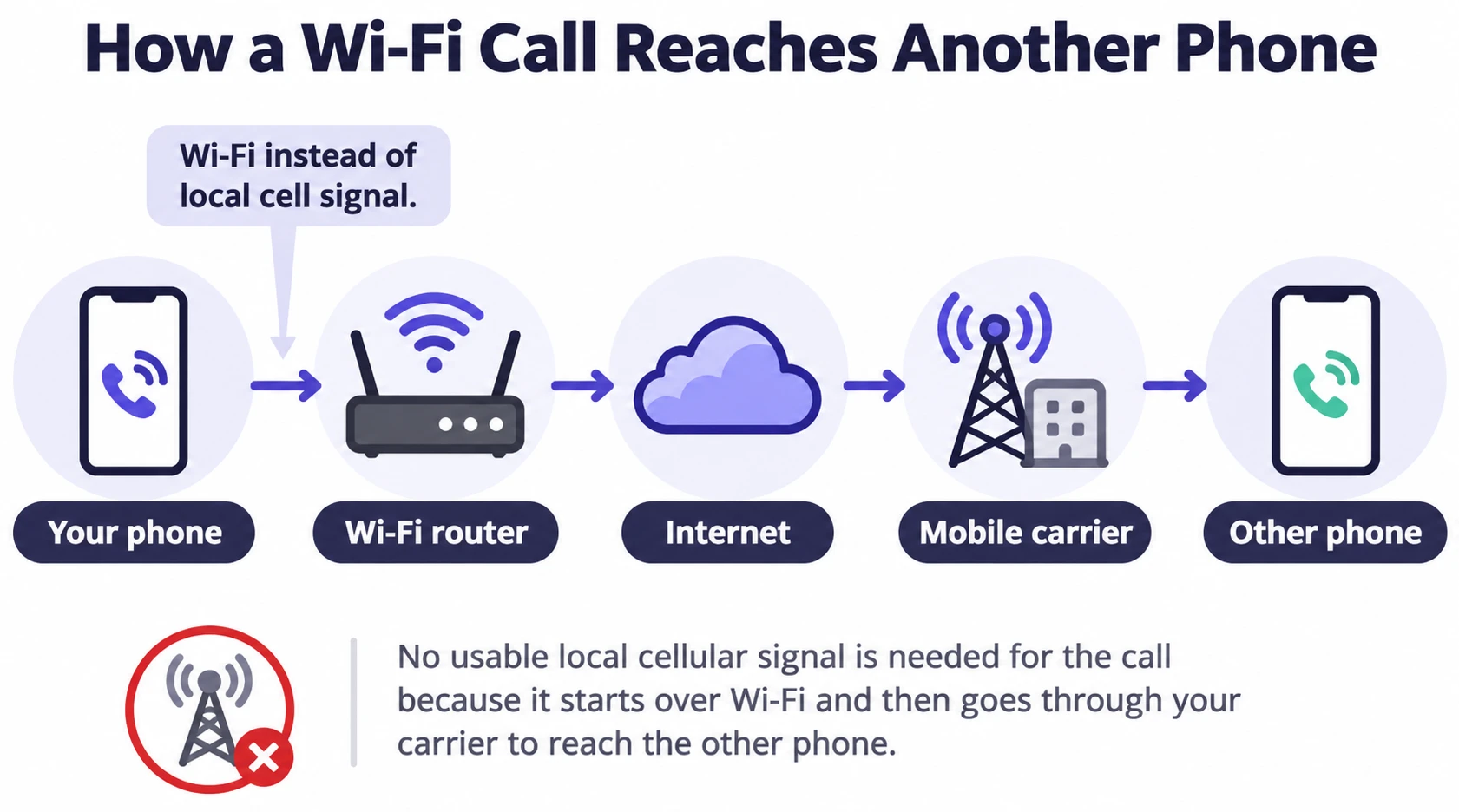
For a normal mobile call, your phone typically communicates with a cellular network. With carrier Wi-Fi Calling, the phone instead sends the call through a Wi-Fi network and its internet connection to the carrier’s calling service. The carrier then connects the call to the number you dialed. Your usual mobile number remains in use, and the recipient does not need to install a special app.
Think of the path as phone → Wi-Fi router → internet → mobile carrier’s calling service → recipient. The Wi-Fi link replaces the weak local cellular connection for that part of the journey. It does not replace the carrier or turn a disconnected SIM into an active subscription.
When both connections exist, the phone and carrier may choose Wi-Fi or cellular based on preference and connection quality. Moving out of Wi-Fi range during a call can interrupt it. A switch to cellular calling is possible on supported networks and phones, but should not be assumed when there is no usable mobile signal.
What You Need Before Turning It on?
- A compatible phone and active mobile line. Your carrier must enable Wi-Fi Calling for your device, SIM or eSIM, plan and region. A phone that has the setting is not necessarily approved on every network.
- Working Wi-Fi internet access. Being connected to a router is not enough if broadband is down, a hotel login page has not been completed or a network blocks the required traffic.
- Wi-Fi Calling enabled for the correct line. Dual-SIM phones may have separate settings for each number. If the option is missing, ask your provider rather than assuming the phone is faulty.
- Any required carrier activation. Some providers require you to accept terms or register an address for emergency services before the feature starts working.
If you are setting up a new SIM or eSIM before travel, activate and verify Wi-Fi Calling while you still have reliable connectivity. Some carriers may need mobile-network access during initial activation. For related travel setup decisions, see TechBonafide’s eSIM versus physical SIM guide.
Turn on Wi-Fi Calling on iPhone or Android
The exact labels can vary with phone software, carrier configuration and country. Use the path that matches your phone, then look for confirmation that the carrier has activated the feature.
On iPhone
- Open Settings and select Cellular.
- If you use more than one SIM or eSIM, choose the line you want to use.
- Open Wi-Fi Calling and enable Wi-Fi Calling on This iPhone.
- Confirm any prompts and enter or verify an emergency address if your provider requests one.
- Connect to working Wi-Fi. When Wi-Fi Calling is active, Apple says Wi-Fi appears in the carrier status shown in Control Center.
These are the steps in Apple’s Wi-Fi Calling support instructions. If the option is missing or cannot be enabled, first confirm that your carrier supports it for that line.
On Google Pixel and similar Android phones
- Open Settings.
- Go to Network & internet → SIMs, then select your carrier’s SIM if asked.
- Open Wi-Fi calling and turn it on.
- Follow any carrier activation instructions, connect to Wi-Fi and make an ordinary test call.
Google documents this route in its Phone app Wi-Fi Calling guide. Other Android brands can use different menus. Search Settings for Wi-Fi Calling if these labels do not match.
On Samsung Galaxy phones
- Open the Phone app, tap the three-dot menu, then open Settings.
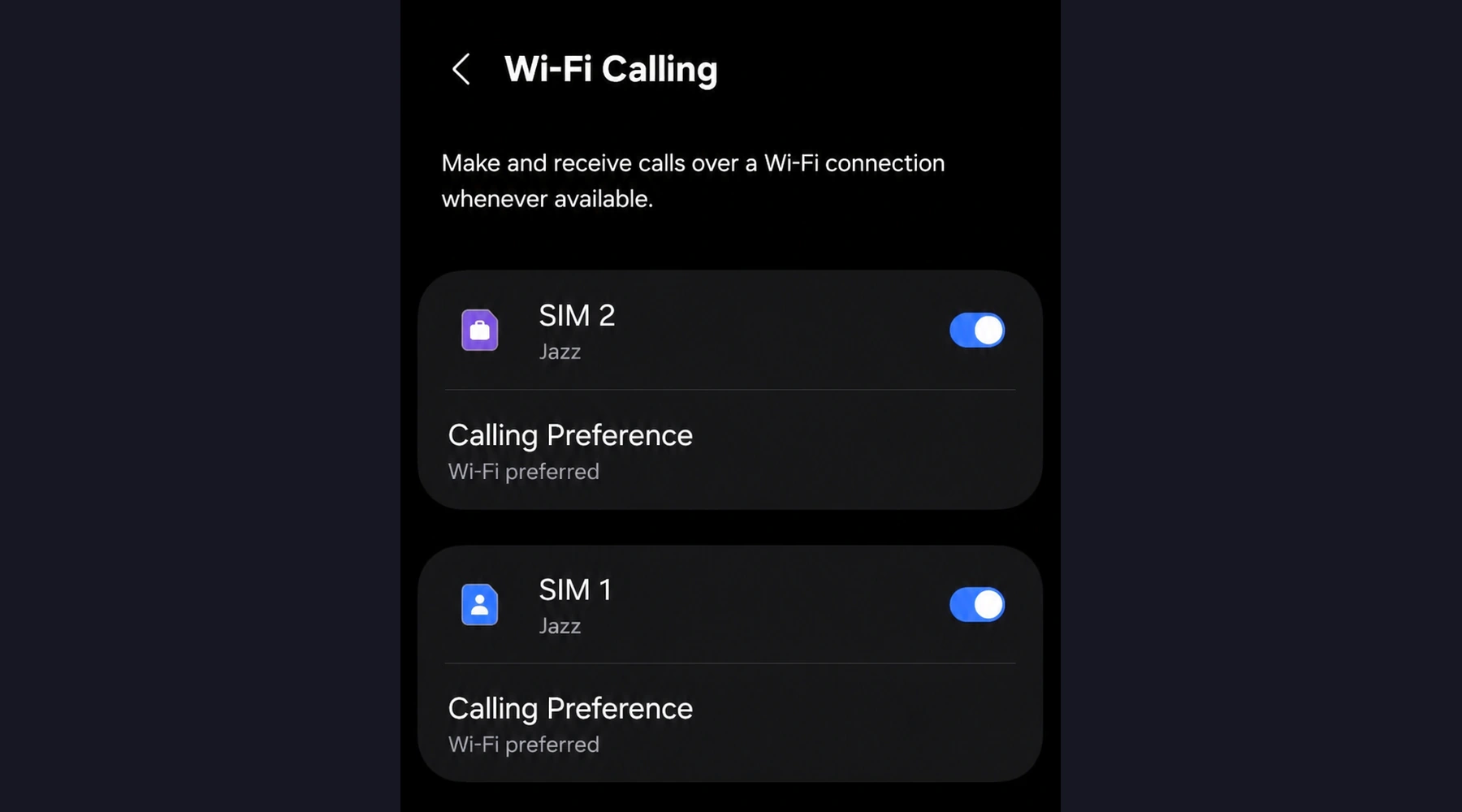
- Turn on Wi-Fi Calling if the switch appears.
- On supported models, you can also find the control under Settings → Connections → Wi-Fi Calling, or in Quick settings.
- Complete any carrier prompts. If there is a Wi-Fi preferred option, its availability depends on your device and provider.
Samsung explains these routes in its Galaxy activation instructions. The menu may be absent when the carrier has not enabled the feature for your account.
Check Whether Your Call Really Uses Wi-Fi
Do not judge the result from Wi-Fi bars alone. Use this simple verification procedure when you are not dealing with an emergency:
- Confirm that ordinary websites load over your Wi-Fi connection.
- Check that Wi-Fi Calling is enabled for the intended mobile number. Look for a carrier Wi-Fi label, Wi-Fi Calling indicator or VoWiFi icon where your phone displays it.
- If you want to isolate Wi-Fi from cellular service, enable airplane mode and then turn Wi-Fi back on. This is a temporary diagnostic step, not a universal requirement. TechBonafide’s airplane mode guide explains why Wi-Fi can be re-enabled separately.
- Place a normal, non-emergency call to someone who has agreed to help, using the phone’s regular dialer. Check whether the call connects and whether both people can hear each other.
- Turn airplane mode off after the check. If the call did not connect, try the troubleshooting steps below rather than assuming the phone can never use Wi-Fi Calling.
A successful ordinary call with cellular radio disabled is useful practical evidence that calling over Wi-Fi is available in that setup. It does not establish that SMS, emergency calls or every public Wi-Fi network will behave the same way.
Calls, Texts and Messaging Apps are Different
Carrier Wi-Fi Calling uses your existing mobile number and normal dialer. On supported accounts, it can also carry SMS, but messaging capabilities are not uniform across carriers or devices. Apple’s Messages troubleshooting documentation specifically notes that SMS can be sent over Wi-Fi when Wi-Fi Calling is enabled, while telling users to check carrier support for SMS, MMS and RCS.
RCS and iMessage use internet connectivity and their own service requirements. Their availability depends on device settings, accounts and messaging support. A successful iMessage or RCS exchange does not prove that standard SMS is working. Picture messages and group messages may have their own restrictions.
WhatsApp, FaceTime Audio and other internet calling apps are a separate option. They can work on Wi-Fi without cellular reception, but may require an activated account, compatible app and an internet-connected recipient. They do not automatically let you dial every ordinary phone number through your carrier.
If you rely on one-time SMS codes for banking or account sign-in, test that specific service before depending on it in a no-signal location. Keep a legitimate alternative sign-in method where the account provider supports one.
Emergency Calls and International Charges
Emergency calls need special care
Carrier Wi-Fi Calling can sometimes route emergency calls if cellular service is missing. However, the operator may rely on a registered address, device location information or other available data. The actual location and routing behavior varies by provider and country. In the United States, carriers such as Verizon and T-Mobile require or use a registered address for 911 over Wi-Fi, and both warn about location limitations.
Important: Do not assume a Wi-Fi emergency call will identify your current location or complete successfully. If you need emergency help, use the available local emergency number and the most reliable connection you can reach, give the operator your precise current location, and follow local emergency guidance. Keep any required registered emergency address current. Never call an emergency number just to test Wi-Fi Calling.
Read Verizon’s explanation of Wi-Fi Calling and 911 and T-Mobile’s emergency-service guidance for concrete U.S. examples. Emergency numbers and rules differ elsewhere.
Wi-Fi does not automatically make international calls free
The cost of a call depends on the provider, your plan, the number called and sometimes where the call is made. For example, Verizon says Wi-Fi calls to U.S. numbers from abroad have no additional charge under its stated policy, while calls to other countries can be billed at international long-distance rates. That is a Verizon policy example, not a global pricing rule. Check your own carrier’s international Wi-Fi Calling terms before traveling.
Wi-Fi Calling also depends on the internet available at your location. A congested hotel network, captive portal or broadband outage can stop it, even if your phone shows strong Wi-Fi bars.
Why Wi-Fi Calling May Not Work?
Work through the likely causes in order, without changing several settings at once:
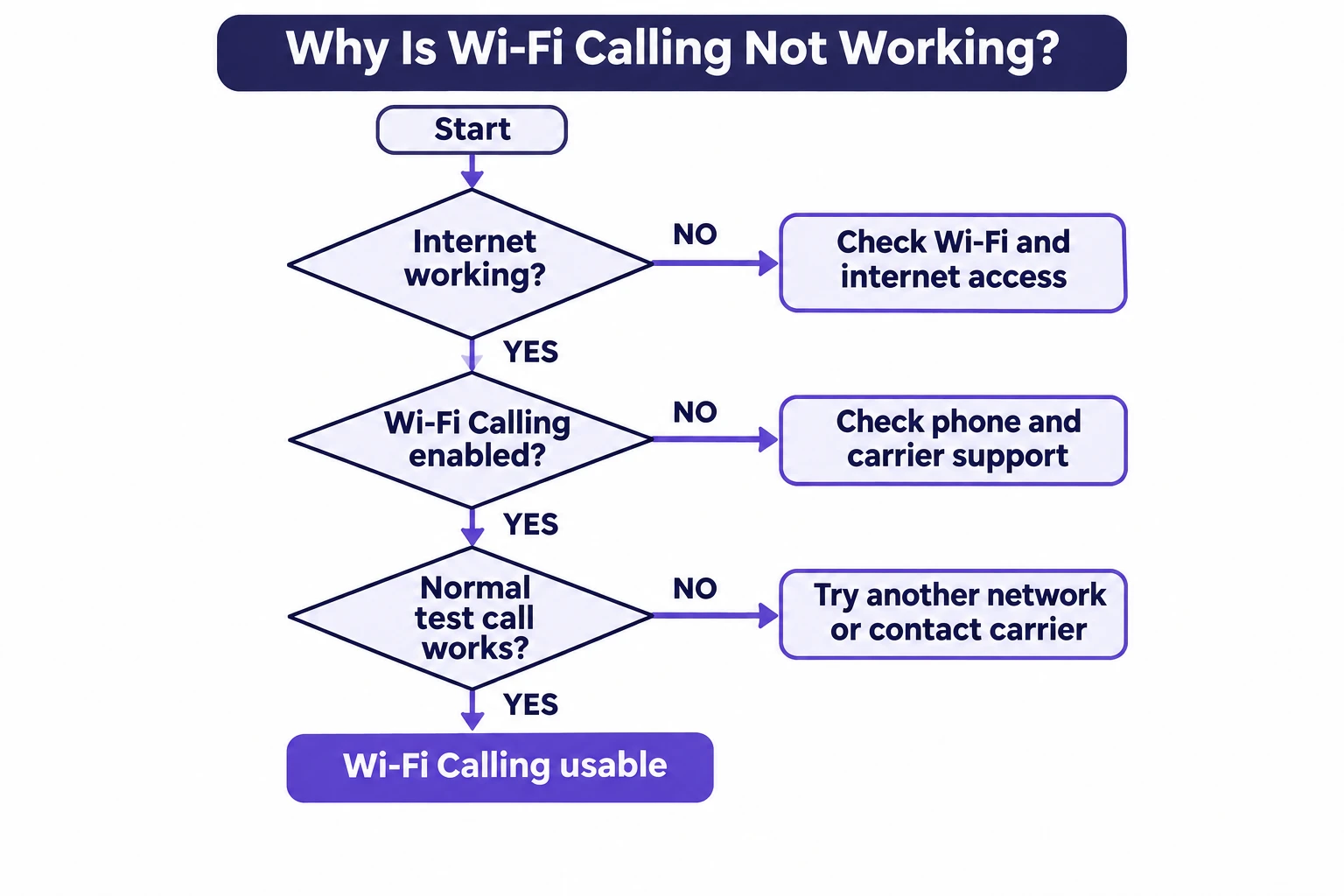
- Confirm internet access. Open a website. Complete any public Wi-Fi sign-in page, or try a different trusted network.
- Confirm carrier eligibility. Ask whether Wi-Fi Calling is enabled for your particular number, plan, handset model and country. This is especially important for imported and unlocked phones.
- Check the selected SIM. On a dual-SIM phone, enable the feature for the number you are trying to use.
- Check the calling indicator and preference. Where offered, confirm that Wi-Fi Calling is enabled and whether Wi-Fi or cellular is preferred.
- Restart and update carefully. Restart the phone and install supported software or carrier updates after reviewing ordinary update precautions.
- Try another Wi-Fi network. A network can allow web browsing yet interfere with Wi-Fi Calling. Apple specifically recommends trying a different network.
- Contact the carrier before resetting settings. A network-settings reset may remove saved Wi-Fi networks and related settings. Make sure you know the needed passwords and configuration details before using that option.
If calls drop while moving around your home, the problem may be a weak Wi-Fi link, mesh handoff or internet interruption rather than mobile coverage. TechBonafide’s mesh Wi-Fi troubleshooting guide explains how to separate those problems.
What If Your Carrier Does Not Support It?
If your device or mobile account cannot use carrier Wi-Fi Calling, an internet calling app may still let you reach people who use the same service. For ordinary telephone numbers, use another supported mobile line, a suitable calling service or an available landline, depending on local service and costs. None of these options should be treated as a guaranteed substitute for emergency access.
The practical rule is simple: no mobile signal does not always mean no phone calls. With a supported carrier line and reliable Wi-Fi internet, your ordinary number can remain reachable. Check the calling indicator, place a non-emergency test call and confirm messaging, travel charges and emergency arrangements separately before you need them.

Tech Bonafide is the editorial identity of TechBonafide, an independent technology publication covering AI, software, cybersecurity, gadgets, and emerging technology.