


Your Wi-Fi may drop when you walk between rooms because your phone, laptop, or tablet does not always switch smoothly between mesh network nodes. A device might hold onto a weak connection, take too long to connect to another node, or encounter an unstable link between the mesh points.
Mesh Wi-Fi is designed to improve coverage, but it cannot guarantee uninterrupted connections every time you move. The solution depends on whether the problem involves roaming, wireless interference, mesh node placement, or the internet connection itself. Here is how to identify the cause and fix it without changing random router settings.
How Moving Between Mesh Nodes Works?
A mesh Wi-Fi system uses a main router and additional nodes to provide wireless coverage across a home. These nodes normally share one network name, also called an SSID, so you do not have to manually choose a different Wi-Fi network in each room.
However, each node still has its own wireless access point connection. When you move away from one node and closer to another, your device may switch between them. This process is called Wi-Fi roaming. The individual access point connection can be identified by a BSSID, which helps distinguish one radio from another even when both use the same network name.
Your Device Usually Chooses When to Switch
A common misunderstanding is that the mesh router automatically moves every connected device to the nearest node. In most Wi-Fi networks, the client device makes the main roaming decision. The network can help it choose, but the phone or laptop still has an important role.
According to Cisco’s wireless roaming explanation, devices evaluate nearby access points and make roaming decisions using signal information and device-specific behavior.
A phone might remain connected to a distant bedroom node even after you enter the living room. This is often called a sticky client. The closest node is not necessarily the one providing the strongest or most reliable connection, because walls, interference, and radio conditions also matter.
What 802.11k, 802.11v, and 802.11r Actually Do?
Some mesh systems use wireless roaming features to make transitions easier. These include:
- 802.11k: Helps a device learn about nearby access points so it can search for a better connection more efficiently.
- 802.11v: Allows the network to recommend another access point that may provide a better connection.
- 802.11r: Speeds up part of the security authentication process when a compatible device moves between access points.
These technologies are described in Microsoft’s fast roaming documentation. They are useful, but their benefits depend on the device, its wireless driver, the network equipment, and the configuration. A mesh system supporting these features does not mean every connected device supports them.
Why Your Wi-Fi Drops Between Mesh Nodes?
Several different problems can cause a brief disconnection or interruption as you move through the house.
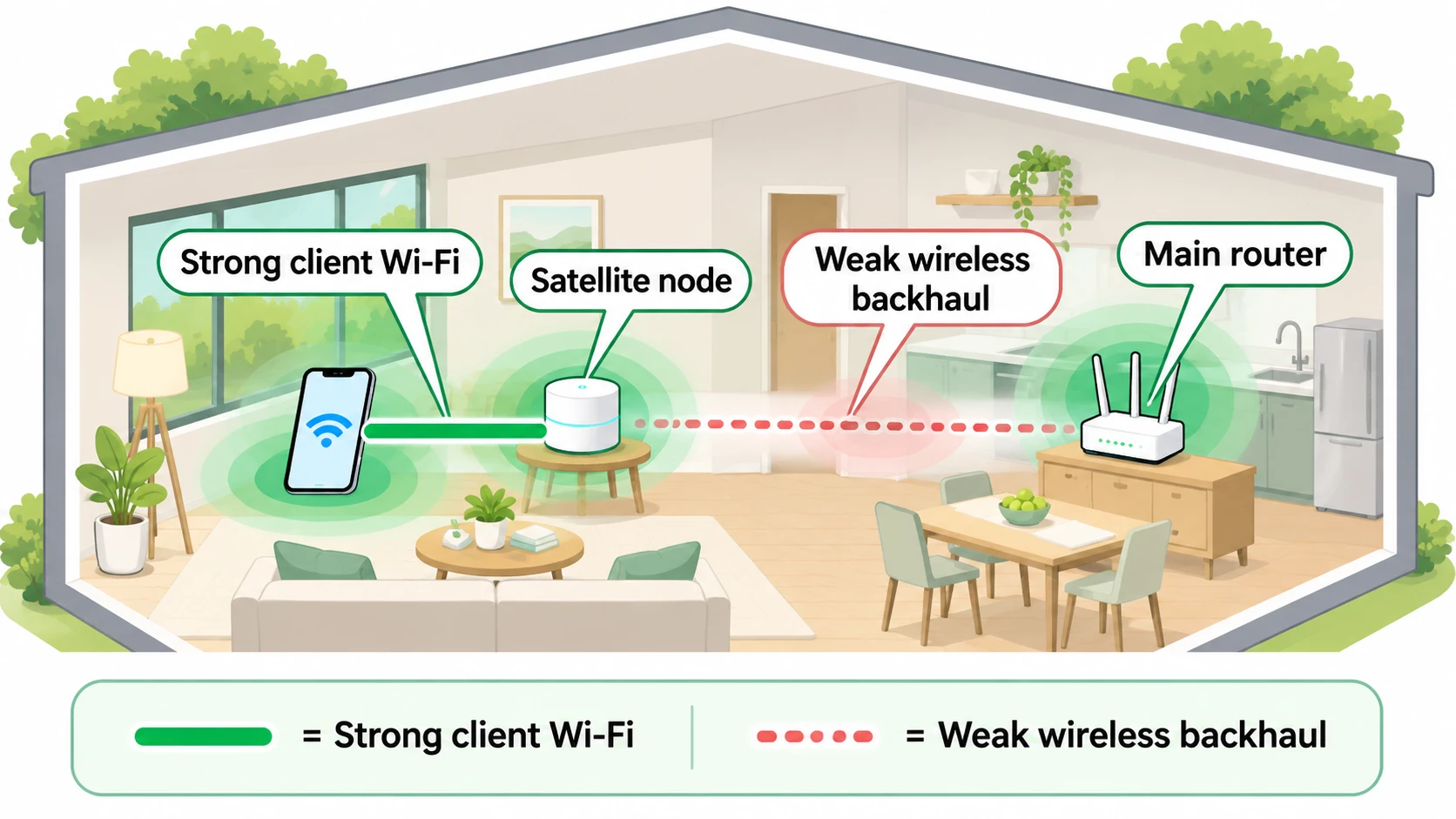
- Your device stays connected to the wrong node: A phone or laptop may continue using a weak access point instead of switching to a stronger one. Applications can slow down or freeze before the device finally roams.
- Coverage overlaps poorly: If two mesh nodes are too far apart, there may be a weak-signal area between them. Moving through that area can interrupt the wireless connection.
- The mesh backhaul is weak: Backhaul is the connection carrying traffic between mesh nodes. A satellite node may show a strong Wi-Fi signal to your phone while its own connection to the main network is unstable.
- Interference disrupts communication: Nearby Wi-Fi networks, building materials, and certain electronic devices can affect wireless reliability. Moving between rooms may expose your device to different interference conditions.
- Roaming features have compatibility problems: Some older or less compatible devices may disconnect when fast roaming or steering features are enabled.
- A node or upstream connection is unstable: A restarting node, faulty Ethernet connection, or interruption at the modem or internet provider can look like a roaming problem.
Changing between 2.4 GHz, 5 GHz, and, on supported equipment, 6 GHz may also affect the connection. These bands have different coverage and performance characteristics. Band switching and movement between mesh nodes are related decisions, but they are not exactly the same process.
For broader coverage comparisons, see our guide to mesh Wi-Fi versus Wi-Fi extenders.
Is It a Roaming Problem or an Internet Outage?
Before adjusting your mesh settings, identify what actually fails. A Wi-Fi connection can remain active while internet access stops working. Similarly, a video call may freeze even though the device never fully disconnects from Wi-Fi.
Try using the same device while standing still near a mesh node, then repeat the activity while walking between rooms. Check whether the issue happens at a consistent location or only when your device changes its connection.
| Symptom | Possible Cause | What to Check |
|---|---|---|
| A call freezes while walking between rooms. | Slow roaming or a coverage gap. | Check the connected mesh node before and after moving. |
| Wi-Fi shows a strong signal, but internet access is poor near one node. | Weak backhaul or a problem with that node. | Run the mesh connection test and check that node’s status. |
| Every device loses internet access, including devices near the main router. | Main router, modem, or internet provider problem. | Compare with a wired connection and check the upstream equipment. |
| Only one phone or laptop keeps disconnecting. | Device software, wireless driver, or roaming compatibility. | Update the affected device and compare it with another client. |
These are diagnostic clues rather than confirmed causes. A weak wireless link can resemble a backhaul problem, and more than one fault can exist at the same time.
How to Fix Mesh Wi-Fi Drops Step by Step?
Start with the simplest checks and change one thing at a time. You will need access to your mesh system’s management app or router interface for some steps. Menu names and supported features vary by manufacturer, model, hardware version, and firmware.
1. Check Mesh Node Placement and Backhaul
- Open your mesh management app and check whether every node is online.
- Look for a mesh quality, connection strength, or backhaul status test if your system provides one.
- If a satellite shows a weak connection, move it closer to the main router or to a stronger upstream node. Do not place it at the very edge of reliable Wi-Fi coverage.
- Keep nodes in open, elevated positions when practical. Avoid enclosed cabinets, large metal objects, and unnecessary obstructions.
- Repeat the mesh quality test after moving a node.
Google’s mesh testing instructions recommend moving weak points closer to the router or another point and checking performance again. The exact test interface depends on the mesh product.
If your equipment supports Ethernet backhaul, a suitable wired connection can reduce dependence on the wireless link between nodes. It will not fix a client that refuses to roam, but it can remove a separate source of instability.
2. Check Firmware and Wireless Interference
- Check for firmware updates through the official mesh app or manufacturer support page.
- Install relevant operating system and wireless adapter updates on affected devices.
- Move mesh nodes away from interference sources and dense clusters of electronic equipment.
- If your router manages wireless channels automatically, check whether its channel optimization feature is available and appropriate for your model.
- Repeat the same walking test before making another adjustment.
Wireless interference can cause slow speeds, retransmissions, and intermittent disconnections. Our guide to improving slow internet with router adjustments explains additional placement and maintenance basics.
3. Test Client Steering and Fast Roaming Separately
Depending on your system, settings may be labeled Client Steering, Mesh Technology, Fast Roaming, Roaming Assistant, or 802.11r. These names do not always refer to identical features.
- Record the current settings so you can restore them.
- If one device began disconnecting after fast roaming was enabled, temporarily disable that feature where the manufacturer permits it.
- Reconnect the affected device if necessary and repeat the same movement test.
- If nothing improves, restore the original setting before testing another feature.
- Check the manufacturer’s documentation before changing roaming thresholds or forcing clients to disconnect at a particular signal level.
TP-Link documents that some clients can experience connection problems with 802.11r fast roaming enabled. Its Deco troubleshooting guidance recommends trying the feature disabled when affected devices cannot connect reliably.
On supported eero systems, Client Steering can encourage compatible devices to select a preferable node or band, but it does not guarantee which one the device chooses. See eero’s networking settings documentation.
4. Compare Devices and Check the Internet Connection
- Repeat the same route with a second phone or laptop connected to the same network.
- Check whether the problem occurs only during movement or also when the affected device remains stationary.
- If possible, test a computer connected by Ethernet to the main router while the Wi-Fi problem occurs.
- If wired internet access also fails, investigate the router, modem, cables, and internet provider before changing roaming settings.
- If only one wireless device fails, focus on that device’s Wi-Fi software and compatibility before replacing mesh hardware.
If a device has an outdated or corrupted saved Wi-Fi profile, forgetting and rejoining the network may help in some cases. Make sure you know the correct Wi-Fi password and any required network settings first.
Mesh Roaming Settings Worth Checking
Mesh routers offer different controls, and not every setting should be changed. These are the most useful ones to understand:
- Client or band steering: Can encourage compatible devices to select a more suitable node or frequency band. Results depend on client behavior and network conditions.
- Fast roaming: Can reduce transition delays on supported devices. Test compatibility before leaving it disabled or enabled as a permanent fix.
- Minimum signal or RSSI thresholds: Some routers can disconnect clients after their signal falls below a configured level. Aggressive thresholds can cause repeated disconnections when no better connection is available.
- Network name and security configuration: A managed mesh network normally shares a consistent SSID and security configuration across its nodes. Separately configured routers or extenders may not provide the same coordinated roaming behavior.
- Wireless bands: A device’s band support, signal quality, and the available 2.4 GHz, 5 GHz, or 6 GHz radios can influence its connection choices. Do not assume every device supports every band.
Some manufacturers expose additional controls. For example, ASUS documents a Roaming Assistant that can disconnect a client when its signal falls below a selected threshold. Such settings should be adjusted only after establishing the cause of the problem.
Important: Factory-resetting a mesh system can erase its saved configuration and disconnect household devices. Changing Wi-Fi security settings may also weaken protection or prevent devices from connecting. Record your working settings and prefer reversible troubleshooting steps before considering either change.
Device-Specific Troubleshooting
Windows 10 and Windows 11: If a laptop disconnects while moving, Windows can generate a wireless network report that includes connection events, adapter information, and disconnect reasons. Open Command Prompt as an administrator and run:
netsh wlan show wlanreportThe command generates an HTML report. Open the file at the location shown by Windows and review the events around the time of the drop. Follow Microsoft’s wireless network report instructions to interpret the results. This is a diagnostic command, not a repair, and the command has not been executed as part of this article.
iPhone, iPad, and Android: Compare the affected device with another phone while using the same route. Update the operating system where supported and inspect the connected-device information in your mesh app, if available. The interface and visibility of roaming details depend on the device and network manufacturer.
Smart home and older Wi-Fi devices: Some devices are designed to remain in one location and may not handle advanced roaming features well. If only one such device disconnects, check its manufacturer’s Wi-Fi requirements. A compatible device-specific setting or separate supported IoT network may be preferable to changing the entire household network.
Gaming and video calls: Short interruptions can affect real-time applications even when browsing appears normal. If the connection stays associated with Wi-Fi but gameplay remains unstable, our guide to packet loss and gaming lag explains how to investigate missing or delayed network traffic.
How to Check Whether the Fix Worked?
Do not rely on a single speed test or the number of Wi-Fi signal bars. Instead, use a repeatable test that matches the original problem.
- Identify the location where the interruption usually happens and the device most likely to experience it.
- Start an activity that exposes short interruptions, such as a video call or a continuous connection test, and follow the same walking route.
- Where supported, check the mesh app’s client connection information to see whether the device changed nodes. Record any visible disconnects or node changes.
- Repeat the test several times, including a stationary test near the previously problematic node. Compare the behavior with your original observations.
If the interruption disappears after moving a weak node, placement or backhaul quality was likely involved. If a single device improves after a roaming setting change while other devices remain stable, compatibility may have been a factor. These observations help narrow the cause, but they do not prove it without more detailed logs or testing.
What to Do If the Connection Still Drops?
If the same location remains unreliable, review the mesh coverage and the quality of the link feeding that area. Moving an existing node may work better than adding another one. Additional nodes can help fill genuine coverage gaps, but they also need reliable backhaul and proper configuration.
For difficult floor plans, dense walls, or persistent wireless backhaul problems, Ethernet-connected mesh nodes or a properly configured wired access point may provide a more reliable connection. Before buying equipment, confirm that your existing mesh model supports the proposed wired setup.
If multiple devices continue to disconnect after firmware, placement, and connection checks, collect the device models, firmware versions, affected locations, and available connection logs. This information will be more useful to manufacturer support than a description of Wi-Fi simply being slow.
The main lesson is that mesh Wi-Fi improves coverage but does not remove the need for good roaming decisions and stable connections between nodes. Start by identifying whether the failure happens during a handoff, at a particular node, or across the entire network. Once you know which part is failing, you can make a targeted fix instead of repeatedly restarting or replacing equipment.

Tech Bonafide is the editorial identity of TechBonafide, an independent technology publication covering AI, software, cybersecurity, gadgets, and emerging technology.