Cloud gaming vs remote play on slow internet comes down to where the game runs and how your devices connect. Cloud gaming uses remote servers and needs a stable internet connection, while remote play streams games from your own console or PC. If you are playing on the same home network, remote play can avoid sending the video stream through your internet provider. However, when playing away from home, upload speed, download speed, network stability, and latency all affect the experience. This comparison explains which option works better for different connection problems and how to improve streaming performance.
What Cloud Gaming and Remote Play Mean?
Cloud gaming runs the game on a provider’s server and streams the video to your device. Your controller inputs travel to the cloud server, and the server sends back a compressed video feed in real time.
Remote play runs the game on hardware you already own, usually a console or gaming PC at home. Your device receives the video stream from that local machine, and your inputs return to it over your home network or the wider internet.
Slow Internet Problems That Actually Matter
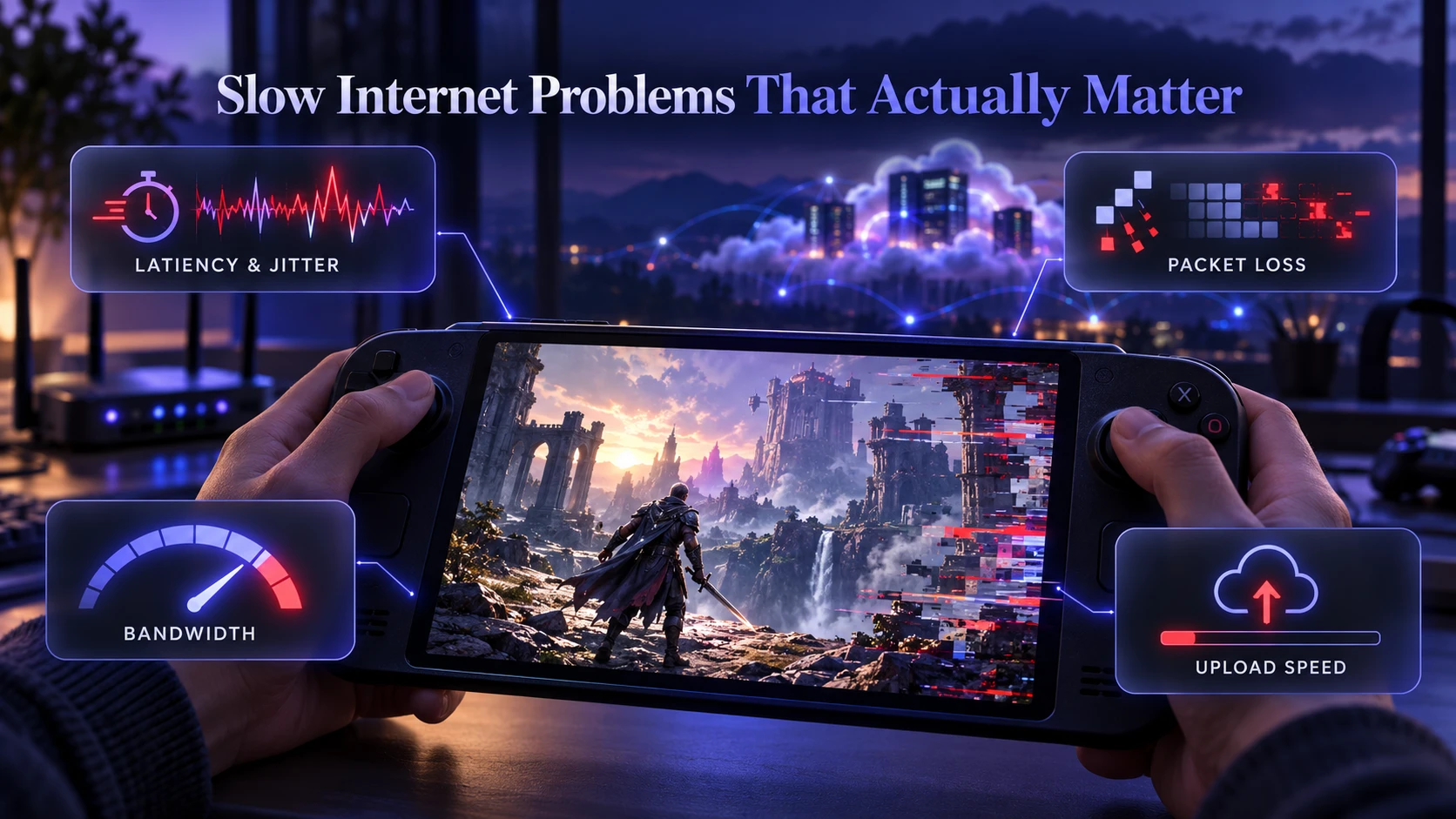
Speed is only part of the story. Game streaming fails most often due to unstable connections and delay, even when the advertised Mbps looks fine.
- Latency and Jitter: Latency is the time a signal takes to travel, and jitter is how much that time varies. High or inconsistent delay makes controls feel floaty and causes sudden resolution drops.
- Packet Loss: Packet loss occurs when network data fails to reach its destination. In real-time game streaming, lost packets can cause stuttering, blurry video, audio interruptions, or temporary freezes. Depending on the streaming protocol, the software may recover missing information, conceal errors, or reduce video quality. Even small amounts of packet loss can affect gameplay when they occur repeatedly.
- Bandwidth Headroom: When the connection is close to its limit, any background traffic triggers buffering or aggressive compression. Headroom matters more than peak speed tests.
- Upload Limits: Remote play depends heavily on your home internet upload speed when you connect from another location. Your console or gaming PC must send a continuous video stream over the internet. However, when both devices are connected to the same home network, the stream can travel locally without relying on your internet plan’s upload capacity.
Once you identify which of these is the main constraint, the cloud gaming vs remote play decision becomes clearer.
Before choosing a game streaming service, it helps to understand what your internet connection can reliably handle. Our guide to judging a good internet speed explains download speed, upload speed, ping, and jitter, making it easier to identify the network issues affecting gameplay.
Bandwidth Requirements on Slow Connections
Both methods stream video, so they need consistent bandwidth. Lower resolutions can work on modest lines, but stability is the key to avoiding constant quality swings.
Internet speed requirements vary by streaming service, device, resolution, and frame rate. Cloud gaming mainly depends on the receiving device’s download connection, while remote play over the internet also depends on the host console’s upload connection. Local remote play is different because the video stream can travel across your home network. The following figures illustrate published requirements for specific services rather than universal requirements for all gaming platforms.
| Service or Connection | Internet Speed Guidance | Important Consideration |
|---|---|---|
| Xbox Cloud Gaming on mobile devices | Around 10 Mbps for best performance | Stable download and network latency matter |
| Xbox Cloud Gaming on PCs, consoles, and tablets | Around 20 Mbps for best performance | Higher-resolution or larger-screen streaming needs a reliable connection |
| NVIDIA GeForce NOW at 720p/60 FPS | 15 Mbps | Network latency and stability also affect responsiveness |
| NVIDIA GeForce NOW at 1080p/60 FPS | 25 Mbps | Higher resolution requires more sustained bandwidth |
| PlayStation Remote Play over the internet | Minimum 5 Mbps upload and download; 15 Mbps recommended for better performance | The home upload connection can become a bottleneck |
| Remote Play on the same home network | Performance depends mainly on local network conditions | Wi-Fi quality, router performance, and wired connections are particularly important |
These figures are examples, not guarantees. Actual streaming quality depends on the service, device support, server distance, network congestion, and available video-quality settings.
Microsoft’s official Xbox Cloud Gaming connection requirements explain the recommended speeds for different devices, helping players understand why mobile gaming and larger-screen streaming may have different bandwidth needs.
NVIDIA’s official GeForce NOW system requirements provide additional guidance on the bandwidth needed for different resolutions and frame rates, showing why a connection suitable for 720p streaming may struggle at 1080p or higher.
Latency Differences Between Cloud Servers and Home Consoles
Latency is usually the deciding factor when both options technically run. Cloud gaming adds the distance to the provider’s data center, plus the encode and decode time of the stream.
Remote play on the same home network can offer lower latency because the video stream usually travels directly between your console or PC and the receiving device. This avoids the longer network route to a distant cloud gaming server. However, some remote-play services still require internet connectivity for account verification or initial connection setup. When you connect from outside your home, latency also depends on internet routing, home upload speed, and the receiving network’s stability.
Network delay is only one part of gaming responsiveness. Display processing, controller input, and frame delivery also affect how quickly actions appear on screen. Our comparison of input lag vs response time explains these differences and helps players identify other possible causes of delayed controls.
Which Works Better When Download Speed is the Limit?
If download speed is the main limitation, both cloud gaming and remote play may need a lower video resolution or bitrate. Some streaming services automatically adjust video quality when bandwidth changes, but the effectiveness of this feature varies by platform. Cloud gaming may work well when the download connection is consistent and the provider has a nearby server. However, local remote play can still offer an advantage because its video stream does not need to travel through the public internet.
Remote play can still work well when your internet download speed is slow if both devices are connected to the same home network, because the game video can travel locally between them. However, some services may still require internet access for account verification or connection setup. When playing from another location, limited download speed on the receiving device may force lower video quality or cause buffering.
Which Works Better When Upload Speed is the Limit?
Weak upload is where remote play struggles the most when you are away from home. Your console or PC has to send a steady outbound video stream, and many home connections cannot keep that stable during peak hours.
Sony’s official PlayStation Remote Play connection requirements specify minimum upload and download speeds and recommend faster connections for better performance. This guidance is particularly useful when streaming games from a home console to another location.
Cloud gaming is less affected because the upstream from your device is small, mainly controller inputs and overhead. If your internet plan has low upload but reasonable download, cloud gaming usually delivers the more consistent experience.
Wi-Fi Quality Often Matters More Than ISP Speed
Slow internet complaints are frequently Wi-Fi problems in disguise. Interference, distance from the router, and crowded channels can create packet loss and jitter that feel like low bandwidth.
- Use Ethernet When Possible: A wired link removes most interference and reduces jitter.
- Prefer 5 GHz Or 6 GHz When Supported: These Wi-Fi bands can offer better performance at shorter distances, especially when compared with a crowded 2.4 GHz network. However, their signals may weaken more quickly through walls. Choose the band that provides the most stable connection in your gaming location.
- Reduce Competing Traffic: Large downloads, backups, and video calls can steal bandwidth and spike latency.
- Improve Router Placement: Central placement and fewer walls can change stability more than upgrading Mbps.
If Wi-Fi is the weak point, either cloud gaming or remote play will suffer until the local network is stabilized.
If weak Wi-Fi signals, crowded channels, or router placement are affecting your connection, try improving your home network before upgrading your internet plan. Our guide to router changes for slow internet covers Wi-Fi bands, channel selection, Ethernet connections, and bandwidth management.
Settings That Improve Streaming on Slow Internet
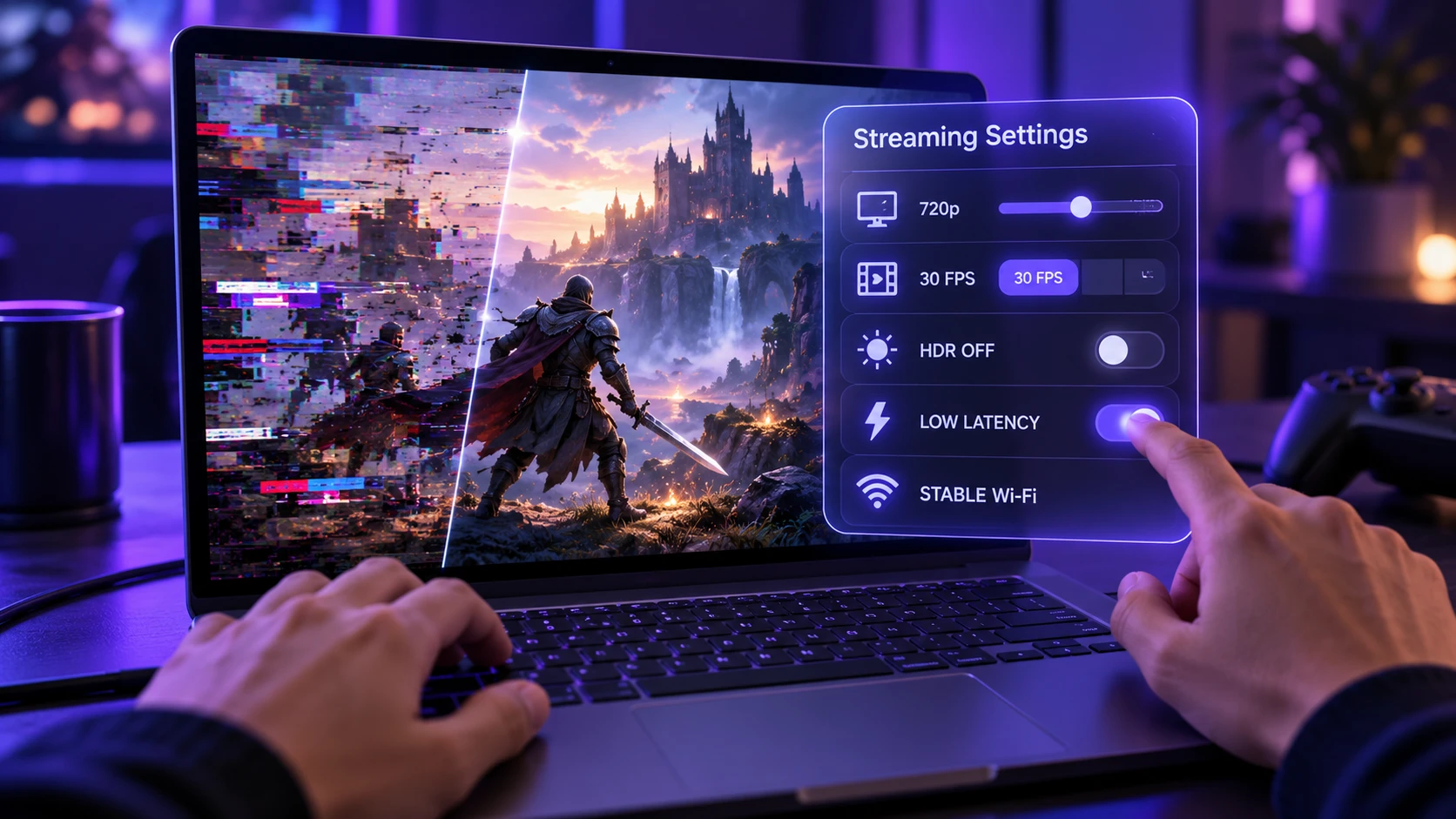
The fastest improvement usually comes from reducing how hard your connection has to work. Lowering stream resolution and frame rate can turn an unstable session into a playable one.
- Cap Resolution: If your streaming service allows resolution adjustments, try 720p when the connection is limited or shared. Lower resolution can reduce bandwidth requirements and improve streaming stability, although the picture may appear less detailed.
- Lower Frame Rate: If the streaming service supports frame-rate adjustments, try 30 FPS when 60 FPS produces repeated buffering or video instability. Lower frame rates can reduce bandwidth demand, although they may also make gameplay feel less responsive. Compare both options before choosing a permanent setting.
- Disable HDR and High Bitrate Modes: These settings raise data rates and amplify stutter when bandwidth dips.
- Turn on Performance or Low Latency Mode: Many apps offer presets that trade visual quality for responsiveness.
- Lock the Device to One Network: Avoid switching between Wi-Fi and cellular mid-session, which can trigger stream renegotiation and buffering.
After tuning quality, retest during the times you actually play, since congestion patterns vary by hour.
Device Compatibility and Input Delay Considerations
Cloud gaming is often more flexible across low-power devices because the game runs elsewhere. Remote play depends on your console or PC, and sometimes on a client app that behaves differently on phones, tablets, and TVs.
Smart TVs are one example of how cloud gaming can reduce the need for dedicated gaming hardware. TechBonafide previously covered the expansion of cloud gaming on LG smart TVs, showing how compatible televisions can access supported cloud gaming services without a separate console.
Input delay also depends on controller connection. A controller paired directly to the streaming device can be fine, but some setups add delay through Bluetooth interference or extra hops. If responsiveness matters, wired controllers and wired networking provide the cleanest path.
Cost and Ownership Tradeoffs
Cloud gaming costs and game access depend on the provider. Some services offer games through subscription catalogs, while others let you stream supported games that you already own or have purchased separately. For example, NVIDIA GeForce NOW supports compatible games from connected PC game libraries, while Xbox Cloud Gaming offers several ways to access eligible titles. Remote play generally uses games installed on your own console or PC and requires compatible hardware that is powered on or configured for supported standby features. Before choosing a service, check subscription fees, supported games, device compatibility, and regional availability.
Players considering NVIDIA’s service can review the GeForce NOW frequently asked questions to understand game compatibility, connected storefront accounts, and the difference between streaming access and game ownership.
On slow internet, cost should be weighed against the likelihood you can actually sustain the stream quality you want. Paying for a top-tier cloud plan will not help if your connection forces you down to low resolution anyway.
How to Choose Based on Your Connection Type?
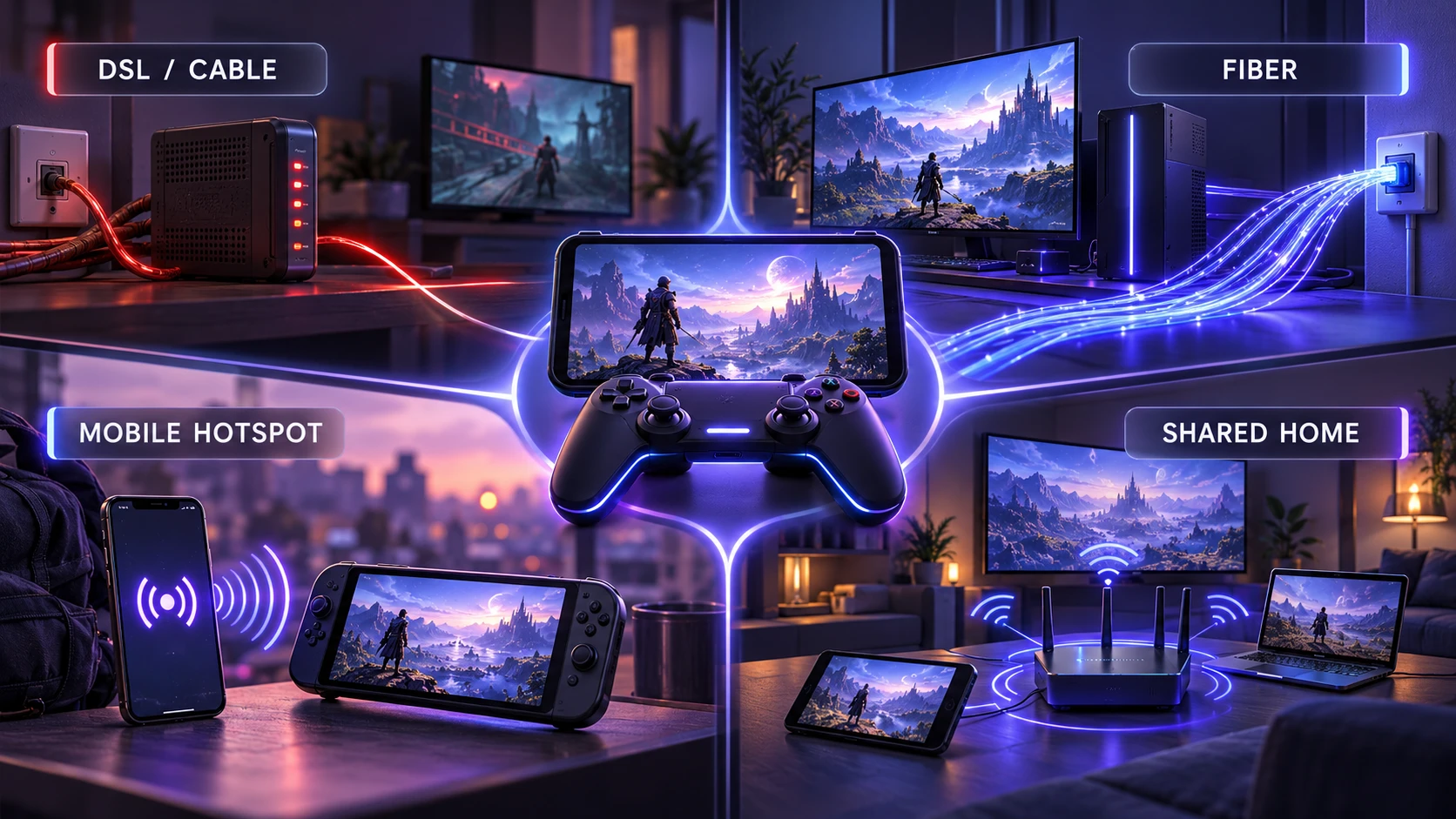
A practical way to decide is to match the method to your weakest link. You do not need perfect internet, but you do need predictable performance.
- DSL or Low Cable Speeds: Cloud gaming can work if download is steady and you keep the stream capped. Remote play away from home is risky if upload is limited.
- Fiber With Strong Upload: Remote play can be excellent both at home and away, since your home connection can reliably serve the stream.
- Mobile Hotspots: Cloud gaming may be easier to use when mobile download speeds are stable and the provider has nearby servers. Remote play can also work, but performance depends on the hotspot connection, your home upload speed, and compatibility with the remote-play service. Carrier network restrictions or NAT behavior may complicate some connections.
- Shared Household Internet: Either option benefits from bandwidth limits and router QoS to prevent spikes when others stream video.
Once you align the choice with the connection profile, the remaining improvements come from network tuning and stream settings.
Conclusion
Cloud gaming can be the better choice on slow internet when your download speed is consistent, your home upload speed is limited, and a supported cloud gaming server is reasonably close. Remote play often has an advantage when both devices use the same reliable home network, especially over Ethernet. For remote play outside the home, a stable upload connection becomes much more important. Neither option is automatically better in every situation, so the right choice depends on your connection, gaming device, and tolerance for input delay.
The most reliable approach is to treat streaming quality as a dial, not a target. Start with stability first, lock in a modest resolution, then raise settings only after the connection stays smooth across multiple sessions.
Frequently Asked Questions
Is Cloud Gaming or Remote Play Better for Competitive Games?
Remote play on a local wired network usually has the lowest input delay, which matters most for competitive play. Cloud gaming can feel responsive on a good route to a nearby data center, but latency swings are harder to control on slow internet.
What Internet Speed Do I Need for A Stable Experience?
The required speed depends on the gaming service and streaming quality. NVIDIA GeForce NOW specifies 15 Mbps for 720p at 60 FPS and 25 Mbps for 1080p at 60 FPS. Xbox Cloud Gaming recommends approximately 10 Mbps for mobile devices and 20 Mbps for PCs, consoles, and tablets. PlayStation Remote Play requires at least 5 Mbps for upload and download, with 15 Mbps recommended for better performance. Stable latency and low packet loss remain important regardless of your internet speed.
Why Does Streaming Look Blurry Even When the Speed Test is Good?
Speed tests are short and often measure ideal conditions, while streaming needs sustained stability. Jitter, packet loss, and Wi-Fi interference can force the service to lower bitrate quickly, which appears as blur and blocky compression.