
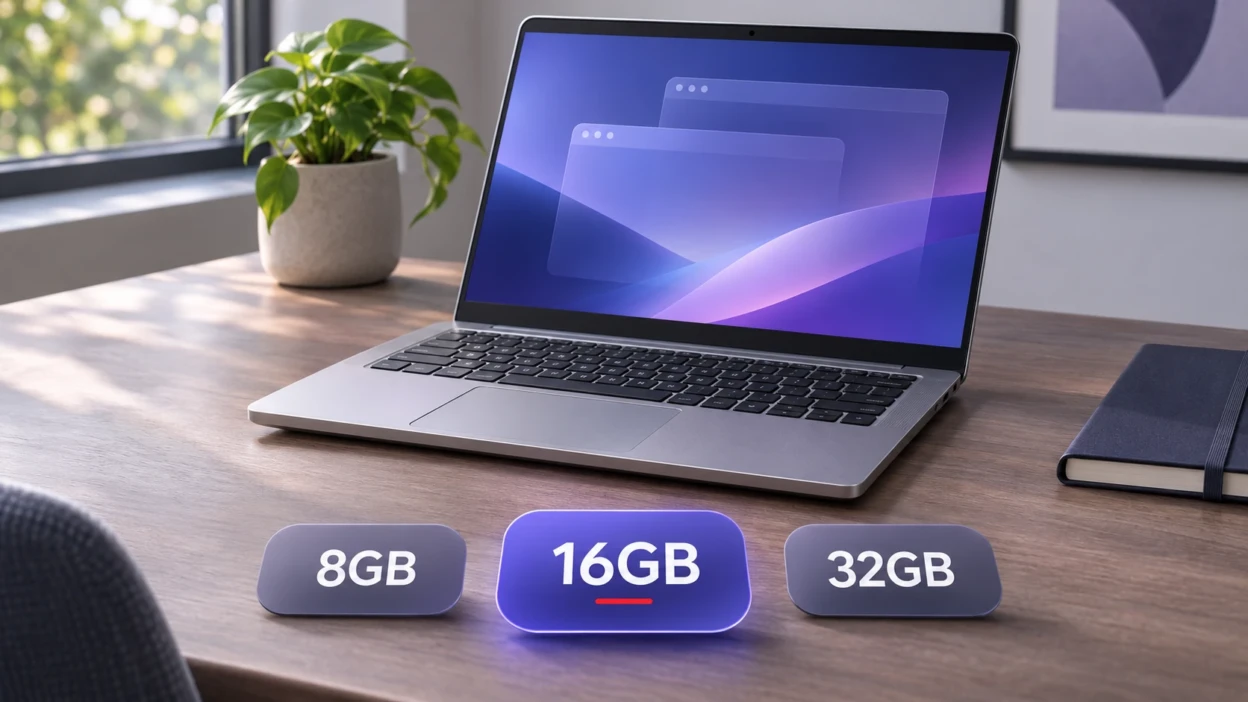
For most people buying a laptop in 2026, 16GB of RAM is the sensible choice. An 8GB model can still handle email, documents, streaming and modest browsing, especially if the price is significantly lower. Choose 32GB if you regularly work with demanding creative projects, development tools or several heavy applications at once. Most people do not need 64GB.
The right number depends on what you actually do, not just the year on the product listing. Before paying for an upgrade, check the software you use, whether the laptop shares memory with its graphics processor and whether the RAM can be expanded later.
What RAM does and why capacity matters?
RAM, or random access memory, temporarily holds information that your laptop is actively using. Your browser tabs, open documents, apps and parts of the operating system all compete for that working space. An SSD is different: it stores files and installed software even after you turn the laptop off.
When physical memory becomes tight, the operating system can compress data or move some of it to storage. This helps keep programs running, but repeatedly retrieving data from an SSD can make switching between demanding apps feel less responsive. A fast SSD helps, yet it is not a replacement for sufficient RAM.
More RAM does not automatically make every task faster. If your existing laptop already has enough memory for its workload, the processor, storage performance, graphics hardware or cooling may matter more than another 16GB of capacity.
8GB vs 16GB vs 24GB vs 32GB vs 64GB
Use these ranges as buying guidance, not guaranteed performance thresholds. Your exact applications, operating system and habits matter more than a single number.
| Installed RAM | Best fit | Main trade-off |
|---|---|---|
| 8GB | Light browsing, documents, email, streaming and simple schoolwork | Less room for many tabs and demanding apps together |
| 16GB | Most students, home users, office workers and many gamers | Heavy creative or technical workloads can still exceed it |
| 24GB | Buyers who need more headroom when this configuration is offered | Availability varies by laptop; not an industry-wide standard |
| 32GB | Demanding multitasking, 4K editing, virtual machines and larger projects | Extra cost with little benefit for light workloads |
| 64GB or more | Specialized work with verified large memory requirements | Often unnecessary and not available in every laptop |
For a new laptop that you expect to use for several years, 16GB offers useful breathing room without automatically paying for a workstation configuration. Eight gigabytes is a budget compromise, not a failed purchase. If your work stays simple, you may never notice a serious limitation.
Do not buy 32GB just because it sounds more future-proof. Ask which specific program or combination of programs needs the extra space. If you cannot identify one, money spent on a better screen, stronger processor, larger SSD or longer-lasting battery may be more useful.
How much RAM different tasks need?
Browsing, studying and office work
For documents, online classes, email, video calls and a reasonable number of browser tabs, 8GB can work if you keep multitasking modest. Sixteen gigabytes is a more comfortable choice when you regularly combine meetings, spreadsheets, research tabs and background apps.
Students should also check course software requirements. An engineering application or a local development environment may need much more memory than word processing and browser-based lessons.
Gaming and streaming
Sixteen gigabytes is a reasonable starting point for many gaming laptops, but check the minimum and recommended requirements for the games you actually play. Thirty-two gigabytes becomes more attractive when you keep voice chat, recording software, a browser or a live stream running alongside a demanding game.
System RAM is only one part of gaming performance. The GPU, its video memory, CPU, power limits and cooling also matter. If a game stutters despite high reported frame rates, see TechBonafide’s guide to common causes of gaming stutter before assuming a RAM upgrade is the only fix.
Photo editing and video production
Sixteen gigabytes can suit occasional image editing and modest projects. Larger image files, many layers and simultaneous creative apps make 32GB more appealing. For video editing, the resolution, codecs, effects and application matter as much as the RAM figure.
For example, Adobe’s Premiere 27.0 Windows guidance recommends 16GB for HD media and 32GB or more for 4K and higher resolutions. These are software-specific recommendations, not a claim that every 4K editing job needs exactly 32GB or that the same figures apply to all Mac configurations.
Coding, virtual machines and local AI
For learning to code, writing scripts and running a code editor with a browser, 16GB is often a practical starting point. Multiple virtual machines, containers, large datasets and demanding development environments can make 32GB or more worthwhile. Check the documented requirements of your own tools rather than treating all programming as equally demanding.
Local AI models need memory for model weights, runtime overhead and working context. Their requirements depend on model size, quantization and whether processing uses system memory or dedicated GPU memory. TechBonafide’s guide to running a small AI model offline explains why smaller models can be practical on ordinary laptops without guaranteeing performance.
Windows, MacBooks, Chromebooks and AI PCs
Do not confuse the minimum memory needed to run an operating system with the amount you should buy for your everyday work. Microsoft lists 4GB as the Windows 11 minimum, but that figure says nothing about how comfortably a particular collection of apps will run. For a new general-purpose Windows laptop, 16GB remains the more flexible target.
Microsoft also lists at least 16GB of DDR5 or LPDDR5 memory for Copilot+ PC hardware eligibility. This is a requirement for that device class, not proof that every cloud-based AI feature requires 16GB or that 32GB is mandatory for all AI use. The difference between ordinary laptops and AI-focused configurations is explored in TechBonafide’s AI PC versus regular laptop comparison.
MacBooks with Apple silicon use unified memory that is shared across computing and graphics tasks. Apple’s MacBook Air specifications show 16GB configurations along with higher memory options, but a 16GB MacBook and a 16GB Windows laptop should not be assumed to behave identically. Application design, graphics demands and memory management still affect the experience.
Lightweight systems can have different minimums. For example, Google’s ChromeOS Flex requirements specify 4GB of RAM for supported installation targets. That is a minimum for ChromeOS Flex, not a general RAM recommendation for every Chromebook or a guarantee of performance on uncertified hardware.
Capacity, speed and graphics memory
Laptop listings may mention DDR4, DDR5, LPDDR5 or LPDDR5X. These describe memory technologies, not simply how many gigabytes you get. Faster memory and wider bandwidth can help certain workloads, particularly integrated graphics, but they cannot always compensate for too little capacity. Compare complete laptop models rather than choosing from the RAM label alone.
A laptop with integrated graphics often uses part of its system memory for graphics work. A laptop with a dedicated GPU typically also has separate video memory, although the system can still use shared resources when needed. On an Apple-silicon Mac, unified memory serves multiple processors. These differences can change how much headroom your apps have available.
Also keep RAM and storage separate in your shopping decision. A 512GB SSD does not mean 512GB of RAM. Storage capacity determines how many files and applications you can keep, while RAM capacity mainly affects the active work your computer can hold at once.
How to check whether you need more RAM?
If you already own a laptop, your normal workload provides better evidence than a generic recommendation. Open the applications you actually use together, then look for repeated slowdowns while switching between them. An isolated high memory reading is not, by itself, proof that the laptop needs an upgrade.
Check memory use in Windows 11
- Open your normal browser tabs and apps, including any meeting, editing or development software you use.
- Press Ctrl + Shift + Esc to open Task Manager.
- Select Performance, then Memory, to view installed capacity and current use.
- Open Processes and review the Memory column to see which apps consume the most memory.
- Repeat during the slowdown. If memory is consistently very constrained and the system becomes less responsive, investigate an upgrade or reduce the workload.
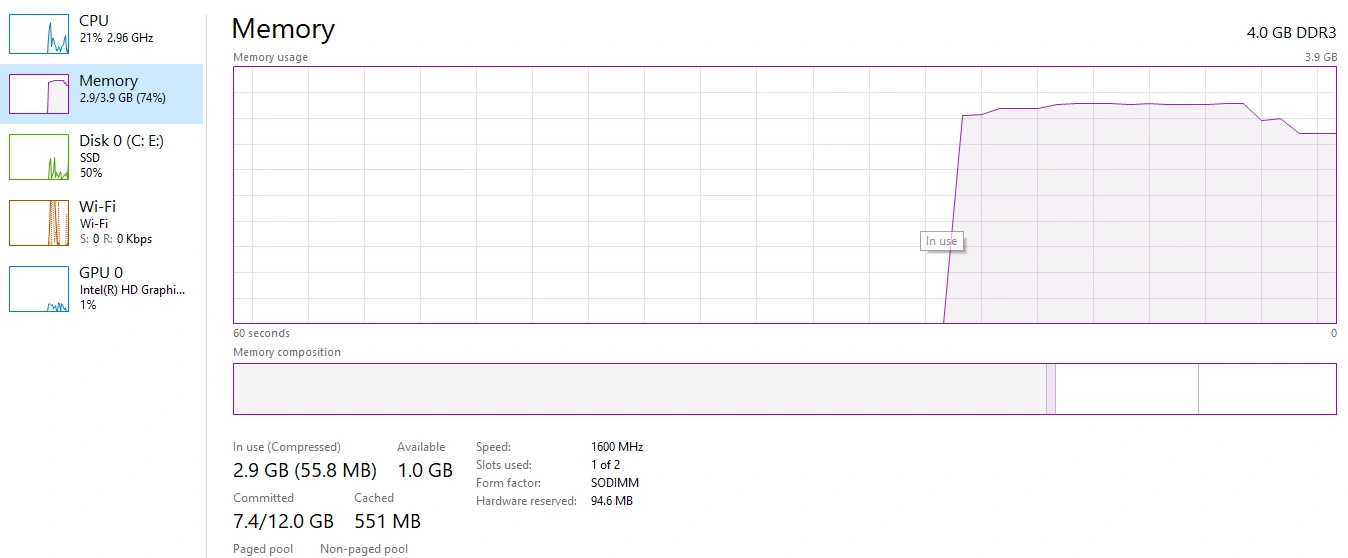
Microsoft’s Task Manager documentation confirms the shortcut and the performance and process views. Do not close unfamiliar system processes just to make the memory number look smaller.
Check memory pressure on a Mac
Open Activity Monitor, select Memory and observe the memory pressure graph while doing your normal work. Green pressure generally suggests memory is being managed efficiently; sustained yellow or red pressure alongside slowdowns deserves investigation. Check which apps use the most memory and look at swap activity as additional context.
Some swap use is normal, and an operating system may use available memory for useful caching. Judge the whole pattern rather than treating one reading or one large app as proof that you need a new computer.
Can you upgrade your laptop later?
Some laptops have removable memory modules or other serviceable memory designs. Others use memory fixed to the motherboard or integrated into the package, so their capacity cannot be expanded through a routine module replacement. A slim chassis, an LPDDR label or a brand name alone is not enough to establish upgradeability.
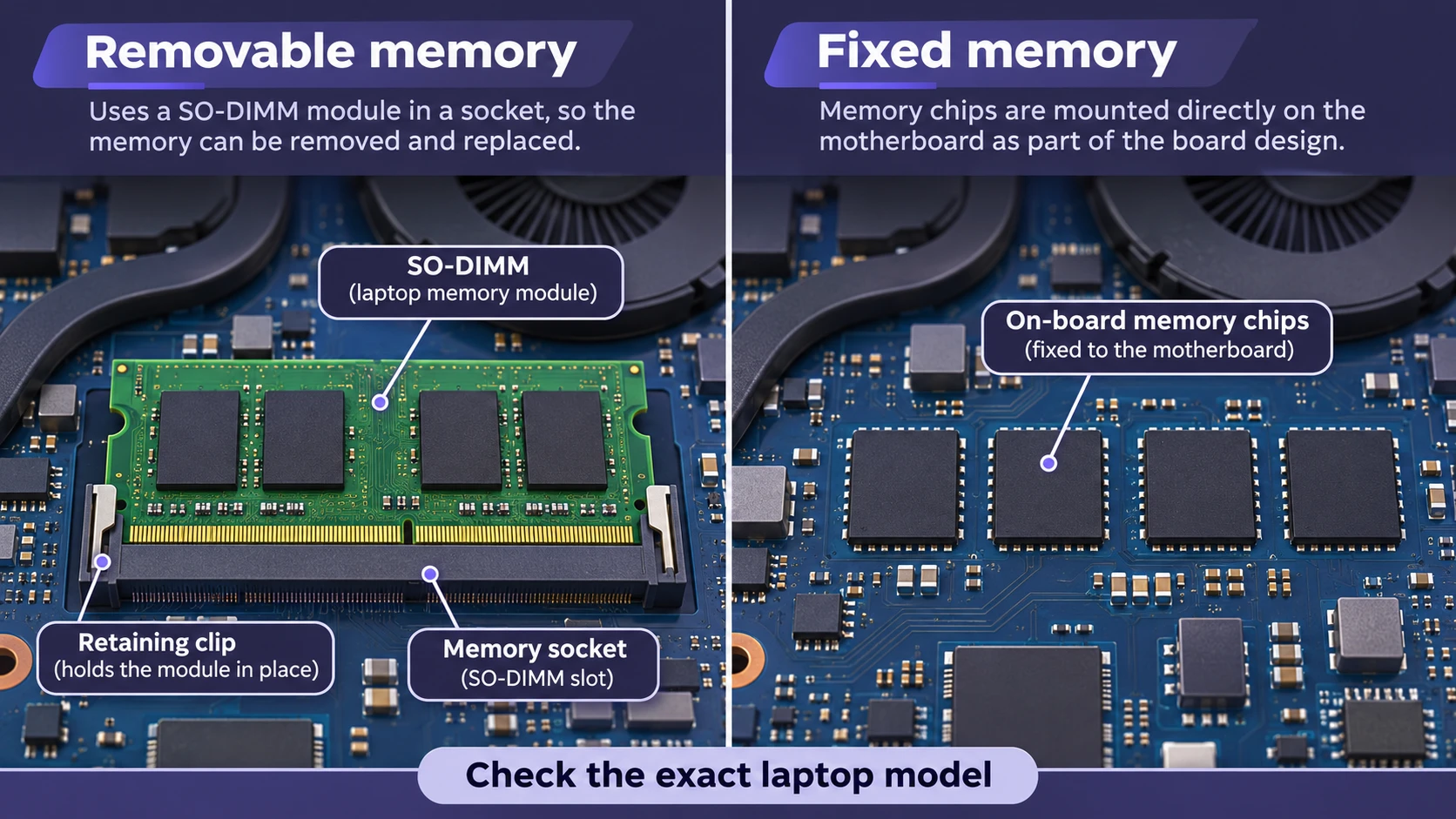
Before purchasing, find the manufacturer’s specification or service manual for the exact model and configuration. Look for the maximum supported memory, whether slots are available, the supported module type and any service restrictions. If the information is unclear, ask the manufacturer or an authorized service provider before spending money on replacement RAM.
If the memory is fixed, buy the capacity you reasonably expect to need over the laptop’s useful life. If it is replaceable and the upgrade path is documented, starting with 16GB and upgrading only when necessary may be economical. Do not assume a seller’s generic claim of “upgradable RAM” applies to every variation of the laptop.
How to make the final buying decision?
Before checking out, use this short list to keep the decision grounded in your actual requirements:
- List your heaviest regular tasks. Buying for occasional email is different from buying for weekly 4K editing or multiple virtual machines.
- Check the apps, not just the operating system. Compare the recommended memory requirements of software you plan to run together.
- Confirm the exact laptop configuration. Check installed RAM, graphics memory arrangement and whether future upgrades are possible.
- Balance the full specification. Enough RAM matters, but so do the CPU, GPU, SSD, cooling, display and battery.
- Spend more only for a clear benefit. Choose 24GB, 32GB or more when your software and working habits justify the cost.
For most new laptop buyers in 2026, 16GB is the best starting recommendation. Buy 8GB when your workload is light and the savings are meaningful. Move to 32GB when you regularly push beyond ordinary multitasking, and consider 64GB only when your software or project sizes justify it. The goal is enough memory for the work you actually do, not the largest number on the specification sheet.

Tech Bonafide is the editorial identity of TechBonafide, an independent technology publication covering AI, software, cybersecurity, gadgets, and emerging technology.