


Want to know whether a website could recognize your browser without relying on cookies? Start with EFF’s Cover Your Tracks, compare its findings with AmIUnique, and use BrowserLeaks to examine individual signals. These tools can show how distinctive your browser looks, but none can prove that a particular company has tracked you across the web.
You do not need to install an extension or change advanced settings to perform the basic checks. This guide explains what to record, how to interpret apparently alarming results, and which privacy changes are worth testing. For a broader comparison of browser choices, see TechBonafide’s guide to internet browsers for privacy.
What makes a browser fingerprint recognizable?
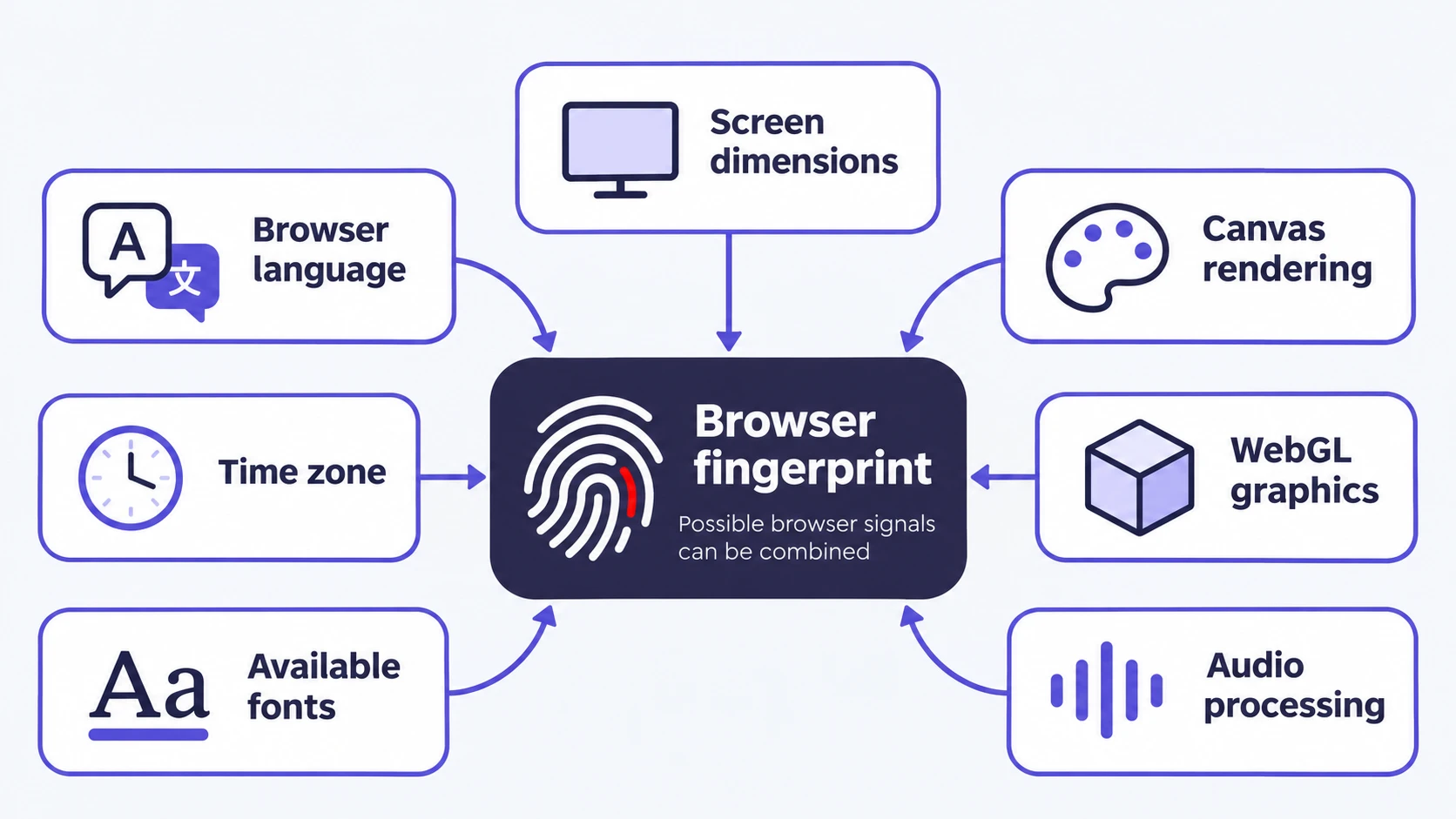
A browser fingerprint is a combination of characteristics that websites can observe. Some arrive with network requests, such as the browser’s reported language and user-agent information. Others can be read by scripts, including screen dimensions, supported features, available fonts, graphics rendering and audio-processing behavior. The W3C’s fingerprinting guidance explains how such characteristics may help a site recognize a browser across visits.
A single detail, such as your time zone, is rarely enough to identify a browser. Several ordinary details combined can be much more distinctive. Fingerprinting does not necessarily require a cookie stored on your device, although trackers may combine a fingerprint with cookies, IP addresses or account information.
Two questions matter: How unusual is the combination of signals your browser exposes? And can the same browser be recognized again later? A one-time uniqueness report answers the first question only imperfectly and cannot settle the second on its own.
Before you test your browser
These instructions are intended for current desktop browsers that can open the test sites and run their normal page scripts, including Chrome, Firefox, Edge, Brave and Safari. Mobile browsers can be checked too, but their available signals and settings can differ. The test services are web pages, not a certification of every browser or operating-system version.
- Use the browser and device you actually want to evaluate. Start in a regular window rather than switching modes midway through the process.
- Leave your usual privacy protections enabled for the first pass. Record your browser name, whether you are in a private window, and any major blocking extensions or special privacy settings.
- Avoid sharing a full results-page URL or screenshot if it includes your browser characteristics, IP information or other potentially identifying details.
- Read the testing service’s privacy policy before submitting a fingerprint, especially on a shared, work-managed or otherwise sensitive device.
Important: Fingerprinting tests collect characteristics of the browser you use to visit them. EFF’s privacy policy describes anonymization measures and limited housekeeping data, while AmIUnique’s privacy policy says it collects browser characteristics, IP addresses, cookies and timestamps for its research. If you are not comfortable with that collection, do not run the test.
Step 1: Run EFF’s Cover Your Tracks
Cover Your Tracks is a useful first check because it looks at both tracker blocking and fingerprint uniqueness. According to EFF’s methodology, it uses simulated tracking requests to evaluate certain blockers and compares browser characteristics against fingerprints in its dataset.
- Open
https://coveryourtracks.eff.org/in the browser you want to assess. - Review the optional setting to test with a real tracking company. You can leave it off if you do not want that additional interaction; it may affect part of the blocker assessment.
- Select Test Your Browser and allow the page to finish. Do not assume an incomplete or blocked test means your browser is private.
- Read the tracking-ad and invisible-tracker findings separately from the fingerprinting result.
- Expand or scroll through the detailed characteristics, such as screen size, language, fonts, Canvas and WebGL, if they are available in your report.
A result describing strong tracking protection is not the same thing as a non-unique fingerprint. The reverse is also possible: a browser may expose relatively common attributes but allow tracking scripts to load. EFF itself notes that its assessment does not measure every form of tracking.
Step 2: Compare your fingerprint with AmIUnique
Open AmIUnique in the same browser and select See My Fingerprint or the equivalent fingerprint-viewing action shown on the site. The project reports how your browser characteristics compare with fingerprints it has observed and provides a breakdown of attributes. Its FAQ explains that the comparison concerns its own collected sample.
Look for whether the complete combination is considered unusual, then inspect which individual characteristics stand out. A rare combination might reflect a less common browser setup, language, font collection or graphics environment. That is a clue for investigation, not a diagnosis that one feature is unsafe.
Do not compare the numerical output from AmIUnique directly with a number from EFF as if both services used the same visitors, collection methods and scoring rules. They do not offer a universal privacy grade. If the services disagree, examine what each one measures before deciding that either is wrong.
Step 3: Inspect Canvas, WebGL and fonts with BrowserLeaks
BrowserLeaks is particularly useful when you want to see individual technical signals rather than rely on one overall verdict. Its Canvas test examines how drawing commands are rendered, while its WebGL report and font fingerprinting page examine other browser-exposed characteristics.
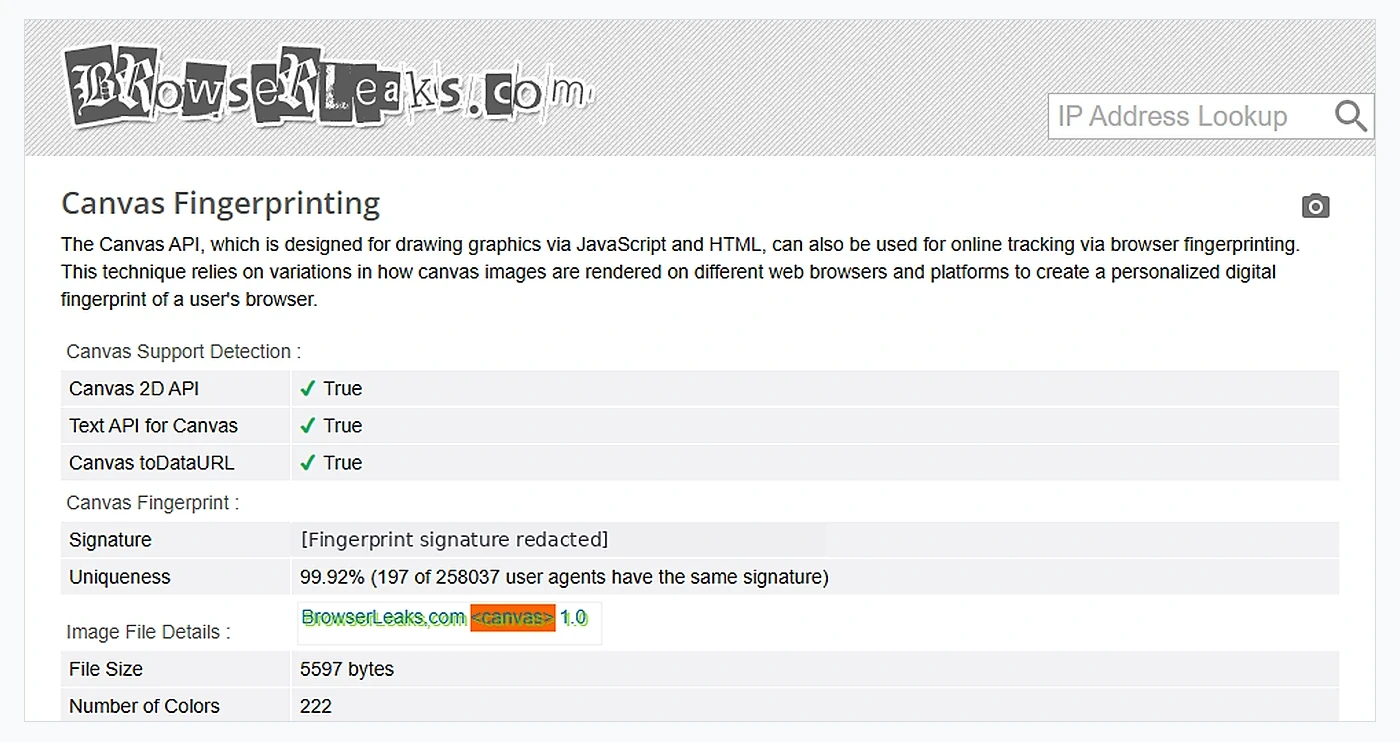
- Open the Canvas test and note whether it produces a fingerprint signature or whether the browser blocks or modifies the readout.
- Open the WebGL report and examine which graphics-related information is visible. Do not interpret a displayed graphics value as proof that a tracker has used it.
- Check the font page for information that your browser makes available. Some details may be unavailable because of platform limitations or privacy protection.
- Repeat the same pages after making one deliberate privacy-setting change, then compare the categories of information exposed.
A Canvas or WebGL signature is a diagnostic value, not a personal ID assigned by every website. A hash changing between visits can be consistent with fingerprint randomization, but a changed signature alone does not establish how well the browser resists real-world tracking.
How to understand your fingerprint test results?
The most useful reading combines uniqueness, blocking and repeatability. Do not collapse them into a single pass-or-fail score.
| Finding | What it tells you | What it does not prove |
|---|---|---|
| Unique or nearly unique | Your measured combination is uncommon in that tool’s sample. | That someone knows your identity or has tracked you across sites. |
| Bits of identifying information | A statistical estimate of how distinctive the tested values are within a dataset. | A universal percentage of how likely tracking is. |
| Tracking requests blocked | The test observed blocking of particular simulated tracking requests. | That all fingerprinting scripts and other trackers are blocked. |
| A value changes on retest | At least one exposed characteristic or test condition changed. | That a tracker cannot still correlate two visits. |
A unique result is not the same as being personally identified
A website may distinguish one browser from others without knowing the user’s real name. Linking that browser to a person or across multiple websites usually depends on additional access, shared tracking infrastructure or information such as account logins. The result is therefore a warning about possible recognizability, not evidence of surveillance directed at you.
What the information bits mean?
EFF describes identifying information in bits. In this context, a higher estimate generally means a less common fingerprint in the measured population. It is not a security score out of 100, and a small change in bits after one test is not reliable proof that your overall privacy improved. Sample composition and collection conditions matter.
Why stability matters as well as uniqueness?
An unusual fingerprint that stays recognizable between visits can be more useful to a tracker than a signal that changes in a way the tracker cannot reliably link. But random-looking values are not a guarantee either: websites can combine multiple observations. Browser makers therefore use different approaches, including limiting exposed details, standardizing values, randomization and blocking known fingerprinting scripts.
Change one setting and run the tests again
A second pass is most informative when you change only one thing. For example, if your browser already offers built-in fingerprinting protection, compare its normal enabled state with another supported setting only when doing so is safe and reversible.
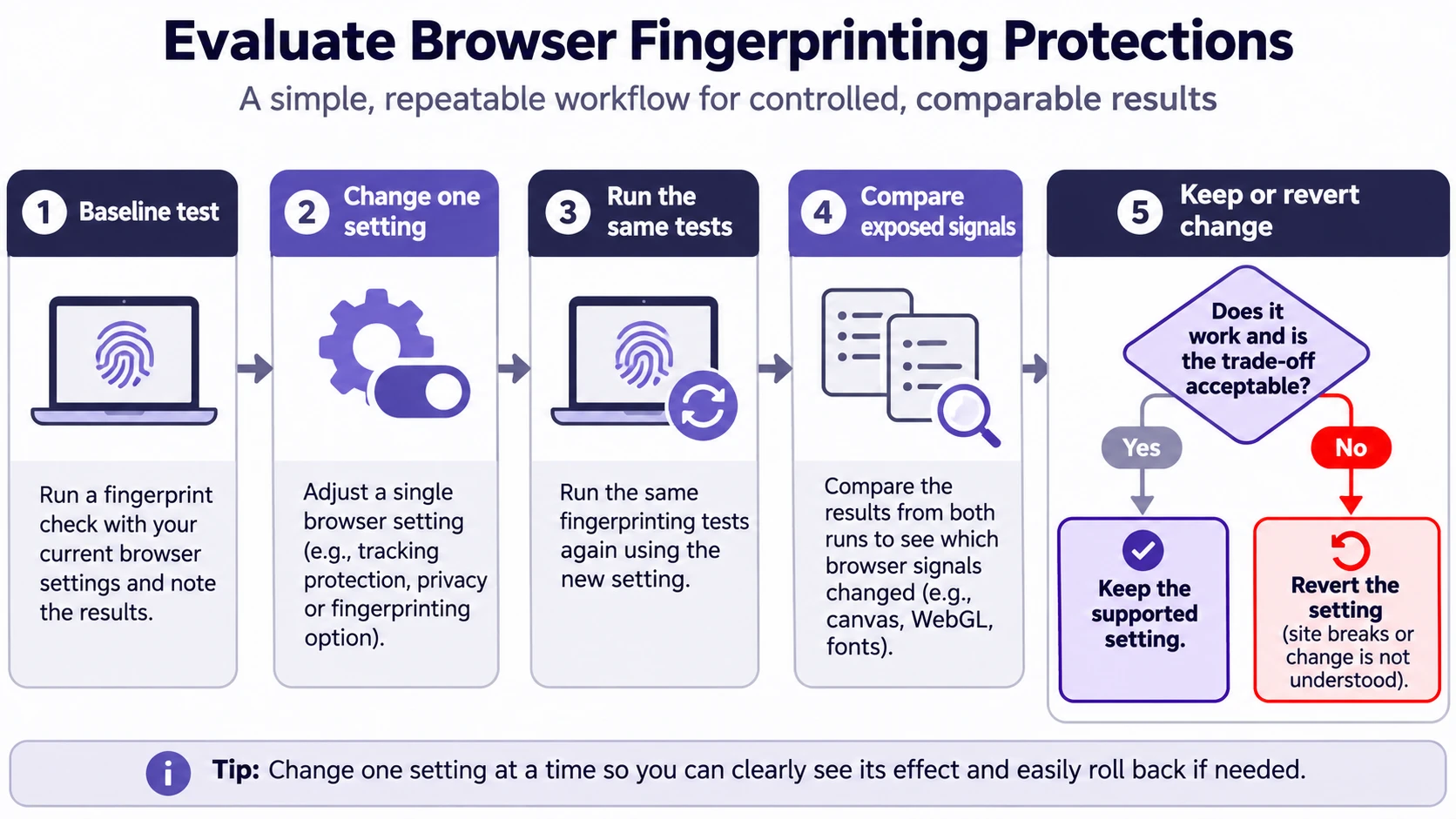
- Save a short private note of the initial findings: browser and mode, tracking-blocking result, uniqueness wording, and which Canvas, WebGL or font details were visible. Do not publish a raw fingerprint.
- Change one supported privacy setting. Avoid installing several extensions or spoofing multiple properties at once.
- Close and reopen the test pages, and run the same checks. Where practical, keep the device, network, window mode and other settings unchanged.
- Compare the type of information exposed and whether tracker requests were blocked, not just whether a displayed hash or score changed.
- If a website stops working, reverse your change through the same browser setting and test the site again. Keep a privacy improvement only if you understand the compatibility trade-off.
This is a controlled self-check, not a scientific comparison between browsers. Fingerprint-test samples evolve, and repeat visits can be treated differently by a service. For a longer-term perspective, check again on another day without treating every small numerical movement as meaningful.
Practical ways to reduce fingerprintability
Start with maintained browser protections rather than assembling a complicated collection of extensions. The aim is to reduce unnecessary identifying information while keeping your usual sites usable.
Firefox
Firefox’s fingerprinting protection documentation distinguishes Known Fingerprinters from Suspected Fingerprinters. On desktop, open Settings > Privacy & Security > Enhanced Tracking Protection and review the protection level. Mozilla documents that Strict protection includes both categories; advanced controls are also available under Custom. Some sites may behave differently when stricter protections are enabled, so use the browser’s documented site-specific troubleshooting options if needed.
Brave
Brave’s Shields documentation describes fingerprinting protection that adds controlled randomness to some browser-exposed values. Review the Shields panel for the site you are testing and keep fingerprinting protection enabled unless you have a specific compatibility problem. Avoid disabling Shields globally just to make one test or page work.
Tor Browser and other browsers
The Tor Project explains that Tor Browser tries to make users look more alike by standardizing characteristics and using features such as letterboxing for window dimensions. Do not assume that changing its internal settings or adding customization will improve that strategy. For Chrome, Edge, Safari and mobile browsers, look for their current privacy and tracking-protection controls, which vary by release and platform. A browser’s private mode should not be mistaken for a promise that fingerprinting is impossible.
Avoid fixes that can backfire
Installing many privacy extensions, manually spoofing unusual browser properties or constantly changing settings may make your combination more distinctive or break websites. A VPN can change the network address a site sees, but does not by itself make all browser-level characteristics disappear. Clearing cookies is useful for limiting some forms of tracking, but does not erase the browser configuration that scripts can observe. For broader privacy habits, see TechBonafide’s data privacy overview.
What a fingerprint test cannot prove?
A public testing page cannot observe every fingerprinting technique used across the internet, establish that a specific advertiser tracked you, or guarantee that a browser will remain difficult to recognize after future updates. Some uses of device signals also help websites detect suspicious logins and automated abuse, so not every fingerprint-related measurement implies the same purpose.
Private browsing illustrates this distinction. Google’s Chrome documentation explains that Incognito limits what remains on your device after a session, but does not make activity invisible to websites. Browser fingerprint resistance is a separate question that needs its own test and safeguards.
The practical answer is to run a baseline check with Cover Your Tracks, inspect sample-based uniqueness with AmIUnique, and use BrowserLeaks to understand which signals remain exposed. Then change one supported protection at a time and compare the results cautiously. The goal is a less revealing, more consistent privacy setup, not a promise of complete invisibility.

Tech Bonafide is the editorial identity of TechBonafide, an independent technology publication covering AI, software, cybersecurity, gadgets, and emerging technology.