If someone links your WhatsApp account to another device without permission, they may be able to access synced conversations and send messages from that device. An unfamiliar device in WhatsApp’s Linked Devices list is one of the clearest warning signs, while unexpected messages, security prompts, or account logouts may indicate related security problems. This guide explains how to check linked devices on Android and iPhone, identify suspicious sessions, remove unauthorized access, and protect your WhatsApp account from further misuse.
How WhatsApp Linked Devices Work?
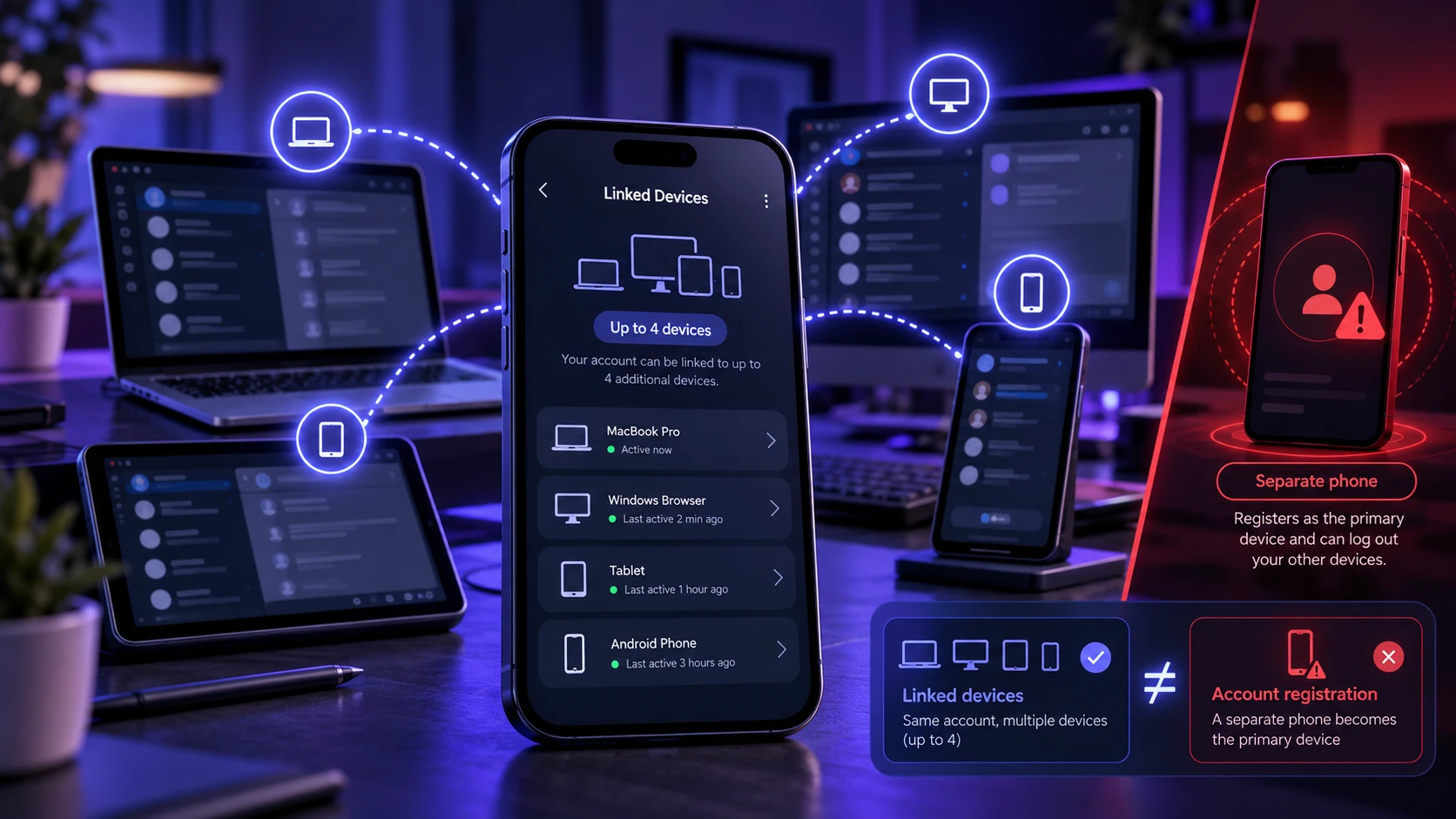
WhatsApp lets your account connect to more than one device through the Linked Devices feature. This includes WhatsApp Web and the desktop app, plus additional phones in supported setups. To understand browser-based sessions and how to disconnect them, read our guide to using WhatsApp Web in popular browsers.
According to WhatsApp’s linked devices guidance, a standard account can connect up to four additional devices, including supported computers, browsers, tablets, and companion phones. Linked devices can send and receive messages independently, even when the primary phone is temporarily offline. Each device uses end-to-end encryption, but someone with unauthorized access to a linked session may still be able to read synced conversations and send messages through your account.
A linked device is different from another phone registering your WhatsApp number as its primary account. Device linking adds another active session, whereas unauthorized account registration can cause you to lose access on your original phone. Knowing the difference helps you choose the correct recovery steps.
Clear Signs Someone Linked Your Account
A suspicious linked device is the strongest evidence that another session may have access to your WhatsApp account. Other changes can raise concerns, but they do not prove that someone linked a device. Look for the following warning signs:
- Unrecognized Device In Linked Devices: A browser, computer, tablet, or companion phone appears in your Linked Devices list even though you never connected it.
- Unexpected Device-Linking Notification: WhatsApp shows a request or notification involving a device you did not intend to connect. Review the request and never approve an unfamiliar device.
- Messages You Did Not Send: Contacts receive messages that you cannot explain, or conversations contain replies you did not write. Check for shared-device access and other possible account security problems.
- Unexplained Chat Changes: Chats appear read, archived, or otherwise changed without your action. These changes deserve investigation but can also result from normal syncing or another authorized device.
- Unexpected WhatsApp Logout: WhatsApp reports that your phone number was registered on another device. This can indicate unauthorized account registration rather than an ordinary linked session.
Do not rely on battery drain, mobile data usage, or general phone slowdowns as proof of WhatsApp device linking. These symptoms have many possible causes and should be treated as secondary clues.
If you notice even one strong indicator, check the Linked Devices screen right away. Fast action reduces the chance of ongoing access.
How to Check Linked Devices on WhatsApp?
The quickest confirmation is inside WhatsApp settings. You can view every active session and remove anything suspicious.
- Open WhatsApp on Your Primary Phone: On Android, open WhatsApp and tap the three-dot menu. On iPhone, open WhatsApp and go to Settings or your profile area, depending on the app version.
- Select Linked Devices: On Android, choose Linked devices from the menu. On iPhone, select Linked Devices in WhatsApp settings.
- Examine Every Listed Device: Check the available device names, session types, and recent activity information. Look for any browser, computer, tablet, or companion phone that you have not authorized.
- Remove an Unknown Session: Tap the suspicious device and select Log out. Repeat this action for every session you do not recognize.
For the latest removal instructions, see WhatsApp’s official guide to unlinking devices. Menu labels may vary slightly by device and app version. The Linked Devices screen helps you review active connections, but it does not provide a complete record of who accessed your account or their exact location.
After logging out unknown devices, you should still harden the account. A removed session does not fix the root cause if someone can re-link again.
What the Linked Devices Screen Really Tells You?
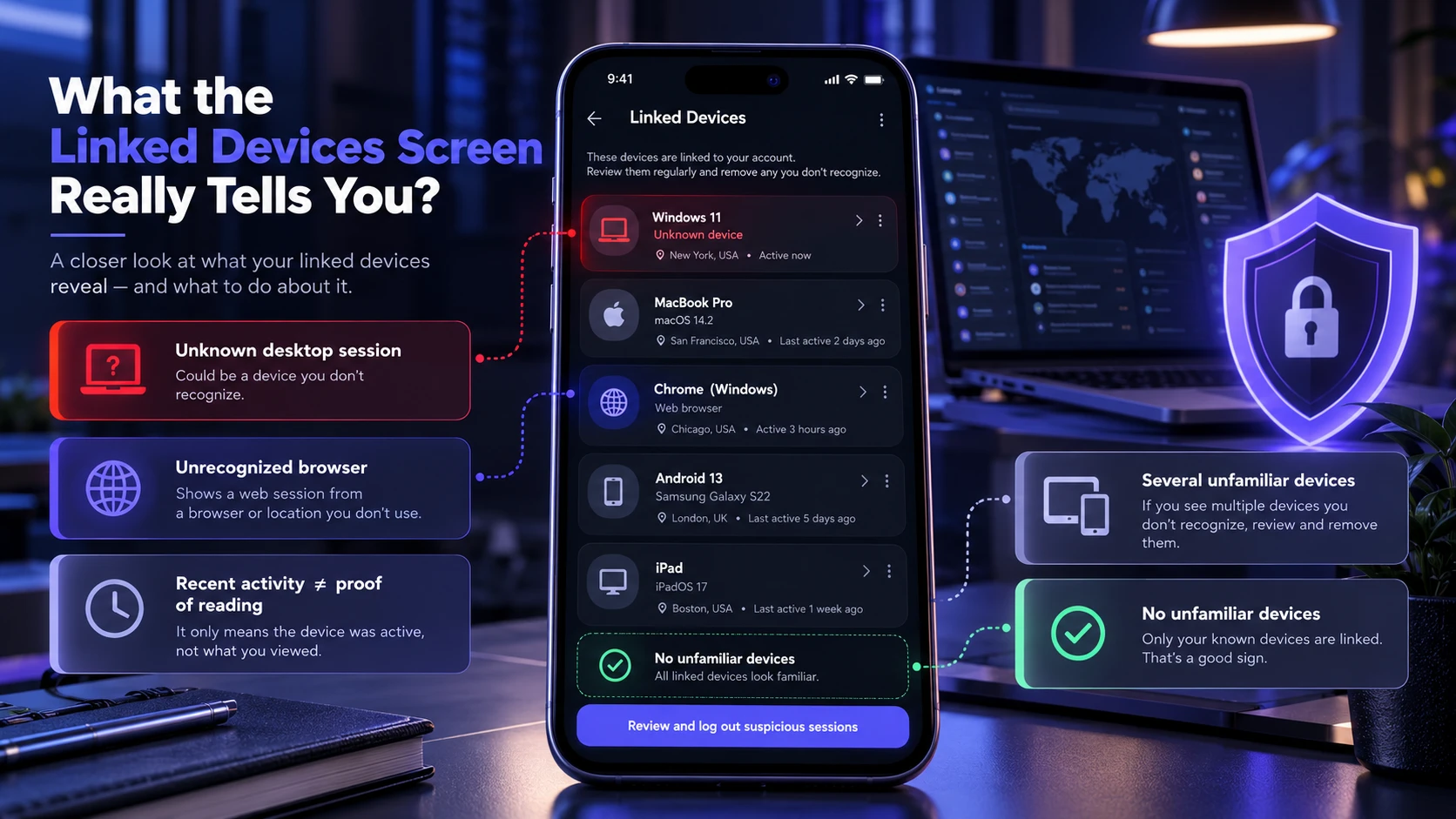
WhatsApp typically shows device type and recent activity. The details can be enough to spot an intruder, but you should interpret them correctly.
| What Appears In Linked Devices | What It Could Mean | Recommended Action |
|---|---|---|
| Unknown Windows Or Mac Session | A desktop application or supported computer may be connected without your approval. | Log out of the session and review who had access to your phone. |
| Unrecognized Browser Session | WhatsApp Web may have been linked through an authorized or unauthorized pairing process. | Remove the session and investigate recent linking requests. |
| Unexpected Recent Activity | A linked session may have connected recently, but activity information does not prove that someone read a specific conversation. | Check whether the device belongs to you and log it out if you cannot identify it. |
| Several Unfamiliar Linked Devices | Multiple sessions may have been authorized without your knowledge. | Remove each unknown device and strengthen phone access controls. |
| No Unfamiliar Linked Devices | There is no obvious unauthorized session in the displayed list, but other account or phone security problems remain possible. | Review unexpected registration alerts, suspicious messages, and device security. |
The screen gives you a direct control point. Treat it like an access log and review it regularly if your account contains sensitive conversations.
How Someone Can Link Your WhatsApp Without Permission?
Most unauthorized linking attempts involve access to the primary phone or tricking the account owner into approving a device-linking request. With QR-code linking, the new device displays a QR code, and the primary phone scans that code through WhatsApp’s Linked Devices feature. Someone who can unlock and operate your phone may be able to complete this process without your permission.
For broader advice about misleading QR codes and suspicious scanning requests, see our guide to spotting QR-code phishing scams.
WhatsApp also supports phone-number-based linking on compatible devices. This method uses a linking code displayed on the device being added and requires confirmation or code entry on the primary phone. Attackers may try to persuade users to approve an unfamiliar linking request by pretending to provide support or another legitimate service.
Unauthorized device linking is different from registering your WhatsApp number on another primary phone. Account registration typically involves verification of your phone number and can cause your original device to lose access. Never share registration codes, enter unexpected device-linking codes, or approve a linking request that you did not initiate.
Immediate Actions If You See An Unknown Device
Speed matters, but the steps should be thorough. Remove access first, then close the gaps that allowed it.
- Disconnect Every Unknown Device: Open WhatsApp’s Linked Devices screen, select each unfamiliar session, and tap Log out. This removes the device’s active access.
- Review Remaining Linked Sessions: Check all listed devices, including old computers and browsers. If you are uncertain about a session, log it out individually and reconnect only devices you trust.
- Secure Your Primary Phone: Change your phone’s screen-lock credential if someone may know it. Enable biometric protection or WhatsApp’s app lock where supported, and avoid leaving your phone unlocked and unattended.
- Enable Two-Step Verification: Open WhatsApp’s account settings and configure the available two-step verification protection, which may use a PIN or password depending on the app version. This helps protect account registration, but it does not replace reviewing and removing unknown linked sessions.
- Reject Unexpected Verification Requests: Never share WhatsApp registration codes or approve device-linking requests you did not start. Treat unsolicited account recovery messages and requests for security credentials as suspicious.
- Check Your Phone Number And Email Security: If you receive unexpected verification codes, lose mobile service, or notice account recovery changes, secure your mobile carrier and email accounts. These signs may indicate a broader account takeover attempt. Our SIM-swapping protection guide explains how to protect your number against unauthorized transfers and verification-code interception.
After removing unauthorized sessions, continue reviewing your account for unexpected messages, registration prompts, or newly linked devices. If unfamiliar sessions return, investigate whether someone can still access your primary phone or persuade you to approve another connection.
What to Do If Someone Registered Your WhatsApp Number on Another Phone
If WhatsApp unexpectedly reports that your phone number was registered on another device, the problem may be a primary-account takeover rather than an ordinary linked session. In this situation, disconnecting linked devices may not be enough, especially if you can no longer access your account.
Steps to Recover Your WhatsApp Account
- Open The Official WhatsApp Application: Use the genuine WhatsApp app on a phone you trust. Avoid third-party recovery tools or unofficial messaging applications.
- Start Account Recovery: If WhatsApp displays a registration or logout warning, follow its Log back in instructions. Enter your phone number when prompted.
- Verify Your Phone Number: Enter the registration code sent by SMS or phone call. Successfully re-registering your WhatsApp account logs out other devices according to WhatsApp’s recovery guidance.
- Complete Additional Verification: If WhatsApp requests a two-step verification credential, follow the supported recovery process. An unfamiliar credential may mean another person changed the account’s security settings.
- Review Linked Devices Again: After recovering access, open Linked Devices and confirm that no unauthorized sessions remain.
- Warn Your Contacts: If someone sent messages while controlling your account, tell affected contacts not to trust unusual requests for money, codes, or personal information.
WhatsApp’s official account recovery instructions explain how to regain access when another person may have registered your account. If you cannot receive your registration code because your SIM or phone number is no longer under your control, contact your mobile carrier through its official support channel. Restore control of your number before continuing account recovery.
How to Strengthen WhatsApp Security Settings?
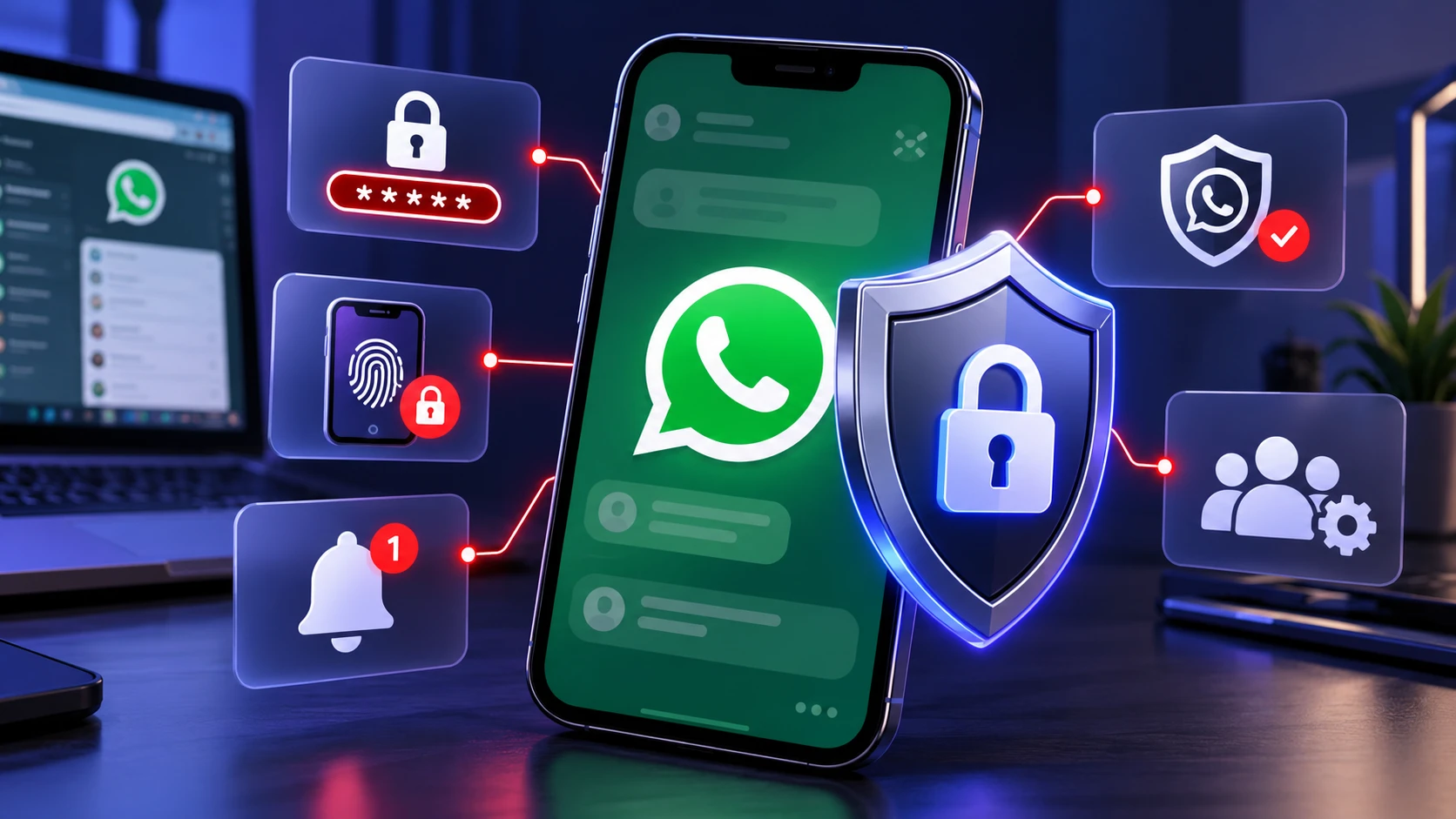
WhatsApp has a few built-in controls that are often left off. Enabling them reduces the chance of silent account access.
- Two-Step Verification: Set up the available PIN or password-based account protection and maintain an accessible recovery email where supported. This helps protect against unauthorized account registration but does not automatically remove linked sessions.
- App Lock And Screen Lock: Use your phone’s screen lock and WhatsApp’s built-in app lock where available. These protections reduce the risk of someone opening WhatsApp while using your phone.
- Device-Linking Notifications: Keep WhatsApp notifications enabled and carefully examine unexpected device-linking requests. Do not approve an unfamiliar connection.
- Security Code Notifications: Enable security code change notifications if you want alerts about encryption identity changes in individual conversations. These alerts are not a dedicated record of unauthorized account logins.
- Privacy And Group Controls: Review who can see your profile information, last seen, online status, and updates. Restrict group invitations when appropriate. These settings limit exposure but do not replace account access controls.
For a more complete overview of available account protections, review WhatsApp’s account security tips. Security settings work best when combined with a protected primary phone, careful review of device-linking requests, and regular checks of active sessions.
When the Problem Might Be Your Phone Not WhatsApp?
If unknown sessions keep appearing, the phone itself may be compromised or routinely accessible by someone else. Warning signs include random app installs, accessibility settings changed, or the phone behaving unusually. On Android, our guide to reviewing app permissions explains how to inspect sensitive permissions and special access that unfamiliar applications may have received.
Start by installing available operating system and WhatsApp security updates. Review recently installed applications, unfamiliar device administrator permissions, accessibility services, and notification access, particularly on Android. Remove applications you cannot verify and use the security scanning features provided by your device or a reputable security solution. Unusual phone behavior alone is not proof of spyware, so avoid drawing conclusions from a single symptom. If there is strong evidence of persistent compromise, seek trusted technical assistance and preserve essential information before considering a factory reset. Remember that resetting your phone will not undo messages or information that another person may already have copied.
Conclusion
The fastest way to tell if someone linked your WhatsApp account to another device is to check Linked Devices and look for sessions you do not recognize. If you find one, log it out immediately, enable two step verification, and lock down your phone.
Make Linked Devices a routine check, especially after travel, repairs, or any time your phone was out of your hands. Consistent account hygiene is what prevents repeat access.
Frequently Asked Questions
Will WhatsApp Notify Me If Someone Links A New Device?
WhatsApp supports notifications and confirmation prompts associated with device linking, but these alerts may be overlooked or unavailable depending on notification settings and the linking process. The most reliable way to check existing connections is to open WhatsApp’s Linked Devices screen and review the listed sessions. If you see an unfamiliar device, remove it immediately.
Can Someone Link WhatsApp Without Touching My Phone?
An attacker does not necessarily need to hold your phone if they can trick you into approving a linking request. WhatsApp supports QR-code and phone-number-based linking, both involving actions on the primary phone. Device compromise may create additional risks. Never approve unfamiliar connection requests or enter linking codes provided by suspicious contacts.
Does Logging Out of A Linked Device Delete My Messages?
Logging out of a linked device ends its authorized WhatsApp session without deleting your chats from the primary phone. However, logging out cannot undo information that someone has already viewed, copied, or captured. If you suspect unauthorized access, remove the session, secure your phone, and warn affected contacts when necessary.
Can I Find Out Who Linked My WhatsApp or Their Exact Location?
WhatsApp’s Linked Devices screen can help identify an unfamiliar device or session, but it does not reveal the person’s identity or provide a reliable geographical access history. Device names and activity information can help you investigate, but they should not be treated as proof of who used the account. If a device is unfamiliar, log it out and secure your account rather than trying to identify the person from limited session information.