Choosing where to store passwords is a security decision, not just a convenience setting. Browser password saving is built in and fast, but it ties your logins to a single app and its sync rules. A dedicated password manager adds stronger controls and auditing, yet it becomes a high value target that must be set up correctly.
How Browser Password Saving Works?
Most modern browsers can store usernames and passwords, then autofill them on the right sites. They usually protect the stored vault using the operating system account and can sync across devices when you sign in to the browser profile.
This setup is simple, which is its main appeal. It also means your password security often depends on how well your device account, browser profile, and sync settings are protected.
How Password Managers Work?
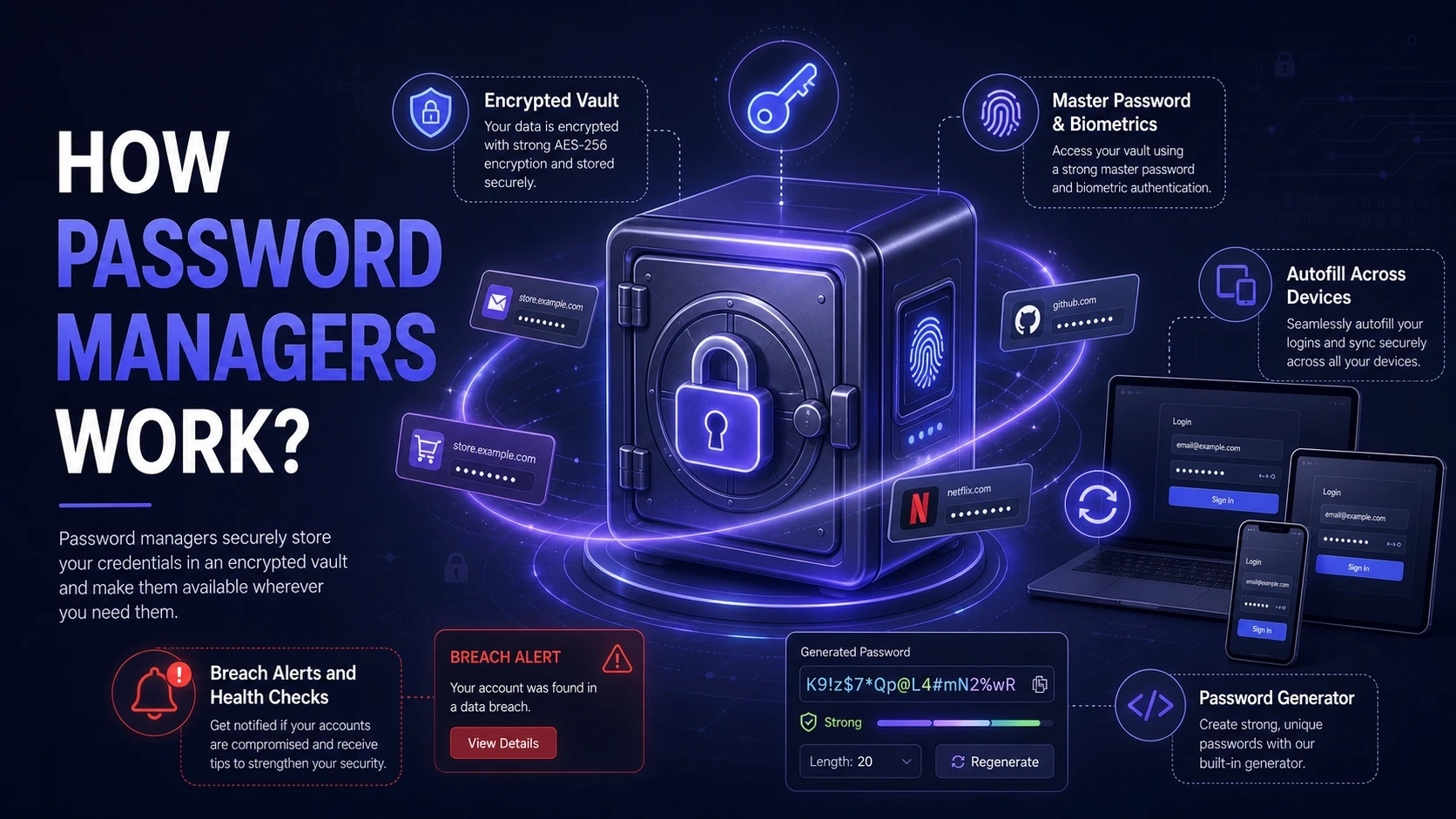
A password manager is a dedicated app that stores logins in an encrypted vault. You unlock the vault with a master password, and many tools also support device biometrics and security keys.
Most managers generate strong unique passwords, autofill them, and sync them across devices. They also add visibility tools like password health checks, breach alerts, and vault sharing controls.
Encryption And Local Protection
Browser storage is often protected by the operating system keychain or credential store. If an attacker gets into your device account, that protection can be weakened, especially on shared machines or poorly locked systems.
Password managers typically encrypt your vault end to end and require an explicit unlock to access stored items. The best options also limit offline exposure, lock quickly, and protect clipboard and autofill behavior to reduce leakage.
Sync And Cloud Exposure
Browser password saving usually syncs through your browser account. If that account is compromised, an attacker can potentially access synced data or add a device that receives it.
Password managers also sync, but they are designed around vault security and usually offer stronger account controls. This can include stricter device approval, clearer session management, and security reports that make suspicious activity easier to spot.
Autofill Safety And Phishing Resistance
Autofill can prevent typing passwords into lookalike pages, but only when the tool accurately matches the site domain. Browsers do some checks, yet they can still be tricked by subtle URL changes, embedded frames, or mis-typed domains if users ignore warnings.
Password managers generally bind logins to specific URLs and are more strict about when to fill. Many also require a user action before autofill, which adds friction but reduces the chance of silent credential leakage on malicious pages.
Account Recovery And Lockout Risk
Browser stored passwords can be recovered when you regain your browser account and device access. That is convenient, but it also means the browser account becomes a key to many doors, so recovery channels must be hardened.
Password managers vary widely in recovery design. Some offer recovery codes and trusted devices, while others make recovery intentionally difficult to preserve zero knowledge encryption, so planning is required.
Sharing, Teams, And Administrative Controls
Browsers are built for individual convenience rather than structured sharing. Sharing often relies on informal methods, which increases reuse and unsafe copying of credentials.
Password managers support secure sharing and separation of personal and work vaults. Business plans can add role based access, shared folders, and audit trails that help reduce long term credential sprawl.
Quick Comparison Table

| Security Factor | Browser Password Saving | Dedicated Password Manager |
|---|---|---|
| Primary Protection | OS account and browser profile controls | Encrypted vault with master password and optional keys |
| Phishing Resistance | Depends on browser matching and user vigilance | Stronger URL binding and stricter fill rules |
| Visibility And Audits | Limited password health and breach tools | Password health checks, reuse detection, breach alerts |
| Sharing And Control | Not designed for structured sharing | Secure sharing, permissions, and admin options |
The safer choice depends on how you use devices, how many accounts you manage, and how strict you need your controls to be.
When Browser Password Saving Can Be Enough?
Browser password saving can be reasonable for low risk accounts and users who keep a single personal device locked, patched, and protected by strong device login credentials. It also works best when your browser account is secured and you avoid shared computers.
- Single device use: You rarely sign in on new devices and keep your system lock and updates consistent.
- Low sharing needs: You do not need to share passwords with family, coworkers, or contractors.
- Simple threat profile: Your accounts do not protect sensitive financial, medical, or business data.
If you fit this profile, focus on hardening your browser account and device security, since they effectively become your vault keys.
When A Password Manager Is The Safer Choice?
A password manager is usually safer when you have many logins, use multiple devices, or want stronger hygiene tools. It also helps when you need to separate work and personal credentials and enforce unique passwords everywhere.
- Many accounts: You manage dozens of services and want strong unique passwords without memorizing them.
- Cross device workflow: You switch between phone, laptop, and tablet and need consistent secure autofill.
- Security visibility: You want alerts for reused, weak, or breached passwords and faster remediation.
Teams often benefit most, because controlled sharing and audits reduce risky workarounds that browsers do not handle well.
Hardening Checklist For Either Option
Storage choice matters, but basic account hygiene often drives the biggest security gains. These controls reduce the blast radius if a device, browser profile, or vault account is attacked.
- Use multi factor authentication: Prefer authenticator apps or security keys instead of SMS when possible.
- Secure the device login: Use a strong passcode or password and enable full disk encryption.
- Lock and auto lock: Set short auto lock timers for both device and vault where available.
- Review synced devices: Remove old devices and sign out sessions you do not recognize.
- Generate unique passwords: Avoid reuse across email, banking, and primary cloud accounts.
Once these are in place, your stored passwords become much harder to steal at scale.
Common Security Mistakes To Avoid
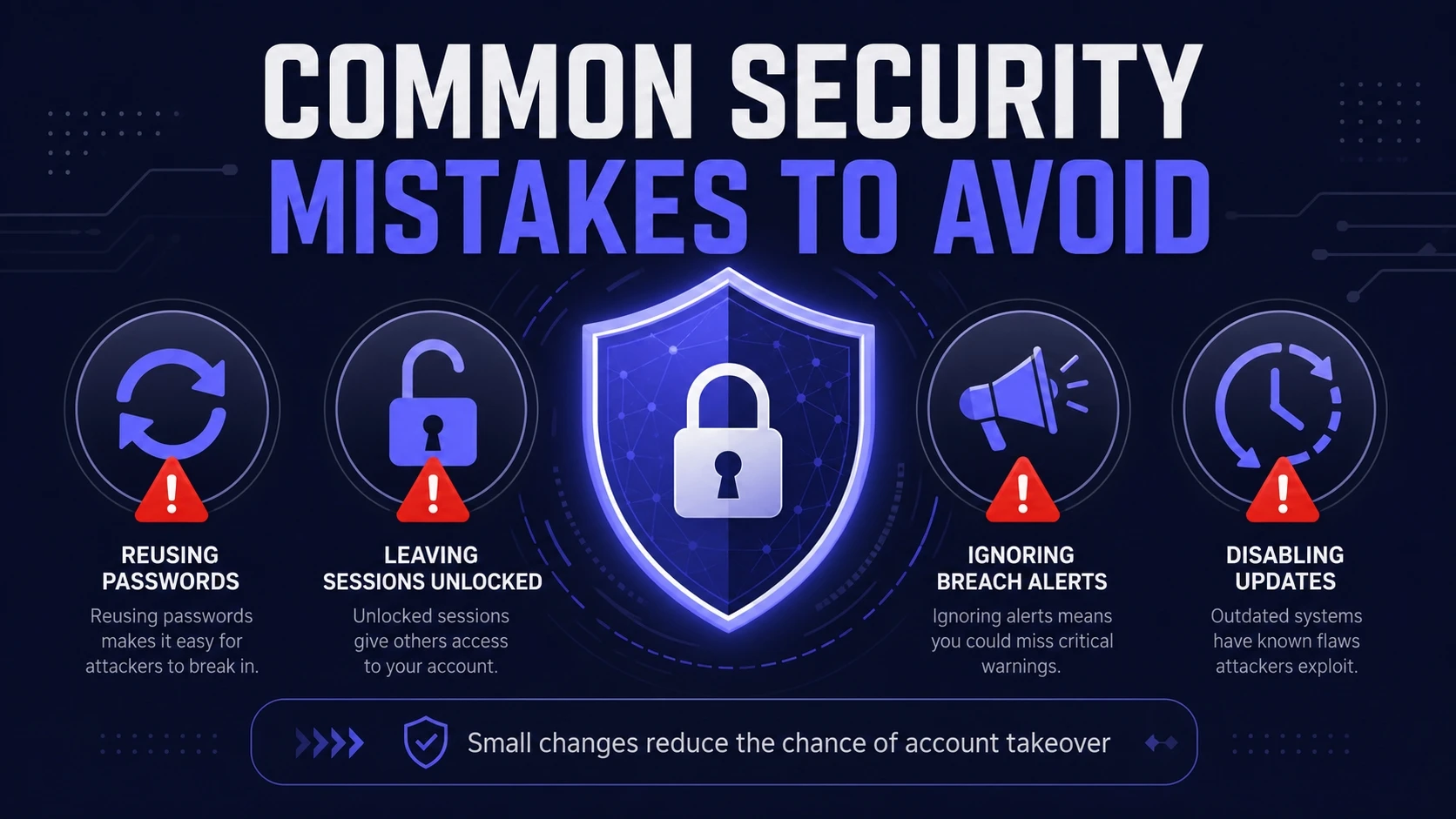
Most failures come from convenience habits that quietly lower security. Fixing a few patterns can improve safety regardless of where passwords are stored.
- Reusing the master password: Never use the same password for your vault and any other account.
- Leaving sessions unlocked: Avoid staying signed in on shared or lightly protected devices.
- Ignoring breach alerts: Change exposed passwords quickly and prioritize email and financial accounts.
- Disabling updates: Outdated browsers and apps are easier to exploit through known vulnerabilities.
Small changes here reduce the chance of account takeover more than chasing niche settings.
Tech Bonafide Guidance For Secure Password Practices
If you want to improve password security across personal and work accounts, Tech Bonafide can help you build a practical plan that fits your risk level. This can include reviewing account access, tightening multi factor authentication, and setting up safer credential workflows that reduce reuse and unsafe sharing.
For small teams, it also helps to document access ownership and vault policies, so offboarding and permission changes do not turn into emergency resets. A clear process improves security while keeping sign ins fast.
Conclusion
Browser password saving is convenient and can be acceptable for simple, low risk use on a well protected device. A dedicated password manager is generally the safer option when you need stronger encryption controls, better phishing resistance, visibility into weak passwords, and secure sharing.
Whichever you choose, the safest setup combines unique passwords, strong multi factor authentication, and careful control of the account that syncs your credentials.
Frequently Asked Questions
Is browser password saving safe if my browser account has multi factor authentication?
It is safer with multi factor authentication, but not automatically safe. Device security, session control, and sync device approvals still matter because a trusted device can bypass some protections. Review signed in devices and keep the browser and operating system updated.
What is the biggest security advantage of a password manager?
The biggest advantage is strong vault security combined with tooling that enforces better habits. Unique password generation, password health reports, and stricter autofill behavior reduce reuse and phishing risk. Many options also support security keys for stronger account protection.
Should I store my master password in my browser or in the same password manager?
A master password should not be stored in the browser or in the same vault it unlocks. Memorize it and keep it long, unique, and hard to guess. Use a recovery code or trusted device option if your provider supports it, and store that recovery information securely offline.