

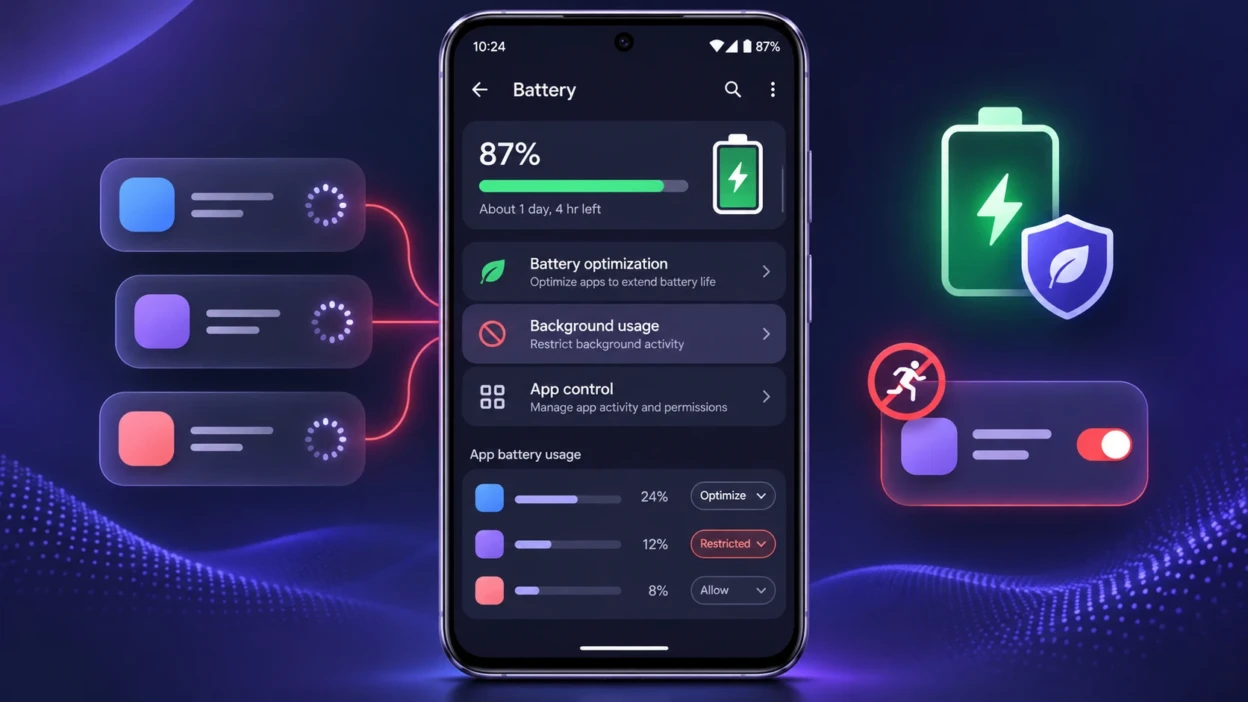
Android apps can continue working after you leave them. A messaging app may check for new conversations, a cloud storage app may upload photos, and a fitness app may track activity. These background tasks can be useful, but unnecessary activity may drain your battery or consume mobile data.
To stop an Android app from running unnecessarily in the background, open Settings > Apps, select the app, and find its battery usage controls. Depending on your phone, you can turn off Allow background usage or select a restricted battery setting. Samsung Galaxy phones also offer Sleeping apps and Deep sleeping apps.
The best approach is to identify the apps causing problems rather than stopping everything. This guide explains how to find background activity, control it on different Android phones, and avoid interrupting important notifications and services.
What Does Running in the Background Mean on Android?
An app does not always close completely when you return to your home screen.
Android may keep part of the app in memory so you can reopen it quickly. Other apps may perform background work, such as checking for updates, syncing information, or completing an upload.
However, an app stored in memory is not necessarily using a significant amount of battery. Android already manages many inactive apps and background processes automatically.
For example, a shopping app that you opened earlier may remain in memory without actively doing much. Meanwhile, a photo backup app may continue uploading pictures even when its screen is no longer visible.
This distinction matters because closing an app’s screen does not necessarily stop its background work.
According to Google’s Android guidance on closing apps, users generally do not need to close every recent application to manage memory or battery life.
The more useful question is whether an app is performing unwanted work or consuming more power than expected.
How to Check Which Apps are Running in the Background?
Before restricting anything, identify the application you want to control.
Android offers several ways to investigate background activity, but they show different information.
Method 1: Check Battery Usage
Battery usage is usually the best starting point when your phone loses charge unusually quickly.
On a Google Pixel phone:
- Open Settings.
- Select Battery.
- Tap Battery usage.
- Select View by apps, if available.
- Look through the applications using battery power.
- Tap an app to inspect its available battery controls.
Other Android devices may show a battery usage chart under Settings > Battery, Device care, or a similarly named menu.
Look for an application consuming considerable power when you have barely used it. If your phone separates foreground and background battery usage, pay particular attention to the background portion.
However, the biggest battery user is not automatically a problem. A navigation app may legitimately consume considerable power during a trip, and a video app may appear near the top simply because you watched videos for several hours.
Battery statistics also describe activity over a selected period. They are not necessarily a live list of processes running at that moment.
Start with an app whose power consumption seems unusual compared with how much you actually use it.
Method 2: Check Active Apps on Android 13 and Later
Android 13 introduced a Task Manager feature for stopping certain applications that are performing ongoing tasks.
On compatible phones that display this feature:
- Swipe down from the top of the screen to open the notification panel.
- Expand Quick Settings if necessary.
- Look for an indicator showing active or running apps.
- Tap the indicator to open the Active apps list.
- Select Stop beside an app you want to stop.
This can be useful when an application continues playing media or performing another visible ongoing task.
However, there is an important limitation.
The Active apps list primarily displays applications running foreground services. These are ongoing activities that Android treats differently from ordinary background jobs. It does not show every cached app or scheduled background task.
Google’s Android Task Manager documentation also explains that scheduled jobs and alarms may still run later after the user stops an application through this panel.
Therefore, use this method for stopping an ongoing task, not for permanently preventing background activity.
If you cannot find Active apps on your phone, use its regular app and battery settings instead.
How to Stop Background Apps on Google Pixel and Other Android Phones?
On Google Pixel phones and other Android devices with similar settings, you can control individual applications through their battery settings.
Step 1: Open the App’s Battery Settings
- Open Settings.
- Tap Apps.
- Select See all apps, if necessary.
- Choose the application you want to control.
- Tap App battery usage, Battery, or the equivalent option.
On supported Pixel software, you can also find individual application battery controls under Settings > Apps > App battery usage.
Step 2: Restrict Background Activity
Open Allow background usage if the option appears.
Depending on your device and software version, you may see a switch or battery optimization choices.
On some Samsung Galaxy phones, individual app battery settings offer Unrestricted, Optimised, and Restricted modes.
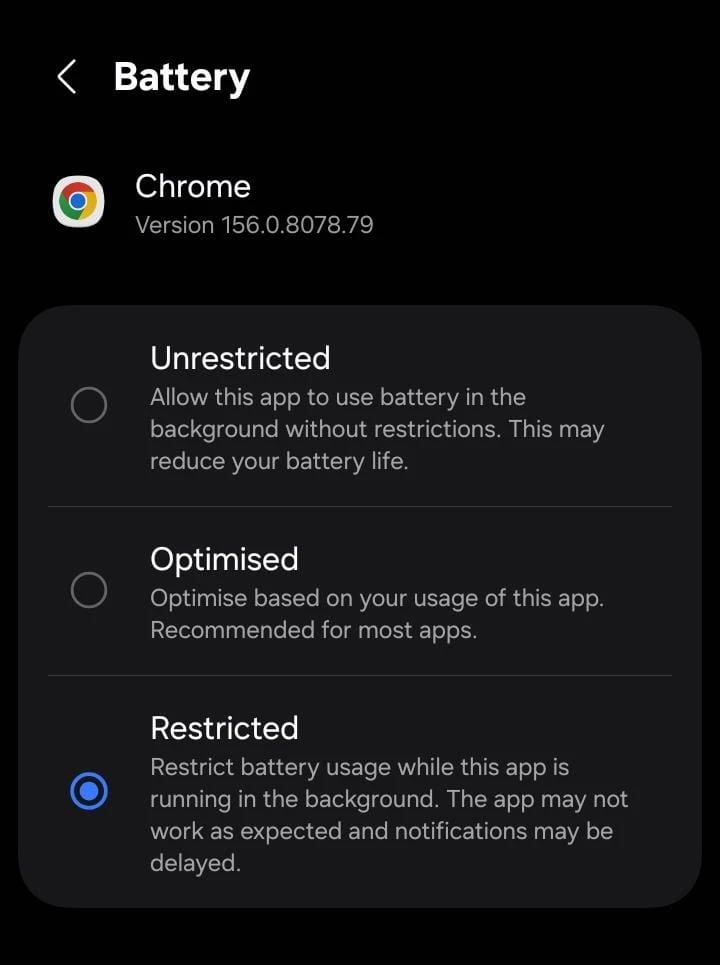
- Optimized: Android manages background activity to balance normal app functions and battery consumption. This is the recommended starting point for most apps.
- Restricted: On devices offering this option, Android places stronger limits on the app’s background work.
- Unrestricted: The app receives greater freedom to perform background tasks, which may increase battery usage.
Some Pixel interfaces also provide an Allow background usage switch. Turning it off limits the app’s ability to work while you are not using it.
Choose the available restriction that matches your goal. Do not assume every Android phone displays all three battery modes or the same switch.
Google recommends keeping the normal Optimized setting enabled for most applications in its Pixel battery optimization instructions.
If you are restricting an app because it uses excessive power, change only that app first.
Step 3: Check Whether the App Still Works as Needed
After applying the restriction:
- Close the app and return to your home screen.
- Use the phone normally.
- Check whether the app still sends the notifications you need.
- Revisit its battery usage after a comparable period of normal use.
If messages, syncing, or other necessary functions stop working correctly, restore the app’s normal background permissions or select Optimized.
The purpose is to stop unnecessary activity without breaking the features you depend on.
How to Stop Background Apps on Samsung Galaxy Phones?
Samsung Galaxy phones provide additional controls for managing rarely used applications.
These settings are particularly useful when you want to limit several applications without changing each one separately.
Step 1: Find Background Usage Limits
On supported Samsung Galaxy software:
- Open Settings.
- Tap Battery or Device care, depending on your model.
- Open Battery if it is inside Device care.
- Select Background usage limits.
- Choose the category of applications you want to manage.
Samsung’s settings vary across Galaxy models and One UI versions. If the menu is not where expected, search Settings for Background usage limits.
Step 2: Choose Sleeping or Deep Sleeping Apps
Samsung offers different levels of background control.
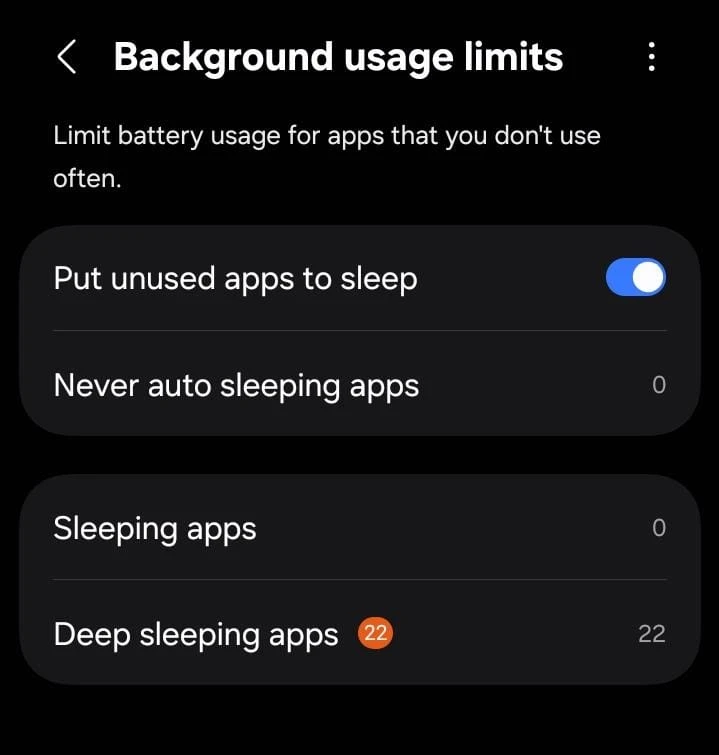
Sleeping apps
Sleeping applications have reduced background activity, but Samsung allows them to run occasionally. Notifications and updates may be delayed.
This is useful for apps you open from time to time but do not need to stay continuously active.
Deep sleeping apps
Deep sleeping places stronger restrictions on an application’s background operation.
Samsung explains that deep sleeping apps do not run in the background and generally receive updates and notifications only when opened.
This is better suited to rarely used shopping apps, games, or other nonessential applications that do not need automatic updates or immediate notifications.
Step 3: Add Apps to the Selected Category
- Open Sleeping apps or Deep sleeping apps.
- Tap the + or Add button.
- Select the applications you want to restrict.
- Confirm by tapping Add.
You can review these lists later and remove applications if the restriction causes problems.
Samsung also provides a category for apps that should never be automatically put to sleep. Its name may appear as Never auto sleeping apps or Never sleeping apps, depending on the software version.
This can help protect important applications that require reliable background operation.
For the official explanation, see Samsung’s Galaxy battery optimization guide.
How to Force Stop an Android App Immediately?
If an application is frozen, repeatedly opening itself, or behaving incorrectly, you can use Force stop.
This is different from configuring an ongoing background restriction.
To force stop an app:
- Open Settings.
- Tap Apps.
- Select See all apps, if needed.
- Choose the problem application.
- Tap Force stop.
- Confirm the action.
Android stops the selected application rather than simply removing its recent-app screen.
Force stop is useful when troubleshooting a malfunctioning application, but it does not replace a long-term battery usage setting. The app can operate again after it is restarted, and its future behavior depends on Android and the app.
Force-stopping an app may also interrupt unfinished work, such as an upload or download.
Important: Avoid force-stopping essential Android services, security functions, or applications managing important connected devices. Some system applications cannot be force-stopped at all.
If the app is genuinely malfunctioning, try stopping it once, reopening it, and checking whether the problem returns.
Which Background App Setting Should You Use?
Different Android controls solve different problems. Choosing the correct one is more useful than applying the strongest restriction everywhere.
| What You Want to Do | Best Starting Point | Important Limitation |
|---|---|---|
| Reduce ordinary battery consumption | Keep battery optimization enabled | Background activity may still occur |
| Limit one unnecessarily active app | Restrict its background battery usage | Notifications and syncing may be delayed |
| Keep a rarely used Samsung app inactive | Add it to Deep sleeping apps | Background updates may not arrive until the app opens |
| Stop a frozen or malfunctioning app | Use Force stop | Not a permanent background activity policy |
| Stop an ongoing foreground-service task | Use Active apps > Stop, where available | Scheduled work may still run later |
| Reduce background mobile data usage | Enable Data Saver | Does not stop all background processing |
| Stop using an unnecessary application altogether | Uninstall it, or disable it if supported | Some preinstalled applications cannot be removed or disabled |
For most users, the safest approach is to leave frequently used apps optimized and restrict only the applications causing a real problem.
How to Reduce Background Mobile Data Usage?
Battery consumption and mobile data consumption are related, but they are not the same problem.
An app can use battery power without accessing the internet. Similarly, an app may use mobile data while performing an important background task.
If your main concern is mobile data usage, Android’s Data Saver feature is usually more appropriate than aggressively restricting every app.
On supported Pixel and similar Android devices:
- Open Settings.
- Select Network & internet.
- Tap Data Saver.
- Turn on Use Data Saver or the equivalent switch.
When enabled, Data Saver limits background cellular data access for most apps. Many applications can still use background data over Wi-Fi, while currently active applications can continue using mobile data.
This feature does not shut down every background process.
If an essential app needs mobile data while Data Saver is enabled, check Settings > Network & internet > Data Saver > Unrestricted data and allow that particular app, where supported.
Google explains the behavior and exceptions in its Data Saver support documentation.
Some Android phones also provide individual Background data switches within an app’s mobile data settings. Turn off the relevant switch if your manufacturer offers it and the app does not need background cellular access.
Remember that limiting mobile data is not the same as revoking an app’s permissions or preventing all network activity.
Which Apps Should You Avoid Restricting?
Some applications need background activity to work correctly.
Restricting them too aggressively may create more problems than it solves.
Be especially careful with:
- Messaging and email apps: Important messages and notifications may arrive late.
- Calendar and reminder apps: Timely alerts or synchronization may be affected, depending on the app.
- Navigation and location-sharing apps: Routes or ongoing location updates may be interrupted.
- Music and podcast apps: Background playback may be affected.
- Cloud backup apps: Photos, files, or other information may stop uploading automatically.
- Health and fitness applications: Activity recording or synchronization may be interrupted.
- Smartwatch and connected-device apps: Background communication may become unreliable.
- VPN, accessibility, safety, and security apps: Essential background features may stop operating as expected.
Not every application in these categories requires unrestricted battery access. Many work correctly with Android’s default optimization.
The right approach is to keep important functions enabled, test their behavior, and make exceptions only when necessary.
For example, you may be comfortable putting a shopping app into deep sleep, but doing the same to an app that monitors a connected medical or safety device could interfere with important notifications.
Other Ways to Reduce Unnecessary Background Activity
You do not always need the strongest background restriction to solve the problem.
Keep Adaptive Battery Enabled
Adaptive Battery allows Android to learn how you use applications and reduce unnecessary activity from apps you open less often.
On supported Pixel phones, you can check it under:
Settings > Battery > Battery Saver > Adaptive Battery
Enable Use Adaptive Battery if the option is available and currently disabled.
Google recommends leaving Adaptive Battery enabled. However, it can sometimes delay background activity or notifications.
Adaptive Battery is a general power-management feature, not a guarantee that applications will never run in the background.
Review Unused Apps
Android can automatically pause applications that have not been used for an extended period.
Depending on your device, you can find these applications under Settings > Apps > Unused apps.
This feature can restrict unused applications, stop their notifications, and revoke permissions until they are used again.
If an application is important but rarely opened, review its unused-app settings before assuming that notifications will continue arriving normally.
Review Unnecessary Permissions
If your concern is privacy or location tracking, examine the permissions an application has rather than relying only on battery restrictions.
Go to Settings > Apps, select the application, and open Permissions.
For example, if a shopping app does not need continuous access to your location, consider changing its location permission from Allow all the time to Allow only while using the app, where those options are available.
You can also review other permissions, including microphone, camera, nearby devices, and notifications.
Google’s Android app permission guide explains the available controls.
Remember that changing permissions does not necessarily stop an app from running. It limits access to the specific device features or information covered by those permissions.
Uninstall Apps You No Longer Need
If you never use an application, removing it may be the simplest solution.
Open the app’s information screen and select Uninstall, where available.
Some preinstalled applications cannot be uninstalled. Certain devices provide a Disable option instead, but its availability depends on the manufacturer and the app.
Check whether important files, downloaded content, or local app information need to be saved before uninstalling anything.
Do not disable unfamiliar system components simply because their names appear technical or because they use some battery power.
Why Do Apps Keep Running After You Close Them?
You might swipe an app away from the recent-apps screen and notice activity again later.
This is not automatically a malfunction.
Android can restart or schedule certain operations when needed. Some applications receive system events, complete deferred tasks, or provide services that operate separately from their visible screen.
There is also a difference between three actions:
- Closing a recent app: Removes the app’s visible task from the recent-apps view. It does not establish a lasting background restriction.
- Force stopping: Stops the selected application as a troubleshooting action. It is not the same as changing the app’s normal background permissions.
- Restricting background usage: Changes how Android permits the application to operate when you are not actively using it.
Repeatedly clearing all recent apps is usually unnecessary. Android manages inactive applications and memory without requiring constant manual intervention.
Avoid using unfamiliar task-killer applications that promise to stop all Android processes or automatically clear RAM throughout the day. They may interfere with legitimate work, while their battery-saving benefits are not assured.
Similarly, avoid changing the Background process limit in Developer options as a routine battery-saving measure. Such controls are intended for specialized use and can disrupt ordinary app behavior.
Use Android’s built-in battery management features first.
What to Do If Your Battery Still Drains Quickly?
Restricting background apps cannot solve every battery problem.
If your phone continues losing charge unusually fast, follow a simple troubleshooting process.
1. Restart the Phone
Restarting can resolve a temporary software problem or misbehaving process.
Use your phone’s normal restart control, then check whether the issue returns.
2. Update Android and Your Apps
Open Settings and check for available system updates. Then open the Google Play Store and review pending app updates.
Software updates can fix bugs affecting background processes, synchronization, or power consumption.
3. Recheck Battery Usage
After a period of normal use, return to the battery usage screen.
Determine whether the same application is still consuming unexpected power.
If a particular app continues causing problems, check whether it has an internal setting for background refresh, frequent synchronization, or automatic uploads.
4. Check Other Sources of Battery Drain
A bright screen, weak cellular signal, demanding games, repeated GPS use, or a recent software update can also increase battery consumption.
Do not assume that every unexpected battery percentage drop is caused by a background app.
If battery life continues worsening despite reasonable software settings, examine the battery’s condition.
TechBonafide’s guide on how to check whether your phone’s battery health is getting worse explains how to distinguish possible battery aging from software-related drain.
5. Test the Change Under Similar Conditions
A simple comparison can help you avoid guessing.
Before changing another setting, note:
- Which application appears to consume unusual battery power.
- Whether the phone is connected to Wi-Fi or mobile data.
- Whether the phone is mostly idle or being actively used.
- Whether important notifications and synchronization still work.
Then observe the phone under similar conditions after changing one app’s setting.
Compare battery usage over comparable periods rather than relying on a single percentage reading.
If the issue improves and the app still works correctly, keep the setting. If the problem remains or important functions fail, restore the previous setting and investigate another cause.
This approach is more reliable than restricting several applications simultaneously without knowing which change made a difference.
Conclusion
The best way to stop apps from running unnecessarily in the background on Android is to identify the application first, then adjust its battery settings.
Google Pixel and similar Android phones offer individual background battery controls, while Samsung Galaxy phones provide Sleeping apps and Deep sleeping apps for managing unwanted activity.
Use Force stop for an app that is currently malfunctioning, Data Saver for unnecessary background mobile data, and normal battery optimization for applications that need to remain reliable.
Most importantly, do not restrict every application just to make your phone appear cleaner or faster. Android already manages many background processes automatically. Target the apps causing genuine problems, check the results, and restore background access when an important feature stops working.

Tech Bonafide is the editorial identity of TechBonafide, an independent technology publication covering AI, software, cybersecurity, gadgets, and emerging technology.