

Your phone’s battery health may be getting worse if it drains faster than before, shuts down unexpectedly, or struggles to hold a charge. You can check battery health using built-in iPhone or supported Android tools, compare daily battery usage, and watch for repeated performance problems. However, fast battery drain does not always mean the battery is damaged. Background apps, software updates, weak network signals, and high screen brightness can produce similar symptoms.
What Battery Health Means in Simple Terms?
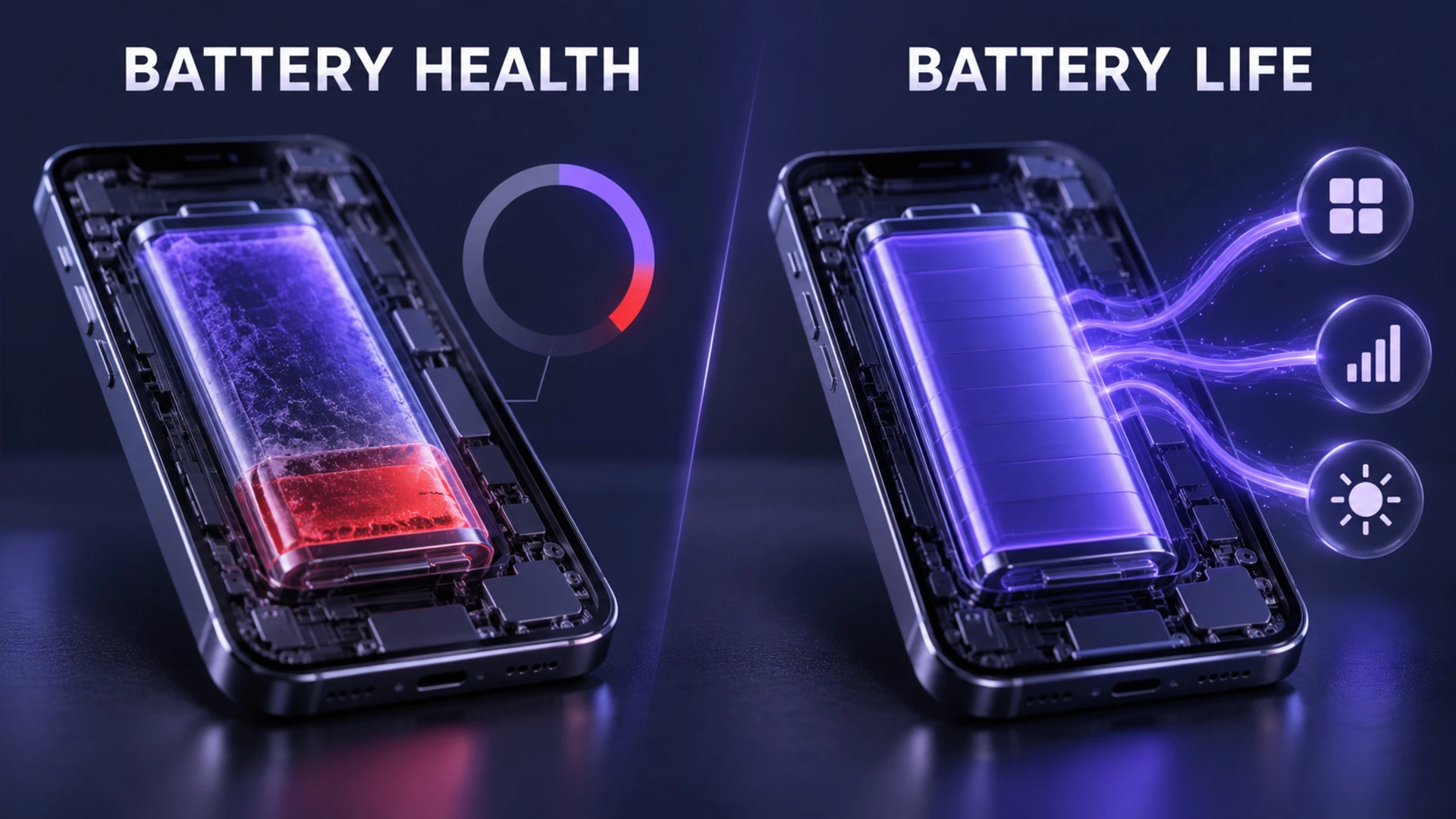
Battery health is a snapshot of how much energy your battery can hold compared to when it was new. As the battery ages, chemical wear reduces capacity and peak power output.
Lower capacity means fewer hours between charges. Reduced peak performance can also cause slowdowns or unexpected shutdowns, especially at low charge levels.
Battery health and battery life are related, but they are not the same thing. Battery health describes the battery’s remaining capacity and ability to deliver power as it ages. Battery life refers to how long your phone runs on a charge. A phone with good battery health can still lose power quickly when demanding apps, poor cellular coverage, or high brightness increase energy use.
Common Signs Your Battery is Getting Worse
Some warning signs are obvious, while others show up only after a few weeks. Pay attention to repeated patterns rather than a single bad day. These symptoms can indicate battery deterioration, but software activity, environmental conditions, and charging problems may also be responsible.
- Faster daily drain: Your usual routine needs extra top-ups even with similar app use and brightness.
- Sudden percentage drops: The battery gauge falls quickly from one level to another, particularly at lower charge levels.
- Unexpected shutdowns: The phone turns off even though the battery indicator is not at zero.
- Heat during light use: Your phone repeatedly becomes unusually warm during simple activities like messaging or browsing. This may involve background activity, environmental conditions, or a hardware issue, so heat alone does not prove battery deterioration. iPhone users can explore common causes in our guide explaining why your iPhone gets hot.
- Charging feels inconsistent: Charging speed changes significantly without a clear reason, or the phone repeatedly stalls at certain percentages.
Once these signs become repeatable, it is worth checking battery statistics and available diagnostic tools inside the operating system.
How to Check Battery Health on iPhone?
iOS provides built-in battery health information that helps you understand capacity loss and potential performance problems. Depending on your iPhone model and software version, you may also see charge cycle information, battery condition messages, and service recommendations.
- Open Battery Health Settings: On iPhone 15 and later, go to Settings > Battery > Battery Health. On iPhone 14 and earlier, go to Settings > Battery > Battery Health & Charging, where supported. Menu names can vary with the iPhone model and iOS version.
- Review Maximum Capacity: Check the estimated percentage of battery capacity remaining compared with when the battery was new. A lower percentage generally indicates more chemical aging.
- Check Battery Performance Information: Look for available peak performance details, battery condition messages, or service recommendations. The information displayed depends on the iPhone model and software version.
- Check Cycle Count If Available: On supported iPhone 15 and later models, the Battery Health screen also shows the charge cycle count. This helps you understand how much the battery has been used over time.
- Review Charging Protection Settings: Check Optimized Battery Charging or available charge limit options. These features can help reduce time spent at high charge levels and support longer battery lifespan.
If maximum capacity is noticeably lower than expected for your phone’s age, review Apple’s iPhone battery and performance guidance to understand what the reading means and whether a service recommendation has appeared. Compare the reported capacity with your normal daily runtime and any unexpected shutdowns before deciding on a replacement.
How to Check Battery Health on Android?
Android battery health information varies by manufacturer and software version. Battery usage charts help identify apps consuming power, but they do not necessarily show the battery’s remaining capacity. On supported Pixel models, Google’s guide to Pixel battery health explains how to check battery condition, estimated capacity, and charge cycle information.
- Check Battery Usage: Open Settings > Battery > Battery usage, or the equivalent menu on your phone. Review which apps and system activities consume the most power. This shows battery consumption, not necessarily battery health.
- Check Google Pixel Battery Health: On supported Pixel 8a and later models, open Settings > Battery > Battery health. Check whether the battery status is Normal or Reduced. You can also view estimated capacity and find cycle-count information under Settings > About phone > Battery information.
- Check Samsung Galaxy Battery Status: Open the Samsung Members app and access Phone diagnostics through the available support or diagnostics menu. Select the battery status test and review the result. Depending on the model, Samsung may report conditions such as Normal, Weak, or Bad.
- Check Other Android Brands: Look for Battery health, Battery condition, Battery diagnostics, or similar options in device settings or the manufacturer’s official support app. The available features depend on the phone model and software version.
- Compare Battery Performance Over Time: If your Android phone does not display a battery health percentage, monitor daily runtime, unexpected shutdowns, charging behavior, and unusual heat. Arrange a professional diagnostic check if problems continue.
Samsung Galaxy users can follow Samsung’s battery status diagnostics guide to check battery condition through the Samsung Members app. If your Android device does not provide a clear battery health reading, compare daily usage patterns, charging behavior, and repeated performance problems. Consider a professional diagnostic check if the symptoms continue.
Use Battery Cycle Count and Capacity Clues
A charge cycle represents cumulative battery use equivalent to 100% of the battery’s capacity. It does not require using all that power in one session. For example, using 50% of the battery one day and another 50% the following day adds up to one complete cycle. Apple explains this process in its guide to lithium-ion charge cycles.
Battery cycle count helps estimate long-term wear, but there is no single cycle limit for every phone. Apple states that iPhone 14 models and earlier are designed to retain about 80% of their original capacity after 500 complete charge cycles under ideal conditions. For iPhone 15 models and later, that figure is 1,000 cycles. Google lists approximately 800 cycles for Pixel 3 through Pixel 8 Pro and the original Pixel Fold, and 1,000 cycles for Pixel 8a and later. These figures are manufacturer design benchmarks, not guarantees of exact battery lifespan. Temperature, usage patterns, and charging habits also affect actual capacity.
Quick Battery Checks You Can Do Without Extra Apps
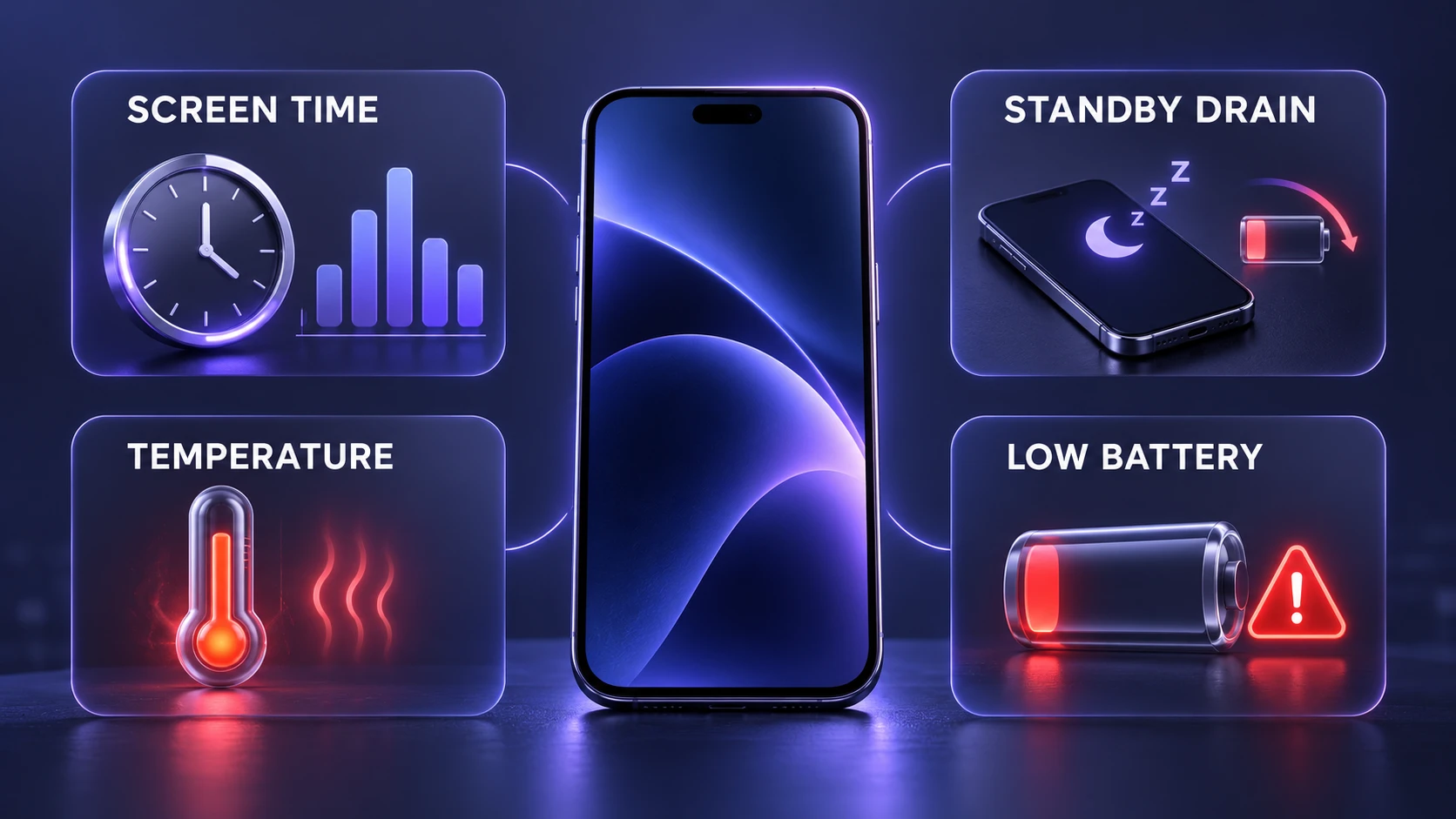
You do not need third-party tools to spot many battery issues. A few simple checks can help you determine whether the decline is consistent or related to temporary usage conditions.
- Compare Screen on Time: Note your screen time after a normal day and compare it weekly for a month. Try to compare days with similar app usage, brightness, and network conditions.
- Watch Standby Drain: Leave the phone idle for an hour with the screen off and check whether the battery percentage drops unusually quickly. Repeat the observation under similar conditions before drawing conclusions.
- Check Temperature During Use: If the phone becomes unusually hot during light tasks, background processes, environmental conditions, or a battery problem may be involved.
- Review Low Battery Behavior: During normal use, notice whether the battery percentage suddenly drops, the phone slows down, or it shuts off before reaching 0 percent. Do not deliberately drain the battery to a very low level just to perform this check.
These checks work best when your network signal is stable, since weak cellular coverage can increase power consumption. Remember that everyday battery drain is influenced by several factors, so compare repeated patterns rather than relying on one test.
Battery Health Red Flags You Should Not Ignore
Some symptoms suggest the battery may no longer be safe or stable. Treat serious physical warning signs as a priority rather than assuming they are part of normal battery aging.
- Swelling or screen lift: A bulging battery can push the display upward or create visible gaps in the phone’s frame.
- Rapid overheating: Unusually severe heat during charging or basic use may indicate a charging, battery, or hardware problem.
- Charging port smells or discoloration: Burning smells, smoke, unusual marks, or visible damage around the charging port require immediate attention.
- Repeated shutdown loops: Frequent restarts during normal use can indicate battery instability or another hardware or software issue.
If your phone shows battery swelling, a lifting screen, smoke, a burning smell, or unusually severe heat, stop using and charging it immediately. Do not press a swollen screen back into place, open the battery, or attempt a repair yourself. Arrange an inspection through the manufacturer or a qualified repair professional. If the problem is limited to repeated shutdowns without signs of physical damage or overheating, back up your data and schedule a battery diagnostic check.
Battery Drain Issues That Are Not True Battery Wear
Not all battery drain is caused by chemical aging. Software, network conditions, and phone settings can create symptoms that look like battery deterioration even when the battery’s remaining capacity is still reasonable.
- Recent system update changes: Indexing, syncing, and background optimization may temporarily increase battery consumption after a software update.
- High background location use: Navigation, fitness tracking, and social apps can frequently access location services and consume additional power.
- Poor signal conditions: The cellular modem may consume more power when searching for service or switching between network connections.
- Battery hungry widgets and notifications: Frequent refresh activity and unnecessary notifications can increase background power consumption.
When battery drain improves after managing these factors, the problem may be related to software or usage rather than permanent battery deterioration. Check battery usage statistics before assuming that a replacement is necessary.
Battery Health Check Table You Can Use
This table helps you connect common battery symptoms with possible causes and practical next steps. Use it as a quick troubleshooting reference before deciding whether your phone needs a battery replacement.
| What You Notice | Possible Cause | What To Do Next |
|---|---|---|
| Maximum capacity reading decreases over time | Normal chemical aging, possibly accelerated by heat | Monitor capacity and daily runtime. Consider replacement if reduced capacity affects regular use. |
| Battery percentage suddenly jumps or drops | Inaccurate charge estimation or battery deterioration | Check for software updates and monitor the pattern. Request battery diagnostics if the issue continues. |
| Phone shuts down before the battery reaches 0% | Reduced battery power delivery or another hardware or software problem | Back up important data and arrange a diagnostic check if shutdowns repeat. |
| Phone becomes unusually hot while charging | Environmental heat, heavy background activity, charging accessories, or a battery problem | Stop charging if overheating is severe. Check for damaged accessories and seek service if the problem persists. |
| Battery health reports Reduced, Weak, Bad, or a service warning | The device has detected possible battery deterioration | Review the manufacturer’s guidance and consider professional battery inspection or replacement. |
After identifying the possible cause, you can take steps to improve everyday battery life and reduce unnecessary battery stress. However, a diagnostic check may still be necessary if serious symptoms continue.
How to Slow Battery Health Decline?
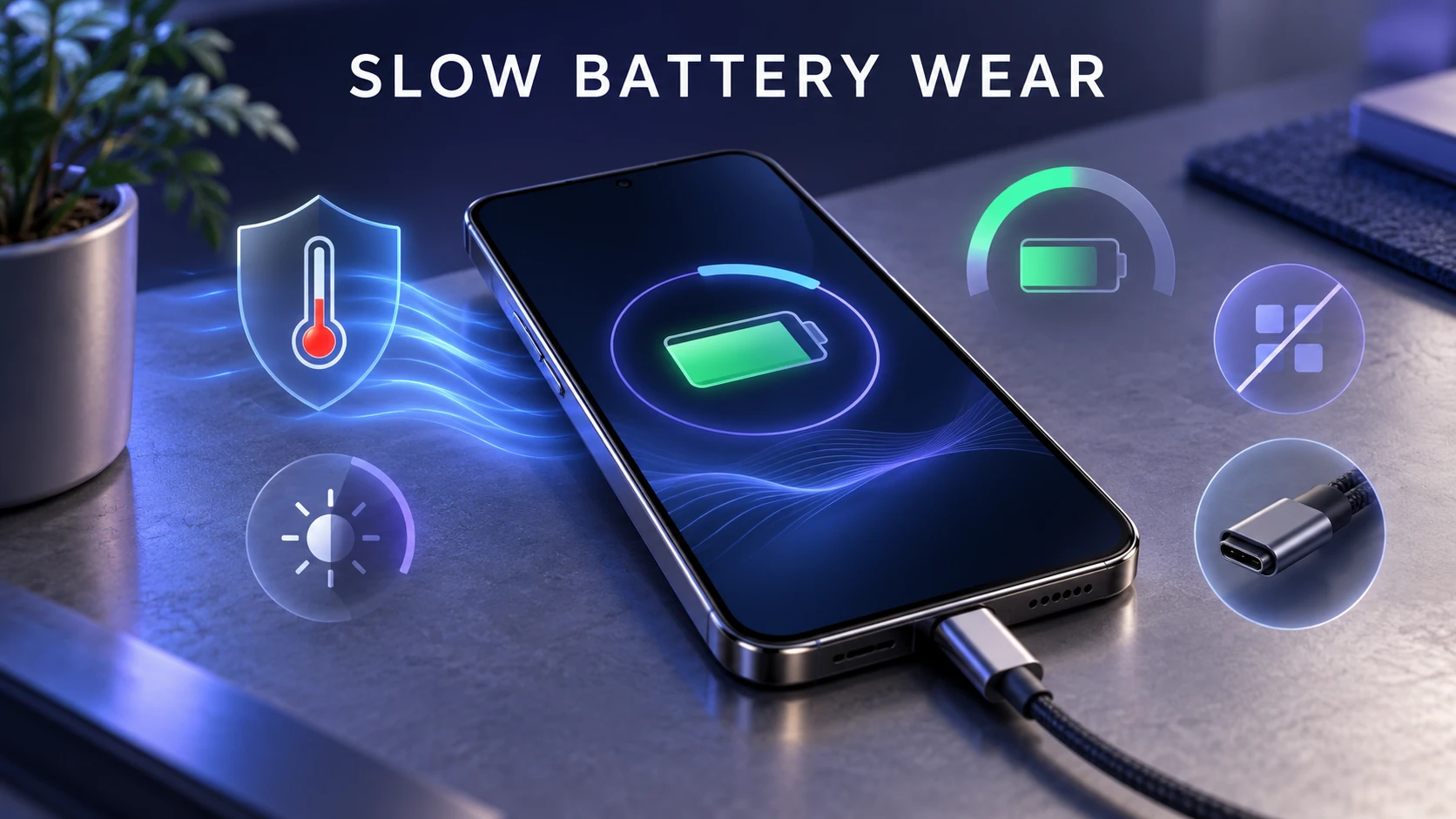
Battery wear cannot be stopped completely, but good charging habits can help slow unnecessary deterioration. The main priorities are limiting excessive heat, avoiding prolonged periods at very high charge levels, and reducing repeated deep discharges when practical. If you want to understand the relationship between charging speed and battery lifespan, read our guide explaining whether fast charging is bad for your battery.
- Keep charging cool: Charge your phone in a well-ventilated environment and remove thick cases during charging if they cause excessive warmth. Avoid leaving the phone in direct sunlight or other hot locations.
- Avoid long periods at 100 percent: Use optimized charging, adaptive charging, or available charge limit features to reduce unnecessary time at a full charge. Charging to 100 percent is still reasonable when you need maximum battery runtime.
- Use compatible charging accessories: Choose reputable chargers and undamaged cables that meet your phone’s charging requirements. A charger with higher advertised wattage does not automatically improve charging speed, because the phone controls how much power it accepts. Our USB-C fast charging guide explains USB Power Delivery, PPS, and wattage so you can select suitable charging accessories.
- Lower unnecessary background activity: Restrict background refresh and location activity for apps that do not need constant access. This primarily improves daily battery runtime rather than reversing existing battery wear.
- Use moderate brightness: Automatic brightness and dark mode on compatible displays can reduce screen power consumption and help your phone last longer between charges.
Consistency matters more than extreme changes. Simple habits such as avoiding excessive heat and using appropriate charging features can help reduce battery stress. Settings that lower power consumption can improve daily battery life, but they cannot restore capacity already lost through chemical aging.
When A Battery Replacement Makes Sense
A battery replacement is worth considering when reduced capacity or unreliable performance begins affecting your daily routine. Signs may include needing several charges each day, repeated shutdowns, a manufacturer service recommendation, or noticeably shorter battery life despite similar usage. A battery health reading near or below 80 percent can also be a useful reason to consider replacement, although it is not an automatic failure threshold for every device.
If you are comparing repair versus upgrade, check the phone’s overall condition, repair cost, storage capacity, and remaining software support. A phone that still performs well but has an aging battery may benefit from a replacement rather than a complete upgrade. Use an authorized or qualified repair provider, particularly when the battery is swollen, damaged, or overheating.
Conclusion
To check if your phone’s battery health is getting worse, look for repeated battery drain patterns, charging inconsistencies, unexpected shutdowns, and unusual heat. Use the built-in battery health features available on your iPhone or supported Android device to check capacity and battery condition. Battery usage statistics can also help identify software-related power drain that does not necessarily indicate permanent battery wear.
Once you understand the likely cause, focus on reducing excessive heat, using suitable charging accessories, enabling charging protection features, and managing unnecessary background activity. If the phone becomes unreliable or repeatedly shuts down, arrange a professional battery diagnostic check. For swelling, smoke, burning smells, or severe overheating, stop using and charging the device and seek professional assistance.
Frequently Asked Questions
What Maximum Capacity Number is Considered Bad on an iPhone?
Around 80% maximum capacity is a useful point to consider an iPhone battery replacement, especially if battery life has become noticeably shorter. However, 80% does not mean the battery immediately stops working. Check whether iOS recommends battery service and whether you experience unexpected shutdowns, reduced performance, or frequent charging. A battery above 80% may still need inspection if it behaves abnormally.
Why Does My Battery Percentage Drop Fast Even After a Full Charge?
Fast battery percentage drops can result from heavy background activity, weak cellular signals, high screen brightness, software issues, or battery deterioration. Open your phone’s battery usage settings to identify major power-consuming apps and activities. If the problem continues after reducing unnecessary background activity and checking for updates, consider a battery health assessment or professional diagnostic test.
Is Fast Charging Harming My Battery Health?
Fast charging is not automatically harmful because modern smartphones use charging controls and temperature monitoring to manage the process. However, repeated exposure to excessive heat can accelerate battery aging. If your phone consistently becomes unusually hot during fast charging, avoid charging in warm environments, reduce demanding activity while plugged in, and check your charging accessories. Using a compatible slower charger when charging speed is not important may also help reduce heat under some conditions.